






ConfigMgr SCCM Reports Task Sequence | Default | Configuration Manager
Let’s check the default ConfigMgr SCCM Reports Task Sequence. Thirty-one (31) out-of-box reports are available as part of Configuration Manager SSRS reports. Learn how to troubleshoot the deployments of Task Sequence using ConfigMgr.
There are other helpful hardware-related reports outside ConfigMgr Task Sequence reports. Also, you can learn How to Launch ConfigMgr Reports from the previous post here.
If you have trouble opening default SCCM reports, refer to Fix Report Server. You cannot Open a Connection Error in ConfigMgr. Let’s also learn how to create a New Database for the SSRS Reporting Service.
In this post, you’ll find all the details about ConfigMgr SCCM Reports Task Sequence. We’ll cover the default settings and features in Configuration Manager, helping you understand and utilize these reports effectively.

Table of Contents
Requirements
Ensure you have all the following to access the ConfigMgr Task Sequence default reports.
- Reporting Services Point is installed.
- SSRS reports are working fine.
- Ensure you have appropriate permissions to launch reports from the Console and SSRS URL.
- ConfigMgr Reports Site Infrastructure Related | SCCM | Default Configuration Manager | Endpoint Manger
- SCCM ConfigMgr Asset Intelligence Reports | Default Reports | Configuration Manager
- SCCM ConfigMgr Hardware Related Reports | Default Reports | Configuration Manager
Launch ConfigMgr Client Reports
Let’s learn how to launch Task Sequence default reports from the console.
- Launch Console
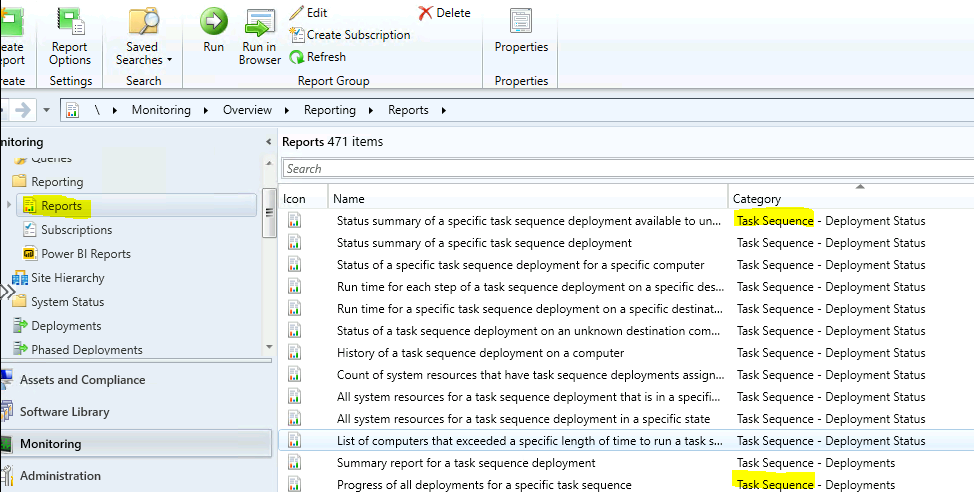
- Navigate to \Monitoring\Overview\Reporting\Reports.
- Sort the reports by Category.
- Right-click on the related report “Task Sequence“.
- Select the RUN option.
Task Sequence Reports
Let’s see how many Task sequence default reports are available in the ConfigMgr 2010 production version. There are four (4) category task sequence-related default SCCM SSRS reports.
| Task Sequence Reports |
|---|
| Task Sequence – Deployment Status |
| Task Sequence – Deployments |
| Task Sequence – Progress |
| Task Sequence – References |
Task Sequence – Deployment Status
The reports in the Task Sequence—Deployment Status category help identify the task sequence’s deployment status. There are 11 default reports available that provide SCCM TS Deployment status details.
| Task Sequence – Deployment Status |
|---|
| All system resources for a task sequence deployment in a specific state |
| All system resources for a task sequence deployment that is in a specific state and that is available to unknown computers |
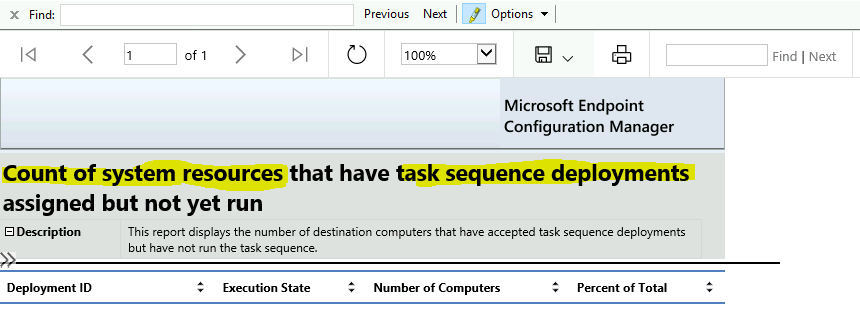
| Count of system resources that have task sequence deployments assigned but have not yet run |
| History of a task sequence deployment on a computer |
| List of computers that exceeded a specific length of time to run a task sequence deployment |
| Run time for a specific task sequence deployment on a specific destination computer |
| Run time for each step of a task sequence deployment on a specific destination computer |
| Status of a specific task sequence deployment for a specific computer |
| Status of a task sequence deployment on an unknown destination computer |
| Status summary of a specific task sequence deployment |
| Status summary of a specific task sequence deployment available to unknown computers |
This report displays the number of destination computers accepting task sequence deployments but not running the task sequence.
Task Sequence – Deployments
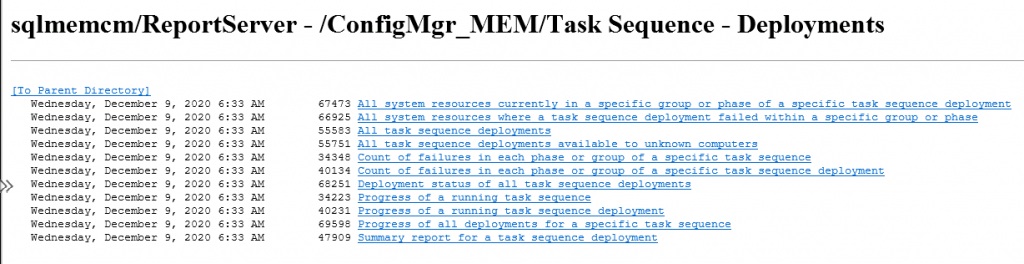
Let’s check the details of the Task Sequence Deployments category of reports. There are 11 default reports available that provide SCCM TS Deployment details.
| Task Sequence – Deployments |
|---|
| All system resources currently in a specific group or phase of a specific task sequence deployment |
| All system resources where a task sequence deployment failed within a specific group or phase |
| All task sequence deployments |
| All task sequence deployments available to unknown computers |
| Count of failures in each phase or group of a specific task sequence |
| Count of failures in each phase or group of a specific task sequence deployment |
| Deployment status of all task sequence deployments |
| Progress of a running task sequence |
| Progress of a running task sequence deployment |
| Progress of all deployments for a specific task sequence |
| Summary report for a task sequence deployment |
Task Sequence – Progress
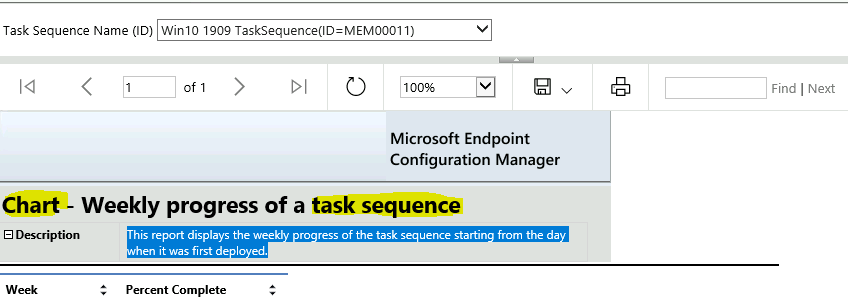
The reports in the Task Sequence—Progress category help identify the deployment Progress of the Task Sequence. Five default reports provide SCCM Task Sequence progress details. This report displays the weekly progress of the task sequence starting from the day it was first deployed.
| Task Sequence – Progress |
|---|
| Chart – Weekly progress of a task sequence |
| Progress of a task sequence |
| Progress of all task sequences |
| Progress of task sequences for operating system deployments |
| Status of all unknown computers |
Task Sequence – References
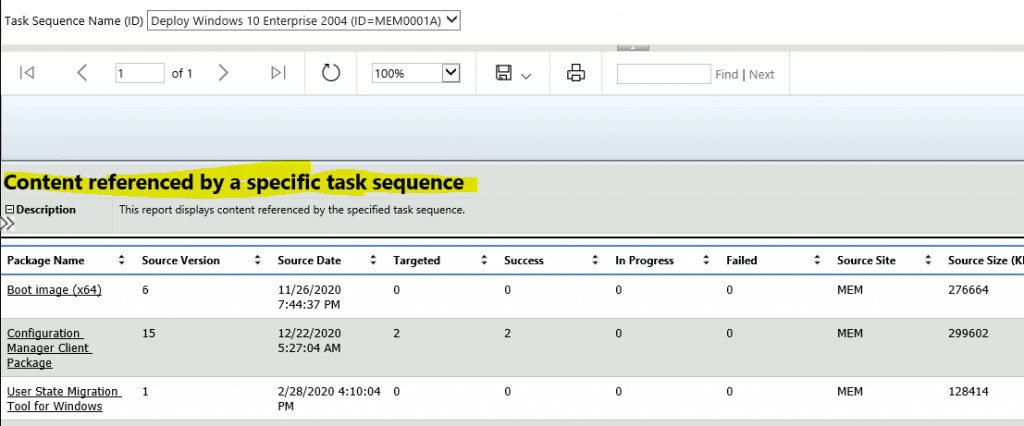
The reports in the Task Sequence—References category help identify the package’s references in the Task Sequence. This report displays content referenced by the specified task sequence.
Task Sequence – References |
|---|
| Content referenced by a specific task sequence |
Resources
I hope the ConfigMgr SCCM Reports Task Sequence information is helpful. If you like our content, please follow us on the HTMD Community and visit our website, HTMD Forum. Suggest improvements, if any, and we’d love to know which topic you want us to explore next.
We are on WhatsApp. To get the latest step-by-step guides and news updates, Join our Channel. Click here HTMD WhatsApp.
Author
Anoop C Nair is Microsoft MVP! He is a Device Management Admin with more than 20 years of experience (calculation done in 2021) in IT. He is a Blogger, Speaker, and Local User Group HTMD Community leader. His primary focus is Device Management technologies like SCCM 2012, Current Branch, and Intune. He writes about ConfigMgr, Windows 11, Windows 10, Azure AD, Microsoft Intune, Windows 365, AVD, etc.




Hi
I am running on SCCM CB 2103. Currently I am deploying Windows v21H1 as a task sequence.
I would like to know if there is a way (or) a report (or) query that could get me the list of clients to which the OS upgrade task sequence is not deployed.