






In this post, we will learn how to Configure ConfigMgr Preferred MP. You can also learn more about Preferred Management Points selection Criteria from the client’s perspective.
Microsoft officially released Preferred Management points in SCCM 2012 R2 SP1 or SCCM 2012 SP2 version.
Official description from Technet: Preferred management points enable a client to identify and communicate with a management point that is associated with its current network location or boundary. When configured, a client attempts to use a preferred management point from its assigned site before using one that is not configured as preferred.
There is no control to let client machines communicate to a specific Management Point. Also, multiple Management points were available for Fault Tolerance and could not be used for Load Balancing.

Do not position management points across a slow link from their primary or the site database server.
- Lab Hierarchy Information:
- Primary Site: AN1
- Site Server: LMECM04.Ann.com
- Management Point: LMECM04.Ann.com, LMECM05.Ann.com, LMECM06.Ann.com
- Default Boundary Group –LMECM04.Ann.com
- Lab Boundary group – With LMECM05.Ann.com, LMECM06.Ann.com
| Index |
|---|
| How to enable the Preferred Management point |
| How to Add the Management Points to Boundary Groups |
| How to check the Management Point assignment |
| Resources |
How to enable the Preferred Management point (Configure ConfigMgr Preferred MP)
The below steps explain how to enable the Configuration Manager Preferred Management Point:
Step 1:
- Launch the Configuration Manager Console,
- Select the Administration tab,
- Expand Overview -> expand Site Configuration
- Select Sites
- In the top ribbon, select the Hierarchy Settings
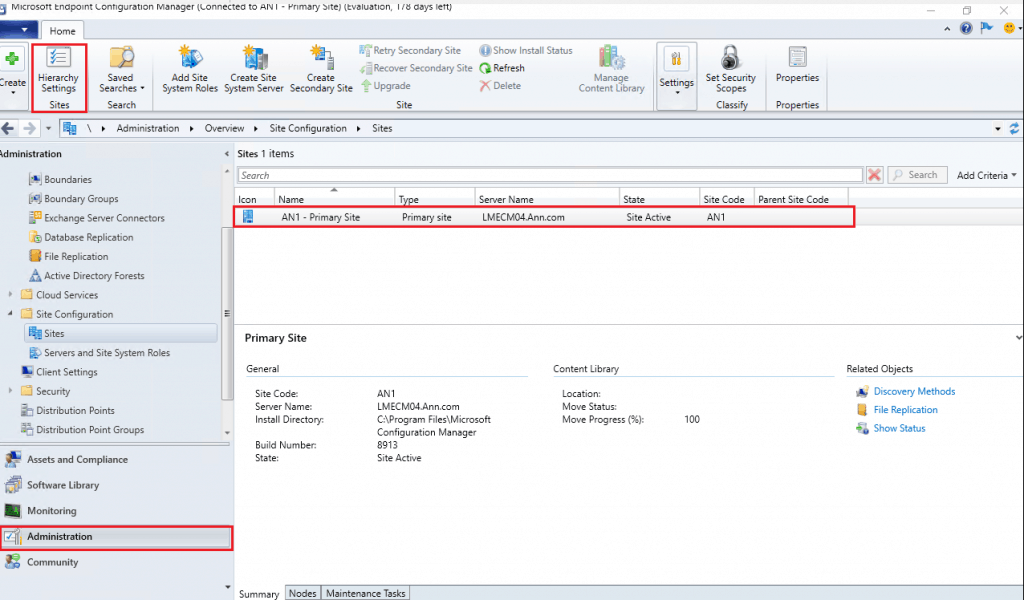
Step 2:
- In the Hierarchy Settings Properties window
- Select Clients prefer to use management points specified in boundary groups
- Click Apply and then click OK
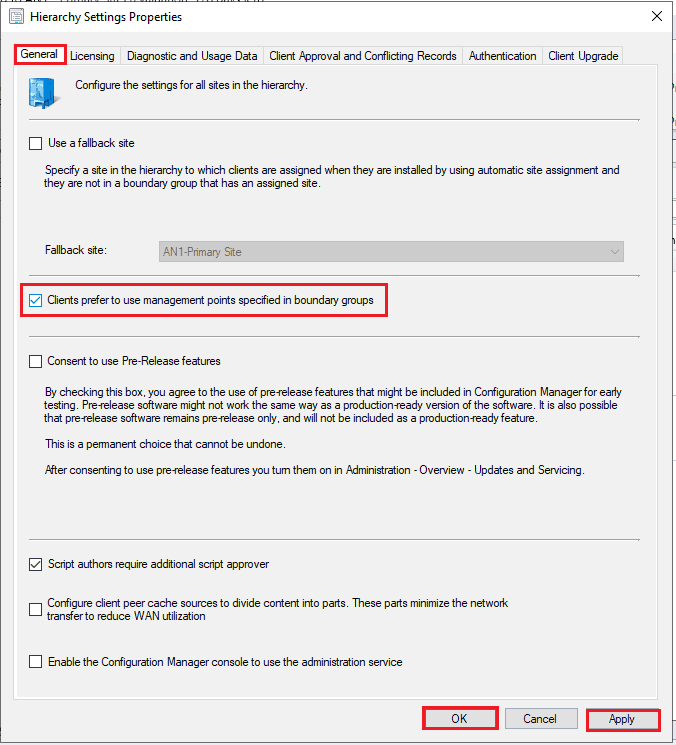
How to Add the Management Points to Boundary Groups
The below steps explain how to add the ConfigMgr management point into Boundary Groups,
Step 1:
- Launch the Configuration Manager Console,
- Select the Administration tab,
- Expand Overview -> select Boundary Groups
- In the right-hand panel, Select the Boundary group
- In the top ribbon, select the Properties
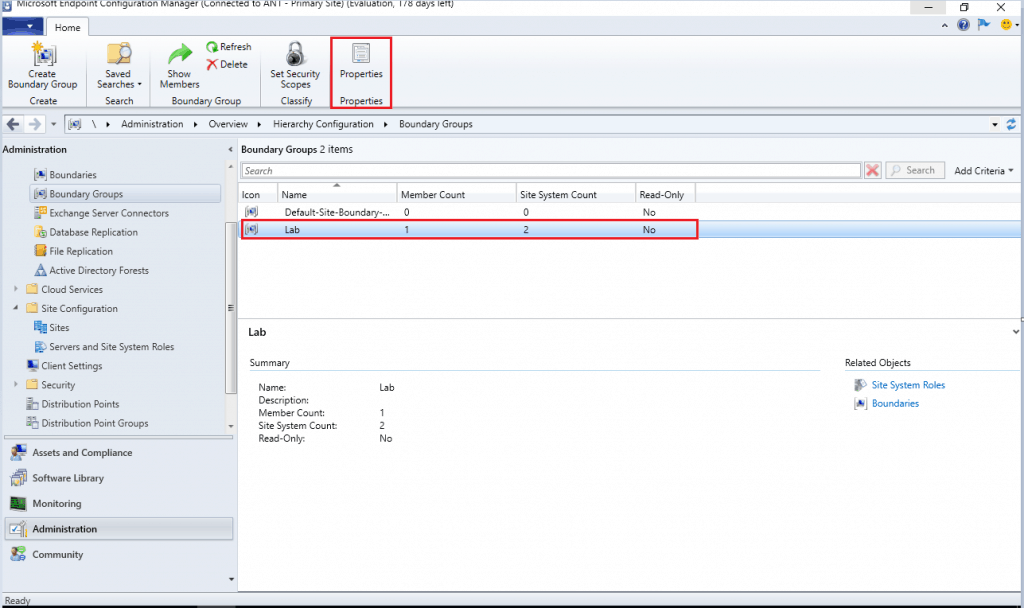
Step 2:
- Select the Reference tab,
- Select Use this boundary group for site Assignment
- Assigned Site -> Select the site client to be reported to the specific site
- In Site Systems servers -Add the management point servers
- Click Apply and then click OK
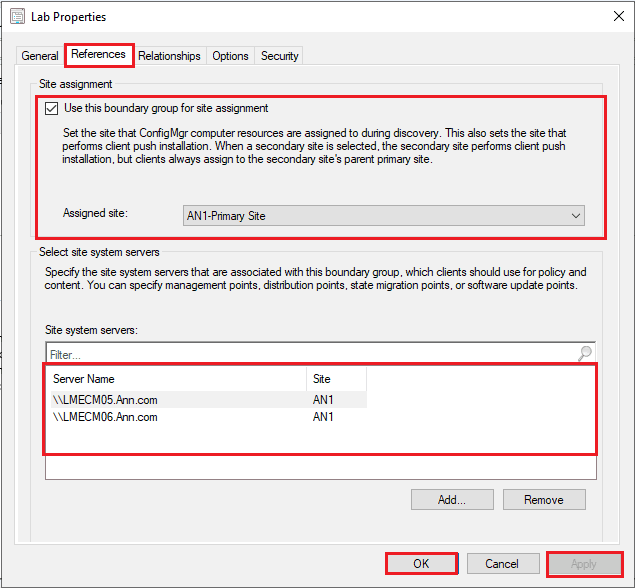
How to check the Management Point assignment
The below steps explain to the client the Management point assignment
- Currently, the client has been assigned to LMECM04.COM
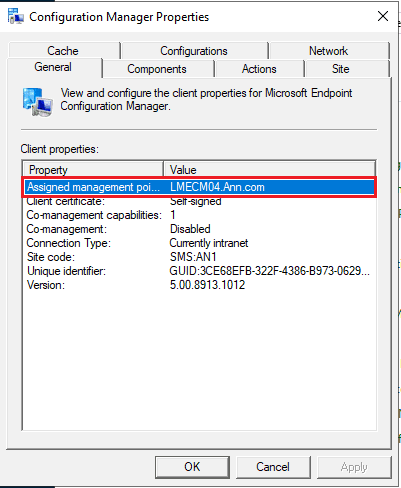
- LocationService.log file
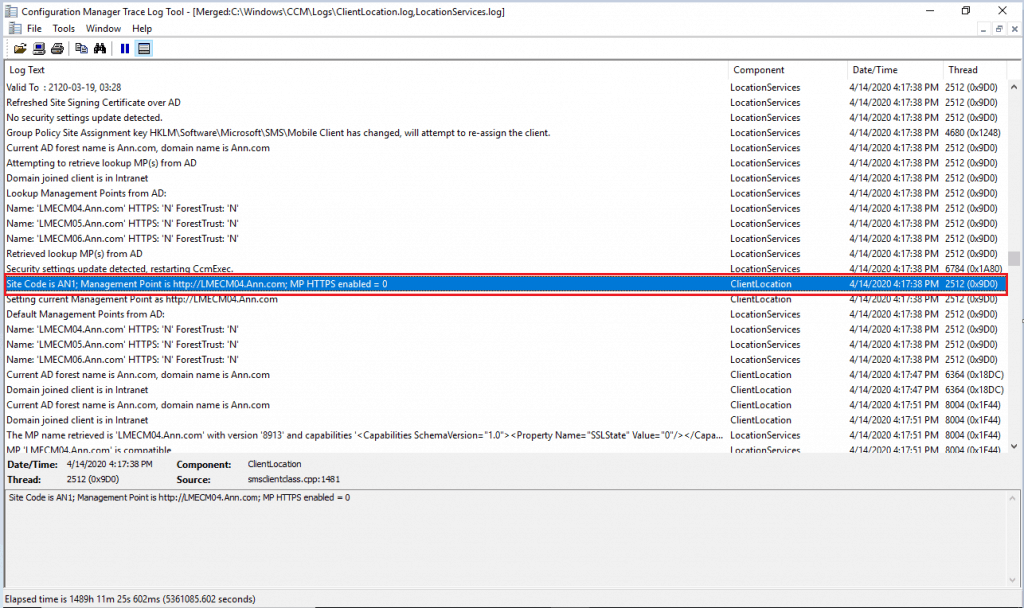
Log information in Text:
Domain joined client is in Intranet LocationServices 4/14/2020 4:17:38 PM 2512 (0x09D0)
Lookup Management Points from AD: LocationServices 4/14/2020 4:17:38 PM 2512 (0x09D0)
Name: 'LMECM04.Ann.com' HTTPS: 'N' ForestTrust: 'N' LocationServices 4/14/2020 4:17:38 PM 2512 (0x09D0)
Name: 'LMECM05.Ann.com' HTTPS: 'N' ForestTrust: 'N' LocationServices 4/14/2020 4:17:38 PM 2512 (0x09D0)
Name: 'LMECM06.Ann.com' HTTPS: 'N' ForestTrust: 'N' LocationServices 4/14/2020 4:17:38 PM 2512 (0x09D0)
Retrieved lookup MP(s) from AD LocationServices 4/14/2020 4:17:38 PM 2512 (0x09D0)
Security settings update detected, restarting CcmExec. LocationServices 4/14/2020 4:17:38 PM 6784 (0x1A80)
Site Code is AN1; Management Point is http://LMECM04.Ann.com; MP HTTPS enabled = 0 ClientLocation 4/14/2020 4:17:38 PM 2512 (0x09D0)
Setting current Management Point as http://LMECM04.Ann.com ClientLocation 4/14/2020 4:17:38 PM 2512 (0x09D0)
Post-client policy retrieval policy interval
- The client is identified as the default management as per the boundary group
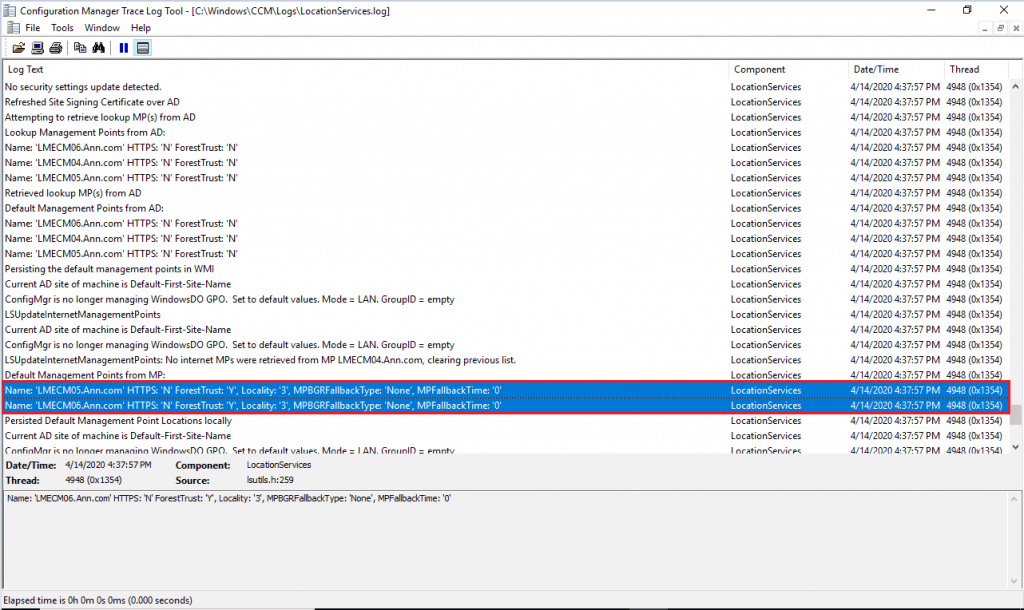
Log information in Text:
LSUpdateInternetManagementPoints: No internet MPs were retrieved from MP LMECM04.Ann.com, clearing previous list. LocationServices 4/14/2020 4:37:57 PM 4948 (0x1354)
Default Management Points from MP: LocationServices 4/14/2020 4:37:57 PM 4948 (0x1354)
Name: 'LMECM05.Ann.com' HTTPS: 'N' ForestTrust: 'Y', Locality: '3', MPBGRFallbackType: 'None', MPFallbackTime: '0' LocationServices 4/14/2020 4:37:57 PM 4948 (0x1354)
Name: 'LMECM06.Ann.com' HTTPS: 'N' ForestTrust: 'Y', Locality: '3', MPBGRFallbackType: 'None', MPFallbackTime: '0' LocationServices 4/14/2020 4:37:57 PM 4948 (0x1354)
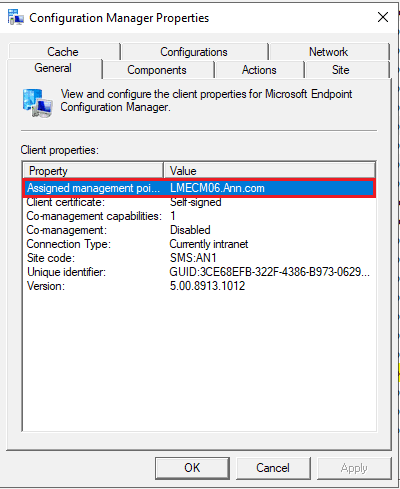
Now the client is assigned to the preferred management point
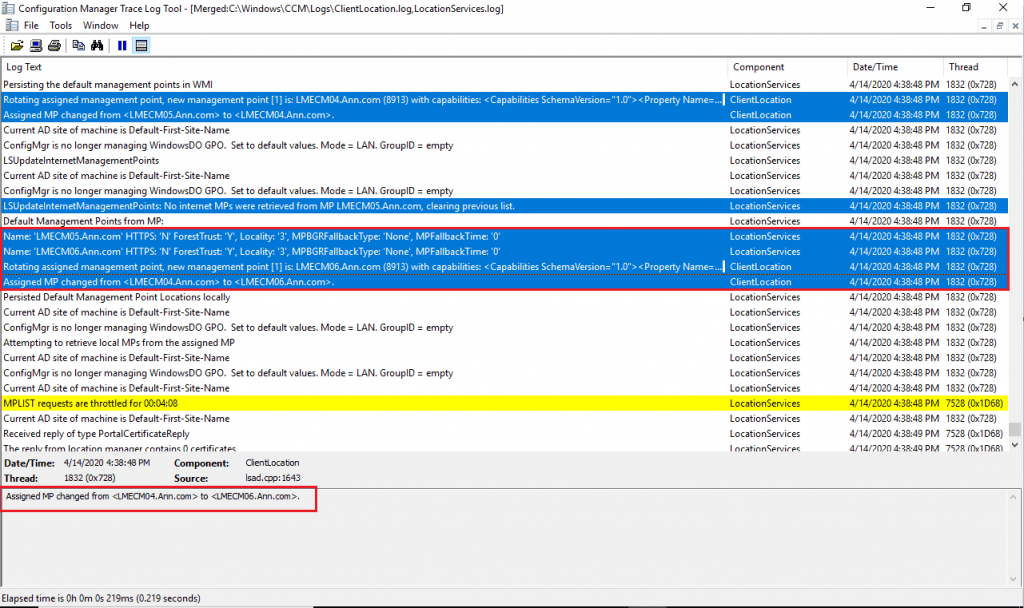
The client is assigned to the LMECM06.ann.com management point
Log information in Text:
- The client is assigned to the LMECM06.ann.com management point
LSUpdateInternetManagementPoints: No internet MPs were retrieved from MP LMECM05.Ann.com, clearing previous list. LocationServices 4/14/2020 4:38:48 PM 1832 (0x0728)
Default Management Points from MP: LocationServices 4/14/2020 4:38:48 PM 1832 (0x0728)
Name: 'LMECM05.Ann.com' HTTPS: 'N' ForestTrust: 'Y', Locality: '3', MPBGRFallbackType: 'None', MPFallbackTime: '0' LocationServices 4/14/2020 4:38:48 PM 1832 (0x0728)
Name: 'LMECM06.Ann.com' HTTPS: 'N' ForestTrust: 'Y', Locality: '3', MPBGRFallbackType: 'None', MPFallbackTime: '0' LocationServices 4/14/2020 4:38:48 PM 1832 (0x0728)
Rotating assigned management point, new management point [1] is: LMECM06.Ann.com (8913) with capabilities: ClientLocation 4/14/2020 4:38:48 PM 1832 (0x0728)
Assigned MP changed from to . ClientLocation 4/14/2020 4:38:48 PM 1832 (0x0728)
Note: Client roaming means changing its network locations. For example, when a laptop travels to a remote office location, a client might use a management point from the local site before attempting to use a server from its assigned site. This list of servers from its assigned site includes the preferred management points. For more information, see Understanding how clients find site resources and services.
Resources
- SCCM Preferred Management Points | Selection Criteria | ConfigMgr
- Reinstall Management Point Role | ConfigMgr
We are on WhatsApp. To get the latest step-by-step guides and news updates, Join our Channel. Click here –HTMD WhatsApp.
Author
Kannan is a Technical Architect with more than 15 years of experience in the IT domain. He has worked on various technologies, such as Windows server administration, SCCM, SCOM, and Desktop Engineering. For the last 10 years, he has been working in Microsoft SCCM, focusing on Configuration Manager and Intune technologies.




Discussion