






Enable Copilot Access to Page Context for Microsoft Entra ID Profiles for Edge Sidebar using Intune
Let’s discuss Enable Copilot Access to Page Context for Microsoft Entra ID Profiles for Edge Sidebar using Intune. Microsoft Intune provide policy to Control Copilot access to page context for Microsoft Entra ID profile. This policy gives organizations fine-grained control over how Copilot in the Microsoft Edge sidebar interacts with web page content.
This policy applies only to Microsoft Entra ID Microsoft Edge profiles. To summarize pages and interact with text selections, it needs to be able to access the page contents. This policy does not apply to MSA Microsoft Edge profiles.
This policy doesn’t control access for Copilot with enterprise data protection (EDP). Access for Copilot with enterprise data protection (EDP) is controlled by the ‘EdgeEntraCopilotPageContext‘ (Control Copilot access to Microsoft Edge page content for Entra account user profiles when using Copilot in the Microsoft Edge sidepane) policy.
As a admin, you can easily enable this policy is to unlock Copilot’s full potential. By allowing it to access page content, employees can use it to quickly summarize long articles, analyze data on a webpage, or get answers to questions about a specific document.

Table of Contents
Enable Copilot Access to Page Context for Microsoft Entra ID Profiles for Edge Sidebar using Intune
This policy provides many advantages for users, admins and organization. Primary benefit for administrators is the ability to enforce a consistent data privacy standard across the organization. When the policy is enabled, users can leverage Copilot’s full potential to perform tasks that would otherwise be time-consuming.
- How to Automate Tasks and Summarize Content with Copilot Chat in Microsoft Edge for Business
- Enable Automatic Sign-in to Bing MSN and Copilot in Microsoft Edge Browser using Intune
- How to Configure Redesigned New Tab Page Powered by Copilot on MS Edge Browser
Example Scenario
Imagine, you are an Admin on a software company and using Microsoft Edge as the Default browser. Your employees frequently research public documentation, read long technical articles, and analyze data on various websites. Allowing Copilot to access page content enables developers and product managers to quickly summarize complex whitepapers or get key insights from a lengthy bug report.
Steps to Configure the Policy
By signing in Microsoft Intune admin center, you can start configuring Component Updates in MS Edge. Open the Microsoft Intune Admin center. Go to Devices > Configuration > +Create >+ New Policy.
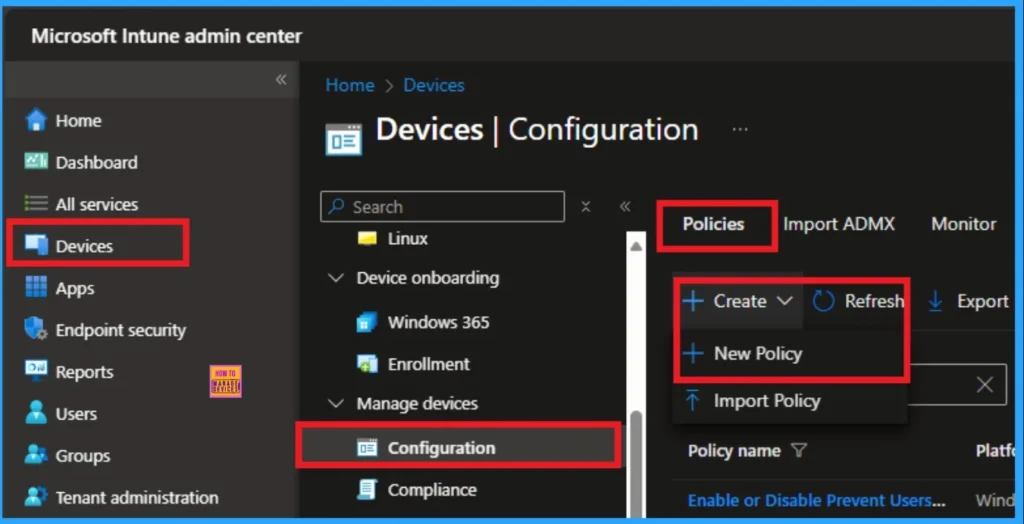
Profile Creation
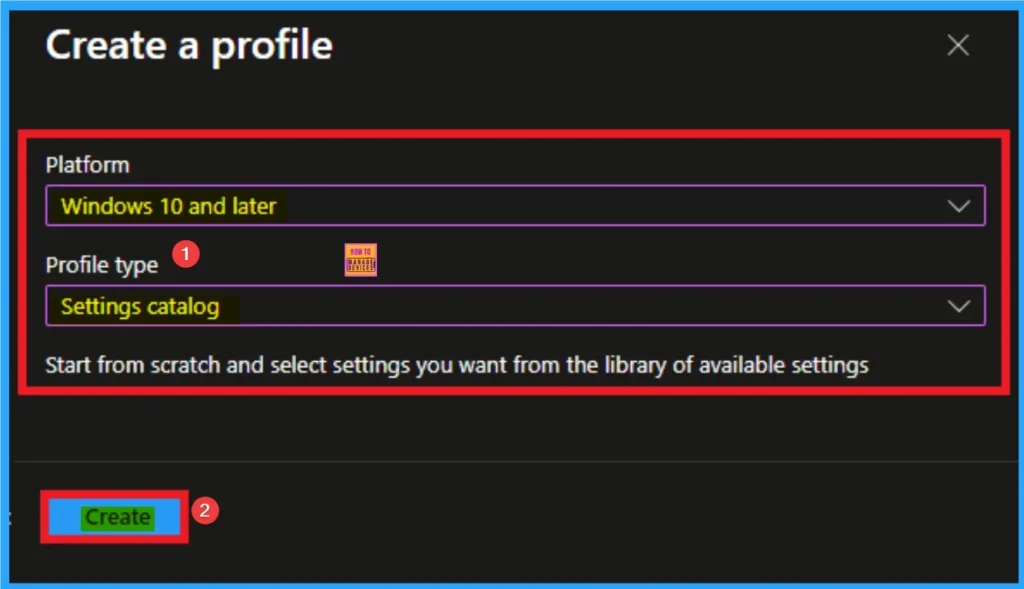
To create the profile, you have to select platform and profile type. It is a very necessary step and you cannot skip this. Here I would like to configure the policy to Windows 10 and later platform and settings catalog profile. Then click on the Create button.
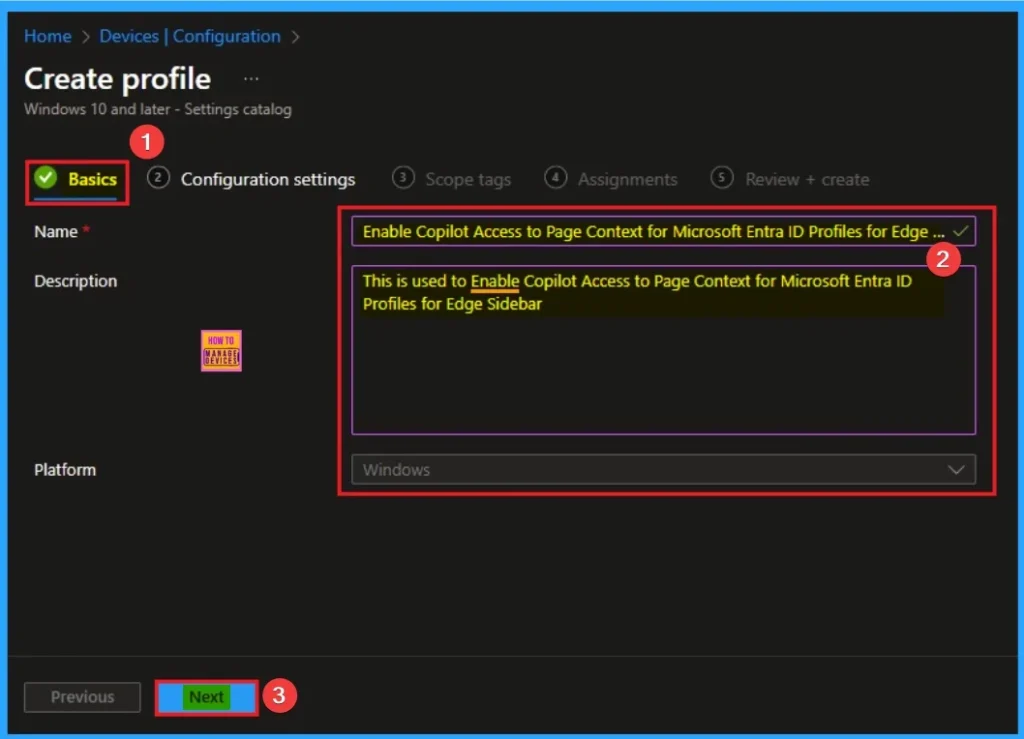
Adding Basic Details
Basic tab helps you to give an identify for the settings you have to select for policy creation. You should add appropriate name and description for policy. Here is Name is mandatory and description is optional. After adding this click on the Next button.
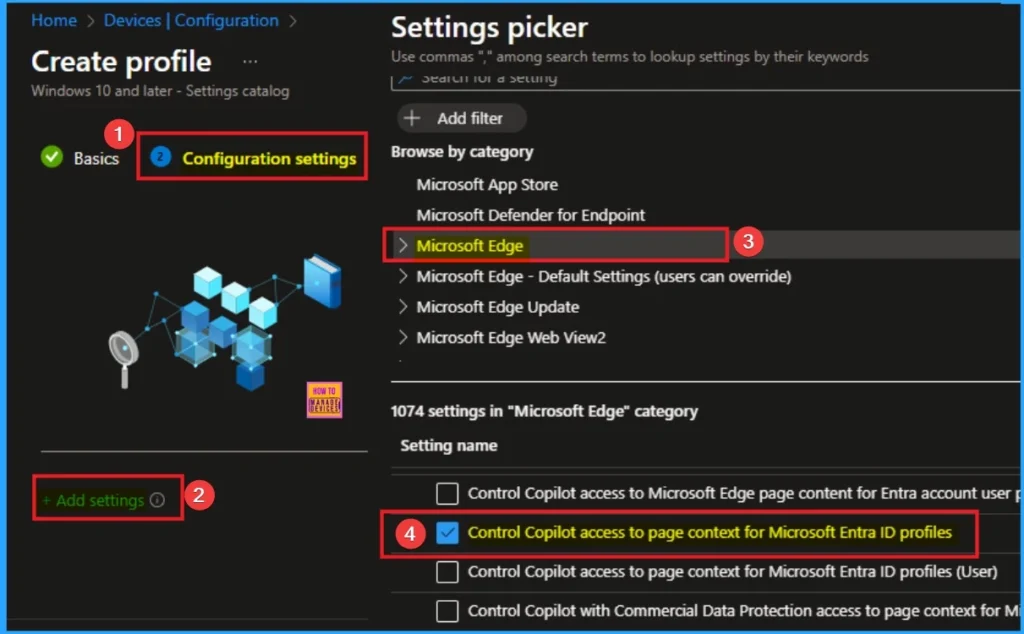
Configure Copilot Access to Page Context for Microsoft Entra ID Profiles
On the Configuration Tab, you can see the +Add settings hyperlink to access specific settings. When you click on this hyperlink, you will get Settings Picker. Here, I would like to select the settings by browsing by Category. I choose Microsoft Edge. Then, I choose Copilot Access to Page Context for Microsoft Entra ID Profiles settings.
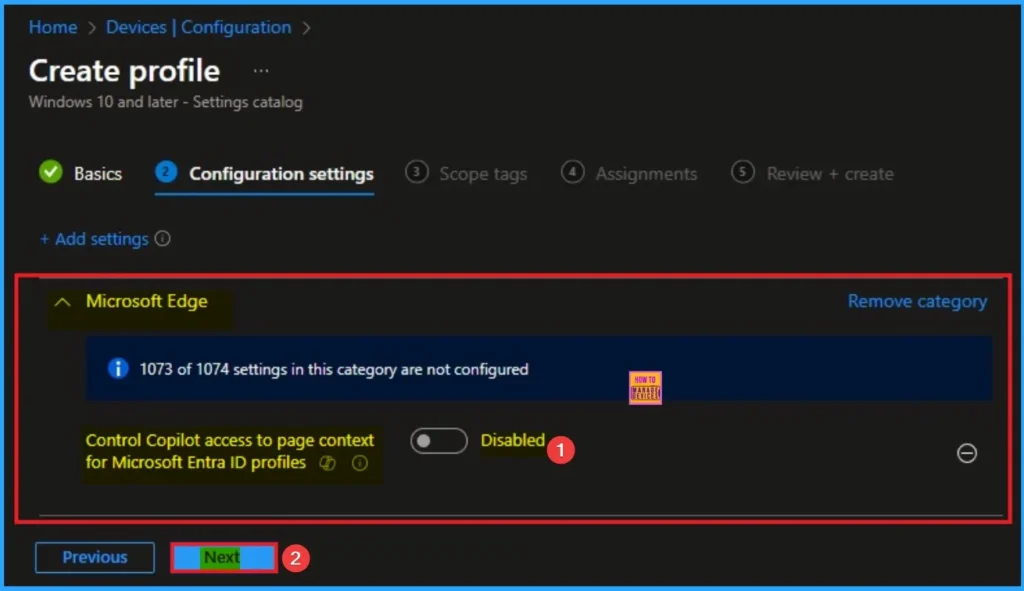
Disable Copilot Access to Page Context for Microsoft Entra ID Profiles
Disabling this policy provides a clear way to ensure that no page content is ever shared with an external service, helping to maintain compliance. Disable is the default value of this policy and if want to continue with this value, click on the Next button.
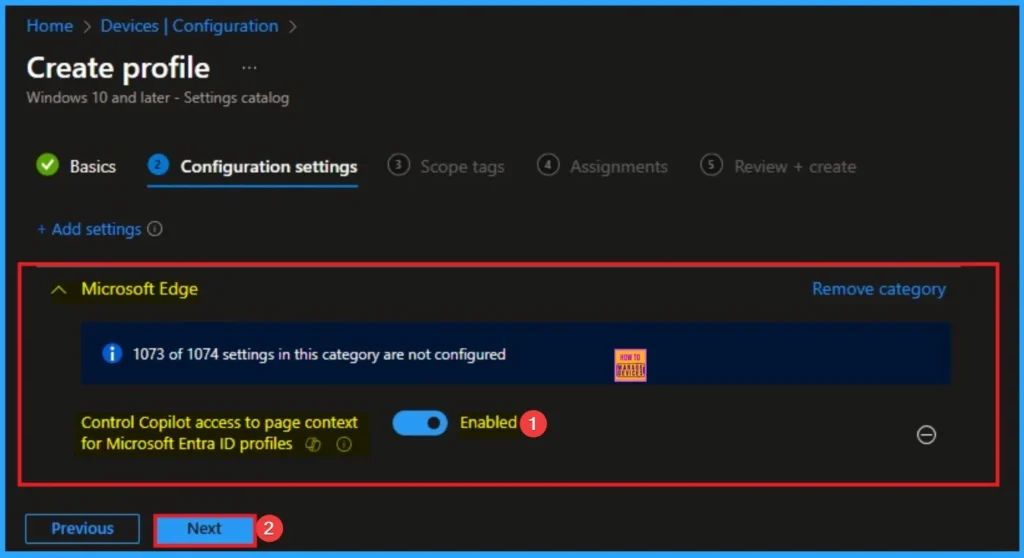
Enable Copilot Access to Page Context for Microsoft Entra ID Profiles
Enabling this feature shows a commitment to leveraging AI to improve workflows and empower employees with the latest tools. Here I would like to Enable this policy and Click on the Next button to Continue.
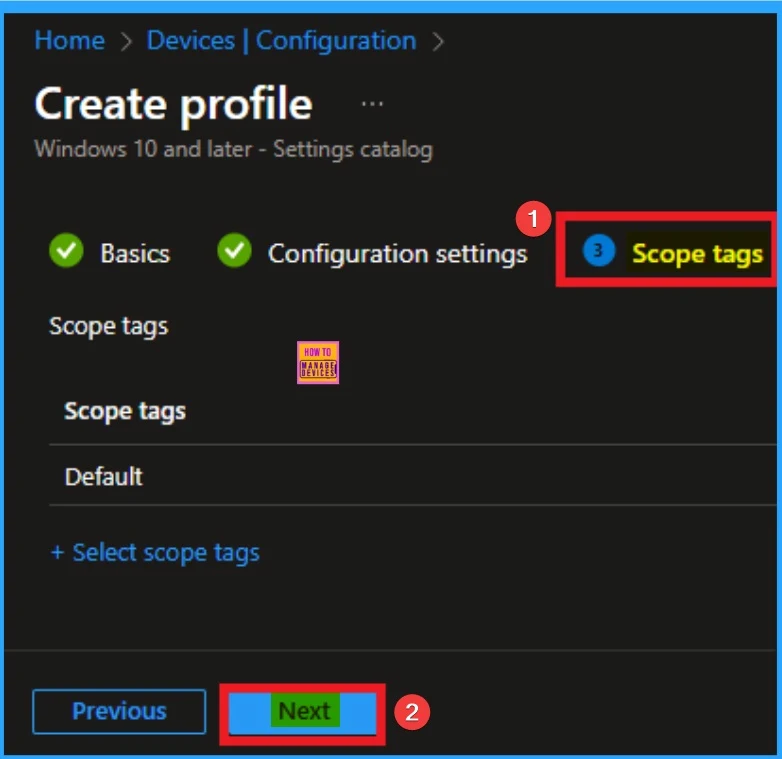
Selecting Scope Tags
Scope Tags sections help you add restrictions to the visibility of the Policy. But it is not a mandatory step, so you can skip this step. Here, I don’t add scope tags for Copilot Access to Page Context for Microsoft Entra ID Profiles Policy. Click on the Next button.
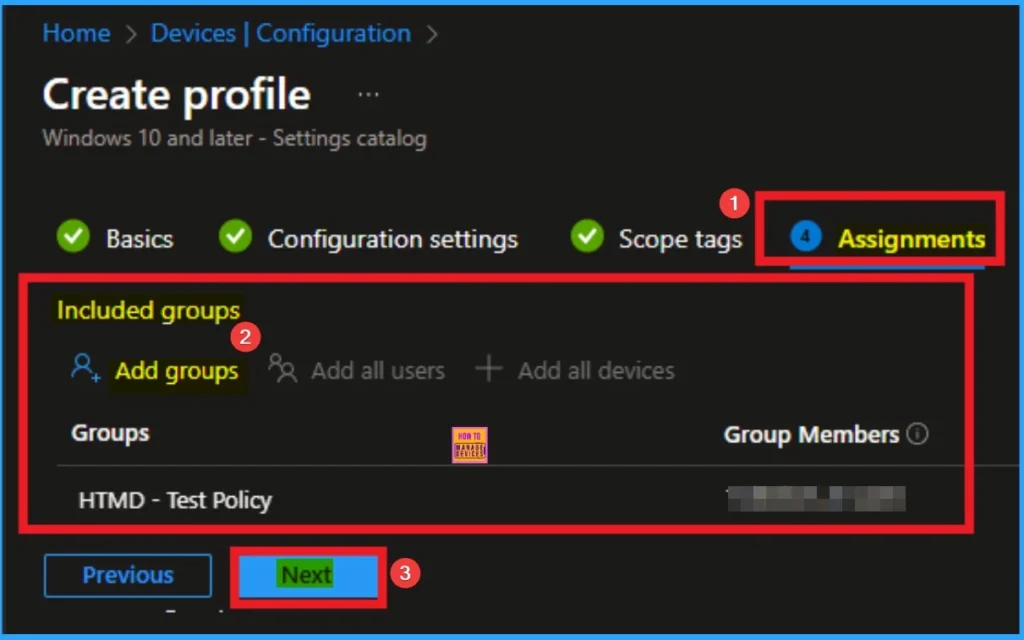
Selecting Group from the Assignment Tab
To assign the policy to specific groups, you can use the Assignment Tab. Here I click, +Add groups option under Included groups. I choose a group from the list of groups and click on the Select button. Again, I click on the Select button to continue.
Review + Create Tab
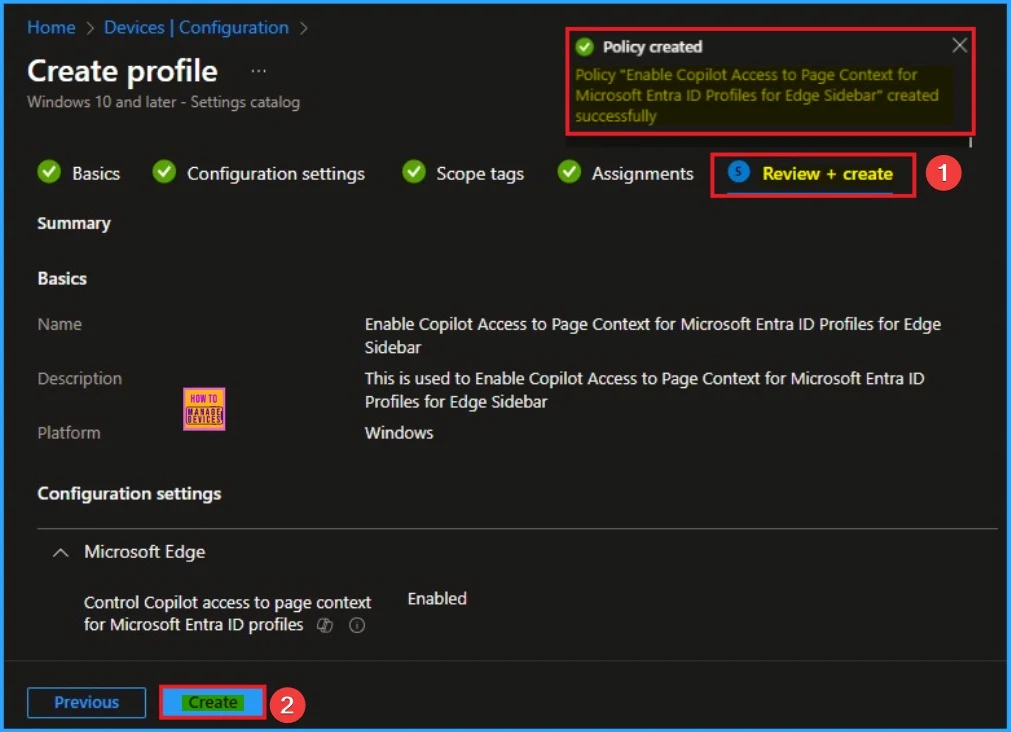
Before completing the policy creation, you can review each tab to avoid misconfiguration or policy failure. After verifying all the details, click on the Create Button. After creating the policy, you will get a success message.
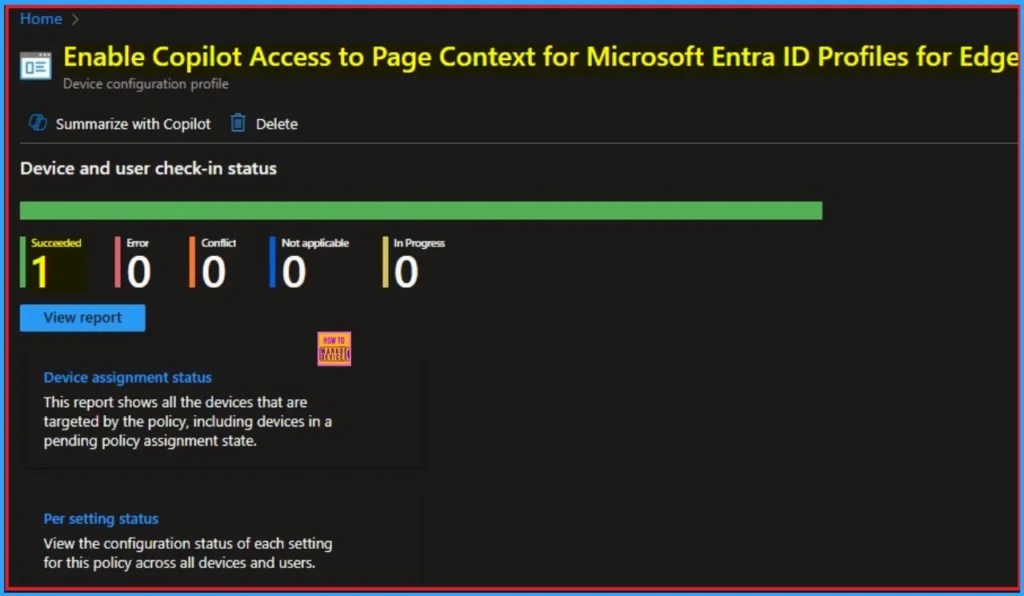
Monitoring Status
The Monitoring Status page shows whether the policy has succeeded or not. To quickly configure the policy and take advantage of the policy sync, the device on the Company Portal, Open the Intune Portal. Go to Devices > Configuration > Search for the Policy. Here, the policy shows as successful.
Event Viewer
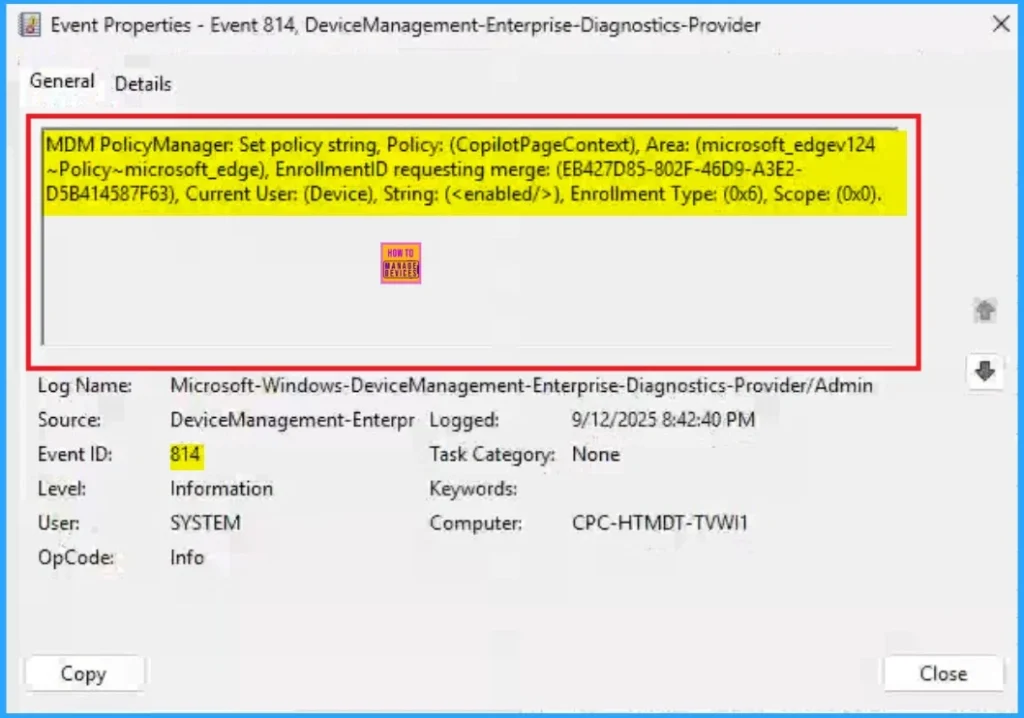
It helps you check the client side and verify the policy status. Open the Client device and open the Event Viewer. Go to Start > Event Viewer. Navigate to Logs: In the left pane, go to Application and Services Logs > Microsoft > Windows > DeviceManagement-Enterprise-Diagnostics-Provider > Admin.
- You will get the success result on Event ID 814
| Event ID Details |
|---|
| MDM PolicyManager: Set policy string, Policy: (CopilotPageContext), Area: (microsoft_edgev124 ~Policy~microsoft_edge), EnrollmentID requesting merge: (EB427D85-802F-46D9-A3E2- D5B414587F63), Current User: (Device), String: (), Enrollment Type: (0x6), Scope: (0x0). |
Removing the Assigned Group from these Settings
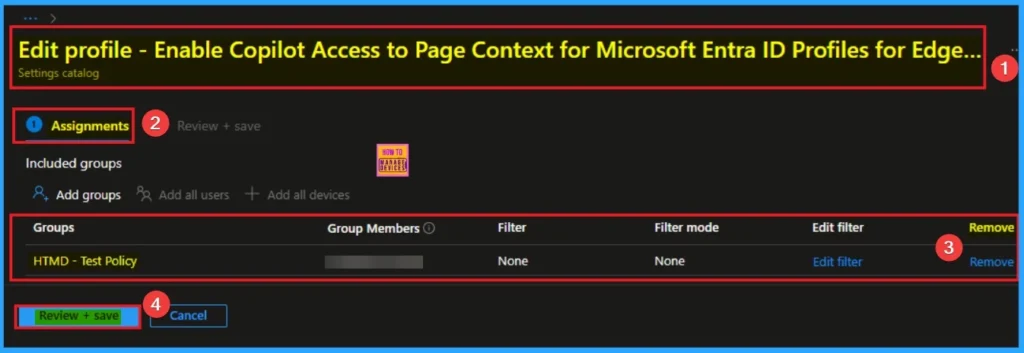
If you want to remove the Assigned group from the policy, it is possible from the Intune Portal. To do this, open the Policy on Intune Portal and edit the Assignments tab and the Remove Policy.
To get more detailed information, you can refer to our previous post – Learn How to Delete or Remove App Assignment from Intune using by Step-by-Step Guide.
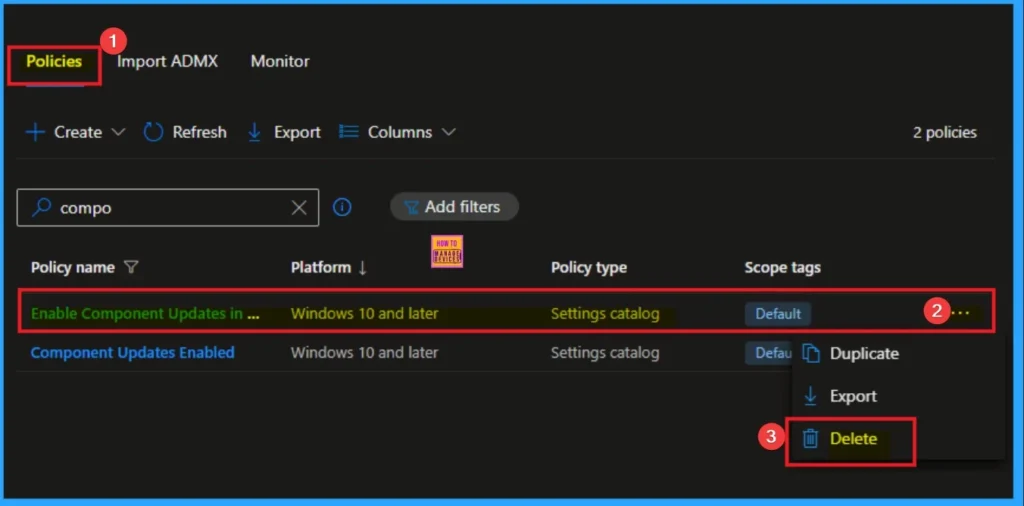
How to Delete Component Updates in MS Edge
You can easily delete the Policy from the Intune Portal. From the Configuration section, you can delete the policy. It will completely remove it from the client devices.
For detailed information, you can refer to our previous post – How to Delete Allow Clipboard History Policy in Intune Step by Step Guide.
Need Further Assistance or Have Technical Questions?
Join the LinkedIn Page and Telegram group to get the step-by-step guides and news updates. Join our Meetup Page to participate in User group meetings. Also, Join the WhatsApp Community to get the latest news on Microsoft Technologies. We are there on Reddit as well.
Author
Anoop C Nair has been Microsoft MVP for 10 consecutive years from 2015 onwards. He is a Workplace Solution Architect with more than 22+ years of experience in Workplace technologies. He is a Blogger, Speaker, and Local User Group Community leader. His primary focus is on Device Management technologies like SCCM and Intune. He writes about technologies like Intune, SCCM, Windows, Cloud PC, Windows, Entra, Microsoft Security, Career, etc


Discussion