






Get Summary of Devices by CPU Status using Intune Copilot Explorer
Let’s discuss how to Get Summary of Devices by CPU Status using Intune Copilot Explorer. The “Get a summary of devices by CPU status” query helps you to generating a report that provides an overview of how devices in an organization are performing based on their CPU (Central Processing Unit) condition.
This summary is created by connecting device data with CPU data using a common identifier, such as a device ID. This process ensures that the CPU details are accurately matched with the correct devices. The summary then groups devices according to their CPU status and counts how many devices fall into each category. This organized view helps to quickly spot patterns and identify problem areas.
Using Intune inventory capabilities, you can easily collect detailed information about the CPU from all your managed Windows devices. This helps IT teams monitor device performance, identify potential issues, and ensure that hardware is running as expected. One of our posts guides you step-by-step on how to retrieve CPU information from Windows devices using Intune, making it simple to access this crucial data and keep your devices running smoothly.
In this post, you will get all the details on how to use the Get Summary of Devices by CPU Status query in Intune Copilot Explorer. This helps you quickly view and analyze the CPU condition of all your managed devices.

Table of Contents
Get Summary of Devices by CPU Status using Intune Copilot Explorer
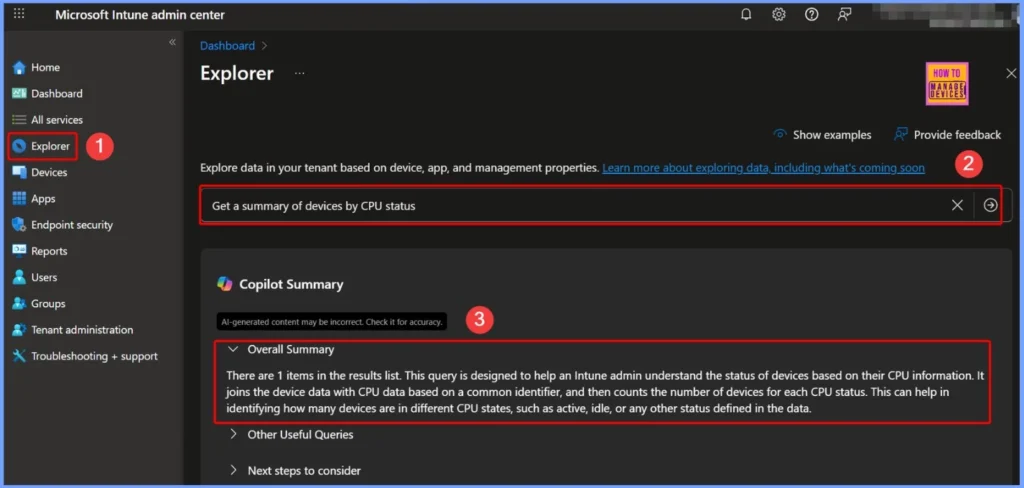
To get the summary of devices by CPU status using Intune Copilot Explorer, first sign in to the Intune admin center. Next, select the Explorer tab from the left-hand menu. In the query prompt, simply type “Get a summary of devices by CPU status.” Once you’ve entered the query, click the arrow next to it, and the Copilot will validate and process the request, providing you with the relevant results quickly and easily.
| Copilot Results |
|---|
| There are 1 items in the results list. This query is designed to help an Intune admin understand the status of devices based on their CPU information. It joins the device data with CPU data based on a common identifier, and then counts the number of devices for each CPU status. This can help in identifying how many devices are in different CPU states, such as active, idle, or any other status defined in the data. |
Analyzing Device Distribution by CPU Status
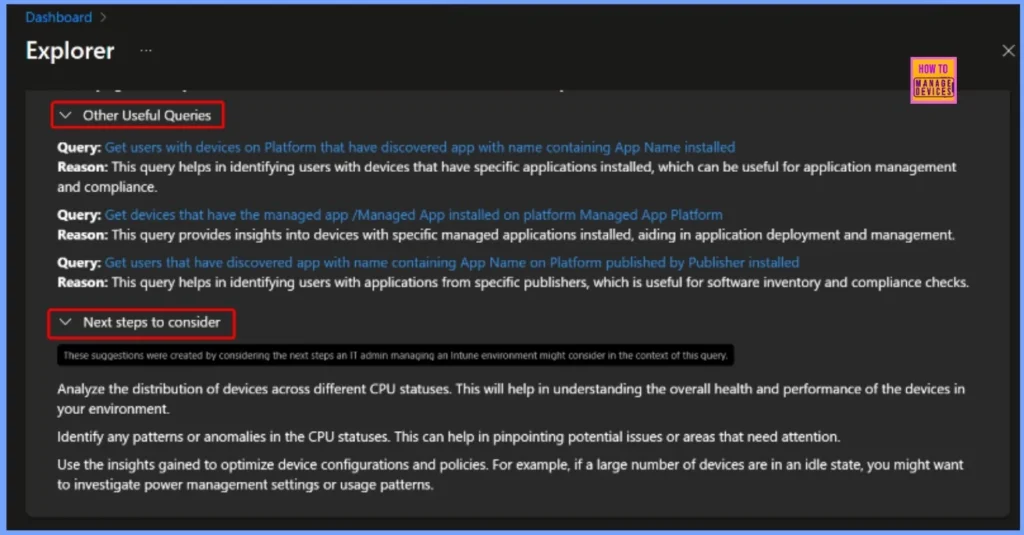
Analyzing how devices are distributed across different CPU statuses helps you understand their overall health and performance. By identifying patterns or anomalies, you can pinpoint potential issues or areas that require attention. The below list gives you more details.
- Other Useful Queries
- Query: Get users with devices on Platform that have discovered app with name containing App Name installe
- Reason: This query helps in identifying users with devices that have specific applications installed, which can be useful for application management and compliance.
- Query: Get devices that have the managed app /Managed App installed on platform Managed App Platform
- Reason: This query provides insights into devices with specific managed applications installed, aiding in application deployment and management.
- Query: Get users that have discovered app with name containing App Name on Platform published by Publisher installed
- Reason: This query helps in identifying users with applications from specific publishers, which is useful for software inventory and compliance checks.
End Results – Devices with Unknown CPU Status
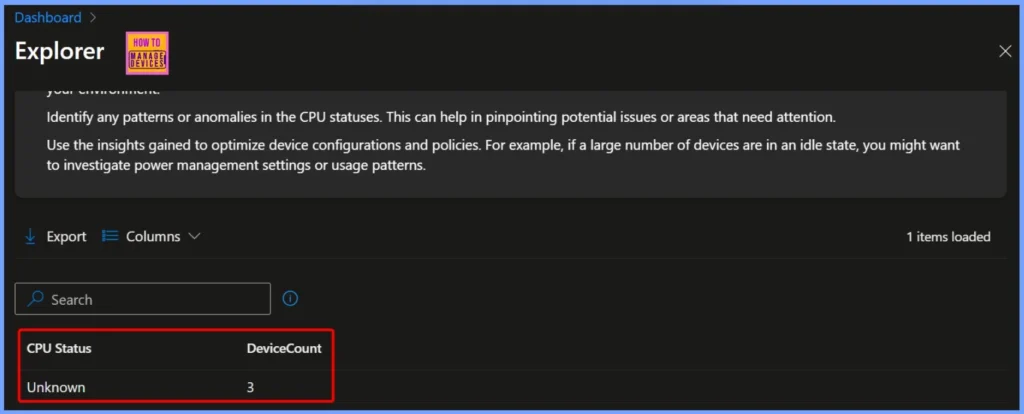
There are 3 devices in your environment with an unknown CPU status. This indicates that their CPU information couldn’t be retrieved, which may be due to connectivity issues, outdated software, or device misconfigurations. Investigating these devices can help ensure accurate monitoring and maintain overall system health.
| CPU Status | Device Count |
|---|---|
| Unknown | 3 |
Need Further Assistance or Have Technical Questions?
Join the LinkedIn Page and Telegram group to get the latest step-by-step guides and news updates. Join our Meetup Page to participate in User group meetings. Also, Join the WhatsApp Community to get the latest news on Microsoft Technologies. We are there on Reddit as well.
Author
Anoop C Nair has been Microsoft MVP from 2015 onwards for 10 consecutive years! He is a Workplace Solution Architect with more than 22+ years of experience in Workplace technologies. He is also a Blogger, Speaker, and Local User Group Community leader. His primary focus is on Device Management technologies like SCCM and Intune. He writes about technologies like Intune, SCCM, Windows, Cloud PC, Windows, Entra, Microsoft Security, Career, etc.


Discussion