






Copilot in Teams for Meeting Recap with Personalized Citations from the Transcript
Let’s discuss Copilot in Teams for Meeting Recap with Personalized Citations from the Transcript. Let’s see how the Copilot in Teams can help you to follow up on the meetings you can not attend. We shared this news on 23rd March via YouTube shorts.
Copilot is a useful or time saver tool that helps you create team meeting recaps. Copilot is an AI-powered digital assistant tool available in Powerpoint, Word, Excel, Outlook, etc.
Copilot helps you with various tasks, including scheduling meetings, sending reminders, taking notes, and creating meeting recaps. Copilot allows you to capture the important information from your meetings and share it with your team.
Copilot helps you run more effective meetings, get up to speed on the conversation, organize key discussion points, and summarize key actions, so the entire group knows what to do next. Once the Meeting Recap is ready, it can present all the meeting notes.

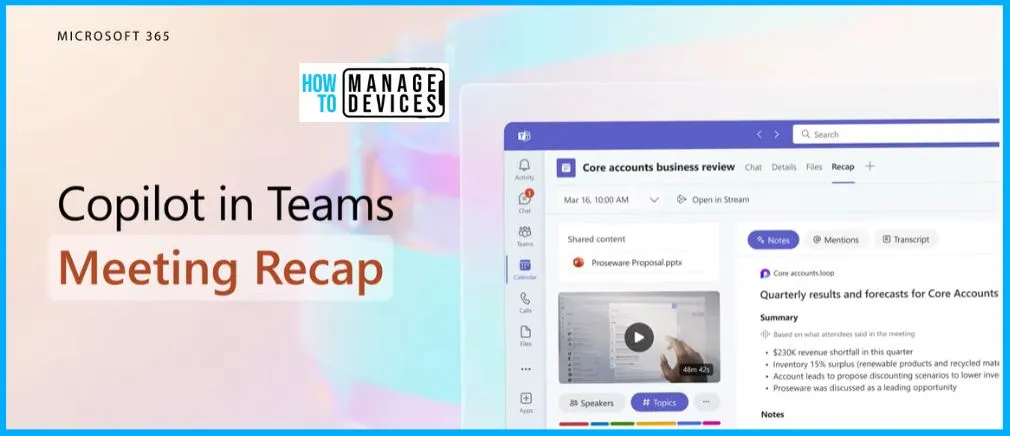
Copilot in Teams Meeting Recap
With the Microsoft 365 Copilot feature, you can easily ask Copilot additional questions about the meeting summary. The meeting recap with Copilot will be very interesting, useful, and a Time saver for many of us.
It is very important to add Copilot to your meetings and conversations, Copilot is a powerful tool that helps with common tasks such as creating meeting agendas based on chat history, identifying the right people for follow-ups, and scheduling the next check-in, etc.
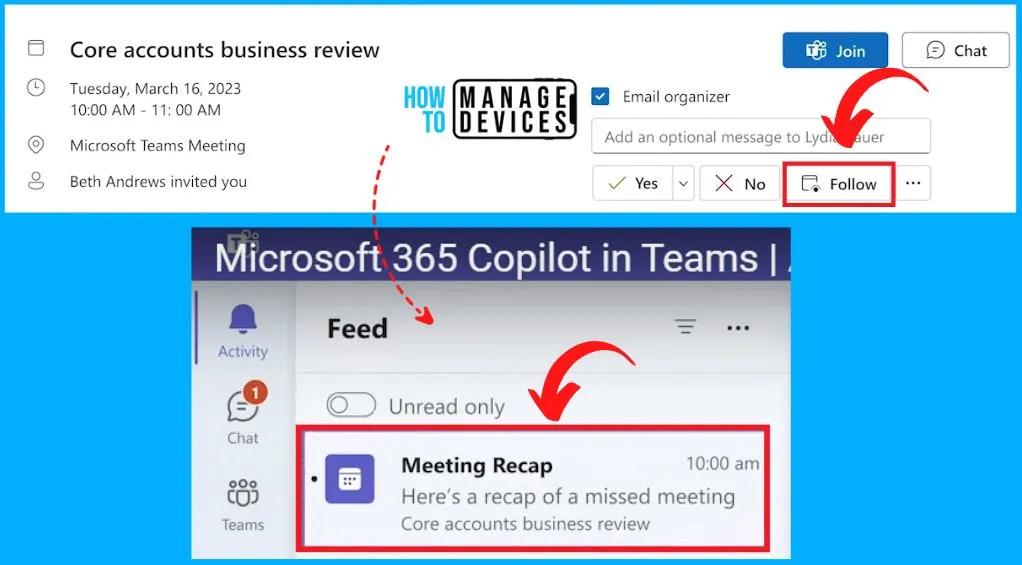
Copilot in Teams to Follow Up on the Meetings and Get a Notification in Teams
With Copilot, you can opt to follow a meeting. After the meeting ends, Copilot will summarize what you missed. You will get a notification in Teams when the Recap is ready. Click the Follow button from the below window; after following a meeting, You can easily get a message in Teams.
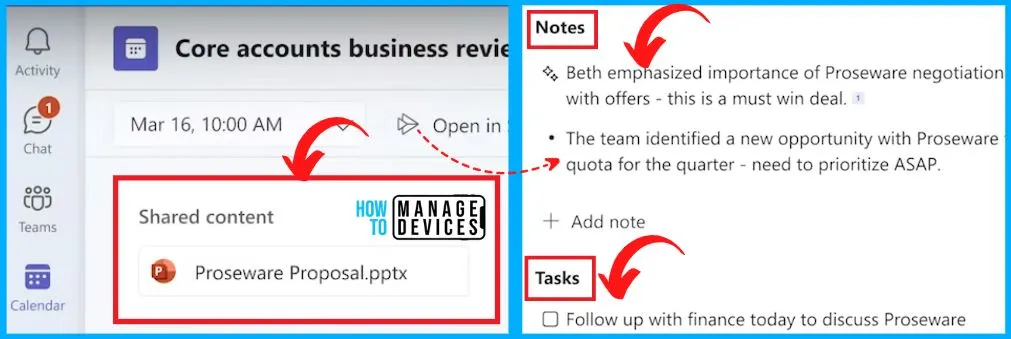
The Recap will Highlight Content and Summarize Notes.
This Recap will highlight shared content, summarize notes, and any action items for you or others whose names were mentioned. If the Meeting Recap is ready, it will be able to present all the notes of that meeting, tasks assigned to it, even some of the tasks for your clients, etc.
Copilot Clarifies Questions and Provides a Detailed Response
You can ask Copilot clarifying questions, and it provides a detailed response. It can tell you why a certain decision was made and gives you helpful context. In your chat, Copilot gets you answers to specific questions and keeps you informed of any updates or information you may have missed during the Teams chat.
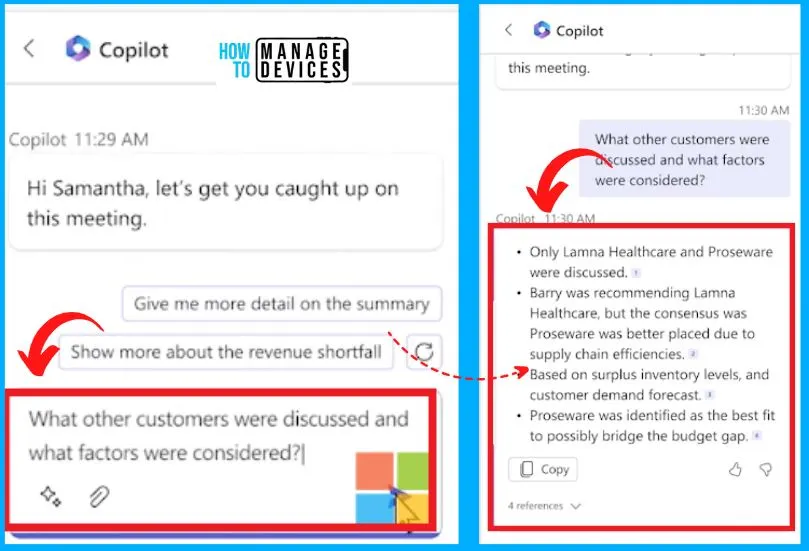
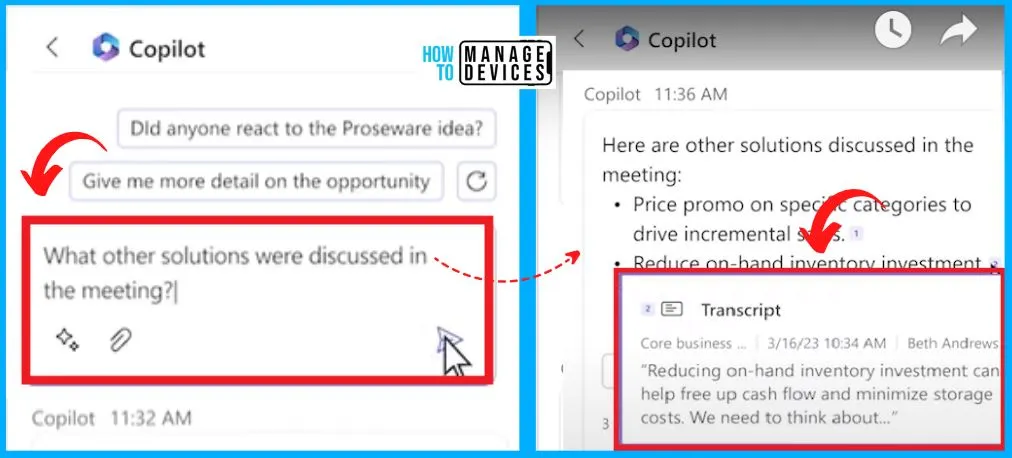
Other Solutions and Citations from the Transcript
You can easily ask Copilot what other solutions were considered, and it provides citations from the transcript, So you can see where Copilot drew these conclusions. It’s a huge time saver. It also helps you to maintain the natural flow of the discussion.
Author
About Author – Vidya is a computer enthusiast. She is here to share quick tips and tricks with Windows 11 or Windows 10 users. She loves writing on Windows 11 and related technologies. She is also keen to find solutions and write about day-to-day tech problems.




Discussion