






CPU and RAM Spike Time Scores Report for Windows Physical Devices in Intune Advanced Analytics
Let’s discuss the CPU and RAM Spike Time Scores Report for Windows Physical Devices in Intune Advanced Analytics. In August 2024, Microsoft introduced several new features for Intune customers to improve device performance management and customization.
The August release of Microsoft Intune highlights two key new features: Multi-Administrative Approval and Device Filters with cpuArchitecture. These updates are designed to help manage and customize your devices more effectively.
The Resource Performance Report is a new feature available through Intune Advanced Analytics, part of the Microsoft Intune Suite. This report provides detailed insights into the performance of physical Windows devices.
This post provides all the details about the new Resource Performance Report for Windows physical devices in Intune Advanced Analytics. This update gives IT admins valuable insights into their devices’ performance, helping them manage and upgrade hardware more effectively.

Table of Contents
What is the Resource Performance Report?
The Resource Performance Report is a new feature in Intune Advanced Analytics that provides detailed performance scores and insights for Windows physical devices. It is part of the Microsoft Intune Suite.
What are the License Requirements for Resource Performance Report?
A Windows 365 license lets you access your organisation’s Resource Performance Report for Cloud PCs. The Resource Performance Report is available through Intune Advanced Analytics, an add-on for physical devices in the Microsoft Intune Suite.
What are the Prerequisites for Advanced Analytics?
The Devices need to be cloud-managed, either by Intune alone or co-managed with SCCM. After enrollment, a device restart is required to activate all analytics features fully. Advanced Analytics cannot be used with on-premises managed devices.
CPU and RAM Spike Time Scores Report for Windows Physical Devices
The introduction of the Resource Performance Report for Windows physical devices in Intune Advanced Analytics is a significant update that aims to improve how IT administrators manage and optimize their hardware.
| Resource Performance Report for Windows Physical Devices in Intune Advanced Analytics |
|---|
| It provides detailed information and insights into crucial hardware components, such as the CPU (Central Processing Unit) and RAM (Random Access Memory). |
| This report combines data into a single Resource Performance score and provides insights and suggestions for improving device performance. |
| Administrators can access it through the Advanced Analytics standalone add-on or as part of the Microsoft Intune Suite. |
| It helps admins identify and fix problems with CPU or RAM spikes. |
| It compares the performance of different devices and helps decide when to replace hardware. |
- Top 75 Latest Intune Interview Questions And Answers
- Configure Multiple Admin Approvals in Intune for Apps and Scripts
- Top 50+ Latest SCCM Interview Questions and Answers
Resource Performance Report
The resource performance report shows how well processors and RAM work in your cloud-managed Windows devices and how this affects user experience. It helps you spot potential hardware issues early and fix them before users need support.
The report also shows how upgrading CPU or RAM can improve performance and enable you to find devices needing replacement before their warranties expire.
- Sign in to the Microsoft Intune admin center
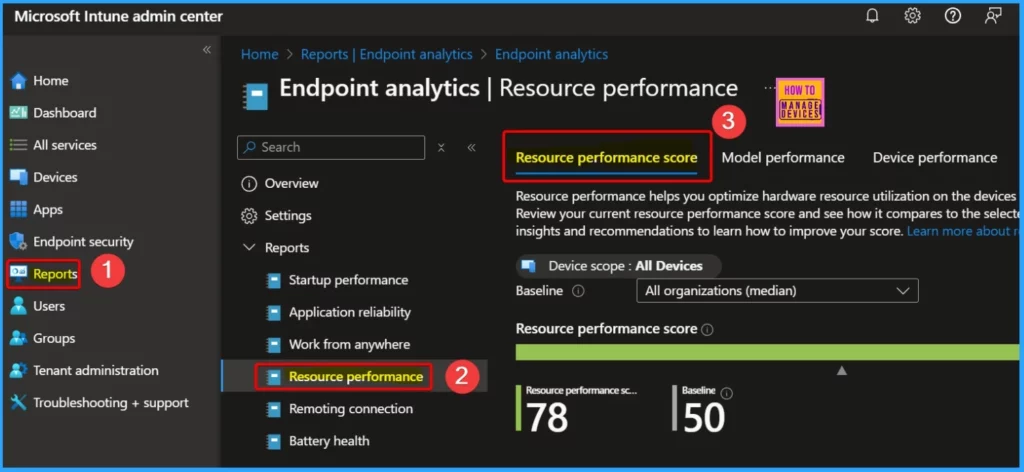
- Go to Report > Endpoint analytics > Resource performance.
- On the Resource performance report page, you’ll find 3 tabs: Resource performance score, Device performance, and Model performance.
Resource Performance Score Calculation
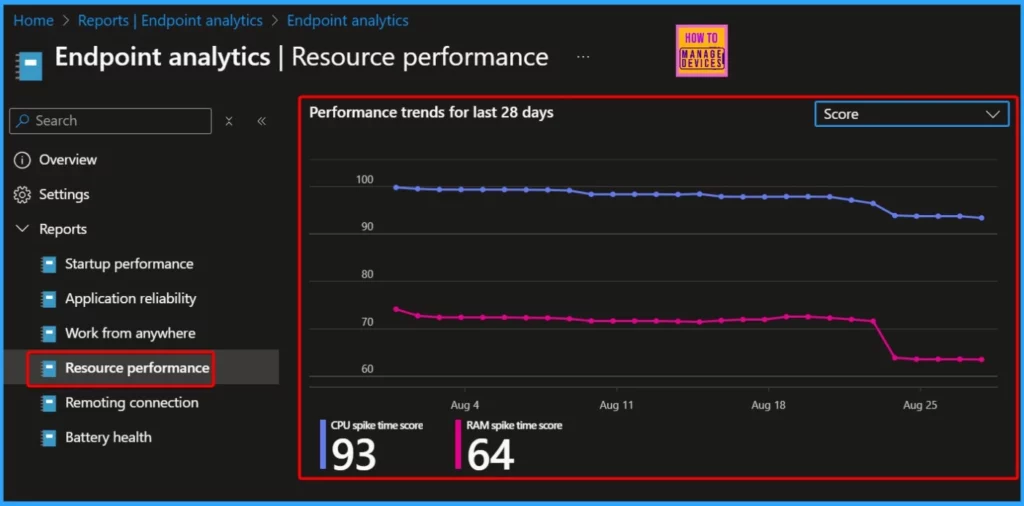
The Resource Performance Score gives an overall rating (from 0 to 100) for the CPU and RAM of your organization’s Windows physical devices and Cloud PCs. This score is calculated as a weighted average of the CPU and RAM spike time scores.
- It helps you to identify which device resources may need replacement to enhance user experience and improve productivity.
CPU and RAM Spike Time Scores
Let’s discuss the CPU and RAM spike time scores. The table below helps you show details.
| CPU and RAM Spike Time | Details | Action | Description |
|---|---|---|---|
| CPU Spike Time Scores | > Rating from 0 to 100 based on CPU usage and spike duration. > High spikes lead to low scores, and low spikes lead to high scores. > Measured over 14 days. | > Upgrade processors, optimize the OS, or adjust power settings for Windows physical devices. > For Cloud PCs – Upgrade to a higher configuration. | To calculate your organization score, we looked at the total usage time and percentage of CPU spike time of all the devices in the organization and scored each device from 0 (poor) to 100 (exceptional). We then calculated the average score of all devices. |
| RAM Spike Time Scores | > Rating from 0 to 100 based on RAM usage and spike duration. > High spikes lead to low scores, and low spikes lead to high scores. > Measured over 14 days. | > For Windows physical devices – Add more RAM, upgrade to higher-speed RAM, or adjust UEFI/BIOS settings. > For Cloud PCs – Upgrade to a higher configuration. | To calculate your organization score, we looked at the total usage time and percentage of RAM spike time of all the devices in the organization and scored each device from 0 (poor) to 100 (exceptional). We then calculated the average score of all devices. |
- Managing Activation Lock on Apple Devices with Intune
- How to Use Intune Assignment Filters Comparison Property gt ge lt le with OS Version
- Enforce Users to use Intune Approved Apps with App Protection Policies using Conditional Access Policies
- Issue on Minimum PIN Length for Startup in Disk Encryption Policies in Intune
Model Performance
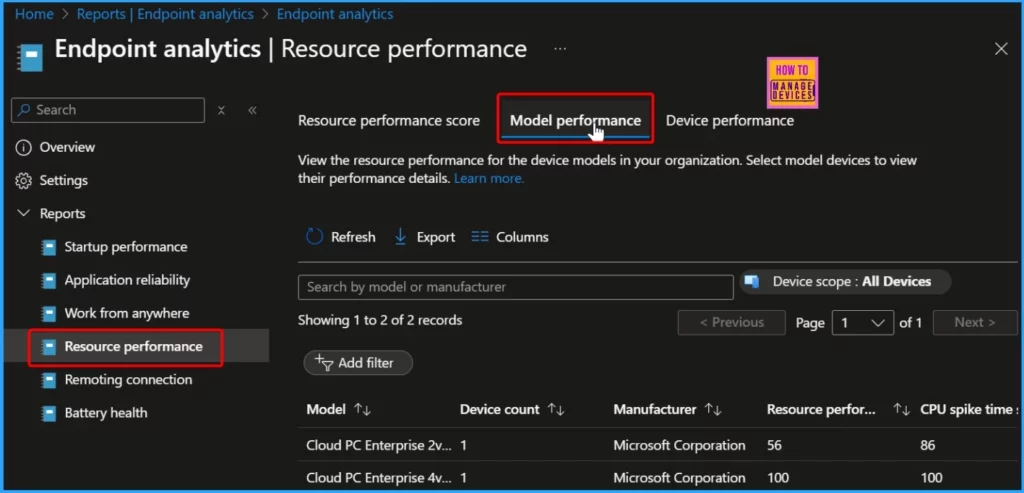
The Model Performance tab shows each device model’s CPU and RAM performance scores. It helps you see if any issues are specific to certain models. Resource performance > Model Performance.
Device Performance
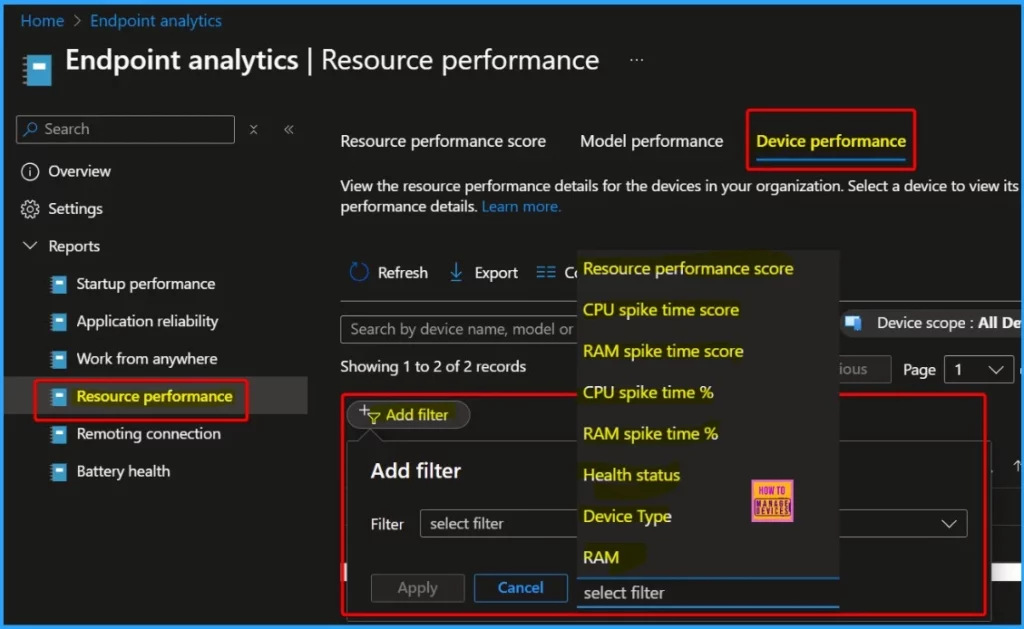
To quickly find details about a specific Windows device in your organization, click the Device Performance tab and click on the device’s name. You can also use filters or search to find the device and view its details. The following are the Filter options.
- Resource performance score
- CPU spike time score
- RAM spike time score
- CPU spike time %
- RAM spike time %
- Health status
- Device Type
- RAM
How to use Microsoft Intune Suite add-on capabilities
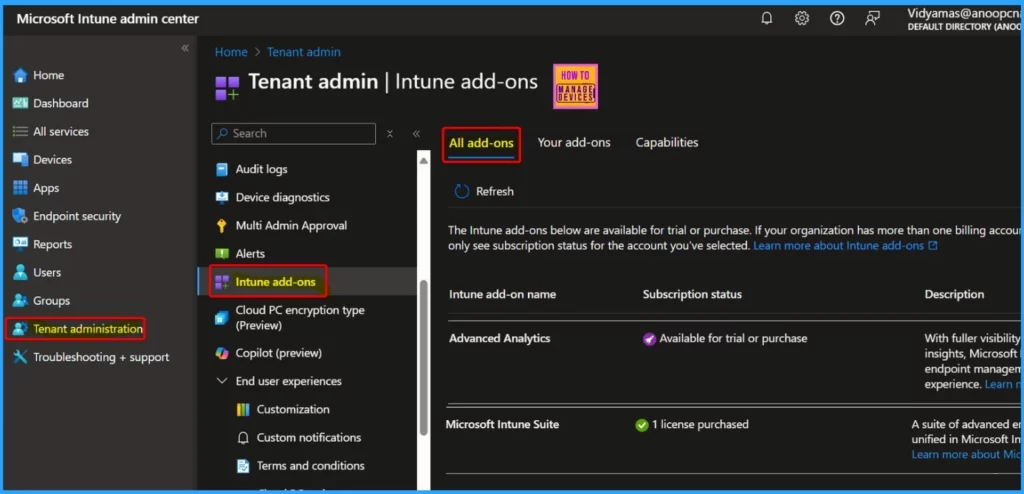
Sign in to the Microsoft Intune admin center as a Global or Billing administrator. Go to Tenant administration > Intune add-ons. The “Your add-ons” tab lists all Intune add-ons currently in trial or purchased for your organization’s billing account.
The “All add-ons” tab shows all available Intune add-ons that you can trial or purchase. The “Capabilities” tab offers details about each Intune add-on.
Limitations
Let’s discuss some limitations of the Resource Performance Report for Windows Physical Devices in Intune Advanced Analytics. The list below helps you show the details.
- In the report, some data points might show as “–” if unavailable.
- The health status is displayed differently in the report and the .csv file:
- 0: Unknown
- 1: Insufficient data
- 2: Needs attention
- 3: Meeting goals
- The MachineType column in the .csv file can have values like Physical, CPC, and Others, whereas the Device Type column in the report uses the terms physical, virtual, and unknown.
We are on WhatsApp now. To get the latest step-by-step guides, news, and updates, Join our Channel. Click here. HTMD WhatsApp.
Author
Anoop C Nair has been Microsoft MVP from 2015 onwards for 10 consecutive years! He is a Workplace Solution Architect with more than 22+ years of experience in Workplace technologies. He is also a Blogger, Speaker, and Local User Group Community leader. His primary focus is on Device Management technologies like SCCM and Intune. He writes about technologies like Intune, SCCM, Windows, Cloud PC, Windows, Entra, Microsoft Security, Career, etc.


Discussion