






Deploy CPU-Z App through the Enterprise App Catalog App with Intune
Let’s discuss deploy CPU-Z app through the Enterprise App Catalog with Intune. Microsoft Intune enables users to deploy applications through the Enterprise App Catalog. The Enterprise App Management feature in Intune allows users to quickly find, deploy, and update applications from the catalog.
The Enterprise App Catalog is a collection of applications, including Microsoft and non-Microsoft offerings, designed to provide users with convenient access to essential tools. Intune automatically updates these applications, ensuring that users always have the latest features and security improvements as soon as a new version becomes available.
Each app within the Enterprise App Catalog has been configured with default settings that Microsoft has thoroughly reviewed and confirmed, guaranteeing an optimal experience for all users. CPU-Z is a versatile and free application designed for system profiling and monitoring on Windows and Android platforms. It provides detailed information about your device’s key hardware components, including the central processing unit (CPU), random access memory (RAM), motherboard chipset, and various other specifications.
This comprehensive tool helps users gain insights into the performance and capabilities of their modern personal computers or Android devices, making it invaluable for technology enthusiasts and professionals alike. In this section, we will explore CPU-Z and describe how to deploy the CPU-Z app using Intune with the Enterprise App Catalog. This post provides step-by-step instructions for the deployment process.

Table of Contents
What Are the Features of CPU-Z?
Deploy CPU-Z App Through the Enterprise App Catalog App with Intune
With the help of the Enterprise App Catalog app, we can quickly deploy an application. It allows organisations to discover, deploy, and manage prepackaged applications. CPU-Z collects your system information, such as CPU, motherboard, and memory information, and displays them in an easy-to-use interface. Follow the below steps to deploy CPU-Z through the Enterprise App Catalog app.
- Need to sign in to the Microsoft Intune Admin portal.
- Select Apps then click All Apps then + Add.
- From the Select App type page, Select Enterprise App Catalog App.
- Click on the Select button.
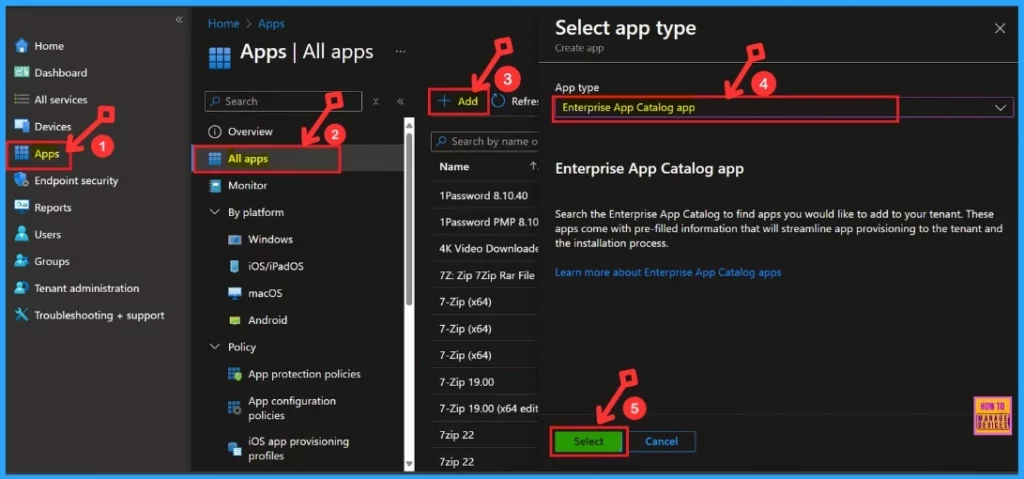
- Deploy Windows Catalog App type using Intune Enterprise Application Catalog
- How to Deploy Adobe AIR Using Enterprise App Catalog App with Intune
- How to Deploy Azure Functions Core Tools with Intune Using Enterprise App Catalog App
After that, a new window will open. It helps us add an application. We can see many settings, such as App information, Program, Requirements, etc. The first setting is App information.
- App Information >Search the Enterprise App Catalog>Select CPU-Z>Next
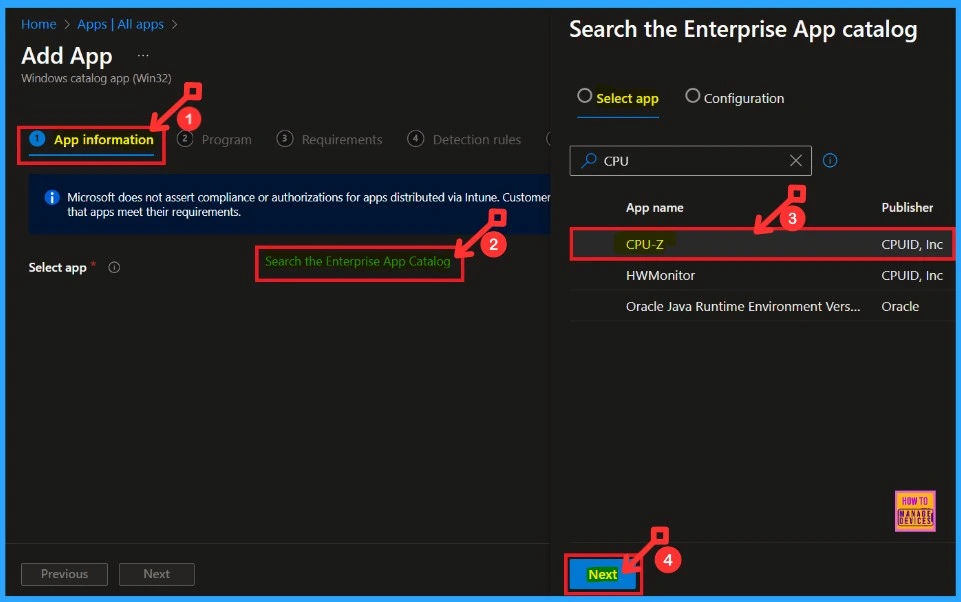
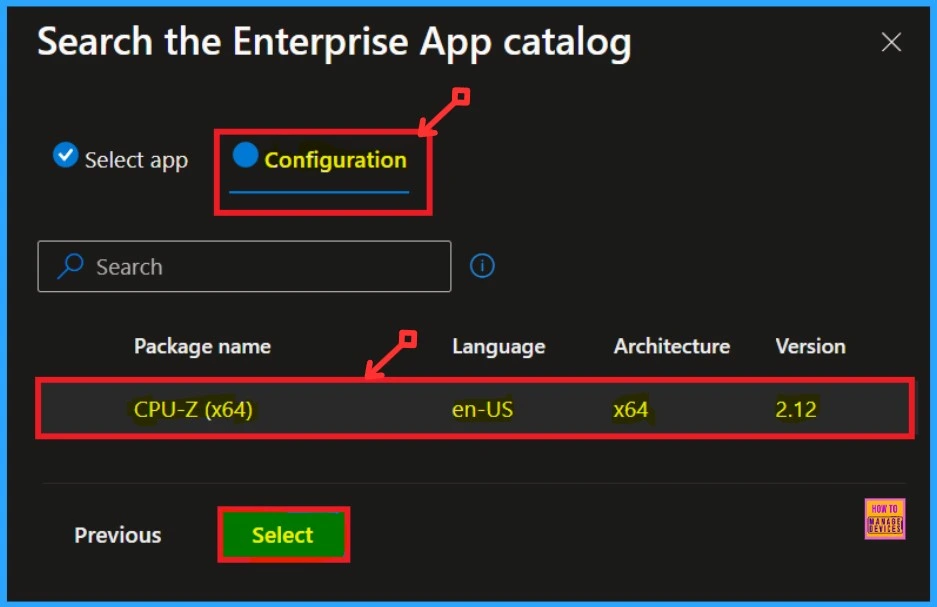
The app we selected is shown on the next page. There are two more settings: Select App and Configuration. The Configuration Tab gives us the details of the selected app.
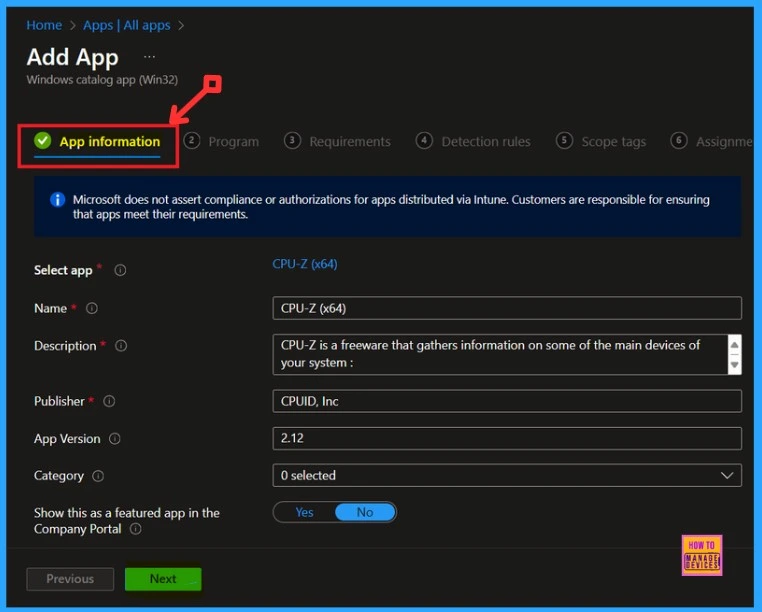
App Informaton
The App Information includes details about the selected app, such as the app’s name, description, publisher, version, category, and more. Once we have verified all this information, we can proceed further.
Logo of CPU-Z
In the App information settings, we can add a logo for the CPU-Z App. To do this, scroll down the tab until you find the “Logo” option. Click on it to select an image for the CPU-Z App. Then, click on the file icon that appears in the window to upload the logo.
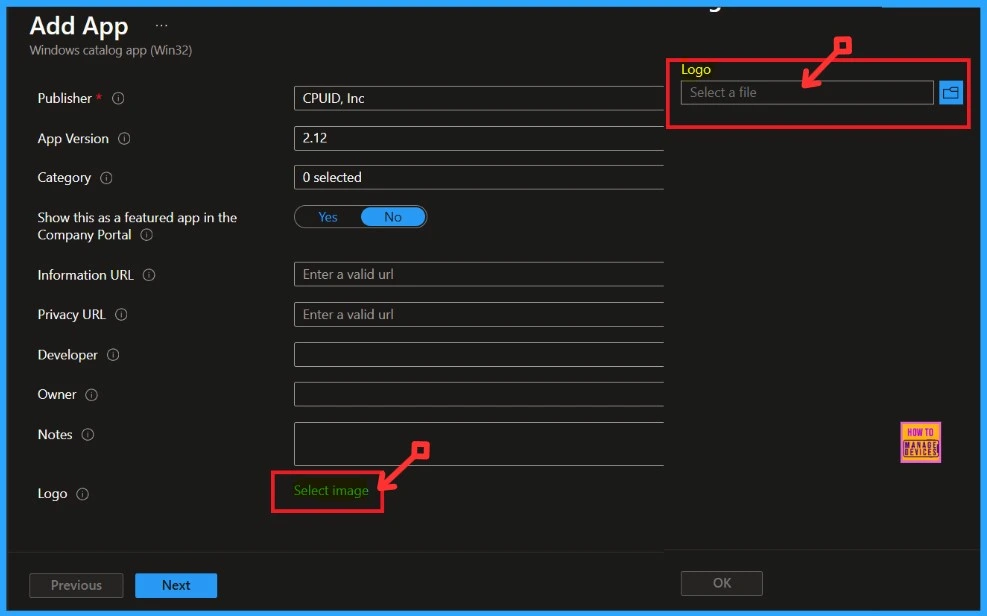
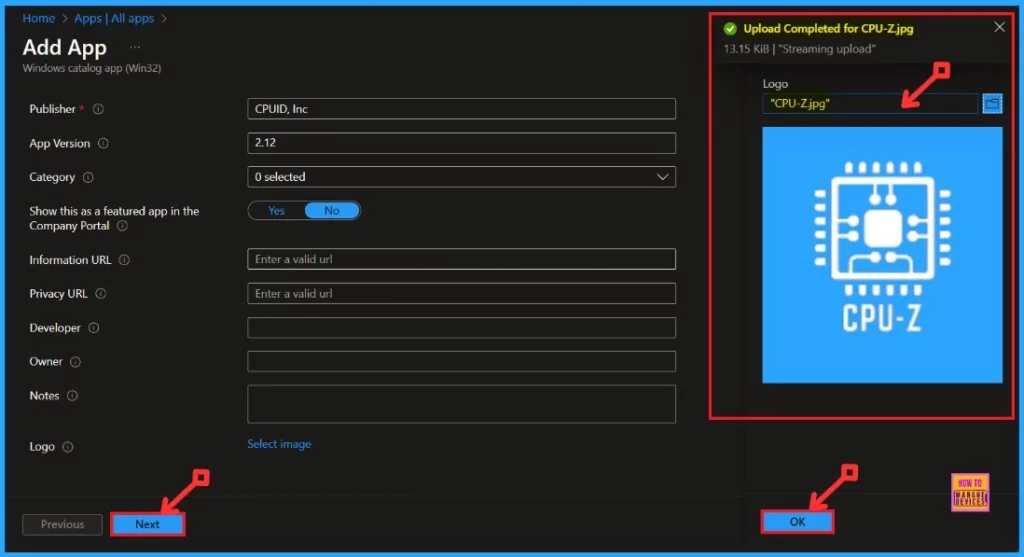
Next, our file explorer will open, allowing us to select the logo saved on our desktop. After selecting the logo, it will be displayed on the app information page, and we can choose from there. We need to click the OK button to continue, then click the Next button. We will then get a notification on the portal that the Upload has been completed.
- Know RAM Information in Windows 11 using Various Ways
- Check Empty RAM Slots Available in Windows 11 Laptop
- How to Install Amazon WorkSpaces with Intune Enterprise App Catalog App
Program
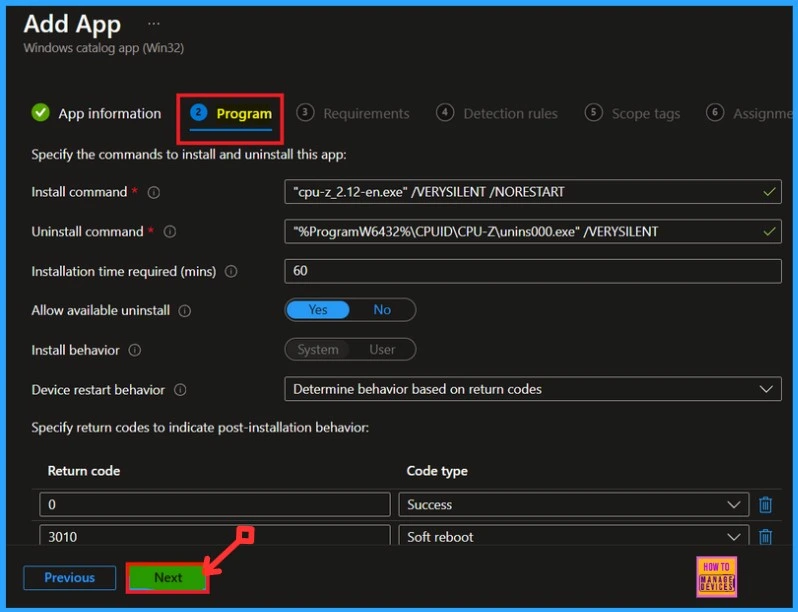
The Program settings display information about app installation, uninstallation, and we can command installation time, etc. We can choose to allow or cancel the available installations.
- Select ‘Yes‘ to get the uninstall option.
- Select ‘No‘ to prevent uninstall option.
Requirements
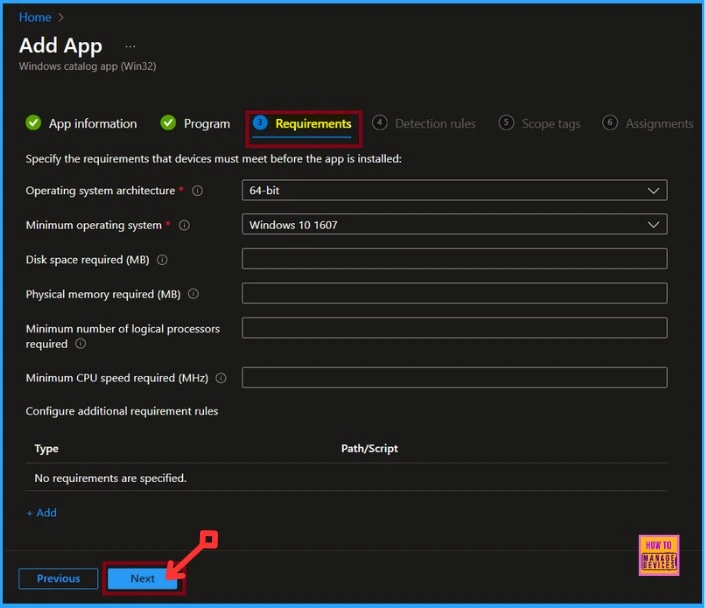
In the Requirement settings, we can Specify the requirements the devices must meet before installing the app. These include Operating system architecture and Minimum operating system. Click on the Next button to continue.
Detection Rules
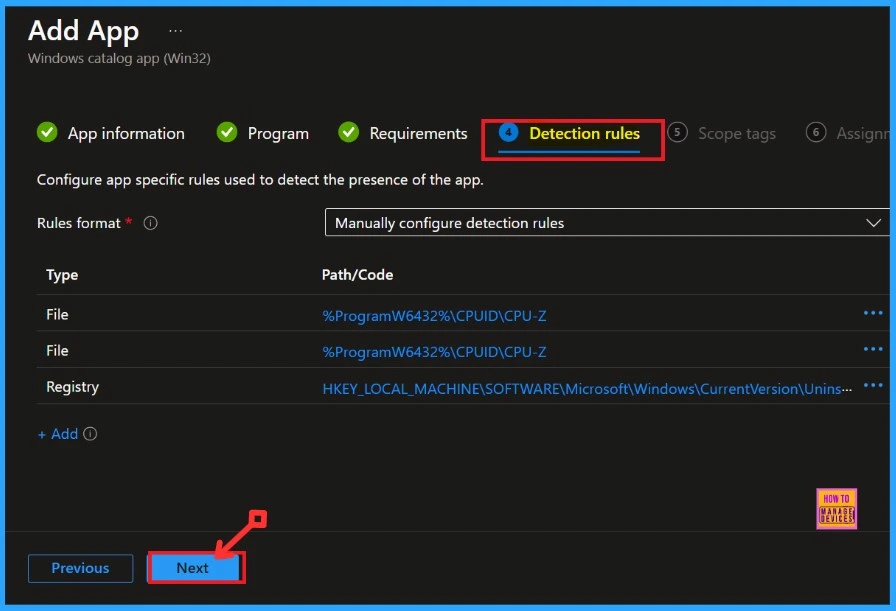
The detection Rule tab allows you to configure app-specific rules to detect an app’s presence. There is no need to make changes to this tab. The Microsoft Intune Enterprise app catalog app helps you install apps without changing Detection rules.
Scope Tags
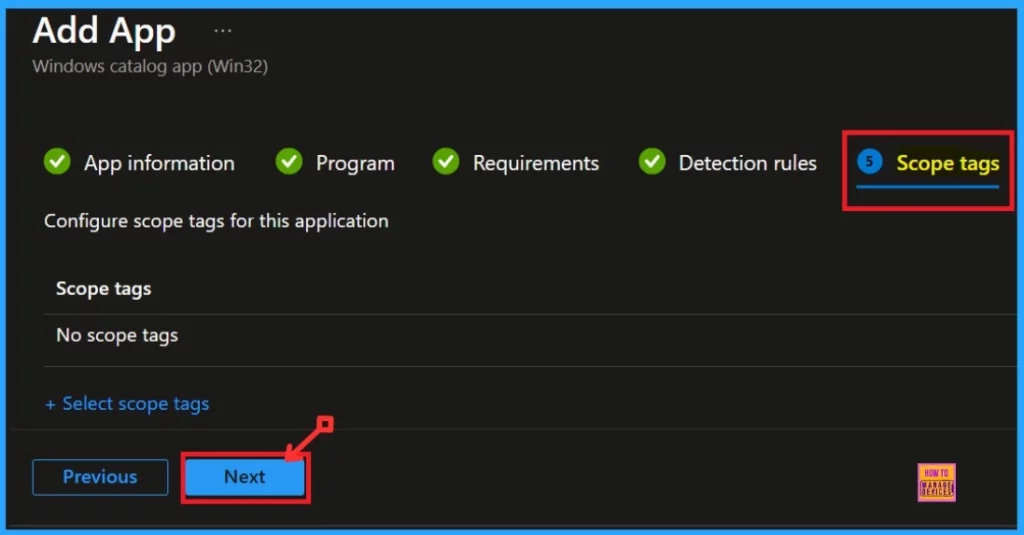
Here are the Scope tags. We can skip this tab and complete this section on the Intune Portal. Because adding scope tags to create a policy is not mandatory, click on the Next button to continue.
Assignments
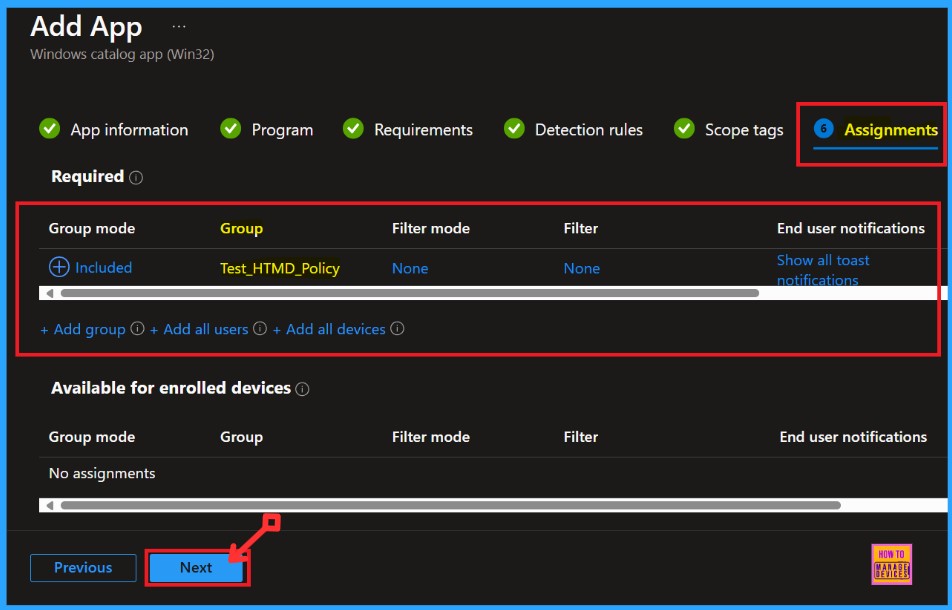
On the Assignment tab, we can select groups to assign the policy to. Tap on the Add Groups from the Included Groups button and select the groups from the group list. Click the Select button. The selected groups will appear on the Assignment tab. Then tap the Next button.
- Assignment<Add group<Select<Next
Review + Create
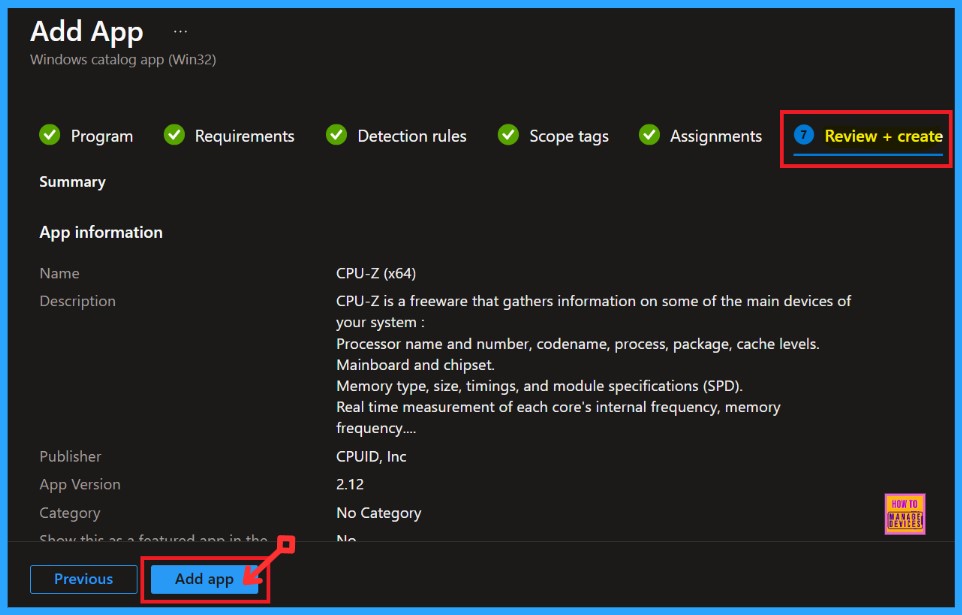
The Review + Create tab displays all information regarding the selected app. Before installing the app, we can review all the details in the tabs.
- Click on the Add App option to complete the installation
Checking Installation Status of CPU-Z App
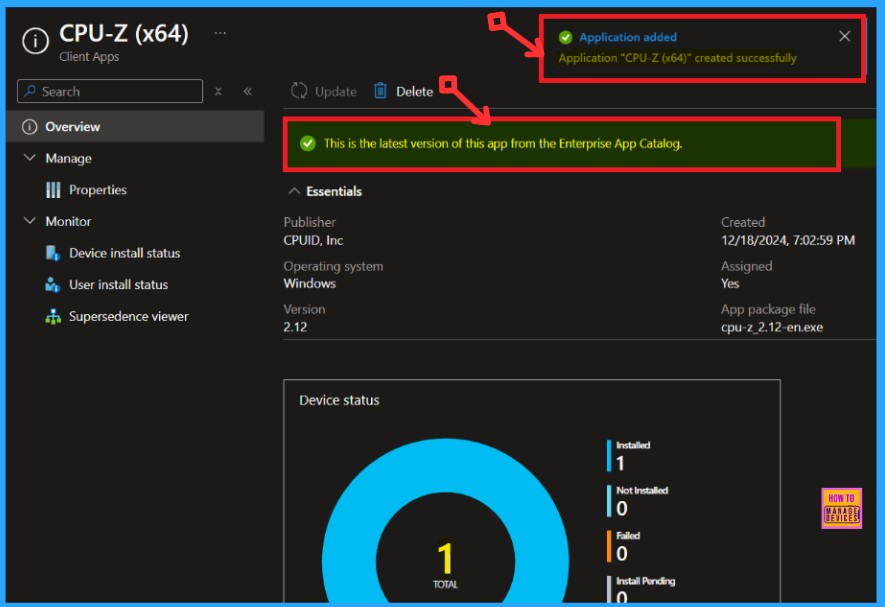
After clicking the Add app option, we will get a notification on the Intune Portal indicating that the application has been added. We can then monitor the status of the installed app on the portal.
- Apps > All Apps
- Double-click on the installed app from the App Apps page
- The screenshot below shows the 1 App installed
The CPU-Z App installed is the latest version from the Enterprise App Catalog. The table below shows more details.
| Publisher | Operating System | Version | Created | Assigned | App Package File |
|---|---|---|---|---|---|
| CPUID, Inc | Windows | 2.12 | 12/18/2024, 07:02:59 PM | Yes | cpu-z_2.12-en.exe |
End User Experience
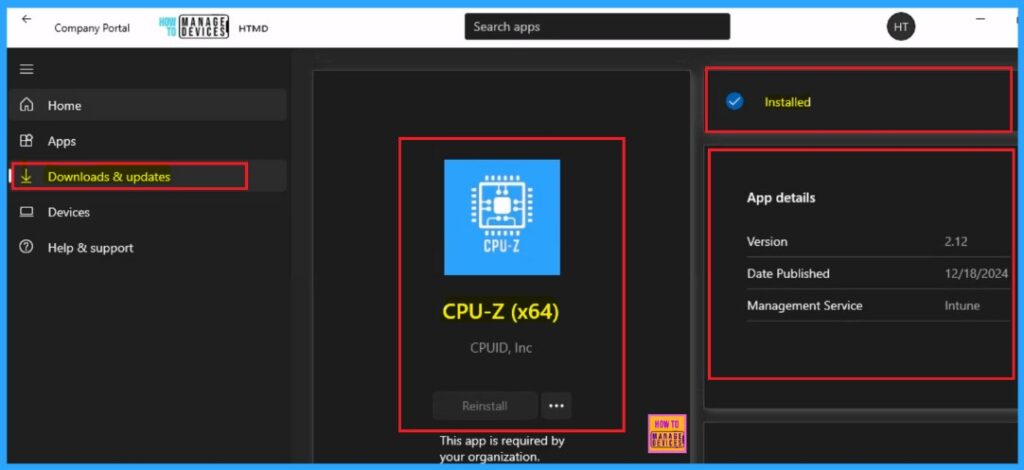
After we deploy the CPU-Z app, it will automatically install on your workstation. To check if it is installed, open the Company Portal on your workstation. Go to the “Downloads & Updates” section and look for the CPU-Z application in the list.
Need Further Assistance or Have Technical Questions?
Join the LinkedIn Page and Telegram group to get the latest step-by-step guides and news updates. Join our Meetup Page to participate in User group meetings. Also, Join the WhatsApp Community to get the latest news on Microsoft Technologies. We are there on Reddit as well.
Author
Anoop C Nair has been Microsoft MVP from 2015 onwards for 10 consecutive years! He is a Workplace Solution Architect with more than 22+ years of experience in Workplace technologies. He is also a Blogger, Speaker, and Local User Group Community leader. His primary focus is on Device Management technologies like SCCM and Intune. He writes about technologies like Intune, SCCM, Windows, Cloud PC, Windows, Entra, Microsoft Security, Career, etc.


Discussion