






Create Local Admin Account on MacOS using Intune
In this post, you will learn how to use Shell Scripts to Create Local Admin Account on macOS using Intune. This can be especially useful for IT admins to ensure they have the necessary access and control over managed macOS devices.
By using custom macOS Shell scripts, you can automate the local account configuration of macOS devices from Intune. However, testing your scripts thoroughly and monitoring their deployment is important to ensure they do not cause disruptions.
Creating a local admin account on macOS can be helpful for various purposes, such as troubleshooting, maintenance, or as a backup administrative account, the purpose is to provide an IT Admin with ad-hoc access to macOS device when they require it.
Once you have the script ready, The script will be assigned to an Entra ID device group macOS devices are added to this group when an Admin requires access. Once the script runs, it will create the ‘Local Admin’ account. Once the IT Admin logs on to the Mac, they should change the password.

- How To Fix Conflict Status In Local User Group Membership Policy Using Intune
- Manage Local Admins Using Intune Local User Group Membership Management Policy
- Best Enhancements In Microsoft Intune To Manage Apple Devices
Create Local Admin Account on MacOS using Intune
Let’s follow the steps for deploying Shell Scripts for macOS devices in Intune to create a local admin account. Ensure that the prerequisites are met when deploying shell scripts and assigning them to macOS devices.
- Sign in to the Microsoft Intune admin center https://intune.microsoft.com/.
- Navigate to Devices > Scripts. Alternatively, if you want to add Shell scripts, you can also select Devices > macOS > Configuration Scripts. This will take you to the same wizard.
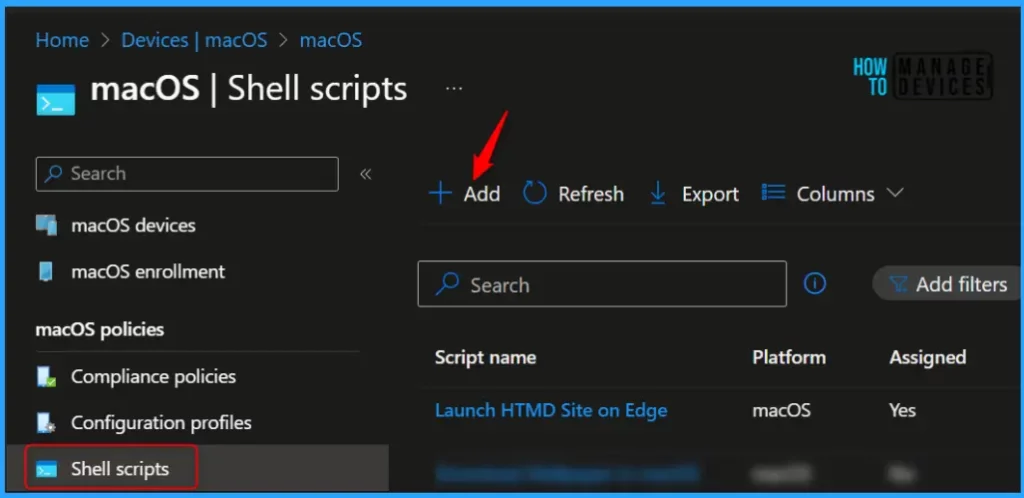
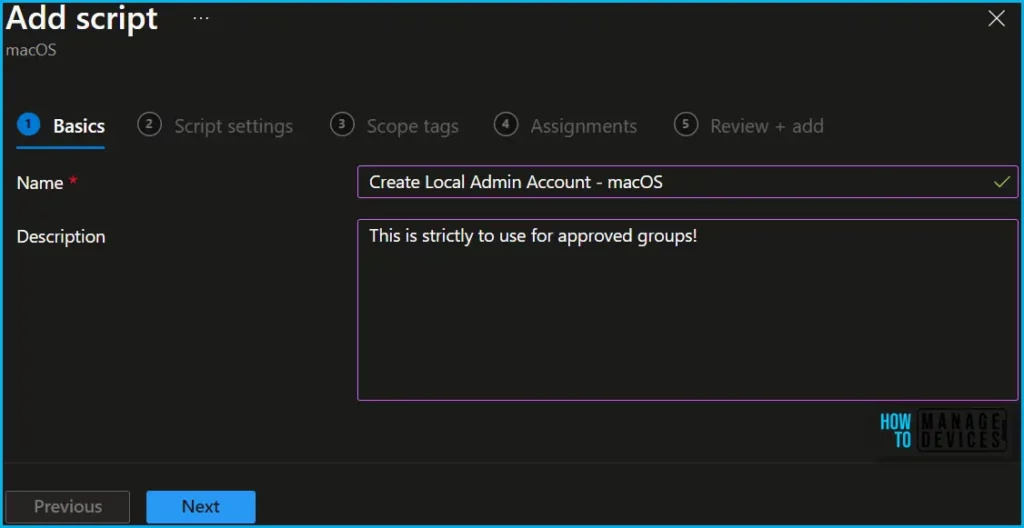
In Basics, You need to type the descriptive name for the Shell script (For Example, Create a Local Admin Account for macOS) and a description to get it clearer for other references and Select Next.
The createLocalAdminAccount.sh script has been provided as an example. It is strongly recommended that you spend significant time testing and modifying to suit your own needs. You can download it from the macOS Githhub repository and save it for uploading.
- createLocalAdminAccount.sh – Script to create Local Admin Account for IT Use.
# Define variables

adminaccountname="localadmin"         # This is the accountname of the new admin
adminaccountfullname="Local Admin"  # This is the full name of the new admin user
scriptname="Create Local Admin Account"
logandmetadir="/Library/IntuneScripts/createLocalAdminAccount"
log="$logandmetadir/createLocalAdminAccount.log"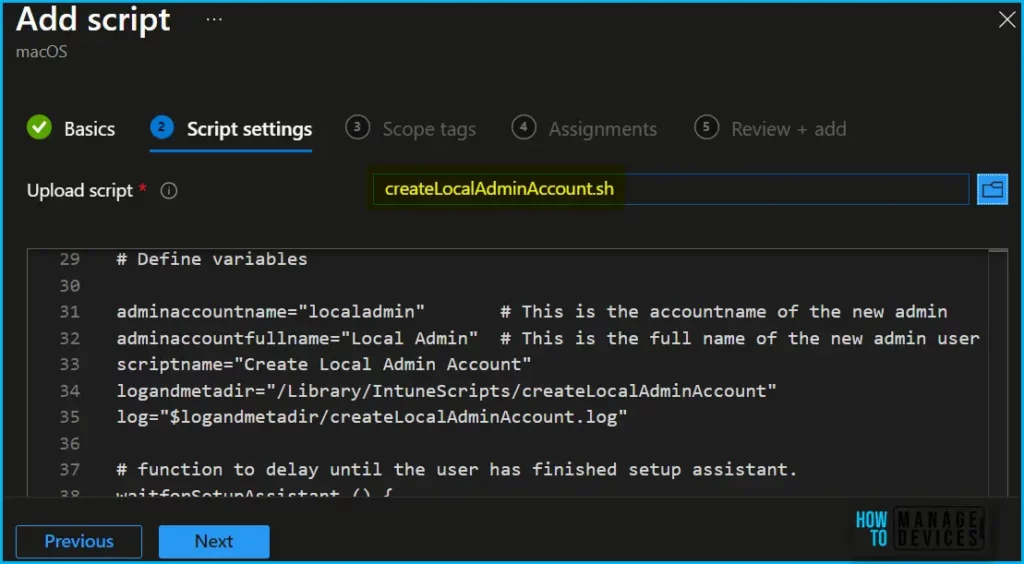
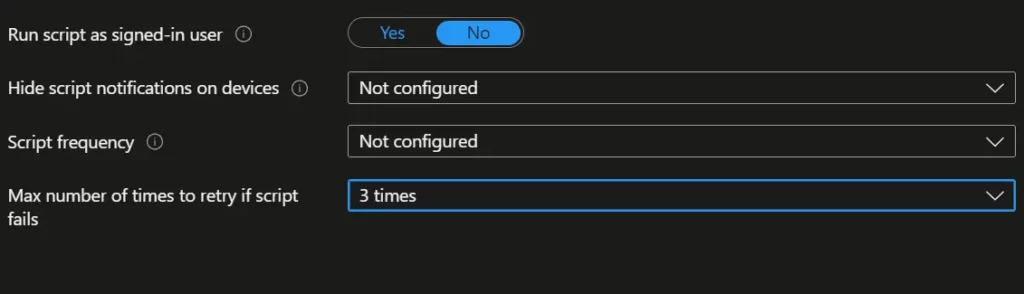
Please wait! You also have a couple of settings to be reviewed, In the Script settings, once you upload the script, you can scroll down on the same page to get the below options.
| Shell Script Execution Options | Descriptions | Configuration |
| Run script as signed-in user | Select Yes to run the script with the user’s credentials on the device. Choose No (default) to run the script as the root user. | No |
| Hide script notifications on devices | By default, script notifications are shown for each script that is run. End users see a IT is configuring your computer notification from Intune on macOS devices. | Yes |
| Script frequency | Select how often the script is to be run. Choose Not configured (default) to run a script only once. | Not Configured |
| Max number of times to retry if script fails | Select how many times the script should be run if it returns a non-zero exit code (zero meaning success). Choose Not configured (default) to not retry when a script fails. | 3 |
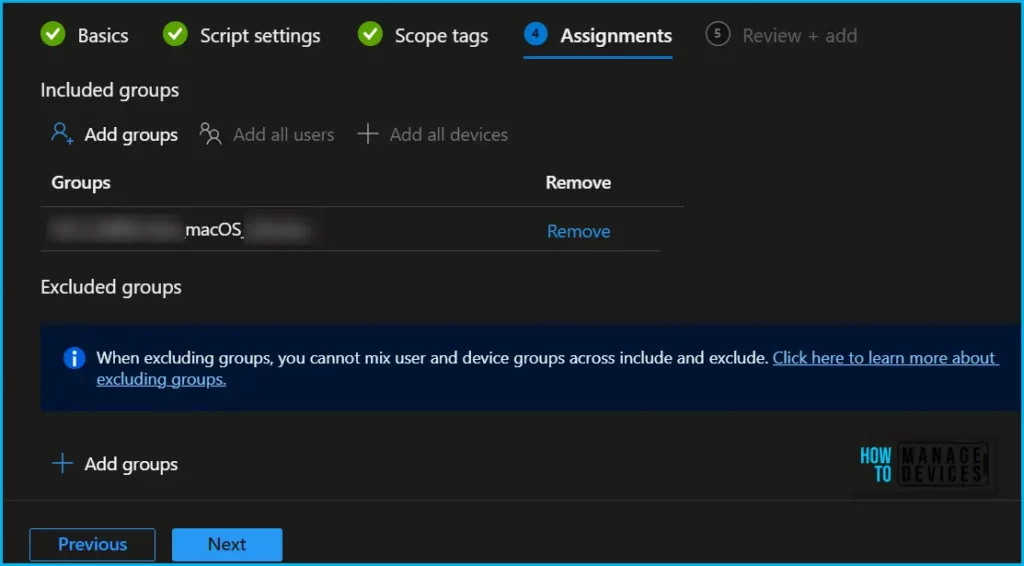
You can assign Scope tags to filter the profile to specific IT groups. Add scope tags (if required) and click Next. Under Assignments, click Add groups in Included groups, then choose Select groups to include one or more groups. Click Next to continue. This should include the macOS devices for which you want to create a local admin account.
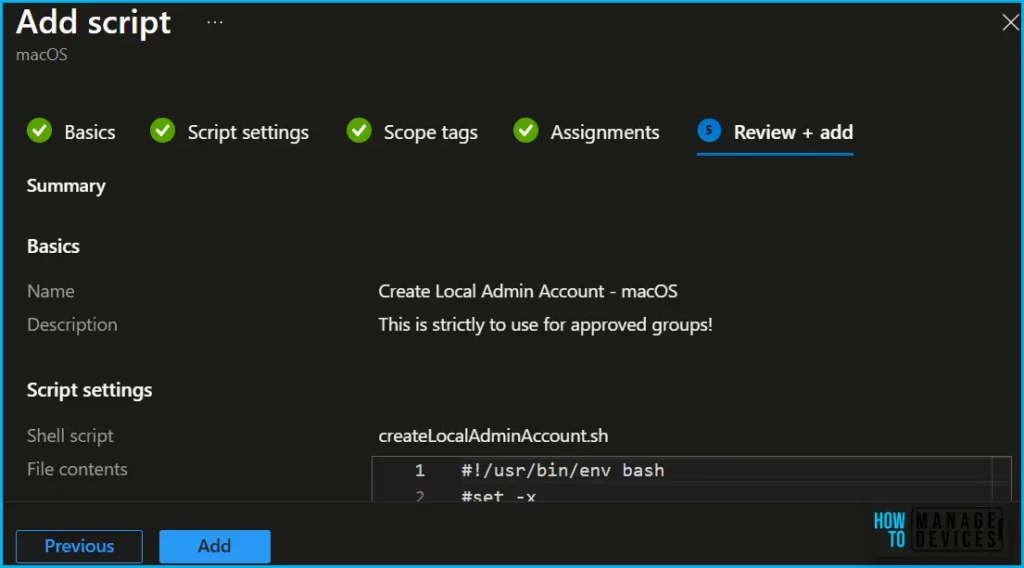
Now in Review + create, review your local admin account script settings. When you click on Create, your changes are saved, and the policy is created.
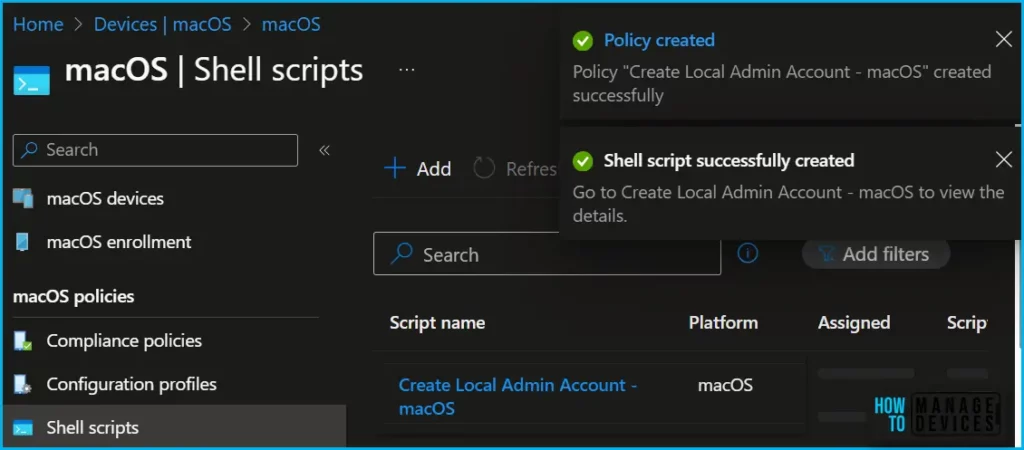
A notification will appear automatically in the top right-hand corner with a message. You can see that the Shell script was created successfully. Go to Create Local Admin Account – macOS to view the details. If you check, the script is available in the Shell scripts list.
Monitor Script Execution Status
You can monitor the progress of the profile deployment in the Intune portal to ensure that the local admin account is created successfully on the targeted macOS devices.
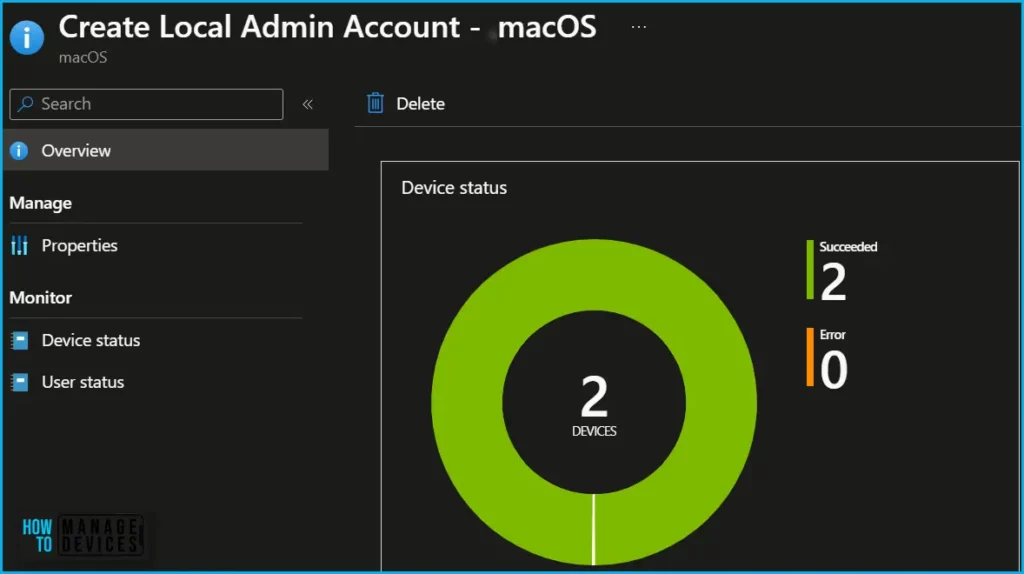
In the Intune Portal, Navigate to the macOS Create Local Admin Account and click on Overview or Monitoring to get the summary status. In the Monitoring workspace, click Device Status. In the Device Status list, you view the results for each script you ran on macOS devices.
End User Experience
On the targeted macOS devices, you can verify the creation of the local admin account by logging in with the account credentials specified in the profile. Ensure you have the username and password for the new local admin account.
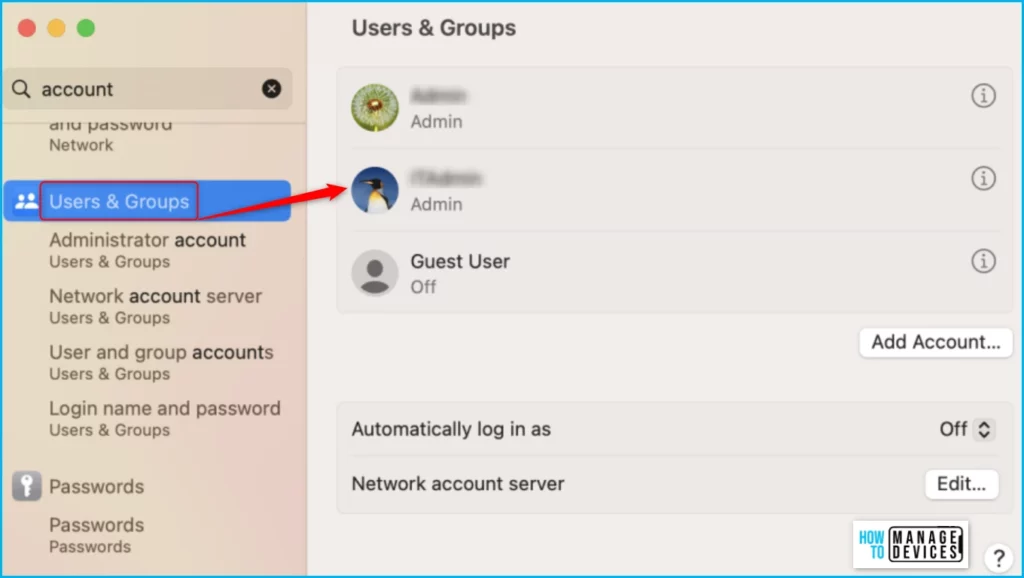
On your Mac, choose Apple menu > System Settings, then click Users & Groups in the sidebar. Here you can find the created local admin account. Clicking on the account, you will get more details.
We are on WhatsApp. To get the latest step-by-step guides and news updates, Join our Channel. Click here –HTMD WhatsApp.
Author
About Author – Jitesh, Microsoft MVP, has over six years of working experience in the IT Industry. He writes and shares his experiences related to Microsoft device management technologies and IT Infrastructure management. His primary focus is Windows 10/11 Deployment solution with Configuration Manager, Microsoft Deployment Toolkit (MDT), and Microsoft Intune.


Hello,
Would it be ok to continue the article and show how that admins logs in and what is the admin user experience basically.
Like, where does it get a password from?
What is the password?
If you open terminal and paste the cypher in the script into it you will see the unique password for each machine. In the linked example (which is is recommended you change), pasting the below reveals the password created by the script:
system_profiler SPHardwareDataType | awk ‘/Serial/ {print $4}’ | tr ‘[A-Z]’ ‘[K-ZA-J]’ | tr 0-9 4-90-3 | base64
Hi,
once the script is run and a unique password is created and used for task to complete, then where do I need to change the password for next use ?