






Download and Use Offline Maps in Windows
Hi, Let’s Learn how to Download and Use Offline Maps in Windows. The Offline Map is the best feature in Windows 11. It’s great for finding your way around, even if you don’t have an internet connection at the moment. Windows has made it easy for us to navigate and explore new locations with this useful tool.
Offline maps are the best way to find locations with no spending data. Offline maps are very useful for those who love travelling. This option is First introduced in Windows 10 and is available in Windows 11.
With this Map, you can find places, get directions, see traffic conditions, and more. The offline Map is the best user-friendly application for travelling. It provides many benefits for travellers, like saving data for those with limited data plans.
The Offline maps access maps when you don’t have activated data and are also helpful in planning your route before you start your journey. Office maps are essential for the area where there are no cell services. In this article, you will learn how to Download an offline map in Windows.

- Start or Stop Automatic Maintenance in Windows
- New End Task Options from Taskbar in Windows
- New Update on File Explorer in Windows 11
What is an Offline Map?
Download Offline Maps in Windows
Downloading Offline maps is very easy; if you are planning a trip, you can download the Map before you start the journey. Most of the time, we face problems while travelling, like network issues, limited data plans, etc. For Downloading the Offline Map.
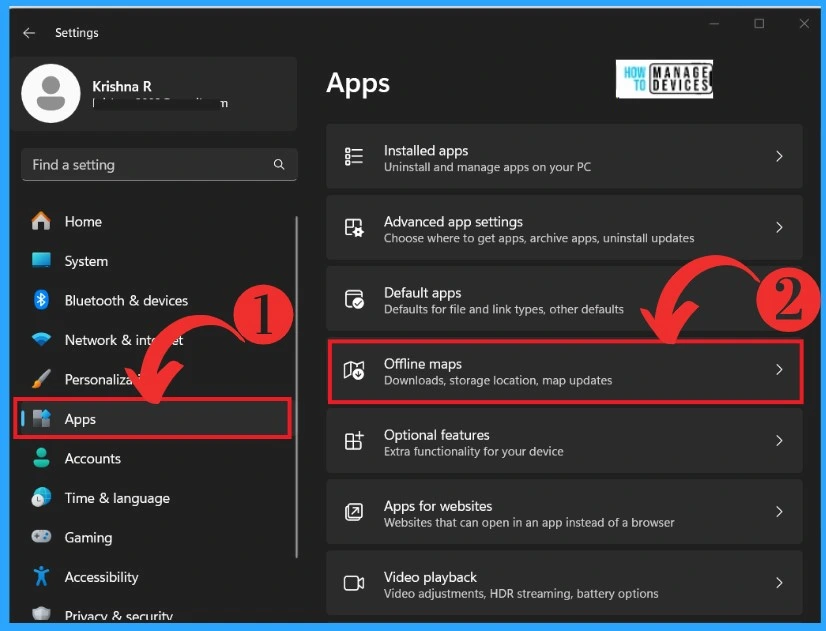
- Open the settings
- Click on the Apps option
- Select offline Maps from there
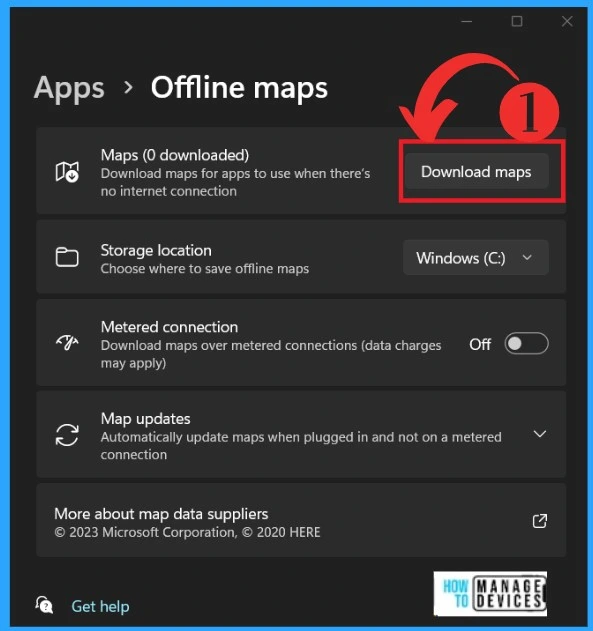
After that, you will get the Offline Map window; many options are available for the maps. You have to select the Download Maps button from the below window, and then you have to download the places you plan to go.
- Click on the Download Maps option
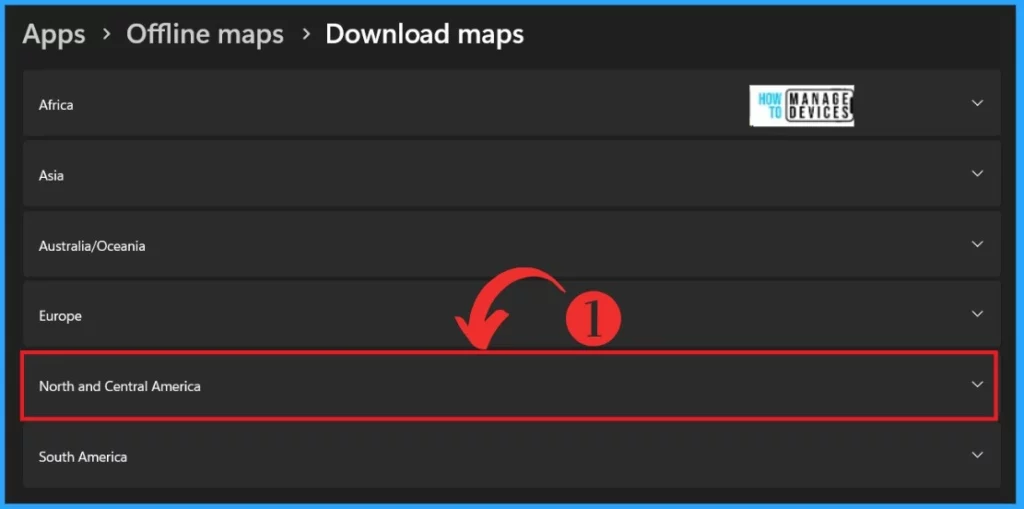
In another window, many continents are available for you to download a map. You can select any Continent. For example, I chose North and Central America. The below screenshot will guide you.
| Number of Continents Available | Continents |
|---|---|
| Continent 1 | Africa |
| Continent 2 | Asia |
| Continent 3 | Australia/Oceania |
| Continent 4 | Europe |
| Continent 6 | North and Central America |
| Continent 7 | South America |
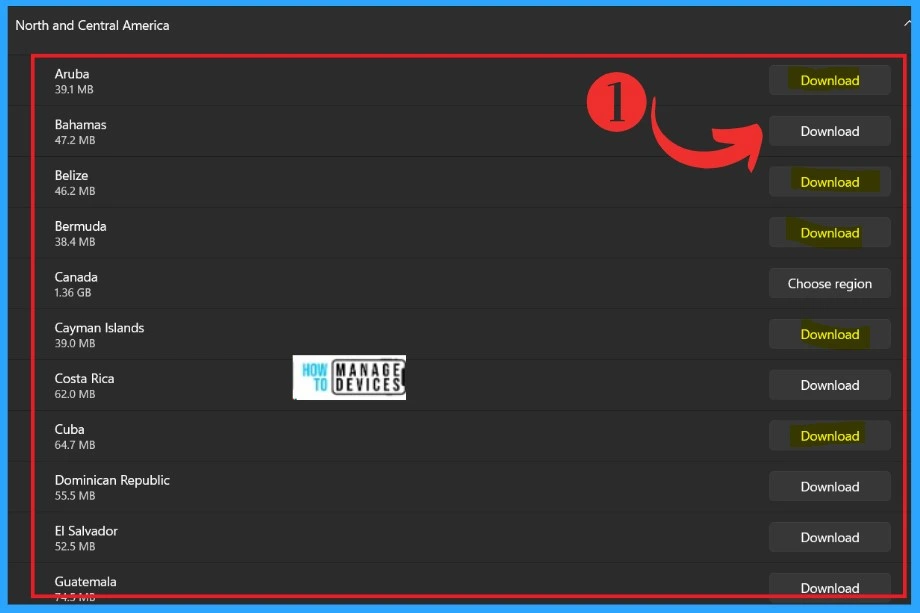
After selecting a Continent, you will get many countries of that Continent, and there is an option to Choose a region. Here, I downloaded only 5 Countries: Aruba, Belize, Bermuda, the Cayman Islands, and Cuba. You can download countries or regions that you want.
- Click on the Download option
- It starts Downloading
How to Use Offline Maps After Downloading
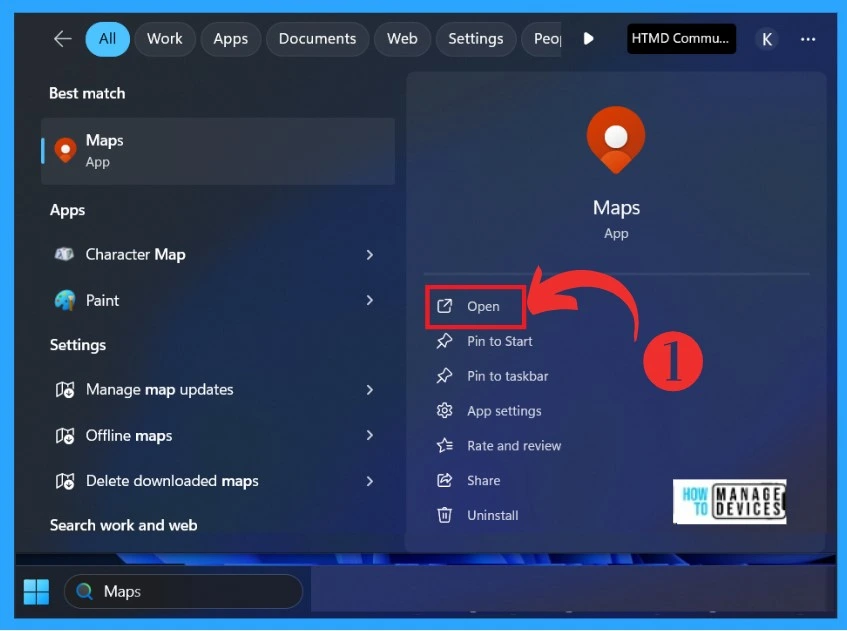
After downloading your destinations, you can use the Windows Map. First, click on the search option in the Start Menu, type ” Map,” and open the Windows Map. The below screenshot will guide you.
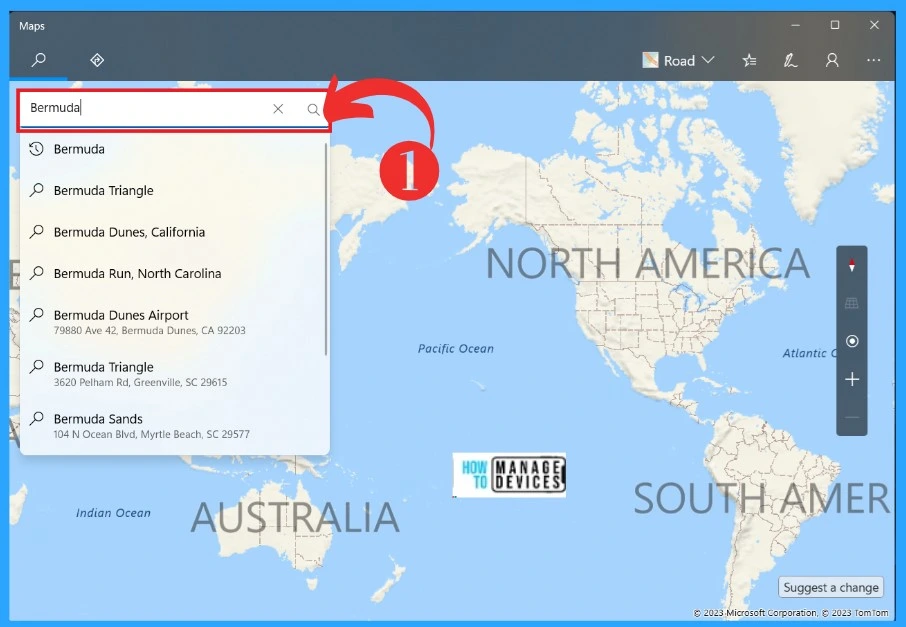
In the Windows map, you can use the search option to locate the country you downloaded for your offline Map. In that map window, you can find the search box in the left corner. Here, I typed Bermuda, which I downloaded. The screenshot will guide you.
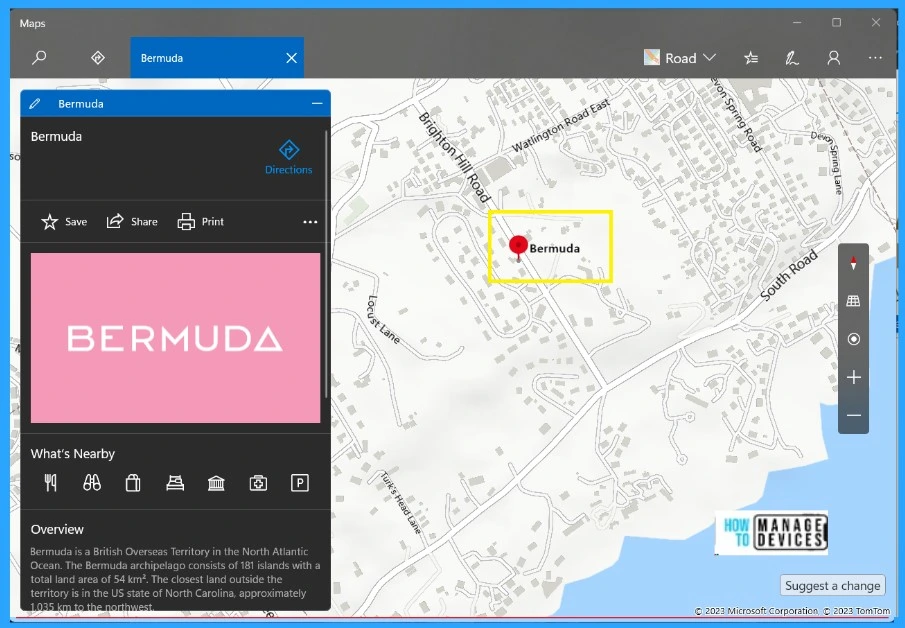
After that, I get the location; you can now search for the name of the city or place on your downloaded Map and get the location and directions.
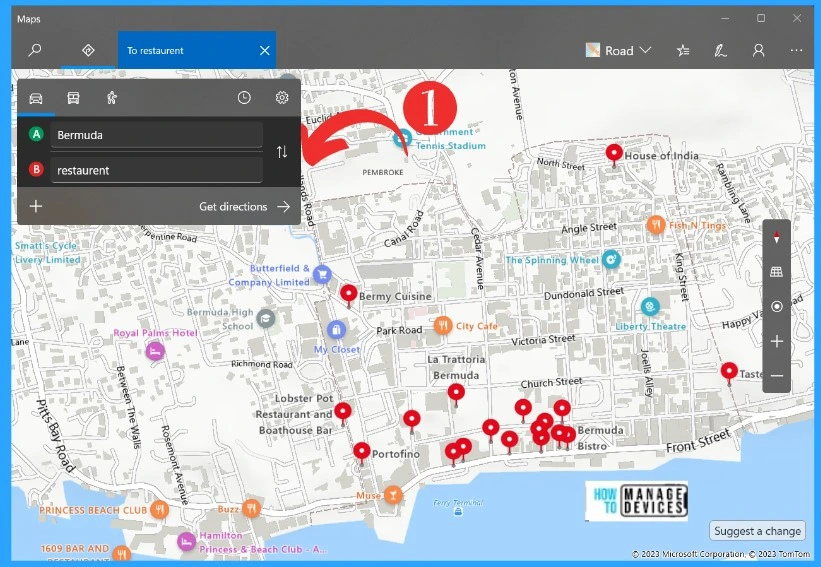
You can search any location on the Map to get directions. For example, it shows the direction from your location to where you want to go. I typed My location to Restaurent and clicked the Get direction option or Enter.
We are on WhatsApp. To get the latest step-by-step guides and news updates, Join our Channel. Click here – HTMD WhatsApp.
Author
Krishna. R is a computer enthusiast. She loves writing on Windows 11 and related technologies. She likes to share her knowledge, quick tips, and tricks with Windows 11 or Windows 10 with the community.




Discussion