






Easily Create New Intune EPM Rules directly from the Elevation Reports
Let’s discuss creating New Intune EPM Rules directly from the Elevation Reports. The new feature allows you to create Endpoint Privilege Management (EPM) rules directly from Elevation Reports in Microsoft Intune. You can now simplify setting up EPM rules by using the file details in these reports rather than manually entering information.
With Microsoft Intune Endpoint Privilege Management (EPM), your organization’s users can work as standard users without needing administrator rights. This lets users securely install applications, update device drivers, and run specific Windows diagnostics without full admin access.
This is one of the new features in the Microsoft Intune August 2024 updates. Microsoft Intune is a cloud-based service that helps organizations manage and protect their devices and apps. It is adding many new features and improvements.
In this post, you will find all the details on creating MS Intune Endpoint Privilege Management (EPM) rules directly from Elevation Reports. This feature makes managing and setting up privilege rules based on the reports more accessible.

Table of Contents
What Are EPM Elevation Rules?
EPM elevation rules allow users to perform tasks requiring administrator privileges, even as standard users. These tasks might include installing applications, updating drivers, or running specific diagnostics.
What is the Traditional Process of Creating an Elevation Rule?
Before this new update, creating an elevation rule required manually identifying the specific files or processes that needed elevation. You had to gather the necessary details about the file or application, such as its path or signature, and then manually create a rule based on that information. This process could be time-consuming and require careful attention to detail.
Easily Create New Intune EPM Rules directly from the Elevation Reports
With the latest update, Microsoft Intune allows you to create Endpoint Privilege Management (EPM) elevation rules directly from a support-approved elevation request or the details in the EPM Elevation report.
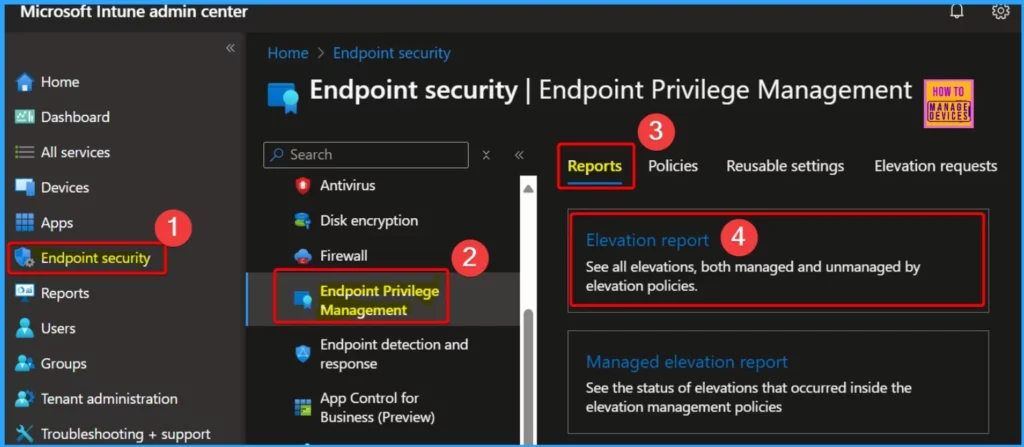
- Steps to Create an Elevation Rule from a Report in Microsoft Intune
- Sign in to the Microsoft Intune Admin Center.
- Go to Endpoint Security> Endpoint Privilege Management.
- Select the Reports tab.
- Click on the Elevation report tile.
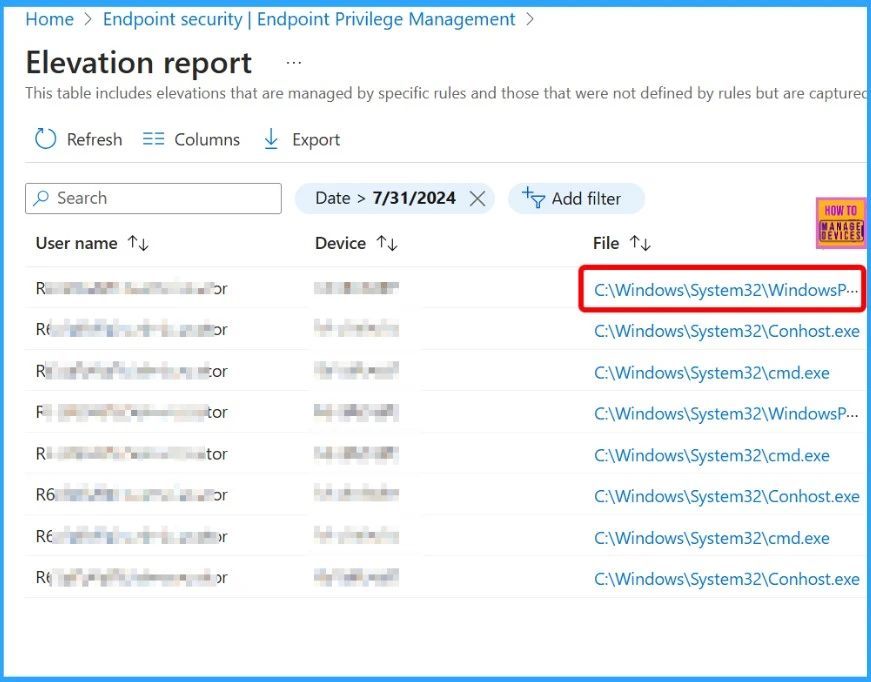
- In the File column, locate the file you want to create an elevation rule.
- These steps guide you through selecting a file from the Elevation report to create a new elevation rule within Microsoft Intune.
- CPU and RAM Spike Time Scores Report for Windows Physical Devices in Intune Advanced Analytics
- MS Intune Multi-Admin Approval Expands Support to Mobile Non-Windows Devices Policy
- How to use Intune Filter cpuArchitecture Device Property for App and Policy Assignments
- Enhanced Reporting Multi-Administrative Approval Microsoft Home Page via Intune August 2024 Update
To create an elevation rule, select the file you want to use from the File column in the Elevation report. This will open the file’s Elevation detail pane. You can create a rule using any file, regardless of the status of its elevation request.
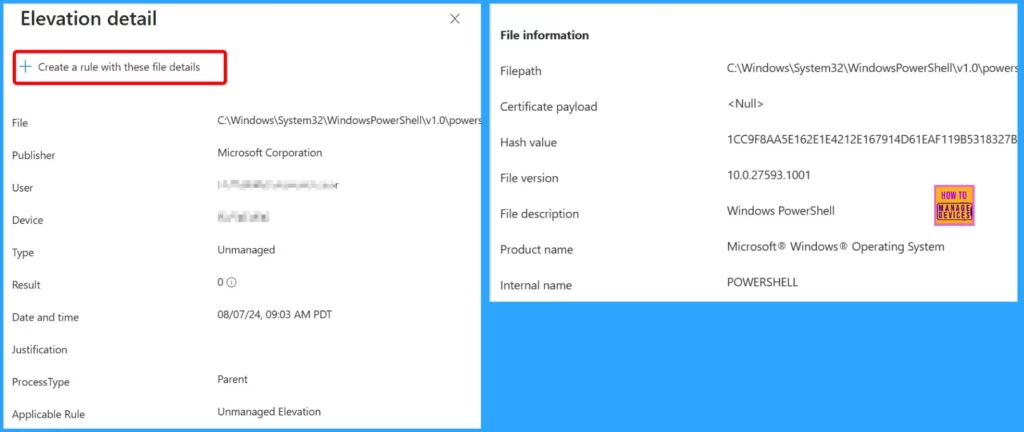
Review the file details in the Elevation detail pane to ensure they are correct. The elevation rule will use this information to identify the specific file. Once you have confirmed the details, click Create a rule with these file details to set up the elevation rule based on the selected file.
- Managing Activation Lock on Apple Devices with Intune
- How to Use Intune Assignment Filters Comparison Property gt ge lt le with OS Version
- Enforce Users to use Intune Approved Apps with App Protection Policies using Conditional Access Policies
- Issue on Minimum PIN Length for Startup in Disk Encryption Policies in Intune
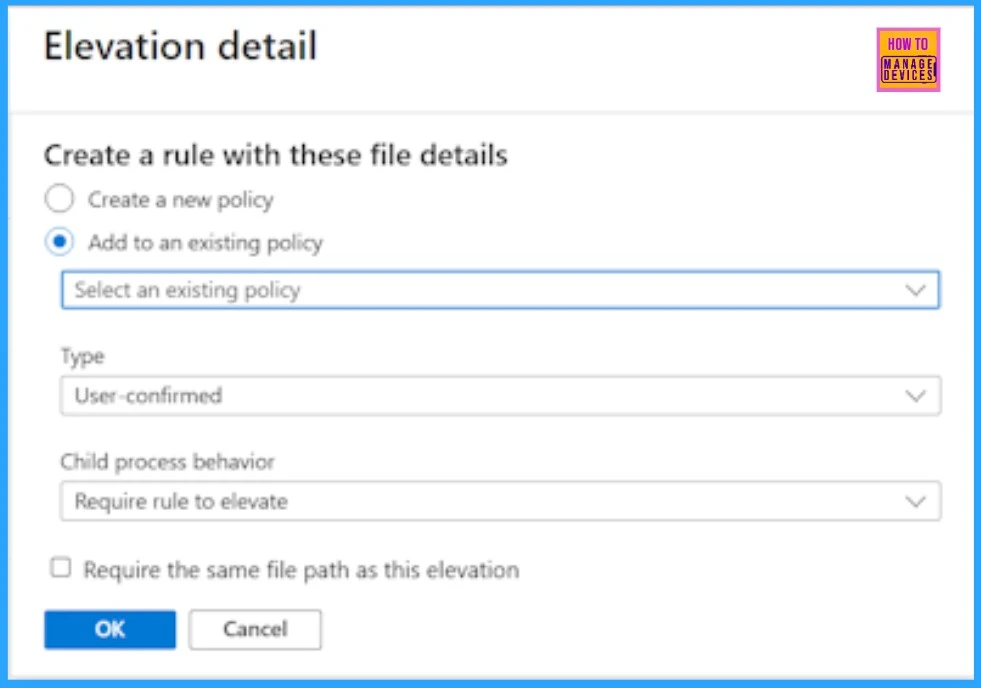
In the Elevation details window, you can either create a new policy with the elevation rule or add the rule to an existing policy. This allows you to manage privilege elevation efficiently based on your organization’s needs.
| Create a New Policy | Add to an Existing Policy |
|---|---|
| >Choose the type of elevation rule >Fill the Child Process Behavior >Click OK to proceed with creating the new policy. >Provide a Policy name for the new policy >Confirm creation. >Edit the policy to assign it to specific devices or users. | >New elevation rule in an existing policy >Use the drop-down list to select the policy you want to add the new rule. > Choose the type of elevation rule for the selected file. > Fill the Child Process Behavior > Click OK to update the existing policy with the new rule. |
We are on WhatsApp now. To get the latest step-by-step guides, news, and updates, Join our Channel. Click here. HTMD WhatsApp.
Author
Anoop C Nair has been Microsoft MVP from 2015 onwards for 10 consecutive years! He is a Workplace Solution Architect with more than 22+ years of experience in Workplace technologies. He is also a Blogger, Speaker, and Local User Group Community leader. His primary focus is on Device Management technologies like SCCM and Intune. He writes about technologies like Intune, SCCM, Windows, Cloud PC, Windows, Entra, Microsoft Security, Career, etc.


Discussion