






Create SCCM Automatic Deployment Rule | ADR | ConfigMgr
ConfigMgr ADRs are Automatic Deployment Rules created to deploy Software Updates (monthly patches) automatically. Let’s learn to create the SCCM Automatic Deployment Rule (ADR) to simplify monthly patching for Configuration Manager Admins.
The assumption here is that you already have a manual patching process in place for your organization. Now, the requirement is to take the monthly patching process to the next level by using ADR.
Make sure you complete the following steps before creating an Automatic Deployment Rule (a.k.a ADR). Ensure you have hotfixes/patches available under \Software Library\Overview\Software Updates\All Software Updates.
- Install WSUS for ConfigMgr Software Update Point Role
- Install ConfigMgr Software Update Point Role (SUP) Setup Guide
Step #1 – Create Automatic Deployment Rule
- Launch ConfigMgr Console.
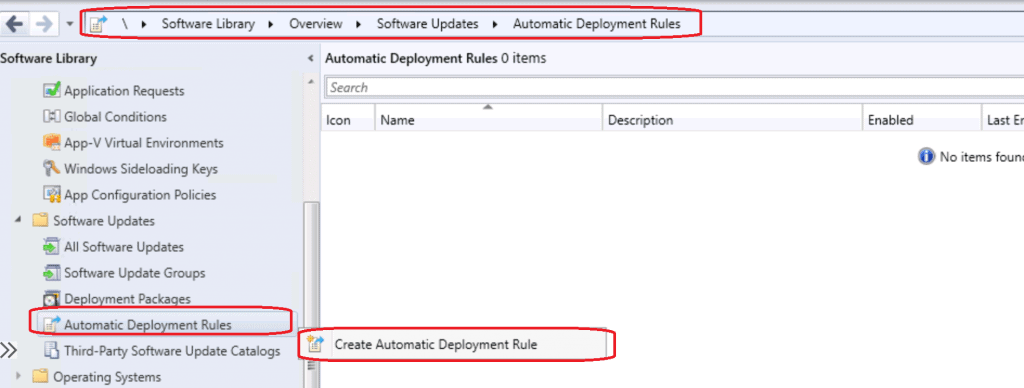
- Navigate to \Software Library\Overview\Software Updates\Automatic Deployment Rules
- Right-click on the Automatic Deployment Rules node and Select Create Automatic Deployment Rule.
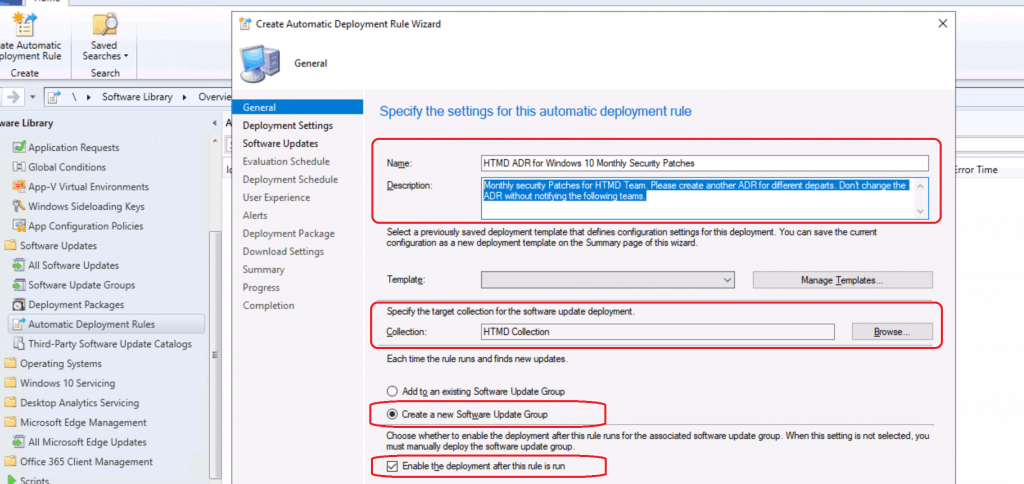
General Settings Page
Let’s understand the general settings of Automatic Deployment Rule. The following settings are the best options for some scenarios. I would recommend you to try testing different combination for several months before deciding on one particular option.

One example is Create a New Software Update Group. Creating new SUG is best option in my experience for many scenarios. But some of you might have a different opinion & experience. Please feel to share in the comments if you like.
- Enter the Name for ConfigMgr ADR rule
- HTMD ADR for Windows 10 Monthly Security Patches.
- Enter the Description – So that your colleagues can understand what is this ADR
- “Sample Text – Pilot – Monthly security Patches for HTMD Team. Please create another ADR for different departs. Don’t change the ADR without notifying the following teams.”
- Select the Device collection you want to deploy the monthly security patches.
- I normally select pilot collection with fewer devices and then production deployment will be a different one.
- Now, you need to tell the ADR that what it should do when?
- Each Time the rule runs and finds new updates
- I select Create a new Software Update Group.
- Make sure you select the checkmark to Enable the Deployment after this rule is run for pilot deploy.
- For production, if you want you can uncheck this option to be safer.
- Click on the Next button to continue.
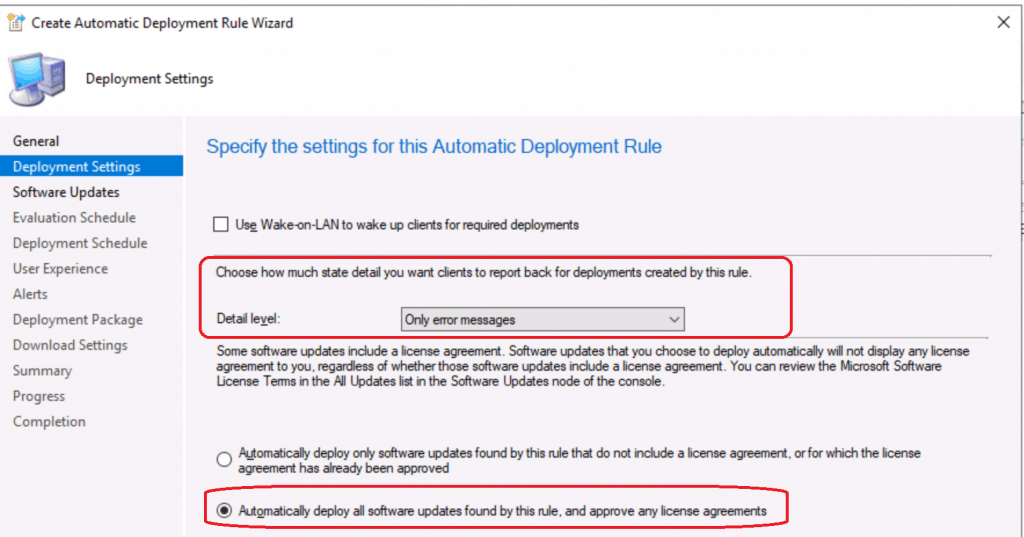
Deployment Settings
- Choose How many state details you want the client to report back for deployment created by this ADR.
- Details Level – I selected the default one.
- Only Error Messages
- Details Level – I selected the default one.
- Some Software updates include license agreements. This option is to approve any license agreements automatically.
- I select the default option
- Automatically deploy all software updates found by this ADR, and approve any license agreement
- I select the default option
- Click on the Next button to continue.
Select Software Updates using ADR Criteria
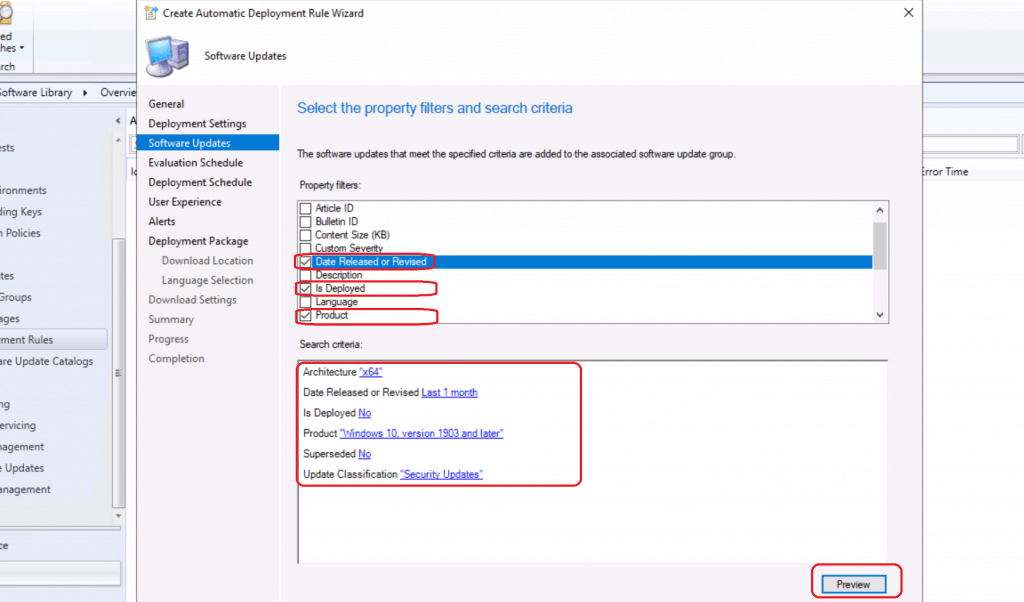
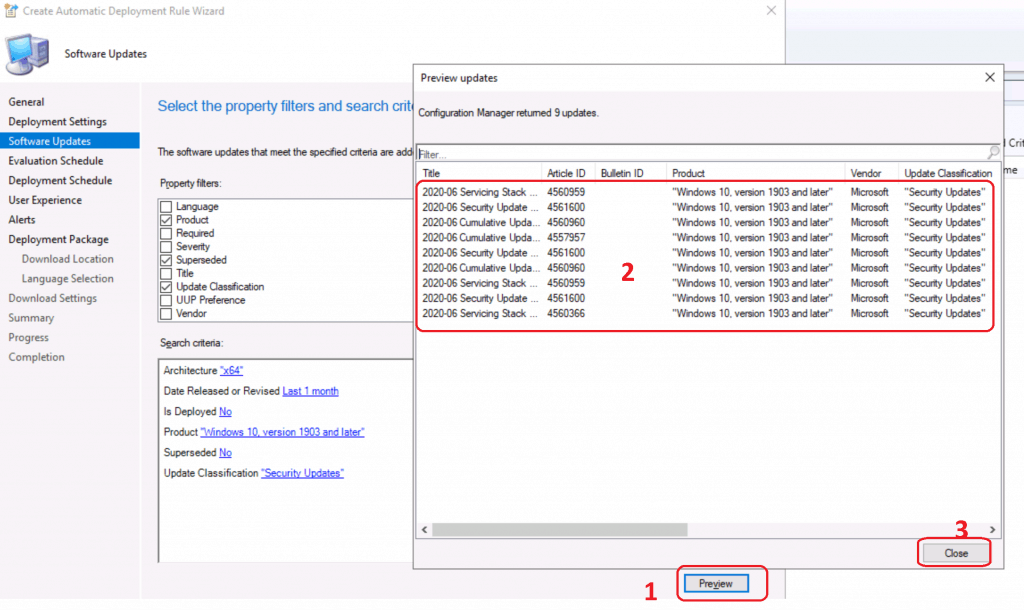
The brain of ADR – Let’s select the criteria of which you want to deploy using SCCM ADR.
- The software updates that meet the specified criteria are added to the associated software update group
- Properties filters – You can select from the following list:
- Article ID
- Bulletin ID
- Content Size (KB)
- Custom Severity
- Date Released or Reviewed
- Description
- Is Deployed
- Language
- Product
- Required
- Severity
- Superseded
- Title
- Update Classification
- UUP Preference
- Vendor
- Select the value for the filters you want for each filter
- (Refer to the screenshot to get more details about the filters which I used for pilot deployment SCCM ADR rule).
- Properties filters – You can select from the following list:
Platform Details
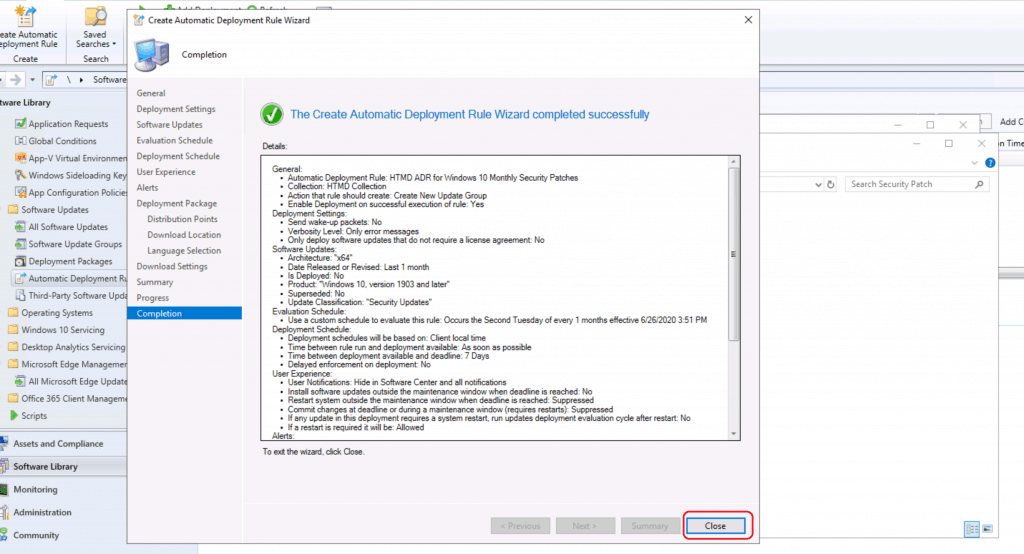
• Architecture: "x64"
• Date Released or Revised: Last 1 month
• Is Deployed: No
• Product: "Windows 10, version 1903 and later"
• Superseded: No
• Update Classification: "Security Updates"
Preview Software Updates
- Click on the Preview button to check and confirm whether you are using the filters correctly and to avoid accidental deployment errors.
- Click on the CLOSE button.
- Click on the next button to continue.
ADR Evaluation Schedule Settings
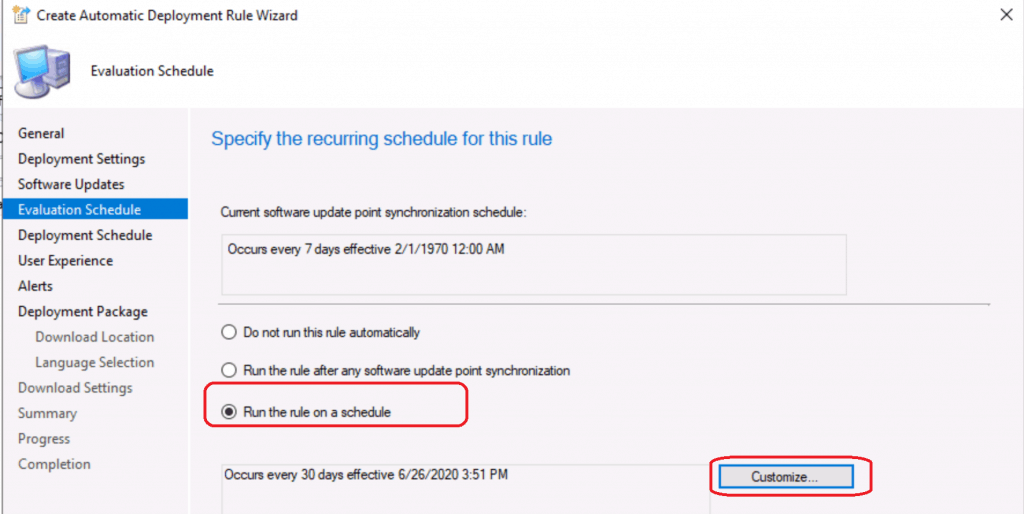
Now, let’s setup a monthly second Tuesday schedule for ConfigMgr Automatic Deployment Rule (ADR).
- Select Run the Rule on a Schedule.
- Click on the Customize button to schedule.
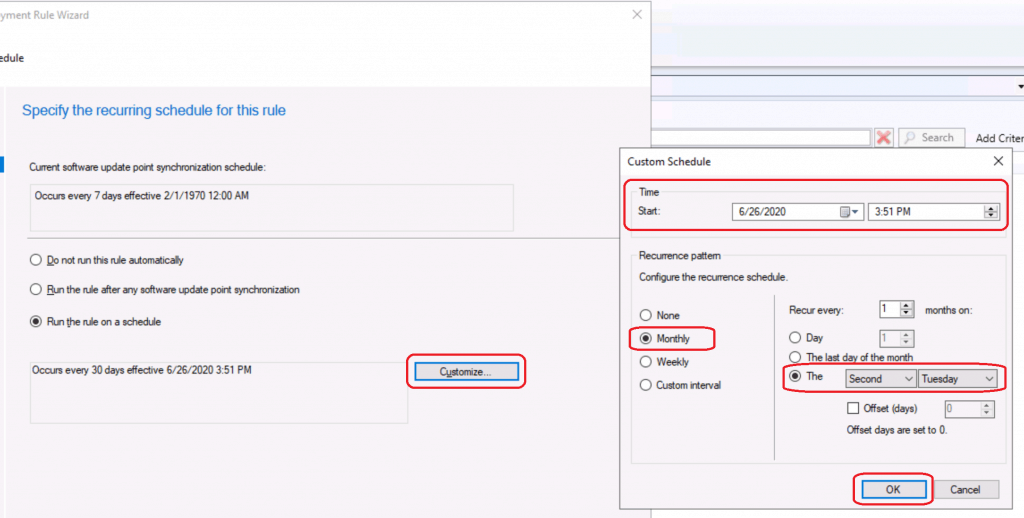
Custom Schedule Second Tuesday for ADR
- Select the Custom Schedule for the ADR evaluation schedule.
- Select Time – Select the time you want to start custom schedule
- Reoccurrence pattern
- Configure the recurrence schedule
- Monthly – The Second Tuesday
- Click OK
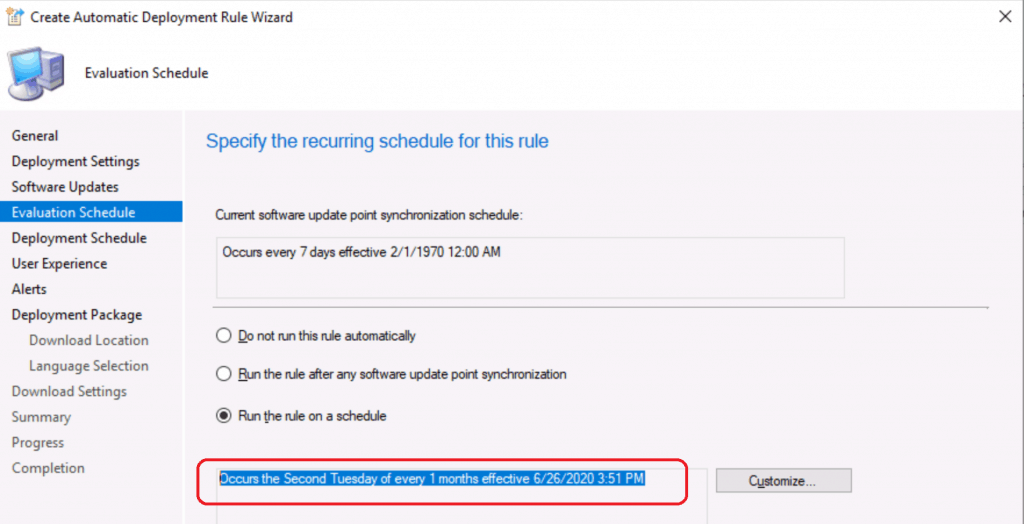
- Occurs the Second Tuesday of every 1 months effective 6/26/2020 3:51 PM
- Click the Next button to continue
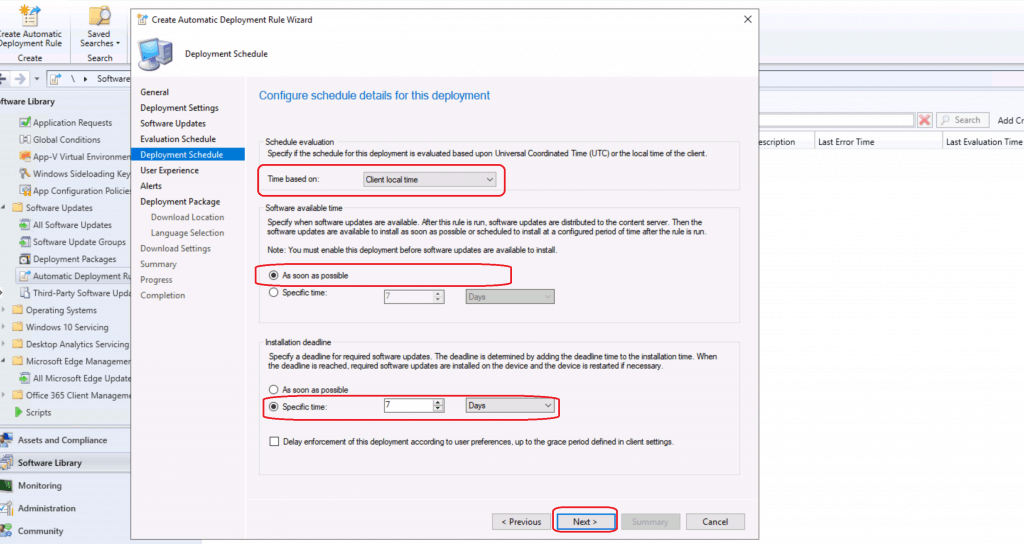
Deployment Schedule for SCCM ADR
- Specify if the schedule for this deployment is evaluated based upon UTC or local client time.
- I select default option Time Based on – Client Local Time
- Software available time.
- As Soon As Possible
- Installation Deadline.
- Specific Time – 7 Days
- Click the NEXT button.
NOTE! – You can enable the feature to Delay enforcement of this deployment according to user preferences up to the grace period defined in client settings.
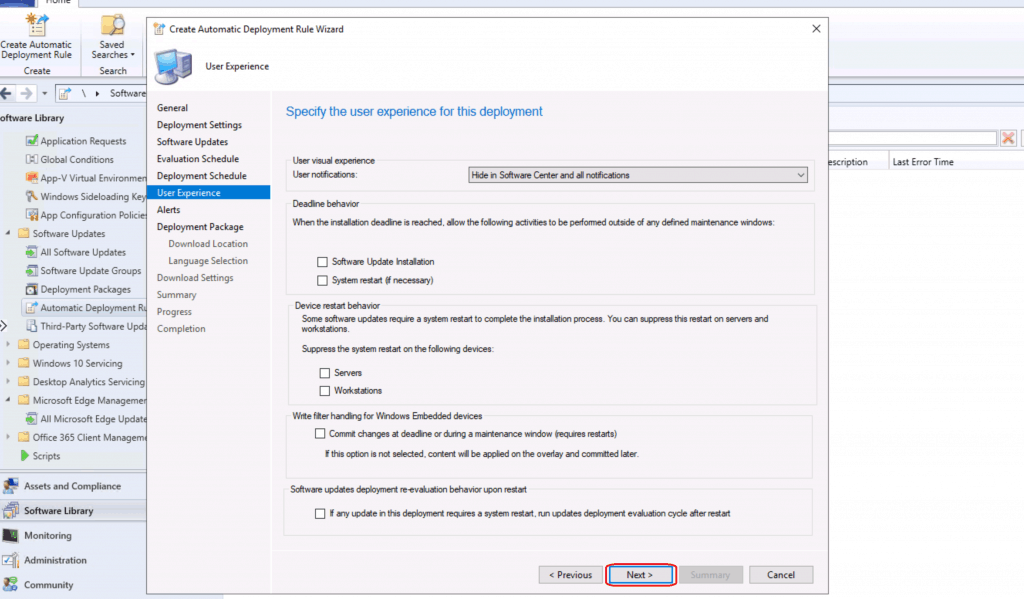
User Experience – ADR Template
- I always keep the user experience as default unless you have a specific business requirement.
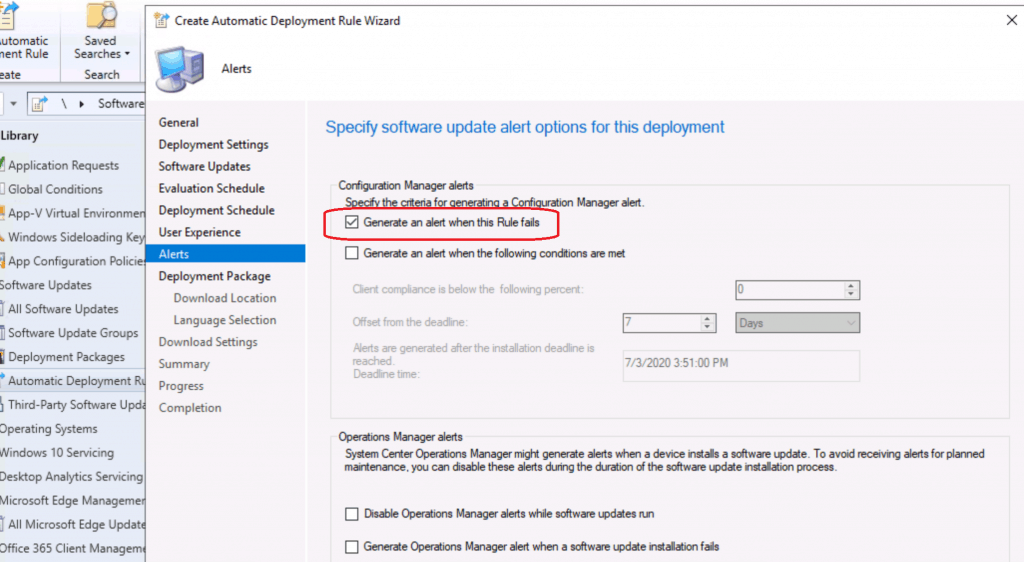
Setup Alerts for Automatic Deployment Rule (ADR)
- Set the alerts using the following option.
- Generate an alert when this Rule fails
- Click the Next button.
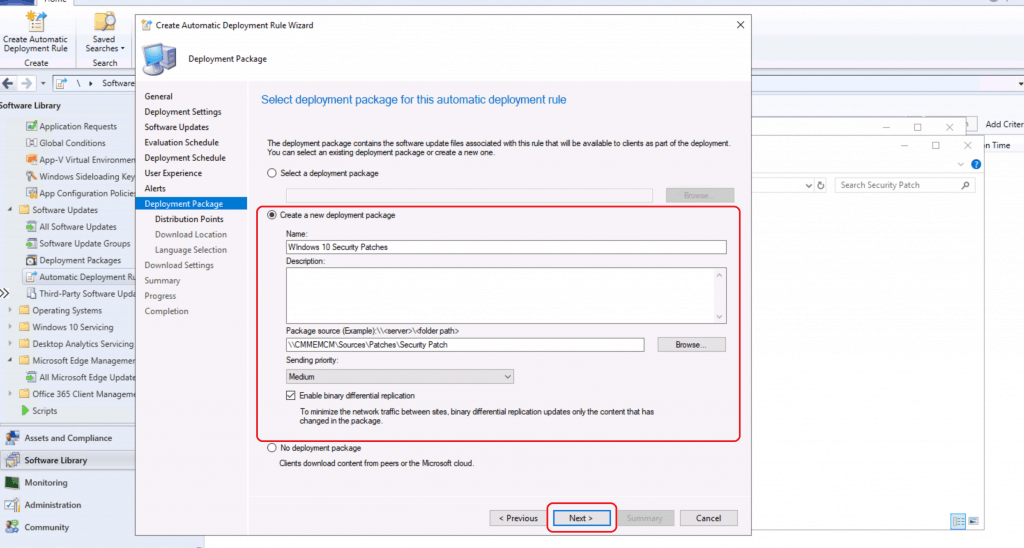
Package Creation Process
- Select the option – Create a new Deployment Package
- Enter the Package name – Windows 10 Security Patches
- Enter the package source location – \\CMMEMCM\Sources\Patches\Security Patch
- Make sure you enable the option called – Enable binary differential replication.
- Click the next button
NOTE! – Select NO Deployment Option if you want to use Microsoft cloud instead of on-prem DPs for patching.
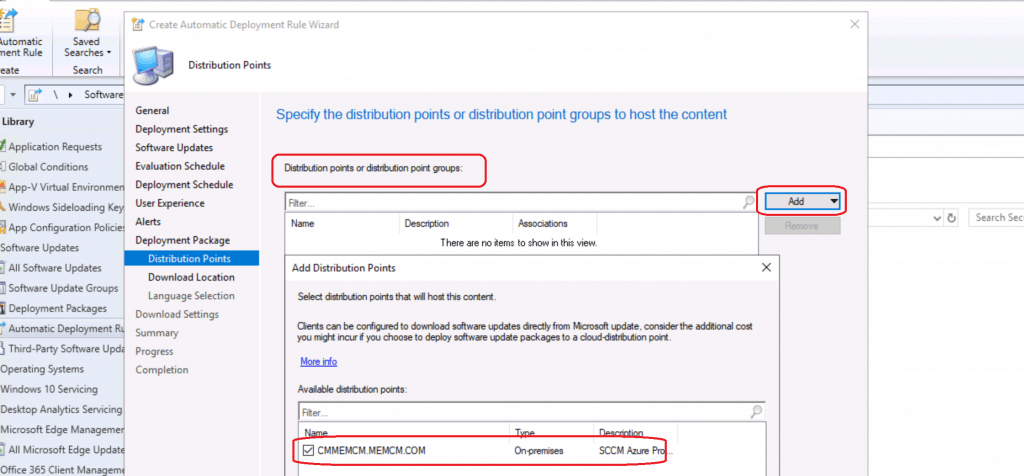
Distribute the Package
- Select the Distribution Point you want to distribute the package.
- Click Add and Select the available distribution point.
- Click ok.
- Click the Next button to continue.
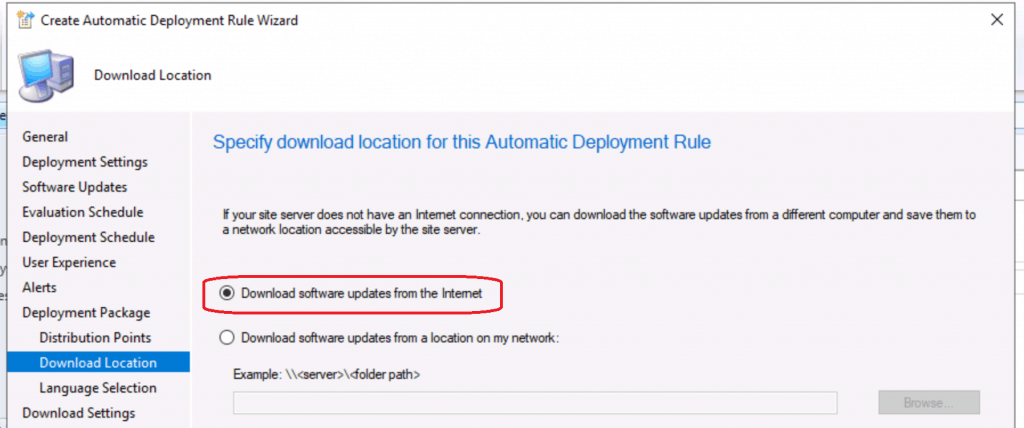
Download Options
- Select the option to Download the updates from Microsoft cloud.
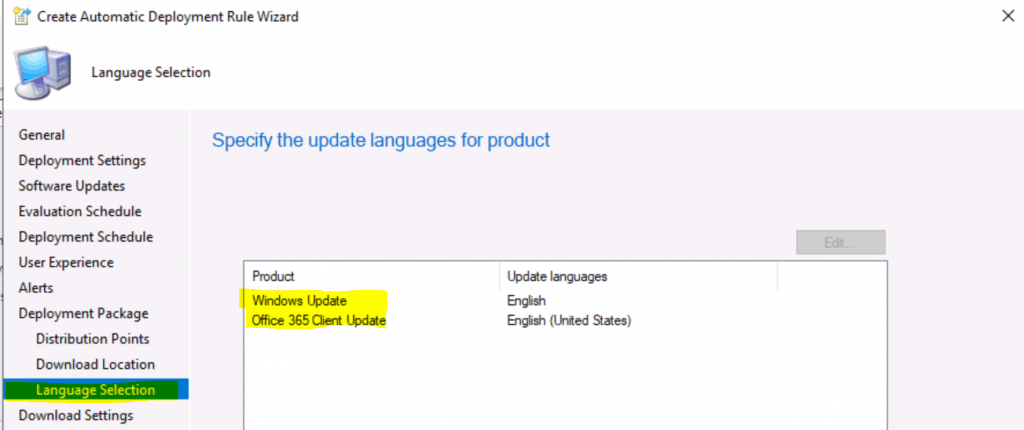
Language Selection
- This is the option to select Language Selection.
- Windows Update Language = English.
- Office 365 Client Update = English (United States).
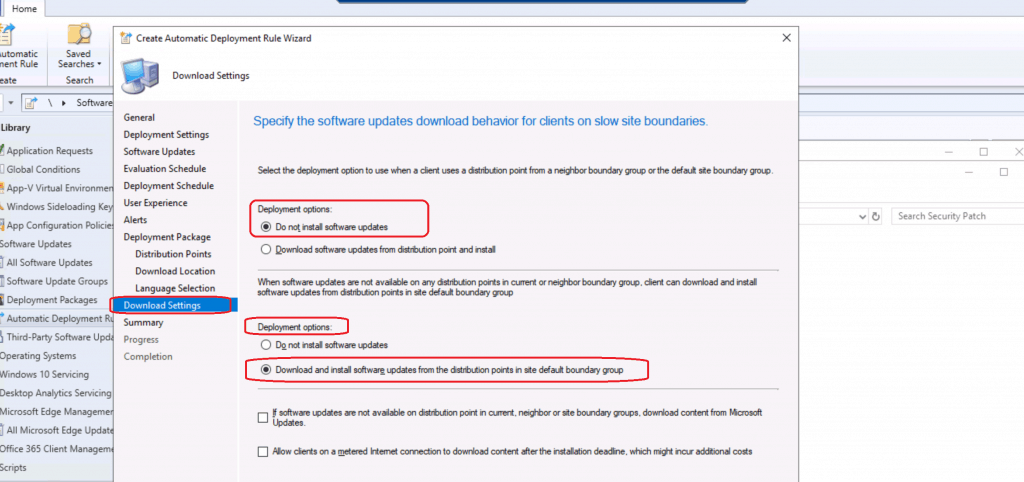
Client Download Settings
- Select Download settings for the client.
- Deployment Options
- Do not install software updates
- Deployment options
- Download and Install software updates from all distribution points in site default boundary group
- Click on the Next button
- Deployment Options
- Click Next, Next, and Close.
Results
Let’s check the results ADR results here.

SCCM ADR Log File
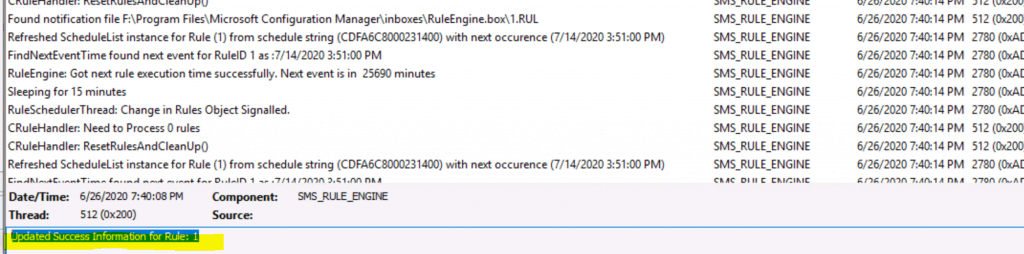
- Check the log file called ruleengine.log on site server.
 Query to run is: SELECT CI.CI_ID FROM dbo.fn_ListUpdateCIs(1033) CI                         JOIN (SELECT B.CI_ID, SUM(CF.FileSize)/1024 AS ContentSize FROM v_UpdateInfo B                         JOIN vCIAllContents AC ON AC.CI_ID = B.CI_ID                         JOIN vSMS_CIContentFiles AS CF on CF.Content_ID = AC.Content_ID                         GROUP BY B.CI_ID) AS CS ON CI.CI_ID = CS.CI_ID                         WHERE IsExpired = 0~  and (DateRevised>=N'2020-05-27 19:38:39')~  and (IsDeployed=0)~  and (IsSuperseded=0)~  and (DisplayName not like N'%Itanium%' and DisplayName not like N'%IA64%' and DisplayName not like N'%x86%' and DisplayName not like N'%32-Bit%' and DisplayName not like N'%ARM64%')~  and (CI.CI_ID in (select CI_ID from v_CICategories_All where CategoryInstance_UniqueID in (N'Product:b3c75dc1-155f-4be4-b015-3f1a91758e52')))~  and (CI.CI_ID in (select CI_ID from v_CICategories_All where CategoryInstance_UniqueID in (N'UpdateClassification:0fa1201d-4330-4fa8-8ae9-b877473b6441')))
 Rule resulted in a total of 9 updates
Download Rule Action XML is: <ContentActionXML xmlns:xsi="https://www.w3.org/2001/XMLSchema-instance" xmlns:xsd="https://www.w3.org/2001/XMLSchema"><PackageID>MEM00020</PackageID><ContentLocales><Locale>Locale:9</Locale><Locale>Locale:0</Locale></ContentLocales><O365ContentLocales><Locale>Locale:1033</Locale><Locale>Locale:0</Locale></O365ContentLocales><ContentSources><Source Name="Internet" Order="1"/><Source Name="WSUS" Order="2"/><Source Name="UNC" Order="3" Location=""/></ContentSources></ContentActionXML>
Criteria Filter Result XML is: <EvaluationResultXML xmlns:xsi="https://www.w3.org/2001/XMLSchema-instance" xmlns:xsd="https://www.w3.org/2001/XMLSchema"><CI_IDs><CI_ID>16783343</CI_ID><CI_ID>16783371</CI_ID><CI_ID>16783389</CI_ID><CI_ID>16783401</CI_ID><CI_ID>16783417</CI_ID><CI_ID>16783419</CI_ID><CI_ID>16783433</CI_ID><CI_ID>16783451</CI_ID><CI_ID>16783457</CI_ID></CI_IDs> </EvaluationResultXML>
9 update(s) need to be downloaded in package "MEM00020" (\\CMMEMCM\Sources\Patches\Security Patch)Downloading contents (count = 1) for UpdateID 16783343
List of update content(s) which match the content rule criteria = {16780582}
Successfully downloaded the update content with ID 16780611 from internet.
Updated Success Information for Rule: 1
Software Update Group by ADR
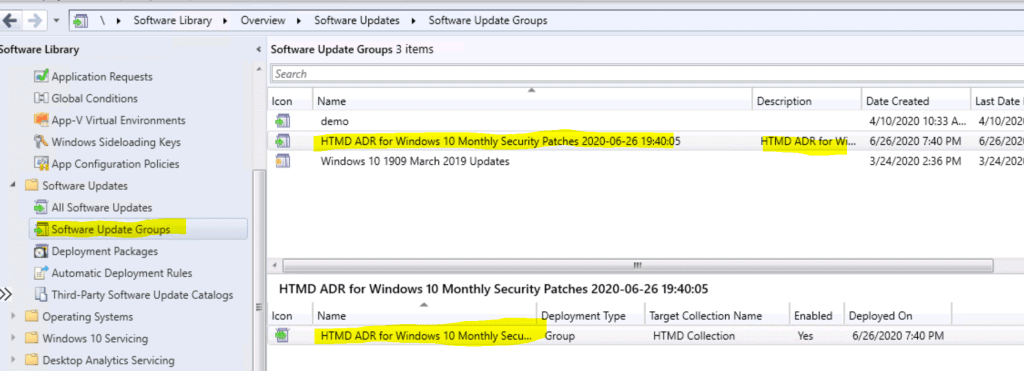
- Software Update Group got created using ADR.
Deployment Package Created by ADR
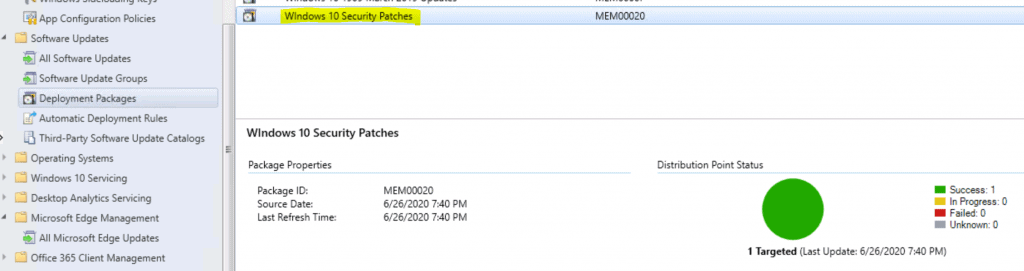
- The deployment package got created using the SCCM ADR!
Resources
- Microsoft Docs Automatically deploy software updates
- Install New ConfigMgr Software Update Role Setup Guide| SUP| SCCM
- SCCM Third-Party Software Updates Setup Step by Step Guide Post 1




I was always taught that the checkbox in User Experience “if any update in the deployment requires a restart run updates deployment cycle after restart” should always be enabled so that SCCM knows the patch is installed. Is that not the case for this checkbox?
Thanks for this post, great help.
If I deploy this ADR to a bunch of test machines. Once I’m happy there is no issues with windows updates. What is the best way to push these “tested” updates to all other machines?
StaffYou can use the same package and deploy to a different collection ?
You also try phased deployment based on success % https://docs.microsoft.com/en-us/mem/configmgr/osd/deploy-use/create-phased-deployment-for-task-sequence
Can I download ADR (Windows definition) on Machines directly from Internet Without using SCCM?
StaffADR is orchestration process in sccm. So we can’t use ADR without ConfigMgr
Is there a way I can configure for clients to get updates from Internet instead of DP which ADR used to distribute on schedule time ?
Hi, thank you very much for this overview. I have it configured pretty much the same in our SCCM, but lately wondered why the options for product stop at “Windows 10, version 1903 and later”. Can you tell why that is? Did system recognition simply not change after 1903 for 1909, 2004, and 20H4?
StaffWhat you mean by – product stop at “Windows 10, version 1903 and later”