






How to Create SCCM Windows 10 Upgrade Task Sequence Configuration Manager ConfigMgr
How to Create SCCM Windows 10 Upgrade Task Sequence Configuration Manager ConfigMgr. SCCM offers methods for upgrading existing Windows 10 devices to the newest version of Windows 10 1709, the Windows 10 Fall Creators Update.
One way to upgrade Windows 10 is using the “Windows 10 servicing” option in SCCM CB 1706. The other way is using the method I will explain in this post. This post will see “How to Create SCCM Windows 10 1709 In-Place Upgrade Task Sequence.”
Let’s understand what an SCCM Task Sequence is. A task sequence performs multiple steps or actions on a client computer at the command line level without user intervention.
Select the type of task sequence to create. A task sequence template (provided by default) is offered to upgrade the Windows 10 operating system to the latest version.

Table of Contents
- Upgrade Windows 10 21H2 using SCCM Task Sequence | Best Guide
- Deploy Windows 10 Feature Update Using SCCM Task Sequence | ConfigMgr
- Windows 10 21H1 Upgrade Using SCCM Task Sequence | ConfigMgr | Best Guide
- Windows Upgrade Troubleshooting Logs
- Windows 10 Upgrade Using SCCM Task Sequence
How to Create SCCM Windows 10 Upgrade Task Sequence Configuration Manager ConfigMgr
How to Create SCCM CB Task Sequence to Upgrade Windows 10 1709. There are methods in SCCM to upgrade existing Windows 10 devices to the newest version of Windows 10 1709.
The latest version of Windows 10 1709 is called Windows 10 Fall Creators Update. One way to upgrade Windows 10 is using the “Windows 10 servicing” option in SCCM CB 1706.
How Do You Create a Windows 10 OS Upgrade Package in SCCM?
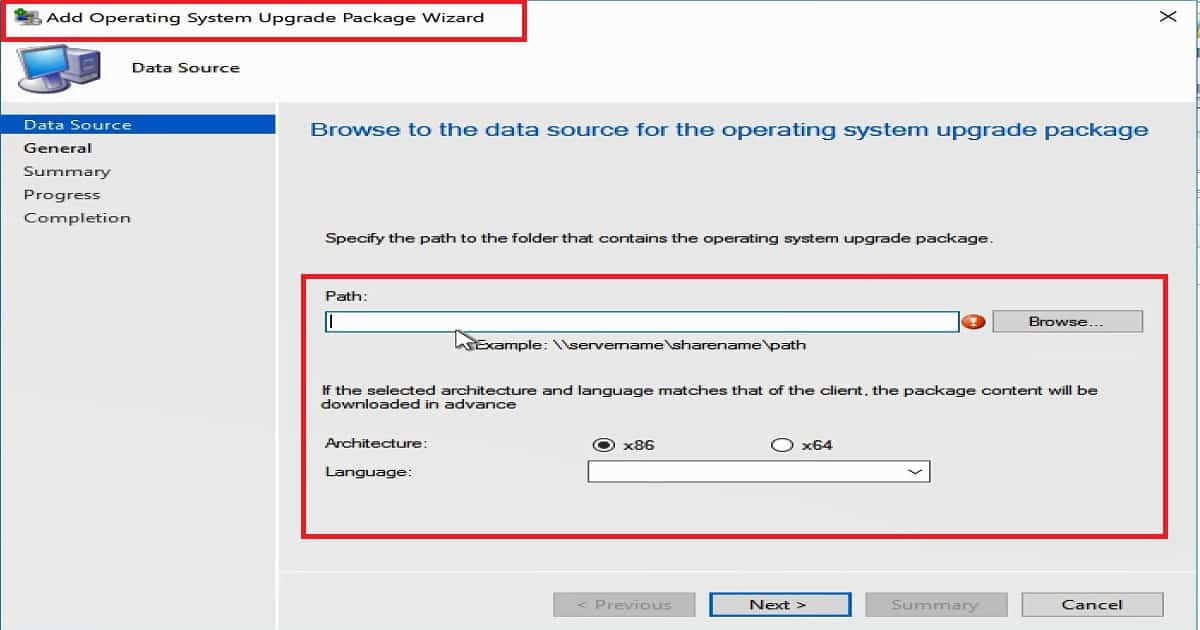
Before creating the Windows 10 upgrade task sequence, let’s complete the prerequisite: create a Windows 10 operating system upgrade package. Navigate via SCCM CB console—Software Library workspace, right-click the Operating System Upgrade Packages node, and select Add Operating System Upgrade Package.
Browse the data source for the operating system upgrade package. Specify the operating system upgrade package. Provide the Windows 10 1709 Enterprise x86 or x64 binary network share location. Select the Windows 10 architecture and the base language.
- On the next page, enter the name of the Windows 10 1709 upgrade package. That’s it; you’re done.
How to Create Windows 10 in-place Upgrade Task Sequence
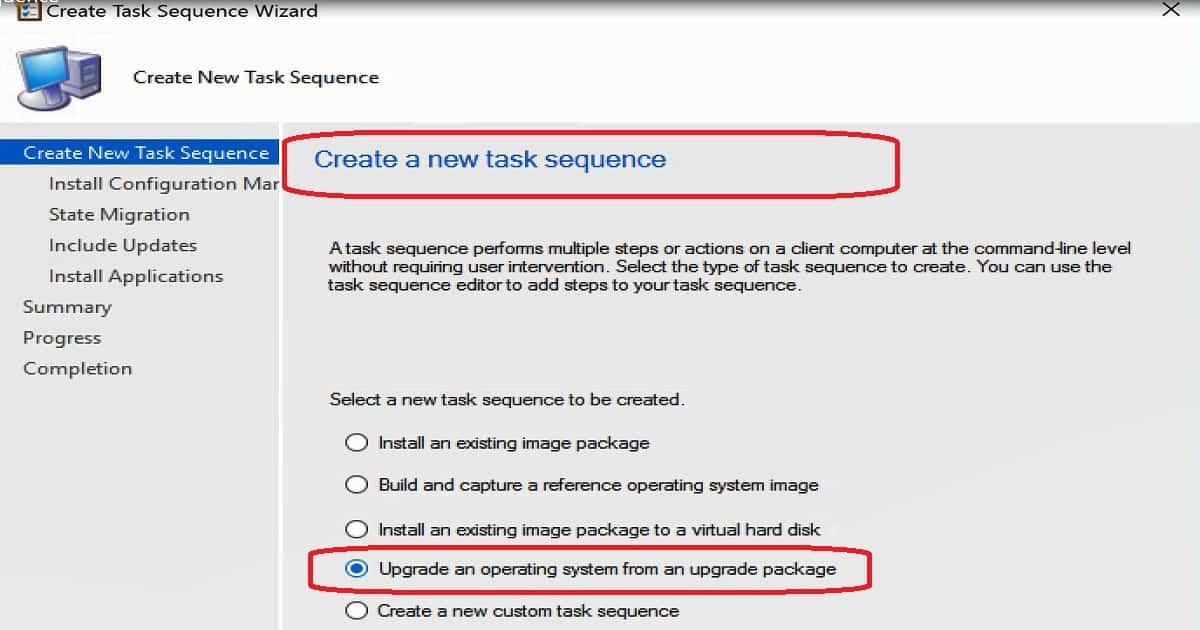
Navigate via SCCM CB console – Software Library workspace – right-click the Task Sequences node, then select Create Task Sequence. On the Create a new task sequence page, select Upgrade an operating system from the upgrade package and click Next.
Enter the name of the Task sequence—Windows 10 1709 Enterprise Upgrade. Upgrade the wizard’s Windows operating system page. As a first step, you must select the Windows 10 1709 upgrade package we created. The wizard will list all the available Windows 10 editions as part of the upgrade package.
Select the Windows 10 1709 Edition – Enterprise x64
With this upgrade task sequence, I plan to upgrade the Windows 10 Enterprise version to the latest one called Fall Creators Update (1709 – RS3). Also, you can enter licensing details if you have any. Otherwise, you can use the KMS server to activate Windows after the upgrade (Whenever required).
Select the Software Updates that Should Be Installed
If you already have an enterprise version of Windows 10 1703, it won’t ask for activation again (after the 1709 upgrade). In the “Include software updates” page of Create Task Sequence, we have 3 options.
| Select the Software Updates that Should Be Installed | Details |
|---|---|
| Required for installation | Mandatory software updates only |
| Available for installation | All Software Updates |
- Required for installation – Mandatory software updates only
- Available for installation – All Software Updates
- Do not install any software updates.
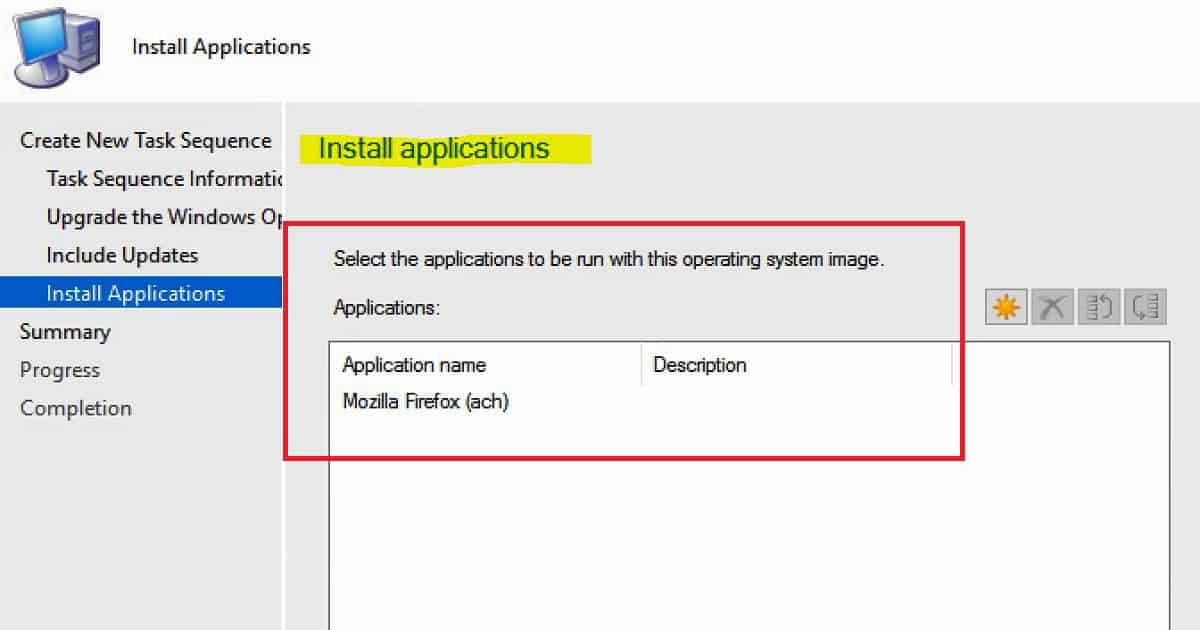
On the next page, we can select the applications to be installed as part of the Windows 10 1709 upgrade process. I have added Mozilla Forex to the Windows 10 1709 in-place upgrade.
Overview SCCM CB Windows 10 in-Place Upgrade Task Sequence
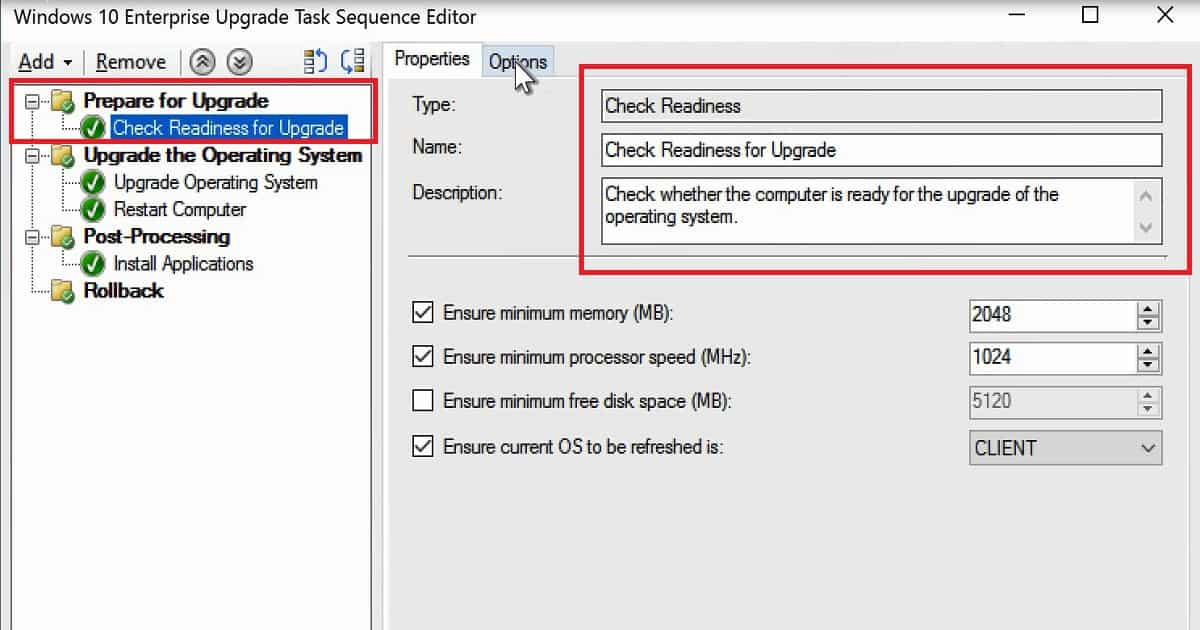
There are 5 groups in the Windows 10 Enterprise 1709 Upgrade task sequence. Prepare for Upgrade is the first stage, where it will analyze the machine to determine whether it’s eligible for a Windows 10 1709 upgrade. Enough disk space and memory are available on the device.
Upgrade the operating system is the task sequence group where the actual in-place upgrade of Windows 10 1709 will happen. Post-installation is the stage where we set the installation of the packages or applications.
One group missing in the video tutorial is the Software Update group or task. The last and final group of this Windows 10 1709 upgrade task sequence is for rollback. This action will take place when the upgrade is failed.
- Success: The task sequence has been created successfully.
- Success: Create a new task sequence – • Name: Windows 10 Enterprise Upgrade
- Success: Upgrade the Windows operating system – • Installation source media: Win10 en-US• Edition index: 3
- Success: Include software updates• Install software updates: Do not install any software updates
- Success: Install applications• Install the application: Mozilla Firefox (ach)• If an application installation fails, continue installing other applications in the list: No
Reference
- Create a task sequence to upgrade an operating system in SCCM
- Perform an in-place upgrade to Windows 10 using SCCM CB
We are on WhatsApp now. To get the latest step-by-step guides, news, and updates, Join our Channel. Click here. HTMD WhatsApp.
Author
Anoop C Nair is Microsoft MVP! He is a Device Management Admin with more than 20 years of experience (calculation done in 2021) in IT. He is a Blogger, Speaker, and Local User Group HTMD Community leader. His main focus is on Device Management technologies like SCCM 2012, Current Branch, and Intune. He writes about ConfigMgr, Windows 11, Windows 10, Azure AD, Microsoft Intune, Windows 365, AVD, etc.




Hi Anoop,
Thanks for this article.
However I would like understand how to do in place upgrade when enterprise have multiple language Windows 10.
Thanks
Monojit
Hey Anoop – Thanks for sharing this… We’re looking to create new OSD Task sequence with the help of MDT – where we’ll create refrence image and then capture that using MDT, if possible could you share some info about that.
StaffStandalone MDT to perform in place upgrade of Windows 10 version? I never tried that but it should be straight forward. Isn’t it?
Thanks Anoop for your reply…
I found this and looks like it answers lot of my questions 🙂
https://gal.vin/2017/07/10/building-windows-10-1703-reference-image-walkthrough/
CAS.log is telling me the content is 22gb so of course my cache size is too small. I’m confused though because the content source folder is just over 4gb. Where is the 22gb coming from? Is my only option to increase the cache size?
StaffDid you use the default options? or you used download and install the task sequence ?
Is it OK to add BIOS Upgrade at the end of task Sequences?
StaffYes, it’s ok to add BIOS or UEFI update steps
Hi Anoop, Thanks for your posting on the in place upgrade. I couldn’t able to find where we can configure the capture and restore user state in the Upgrade OS task sequences.
I am having a laptop with installed windows 7 and i need to do a in place upgrade to Windows 10 without removing a data. so in this case where i should do the configuration for the capture and restore data?
I refereed also the USMT package creation steps and understood that we need to create a custom task sequence Edit with add capture and restore state in the TS and deploy. So i am confused.
For doing a in place upgrade, we should first create a custom TS and do capture data and store onto Migration point and then create a another TS to upgrade OS by following your above steps and complete installation and then again need to create another custom TS for restoring data from Migration point?
Are these above are the flow ?