






Allow or Block Default Popups Window Setting Policy in Edge Browser using M365 Admin Center
Let’s discuss Allow or Block Default Popups Window Setting Policy in Edge Browser using M365 Admin Center. As you all know that Microsoft 365 is one of the best platforms to deploy Microsoft edge Policies. The Microsoft 365 Admin Center Policy is easy to use and highly effective.
By adjusting these settings, administrators can boost security, provide a better browsing experience. Administrators can manage the default pop-ups setting in Microsoft Edge through the Microsoft 365 Admin Center Policy. Managing pop-ups is essential for improving the browsing experience by reducing distractions and ensuring security against unwanted Pop Ups.
You Know, Pop-up windows are a common feature in web browsing, often used for notifications, advertisements, or additional content. Microsoft Edge provides administrators with the ability to manage pop-up settings through policies such as AllowPopups and BlockPopups.
It also improves the browsing experience by reducing distractions, allowing users to focus better. In this post we can get into a detailed explanation of how the policy to be deployed and what are the steps we have to take. So lets get started Enable Disable Default Popups Setting in Edge using the Microsoft 365 Admin Center Policy.

Table of Contents
What Happens if We Don’t Configure the Policy for Allowing Pop-Up Windows on Websites?
Allow or Block Default Popups Window Setting Policy in Edge Browser using M365 Admin Center
Above we discussed a lot of things about Pop up settings. You know this is one of the important settings in every browser. So, let’s look how this policy to be used in Microsoft Edge and how it to be enabled for users. First you have to Sign in to the Microsoft 365 admin center.
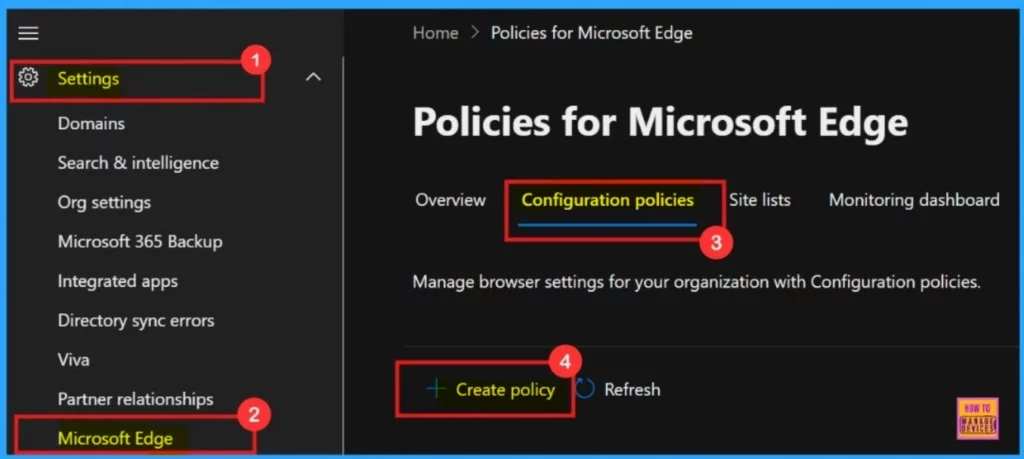
- Enable Disable Ask Before Closing a Window with Multiple Tabs Policy in Edge Browser using M365 Admin Center
- Enable or Disable Component Updates Policy in MS Edge Browser using M365 Admin Center
- How to Configure Auto Import At First Run Policy in Edge Browser using M365 Admin Center
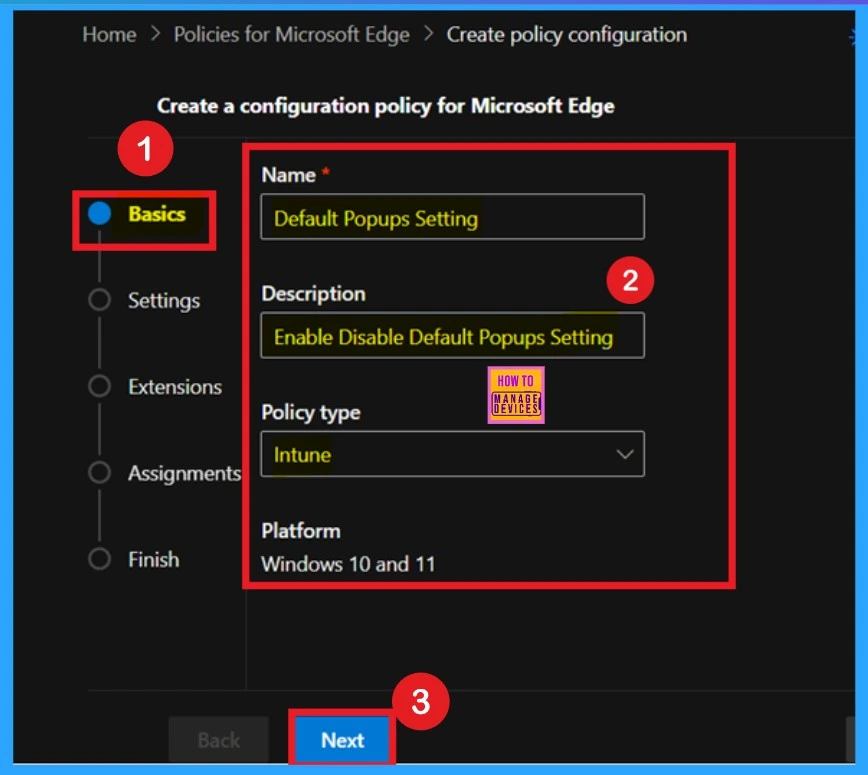
Basics
Basic is the first step you have to do with in a policy deployment. In this step, you have to enter the basic details. Such as name description, policy type platform etc. Here I entered the policy name as default pop up setting.
- Then Click on the Next.
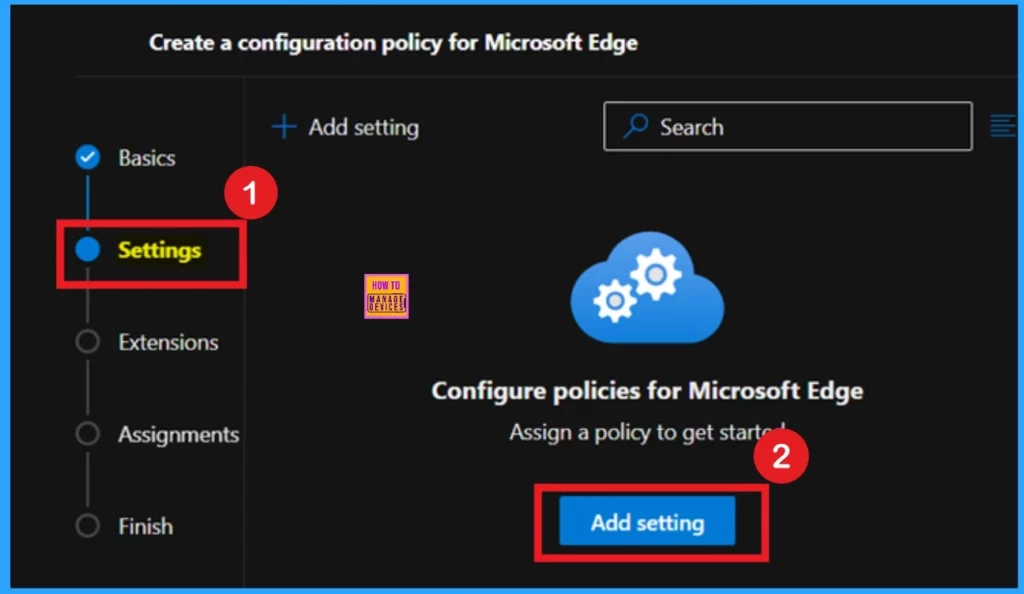
The next step is settings it is very important like a basic step here you have to enter the policy details for that. First, you have to click on the + Add settings or add settings that in a blue color.
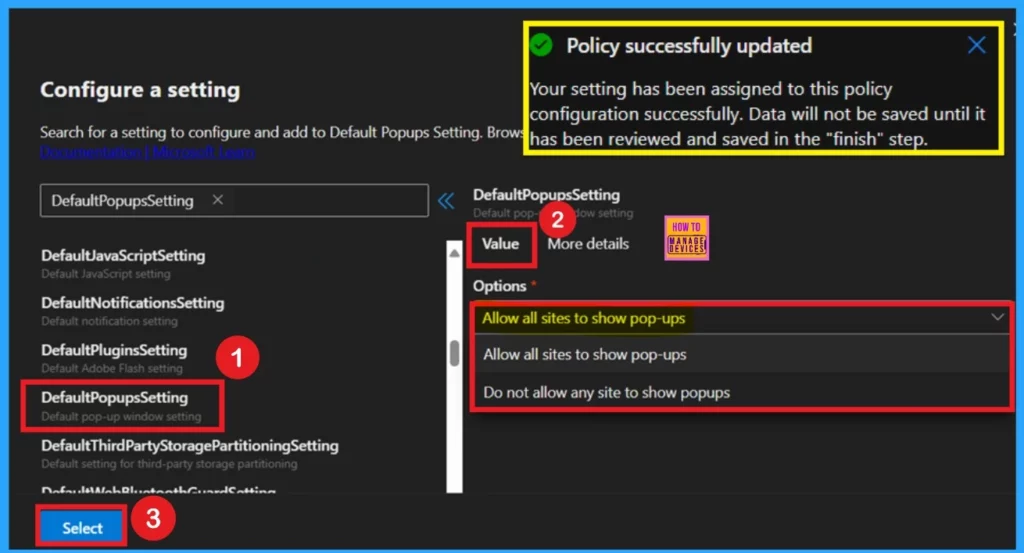
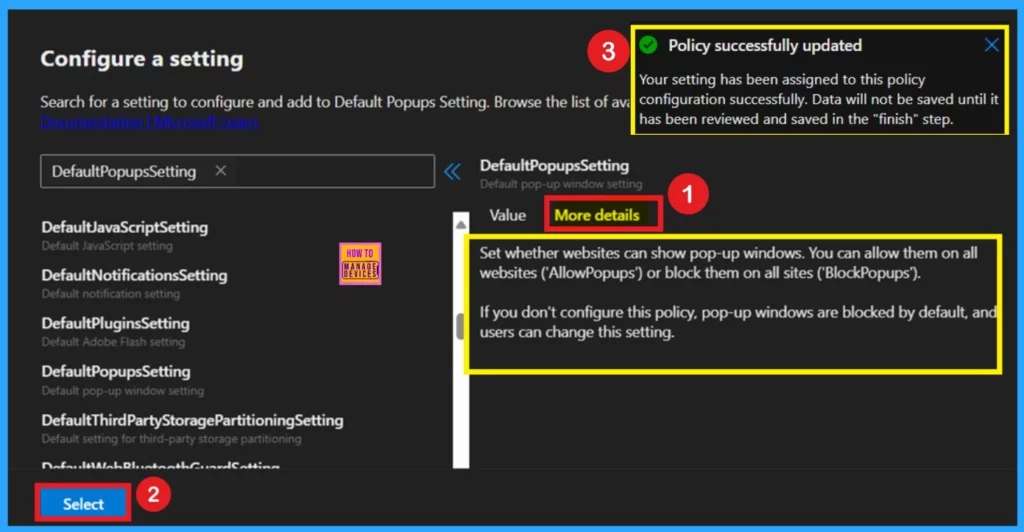
In the settings you can search for the policy DefaultPopupsSetting and you will Get the policy settings in your window. Here the policy are to be in 2 tabs called value and the more details. Now we are on the value tab it helps to set the policy appropriately.
Here 2 options are available such as Allow all sites to show pop-ups and do not allow any site to show pop-ups. Here I selected the Allow all sites to show pop-ups. Then click on the select option to continue and now you will get notified that policy successfully updated.
Now you are on the more details tab. It is the best option in more details you will get all the details of the policy that you are going to deploy. Here it shows that set whether websites can show pop-up windows. You can allow them on all websites (‘AllowPopups’) or block them on all sites (‘BlockPopups’).
- If you don’t configure this policy, pop-up windows are blocked by default, and users can change this setting.
- Then click on the select, now you will get notified that policy successfully updated.
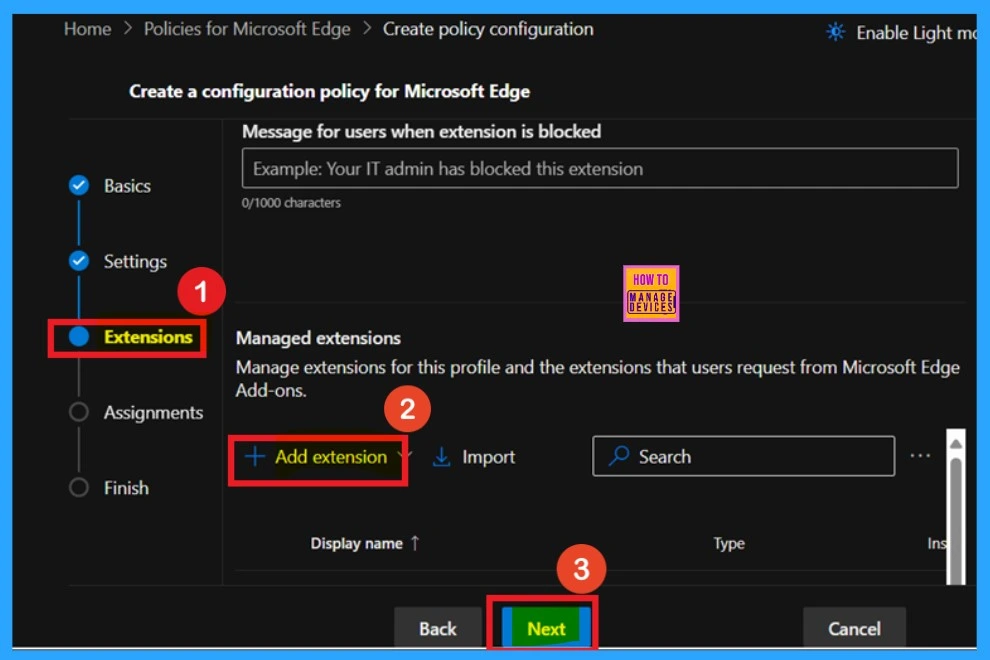
Extensions
In the Extensions section, you can configure extension behaviors based on policies, including installation settings, permissions, and which URLs are allowed or blocked. To add a specific extension to your policy, click the + Add extension button. If no additional settings are needed for an extension, simply click Next to proceed.
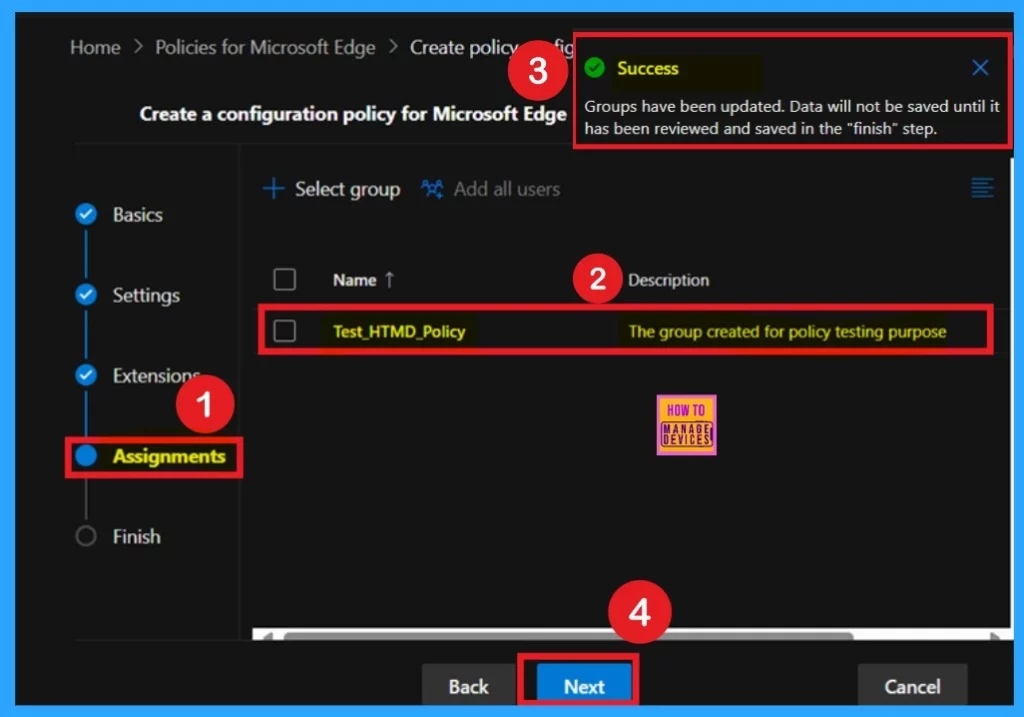
Assignments
The Assignments section allows you to target specific user groups with the policy, ensuring that only members of the selected group receive the configured settings. By selecting a group from the default Microsoft Entra groups, you can control who is impacted by the policy, helping to manage access to features and settings more effectively.
- Upon selecting the group, a confirmation message indicates a successful group assignment.
- In this case, the Test_HTMD_Policy group, specifically created for policy testing, has been designated for this policy.
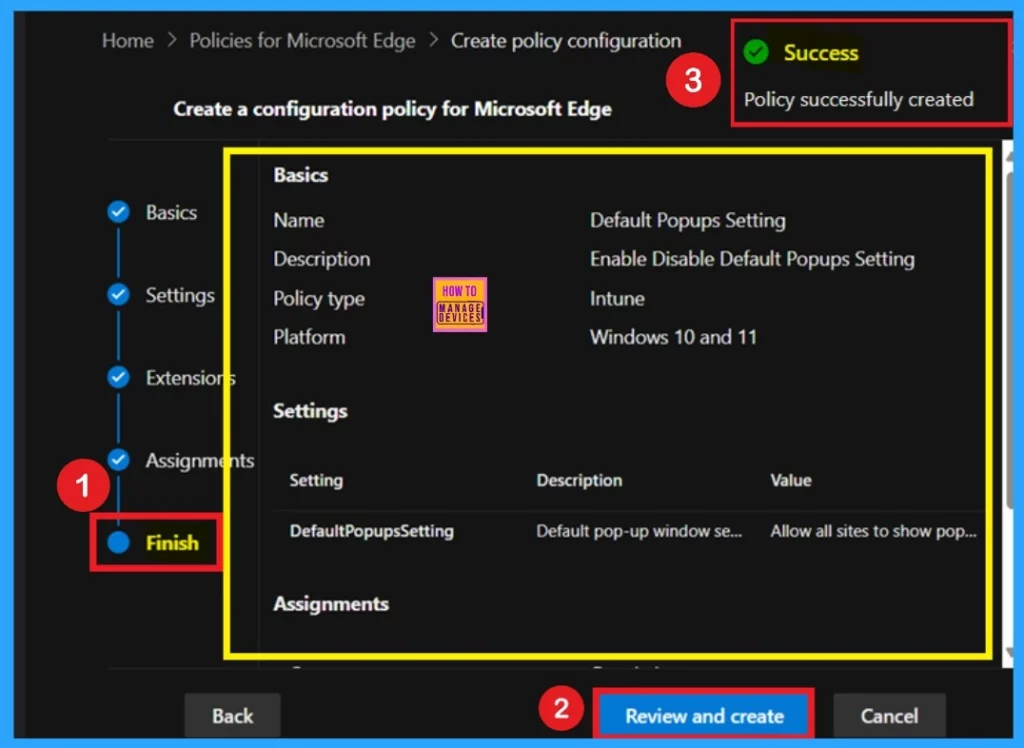
Finish
The Finish stage is the final step in policy creation, where you can review all configured settings. If any changes are needed, use the Back button to adjust the details. Once you’re satisfied, click Review and Create to complete and deploy the policy.
Monitoring Status
After creating the policy, manual synchronization through the company portal is required to apply the changes. Once synchronization is complete, the newly created policy will appear on the Policies for Microsoft Edge page, confirming that it has been successfully implemented.
- To speed up policy deployment after creation, sync your device with the company portal.
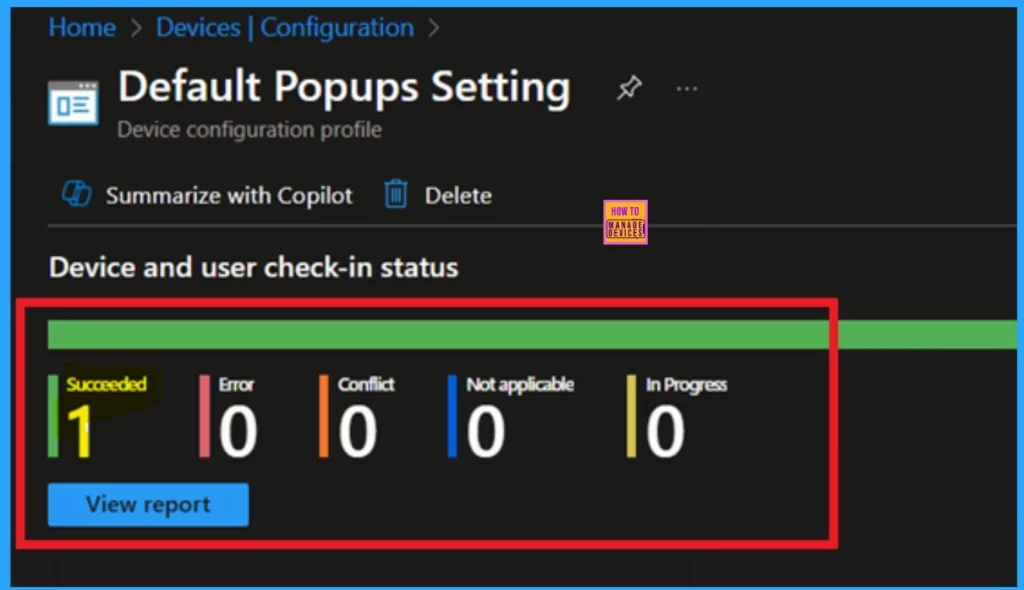
- Then, track the policy’s status in the Intune Portal by going to Devices > Configuration, finding your policy under the Policies tab, and checking for a “Succeeded” status.
- This confirms the policy has been successfully applied to your device.
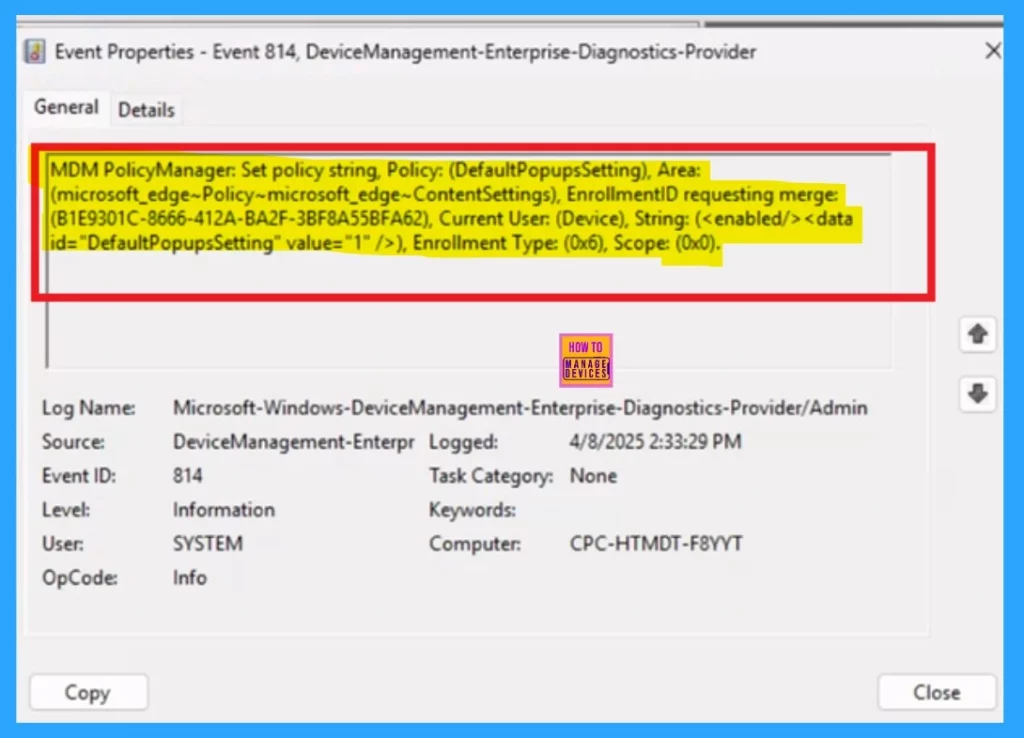
Client-Side Verification – Event Viewer
Client-side verification enables real-time policy compliance checks on the user’s device, reducing server load. By using the Event Viewer, you can verify if the policy settings are valid and correctly applied. To check client-side compliance, navigate to Applications and Services Logs > Microsoft > Windows > DeviceManagement-Enterprise-Diagnostics-Provider > Admin, then filter for Event ID 814
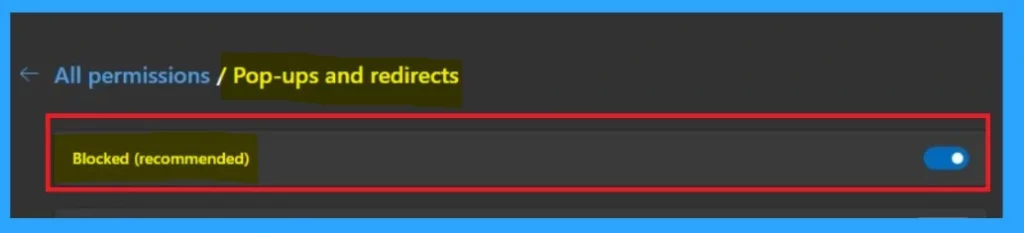
Before Default Popups Window Setting Policy Configuration
Before you are configuring the policy or delete the Default Popups Window Setting Policy, pop-up windows are blocked by default, and users can change this setting. The below screenshot will help you show more details.
End User Experience
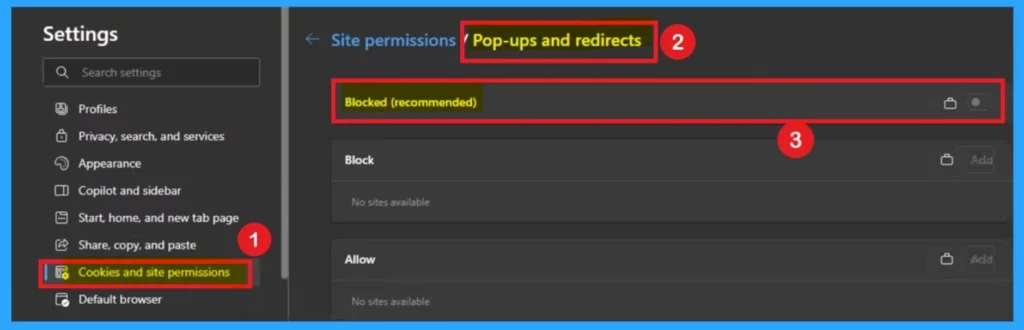
In policy deployment I selected that I want to allow all sites to show pop-ups. Here in the settings, you can see that Blocked (Recommended) is Enabled but it can’t be disabled or block.
Now you can check the policy effect through the Microsoft edge. For that first open the Microsoft Edge ( policy deployed groups ) then click on the 3 dot menu and select the settings of Edge.
- In the settings you go to the Cookies and permissions
- In cookies and site permission go to the Pop-ups and redirection
- Then you can see that the Blocked option in Disabled . It means it can’t be blocked and it Allow to all sites to show pop-ups.
Need Further Assistance or Have Technical Questions?
Join the LinkedIn Page and Telegram group to get the latest step-by-step guides and news updates. Join our Meetup Page to participate in User group meetings. Also, Join the WhatsApp Community to get the latest news on Microsoft Technologies. We are there on Reddit as well.
Author
Anoop C Nair has been a Microsoft MVP for 10 consecutive years from 2015 onwards. He is a Workplace Solution Architect with more than 22+ years of experience in Workplace technologies. He is a Blogger, Speaker, and Local User Group Community leader. His primary focus is on Device Management technologies like SCCM and Intune. He writes about technologies like Intune, SCCM, Windows, Cloud PC, Windows, Entra, Microsoft Security, Career, etc.




Discussion