






How to Enforce Defender SmartScreen to Block Potentially Unwanted Apps in MS Edge Browser using M365 Admin Center
Hey there, let’s discuss about how to Enforce Defender SmartScreen to Block Potentially Unwanted Apps in Microsoft Edge Browser using M365 Admin Center. It is a security feature created from Microsoft for Windows operating system. It helps us to keep our computer safe by blocking us from downloading or installing any harmful software from the internet.
When enabled this policy, Smart Screen filters our downloads by a regularly updated list of unknown files and websites to keep users protected. So, this feature looks at how trustworthy a file or application is when we are downloading it.
The Smart Screen checks out the file’s digital signature, where it came from, and how many other Windows users have it, etc. If the file is unknown or has a poor reputation, our system will give us a warning. Enabling Smart Screen for trusted downloads is highly recommended for all users since it helps protect users from modern cyber threats.
But users with advanced technical knowledge can choose to disable it temporarily for specific downloads they trust. Now we will see how to deploy smart Screen for trusted downloads in MS Edge Browser using M365 Admin Center.

Table of Contents
Does SmartScreen Slow Down Downloads?
How to Enforce Defender SmartScreen to Block Potentially Unwanted Apps in Microsoft Edge via M365 Admin Center
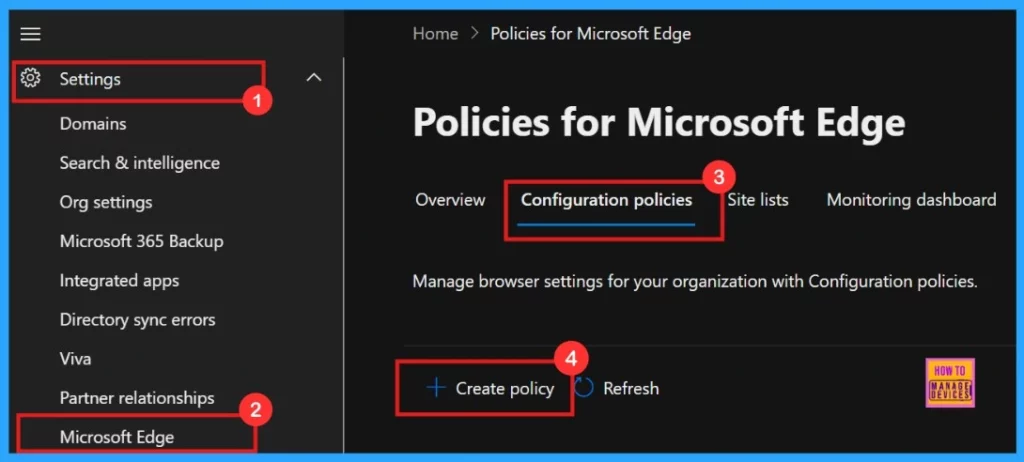
In Windows, the policy determines a trusted source by checking its Internet zone. If the source comes from the local system, intranet, or trusted sites zone, then the download is considered trusted and safe. We can configure this policy by signing in to the Microsoft 365 Admin Center.
- Then Go to Settings
- Select Microsoft Edge
- Click Configuration Policies
- Click on + Create Policy
- How to Configure Friendly URL Format Policy in MS Edge Browser using M365 Admin Center
- Enable Or Disable Password Prompt For Autofill In The MS Edge Browser Using Intune Policy
- Enable Disable Web Search Suggestions Policy In MS Edge Browser Using M365 Admin Center
- Enable Microsoft Defender SmartScreen in Intune to Block Malicious Websites Phishing Unsafe Downloads and Unrecognized Apps
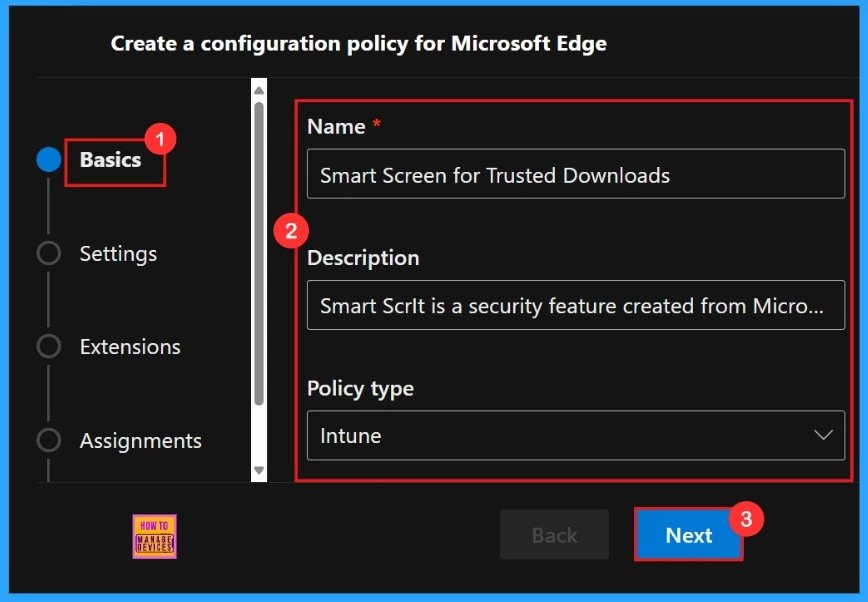
Basics
Basics is the first step to add the policy’s Name, Description, Type, and Platform for later identification. Here, the Name field is mandatory, and the Description field is optional. Once we have entered all the details, click on the Next button.
Settings
The Settings section is essential for creating a configuration policy for Microsoft Edge. we need to click “Add settings“. We need to search for the policy we want to deploy from Additional settings by clicking +Add Settings.
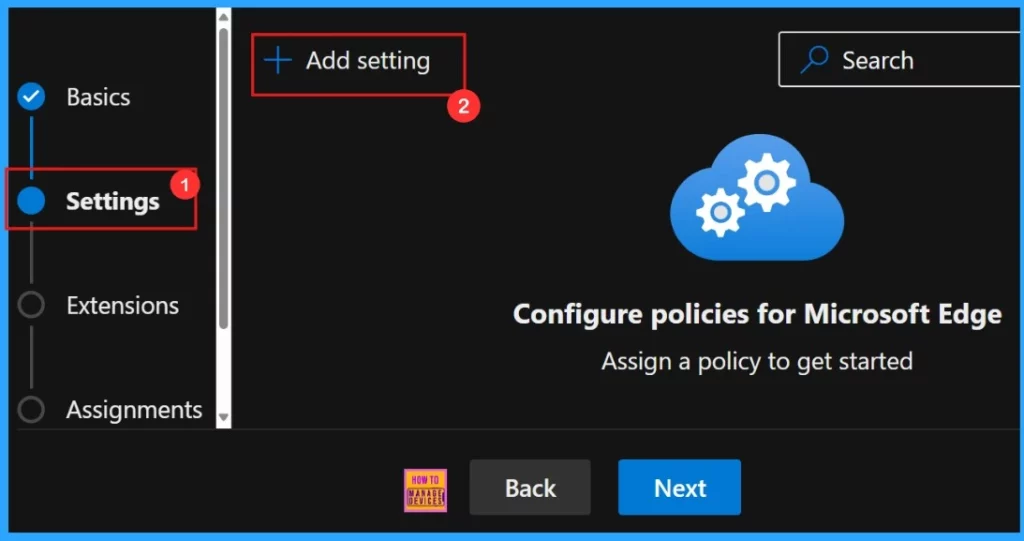
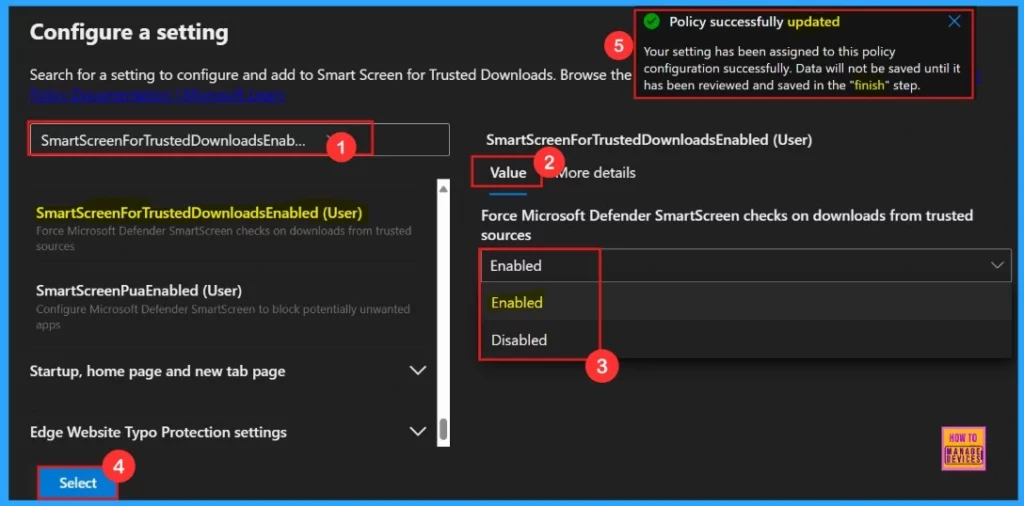
We can assign a configuration policy for Microsoft Edge. This is most important section to create the Policy. When we click on + Add Settings, will enter into Configure a setting page, here we can search the policy name under Additional settings.
Your setting has been assigned to the policy configuration successfully. Data will not be saved until has been reviewed and saved in the Finish step.
More Details
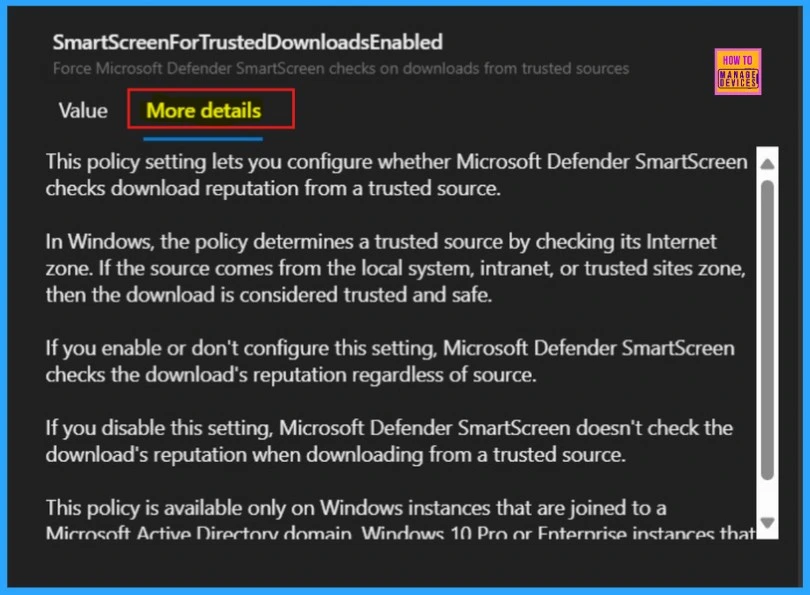
The More Details, appear next to the Value tab, shows details of the chosen policy. This section provides key information about the policy, including whether it is outdated. Always check it before clicking Select to set up the policy.
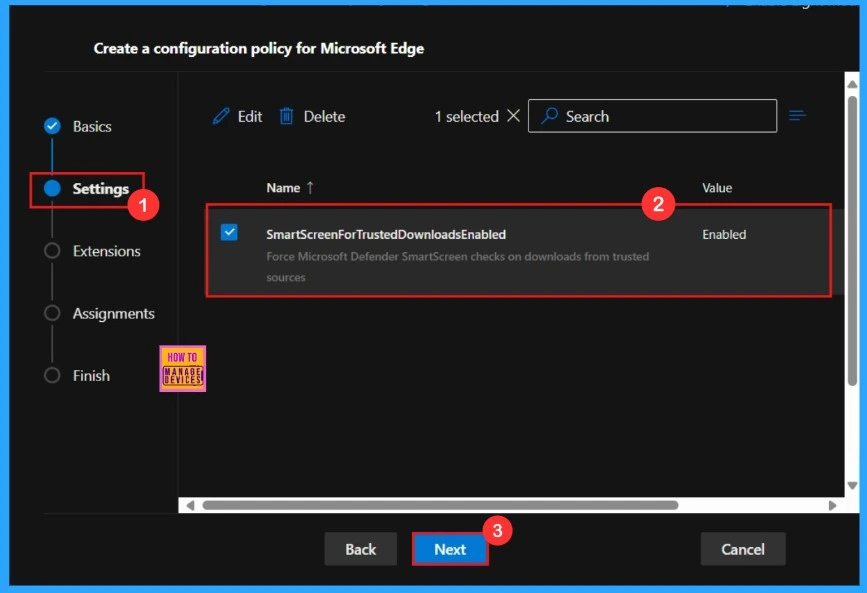
After clicking the select button, we can see the selected policy name and value. Here we need to click on the checkbox near the Policy name and click on the Next button.
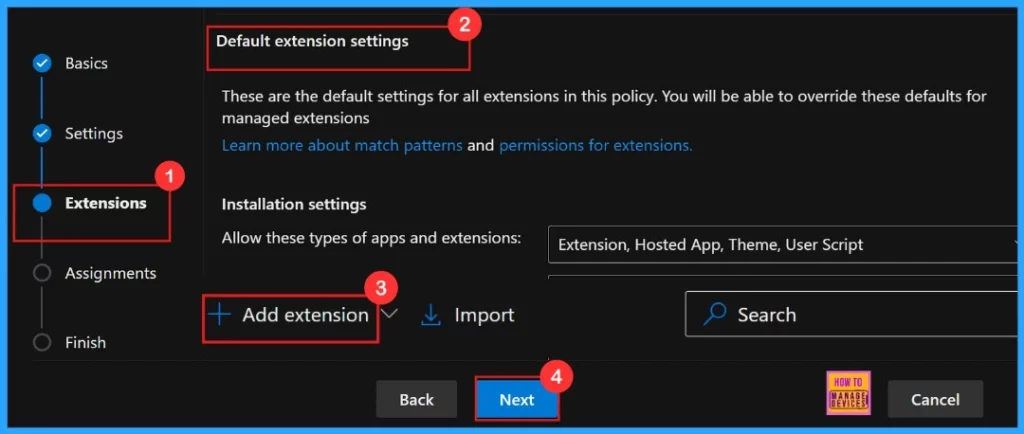
Extensions
This step is optional and not required for managing browser features. If we want to manage extensions, including those from the Microsoft Edge Add-ons, click Add Extension. Otherwise, we can skip this section. Here we are moving with the default extension settings.
Assignments
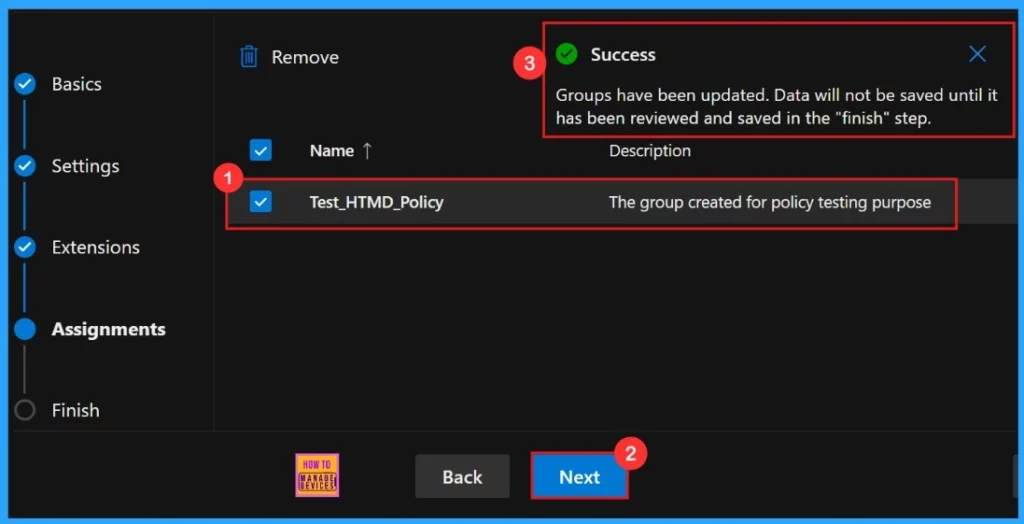
The Assignments tab, which is in configuring a policy, we can select the groups to which the policy is assigned and which user or device is assigned it. For this example, the group Test_HTMD_Policy was selected.
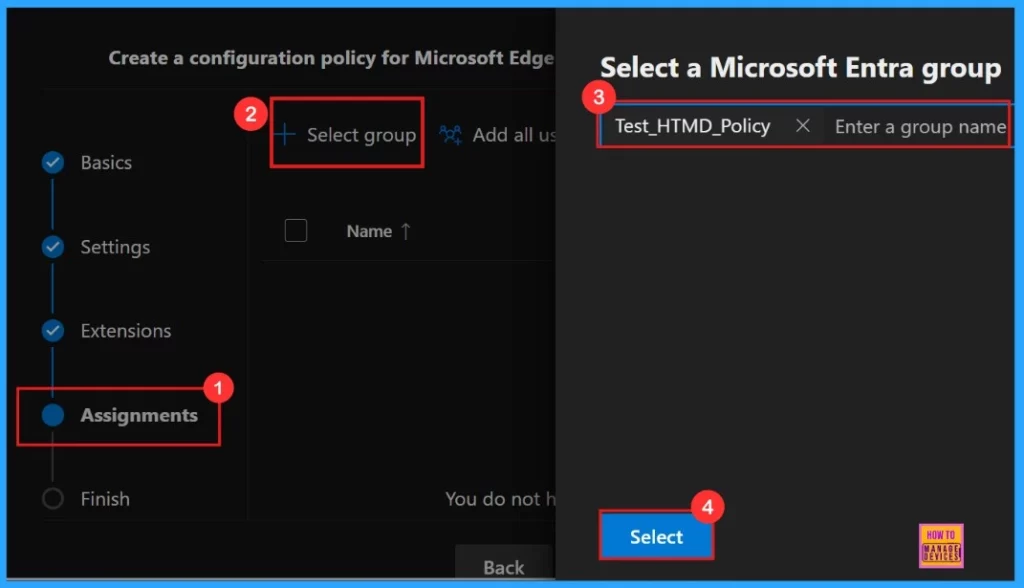
After selecting the group, we will see a success notification on the portal, stating that the Group has been updated. But data would not be saved until we complete the Finish step. The selected group will be appear on the Assignment tab with the description of the group created for policy testing purposes.
- Click Next to proceed.
Finish
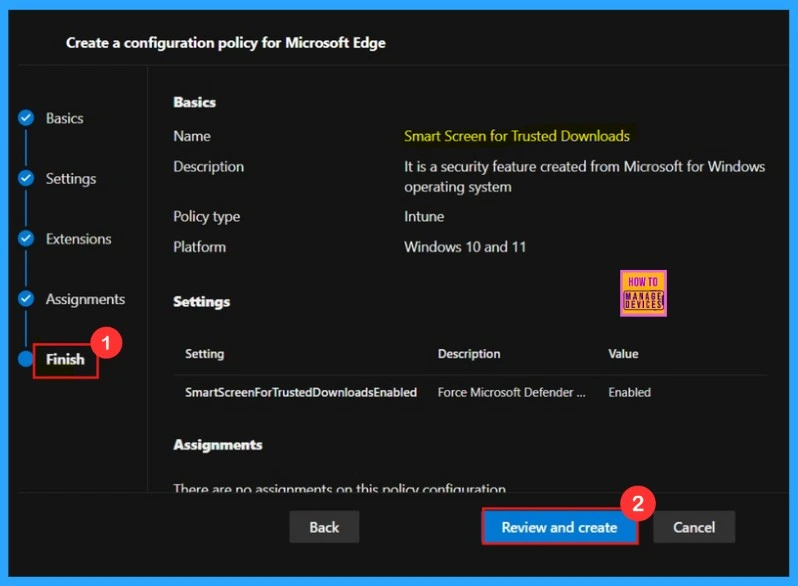
The Finish section provides a summary of all the information entered in the previous steps. It allows us to quickly review and make any necessary changes. Use the Back button if we need to edit any information. After confirming the details, click the Review and Create button.
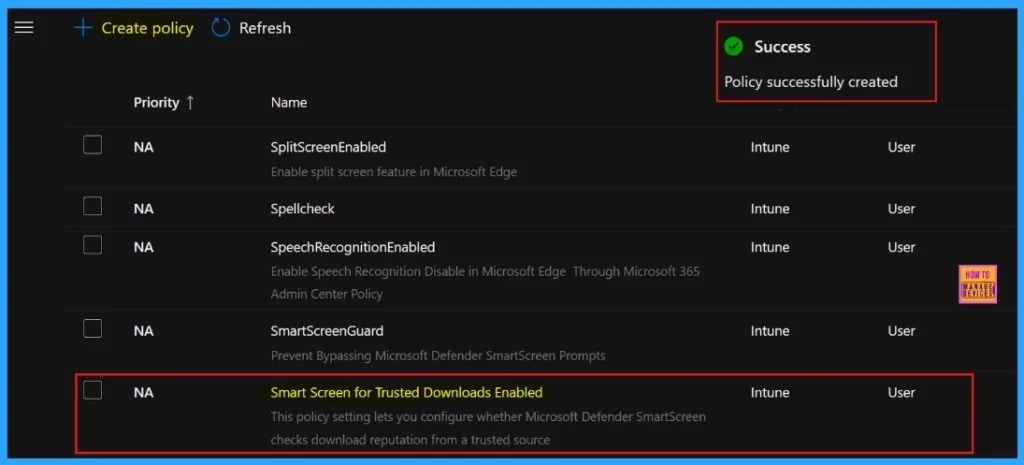
Once we click Review and Create, a notification confirms that the policy was created successfully. We need to wait for deployment process in to the assigned group. We can manually sync the policy through the company portal.
Client-Side Verification
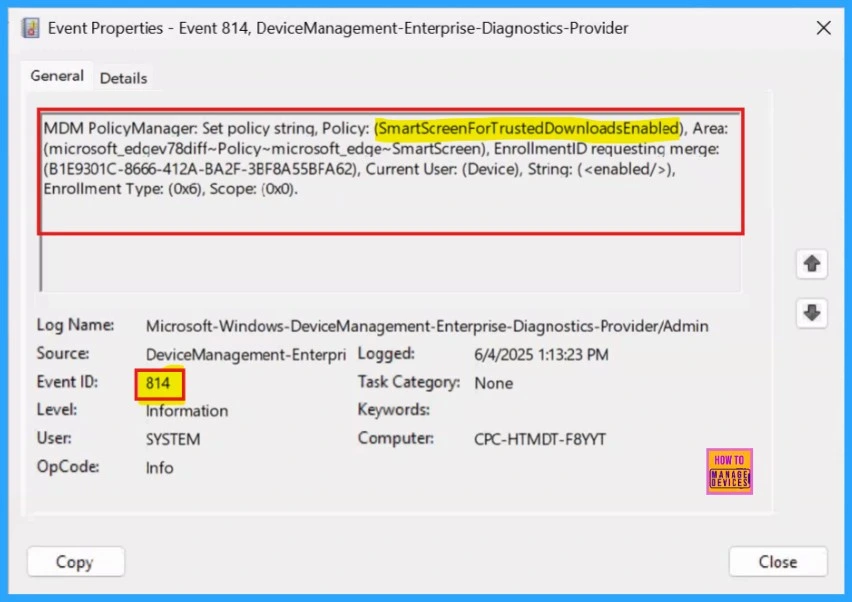
The Event Viewer uses event IDs to identify specific events that can happen on a Windows computer. Event IDs 813 and 814 indicate the successful application of string or integer policies. To verify this, navigate to the Event log path > Applications and Services Logs > Microsoft > Windows > Devicemanagement-Enterprise-Diagnostics-Provider > Admin.
MDM PolicyManager: Set policy string, Policy: (SmartScreenForT rustedDownloadsEnabled), Area:(microsoft_edqev78diff~Policy~microsoft_edqe~SmartScreen), EnrollmentID requesting merqe: (B1E9301C-8666-412A-BA2F-3BF8A55BFA62), Current User: (Device), Strinq: (), Enrollment Type: (0x6), Scope: (0x0).
Device and User Check-in Status
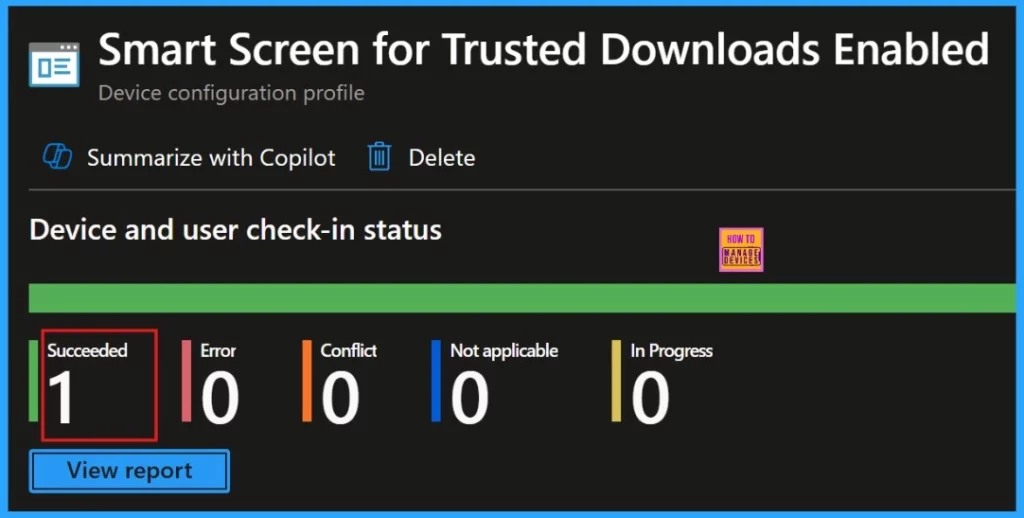
After manually syncing the device through the Company Portal, we can verify the policy deployment in the Intune Portal. Navigate to Devices > Configuration, then open the Policies tab to locate the policy. A status of “Successful” confirms that the policy has been correctly applied to the device.
Need Further Assistance or Have Technical Questions?
Join the LinkedIn Page and Telegram group to get the latest step-by-step guides and news updates. Join our Meetup Page to participate in User group meetings. Also, Join the WhatsApp Community to get the latest news on Microsoft Technologies. We are there on Reddit as well.
Author
Anoop C Nair has been Microsoft MVP for 10 consecutive years from 2015 onwards. He is a Workplace Solution Architect with more than 22+ years of experience in Workplace technologies. He is a Blogger, Speaker, and Local User Group Community leader. His primary focus is on Device Management technologies like SCCM and Intune. He writes about technologies like Intune, SCCM, Windows, Cloud PC, Windows, Entra, Microsoft Security, Career, etc.




Discussion