






Automatically Delete Old User Profiles after 40 Days in Windows using Intune
Let’s talk about how to automatically delete Old User Profiles after 40 Days in Windows using Intune. To do this, you can set up an Intune policy that targets devices and removes profiles that haven’t been used for a specified number of days.
This helps eliminate unnecessary profiles that take up space and could cause security issues. By setting specific rules, like how many days of inactivity before a profile is deleted, you can keep your devices clean and secure without needing to do it manually.
There is an easy way to solve this problem for customers using Microsoft Intune. If you are not using Intune yet to manage your devices or are co-managing (ensuring the device configuration is moved to Intune), you can use Group Policy (GPO) to achieve the same result.
In this post, you will find all the details on automatically deleting old user profiles in Windows using Intune. We will guide you through setting up a policy that removes inactive profiles, helping you keep your devices clean and secure.

Table of Contents
Why is it Important to Manage User Profiles in Windows?
Managing user profiles is important because it helps keep the system organized and running smoothly. Old or inactive profiles can mess the system, leading to performance issues and potential security risks.
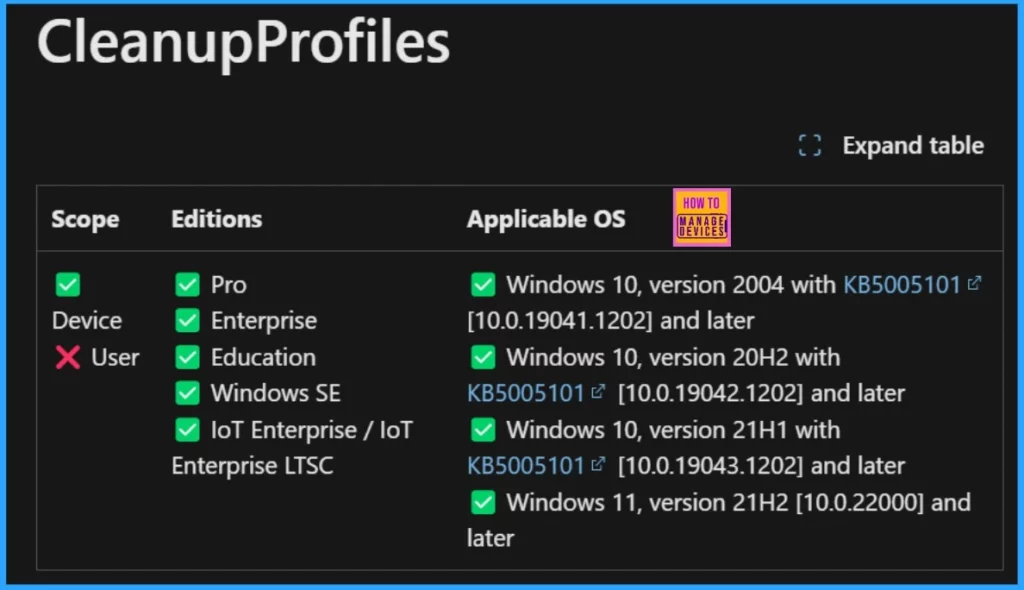
Windows CSP Details CleanupProfiles
We will review the Windows CSP details for the CleanupProfiles policy setting. This setting enables administrators to automatically remove user profiles that haven’t been used for a specified number of days when the system restarts.
CSP URI – ./Device/Vendor/MSFT/Policy/Config/ADMX_UserProfiles/CleanupProfiles
- Prevent Users to Change Date and Time on Windows using Intune Policy
- MS Intune Stop Supporting User Enrollment with Company Portal for iOS iPadOS
- Restrict Users from Importing MS Edge Browsing History with Intune
Automatically Delete Old User Profiles after 40 Days in Windows using Intune
Intune provides a few ways to manage user profiles, such as Remediation Scripts, Scheduled Tasks and Configuration Profiles. Out of these, using Configuration Profiles through the Settings Catalog is the easiest and most effective method. It simplifies the process and helps you manage user profiles with less effort.
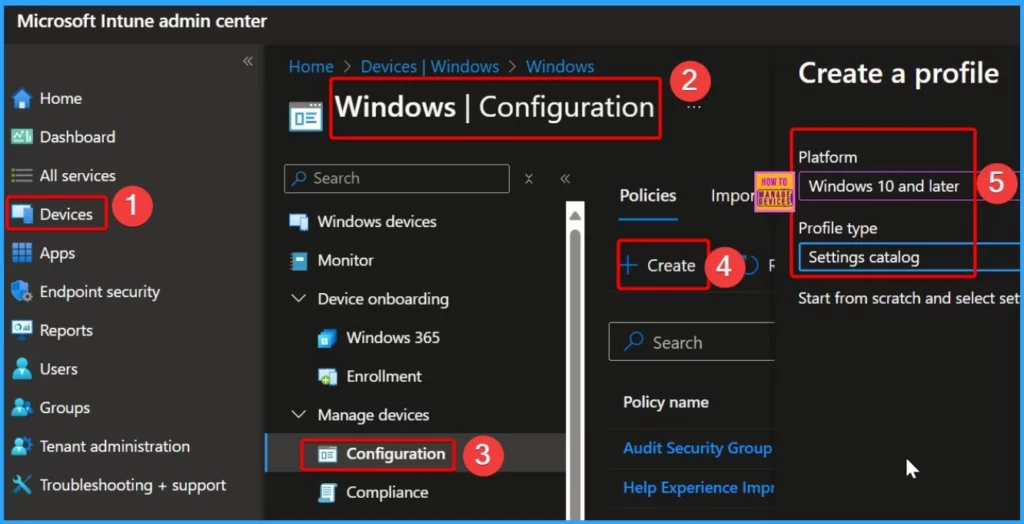
- Sign in to the Intune portal.
- Navigate to Device > Windows > Configurations.
- Click Create and then select New Policy.
- Choose “Settings Catalog” for the profile type and “Windows 10 and later” as the platform.
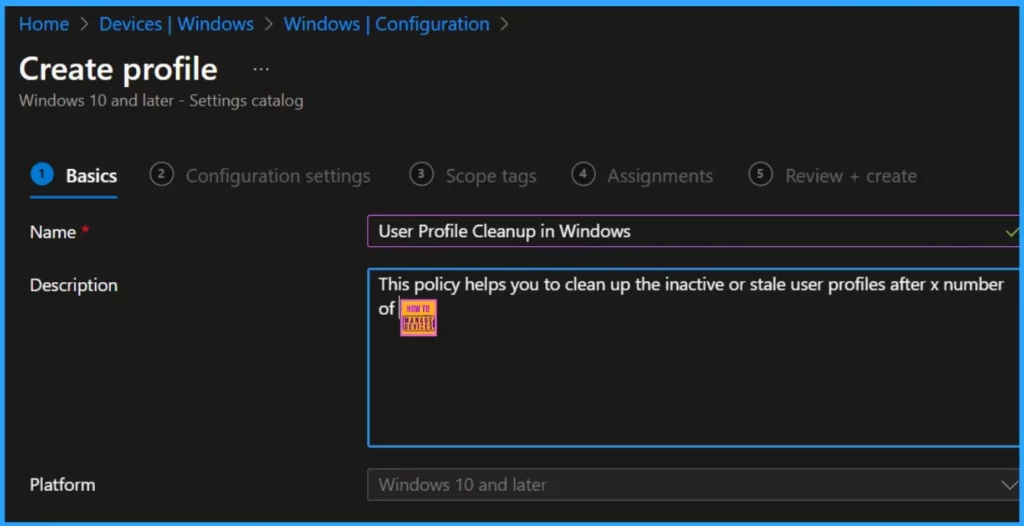
Give the policy a name, such as “User Profile Cleanup in Windows,” and optionally provide a description to explain its purpose. This helps keep your policies organized and ensures clarity about their function.
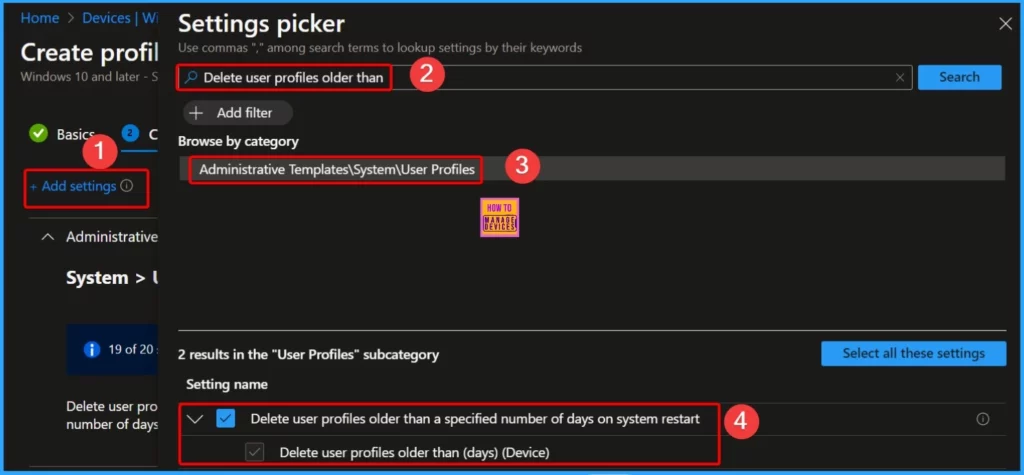
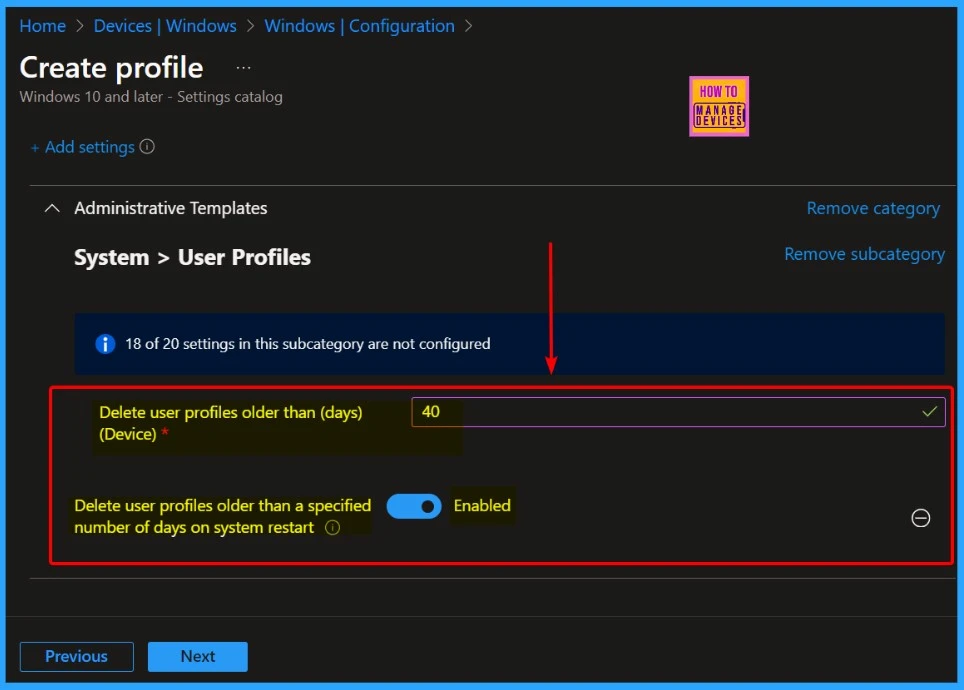
Under the Configuration tab, click the “Add Settings” hyperlink. In the “Settings picker”, search for “Delete user profiles older than.” You can browse by category to find it under Administrative Templates > System > User Profiles. There will be 2 options under the User Profiles subcategory; they are as follows.
- Delete user profiles older than a specified number of days on system restart
- Delete user profiles older than (days) (Device)
- Differences Between Intune Enrollment Restriction Device Restriction Profile
- How to Block Personal Windows Devices Enrollment Enrollment Restrictions Options
- Manage Microsoft Edge Browser on Android Devices using Intune
This policy setting allows an administrator to automatically delete user profiles not used within a specified number of days on system restart. If you enable this policy setting, the User Profile Service will automatically delete the following system and restart all user profiles on the computer that have not been used within the specified number of days.
- If you disable or do not configure this policy setting, the User Profile Service will not automatically delete any profiles on the next system restart.
Note: One day is interpreted as 24 hours after a specific user profile was accessed.
| Settings Name | Enable |
|---|---|
| Delete user profiles older than a specified number of days on system restart | Toggle the pane to the Right side. |
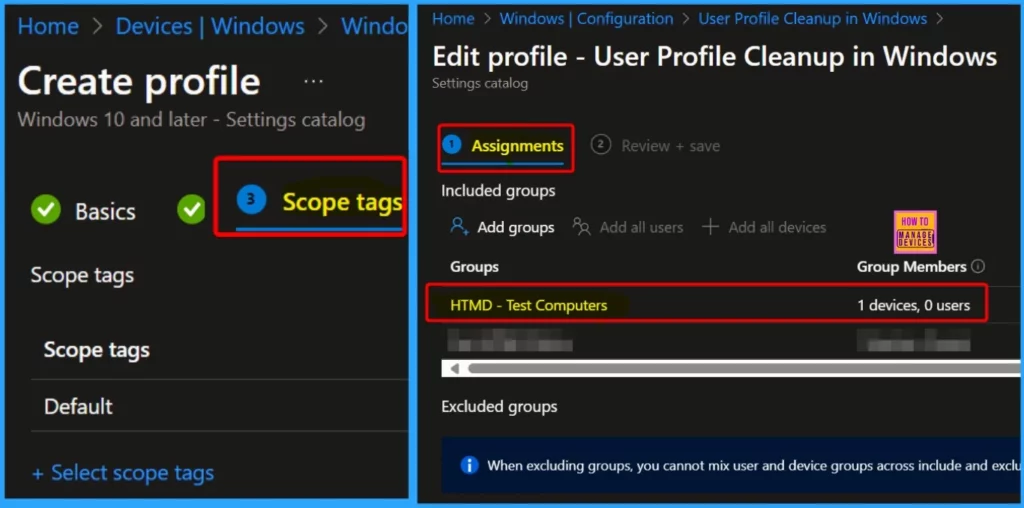
Scope tags are not very critical in this context. The Assignments category is where you assign the policy to specific groups. You will see 2 categories in the Assignments section: Included and Excluded groups. This allows you to define which groups will receive the policy and which will not.
- You can easily add groups using the Add Groups option under the Included group.
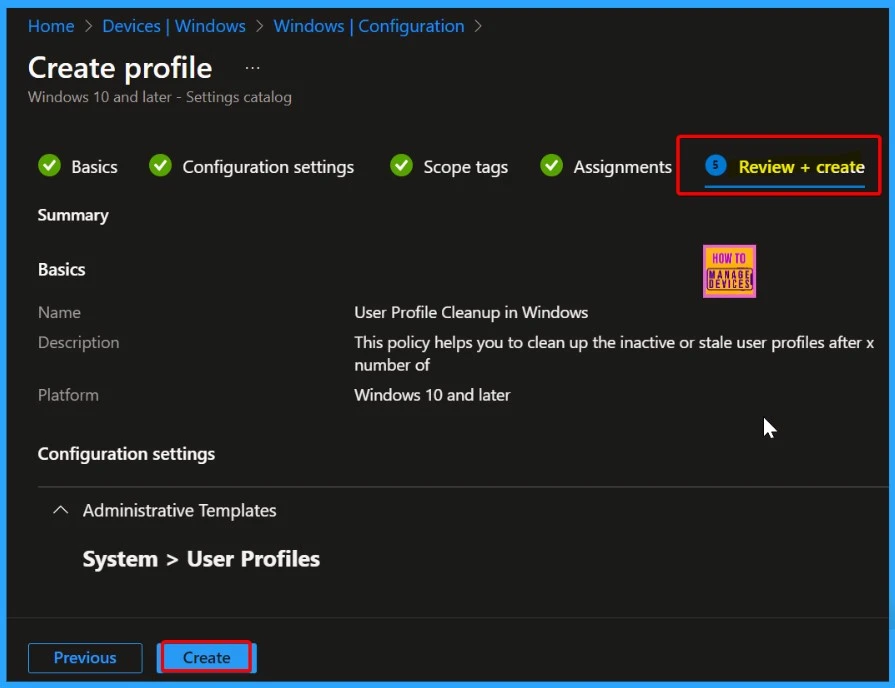
Check your settings in the Review + Create tab to ensure everything is correct. Once you click Create, your changes will be saved, and the profile will be assigned.
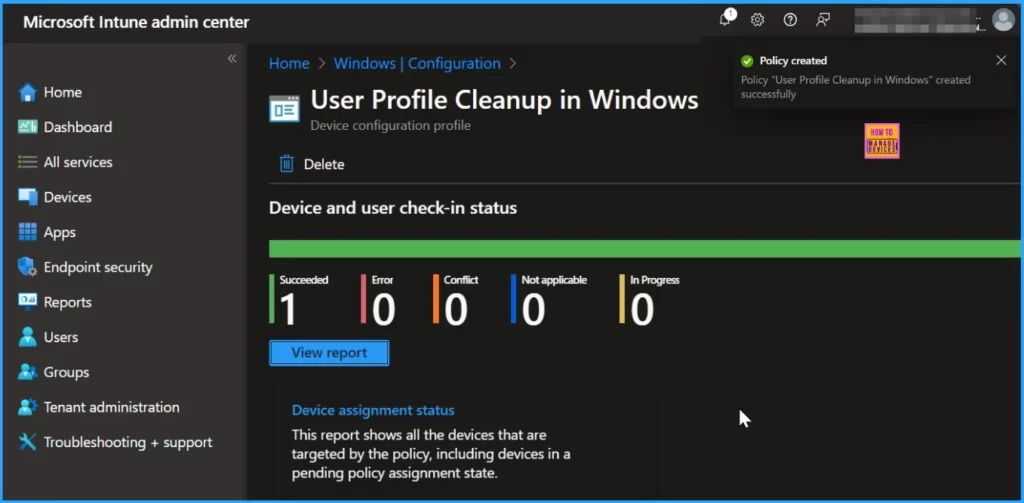
End-results
Old user profiles will be automatically deleted according to the device settings where the policy has been applied successfully. This helps keep your system clean and removes outdated profiles without manual effort.
- The Notification shows that the “Policy User profile cleanup in Windows was created successfully”.
- The Device and the user check-in status show that the number of succeeded is 1.
We are on WhatsApp now. To get the latest step-by-step guides, news, and updates, Join our Channel. Click here. HTMD WhatsApp.
Author
Anoop C Nair has been Microsoft MVP from 2015 onwards for 10 consecutive years! He is a Workplace Solution Architect with more than 22+ years of experience in Workplace technologies. He is also a Blogger, Speaker, and Local User Group Community leader. His primary focus is on Device Management technologies like SCCM and Intune. He writes about technologies like Intune, SCCM, Windows, Cloud PC, Windows, Entra, Microsoft Security, Career, etc.


this setting doesnt works for me , because NTuser.dat always shows current date even those users havent logged in recently .
This only does half the job, it removed the entry from profilelist registry entry but leaves the folders untouched in c:\users