






Deploy Google Chrome Update with SCCM Step-by-Step Guide
Hi, this post will discuss Deploy Google Chrome Update with the SCCM Step-by-Step Guide. Let’s review the SCCM Deployment guide for installing the Google Chrome browser on SCCM-managed Windows 10 or 11 devices in your organization.
This post will teach you how to install and update the Chrome x64 version with the SCCM application model. I also explained other methods for deploying Chrome updates with SCCM third-party patching solutions.
NOTE! – There is a 0-Day bug with Chrome Browsers. Update the Google Chrome browsers immediately. More details – Chrome’s audio component (CVE-2019-13720) while the other resides in the PDFium (CVE-2019-13721) library.
Download Google Chrome
You can download the Google Chrome x64 version (Chrome v. 78.0.3904.87) from the following Google Server. Set up and deploy the Chrome browser in your organization with the SCCM application model.

Create a Google Chrome Application Package
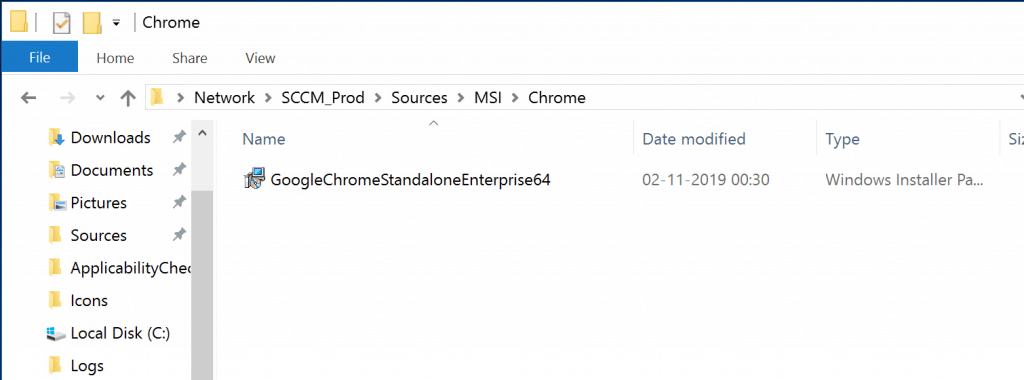
Copy the downloaded Google Chrome MSI (GoogleChromeStandaloneEnterprise64.msi) to the package source location of the SCCM server.
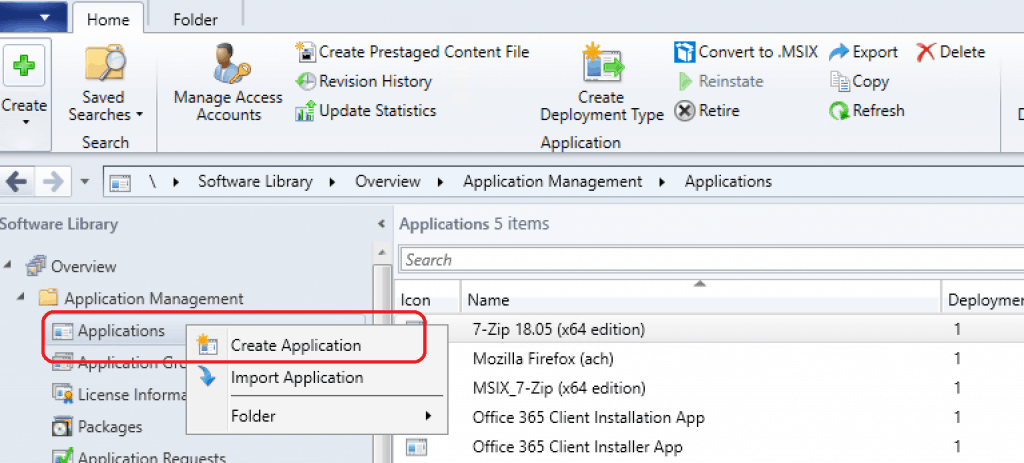
- Navigate to SCCM Console \Software Library\Overview\Application Management\Applications
Right-click on Applications and select Create Application.
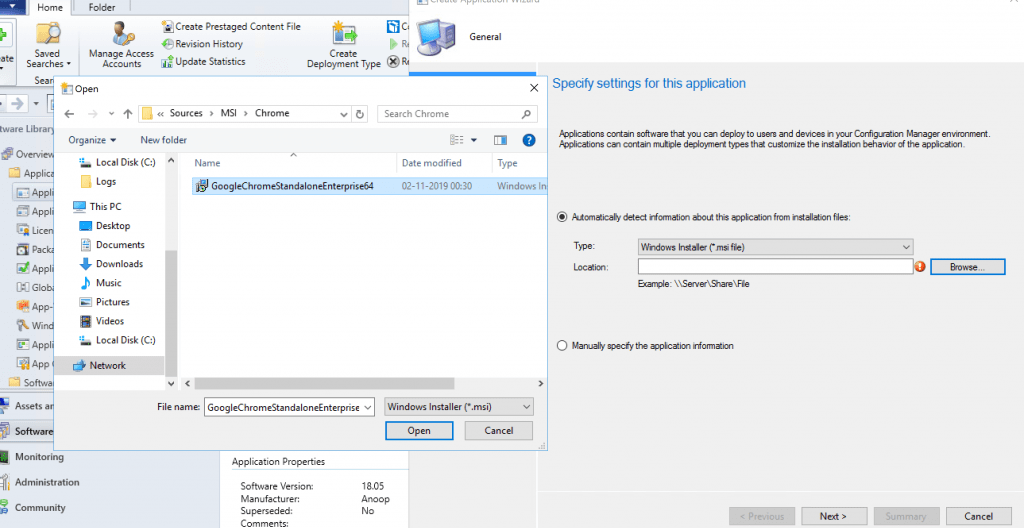
Browse through the package source location and Select GoogleChromeStandaloneEnterprise64.msi.
- Click on open from Windows Explorer
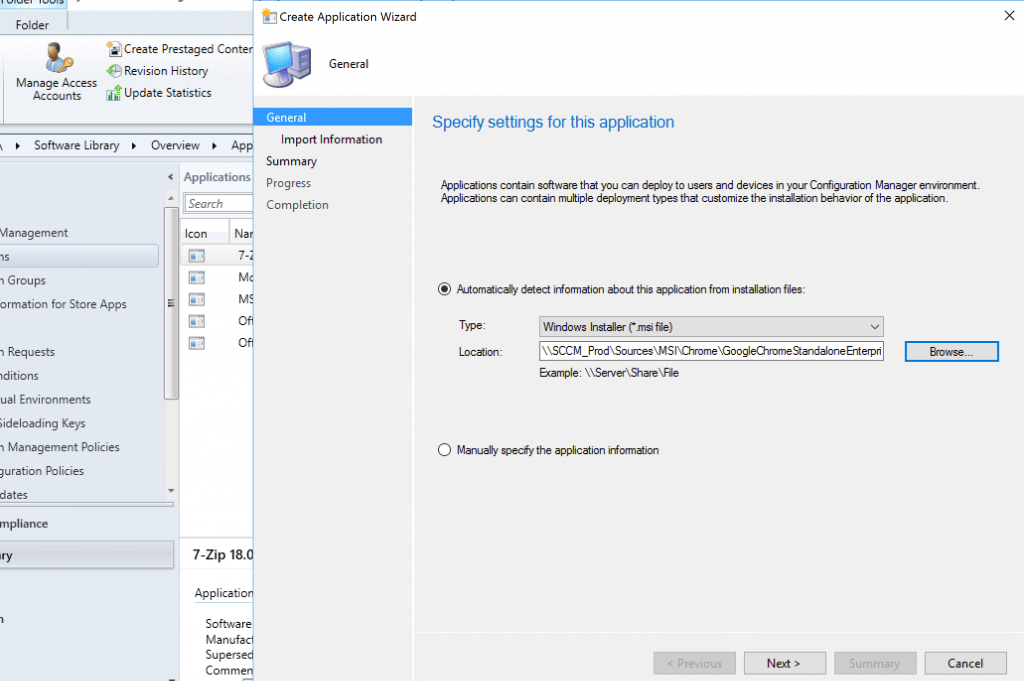
Click on NEXT to continue Google Chrome with SCCM (Specify Settings for this application)
Click NEXT to continue.
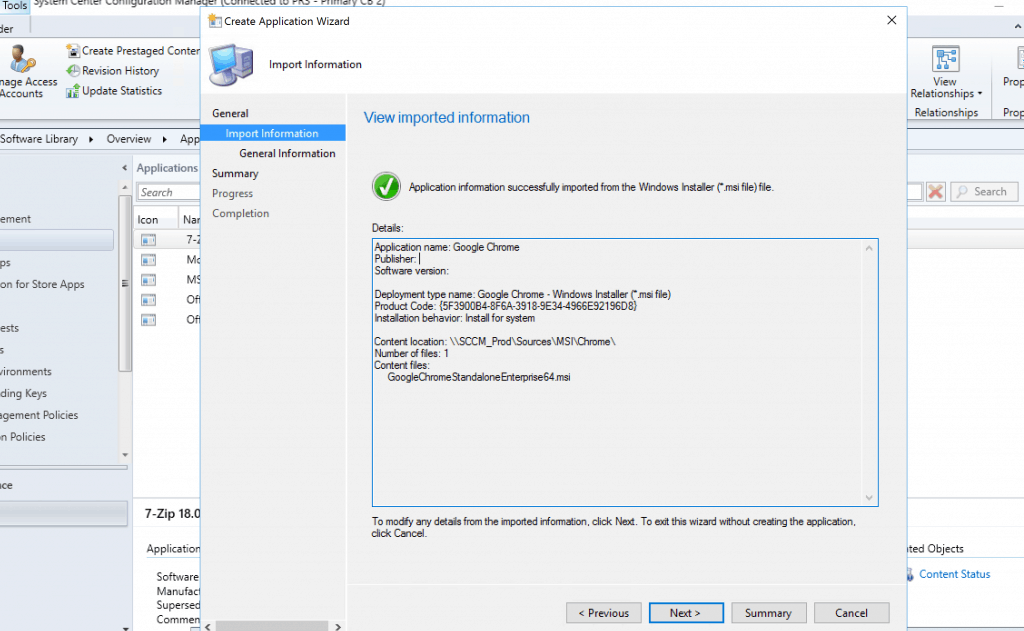
Application name: Google Chrome
 Publisher:
 Software version:
 Deployment type name: Google Chrome - Windows Installer (*.msi file)
 Product Code: {5F3900B4-8F6A-3918-9E34-4966E92196D8}
 Installation behavior: Install for system
 Content location: \SCCM_Prod\Sources\MSI\Chrome\
 Number of files: 1
 Content files:
      GoogleChromeStandaloneEnterprise64.msi
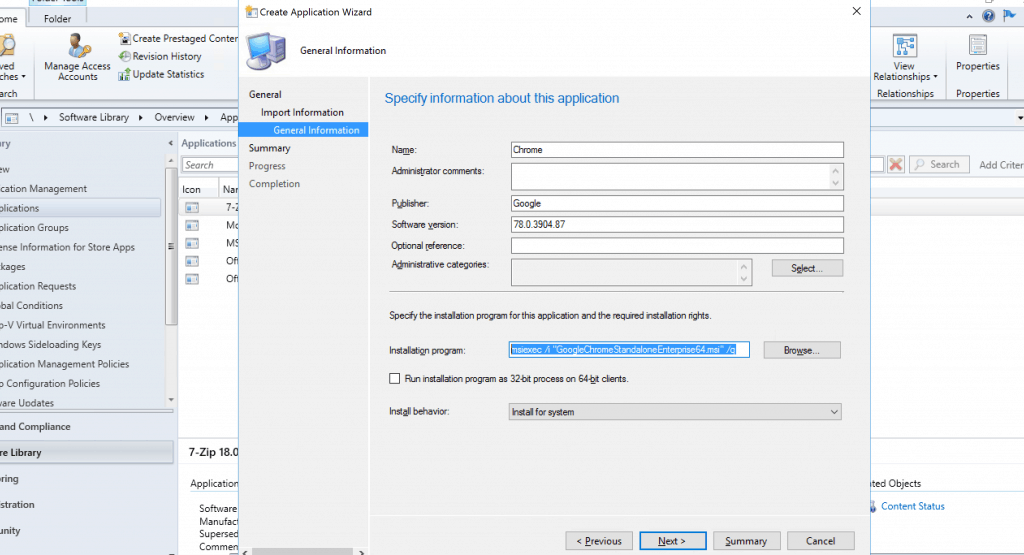
- Google Chrome Command Line for SCCM Application deployment
- “msiexec /i “GoogleChromeStandaloneEnterprise64.msi” /q“
Click on NEXT to continue to Specify the Information about the application Window.
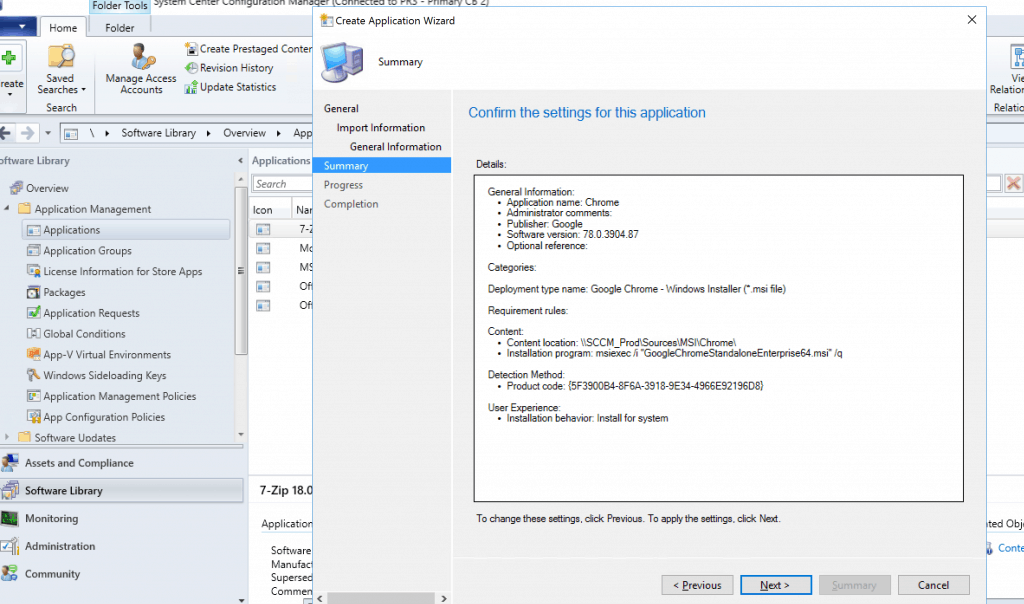
Confirm the settings for the application Google Chrome and click on NEXT.
NOTE! – Google Chrome MSI automatically populates all the descriptions.
General Information:
 •    Application name: Chrome
 •    Administrator comments:
 •    Publisher: Google
 •    Software version: 78.0.3904.87
 •    Optional reference:
 Categories:
 Deployment type name: Google Chrome - Windows Installer (*.msi file)
 Requirement rules:
 Content:
 •    Content location: \SCCM_Prod\Sources\MSI\Chrome\
 •    Installation program: msiexec /i "GoogleChromeStandaloneEnterprise64.msi" /q
 Detection Method:
 •    Product code: {5F3900B4-8F6A-3918-9E34-4966E92196D8}
 User Experience:
 •    Installation behavior: Install for system
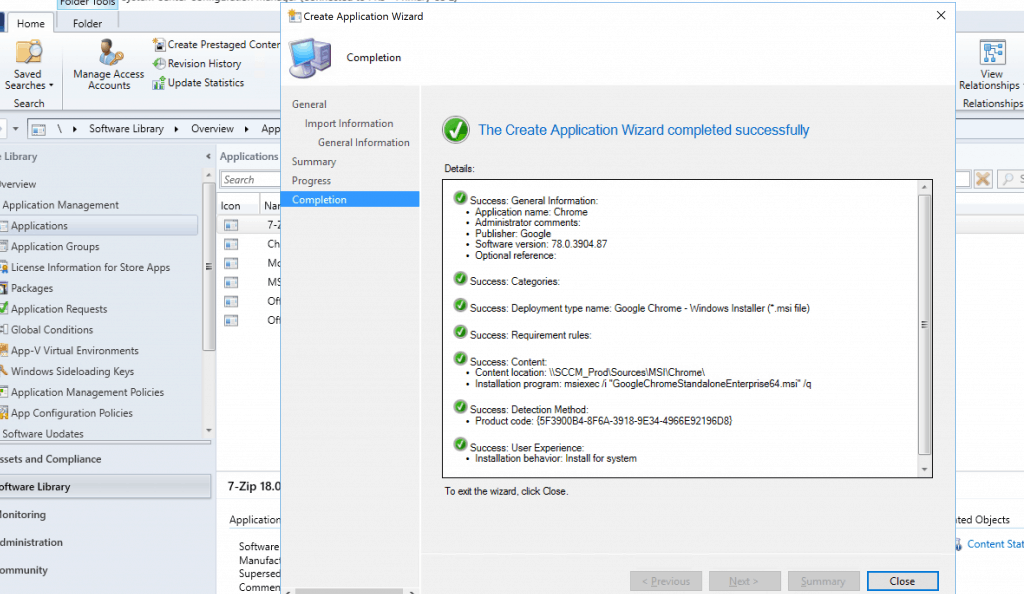
Click on the Complete button to finish the creation of Google Chrome with SCCM.
Success: General Information:
 •    Application name: Chrome
 •    Administrator comments:
 •    Publisher: Google
 •    Software version: 78.0.3904.87
 •    Optional reference:
 Success: Categories:
 Success: Deployment type name: Google Chrome - Windows Installer (*.msi file)
 Success: Requirement rules:
 Success: Content:
 •    Content location: \SCCM_Prod\Sources\MSI\Chrome\
 •    Installation program: msiexec /i "GoogleChromeStandaloneEnterprise64.msi" /q
 Success: Detection Method:
 •    Product code: {5F3900B4-8F6A-3918-9E34-4966E92196D8}
 Success: User Experience:
 •    Installation behavior: Install for system
Deploy Google Chrome with SCCM
It’s time to deploy the Google Chrome browser to your organisation’s Windows 11 and Windows 10 devices. Follow the steps to complete the SCCM application deployment for the Google Chrome browser.
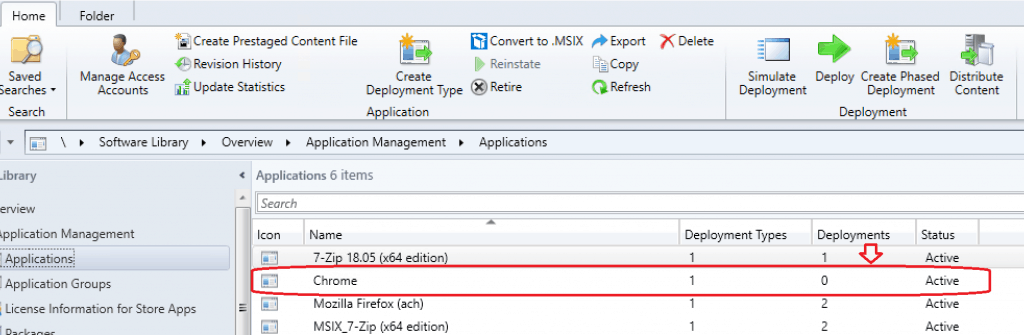
- Select the Google Chrome application
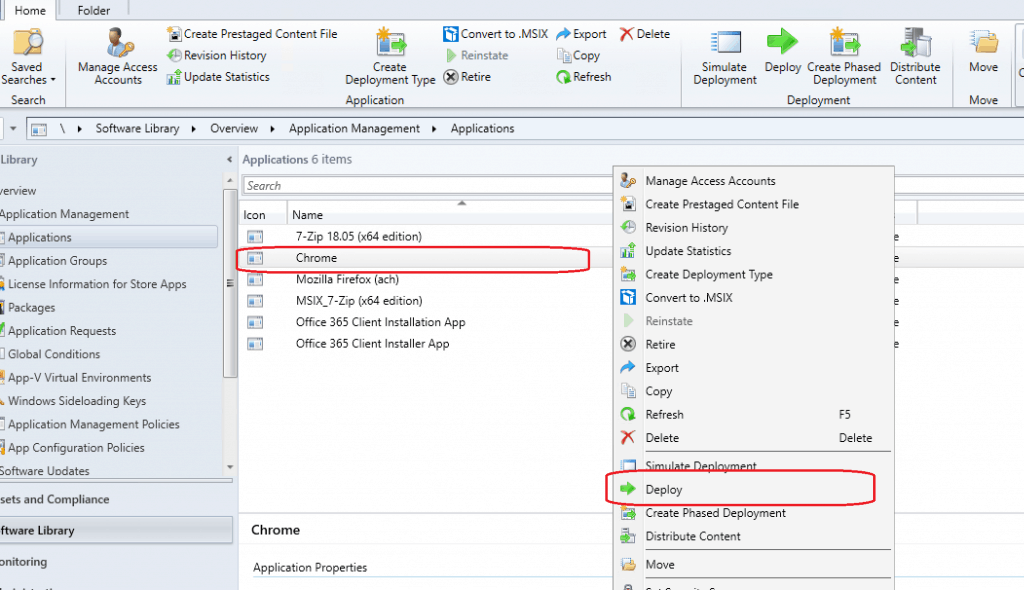
- Right Click Google Chrome application and Deploy
Select the Deploy option from the right-click menu.
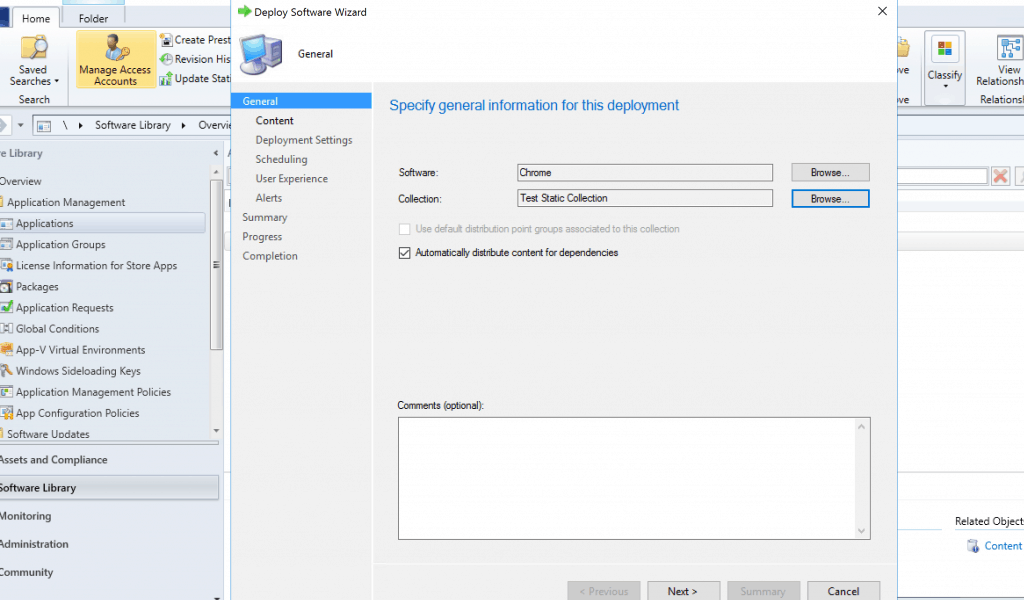
Select the Collection in which you want to deploy the Google Chrome update. Click on NEXT.
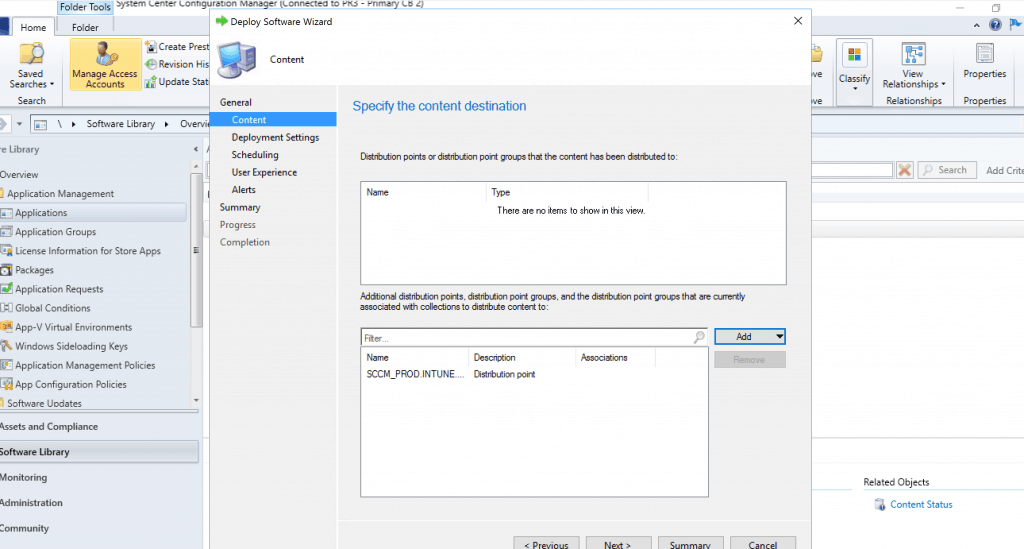
Select DPs or DP groups you want to distribute in the Specify the Content Distribution window. Click on Next to continue.
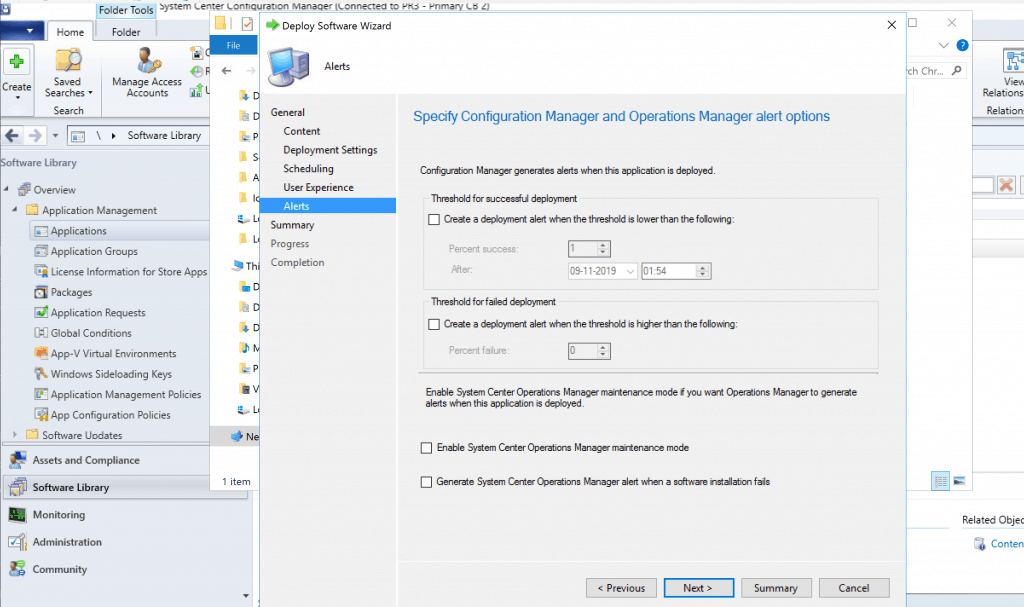
- Select Action Install or Uninstall. I selected Install to install Google Chrome on those devices.
Select Purpose Required, or you can make it an available application if you want. Click NEXT to continue.
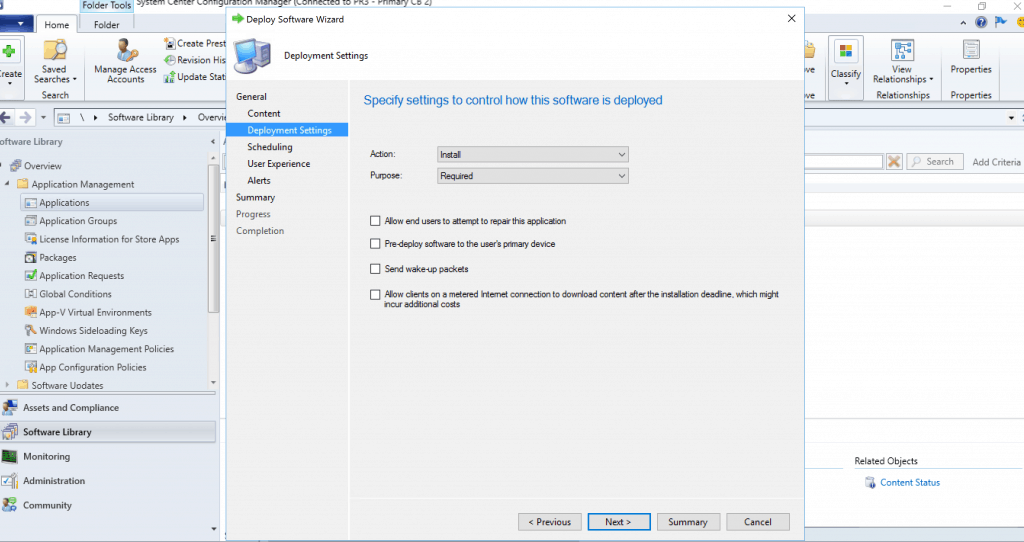
Google Chrome Scheduling options from Specify the schedule for this deployment window. You have loads of Chrome deployment schedule options.
- Schedule the application to be available at
- You can also specify the deadline if you want to deploy the Chrome update after off-hours
- As Soon As Possible after the available time.
- You can schedule the deadline as per your requirement
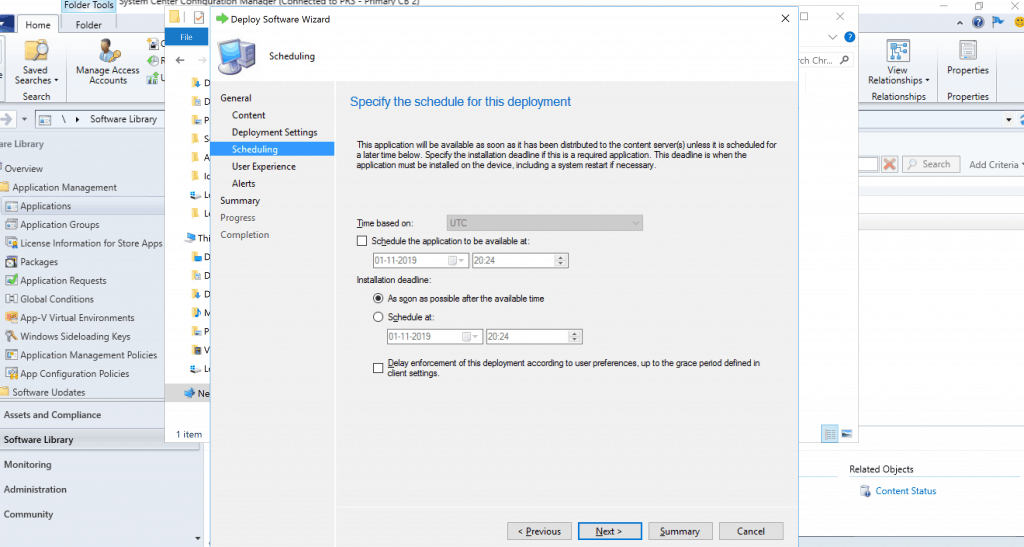
Specify the user experience for installing Chrome software on the selected devices.
- Specify user experience settings for the deployment
- Display in Software Center and only show notifications for computer restarts
- Click on the Next button
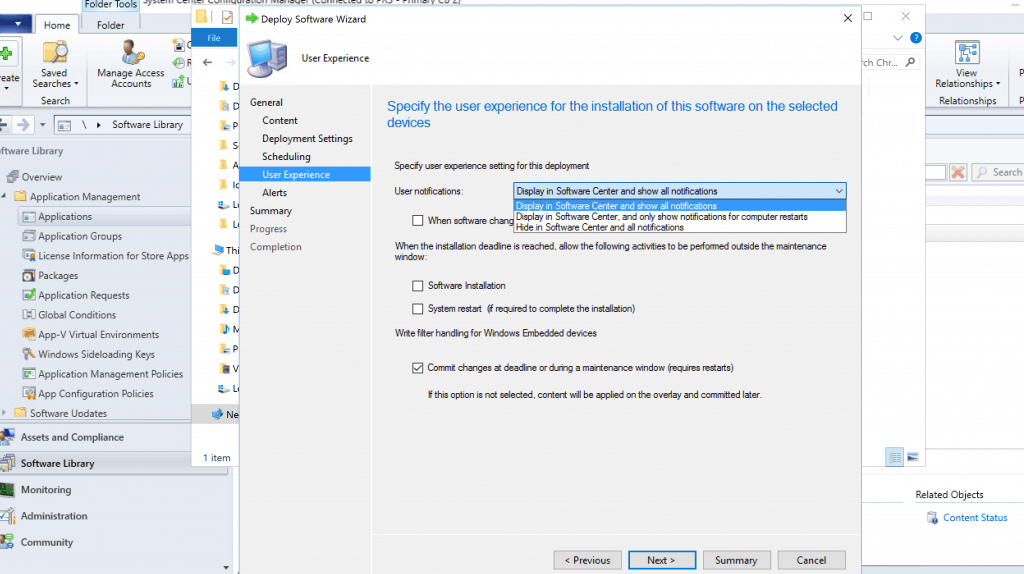
Specify Configuration Manager and Operations Manager alert options. Click on NEXT (All default settings selected).
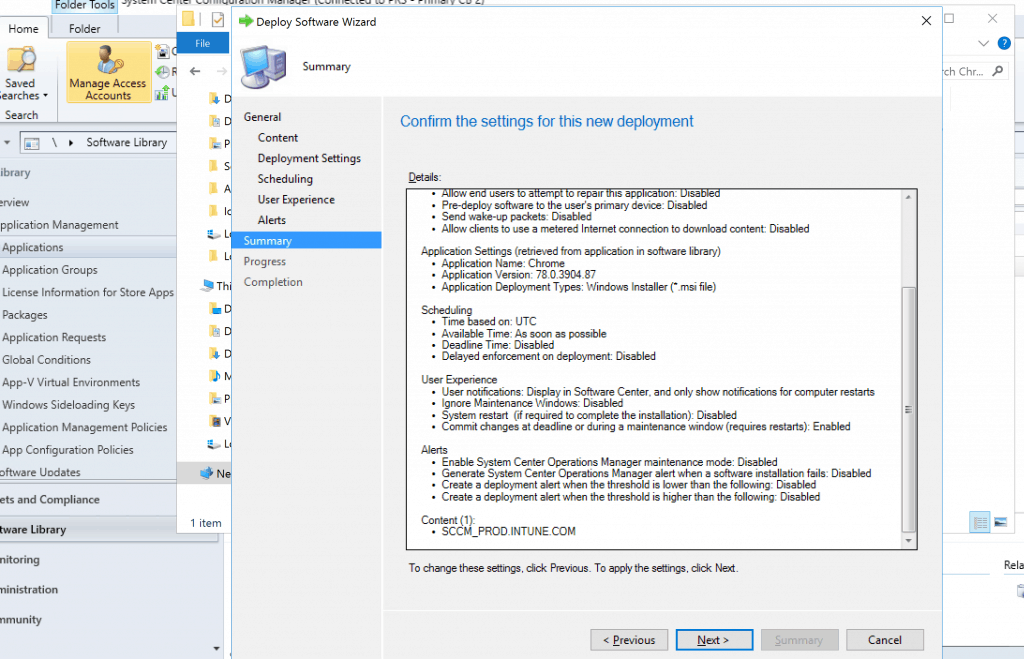
Click on the NEXT button to complete the Google Chrome Deployment Wizard.
General
 •    Software: Chrome
 •    Collection: Test Static Collection (Member Count: 1)
 •    Use default distribution point groups associated to this collection: Disabled
 •    Automatically distribute content for dependencies: Enabled
 Deployment Settings
 •    Action: Install
 •    Purpose: Required
 •    Allow end users to attempt to repair this application: Disabled
 •    Pre-deploy software to the user's primary device: Disabled
 •    Send wake-up packets: Disabled
 •    Allow clients to use a metered Internet connection to download content: Disabled
 Application Settings (retrieved from application in software library)
 •    Application Name: Chrome
 •    Application Version: 78.0.3904.87
 •    Application Deployment Types: Windows Installer (*.msi file)
 Scheduling
 •    Time based on: UTC
 •    Available Time: As soon as possible
 •    Deadline Time: Disabled
 •    Delayed enforcement on deployment: Disabled
 User Experience
 •    User notifications: Display in Software Center, and only show notifications for computer restarts
 •    Ignore Maintenance Windows: Disabled
 •    System restart  (if required to complete the installation): Disabled
 •    Commit changes at deadline or during a maintenance window (requires restarts): Enabled
 Alerts
 •    Enable System Center Operations Manager maintenance mode: Disabled
 •    Generate System Center Operations Manager alert when a software installation fails: Disabled
 •    Create a deployment alert when the threshold is lower than the following: Disabled
 •    Create a deployment alert when the threshold is higher than the following: Disabled
 Content (1):
 •    SCCM_PROD.INTUNE.COM
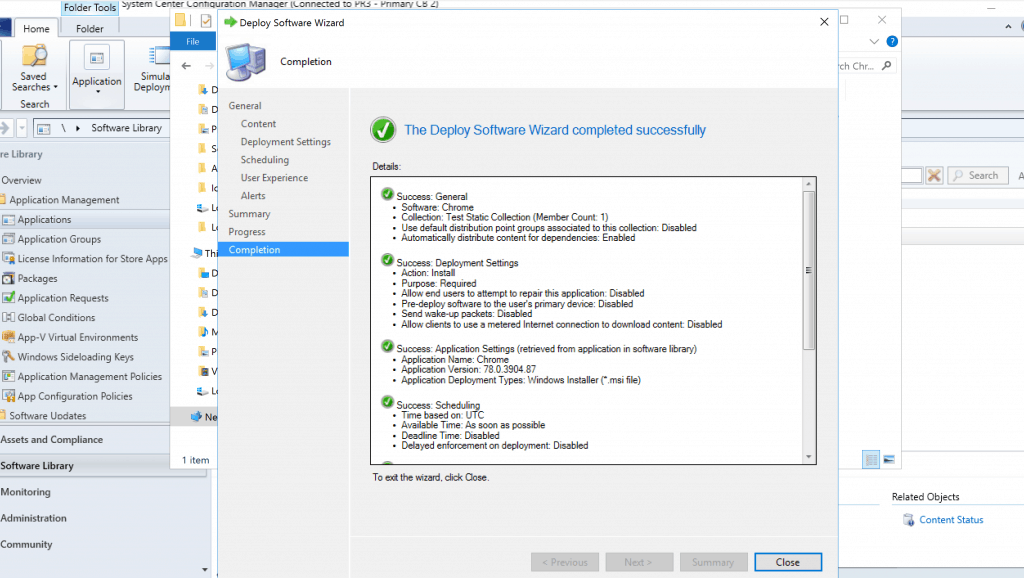
Click on the CLOSE button to finish the wizard.
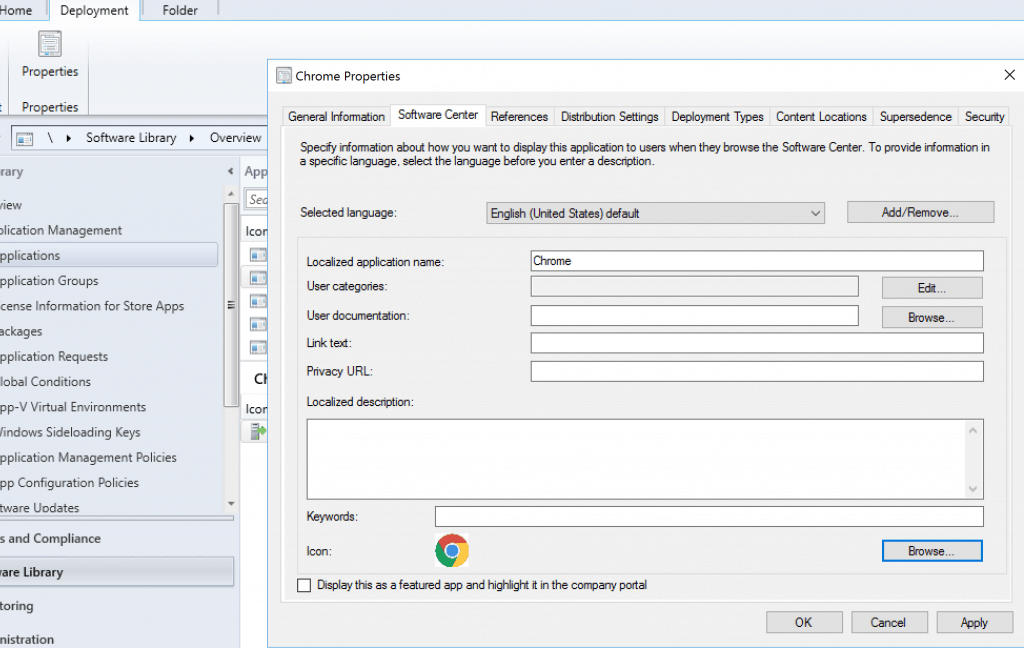
Set Up Google Chrome Icon for Software Center
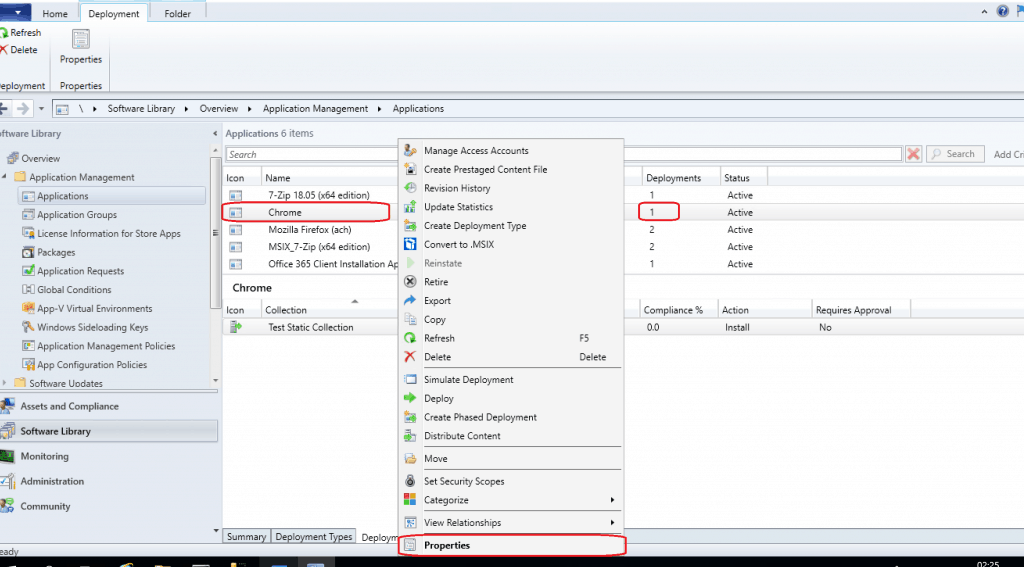
Let’s see how to set up Google Chrome Browser for your application. This is important for the end-user experience in the software center.
- Select the Chrome application and Click on Properties.
Select the “Software Center” tab. Click on the Browse button near Icon.
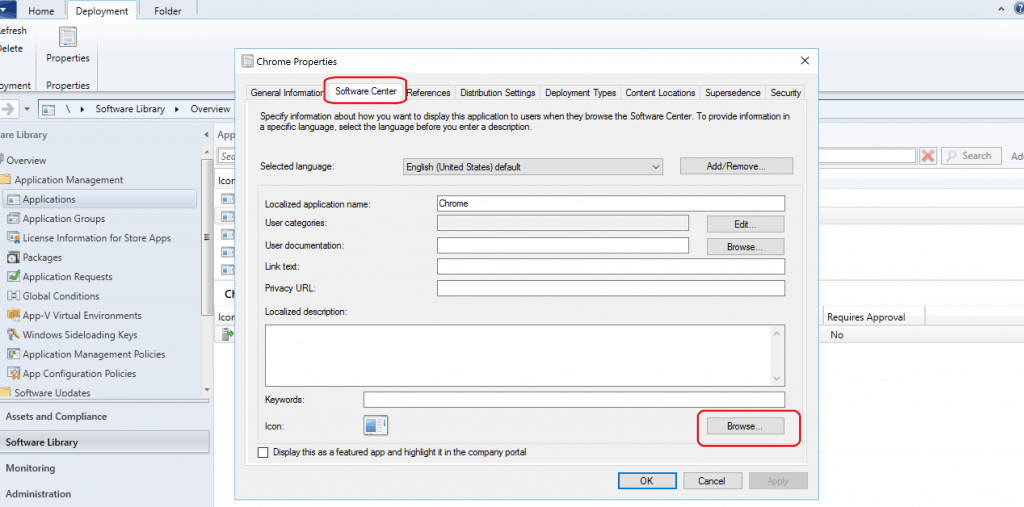
Copy the Chrome ICON.

- Click on the OK button to complete
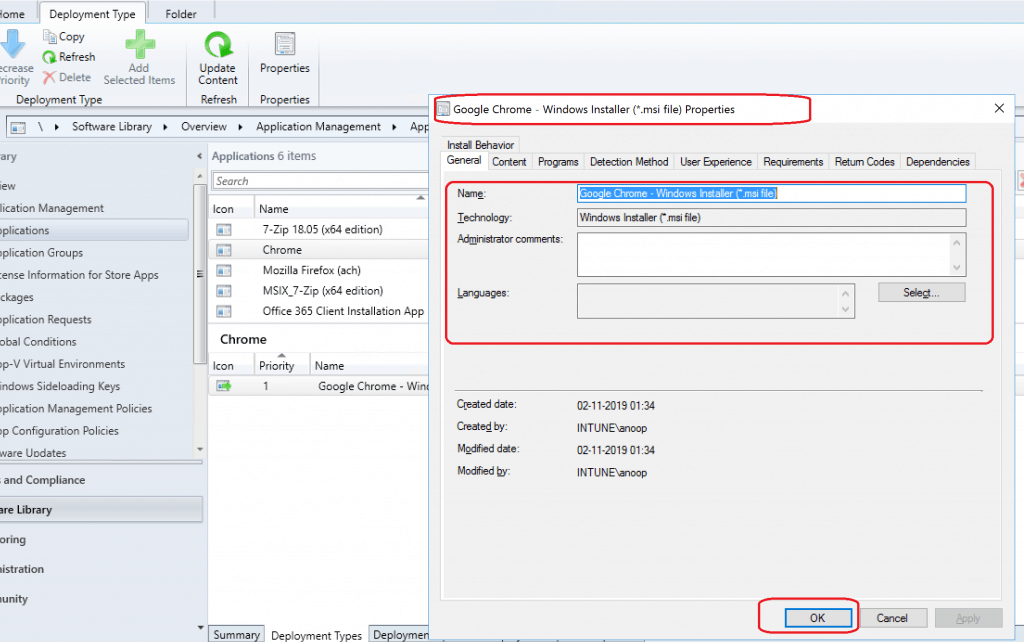
Deployment Properties – Deployment Types
Let’s try to deploy the Google Chrome browser with existing deployment properties using SCCM. You can go to the deployment properties and change them if required.
- Select the deployment types and select the deployment -> select properties
- Google Chrome – Windows Installer (*.msi file)
SCCM Third-Party Software Update Options
You can use SCCM’s third-party software update option to update Chrome. I have explained the features featured in the following blog posts. Those are not free solutions but paid custom catalogs.
- List of Free & PAID SCCM Custom Catalogs for Third-Party Software Updates – (Chrome update catalogs are also available with 3rd party offerings)
Additional Tip
I have recently seen a post from Nawaz Kazi, and I think this is a nice way of updating Chrome! More details https://mn-techforum.com/fix-google-chrome-security-alert-zero-day-in-minutes-chrome-0-day-exploit-cve-2019-13720/
Results
You can see more detailed results in the video tutorial below.
Resources
We are on WhatsApp. To get the latest step-by-step guides and news updates, Join our Channel. Click here –HTMD WhatsApp.
Author
Anoop C Nair is Microsoft MVP! He is a Device Management Admin with more than 20 years of experience (calculation done in 2021) in IT. He is Blogger, Speaker, and Local User Group HTMD Community leader. His main focus is on Device Management technologies like SCCM 2012, Current Branch, and Intune. He writes about ConfigMgr, Windows 11, Windows 10, Azure AD, Microsoft Intune, Windows 365, AVD, etc.




As always you saved our day. Sometimes others are shocked by the lightening fast solution provided by me but they don’t know that from where it came. We feel privileged by getting these fixes about bug or any other issues on the same day when declared critical by MS.
I guess that’s the benefit you get if you follow the right community member of your platform you are providing support for your current role.
For some reason I always get a 643 error on the users end when I deploy Chrome
StaffAs per my understanding there are several possible reasons to have 643… need more information
well… it’s easy to make application from MSI package… I hoped to see an example of use master_preferences
Hi. I like to query one thing here.
will it update the previous version of chrome or install the latest version that will be deployed to all devices.
StaffIf Chrome is already installed then it will get updated to the newer version. You can’t have two versions of Chrome on the same PC. Isn’t it?
Is there a command to add to the sccm command line (msiexec /i “GoogleChromeStandaloneEnterprise64.msi” /q) to prevent updates to Chrome after installation when not installing the most current version and needing to maintain the older version installed?
This doesn’t always work! For example, I had a previous version of Chrome installed and open at that moment. I deploy a new version like in the example above, then it installs it next to the current version with the executable name new_chrome and a new version number folder in the C:\Program Files\Google\Chrome\Application folder. I did send an uninstall deployment as well, that does uninstall it from the list of installed programs but it’s still availbale on the disk and startable.
I can’t figure out so far how to solve such situations. Which are quite common by the way, users have Chrome open. I can’t ask and wait till they have it all closed until deploying an update.
0x643 error in our case was due to initial chrome browser installation auto-updating itself to the current version attempted to be installed by the Application deployment task as per this post. Looking for a way to add some logic to the deployment to check version first, and if equal to the deployment version, to skip the deployment.