






Easy Guide to Deploy Wallpaper using SCCM
Let’s learn how to deploy Wallpaper using SCCM. This post to help you to learn more about the Wallpaper mechanisms handled by Windows. You can easily deploy the custom wallpaper based on your requirements with the help of this post.
As a first step, you have to collect and resize the Wallpaper as per standard resolution, and once you had prepared, you can proceed to follow the steps mentioned below to deploy desktop wallpaper.
You need to make sure all the prerequisites are in place before proceeding and, most important, test the execution of the prepared script manually to avoid any further issues during sccm deployment. Let’s check here’s how –
Windows 10 Wallpapers
Windows 10 4K Wallpapers uses the resolution 768 x 1024, 768 x 1366, 1024 x 768, 1200 x 1920, 1366 x 768, 1600 x 2560, 2160 x 3840, 2560 x 1600, 3840 x 2160 that automatically detects the current set resolution and set a wallpaper that matches.

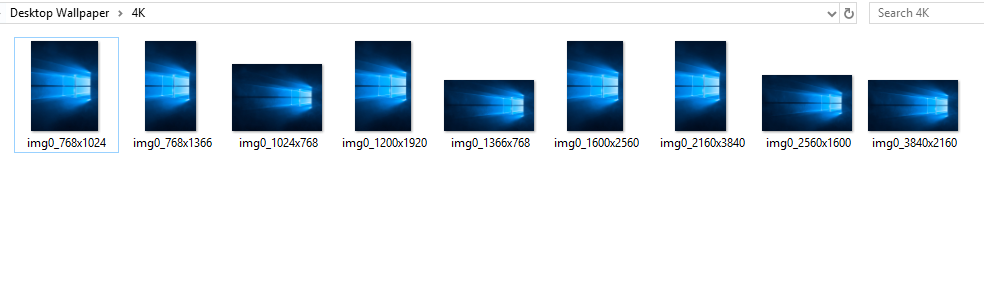
You can resize the wallpaper with the help of community tools or MSPaint based on your choice, and You will need to arrange the Wallpaper in the following orders –
- 4K Folder – You need to add custom wallapaper in same resoultion with exact naming convention, That shown up. You can take reference of your device default wallpaper located at C:\Windows\Web\4K\Wallpaper\Windows.
- img0.jpg – This is Default Wallpaper Image located at C:\Windows\Web\Wallpaper\Windows that you need to replaced with your custom wallpaper.
Prepare Desktop Wallpaper Scripts
For the script to properly work, you’ll need to create the proper folder structure. Next, I will create a PowerShell script that performs all the necessary actions, and To deploy Desktop Wallpaper, You can run the following PowerShell script to get started with configuration –
Open Notepad, Or PowerShell ISE on your device. Copy and paste the below line, Save it as FileName.ps1 to appropriate location –
Note – This script will take OwnerShip & Grant Permissions & Delete files igmo.jpg and 4K Folder, Copy Custom Images to the same location.
takeown /f C:\Windows\Web\wallpaper\Windows\img0.jpg
takeown /f C:\Windows\Web\4K\Wallpaper\Windows\*.*
icacls C:\windows\Web\Wallpaper\Windows\img0.jpg /Grant 'System:(F)'
icacls C:\Windows\Web\4K\Wallpaper\Windows\*.* /Grant 'System:(F)'
Remove-Item C:\windows\Web\Wallpaper\Windows\img0.jpg
Remove-Item C:\Windows\Web\4K\Wallpaper\Windows\*.*
Copy-Item $PSScriptRoot\img0.jpg C:\Windows\Web\Wallpaper\Windows\img0.jpg
Copy-Item $PSScriptRoot\4k\*.* C:\Windows\Web\4K\Wallpaper\Windows
Once you have done! Your folder structure should appear like this –
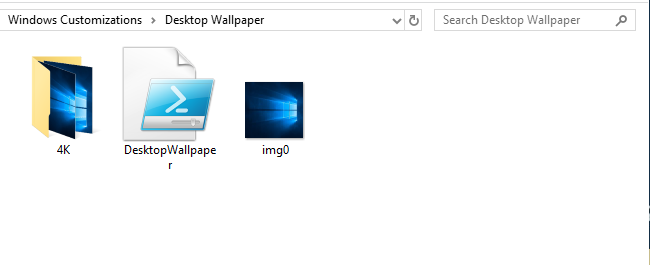
Create Desktop Wallpaper Package in SCCM
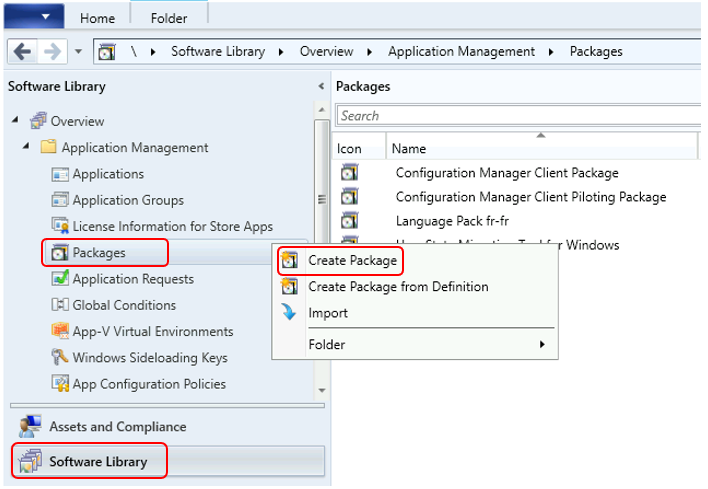
- In the Configuration Manager console, Go to the Software Library workspace, expand Application Management, Right-click Packages and select Create Package.
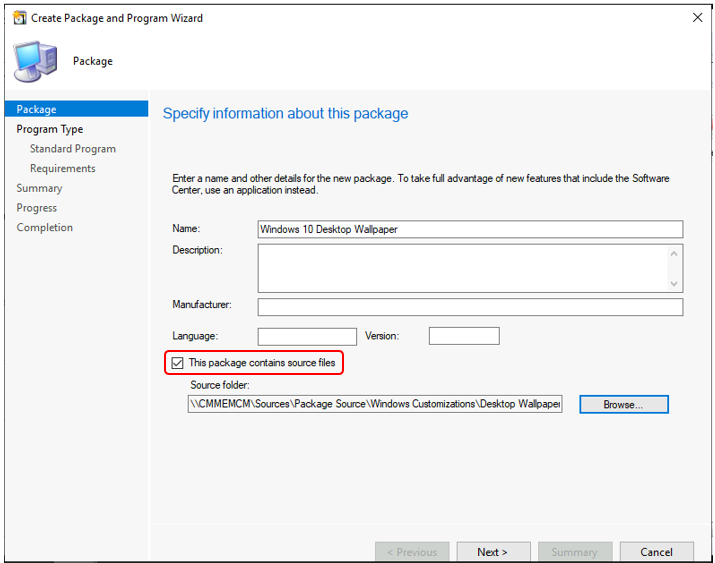
On the Package page, Specify the following information and click Next.
- Name: Specify a name for the package.
- Description: Specify a description for this package.
- Source folder: Choose to Browse to select the UNC path and then specify the location of the source files for the package.
Note – Ensure you have copied the desktop wallpaper file to the network path. You must have access to the network path and any subfolders content.
- On the Program Type, Choose the type of program Do not create a program. Click Next.
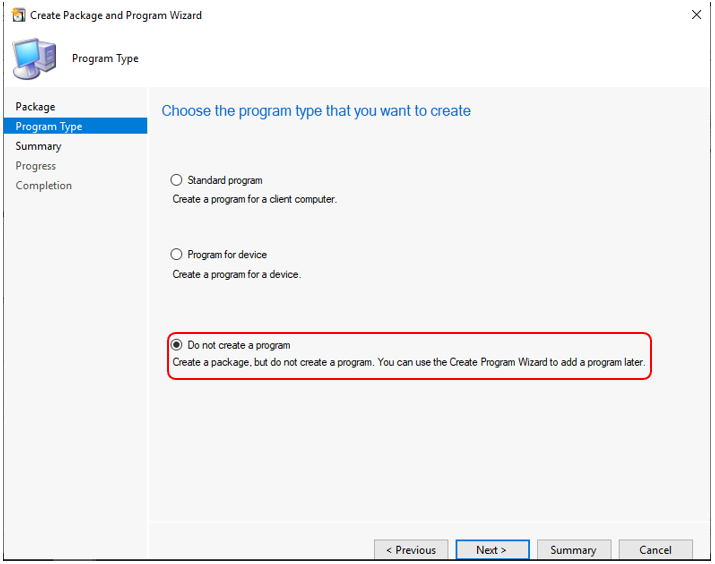
- Review the settings, Click Next.
The Application creation process completed successfully. Click Close to complete the wizard.
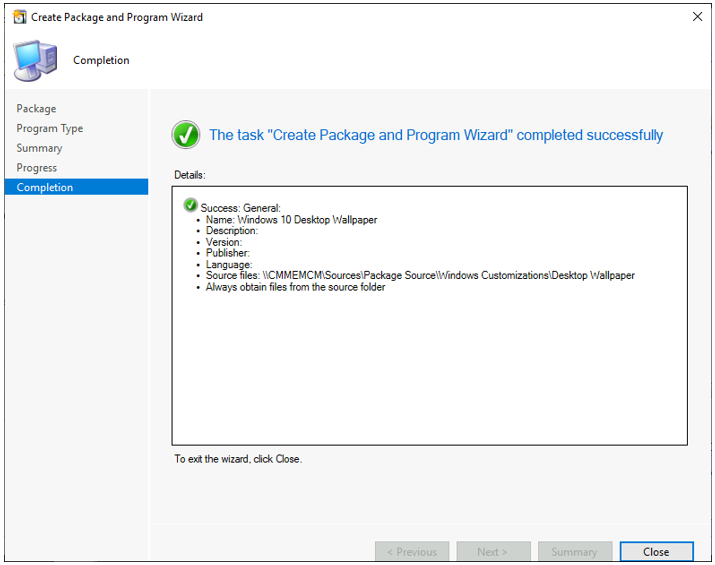
The Windows 10 Desktop Wallpaper now appears in the Packages node of the Configuration Manager console. You’ve finished creating a package.
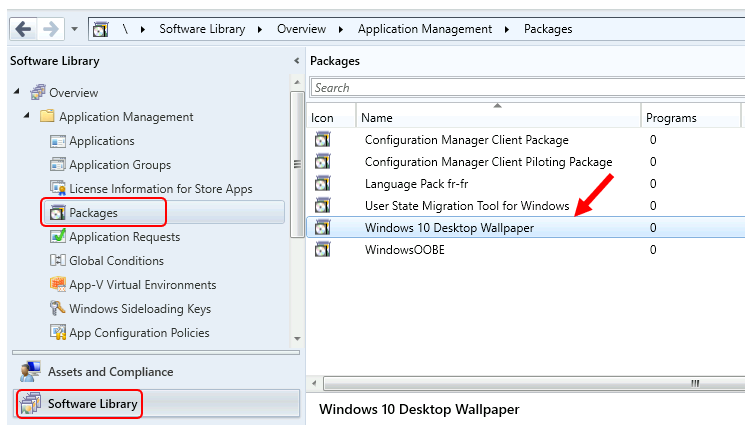
Important – You must distribute the content to the distribution point. Right-click on package and click Distribute Content. Select the distribution point or groups where you want to distribute this package.
Deploy Wallpaper using SCCM Task Sequence
Let’s follow the steps to add desktop wallpaper package to SCCM Task Sequence –
Create or Edit an Existing Task Sequence
This Guide will help you to create a Configuration Manager task sequence from scratch. Use the following steps to modify an existing task sequence –
Customize Task Sequence
- In the Configuration Manager console, go to the Software Library workspace, expand Operating Systems, and then select the Task Sequences node.
- In the Task Sequence list, select the task sequence that you want to edit. Select Edit to modify.
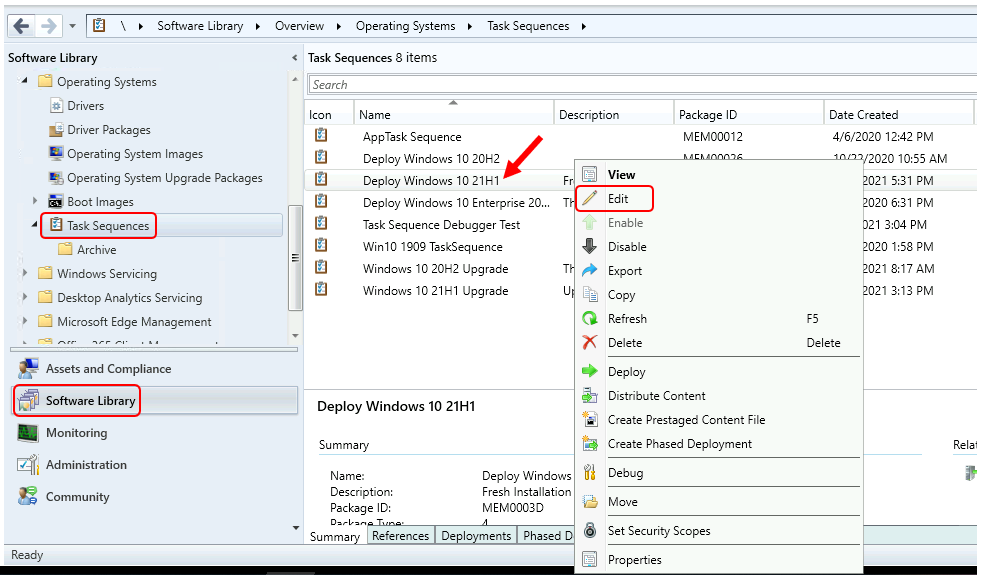
We will add the following steps to the task sequence, and You can add Run Command Line, PowerShell Script options based on the package you had.
Run PowerShell Script
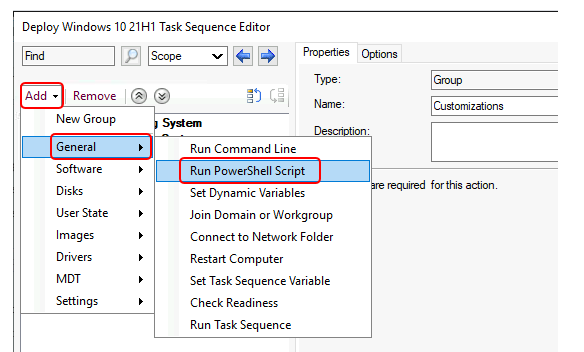
- To add this step in the task sequence editor, select Add, select General, and select Run PowerShell Script.
Provide the appropriate name for this step. Next to the Script Name, add the script which we had placed while creating the package. For Example – “DesktopWallpaper.ps1”
Package – Select this option to specify the Configuration Manager package that contains the necessary files for execution.
Change the Powershell Execution Policy to Bypass and Click Apply, OK.
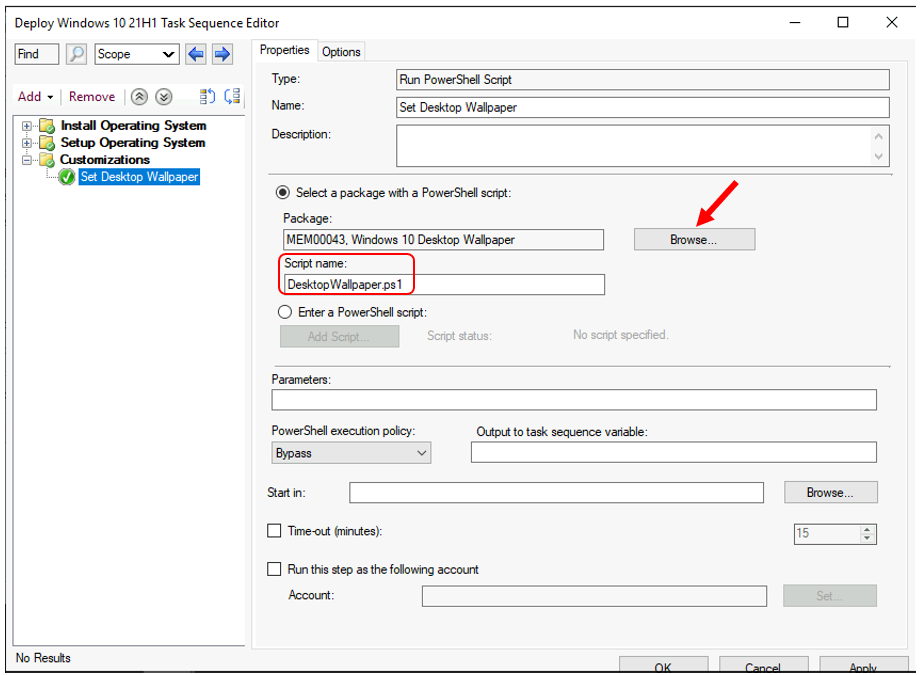
Review other settings added in Task Sequence, make sure to apply all changes. Click Apply and OK, close the window.
Select the task sequence and target the Deployment to Collections. You can refer to Easy Guide to Deploy Windows 10 21H1 Using SCCM Task Sequence | ConfigMgr | Step by Step
Results – End User Experience
Once the deployment is completed successfully, you will see the Windows Desktop Wallpaper applied based on selection.
Troubleshooting Reference
The first basic step to troubleshoot SCCM OSD Task Sequence issues is to check out the SMSTS.log. More Details on how to read SMSTS.log effectively for troubleshooting SCCM OSD Task Sequence.
Learn about SCCM OSD SMSTS Log File Reading Tips with the built-in log reader tool CMTrace – SCCM OSD SMSTS Log File Reading Tips | ConfigMgr | MEMCM
Resources
- SCCM 2107 is Released How to Upgrade to ConfigMgr 2107
- SCCM Customize Windows Out of Box Experience OOBE Using ConfigMgr .
- Deploy a task sequence – Microsoft Docs




Are you planning to use it in SCCM TS along with imaging?
If yes, then Post imaging is completed the run SFC /scannow and see results..
StaffThank you Sreekanth for your inputs! This is more useful if we’re preferring to use Vanilla Windows Image for bare metal deployment.
Hello,
Thank you for posting this… But I’m receiving an access denied when the “Remove-items” process runs. so if fails. Any help is much appreciated. I
StaffThank you Michael, How are you trying to run with Task Sequence or manually? Tried running with admin privileged PowerShell when testing it manually! If all goes fine except removing, You still having issues you can try to rename the image instead of removing it!
what if i need to use a .png file?