






Create SCCM Device Collection for Visual Studio Upgrade
Let’s try to create SCCM device collection for Visual Studio installed Windows PCs. You can create a dynamic device collection in Configuration Manager using Add Remove programs entries of a device. You will have to enable hardware inventory to make this work.
You can check whether the Visual Studio 2019 or 2017 application is installed on a device or not using add remove program entries. You can group all those devices into a dynamic device collection. This dynamic device collection for Visual Studio might help deploy the upgrade Visual Studio or dependency applications, etc.
I have also shared a blog post about the best way to install Visual Studio applications using SCCM. Also, there are some tips to find the device name, user name, and version details of the visual studio using SQL query.
SCCM Dynamic Device Collection
Let’s create a dynamic device collection for the device with Visual Studio 2017 & 2019 installed. You will have to consider different versions of Visual Studio if you need to use a more optimized WQL query. I have added some of those tips in the below section.

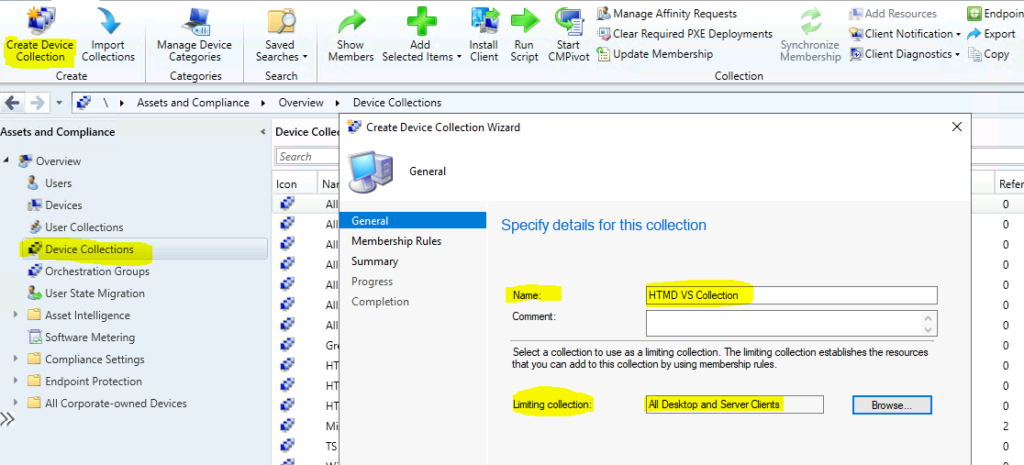
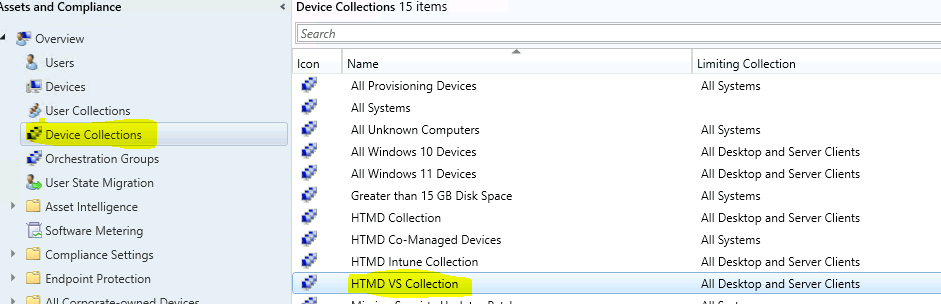
- Navigate to SCCM console – Assets and Compliance – Device Collections.
- Right-click and select “Create Device Collection” from ribbon menu.
- On the General page provide a Name – HTMD VS Collection.
- You need to be careful about Limiting collection (I don’t recommend selecting All Systems collection).
- Choose to Browse to select a limiting collection. The collection will only contain members from the limiting collection.
- Click on Next to continue.
NOTE! – You can also use the same WQL query for other applications as well. But be careful about the performance issues. Also, have a look at the dynamic collection creation process best practices.
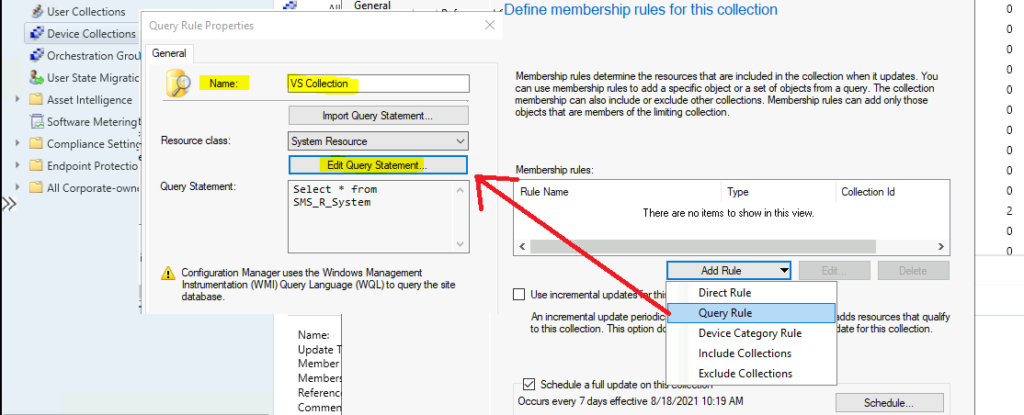
On the Membership Rules page of the Create Device Collection Wizard, in the Add Rule list. Select the type Query Rule membership rule for this collection. You can add a Rule list, select Query Rule.
On the Query Rule Properties windows, specify the following information:
- Enter the Query Name: VS Collection.
- Resource class: You have to select System Resource to create Dynamic Device Collection for Visual Studio in SCCM.
- Click Edit Query Statement to Opens the Query Statement Properties dialog box.
Use the WQL query from the following section (WQL Query – Visual Studio application installed devices) to create a dynamic device collection for VS installed devices.
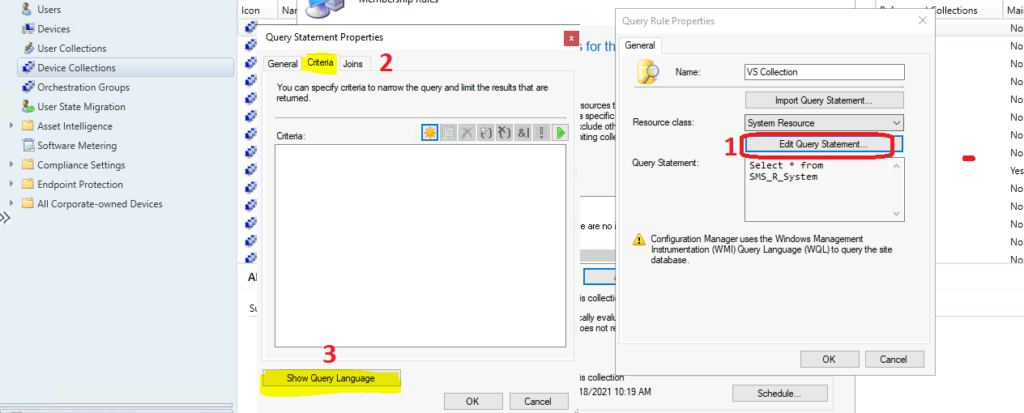
Collection Query to Create Visual Studio Device Collection
The following is the WQL query to group devices where the Visual Studio 2017 or 2019 version is installed. You can also edit the query as per your requirement. For example, if you want to group Visual Studio 2019 installed devices, you can try to change the query as explained below:
- From – where SMS_G_System_ADD_REMOVE_PROGRAMS.DisplayName like “Visual Studio %[a-z]% 201[7,9]“
- To – where SMS_G_System_ADD_REMOVE_PROGRAMS.DisplayName like “Visual Studio Enterprise 2019“
select distinct SMS_R_System.ResourceId, SMS_R_System.ResourceType, SMS_R_System.Name, SMS_R_System.SMSUniqueIdentifier, SMS_R_System.ResourceDomainORWorkgroup, SMS_R_System.Client from SMS_R_System inner join SMS_G_System_ADD_REMOVE_PROGRAMS on SMS_G_System_ADD_REMOVE_PROGRAMS.ResourceID = SMS_R_System.ResourceId where SMS_G_System_ADD_REMOVE_PROGRAMS.DisplayName like "Visual Studio %[a-z]% 201[7,9]"
NOTE! – You can verify whether the collection query is correct or not by clicking on the Green play button. Verify SCCM Collection Query Preview Tool is always useful in this kind of scenario.
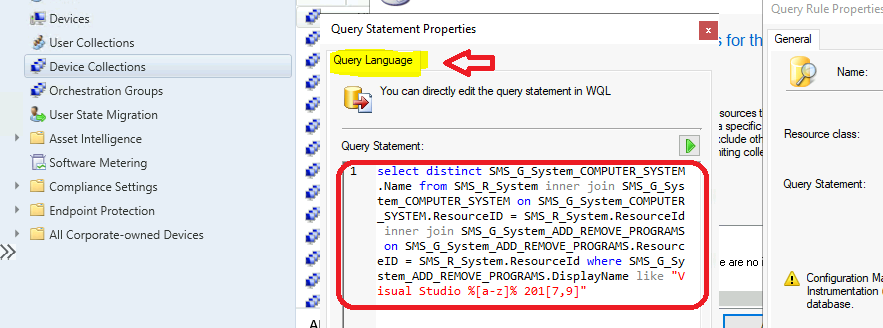
You can click on the OK, OK, Next, Next, and Next buttons to complete the SCCM device collection creation process for Visual Studio 2017 and 2019 installed devices.
You can check whether all these devices are sending the hardware inventory information to SCCM. All these Visual Studio installed devices will be part of the collection that we created. There is also a risk that if the device is not sending the latest application information, this collection won’t get updated, and all the relevant devices won’t be part of this collection.
Anoop is Microsoft MVP! He is a Solution Architect in enterprise client management with over 17 years of experience (calculation done in 2018). He is Blogger, Speaker, and Local User Group HTMD Community leader. His main focus is on Device Management technologies like SCCM 2012, Current Branch, and Intune. He writes about ConfigMgr, Windows 11, Windows 10, Azure AD, Microsoft Intune, Windows 365, AVD, etc…..…




Discussion