






Exciting News! New Device Restriction Settings are Available in macOS. The Microsoft Intune 2402 February Update has many new features, one of the most important being the latest device restriction in the macOS setting catalog.
The setting plays a crucial role; these settings enhance administrators‘ control and management of various features on macOS devices. A setting catalog is a list of settings that manage your macOS devices.
These settings are available for configuration and are organized in one place. The setting catalog makes it easy to create policies for your devices. With device restrictions, the admin can control and limit certain features or functionalities.
The New Device restriction is essential to setting the catalog; implementing restrictions will enhance your device’s security and privacy and manage its overall performance. These settings control specific features and functionalities, allowing you to customize the device.

- Microsoft Intune 2402 New Features February Update
- New Device Restriction Settings Available in Apple Settings Catalog
- How to setup Microsoft Enterprise SSO plug-in for Apple macOS Devices using Intune
New Device Restriction Settings Available in macOS
The Microsoft Intune 2402 February Update rolled out the new device restriction. So let’s see how to Configure FileVault Encryption on macOS with Intune. Implementing FileVault encryption through Intune is a significant step towards enhancing the security of your organization’s devices.
- Sign in to the Microsoft Intune admin center.
- Go to the Devices > Configuration > Create >New Policy
See More: Configure FileVault Encryption for macOS Devices using Intune
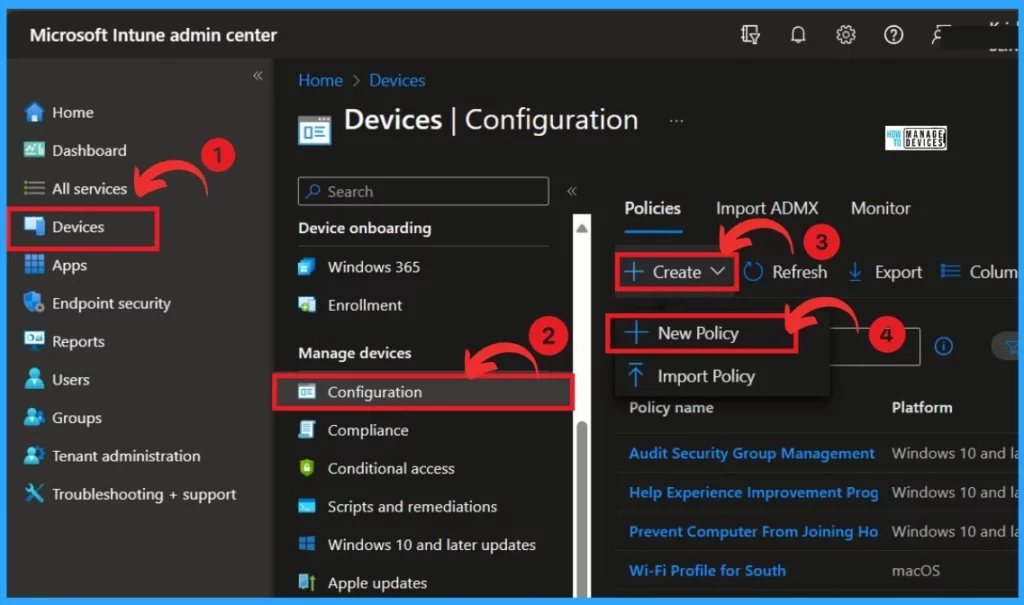
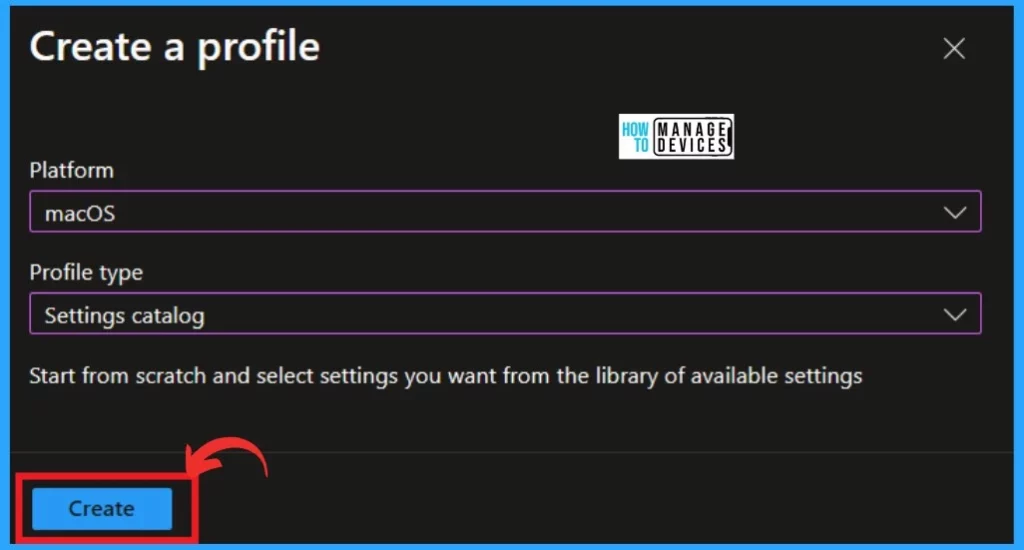
After clicking on the new policy, you must create a profile based on the Platform and profile type. The platform is macOS, and the profile type is the settings catalog. Click on the Create option to go to another step.
- Additional App Configuration Permissions for Android Apps
- Microsoft Intune Extends Support to Android 10 and Later from October 2024
- macOS Devices Migration Framework to Intune from Jamf Kandji JumpCloud Platforms
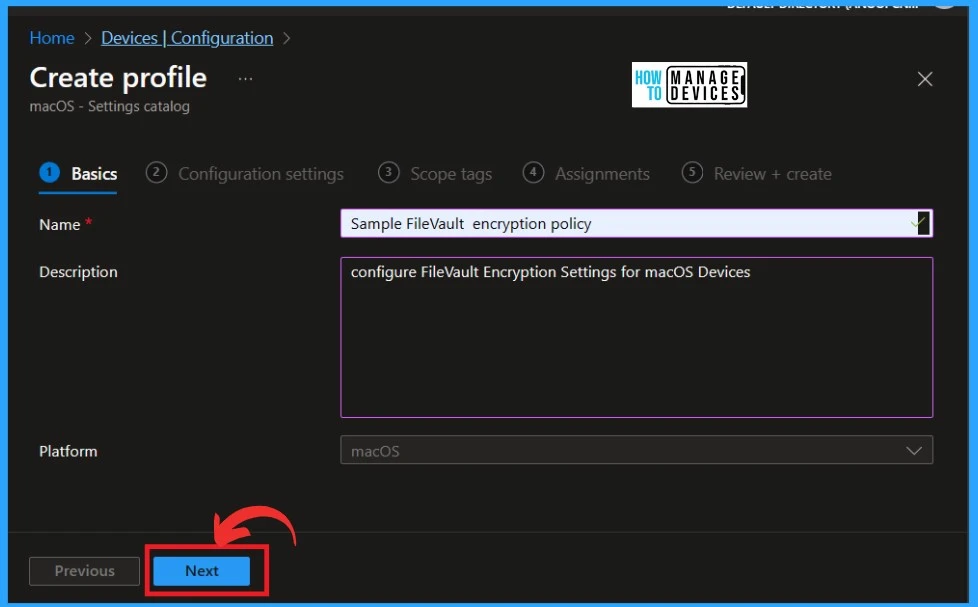
The basics tab is the first and most crucial step; in this step, we have to give a Name to the policy and a proper Description of that policy. I provide the name ”Sample FileVault encryption policy” as an example. The Description is very important. You can describe the policy, which will help you understand later.
- Click on Next
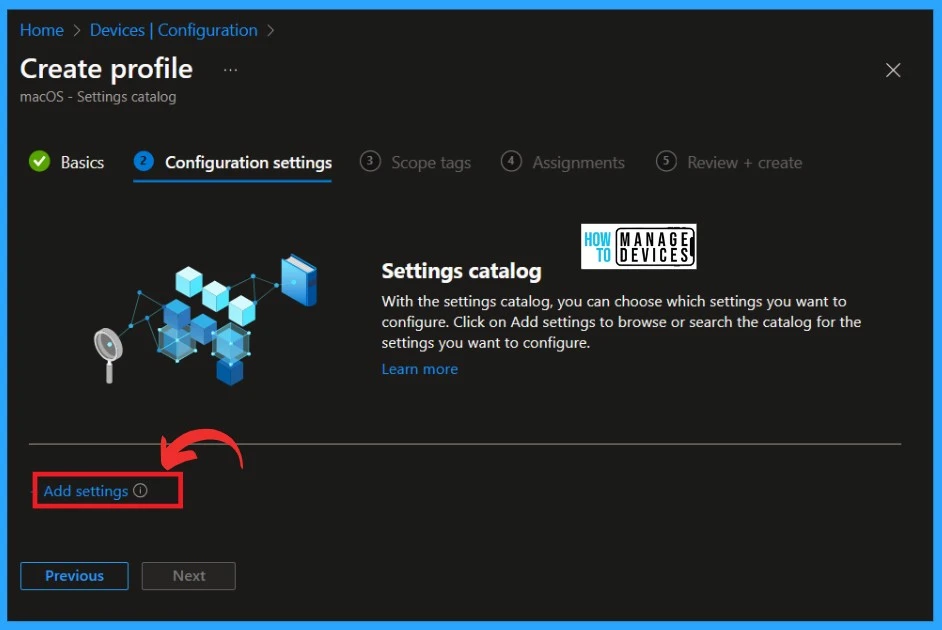
In the configuration step, you have to Add settings. In this step, you can choose the setting you want to configure. The Add settings will discover that admins may experience performance degradation when more than 400 settings are added to a single policy.
- Click on Add Settings
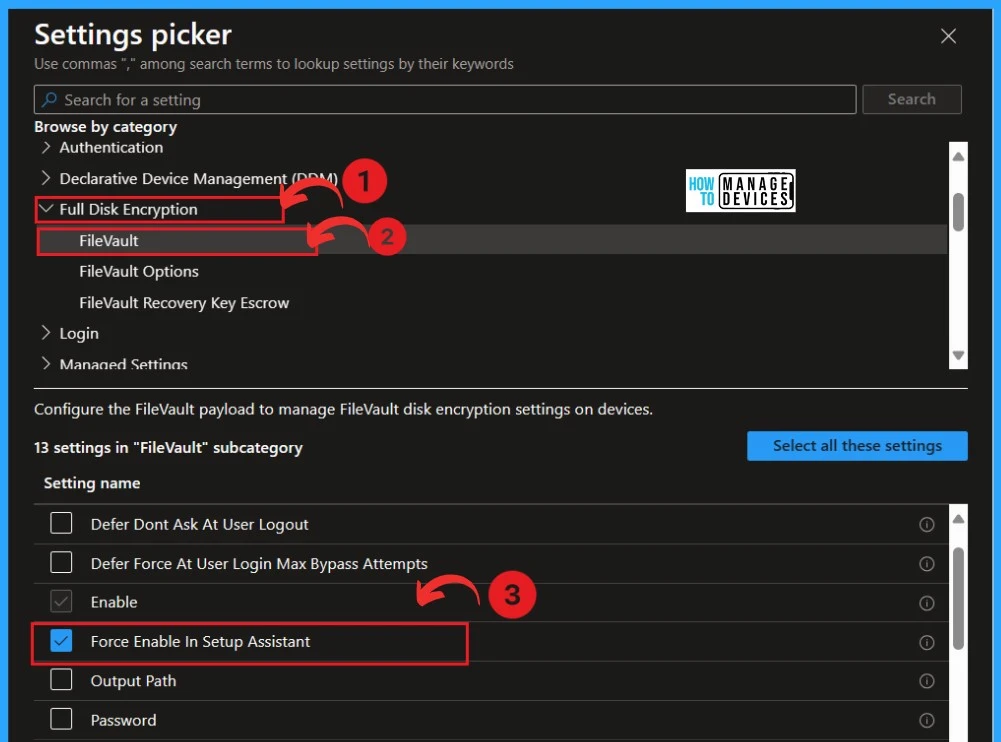
When you click Add Settings, you will get a Settings Picker window. You must click the Full Disk Encryption drop-down arrow and enlarge the option under the browse by category. Then, Click on the FileVault option and select the setting.
- Click on the Force Enable in Setup Assistant
| New Device Restriction Settings | Info |
|---|---|
| Force Enable in Setup Assistant | If ‘true’, and installation of this payload occurs after enrolling with MDM in Setup Assistant, the system requests Setup Assistant to enable FileVault at setup time. In this case, the system also ignores all other keys in this payload, except for ‘ShowRecoveryKey’. To use this, enable the Await Device Configured DEP configuration option and send this profile with this key set before sending the DeviceConfiguredCommand. An admin SecureToken user is required, otherwise the FileVault pane does not appear. |
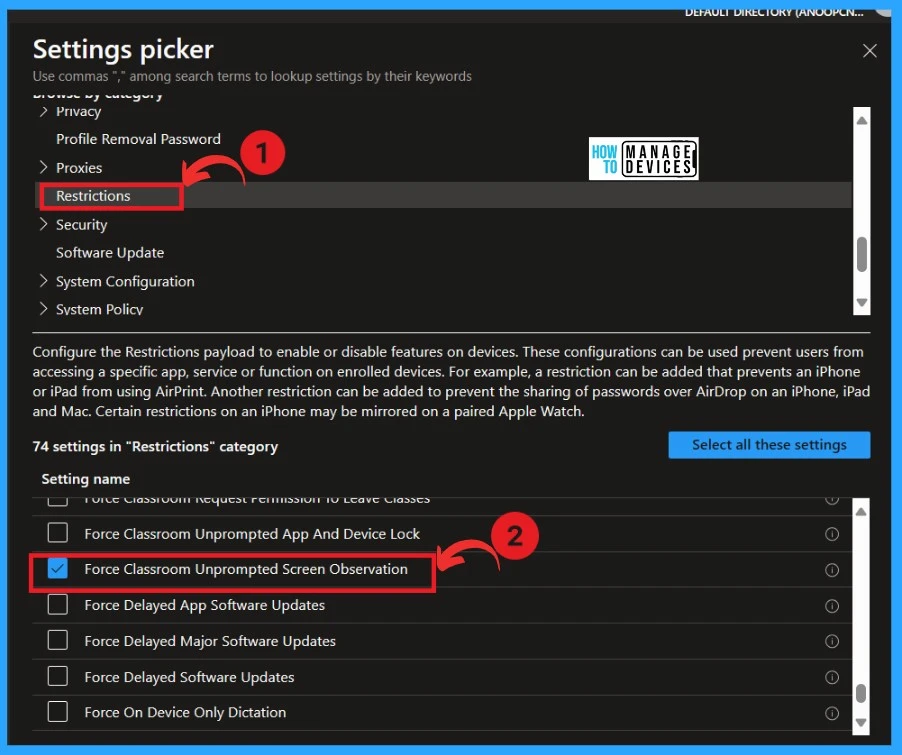
| Force Classroom Unprompted Screen Observation | If ‘true’ and ‘ScreenObservationPermissionModificationAllowed’ is also ‘true’ in the Education payload, a student enrolled in a managed course through the Classroom app automatically permits to that course teacher’s requests to observe the student’s screen without prompting the student. Requires a supervised device. Available in iOS 11 and later and macOS 10.14.4 and later. |
- Configure Intune RBAC Role for macOS FileVault Recovery Key
- Settings Catalog Commands for Intune Mac Device Management
- Setup Wi-Fi Profile for macOS devices using Intune
After selecting Full Disk Encryption, click the Restriction option under the browse category. Also, select the new setting, Force Classroom Unprompted Screen Observation, and close the window.
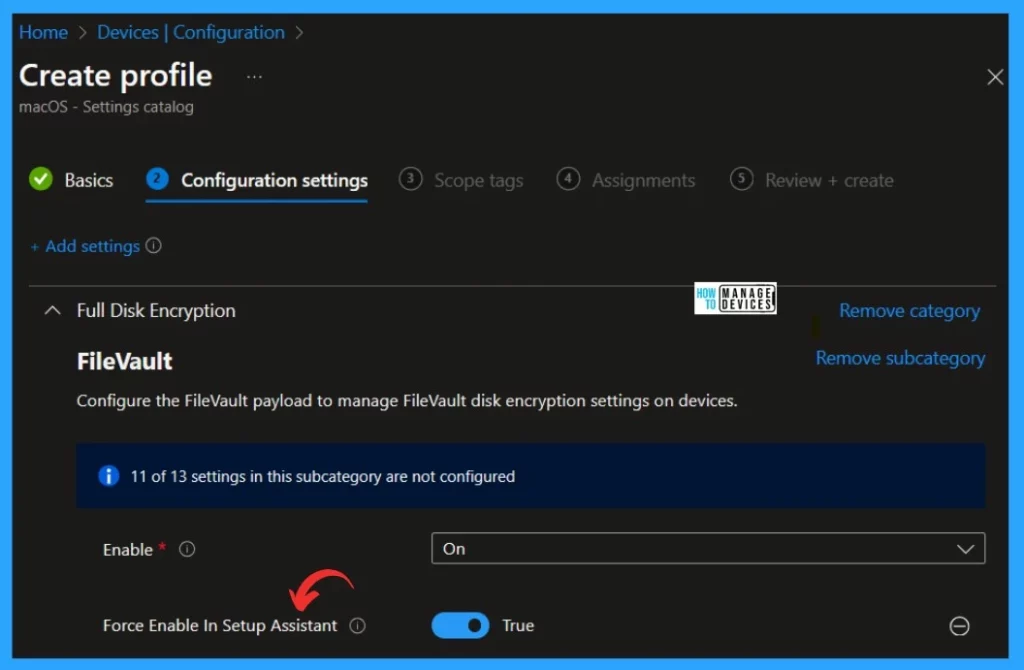
You can see the configuration settings window now and enable the Force Enable in Setup Assistant as true. If ‘true‘, and this payload is installed after enrolling with MDM in Setup Assistant, the system requests Setup Assistant to enable FileVault at setup time.
- Click on the Next
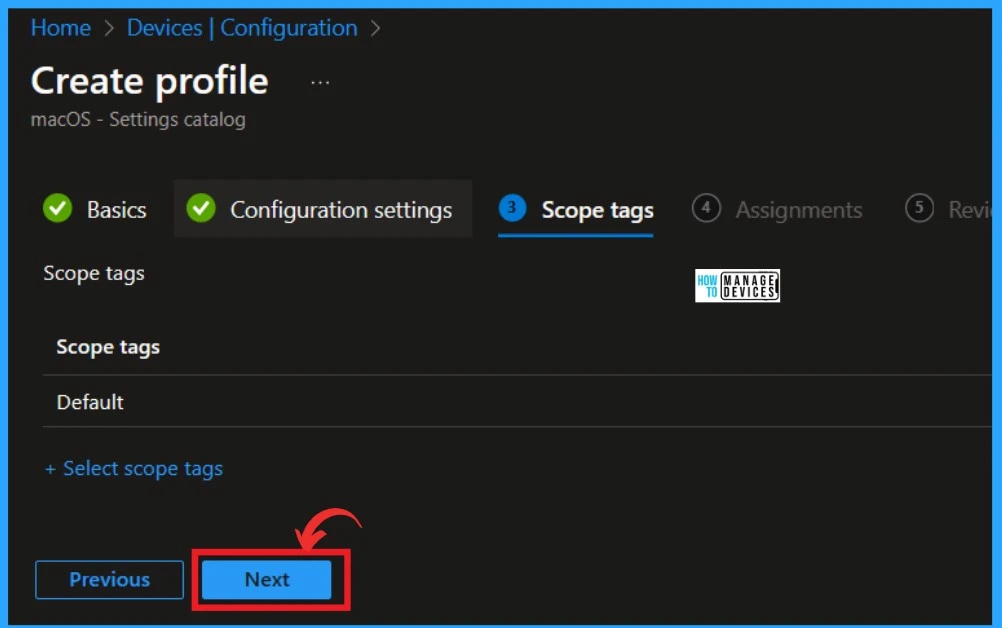
The next step is to assign Scope tags; this option is optional. When you assign a scope tag for a policy or device, that policy is only visible to administrators with a role in the assignment.
- Click on the Next
- Disable Guest Account on macOS using Intune
- New macOS Antivirus Policies using Intune release 2308 or later
- Manually Sync macOS Device with Intune
The Crucial step is assigning the policy to the group. In this step, you can choose who can access certain apps or policies. To do this, click on Add Group under the Include Group section. After clicking add group, you will get a side pane. Select the group from the list.
- Click on the Add groups
- Select the Group that you want to assign the policy
- Click on Select
- Click on the Next option for the next step
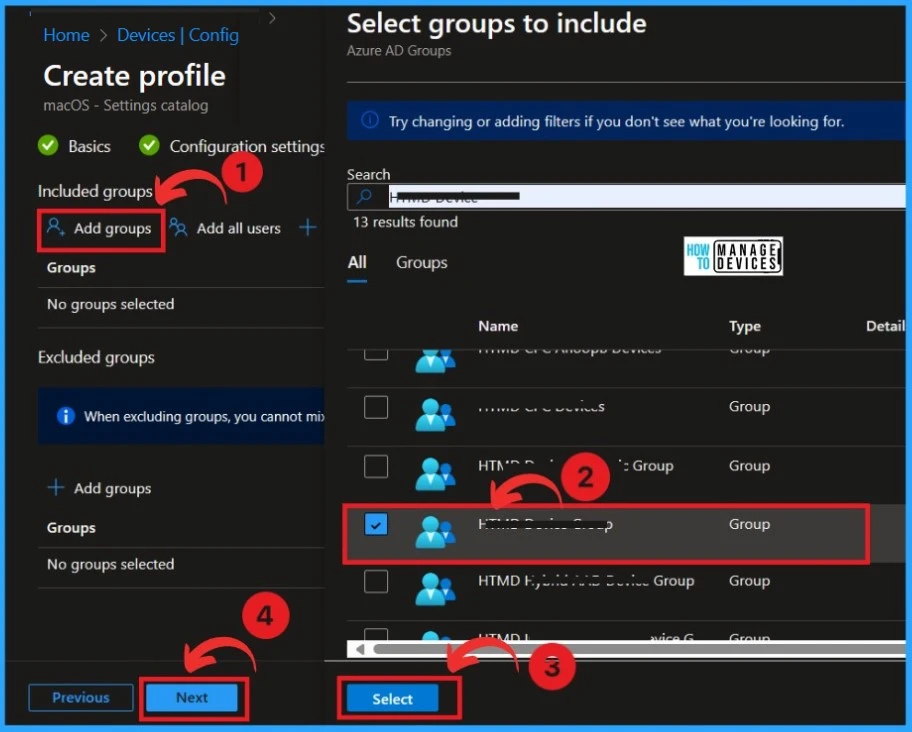
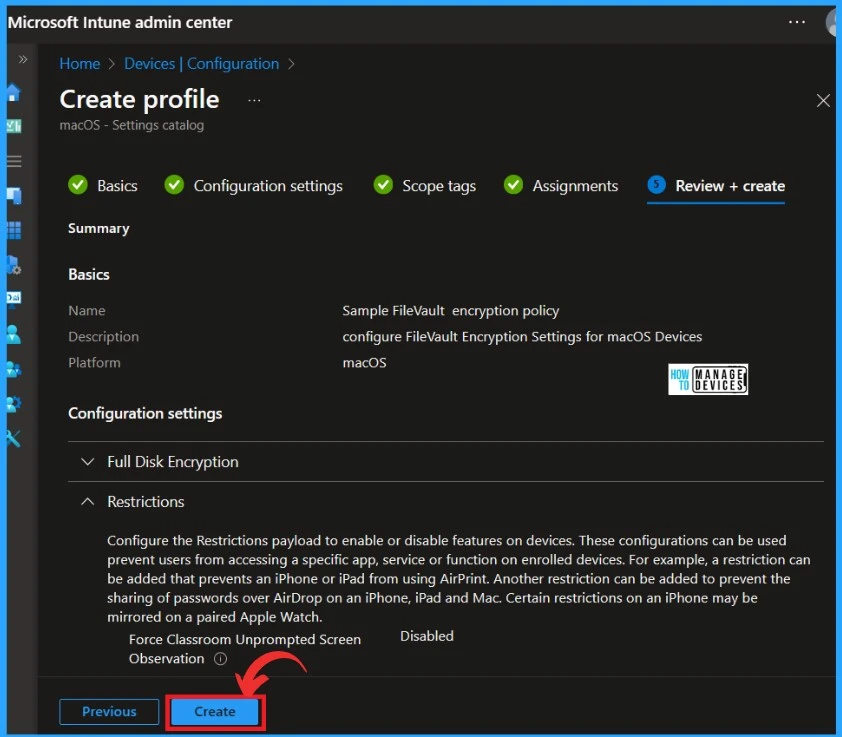
The last step is the Review + Create option. In this step, you can finalize the policy settings, edit the settings before creating the policy, and check all the details you have chosen.
- Click on Create to create the policy.
Reference
What’s new in Microsoft Intune
We are on WhatsApp. To get the latest step-by-step guides and news updates, Join our Channel. Click here –HTMD WhatsApp.
Author
Krishna. R is a computer enthusiast. She loves writing about Windows 11 and Intune-related technologies and sharing her knowledge, quick tips, and tricks about Windows 11 or 10 with the community.


The force at setup assistant doesnt work as intented. There seems to be an issue with this settings catalog. Also when assigning, make sure to user filter that match the enrolment policy name rather than entra group as there seems to be delay in getting the device to group and policy getting assigned during setup assistant.
The Await final configuration feature for the device must be set to Yes In the enrolment profile for this to work.
But as of now, many have reported issue that filevault is not getting enabled even though policy is installed in device.