






How to Get Devices in Noncompliant State with Intune Explorer and Security Copilot
Let’s discuss how to Get Devices in Noncompliant State with Intune Explorer and Security Copilot. A device is considered Noncompliant in Intune when it doesn’t follow the security standards defined by IT admins. These standards may include having a password, enabling encryption, or running the latest OS version. If the device breaks even one of these rules, Intune automatically marks it as Noncompliant.
In Intune reports, devices can appear in different compliance states: Compliant when they meet all rules, Noncompliant when they fail one or more rules, and Error when the device fails to report its status. By tracking and managing Noncompliant devices, IT teams can protect company data while helping users resolve issues quickly.
Intune Explorer helps you translate natural language requests into predefined query views within Intune. These views are designed to cover common tasks, such as checking device compliance, monitoring app deployments, or reviewing user activity. Based on your query, Explorer may also request additional details, such as the platform, a specific device, or a username, to refine the results.
When IT admins use Intune Explorer and Security Copilot to get a list of devices in a Noncompliant state, the results provide clear visibility into which devices are failing security or compliance rules. This helps organizations in several ways: admins can act quickly to fix issues like missing patches, weak passwords, etc.

Table of Contents
How to Get Devices in Noncompliant State with Intune Explorer and Security Copilot
The query results allow IT teams to guide end users on how to bring their devices back into compliance, ensuring both security and productivity are maintained across the organization. For getting the results follow the steps below.
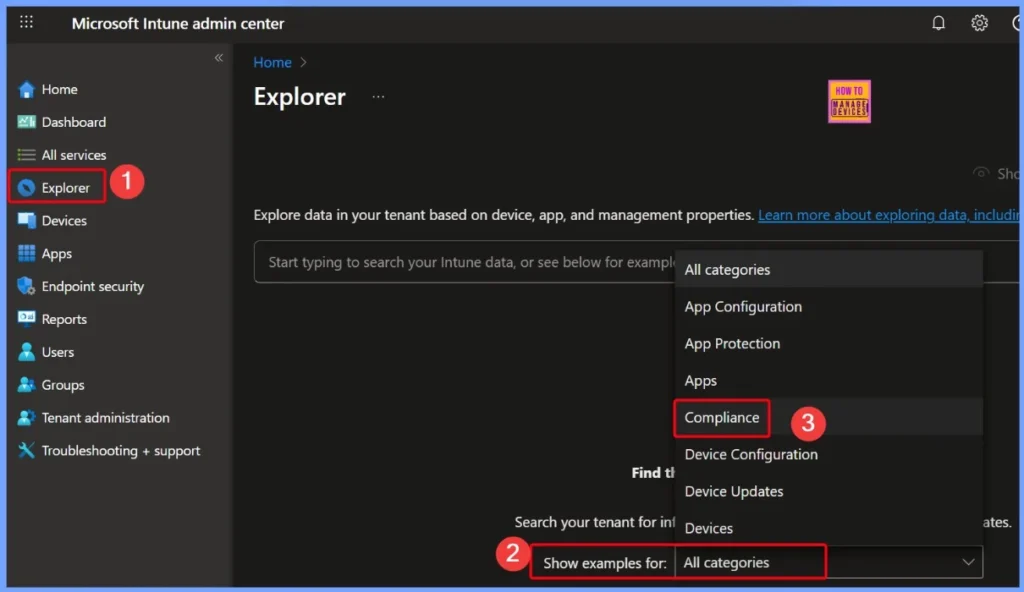
- Sign in to the Intune admin center.
- Go to Explorer tab on the Left side of Intune admin center
- Select the Compliance as Category
- How to use Intune Explorer with Security Copilot to Access Devices Users Apps Compliance and Update Details
- How to use Intune Explorer with Security Copilot to Find Windows and MacOS Device Data across your Tenant
- How to View Managed App Types Details with Intune Explorer and Security Copilot
In Intune Explorer you will get different categories that make it easier to search and manage information. These include App Configuration for managing app settings, App Protection for securing apps and data, and Apps for viewing installed or managed applications.
You also have Compliance to check whether devices meet security rules, Device Configuration to view policies applied to devices, Device Updates to track update status, and Devices to get details about all enrolled devices.
- Under the Compliance category, I selected the query “Get devices that are in Compliance state.”
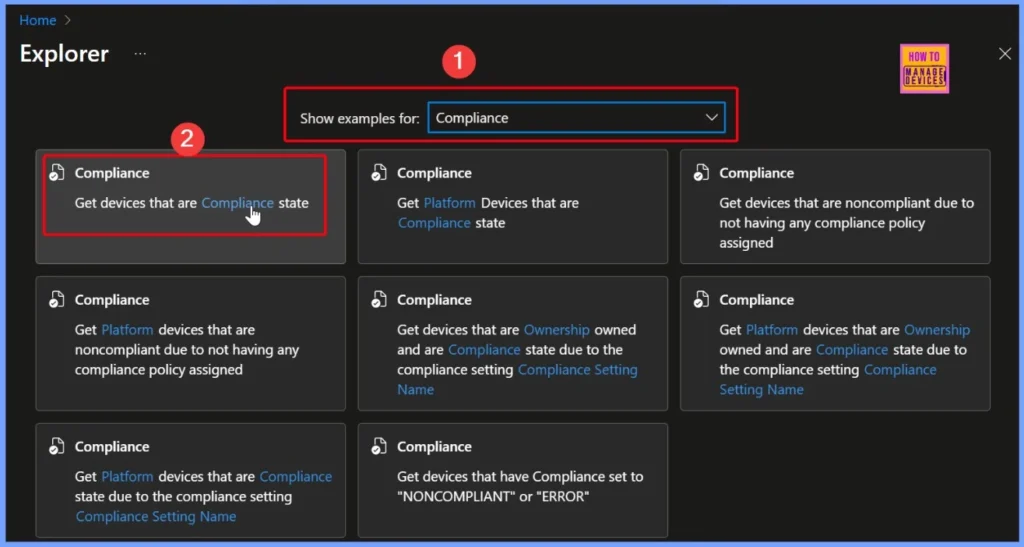
Get devices that are Compliance state query
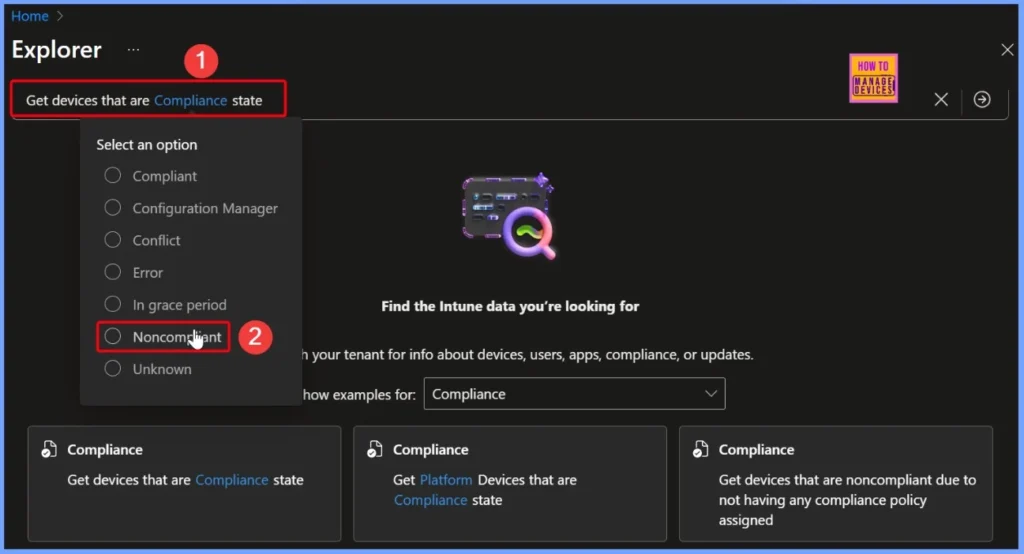
In the “Get devices that are Compliance state” query, the required field is Compliance. Here, I selected the option “Noncompliant” to get a list of devices that do not meet the compliance rules set in Intune. This helps in quickly finding devices that need attention or fixes.
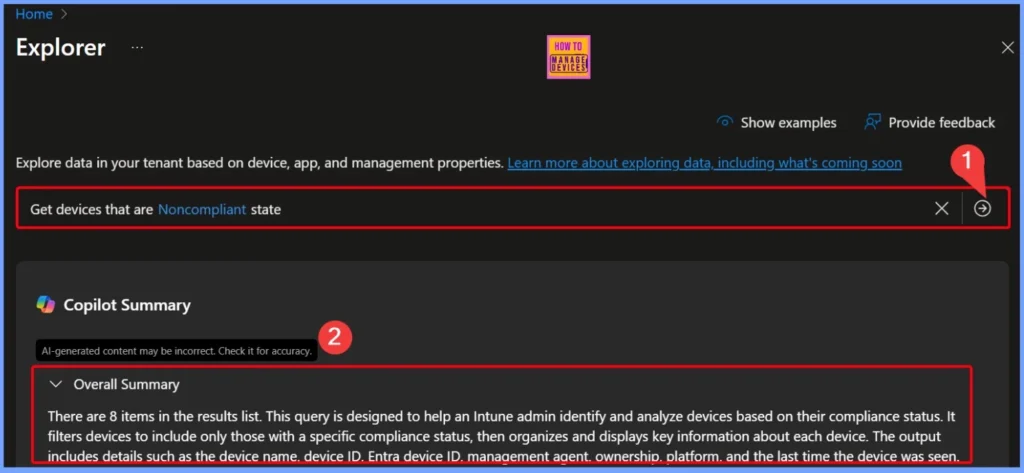
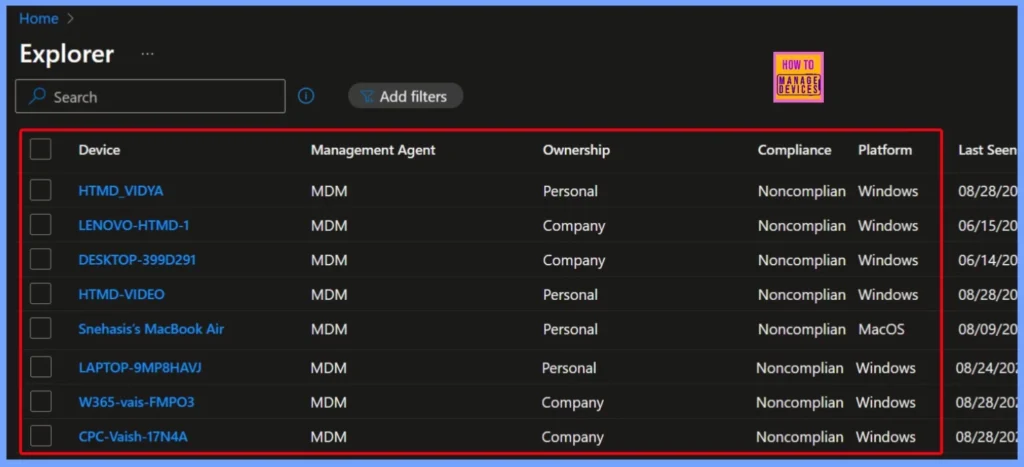
After filling in the required field, the query is ready to fetch devices that are in a Noncompliant state. By clicking the arrow next to the query, Copilot runs it and returns the results as showing 8 items in the list. This query helps Intune admins quickly identify and review devices based on their compliance status.
It filters out only the Noncompliant devices and presents key details such as the device name, device ID, Entra device ID, management agent, ownership, platform, and the last time the device was seen, making it easier to analyze and take action.
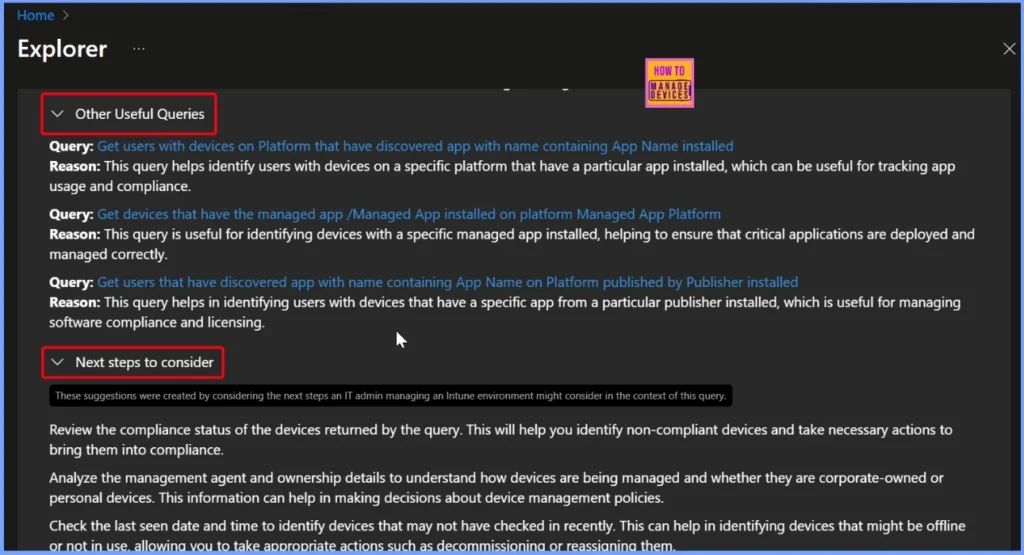
Other Useful Queries in Intune Explorer
Intune Explorer provides a different types of queries that help IT admins track apps, devices, and user activity more effectively. These queries can be used to identify users with certain apps installed, find devices with specific managed apps, or check apps published by particular vendors etc.
| Other Useful Queries | Next steps to consider |
|---|---|
| Query: Get users with devices on Platform that have discovered app with name containing App Name installed Reason: This query helps identify users with devices on a specific platform that have a particular app installed, which can be useful for tracking app usage and compliance. | Review the compliance status of the devices returned by the query. This will help you identify non-compliant devices and take necessary actions to bring them into compliance. |
| Query: Get devices that have the managed app /Managed App installed on platform Managed App Platform Reason: This query is useful for identifying devices with a specific managed app installed, helping to ensure that critical applications are deployed and managed correctly. | Analyze the management agent and ownership details to understand how devices are being managed and whether they are corporate-owned or personal devices. This information can help in making decisions about device management policies. |
| Query: Get users that have discovered app with name containing App Name on Platform published by Publisher installed Reason: This query helps in identifying users with devices that have a specific app from a particular publisher installed, which is useful for managing software compliance and licensing. | Check the last seen date and time to identify devices that may not have checked in recently. This can help in identifying devices that might be offline or not in use, allowing you to take appropriate actions such as decommissioning or reassigning them. |
End Results
When running the query “Get Devices in Noncompliant State” with Intune Explorer and Security Copilot, the results displayed a list of devices that are currently marked as Noncompliant. The below screenshots and table helps you to show more details.
| Device | Management Agent | Ownership | Compliance | Platform | Last seen date Time |
|---|---|---|---|---|---|
| LENOVO-HTMD-1 | MDM | Company | Noncompliant | Windows | 06/15/2025, 06:01 AM |
| LAPTOP-9MP8HAVJ | MDM | Personal | Noncompliant | Windows | 08/24/2025, 04:25 PM |
| Snehasis’s MacBook Air | MDM | Personal | Noncompliant | MacOS | 08/09/2025, 11:17 PM |
| HTMD_VIDYA | MDM | Personal | Noncompliant | Windows | 08/29/2025, 10:21 AM |
| HTMD-VIDEO | MDM | Personal | Noncompliant | MacOS | 08/29/2025, 06:21 PM |
| CPC-Vaish-17N4A | MDM | Company | Noncompliant | Windows | 08/29/2025, 04:21 PM |
| DESKTOP-399D291 | MDM | Company | Noncompliant | Windows | 06/14/2025, 10:55 PM |
| DESKTOP-QAJ4HBC | MDM | Company | Noncompliant | Windows | 08/23/2025, 05:58 PM |
Need Further Assistance or Have Technical Questions?
Join the LinkedIn Page and Telegram group to get the latest step-by-step guides and news updates. Join our Meetup Page to participate in User group meetings. Also, join the WhatsApp Community to get the latest news on Microsoft Technologies. We are there on Reddit as well.
Author
Anoop C Nair has been Microsoft MVP for 10 consecutive years from 2015 onwards. He is a Workplace Solution Architect with more than 22+ years of experience in Workplace technologies. He is a Blogger, Speaker, and Local User Group Community leader. His primary focus is on Device Management technologies like SCCM and Intune. He writes about technologies like Intune, SCCM, Windows, Cloud PC, Windows, Entra, Microsoft Security, Career, etc.


Discussion