






How to Allow or Block Disk Health Model Updates Policy using Intune
Let’s discuss how to allow or block Disk Health Model Updates using Intune. This policy helps you to control whether the operating system is allowed to download updates for the ML-based Disk Failure Prediction Model.
The ML model analyses disk performance and health data to predict potential storage disk failures before they happen. This helps IT admins and users take proactive action, such as backing up data or replacing a disk before actual hardware failure occurs.
This policy helps IT admins by enhancing predictive maintenance and system reliability through automatic updates to the ML-based Disk Failure Prediction Model. By enabling the policy, IT admins ensure that devices receive regular updates to the ML-based Disk Failure Prediction Model.
If the policy is disabled, updates are blocked, and the model may become outdated, reducing its accuracy over time and potentially increasing the risk of unexpected disk issues. Leaving the policy not configured has the same effect as enabling it.

Table of Contents
How to Allow or Block Disk Health Model Updates Policy using Intune
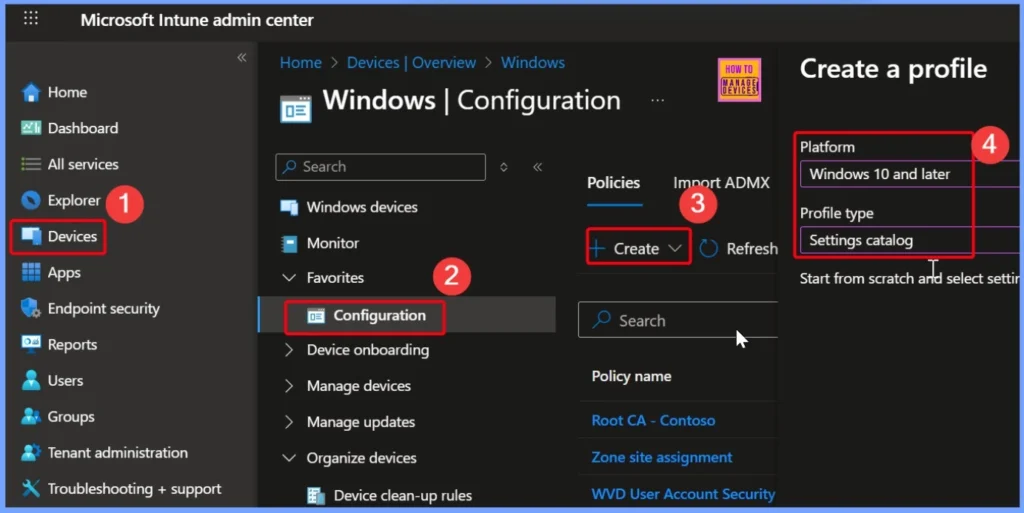
You can easily start by signing in to the Microsoft Intune admin center using your credentials. Once logged in, navigate to the left-hand panel and select Devices. From there, go to Manage devices and click on Configuration.
| Platform | Profile Type |
|---|---|
| Windows 10 and later | Settings Catalog |
- Windows 11 Disk Cleanup Shows Incorrect Space Available for Cleanup Known Issue and Fix
- Windows 11 Resource Monitor Tool to Check CPU Memory Disk Network Performance
- How to Install and Use DISKSPD in Windows 11
Managing Disk Health Model Updates Setting in Intune
The Disk Health Model Updates setting can be managed through Intune using its property configuration. The property is of integer (int) format, and it supports multiple access types such as Add, Delete, Get, and Replace. The default value is set to 1, which means the setting is enabled, allowing the device to download updates to the ML-based disk failure prediction model.
| Name | Description | Platform |
|---|---|---|
| Allow Disk Health Model Updates using Intune | How to Allow or Block Disk Health Model Updates using Intune | Windows |
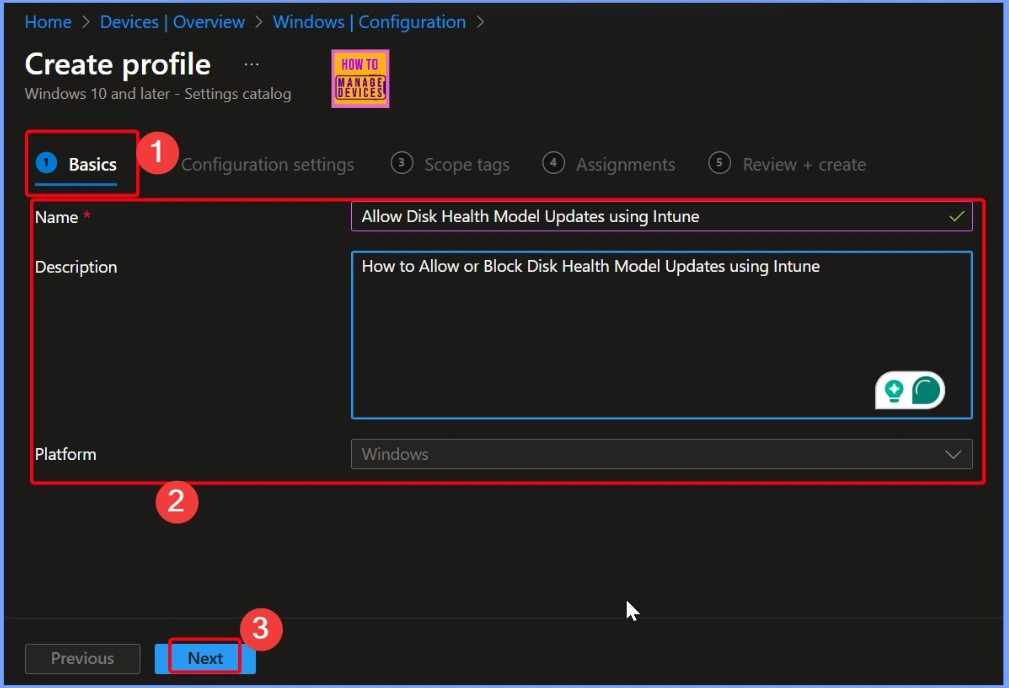
Setting Disk Health Model Updates Policy in Intune with Assigned Values
You can easily manage the Disk Health Model Updates policy using Intune, you can configure the policy by assigning the appropriate value through a device configuration profile. The setting accepts two values: 0 to block the updates, and 1 (which is the default) to allow them.
- Select the + Add Settings hyperlink
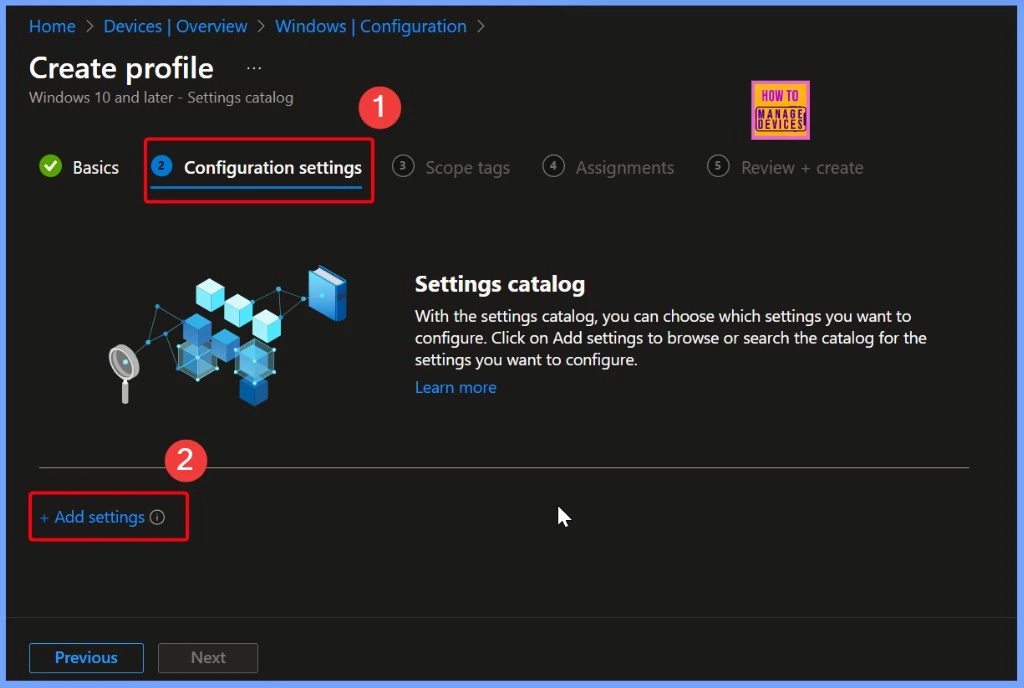
Selecting Allow Disk Health Model Updates from the Settings Picker in Intune
Once you click on + Add settings, the Settings picker window will open. In the search bar, type “Storage” to filter relevant settings. You’ll see a list of 8 options under the Storage category. Locate the setting titled “Allow disk health model updates”. To enable it, simply check the box next to this option, which adds it to your configuration profile for further process.
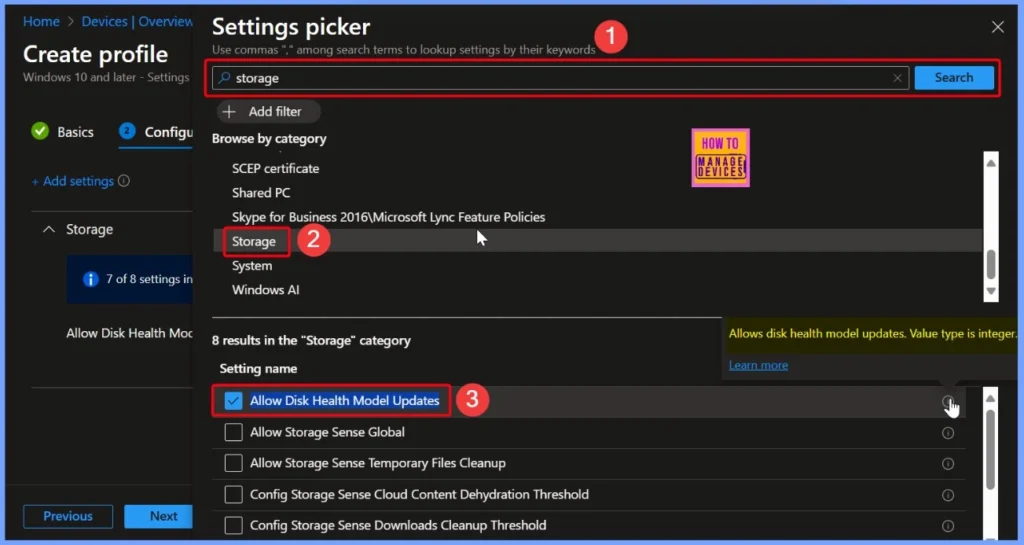
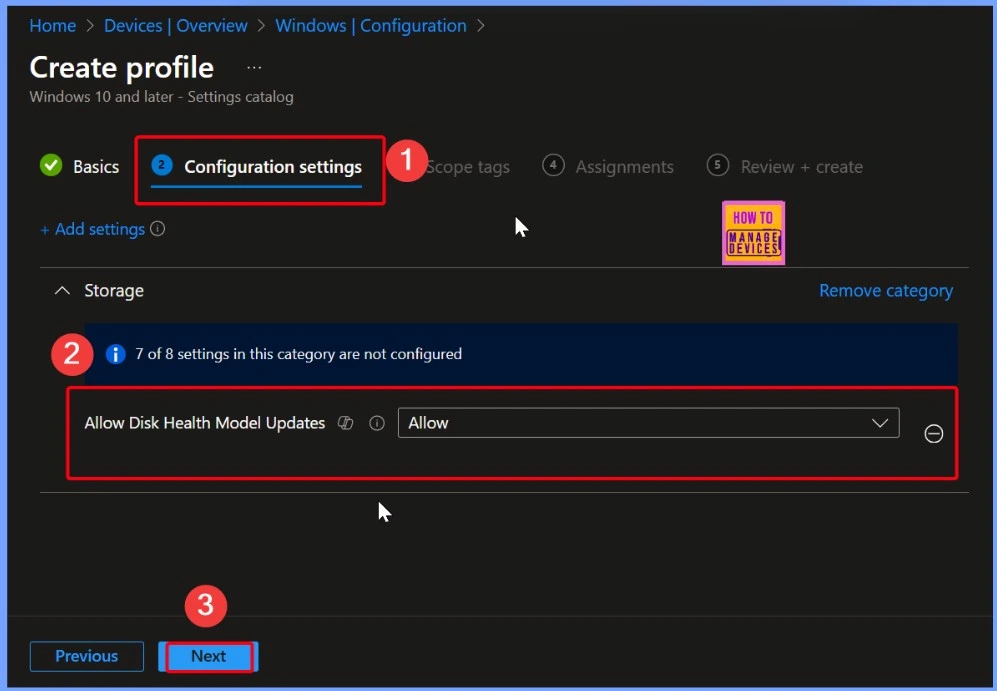
Enable the Default Allow Disk Health Model Updates Setting in Intune
The Allow Disk Health Model Updates setting is turned on by default. If you want to turn it off, just click the drop-down arrow next to the word Allow, and then choose “Do not allow” from the list. This will block the device from downloading updates to the disk health model.
- Allow Disk Health Model Updates – Allow
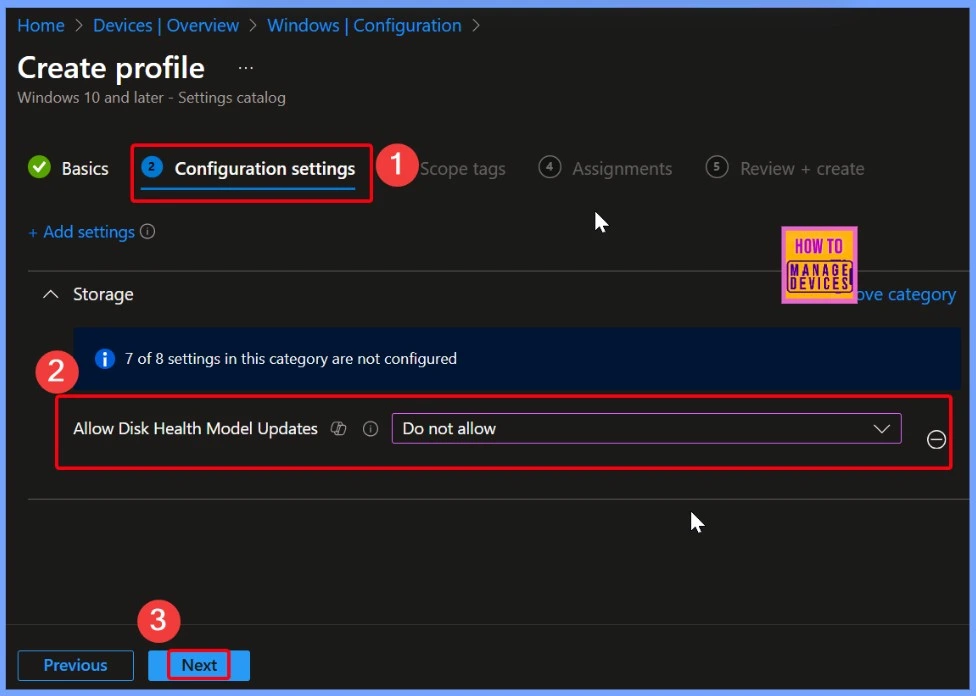
Disable the Default Allow Disk Health Model Updates Setting in Intune
Disabling the Disk Health Model Update policy stops devices from receiving updates to the ML-based prediction model. This may lead to outdated failure detection, reduced accuracy, and missed warnings about disk issues making it harder for IT admins to take timely action and increasing the risk of data loss or unexpected hardware failure.
- Allow Disk Health Model Updates – Do not Allow
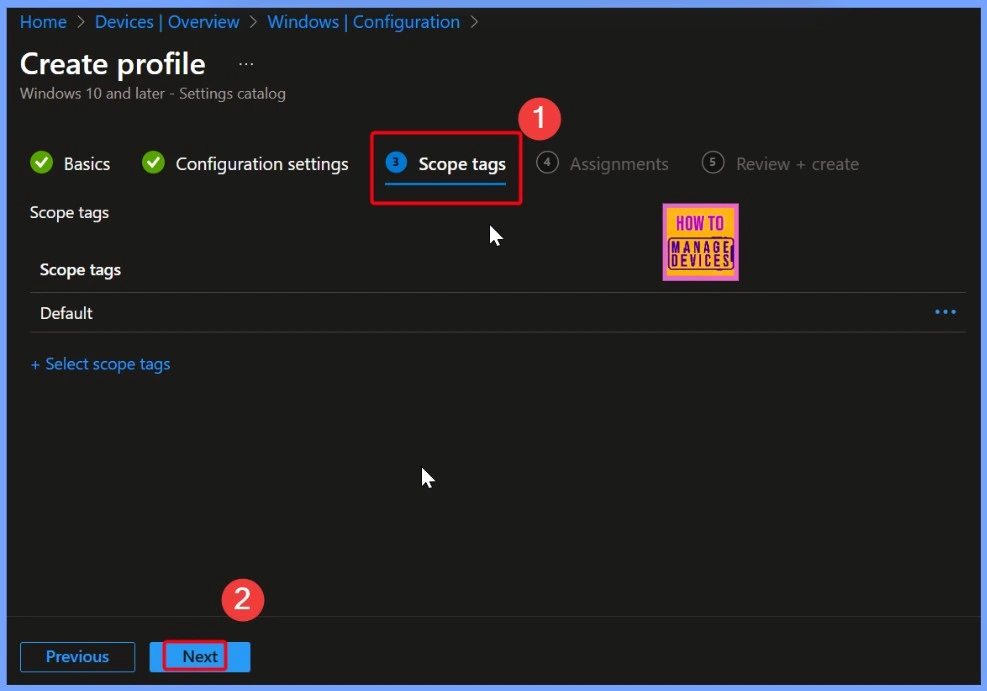
Scope Tags
Under the Scope tags section, you will notice 2 settings: the default scope tag and the option to add custom tags. To assign a scope tag, simply click on + Select scope tags, then choose the tag you want to apply. This helps control visibility and access for specific admin roles within Intune.
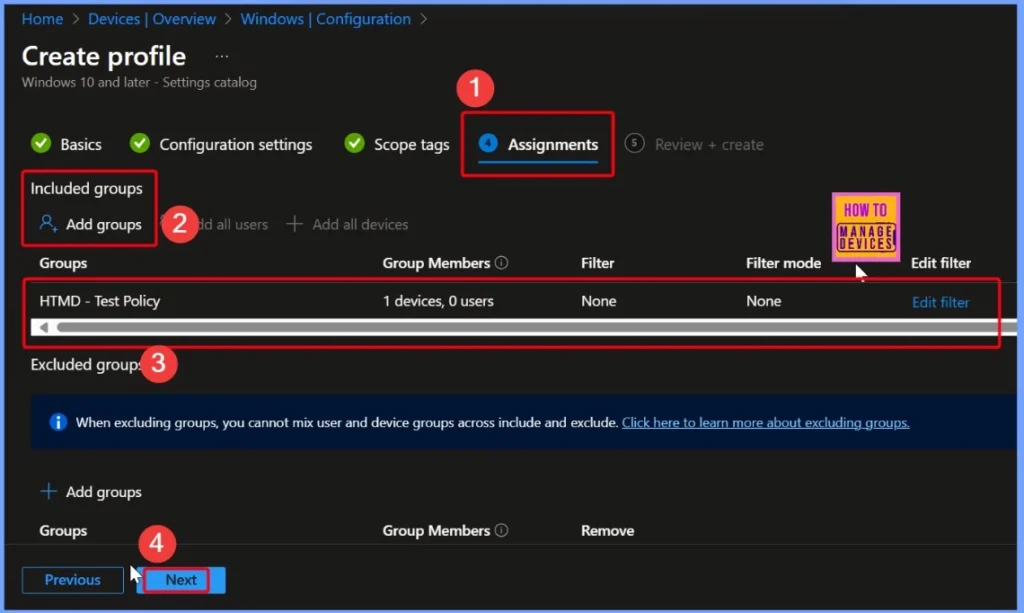
Assignments
The Assignments section is important because it decides which devices or users will get the policy. To add a group, just click the Add groups button under Included groups. Here, I selected one device group. You can see more details about this in the screenshots below.
Review + Create
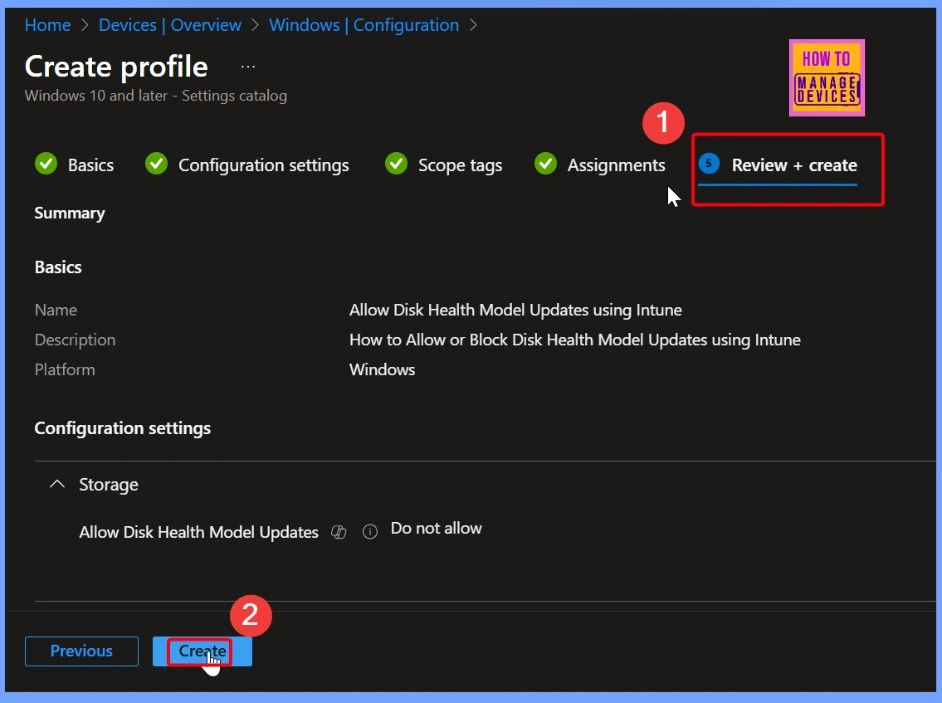
The Review + Create is the final step in the Intune policy creation process. After you have configured all the settings, such as the policy name, scope tags, and assignments, clicking Review + Create lets you see a summary of everything you have set up.
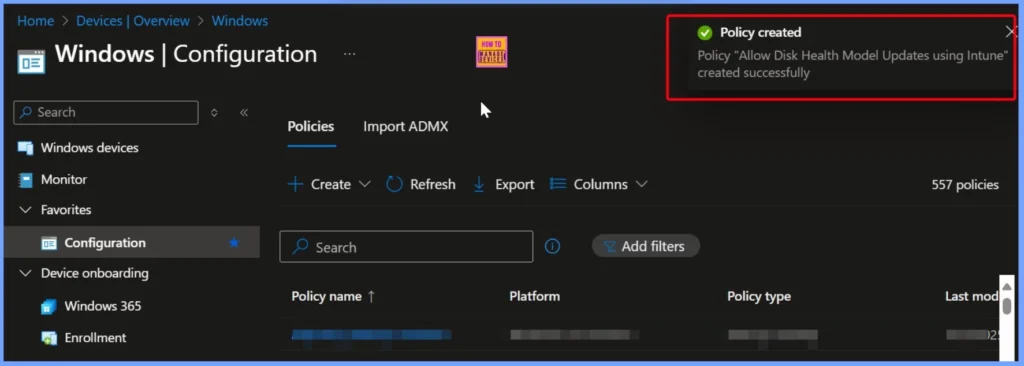
Notification Banner
Once a policy is successfully created in Intune, you will typically see a notification banner at the top-right corner of the screen that says Policy created successfully. This message confirms that your configuration profile or policy has been saved.
| Notifications |
|---|
| Policy Allow Disk Health Model Updates using Intune created Successfully |
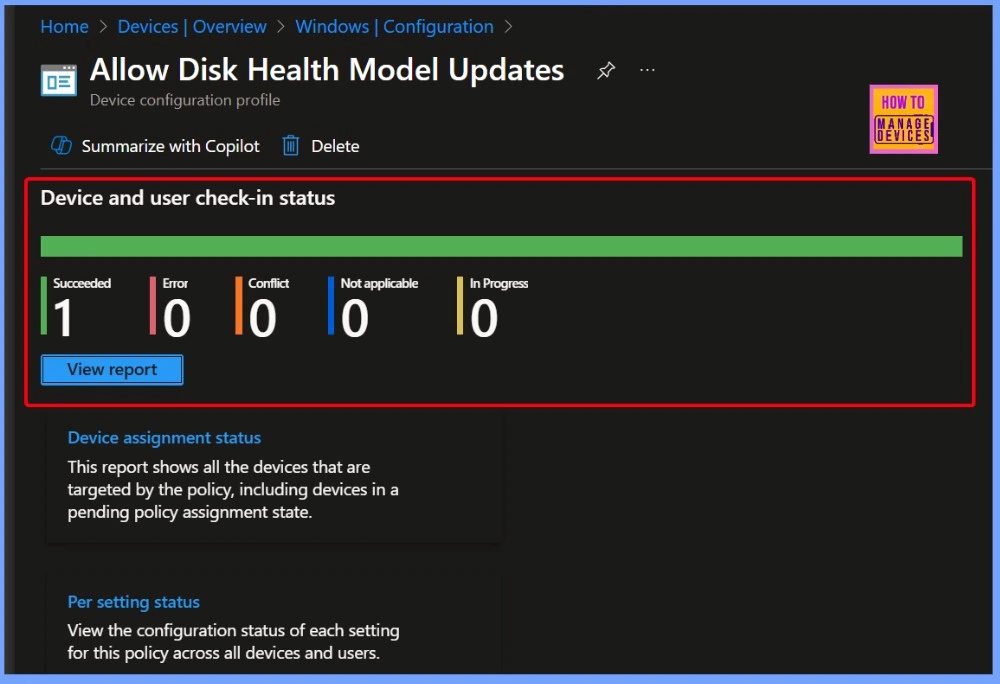
End Result
Here, you can see the Policy status showing that the configuration has been successfully applied to one device. The Succeeded count is displayed as 1, which means that the policy was deployed correctly and is active on that device without any issues. This confirms that the assignment and settings were processed as expected.
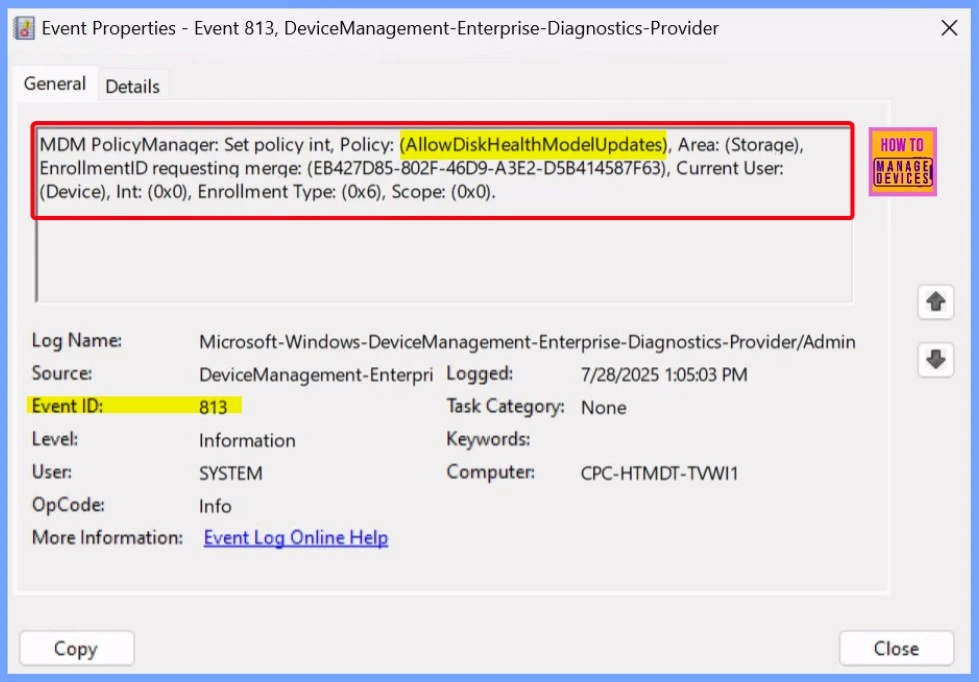
Client Side Verification
Event Viewer is a built-in Windows tool that allows users and IT admins to view detailed logs about system events, application activity, security, and hardware performance. Click the Start button and select Event Viewer.
- Event Viewer > Applications and Services Logs > Microsoft > Windows > DeviceManagement-Enterprise-Diagnostics-Provider > Admin
- Search for Event ID 813 or 814 for configuration profile status updates.
MDM PolicyManager: Set policy int, Policy: (AllowDiskHealthModelUpdates), Area: (Storage),
EnrollmentID requesting merge: (EB427D85-802F-46D9-A3E2-D5B414587F63), Current User:
(Device), Int: (0x0), Enrollment Type: (0x6), Scope: (0x0).
Windows CSP Details
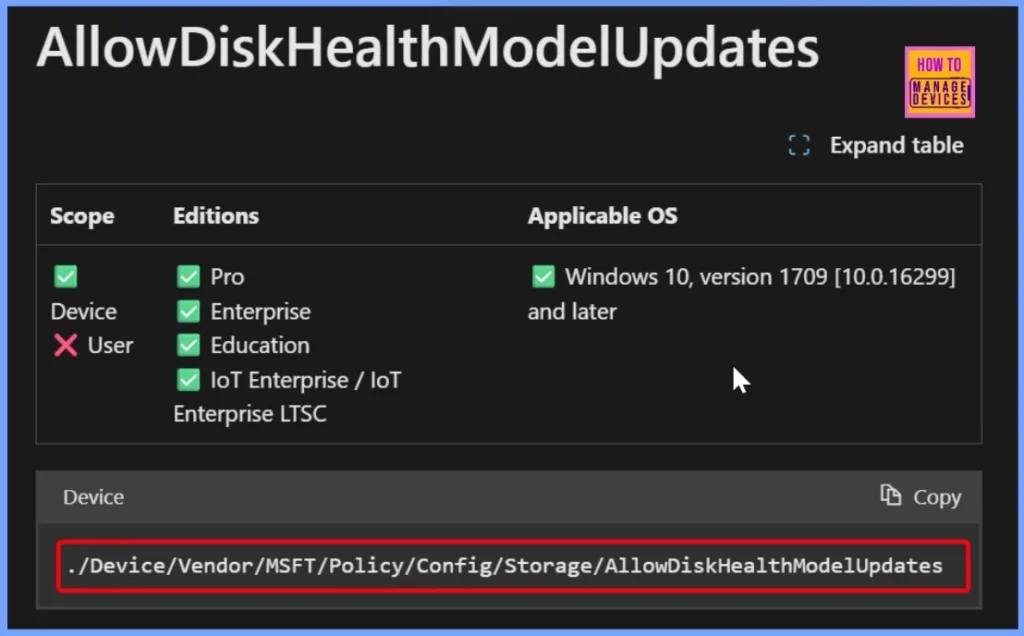
The AllowDiskHealthModelUpdates policy is a device-level setting (not applicable to user scope) that can be configured on various Windows editions, including Pro, Enterprise, Education, and IoT Enterprise / IoT Enterprise LTSC. This policy applies to devices running Windows 10 version 1709 (build 10.0.16299) and later.
- The configuration path for this setting in Intune or CSP is:
- ./Device/Vendor/MSFT/Policy/Config/Storage/AllowDiskHealthModelUpdates.
- It enables administrators to control whether the system can download updates to the machine learning model used for predicting disk failures.
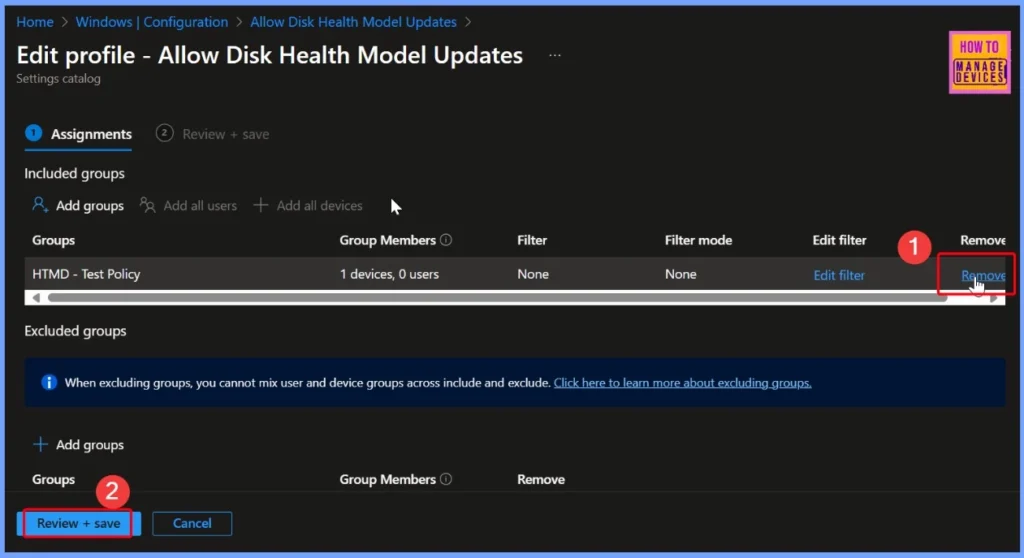
How to Remove the Assigned Group from Allow Disk Health Model Updates Policy
You can easily remove the assigned group from the Allow Disk Health Model Updates policy using Intune. If you want to know more about the removal, go through the post linked below for detailed steps and additional information.
Read more – How to Remove Assigned Group from Energy Saver Battery Threshold Policy in Intune Settings Catalog
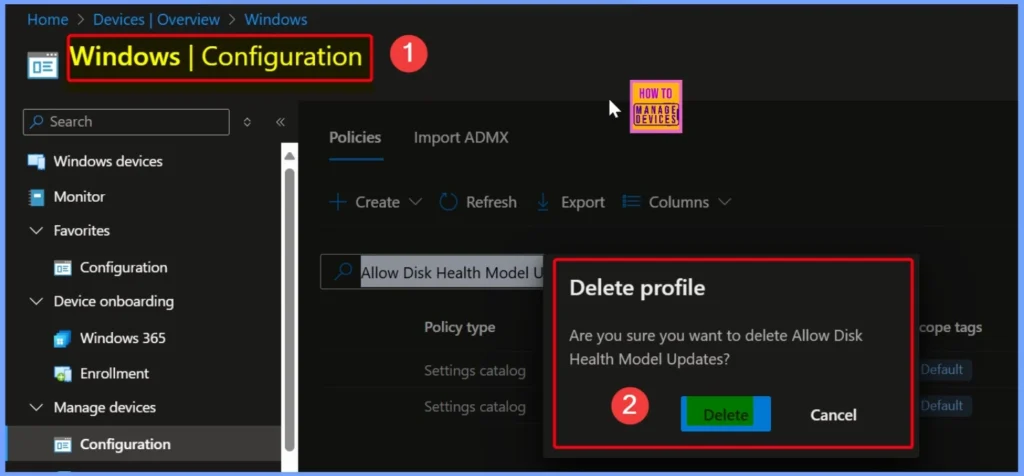
How to Delete the Allow Disk Health Model Updates Policy in Intune
You can easily delete the Allow Disk Health Model Updates policy in Intune. For a more detailed explanation, go through the post linked below. The included screenshot also provides a clearer view of the steps involved.
Read More – How to Delete Allow Clipboard History Policy in Intune Step by Step Guide
Need Further Assistance or Have Technical Questions?
Join the LinkedIn Page and Telegram group to get the latest step-by-step guides and news updates. Join our Meetup Page to participate in User group meetings. Also, join the WhatsApp Community to get the latest news on Microsoft Technologies. We are there on Reddit as well.
Author
Anoop C Nair has been Microsoft MVP for 10 consecutive years from 2015 onwards. He is a Workplace Solution Architect with more than 22+ years of experience in Workplace technologies. He is a Blogger, Speaker, and Local User Group Community leader. His primary focus is on Device Management technologies like SCCM and Intune. He writes about technologies like Intune, SCCM, Windows, Cloud PC, Windows, Entra, Microsoft Security, Career, etc.


Discussion