






Enable Pin Browser Essential Toolbar in MS Edge for Monitor Performance using Intune
Let’s discuss Enable Pin Browser Essential Toolbar in MS Edge for Monitor Performance using Intune. Browser Essential is the best tool available on Microsoft Edge. It is used to monitor the performance of the Edge browser. You can pin the Essential Toolbar in your MS Edge browser.
As a Microsoft Edge user, you must be familiar with Browser Essential Toolbar. If you don’t know about it, I will explain the application of this policy. Imagine If you are managing Windows devices with the Microsoft Edge browser. Users are facing slower browser performance and cannot find a malicious attack. After enabling the policy, Employees receive real-time alerts for malicious or phishing sites.
The Browser Essential toolbar provides insight about browser speed, memory usage, and tab impact. Helps users self-diagnose issues without needing Task Manager. It also shows alerts for blocked phishing or malware sites.
This Policy is not only beneficial for the organisation, but also helps users and Admins. After configuring this policy, users can see which tabs or extensions slow down the browser. By reducing recurring browser issues through user awareness, Admins feel free. Overall, this policy helps your organisation by boosting threat detection and reducing security incidents.

Table of Contents
Enable Pin Browser Essential Toolbar in MS Edge for Monitor Performance using Intune
By pinning the Browser Essential Toolbar in MS Edge you can ensure that, all users have quick, one-click access to Edge’s diagnostic and security insights. Users can detect the threat attacks themselves. Using Intune you can pin the Browser Essential Toolbar to all the windows devices.
- Enable or Disable Pin Browser Essentials Toolbar Button Policy in MS Edge Browser using M365 Admin Center
- Enable Disable Sleeping Tabs Timeout in Edge Browser using the Microsoft 365 Admin Center Policy
- Enable or Disable Extensions Performance Detector in MS Edge Browser using M365 Admin Center
Steps to Enable Pin Browser Essential Toolbar
With Microsoft Intune, you can Enable Pin Browser Essential Toolbar. To configure this policy, you have to sign in Microsoft Intune admin center. Then Go to Devices > Configuration > +Create > + New Policy.
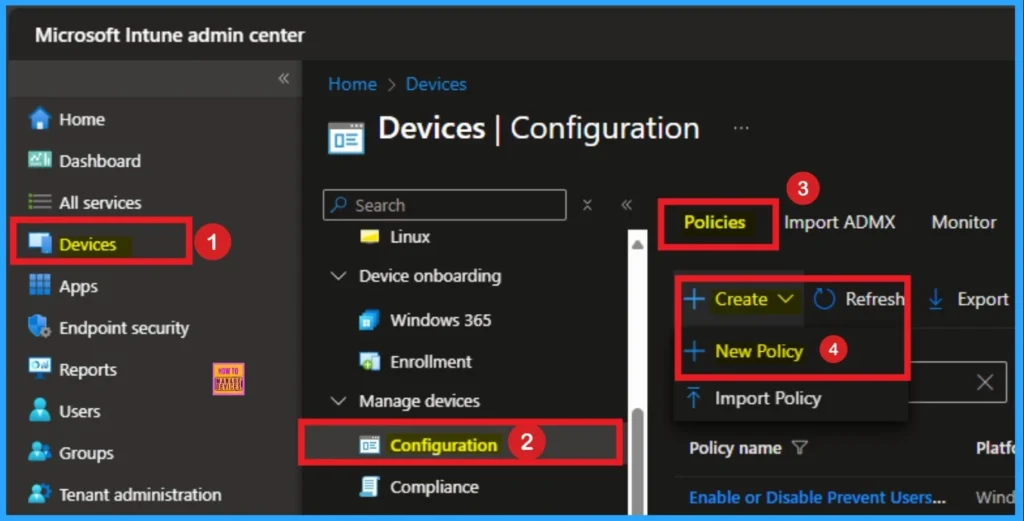
Create the Profile
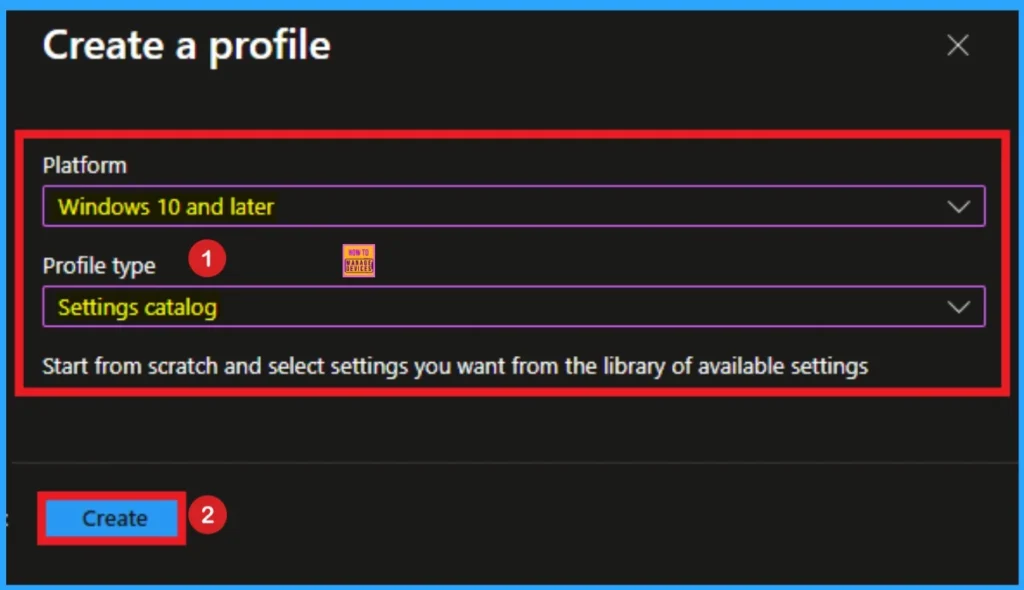
By selecting platform and profile type you can create a profile for the Policy. It is a necessary step to create the Policy. Here I choose Windows 10 and Later as Platform and Settings Catalog as Profile Type. Then click on the Next Create Button.
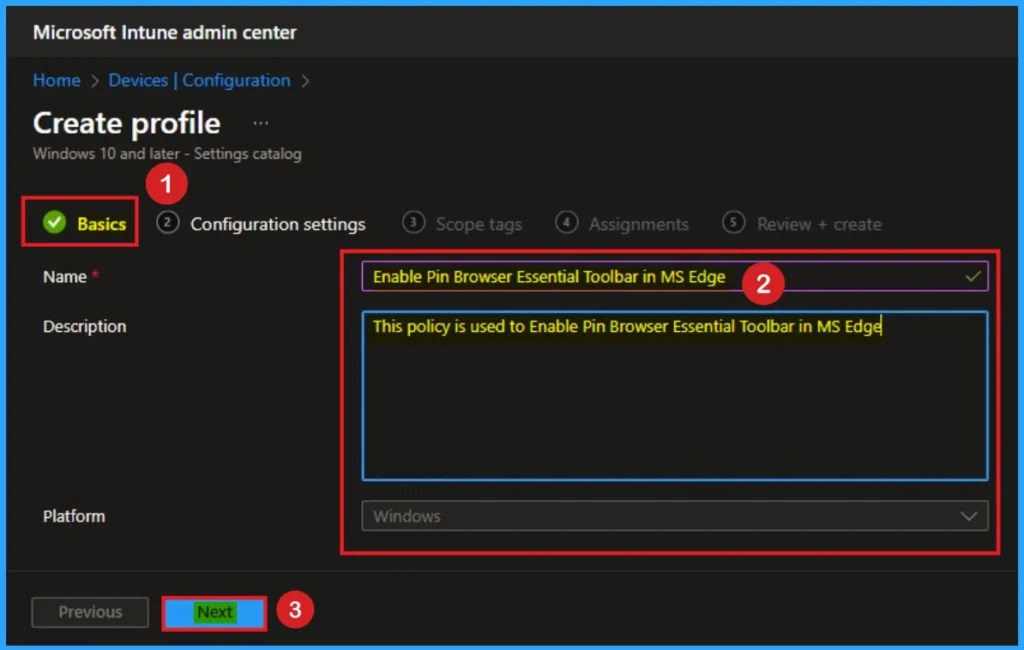
Starting Step – Basic Tab
After selecting the profile and platform you can name the policy in Basic Tab. The Name is mandatory field that gives the identify for the policy. Then you can add description for the policy and it is not necessary. After that click on the Next.
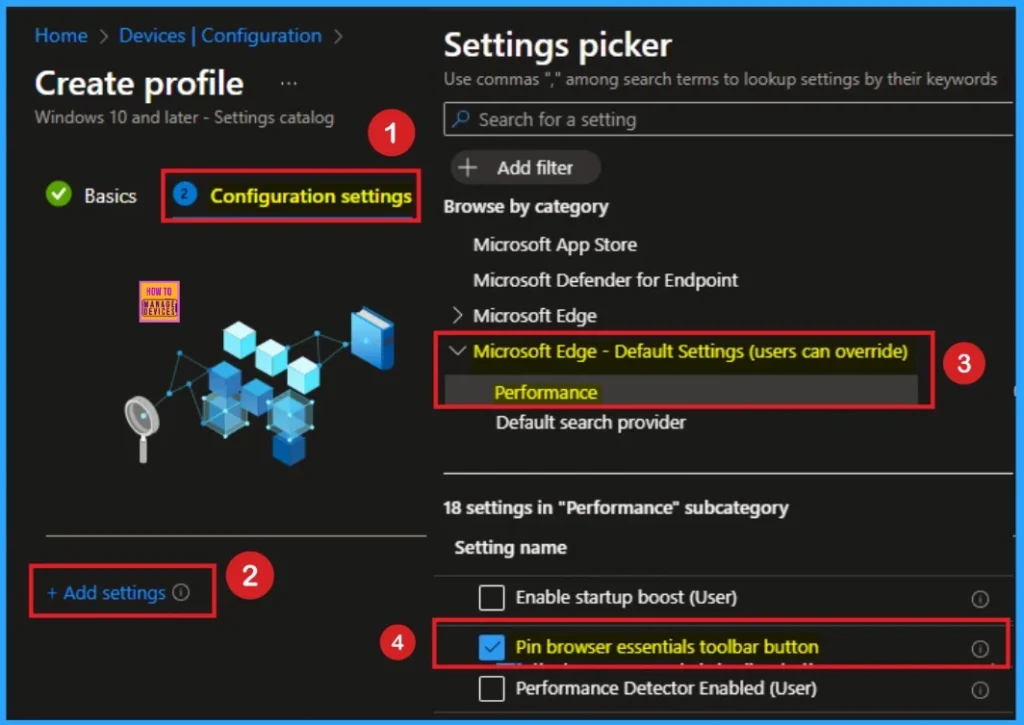
Configure Pin Browser Essential Toolbar Settings
After that, you can select these settings from the Configuration settings tab. Click on the +Add settings hyperlink. Then you will get the Settings Picker to choose the settings. Here I choose Microsoft Edge – (users can override) Category and select Hide Frequently Used Apps settings and you can close the settings Picker.
Disable Pin Browser Essential Toolbar
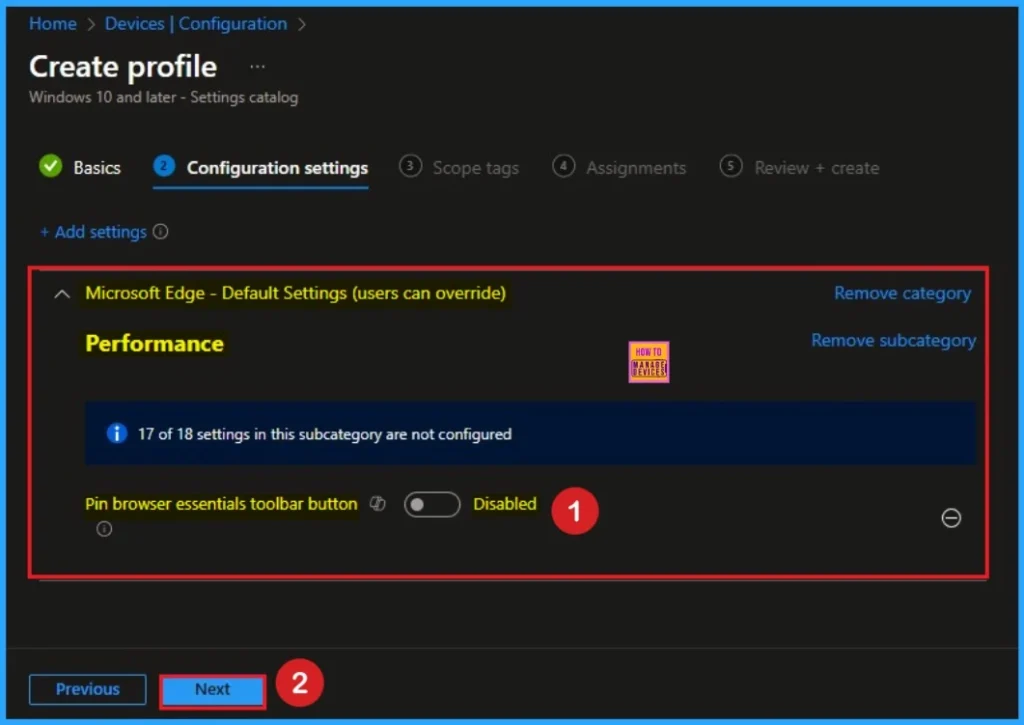
By default, Pin Browser Essential Toolbar is disabled. That means you cannot access. Browser Essential Toolbar If you are configuring this policy with the default value (Disable), Click on the Next button.
Enable Policy
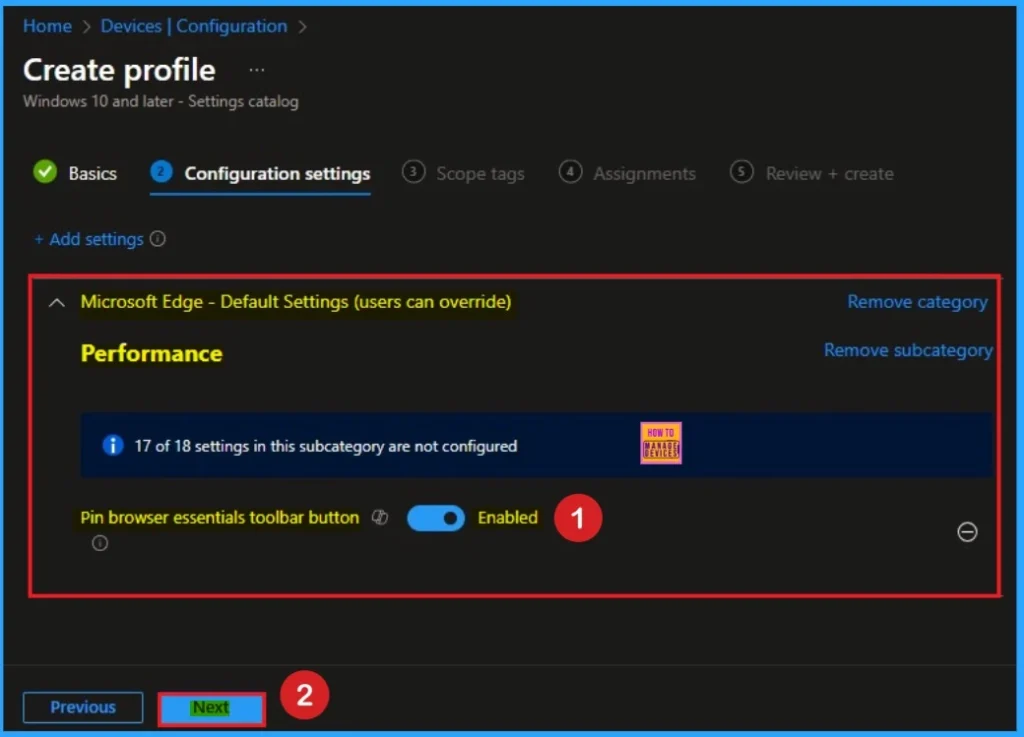
When the button is pinned, it will always appear on the toolbar. An example of this kind of alert is the performance detector alert that indicates the browser is using high CPU or memory. If you enable this policy, the Browser Essentials button will be pinned on the toolbar. Here, I choose Enable value for this setting. Click on the Next button to continue.
Scope Tags
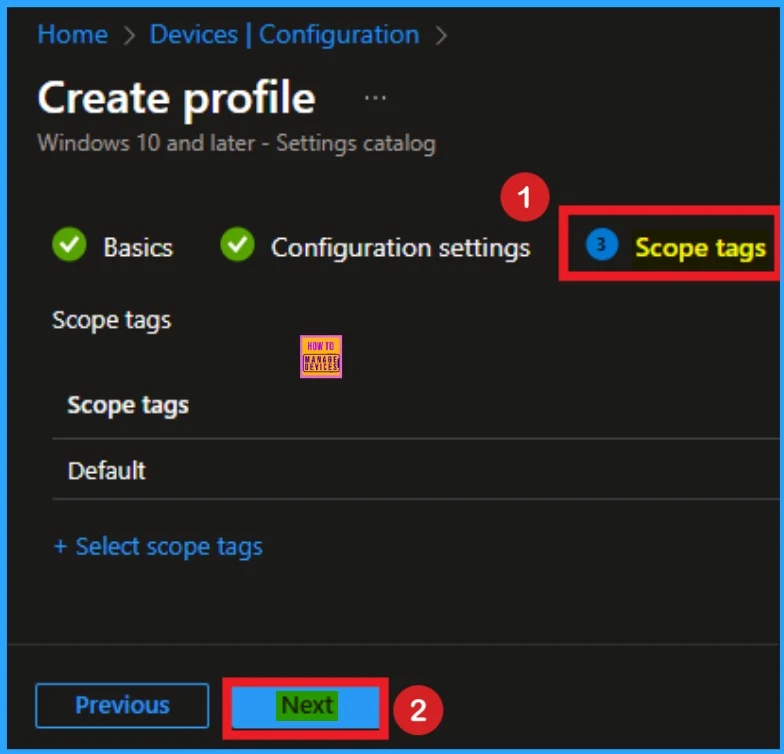
By using scope tags, you can give control to which admin can see and manage specific settings. This is not a mandatory setting, so you can skip this. Here I skip these settings and click on the Next button to continue.
Assignment
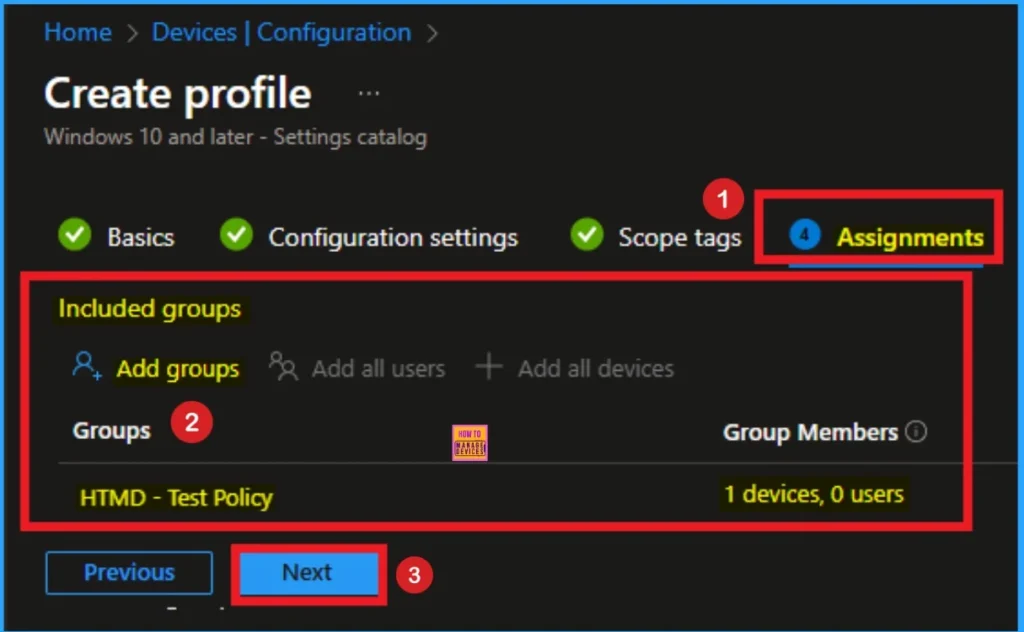
The Assignments tab allows you to assign the Pin Browser Essential Toolbar policy to specific groups in your tenant. For this, click on the +Add groups option under Included groups. Then select the groups and click on the Select button. Then click on the Next button.
Review and Create the Policy
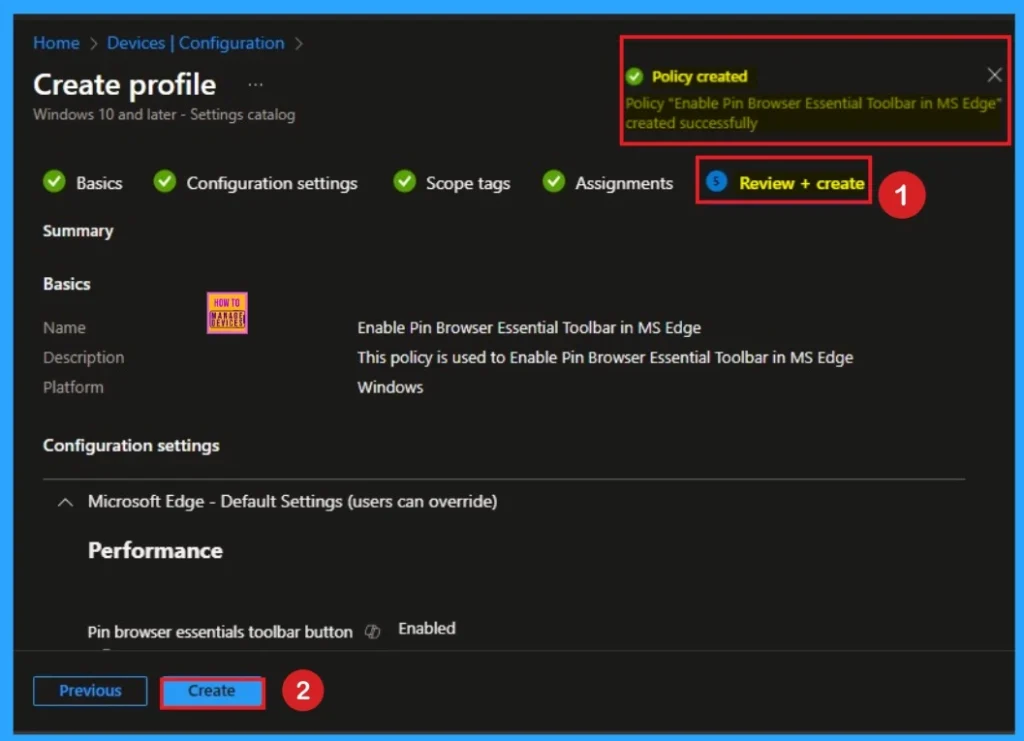
To create this policy successfully, you can review all the details of the policy before creating it. After reviewing all details, click on the Next button, and you will get a success Notification. Then you can sync the Device on the Company Portal.
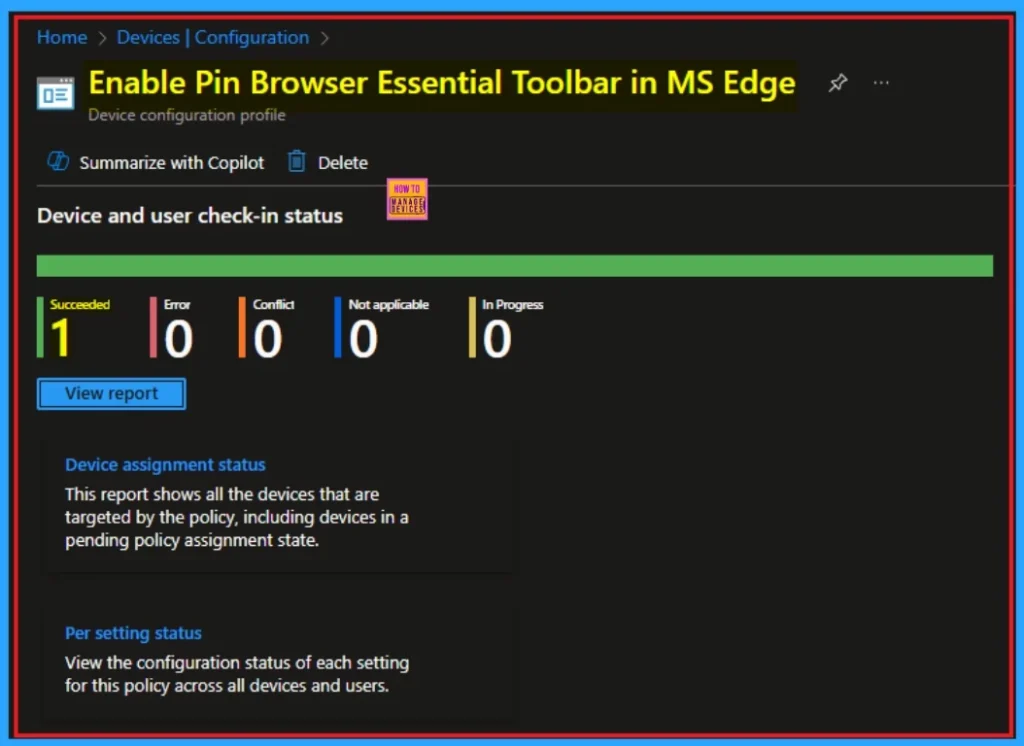
Device Check-in Status
The Device Check-in status means checking whether the policy is succeeded or not using the Intune Portal. Go to Devices > Configuration and Search Specific Policy. Here, the Policy is succeeded as 1. Look at the screenshot below.
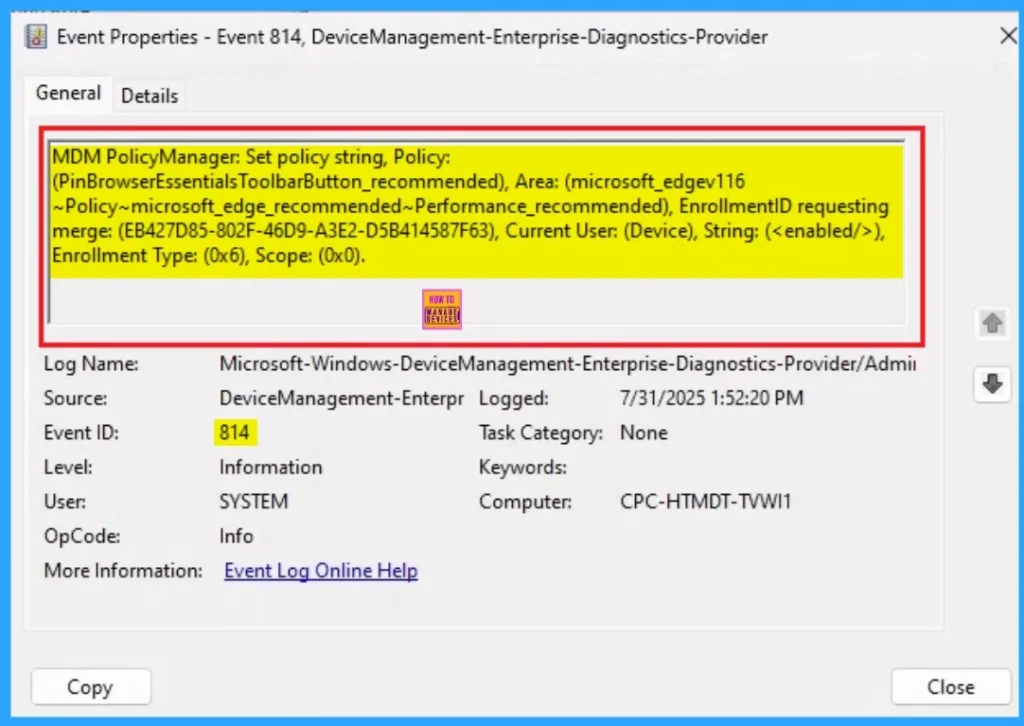
Event Viewer Details
With Event Viewer, you will get verification, the policy has succeeded on the Client Device. To Access Event Viewer, open the Client Device and go to Event Viewer > Applications and Services Logs > Microsoft > Windows > Device Management > Enterprise Diagnostic Provider > Admin.
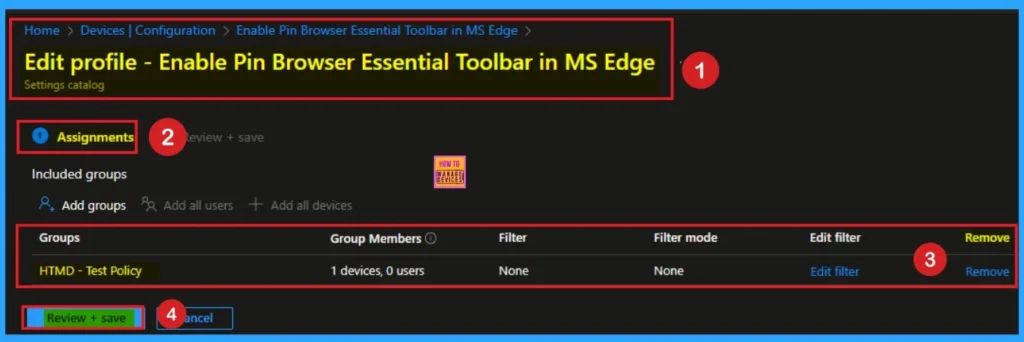
Remove Assignment Groups
If you want to remove a group from a policy assignment for security updates. The following image shows the process of unassigning a group. Click Review + Save after making the change.
For detailed information, you can refer to our previous post – Learn How to Delete or Remove App Assignment from Intune using by Step-by-Step Guide
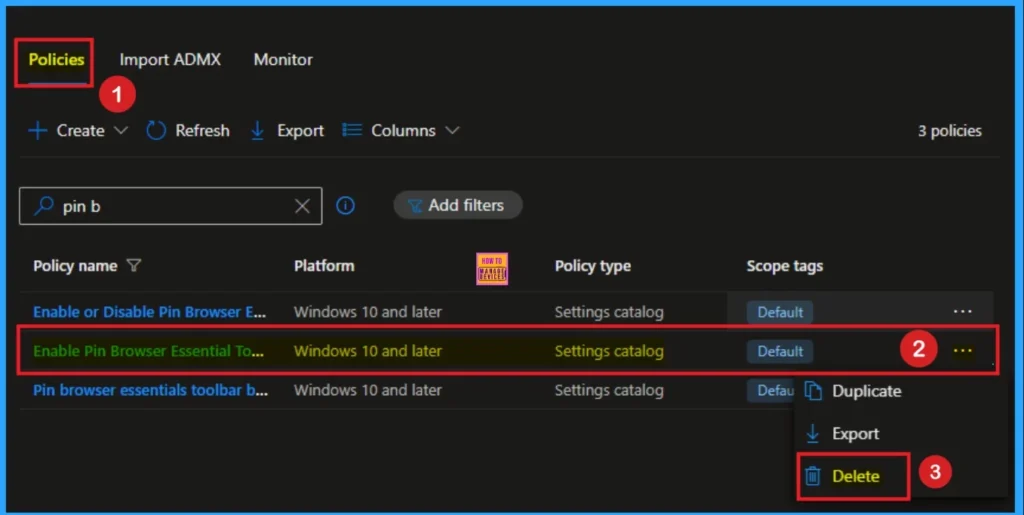
Delete Pin Browser Essential Toolbar Policy
You can easily delete an Intune policy for security or operational reasons. It is simple to do it. I will demonstrate how to delete an Intune policy through Pin Browser Essential Toolbars policy.
For detailed information, you can refer to our previous post – How to Delete Allow Clipboard History Policy in Intune Step by Step Guide.
Need Further Assistance or Have Technical Questions?
Join the LinkedIn Page and Telegram group to get the step-by-step guides and news updates. Join our Meetup Page to participate in User group meetings. Also, Join the WhatsApp Community to get the latest news on Microsoft Technologies. We are there on Reddit as well.
Author
Anoop C Nair has been Microsoft MVP for 10 consecutive years from 2015 onwards. He is a Workplace Solution Architect with more than 22+ years of experience in Workplace technologies. He is a Blogger, Speaker, and Local User Group Community leader. His primary focus is on Device Management technologies like SCCM and Intune. He writes about technologies like Intune, SCCM, Windows, Cloud PC, Windows, Entra, Microsoft Security, Career, etc.


Discussion