






Enable Cloud PC Reset Option for Windows 365 End Users
In this post, You will learn how to enable Cloud PC Reset Option for Windows 365 End Users. You can use User Setting to allow users to Reprovision or Reset their own Cloud PC with Windows 365.
The July service release of Windows 365 brings many exciting features, such as empowering users to reset their Cloud PC without help from Helpdesk or IT Team for Windows 365 Enterprise edition, You might have already explored the ability to reset Windows 365 Business Edition.
The new settings allowing users to Reprovision or Reset their Cloud PC from Client Portal will help the entire IT support and the end user population. You also have the option to control the settings from Windows 365 User Settings policies.
It is empowering the Power Users with this feature! This is very promising for Power Users like developers or the Application Packaging Teams. They have the requirements, such as resetting the Cloud PCs more frequently to perform several test scenarios.

The reset Windows 365 option gives a warning that resetting your Cloud PC will: Reinstall Windows, Remove your personal files, Remove changes you made to settings, Remove your apps
- Windows 365 2307 New Features And Updates | Cloud PC
- How To Backup And Restore Windows 365 Cloud PC | Point-in-time Restore Option
Enable Cloud PC Reset Option for Windows 365 End Users
Before using the Cloud PC Reset option for end users, Admins must configure the appropriate settings to enable Cloud PC Reset in a new or existing user setting in Windows 365.
- Sign in to the Microsoft Intune admin center.
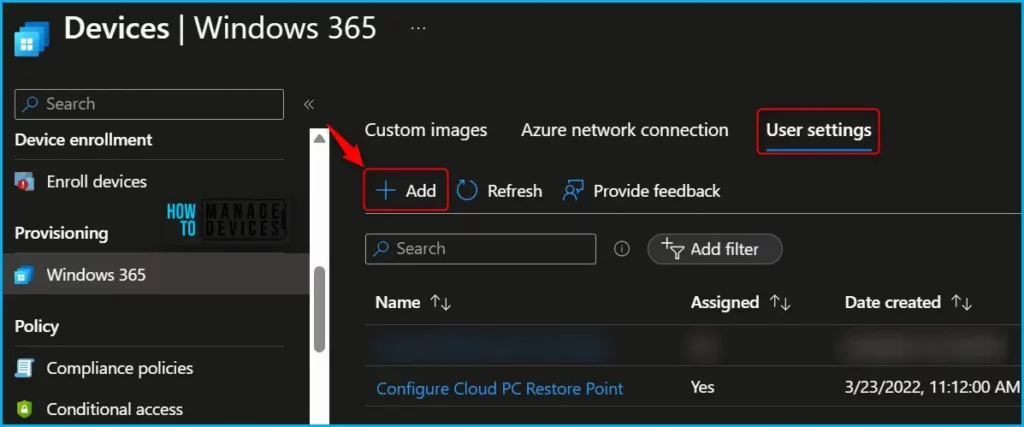
- Navigate to Devices > Windows 365 > User Settings.
Here you can see we have already created a local admin policy, you can modify that existing one or create a new setting. Click on the +Add button.
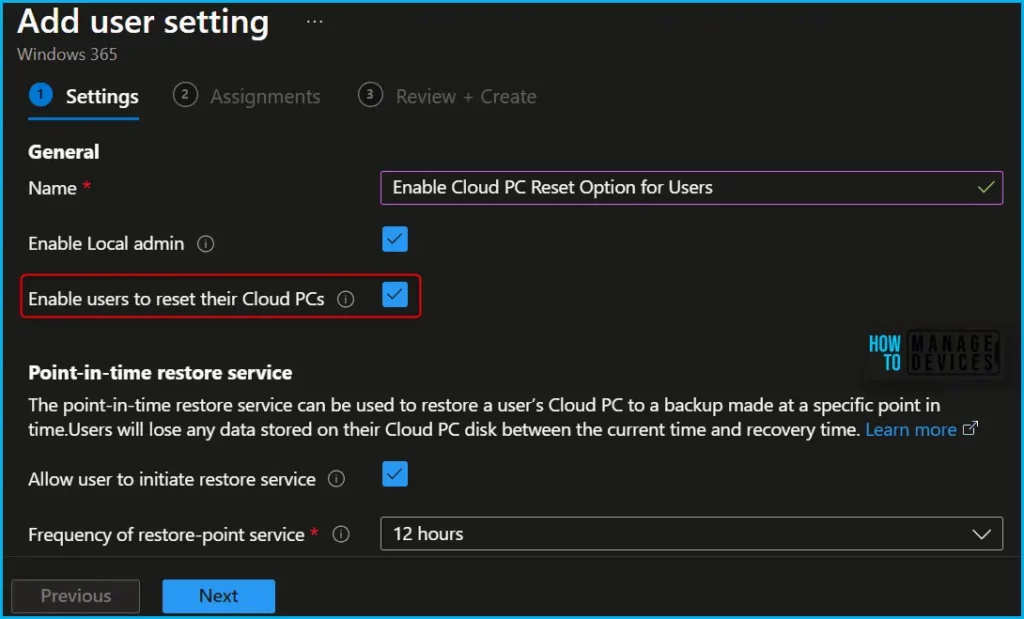
On the Add user settings page, Enter the Name of the User Settings Policy (For example – Enable HTMD Power User Reset), you have various options for configuration based on the requirements. Configure the option, Enable users to reset their Cloud PCs, and Click on the Next button to continue.
- Enable Local Admin – If you want the users for this setting to have local admin rights, select Enable Local admin. I already have enabled it.
- Enable users to reset their Cloud PCs – Enabling this setting will allow targeted users to reprovision their Cloud PC from within the Windows 365 app and web app.
- Allow user to initiate restore service – If you want end users to have permissions to restore their own Cloud PCs, select Allow user to initiate restore service.
- Frequency of restore-point service – choose an interval for how often restore points will be created. There’s a limit of 10 restore points. So a shorter frequency results in a shorter overall history of restore points.
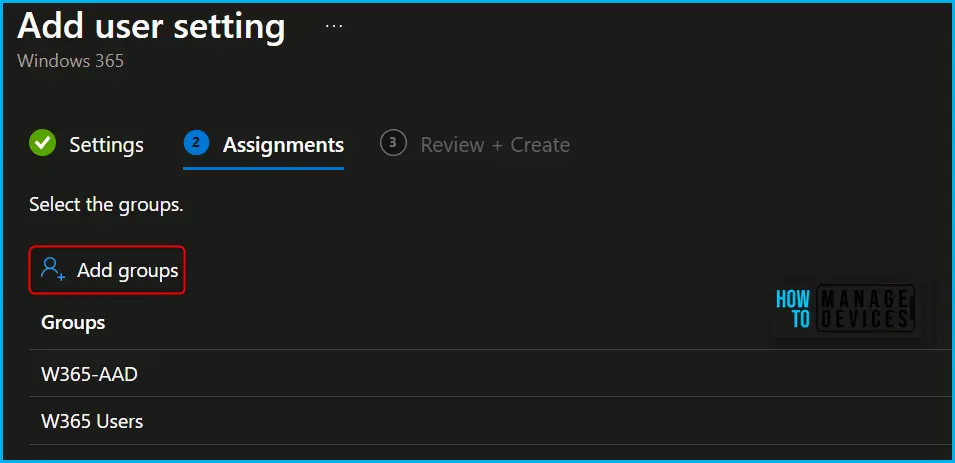
On the Assignments page, Here I have added the W365 Users, W365-AAD Entra ID group, where I have limited users as the members group need to have the ability to self-reset. Click on the Next button to continue.
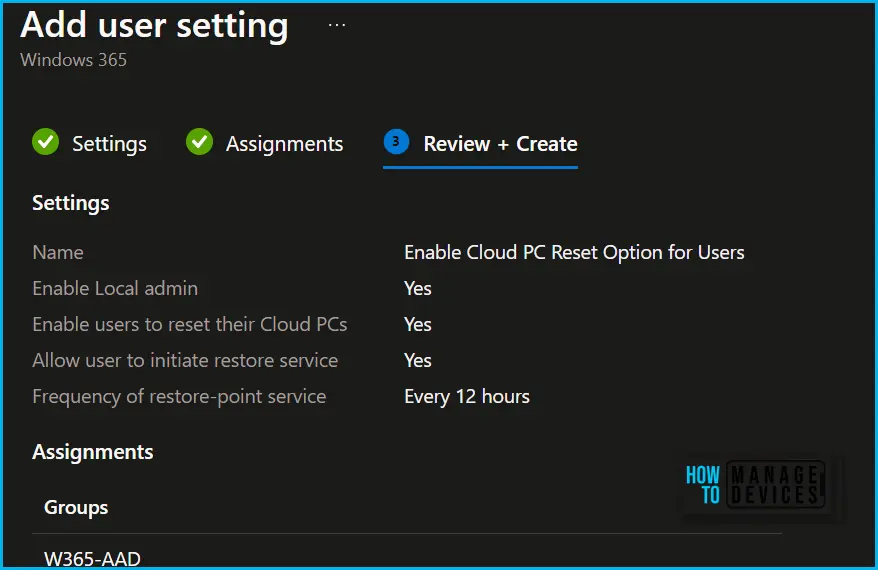
Review the specified settings on the Review + create page and click on Create. Now, the added Cloud PC user group will get the ability to reset Cloud PC.
Note – Users in the groups assigned to this user setting can now use the Cloud PC Reset feature.
A notification will appear automatically in the top right-hand corner with a message. Here you can see that Successfully added new user setting. The newly created user setting is shown in the User Settings tab “Enable Cloud PC Reset Option for Users”.
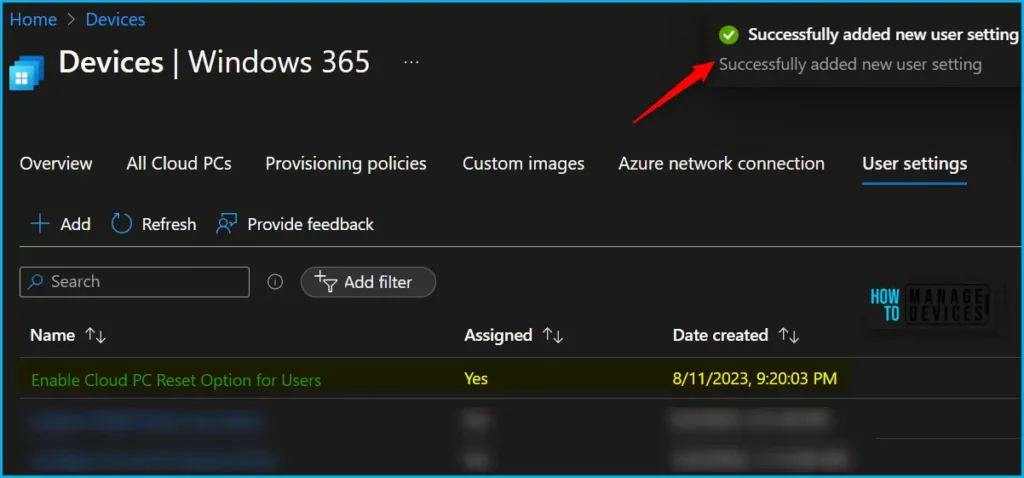
When managing settings, keep the following points in mind, The settings can be applied before or after a Cloud PC is assigned, and Changes to the settings take effect when the user logs on. If the user is currently logged on, they must sign out and then sign in again to see the change.
Windows 365 End User Experience – Cloud PC Reset
The first step is to get access to Cloud PC, The End users can access their Cloud PCs in different ways, The end-user experience will be similar for the Cloud PC, either joined to Azure AD, or hybrid Azure AD joined cloud PCs.
I used the Cloud PC web Url, https://windows365.microsoft.com/, to launch Windows 365 service, and logged in with credentials to jump to the assigned Cloud PC. Clicking on 3 dots allow you to get the self-service options. Here you can see that end users can easily perform cloud PC Restart, Rename, Troubleshoot, and other actions
Reset option is shown in the Windows 365 app and portal for users in the assigned groups, Allowing you to perform quick actions on the Windows PC assigned to you.
Note – Before resetting your Cloud PC, make sure to back up any important files you need to keep to a cloud storage service or external storage. Resetting your Cloud PC will delete these files.
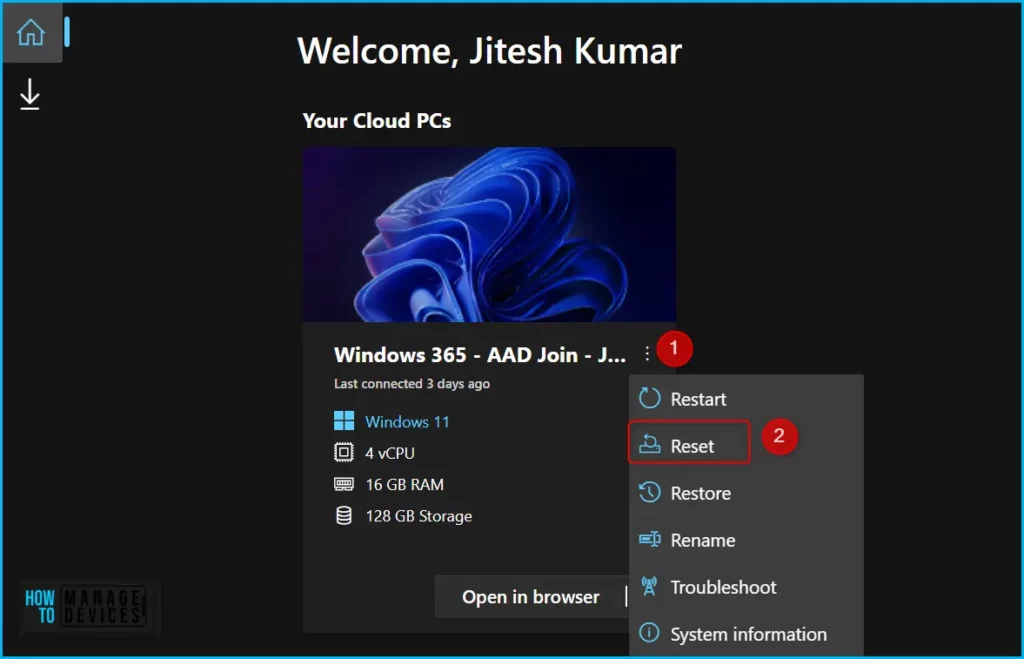
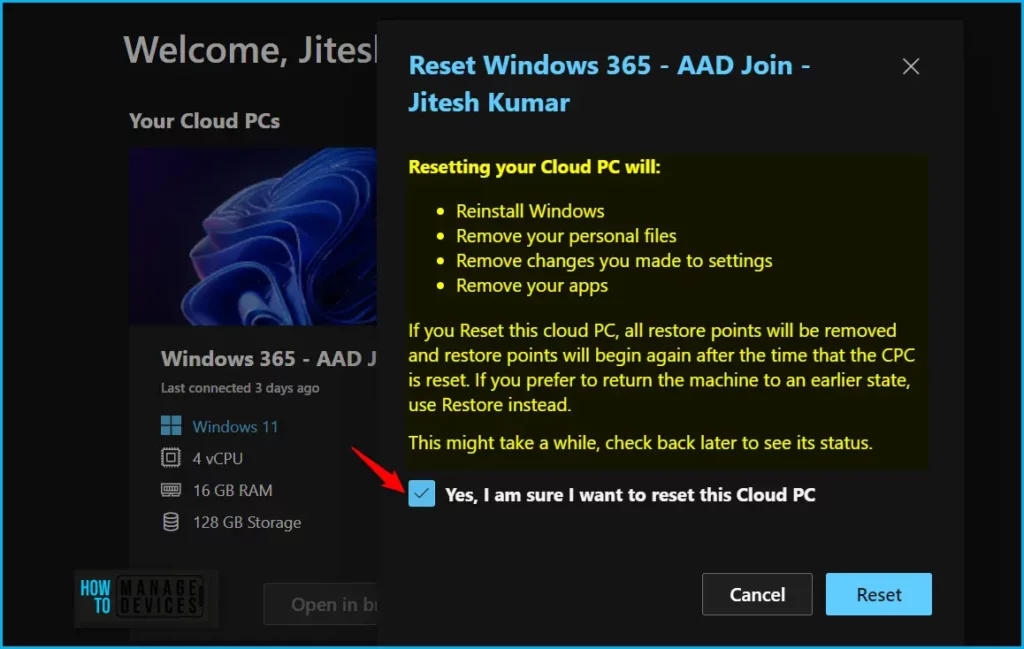
The Reset Windows 365 option gives a warning that resetting your Cloud PC will:
- Reinstall Windows
- Remove your personal files
- Remove changes you made to settings
- Remove your apps
If you Reset this cloud PC, all restore points will be removed and restore points will begin again after the time that the CPC is reset. If you prefer to return the machine to an earlier state, use Restore instead. This might take a while, check back later to see its status.
Check the box, Yes, I am sure I want to reset this Cloud PC, Click on Reset to proceed further to initiate the process of resetting Cloud PC.
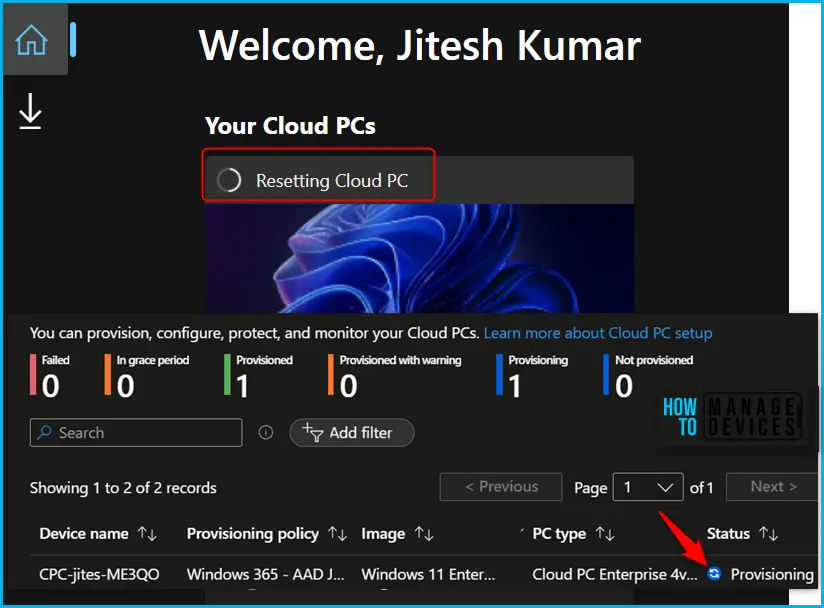
Here you will see the Cloud PC will show as resetting Cloud PC, You will receive a message if you have only one Cloud PC allotted for you “Your organization hasn’t assigned you a Cloud PC”.
In the below screenshot, we see the Resetting Cloud PC status showing Provisioning in Intune Admin Center. The Windows 365 service initiates the reprovisioning process. The first change that you notice from Windows 365 -> All Cloud PCs tab is that the provisioning status is changed from Provisioned to Provisioning.
Once the reprovisioning is completed, you will notice that the status is changed to provisioned. The new Cloud PC device records are available in the Entra ID, Intune admin centre and Cloud PC (User), The process would take around 20-30 minutes to complete.
👉Let’s check more details about Windows 365 cloud PC web client end-user experience walkthrough – Windows 365 Cloud PC Web Client End User Experience
Video Guide – Windows 365 Cloud PC Updates
The July updates for Windows 365 Cloud PC are explained in this video. There are a couple of GA announcements in the 2307 service release of Windows 365, It also gets you through newly released features to allow users to Reprovision Reset their own Cloud PC with Windows 365.
Author
About Author – Jitesh, Microsoft MVP, has over six years of working experience in the IT Industry. He writes and shares his experiences related to Microsoft device management technologies and IT Infrastructure management. His primary focus is Windows 10/11 Deployment solution with Configuration Manager, Microsoft Deployment Toolkit (MDT), and Microsoft Intune.




Discussion