






How to Recall an Email in Outlook Microsoft 365
Let’s learn How to Recall an Email in Outlook Microsoft 365; when we use Outlook for sending mail, there is nothing to change if any mail is sent wrongly. But in the latest update, this procedure was made easy. A message sent in error is easy, but recalling it back is tricky.
It is a bad situation When you accidentally send an email with a typing error or the wrong information in an email. Fortunately, Outlook allows you to recall an email (in most cases) in case the recipient has not opened it.
Recalling an email (or Message, as the app calls them) in Outlook is easy. The desktop app includes a helpful option to recall and replace a message you did not want to send or want a second chance to change it. It is quite easy but not necessary.
In this post, the details about how to recall an email in Outlook 365 be described properly. The step-by-step guideline and the process of recall be described in this post.

Video – Outlook Email Recall Feature and Reporting – Expectations Vs Reality
It’s time to learn about Outlook Email Recall Feature and Reporting Expectations Vs Reality. It is a bad situation When you accidentally send an email with a typing error or the wrong information in an email. Fortunately, Outlook allows you to recall an email (in most cases) in case the recipient has not opened it.
How to Recall an Email in Outlook
If you wrongly email anyone, you should know how to recall or replace the mail. Follow the procedure below to learn about the process.
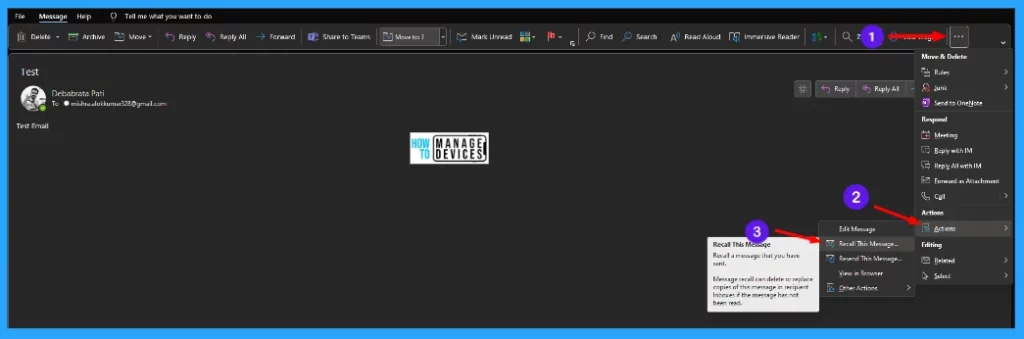
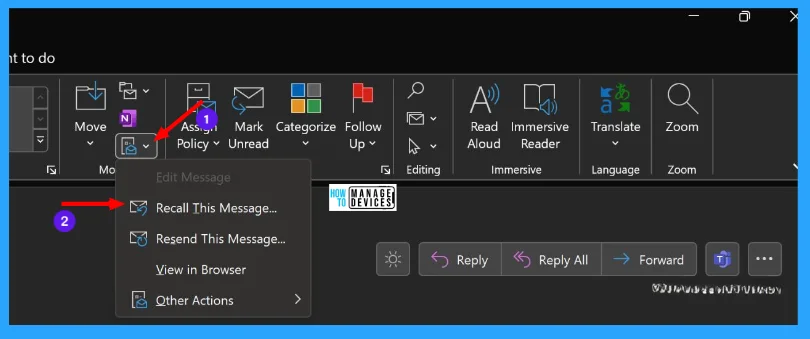
After sending an email, go to the Sent Mail option. Open that mail and click on the three-dot menu. Then find Actions; some sub-options that appear are listed below. Click on the Recall This Message option.
- Edit Message
- Recall This Message
- Resend This Message
- View in Browser
- Other Actions
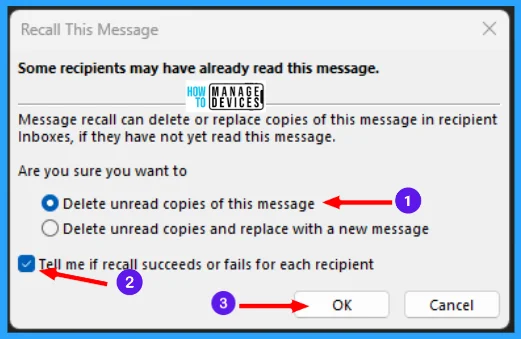
After you click the Recall This Message option, its relevant window opens. The first Message says Some recipients may have already read this Message.
The message recall can delete or replace copies of this Message in recipient inboxes if they have not yet read this Message. There are two options appear listed below.
- Delete unread copies of this Message.
- Delete unread copies and replace with a new message
You can select any options listed above to continue the process as required. Here I am selecting the Delete unread copies of this Message. Check mark the Message as Tell me if recall succeeds or fails for each recipient, then click OK to proceed.
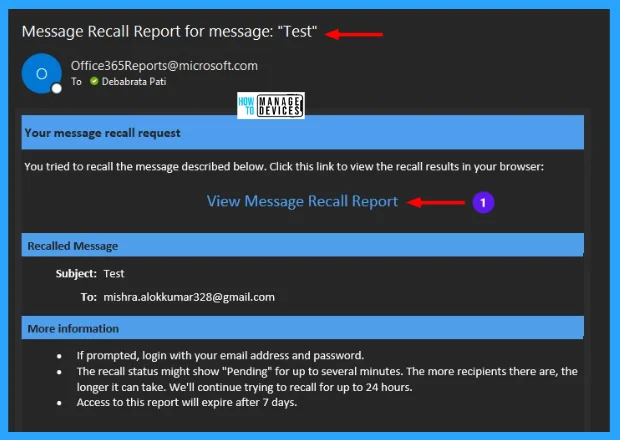
After clicking OK, you will receive the Message Recall Report for the particular email appearing. And there is an option to View Message Recall Report; click on it to view details.
When you click View Message Recall Report, a message appears that says You tried to recall this Message on the day (particular day) and time (recall time) as shown in the image below.
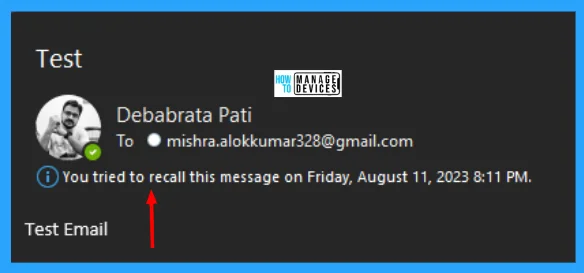
NOTE: If you selected Delete unread copies and replace with a new message, the original Message opens for editing. When you select Send, the original email message will be deleted from the recipient’s mailbox and replaced with the newly edited one.
You can also try another way using the settings from the classic menu. As discussed above, go to the sent mail option, then click on the sent mail you want to recall. Then you see a More Action option available in the ToolBar.
- Click on More Action
- Select Recall This Message Option
After recalling the sent Message, the screen shows the following Message for your recall request. This Message is about your recall request, and the heading is Message Recall Report for the Message “Test”.
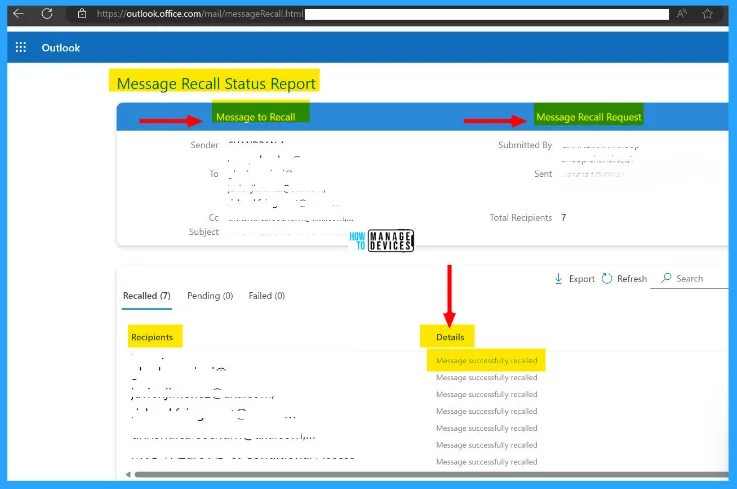
Your message recall request is the heading under it, the Message shown as ‘You tried to recall the Message described below. Click this link to view the recall results in your browser:‘ The following Message is shown for the link.
View Message Recall Report
Now in the same window, it shows which Message is recalled, and the heading for that is Recalled Message. Under the recalled Message, it provides the Subject of the mail and the recipient’s address. And it also prompts some important information under the More Information heading below.
- If prompted, log in with your email address and password.
- The recall status might show “Pending” for up to several minutes. The more recipients there are, the longer it can take. We’ll continue trying to recall for up to 24 hours.
- Access to this report will expire after 7 days.
The information on How to Recall an Email in Outlook Microsoft 365 is helpful. Please follow us on HTMD Community and visit our website HTMD Forum if you like our content. Suggest improvements, if any, and we love to know which topic you want us to explore next.
Author
Alok is a Master of Computer Applications (MCA) graduate. He loves writing on Windows 11 and related technologies. He likes to share his knowledge, quick tips, and tricks with Windows 11 or Windows 10 with the community.




Discussion