






Intune Policy to Set Max Connection Timeout to the Cloud by using Setting Catalog
Let’s discuss a new topic: Intune Policy to Set Max Connection Timeout to the Cloud by using Setting Catalog. As many of you know, the Setting Catalog is one of the best features in Intune. With it, you can deploy various types of policies across an organization, and when necessary, you can efficiently utilize Intune to achieve better results.
So, let’s look at how to set the maximum connection time to the cloud using the setting catalog. Connection timeout refers to the duration a device attempts to connect to a server or service. If it fails to connect within this time, it stops trying and displays an error.
We are all know the connection time issues when using a Cloud PC. Setting a maximum connection timeout can help ensure that devices do not waste resources while trying to connect. This is a beneficial option for users, as it allows for better management of connection time when using cloud services.
Internet connectivity significantly affects connection time. Setting this policy is essential due to its benefits for user requirements and enhanced security. This post will discuss setting a maximum connection time in the cloud using the settings catalog via Intune.

Table of Contents
What are the Benefits of Set Max Connection Timeout to the Cloud?
Set Max Connection Timeout to the Cloud- CSP Details
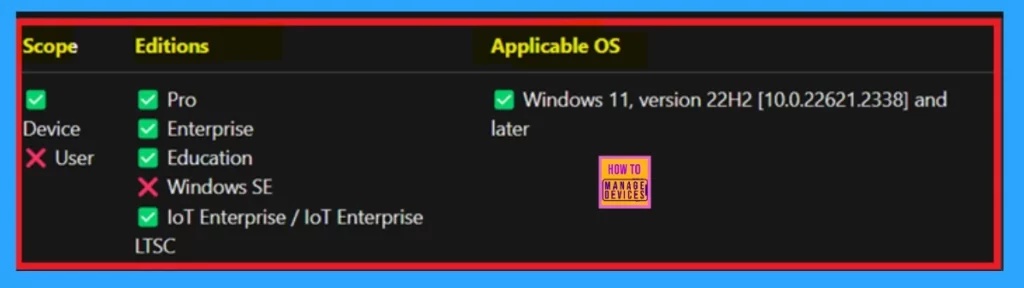
Above, we discussed the overview of setting the Max Connection Timeout to the Cloud using the Setting Catalog via Intune. One of the important things we have to remember before creating a policy is that to know about the CSP Details (Configuration Service Provider). To get more details of CSP please check the below screenshot.
How to Get Started
This is one of the basic settings that every user needs. By setting these options at the right time, you can make sure the change goes smoothly and keep your network running well. This is very easy to set up through the MS Intune portal. So, let’s start the Steps.
- Sign in to the Intune admin center.
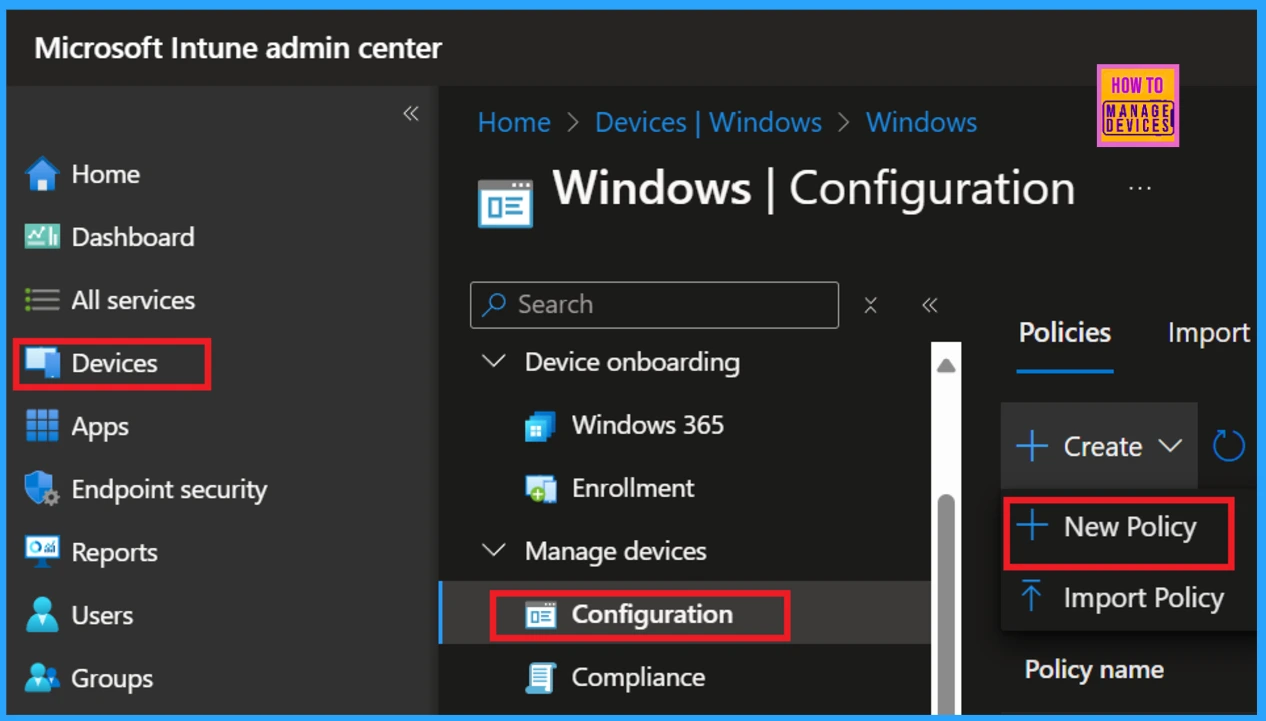
- Navigate Device> Configuration>New policy (if you have any doubts check the screenshots).
- How to Allow Adding Non-Microsoft Accounts Manually Using Intune Setting Catalog
- How to Allow Importing of Autofill Form Data in Microsoft Edge Via Setting Catalog in Intune
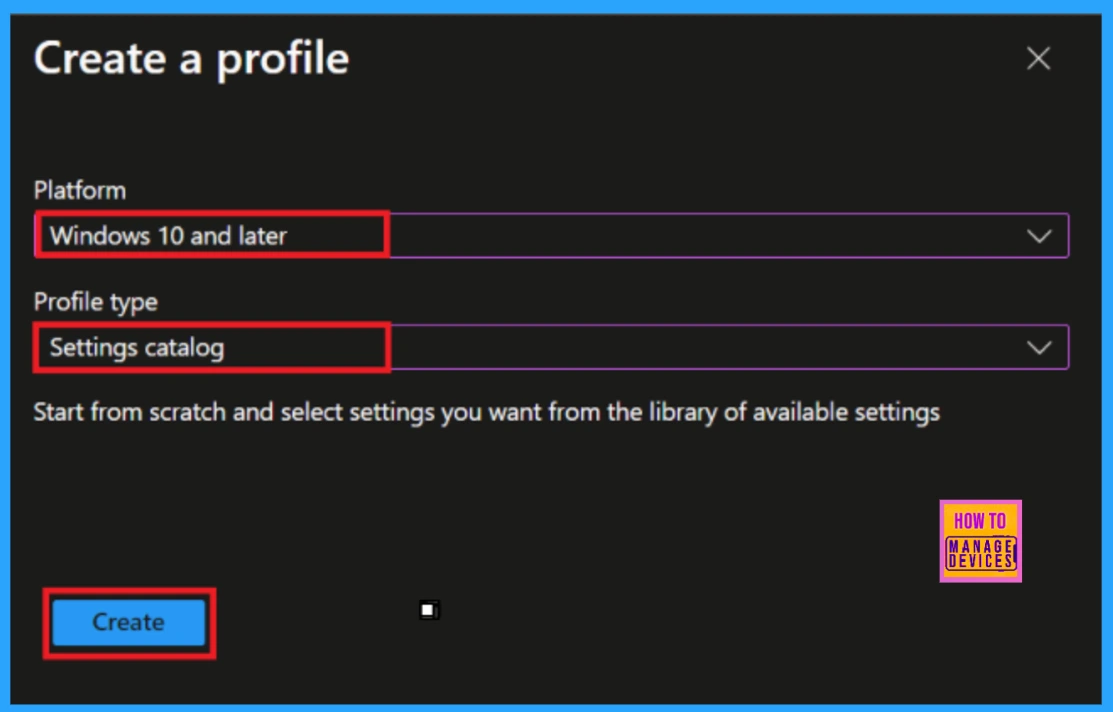
A Create Profile window will appear after clicking on the new policy. You need to select the Platform flat profile type. I chose the platform Windows 10 and later with the profile type Setting Catalog. Now, you can easily click on the Create option.
Basics
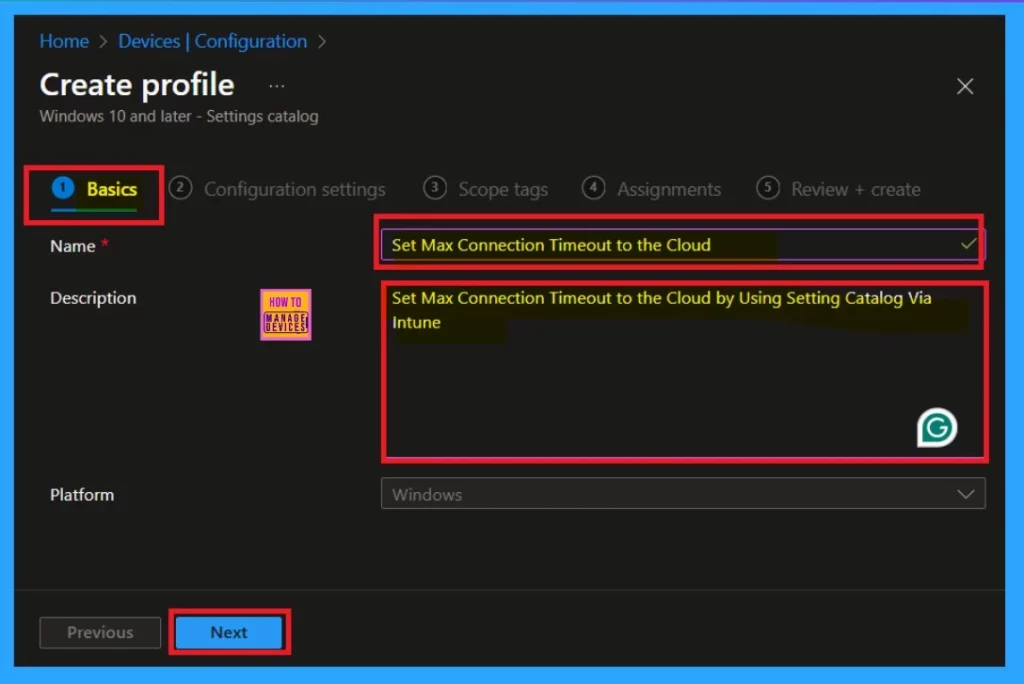
The Basic step is the first phase of policy deployment through the settings catalog. To complete this session, fill in the name and description fields. In the name field, I have entered “Set Maximum Connection Timeout to the Cloud,” and the platform is set to Windows by default. Once you have made these entries, click Next.
Configuration Settings – Settings Picker
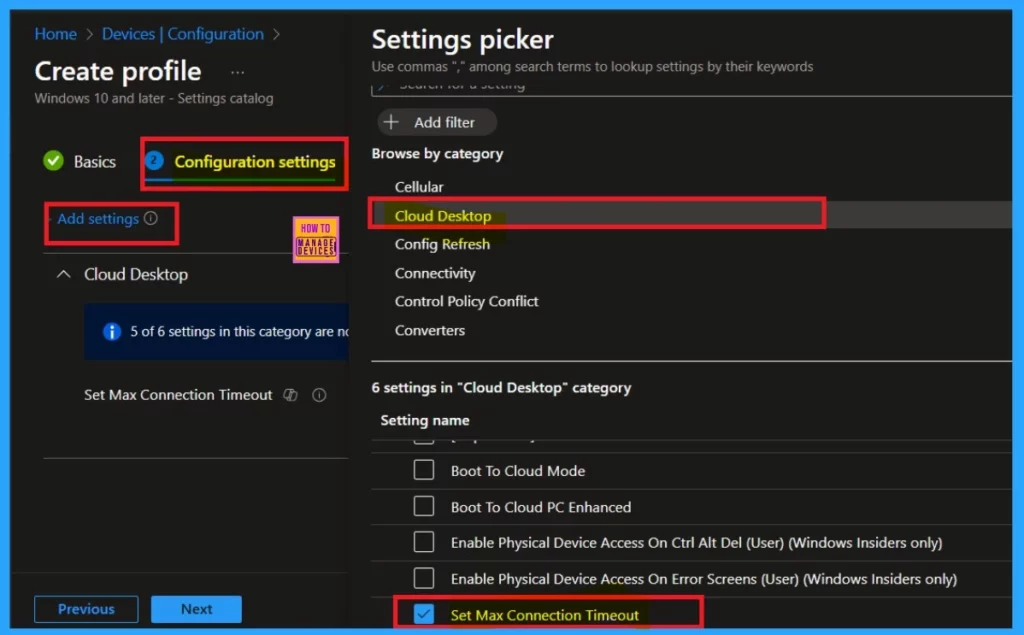
The next important session is about configuration settings. You’ll find a hyperlink (Add Setting) in the configuration settings. When you click on it, a settings window will open. Here, you can select the Category. I selected the Cloud desktop. Additionally, you will get the option to select the setting name. Here, you will get the option to select the policy.
- I have chosen to set the “Set Max Connection Timeout”.
- Now, you can close the Settings Picker window.
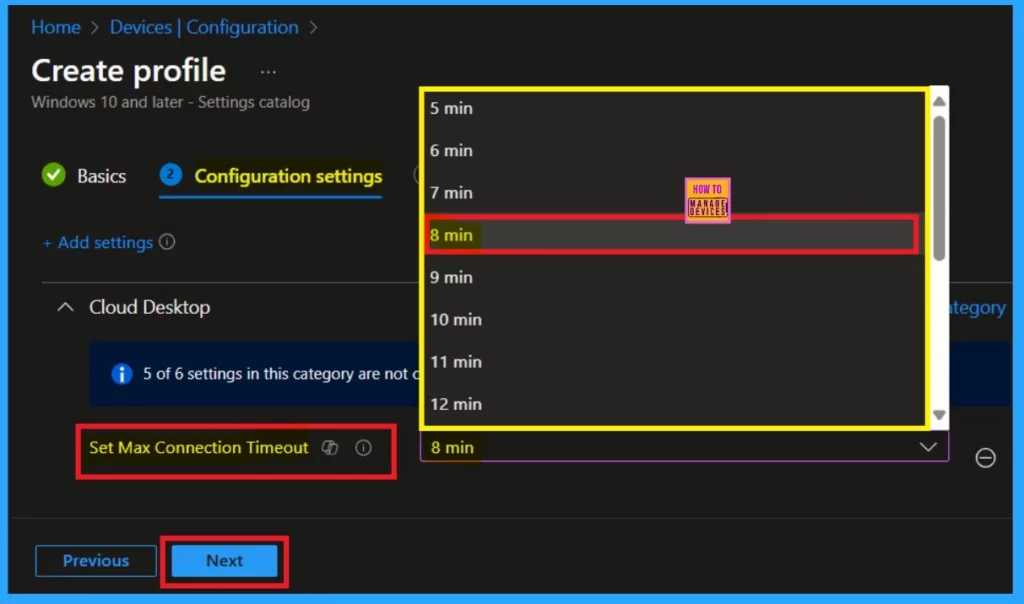
When you close the settings Picker window, you will return to the configuration settings. Here, you can choose the timeout timings. Click the Set Max Connection Timeouts dropdown arrow to view various session timing options.
- For example, I selected 8 minutes and then clicked on Next.
Note: The default max value is 5 minutes. For the best user experience, it is recommended that you continue with the default timeout of 5 minutes. Update only if it takes more than 5 minutes to connect to the Cloud PC in your organization.
Scope Tags
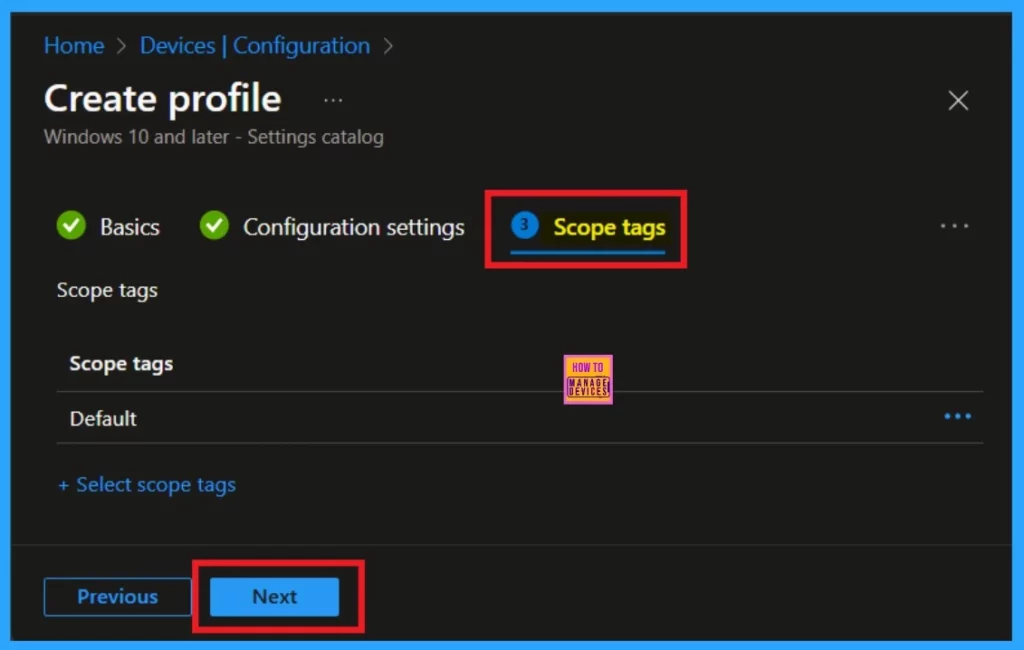
The scope tag is a mandatory section after the configuration settings. You don’t need to take any action here. However, you can utilize the scope tag options if you need to add scope tags to the groups. I skip this section so you can easily click on the next.
Assignments
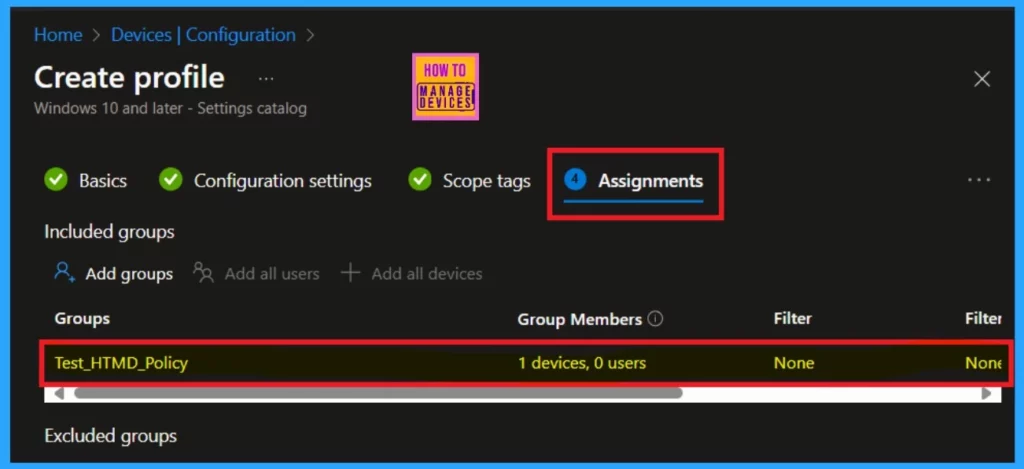
The assignment section is crucial in this process. You need to add the group to the policy. This means you are deploying a policy to a specific group, correct? To do this, you will see an option to add groups under the Included Groups section. Click on “Add Groups” and select the group to which you want to deploy the policy.
- Now click on the Next.
Review + Create
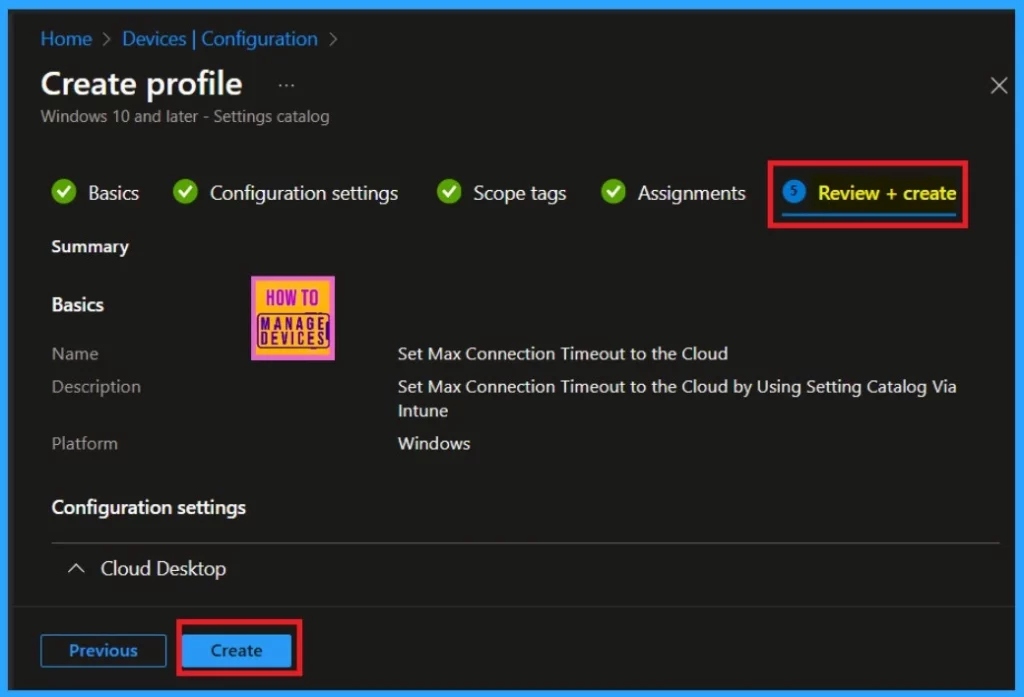
The Review and Create option is like a summary page for your policy. On this page, you will see all the information you have entered, including name, the description, platform details, and configuration settings details etc.
Once you have reviewed everything, you can click the “Create” button. After that, you will receive a notification confirming that the policy has been successfully created.
Monitor Status
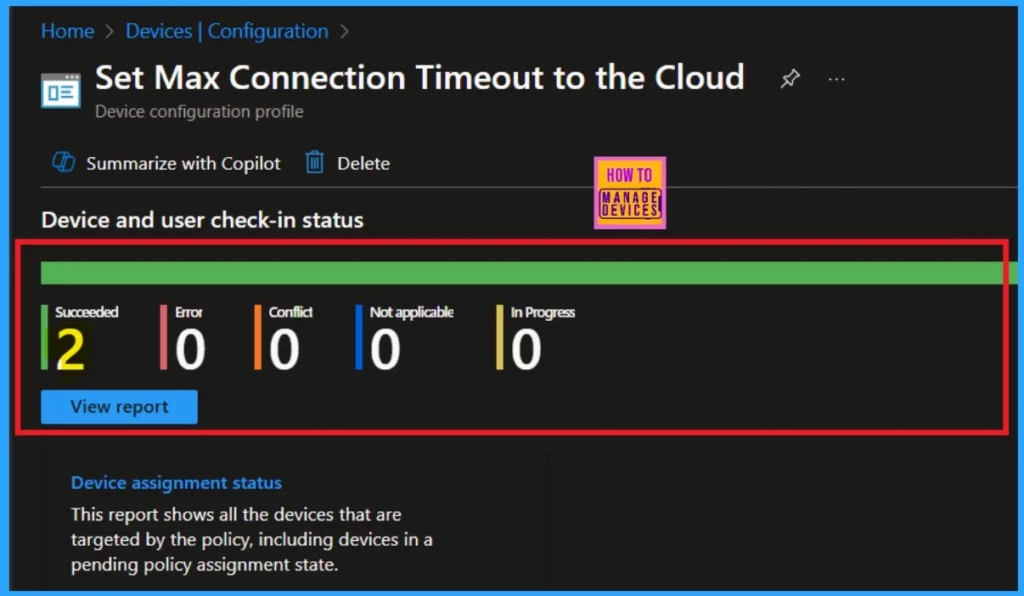
Monitoring the status of policy creation is very important to ensure that our policies are successfully created. You can check if a policy has been created successfully through monitoring status. If any issues or conflicts arise with the policy, you can check them through device configuration.
To check the status, go to the configuration list ( Device> Configuration)and select “Set Marks Connection Timeout.” Double-click on the policy and view the policy overview.
Note: To decrease the waiting period for policy creation, utilize the company portal Sync option.
Client-Side Verification
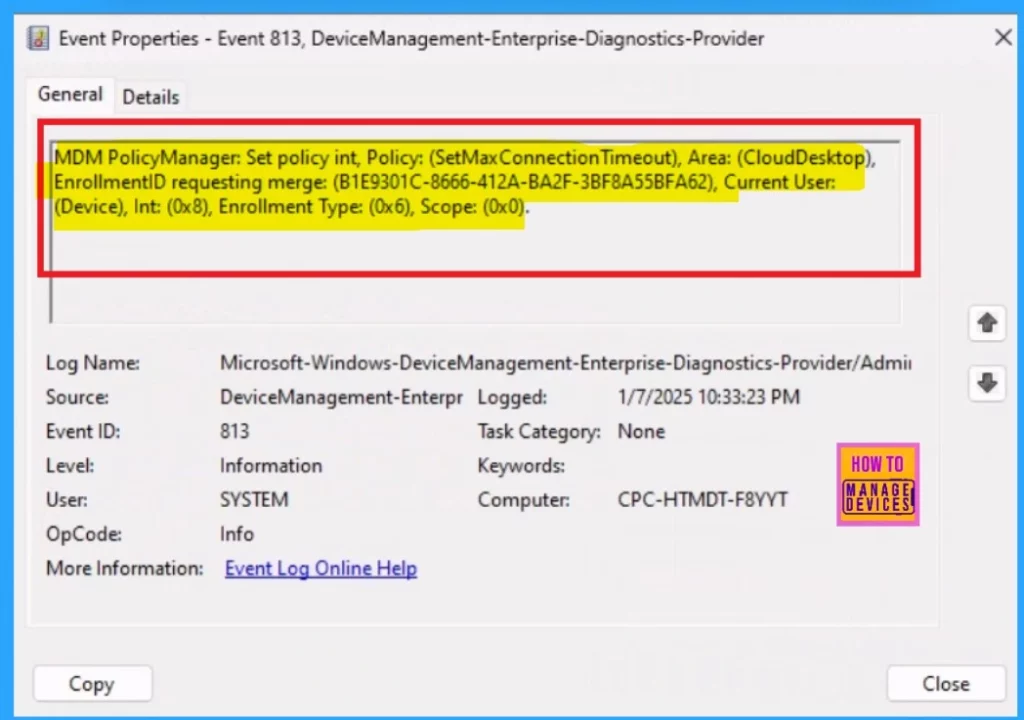
Verification on the client side is crucial. After syncing the policy you can proceed to check the results. You can verify the results through the event properties or the event viewer. To do so, follow this path: Applications and Services Logs > Microsoft > Windows > Device Management > Enterprise Diagnostic Provider > Admin.
- In this section, you’ll find a list of policies.
- It may be difficult to pinpoint the exact result you need, so I recommend using the “Filter Current Log” option located in the right pane.
- To filter the results, enter “813” in the Event ID field and click OK.
- You can also filter the policies by their creation time, such as selecting logs from the last hour or the past 24 hours.
| Policy Status |
|---|
| MDM PolicyManager: Set policy int, Policy: (SetMaxConnection Timeout), Area: (CloudDesktop), EnrollmentlD requesting merge: (B1E9301C-8666-412A-BA2F-3BF8A55BFA62), Current User: (Device), Int: (0x8), Enrollment Type: (0x6), Scope: (0x0). |
Need Further Assistance or Have Technical Questions?
Join the LinkedIn Page and Telegram group to get the latest step-by-step guides and news updates. Join our Meetup Page to participate in User group meetings. Also, Join the WhatsApp Community to get the latest news on Microsoft Technologies. We are there on Reddit as well.
Author
Anoop C Nair has been Microsoft MVP from 2015 onwards for 10 consecutive years! He is a Workplace Solution Architect with more than 22+ years of experience in Workplace technologies. He is also a Blogger, Speaker, and Local User Group Community leader. His primary focus is on Device Management technologies like SCCM and Intune. He writes about technologies like Intune, SCCM, Windows, Cloud PC, Windows, Entra, Microsoft Security, Career, etc.


Discussion