






How to Enable or Disable Bluetooth in Windows 11
Hi, here we will discuss How to Enable or Disable Bluetooth – in Windows 11. Bluetooth is the most useful wireless technology for exchanging data in the world. You can easily share files and tethering by using Bluetooth which enables two nearby wireless devices.
Mobile phones, Mic, keyboard, Mouse, Speakers, and wireless headsets are some of the Bluetooth devices to add or pair to the PC. For example, you can easily connect your wireless mouse to your Windows 11.
Although Bluetooth is a wireless device, it also shows some connection issues. These can usually be solved by ensuring that Windows 11 is updated, the device is fully charged, or it has a new set of batteries. You can also recognize and resolve common Bluetooth issues using Windows 11 ‘s troubleshooting tool.
When on, the Bluetooth notification icon is visible in the right corner of the taskbar. Turning Off Bluetooth connectivity means disconnecting all your pairing devices from your PC. It is better to turn off Bluetooth when it is not used, as this can preserve electricity and enhance security.

What are the Troubleshooting Ideas for Bluetooth Connection Issues on Windows 11?
1. Check Bluetooth Settings
2. Update Drivers
3. Restart Device
4. Reset Bluetooth
5. Check Device Compatibility
6. Check Bluetooth Hardware
7. Optimize Bluetooth performance
8. Update Bluetooth device
How to Enable or Disable Bluetooth
There are many ways to enable or disable Bluetooth in Windows 11. Here, we will review some of the best methods to access Bluetooth on your PC and discuss 5 methods for Turning ON or OFF Bluetooth devices. Let’s discuss one by one.
| Different Methods to Turn On or Off of Bluetooth |
| 1. Through Quick settings |
| 2. Windows Settings Application |
| 3. Through Airplane mode settings |
| 4. Through Control Panel |
| 5. Through Device Manager |
1. Enable or Disable Bluetooth through Quick Settings
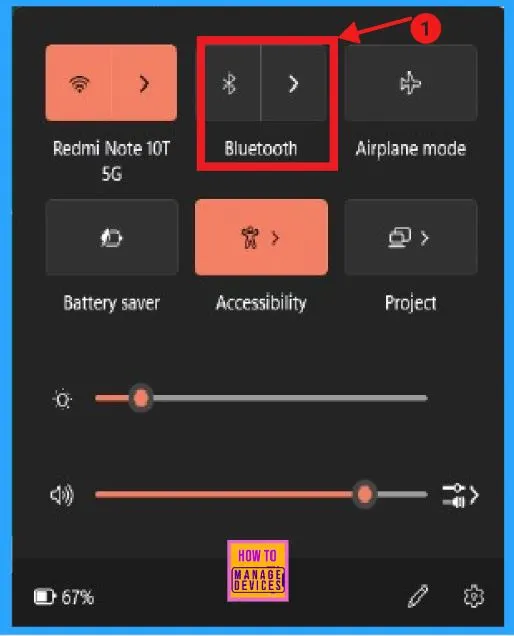
Quick Settings is the fastest and most commonly used method to turn On or Off in Windows 11. In this way, click or tap on the network/sound/or battery icon, which is situated in the right corner of the taskbar. Otherwise, you can also press WIN+A to open the Bluetooth option.
- Click or tap the Bluetooth icon to enable or disable Bluetooth.
- Set Local Bluetooth Device Name with Intune Policy
- Easily Disable Bluetooth using Intune How to Guide
2. Enable or Disable Bluetooth from Windows Settings Application
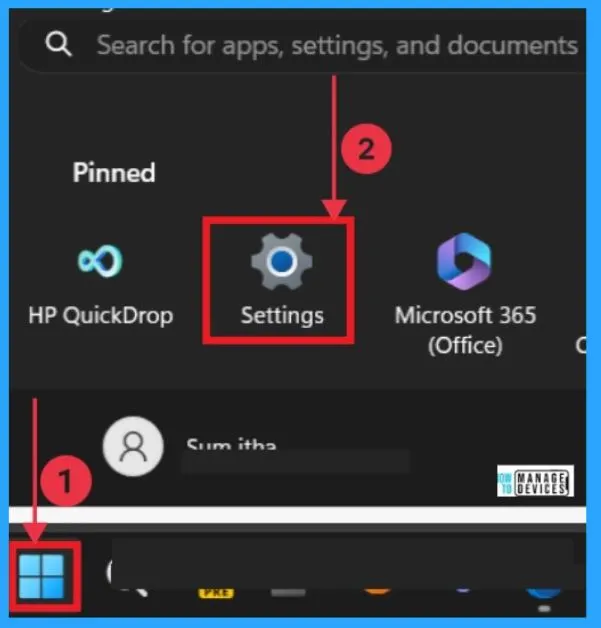
Windows Setting Application is the standard way of turning On or Off Bluetooth In Windows 11. For that, we should go to Windows Settings by pressing Windows + I shortcut on your keyboard or by selecting Settings from the Start Menu.
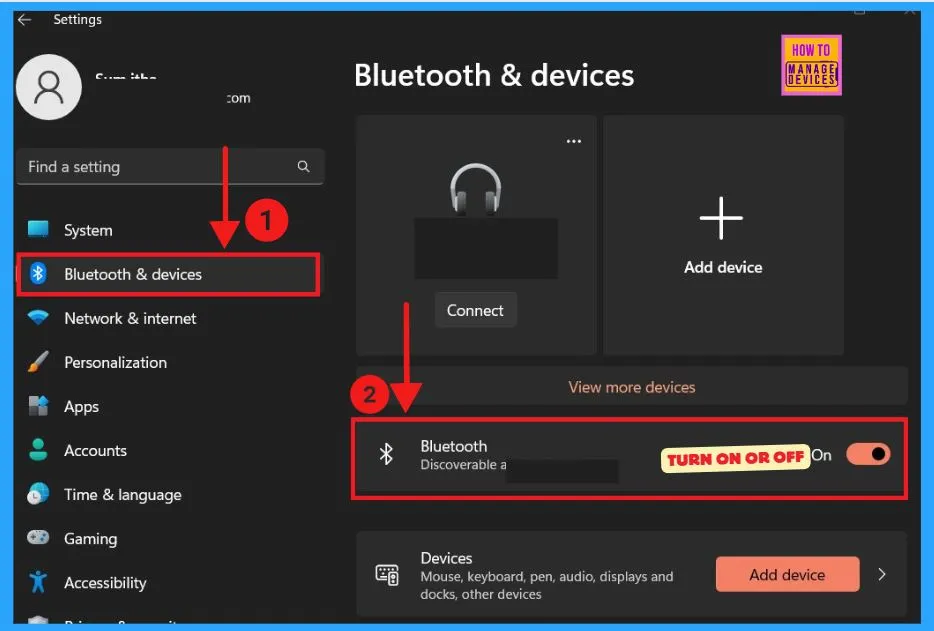
Once you open Windows Settings, select the Bluetooth & Devices icon from the left sidebar. Toggling the pane will allow you to turn the Bluetooth device off or on. Now, you are ready to make your new connection.
- Toggle the pane to the Left to Right for Enabling the Bluetooth device
- Toggle the pane to the Right to Left to Disable the Bluetooth device
3. Bluetooth Enable or Disable Through Airplane Mode Settings
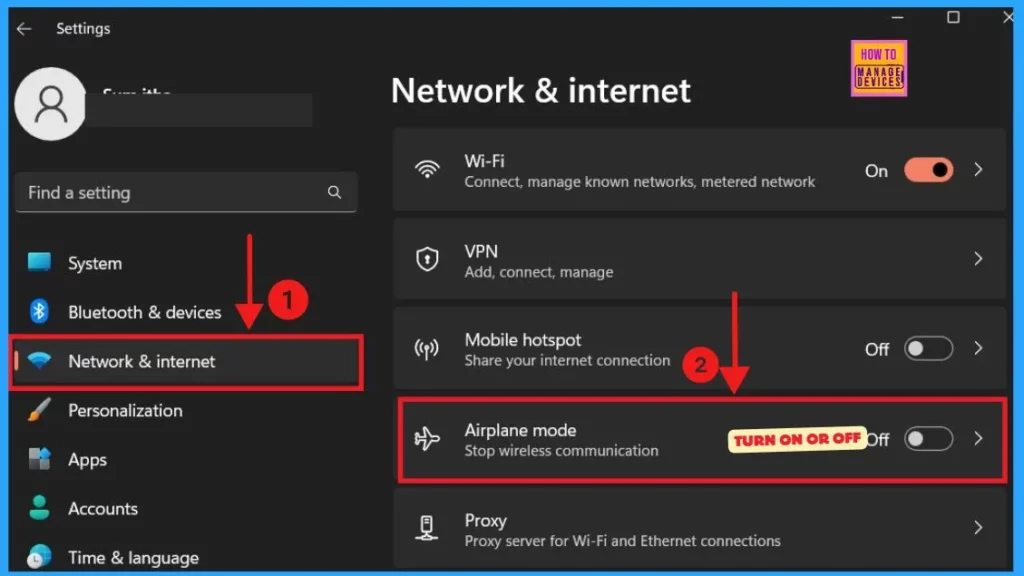
The other method is Airplane mode. To access the Airplane setting, we must open the Network and Internet, where we can see Airplane mode on the right side (Settings> Network and Internet > Airplane mode).
- You can easily Turn it off or On by Toggling the pane.
4. Bluetooth Enable or Disable through the Control Panel
Sometimes, we can’t see the Bluetooth icon on our PC. This means that the Bluetooth option is missing from the Acton Center (Quick Setting) and Windows Settings. Manually turning on Bluetooth from the Control Panel is easy to fix.
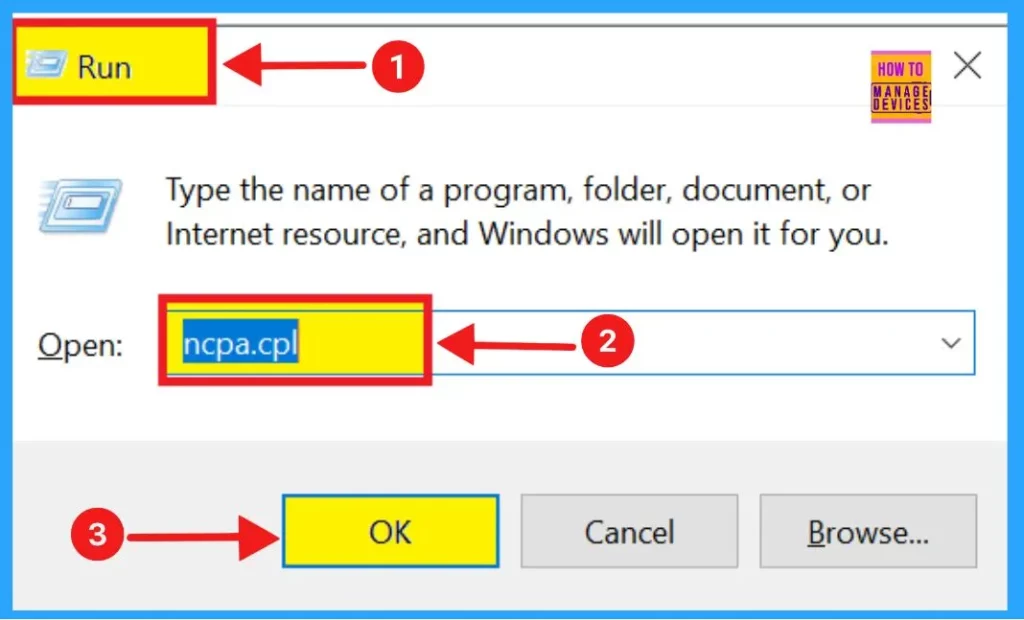
To enable Bluetooth in Windows 11, we must give a command to go directly to the network connection window through the Control Panel. We should press WIN+R on the keyboard to open the Run command box.
- Type ncpa.cpl into the dialog box
- Click OK to execute it
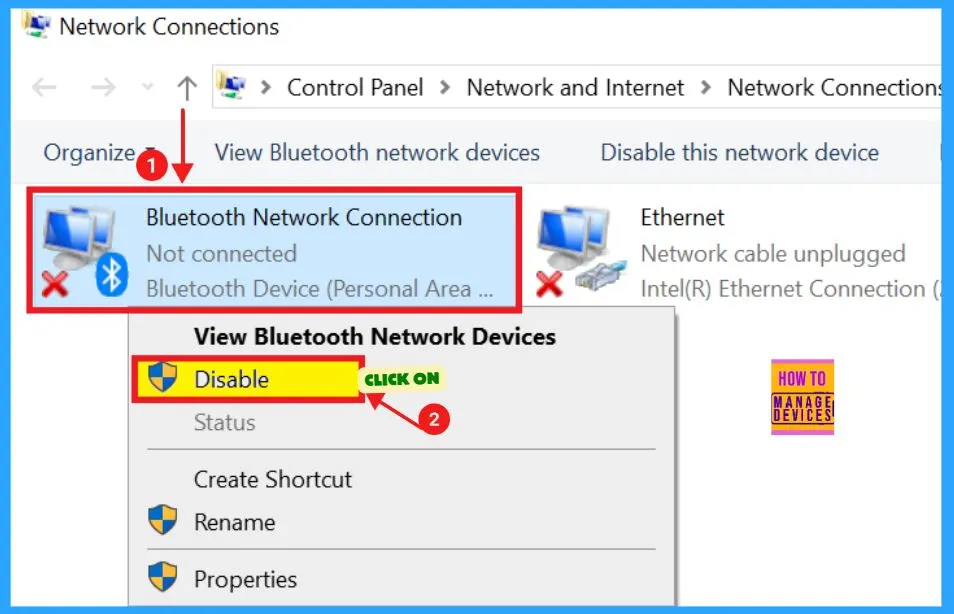
Now, we can see the Network Connections window, where the Bluetooth Network Connections are situated. Right-click on the Bluetooth Network Connection to enable or disable the Bluetooth device.
- Reset Windows Security App in Windows 11
- Enable Disable Focused Inbox in Outlook for Windows 11
- Monitor Battery Usage by Apps in Windows 11
5. Bluetooth Enable or Disable Through Device Manager
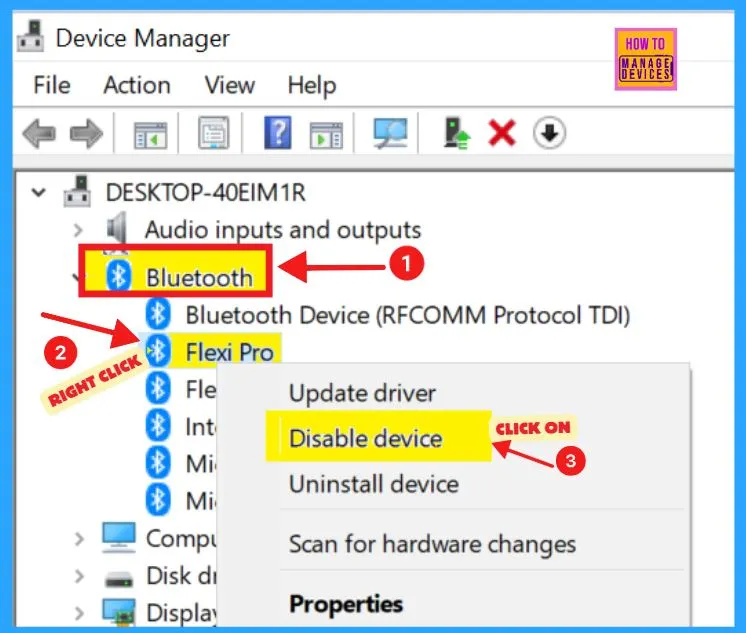
Finally, let’s discuss how to enable or disable Bluetooth in Windows 11 through the Device Manager. First, we should open the Device Manager by right-clicking on the Start menu or pressing WIN+X on our keyboard. After opening the Device Manager, we can see the Bluetooth option.
- Expand the Bluetooth so you can see every adapter to which you are connected.
- Right-click on the adapter to switch enable or disable in your Windows 11
- After Completing this process restart your PC
We are on WhatsApp. To get the latest step-by-step guides and news updates, Join our Channel. Click here –HTMD WhatsApp.
Author
Smitha Madathil is a computer enthusiast. She loves writing about Windows 11 and Intune-related technologies and sharing her knowledge, quick tips, and tricks about Windows 11 or 10 with the community.




Discussion