






Turn on Automatic Store App Updates in Windows 11
Let’s discuss Turn on Automatic Store App Updates in Windows 11. Everyone knows about the Microsoft Store, a digital distribution platform managed by Microsoft that provides many features. The store is an essential factor in every Windows device.
Every user needs many applications, games, movies, etc, on their devices. With the help of a Microsoft store, it’s at your fingertips. In the past few previous updates, the Microsoft store was completely redesigned, and this newly designed store gives you a wide range of user experiences for your Windows devices.
Microstore can keep the Automatic Store App Updates in Windows 11. This is the most essential feature of a store app: it lets you automatically keep your installed apps updated, eliminating the need to check for updates manually.
Updates are significant for every device and app. These types of features ensure that you always have the latest features. The latest features or updates always include bug fixes and security improvements for your apps.

- New Widget Updates in Windows 11 Moment 5 Review
- Enable Disable Focused Inbox in Outlook for Windows 11
- Monitor Battery Usage by Apps in Windows 11
What are the Benefits of Automatic Store App Updates in Windows 11?
1. t will help you eliminate the manual check and installation time
2. you stay secured from known security risks by enabling automatic updates.
3. In the Automatic update, you will get more improved features
4. Bug Fixes and Performance Improvements
5. You don’t need to remember to update each app individually
Turn on Automatic Store App Updates
Turning on Automatic Store App Updates is crucial and necessary. We always prefer to stay up to date with apps to enjoy the latest features in our applications. This will always enhance the user experience. So, we have to turn on the Automatic Store app updates.
| Num | Methods for Turn On Automatic Store App Updates in Windows 11 |
|---|---|
| 1 | Turn On the Automatic Store App Updates through the Store app settings |
| 2 | Turn On the Automatic Store App Updates through the Group Policy |
- Open the Microsoft Store by Searching on the Start Menu
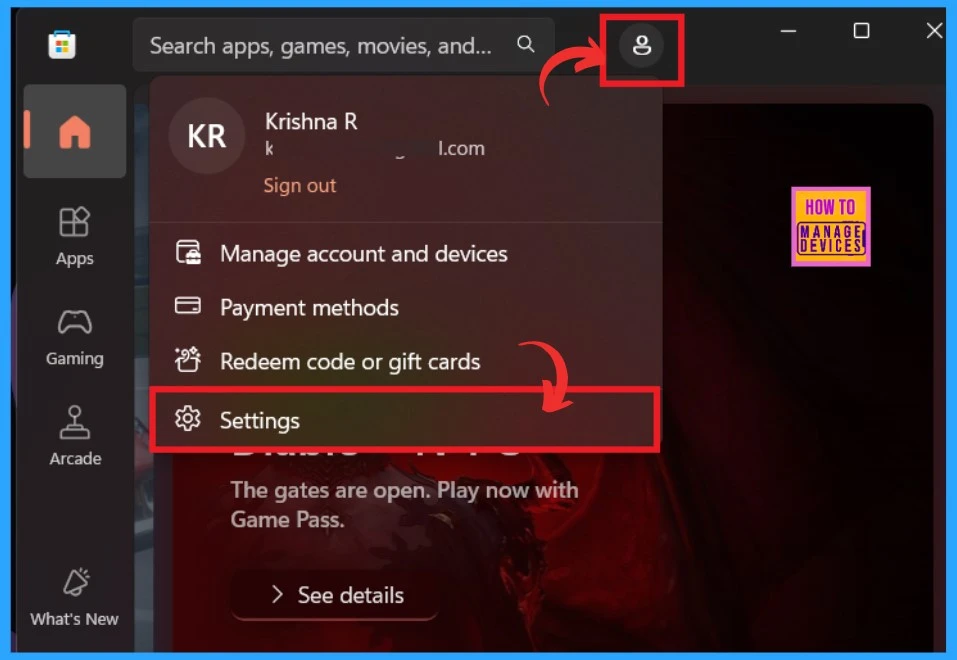
- After opening the Store, Click on the Profile, which will shown at the top of the Store app.
- Click on the Settings options
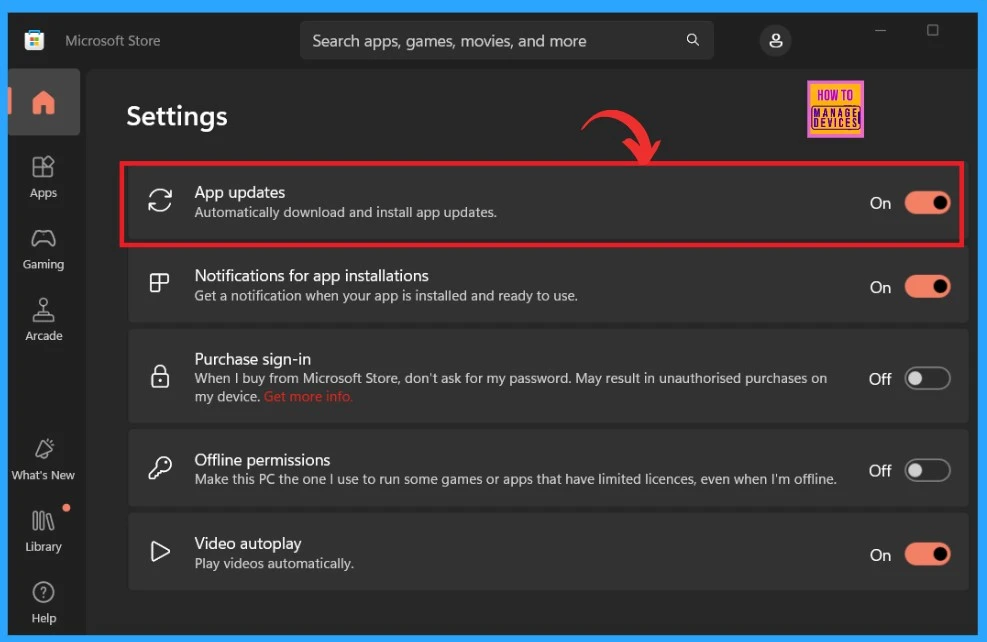
When you click on the settings, there are many options available for the Store applications. Here, we focus on the App updates option, which lets you turn on or off App updates. If this option is turned on by default, you can easily turn it off. In my settings it turned On by default.
- You can Turn the App updates ON– By toggling the pane to the Left to the Right
- For Turning App Updates Off – By toggling the pane to the Right to the Left
Turn On the Automatic Store App Updates through the Group Policy
Another method is the Group policy to turn on the Automatic store updates. Group policy is one of the most significant features in Windows that allows you to manage and configure advanced settings for your device or network. To access the Local Group Policy on your Device, follow the Steps.
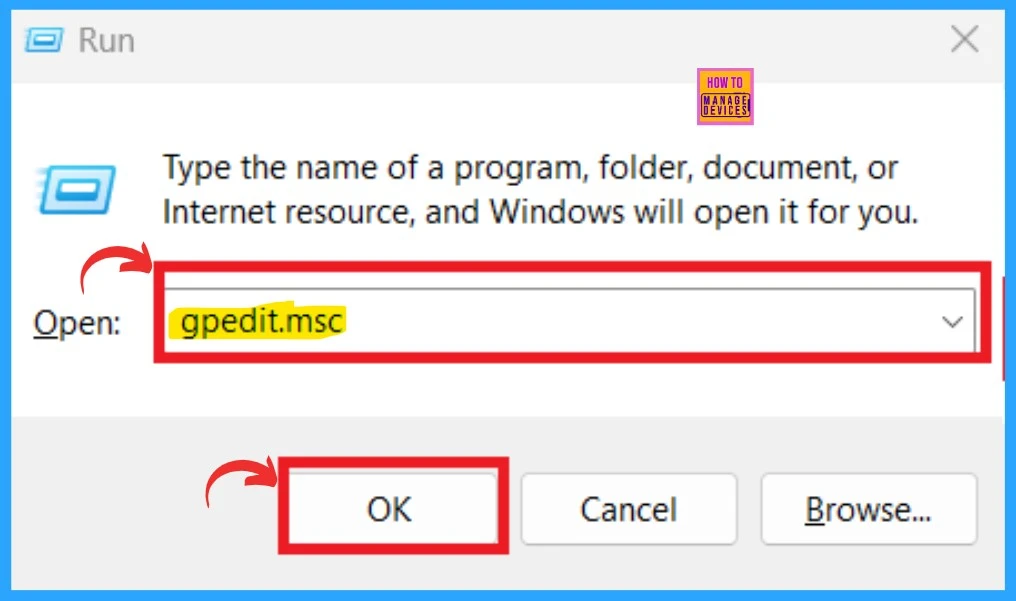
- Right-click on the Start Menu and select Run Command or Press Win+ R to open the Run Command
- Type the regedit to the command box
- Click on the OK button
- Change to Classic or Modern Theme in Outlook for Windows 11
- How to Change Handwriting Panel Font in Windows 11
- How to Check Drive Encryption Support in Windows 11
After opening the Grop policy, you must expand some folders to proceed with more features. First, Click on Computer Configuration and select the Administrative Templates. In the Administrative Templates select the option Windows Component.
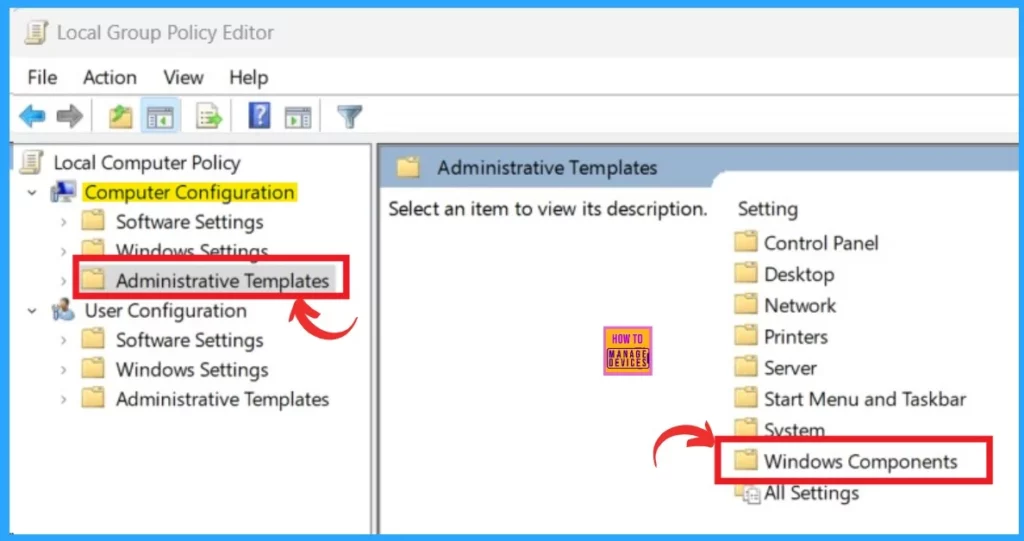
After clicking on the Windows Components, you will get the Windows Components settings option. From that, Select the Store option.
Follow this: Computer Configuration -> Administrative Templates -> Windows Components -> Store
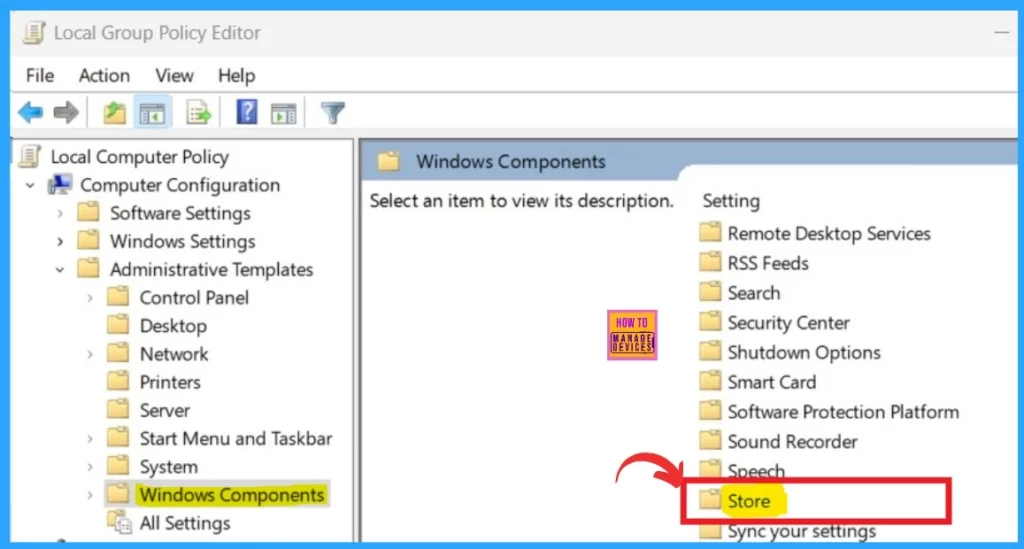
In the store folder, you will find many setting options related to the Store. In those options, you have to double–click on the Turn off Automatic Download and Install of Updates to open for further settings.
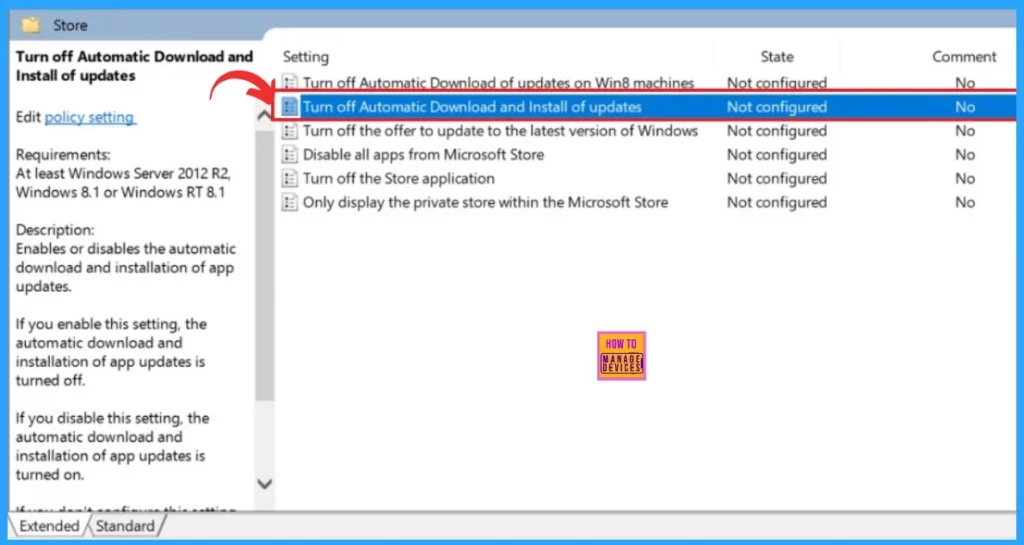
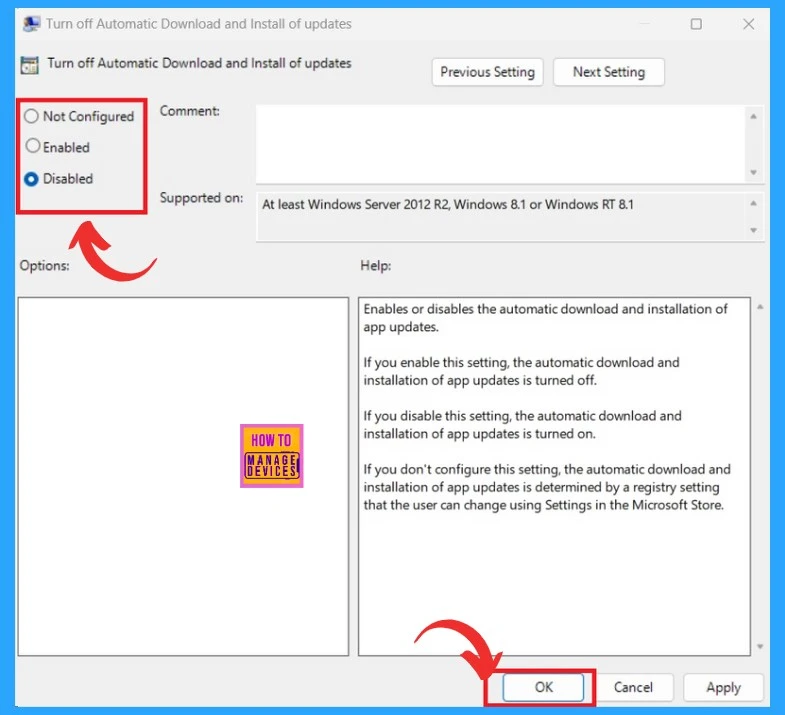
The “Turn off Automatic Download and Install of updates” windows are now open here. You can select any option from Not configured to Enable, Disable, etc. If you want to turn on the Automatic Download and Install of updates, you must Disable that.
- Click on the Save option
| Turn off Automatic Download and Install of updates Options | Used For |
|---|---|
| Not Configured | In this option Automatic download and installation of app updates are turned on. It’s like the Disable option |
| Enable | In this option Automatic download and installation of app updates are turned off. |
| Disable | It will turn On the Automatic download and installation of app updates |
We are on WhatsApp. To get the latest step-by-step guides and news updates, Join our Channel. Click here –HTMD WhatsApp.
Author
Krishna. R is a computer enthusiast. She loves writing about Windows 11 and Intune-related technologies and sharing her knowledge, quick tips, and tricks about Windows 11 or 10 with the community.




Discussion