






Changes to Entra ID Dynamic Group Rule Builder Contains and Not Contains Operator
Let’s check what changes to Entra ID Dynamic Group Rule Builder Contains and Not Contains Operator. With Dynamic Groups, administrators can automatically assign users to groups by defining rules based on attributes such as user properties, device properties, or membership in other groups.
Microsoft Entra ID Dynamic Groups, previously known as Azure AD, offer a powerful and flexible way to manage user memberships based on dynamic criteria, eliminating the need for manual intervention.
The new Entra ID update brings Edits to Dynamic Group Rule Builder in General Availability. The dynamic group rule builder has been updated to no longer include the ‘contains‘ and ‘notContains‘ operators, as they are less performant. You can still create dynamic group rules with those operators by typing directly into the text box if needed.
One key advantage of Entra ID Dynamic Group rule is their ability to update memberships in real-time dynamically. As user or device properties change, the group membership adjusts accordingly. This reduces the risk of errors, and enhances security by promptly reflecting changes in user or device status.

Administrators can create dynamic rules using a variety of operators and conditions. Common attributes include user attributes like department or employee hire date, device properties like operating system or device type, and even membership in other groups.
While the ‘contains’ and ‘notContains’ operators might be excluded from the graphical interface for performance reasons, users can still utilize them by manually entering rules in a text box, providing flexibility for advanced scenarios.
Entra ID Dynamic Group Rule Builder
The following steps help you to create an Entra ID dynamic device group based on properties. This guide will use the Device attribute property Systemlabels of the devices to create a dynamic group. The dynamic group allows you to apply policies or apps that specifically target all or a subset of devices or users based on the rules you define.
- Sign in to the Azure Portal or Entra ID admin center https://aad.portal.azure.com/ with a Global administrator, Intune administrator, or User administrator role in the Entra ID.
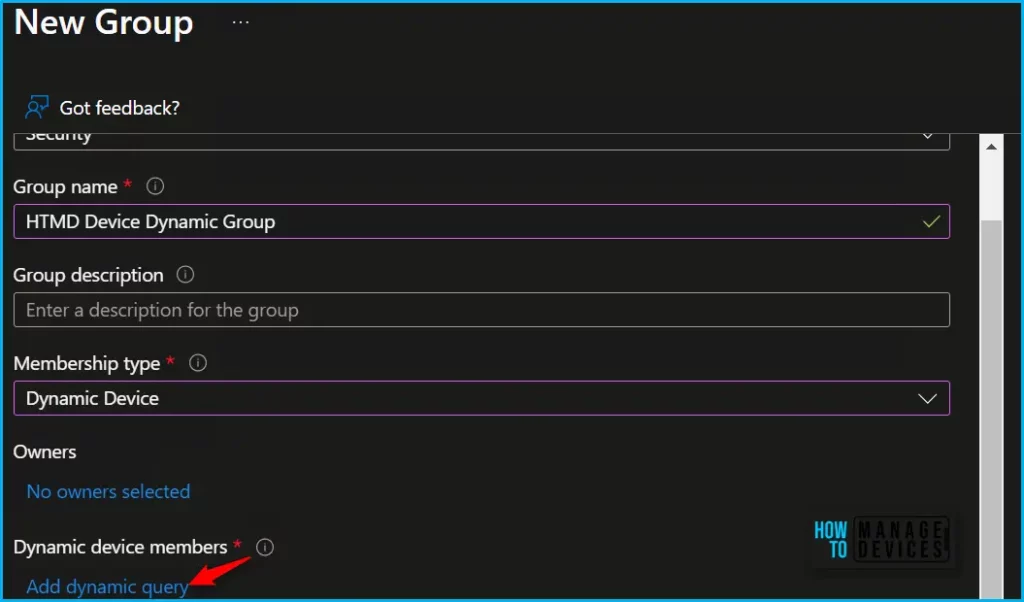
- Select All groups, and select New group. On the New Group, Add the required information to proceed for Dynamic Group.
- Select Security – Group Type from the drop-down option. Enter the Group Name, Group Description.
- Select Dynamic Device as the Membership type. Click on Add Dynamic Query under Dynamic Device Member.
Microsoft Entra ID provides a rule builder to quickly create and update your important rules. The rule builder supports the construction of up to five expressions. The rule builder makes it easier to form a rule with a few simple expressions, however, it can’t be used to reproduce every rule.
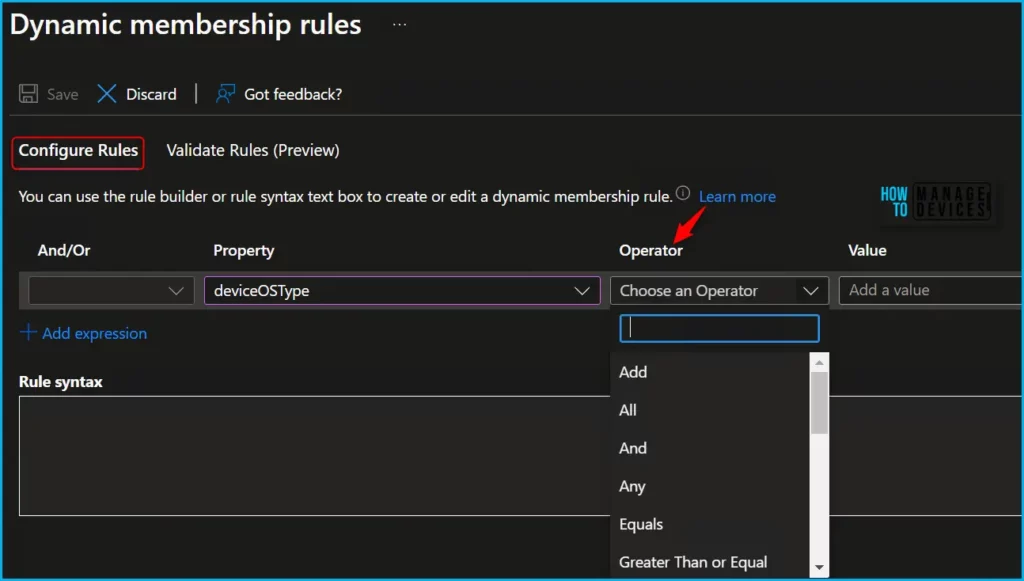
If the rule builder doesn’t support the rule you want to create, you can use the text box. Here are some examples of advanced rules or syntax that require the use of the text box:
- Rule with more than five expressions
- The Direct reports rule
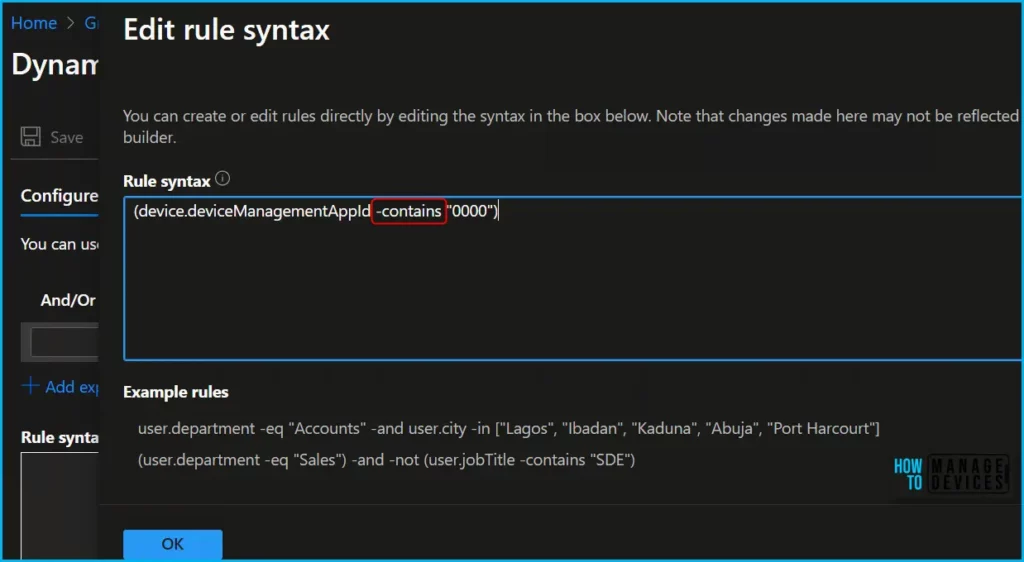
- Rules with -contains or -notContains operator
- Setting operator precedence
For Example, Using a dynamic membership rule, If you created a dynamic device group containing Intune, Co-managed devices within an organization using ‘contains’ or ‘notcontains’ will continue to work. When devices are added or removed from the organization in the future, the group’s membership is adjusted automatically.
Supported Expression Operators to Entra ID Dynamic Group Rule
You can create or edit rules directly by editing the syntax in the box as shown below. It is important to note that changes made here may not be reflected to the builder.
The table below in the post lists all the supported operators and their syntax for a single expression. Operators can be used with or without the hyphen (-) prefix. The Contains operator does partial string matches but not item in a collection matches.
Once you specified the rule syntax, The Validate Rules tab will run your query against your selected target users or devices and confirm if they would meet the requirements to be a group member or not. Let’s see how Intune Admin validates Azure AD Dynamic Group Rules.
| Entra ID Dynamic Group Rule Operator | Syntax |
|---|---|
| Not Equals | -ne |
| Equals | -eq |
| Not Starts With | -notStartsWith |
| Starts With | -startsWith |
| Not Contains | -notContains |
| Contains | -contains |
| Not Match | -notMatch |
| Match | -match |
| In | -in |
| Not In | -notIn |
We are on WhatsApp. To get the latest step-by-step guides and news updates, Join our Channel. Click here –HTMD WhatsApp.
Author
About Author – Jitesh, Microsoft MVP, has over six years of working experience in the IT Industry. He writes and shares his experiences related to Microsoft device management technologies and IT Infrastructure management. His primary focus is Windows 10/11 Deployment solution with Configuration Manager, Microsoft Deployment Toolkit (MDT), and Microsoft Intune.




Discussion