






Explore New Devices Experience in Intune Admin Center for Unified Device Management
Key Takeaways
- Unified Devices workspace for managing devices.
- Simplified navigation with a consistent left menu.
- Platform-specific device management from a single location.
- Integrated monitoring and reporting within management pages.
- Updated overview dashboard with actionable insights.
- Faster access to enrollment, configuration, compliance, and updates.
Explore New Devices Experience in Intune Admin Portal! Microsoft continues to enhance the Microsoft Intune admin center with an improved Devices experience that simplifies device lifecycle management through a modern, unified interface. The redesigned Devices workspace brings together enrollment, configuration, compliance, updates, monitoring, reporting, and troubleshooting, making it easier for IT administrators to manage devices from a single location.
Table of content
Explore Devices Experience in Intune Admin Portal
With the New Devices Experience, you can perform common administrative tasks such as enrolling devices, deploying configuration profiles, assigning compliance policies, managing platform-specific settings, monitoring deployment status, and accessing reports, all within the Devices node. The easy navigation reduces the number of clicks required to find settings and provides a more consistent management experience across supported platforms.
- Sign in to the Intune admin center
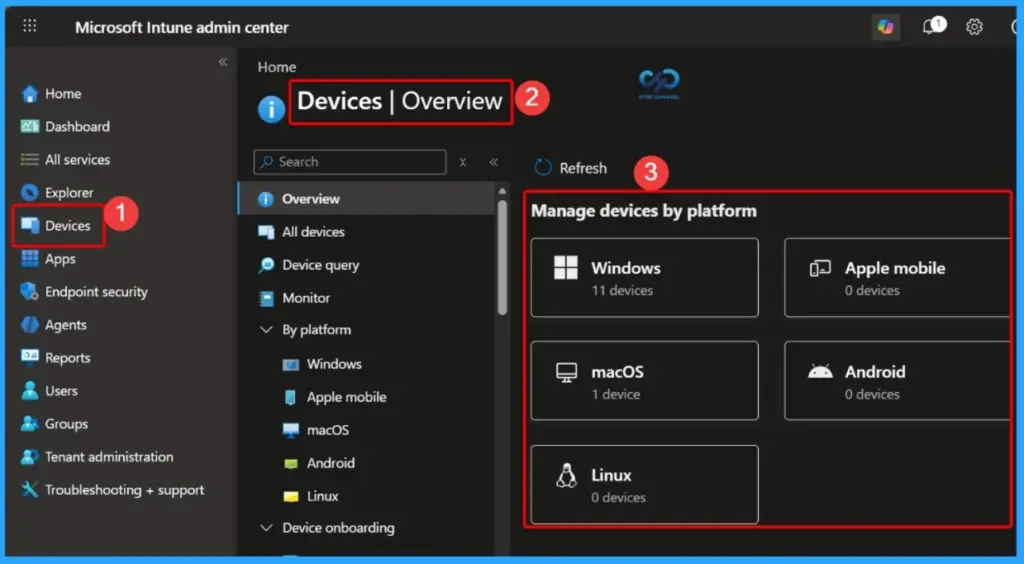
- Go to Devices > Overview
- In the Overview page you can see the managed devices by platform, Autopatch management status, Configuration policy assignment failures, Noncompliant devices, Deployment status per Windows update ring, Cloud PC performance, Connected Frontline Cloud PCs
| Managed Devices by Platform |
|---|
| Windows |
| Apple mobile |
| Android |
| Linux |
| macOS |
- Latest Intune Admin Portal Walkthrough Guide | Microsoft Intune Admin Center
- Explore New Intune Troubleshooting Dashboard For Intune Issues
- Require Password when Computer Wakes on Battery using Intune
- How to Collect Physical and Virtual Memory Information using Intune Properties Catalog
- Configure Cloud PC RDP Properties using Intune Settings Catalog
Managed Devices in Intune
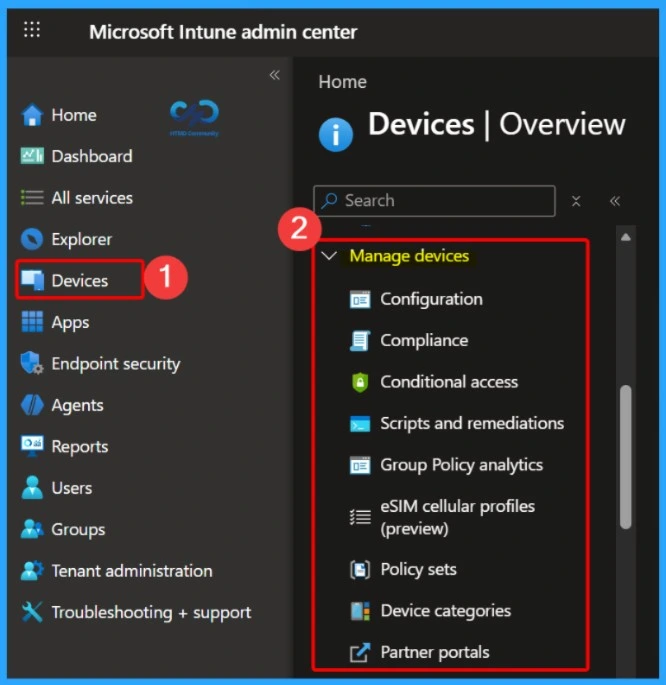
The Devices node in the Microsoft Intune admin center serves as the central hub for managing your organisation’s devices. From this single location, administrators can access essential device management features such as Configuration, Compliance, Conditional Access, Scripts and Remediations, Group Policy Analytics, Policy Sets, Device Categories, and other device-related settings.
Manage devices

- Configuration
- Compliance
- Conditional access
- Scripts and remediations
- Group Policy analytics
- eSIM cellular profiles (preview)
- Policy sets
- Device categories
- Partner portals
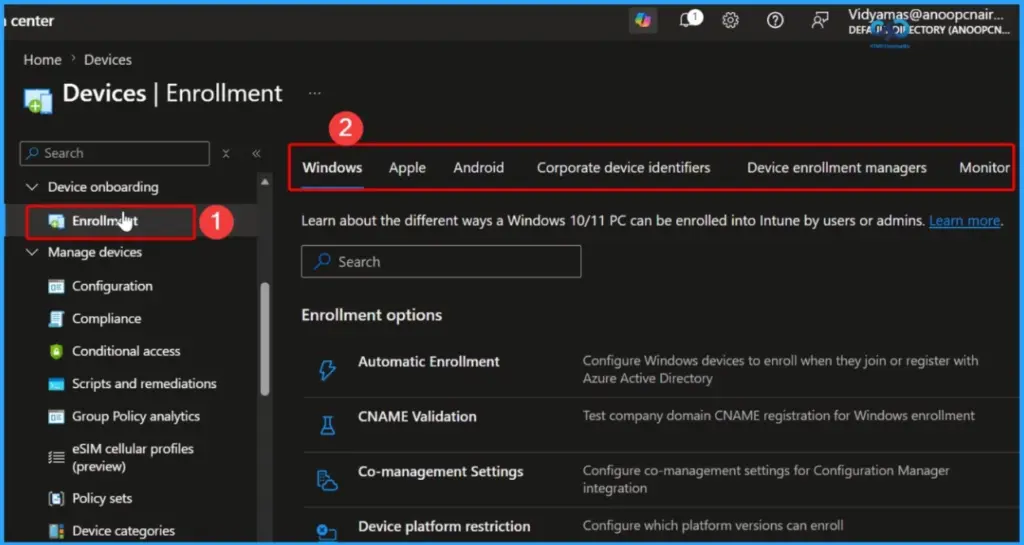
Navigate to the Enrollment Section in the Devices Experience
The Enrollment section under the Devices node provides a centralised location for configuring device onboarding across multiple platforms. From this page, administrators can access enrollment settings for Windows, Apple, and Android devices, as well as manage Corporate Device Identifiers, Device Enrollment Managers (DEM), and enrollment monitoring.
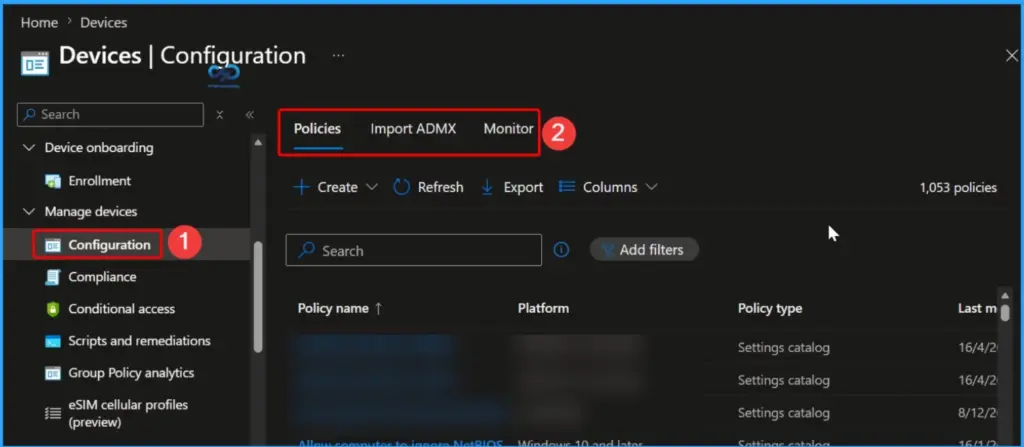
Manage Device Configuration Policies in the Devices Experience
The Configuration section under the Devices node provides a centralised workspace for creating, managing, and monitoring device configuration policies in Microsoft Intune. From this page, administrators can create new configuration profiles, import ADMX templates to manage Group Policy settings, and monitor the deployment status of existing policies.
Manage Device Compliance Policies in the Devices Experience
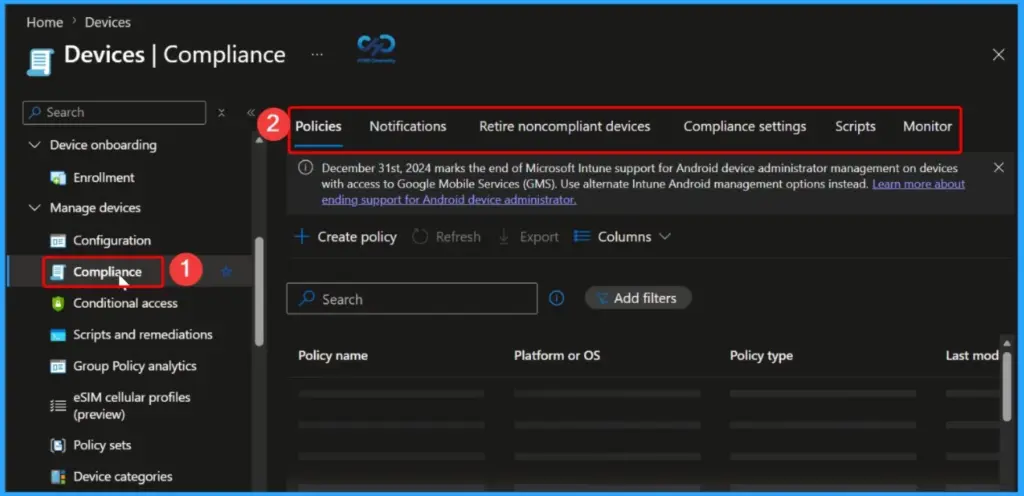
The Compliance section under the Devices node provides a centralized location for creating, managing, and monitoring device compliance policies in Microsoft Intune. From this workspace, administrators can configure Compliance Policies, manage Notifications, Retire Noncompliant Devices, customize Compliance Settings, run Scripts, and monitor policy deployment and compliance status.
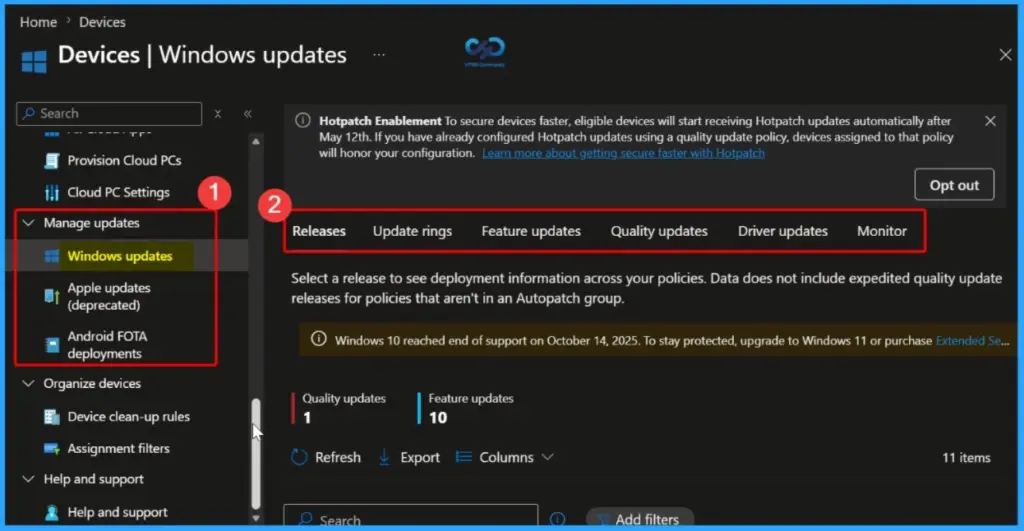
Manage Windows Updates from the Unified Devices Workspace
The Windows updates section under the Devices node provides a centralized workspace for managing Windows Update for Business policies in Microsoft Intune. Administrators can configure and monitor Releases, Update Rings, Feature Updates, Quality Updates, and Driver Updates from a single location.
The redesigned interface also includes a dedicated Monitor tab that provides deployment status, update progress, and policy health, helping IT administrators efficiently manage Windows update deployments while ensuring devices remain secure and up to date.
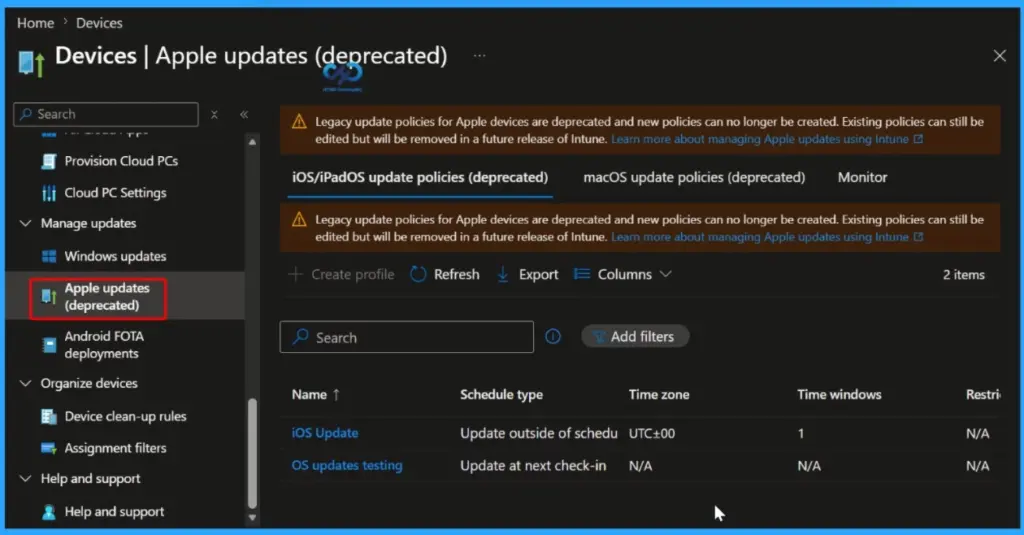
Review Apple Update Policies in the Devices Experience
The Apple updates (deprecated) section under the Devices node displays legacy update policies for iOS/iPadOS and macOS devices that were previously used to manage Apple software updates in Microsoft Intune. Microsoft has deprecated these legacy update policies, meaning administrators can no longer create new policies using this experience.
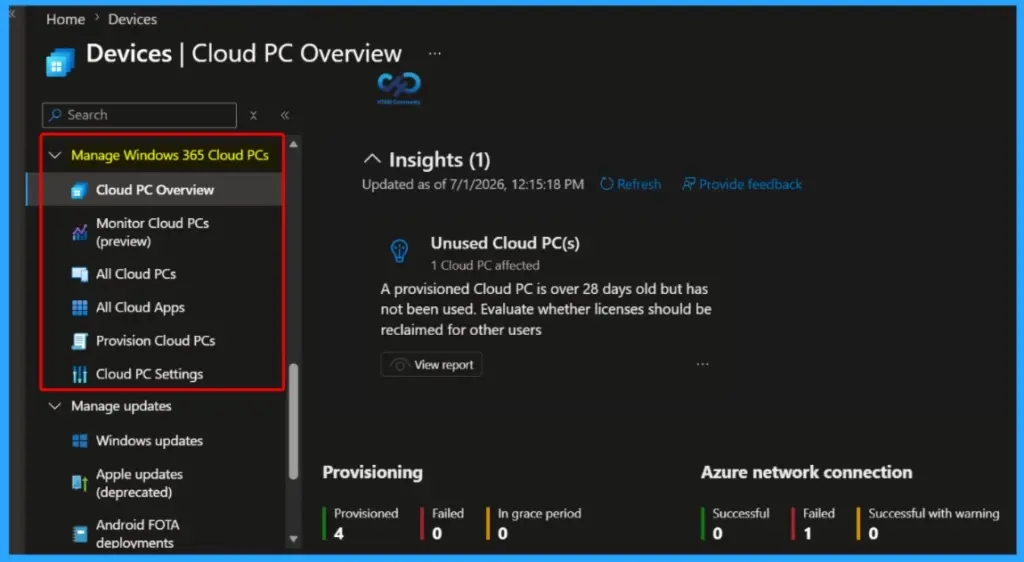
Manage Windows 365 Cloud PCs from the Unified Devices Workspace
The Cloud PC Overview section under the Devices node provides a centralised workspace for managing Windows 365 devices in Microsoft Intune. Administrators can access Cloud PC Overview, Monitor Cloud PCs (Preview), All Cloud PCs, All Cloud Apps, Provision Cloud PCs, and Cloud PC Settings from a single location.
Organise Devices with Device Clean-up Rules
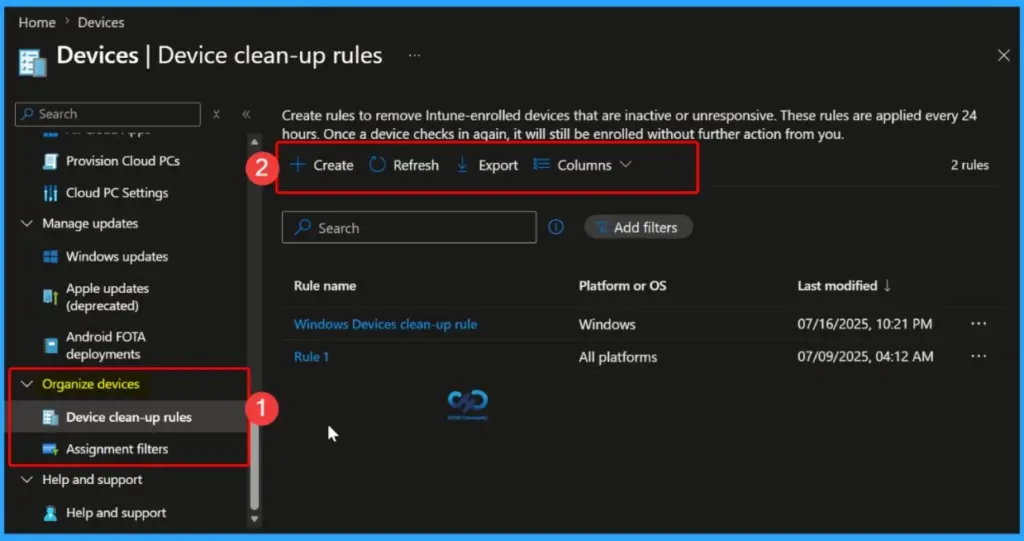
The Device clean-up rules section under the Devices node helps administrators automatically remove stale or inactive devices from the Microsoft Intune admin center. You can create clean-up rules based on device inactivity to delete Intune records for devices that have not checked in within a specified number of days.
The redesigned interface provides options to create, refresh, export, and customise the view using Columns, making it easier to manage existing clean-up rules. Keeping the device inventory free of obsolete records improves visibility, simplifies administration, and ensures reports accurately reflect active managed devices.
Access Help and Support from the Devices Workspace
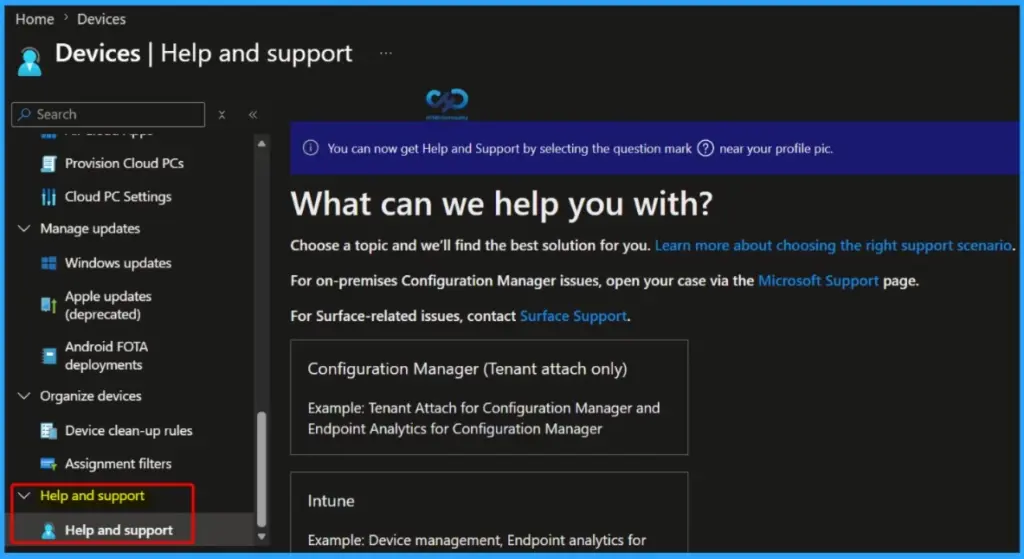
The Help and support section under the Devices node provides administrators with quick access to Microsoft support resources for resolving Intune and device management issues. From this centralised page, you can browse support topics, find troubleshooting guidance, and create support requests for Microsoft Intune or Configuration Manager (Tenant Attach) scenarios.
Need Further Assistance or Have Technical Questions?
Join the LinkedIn Page and Telegram group to get the latest step-by-step guides and news updates. Join our Meetup Page to participate in User group meetings. Also, join the WhatsApp Community and the Whatsapp channel to get the latest news on Microsoft Technologies. We are there on Reddit as well.
Author
Jitesh, Microsoft MVP, has over six years of working experience in the IT Industry. He writes and shares his experiences related to Microsoft device management technologies and IT Infrastructure management. His primary focus is Windows 10/11 Deployment solution with Configuration Manager, Microsoft Deployment Toolkit (MDT), and Microsoft Intune.


Discussion