






Export SCCM Package Using Package Wizard | PowerShell
In this post, you will learn how to export SCCM Package. After preparing or deploying packages, you can export the ConfigMgr package that helps you to get a list of all associated commands and content based on your selection.
The exported packages can be imported to another environment instead of creating them from scratch. That will be a time-saver for SCCM Admin and reduce the manual efforts and errors in the production environment if you want to shift from the test environment to production.
You can export packages either from the Configuration Manager console or use the PowerShell cmdlet. The Export-CMPackage cmdlet exports a package to a file. Specify a file path to the location where you want to export the package.
You can use PowerShell cmdlets to automate the package creation and deployment process with Configuration Manager (aka MEMCM), similar to using SCCM Console. This post helps the PowerShell enthusiast to start working on the PowerShell scripting solution for SCCM Package creation process.

- How to Disable SCCM Package Deployment
- SCCM Package Deployment Options in Distribution Points Tab
- Set SCCM Software Center Icon for Task Sequences Packages
Export SCCM Package from Configuration Manager Package Wizard
You can follow the steps below to export the package using the SCCM console.
In the Configuration Manager console, go to the Software Library workspace, expand Operating Systems, and select the Packages node.
Select the existing package that you want to export in the Packages list. Right-Click on the package, you want to export, and click on Export. This action starts the Export Package Wizard.
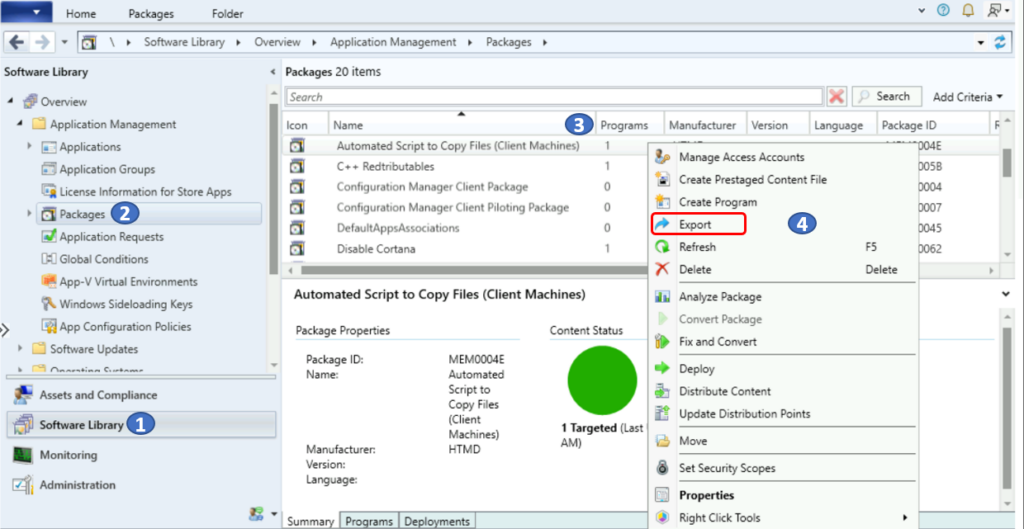
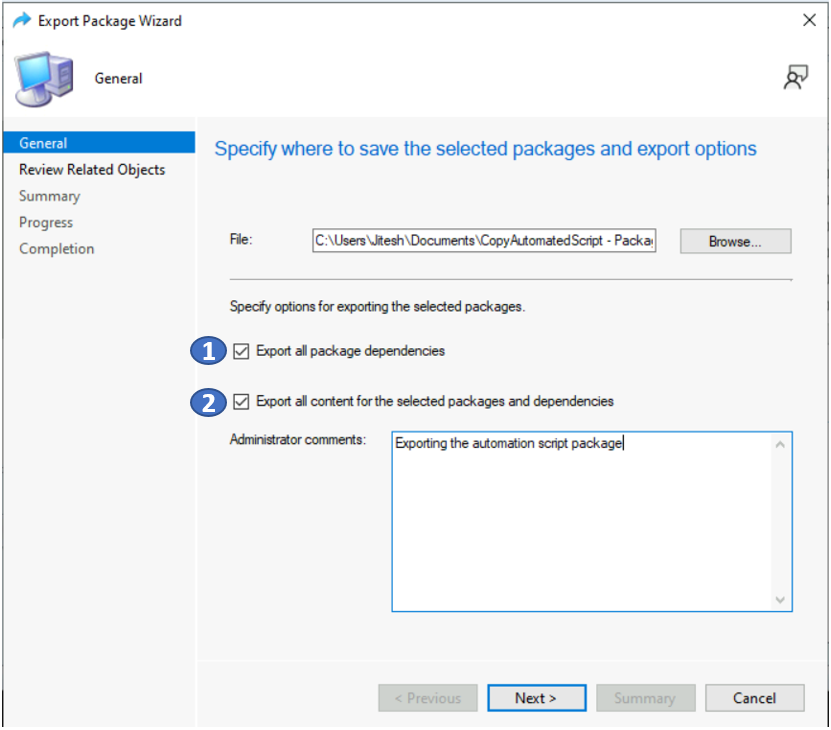
You will see two options by default selected while exporting the packages
- Export all package dependencies.
- Export all content for selected packages and dependencies.
If you don’t want to export package dependencies, Uncheck the option to Export all package dependencies. By default, the wizard scans for all the related objects and exports them to the packages.
If you don’t want to copy the content from the package source to the export location, Uncheck the option to Export all content for the selected packages and dependencies. The Import Package Wizard uses the import path as the new package source location if you choose this option.
Administrator comments: Add a description for the packages to export.
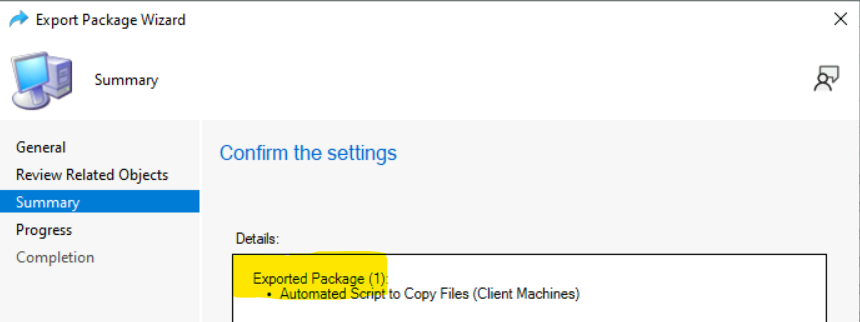
On the Summary page, review the settings. Click Next.
Wait for a moment, while exporting is in progress. After completing, You will see the prompt The task “Export Package Wizard” completed successfully. Click Close to exit the wizard.
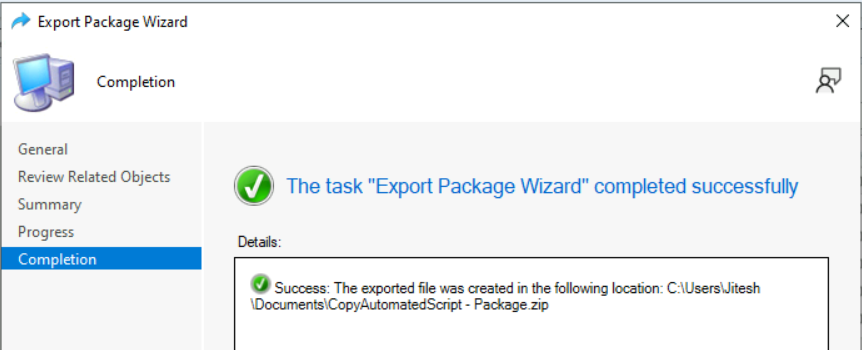
If you go to exported folder path, you will see a files folder and a zip file. This file contains package dependencies Content, Description, FullPath, Package OriginalPath, etc.
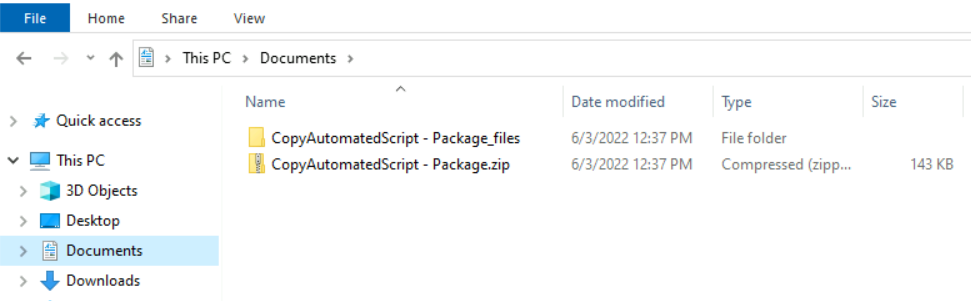
Export SCCM Package Using PowerShell Command
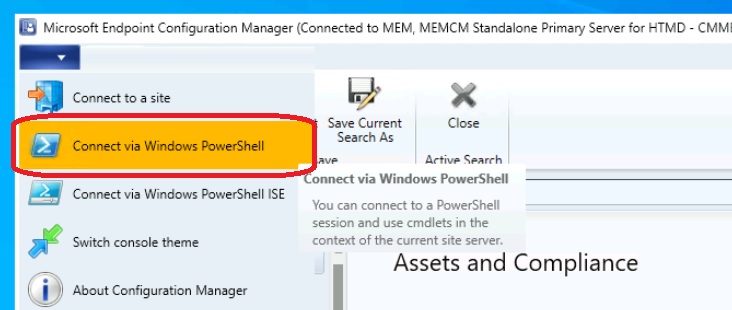
Now, let’s quickly look at options to automate the export of packages with the PowerShell Commands or SCCM PowerShell cmdlets. You can Launch the SCCM PowerShell Commandlets from the console.
In the SCCM Console, Click on the Drop-Down option on the top left side corner of the console and click on Connect via Windows PowerShell option.
If you get the following warning about the untrusted publisher, Type A, and press Enter.
Do you want to run software from this untrusted publisher?
File \Program Files\Microsoft Configuration
Manager\AdminConsole\bin\Microsoft.ConfigurationManagement.PowerShell.Types.ps1xml is published by CN=Microsoft
Corporation, O=Microsoft Corporation, L=Redmond, S=Washington, C=US and is not trusted on your system. Only run scripts
 from trusted publishers.
[V] Never run  [D] Do not run  [R] Run once  [A] Always run  [?] Help (default is "D"): A
This command Export-CMPackage gets package info and its properties details.
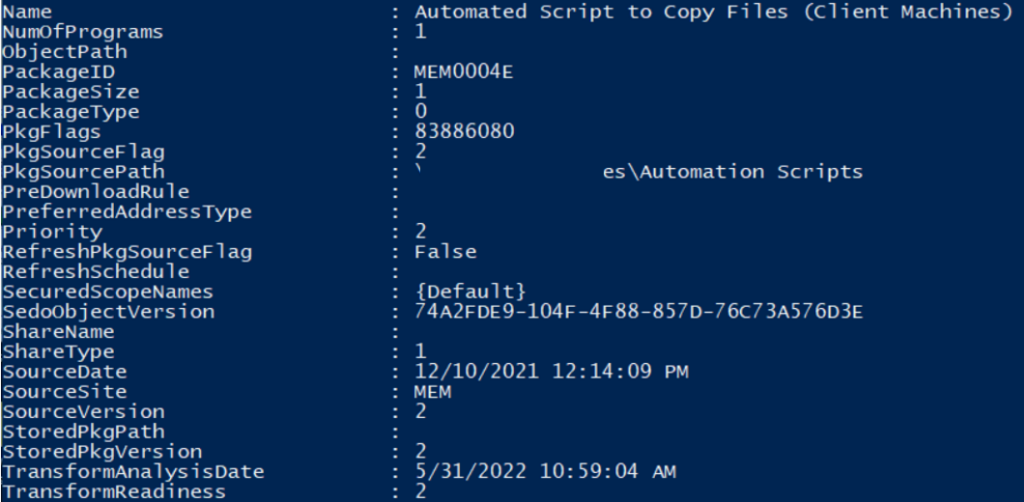
Export-CMPackage exports the package to path C:\Users\Jitesh\Documents\CopyAutomatedScript – Package.zip. This command exports a package with the ID MEM0004E to a network or local path.
Export-CMPackage -Id "MEM0004E" -FileName "C:\Users\Jitesh\Documents\CopyAutomationScript.zip"




Nice write-up. What if I want to export all the packages from a specific folder via PowerShell?