






Easy Steps to Duplicate SCCM Collection | PowerShell
Let’s understand how to duplicate SCCM Collection. Most management tasks rely on or require using one or more collections, Copying an existing SCCM collection is useful when you need to create a similar group to perform testing on different scenarios.
Instead of creating a collection from scratch, you can use the helpful management options. Although you can use the built-in collection of All Systems, using it for management tasks is not a best practice. Create custom collections to more specifically identify the devices or users for a task.
The site creates a new collection and appends [1], [2].. to the name. While the site copies most of the collection properties to the new collection, it doesn’t copy any active deployments.
The SCCM device export and import options are available. You can export the device details from collection to a CSV file using the copy (CTRL + C) and paste (CTRL + V) option from a device collection or the All Devices node.

- Backup and Restore SCCM Custom Collections
- SCCM Collection Best Practices while Creating a Dynamic Collection
- Fix SCCM Limiting Collection Issue | Stop Using Collections Limited to All Systems or All Users
Duplicate SCCM Collection using Device Collections Wizard
Let’s follow the steps to duplicate collections in SCCM. To duplicate existing collections –
In the Configuration Manager console, go to the Software Library workspace, expand Assets and Compliance, and select the Device Collections node.
Select an existing device collection (For Example, HTMD Co-Managed Devices) in the Device Collections node you want to copy.
Learn more about the SCCM collection for Co-Managed Devices -> Create SCCM Collection for Co-Managed Devices
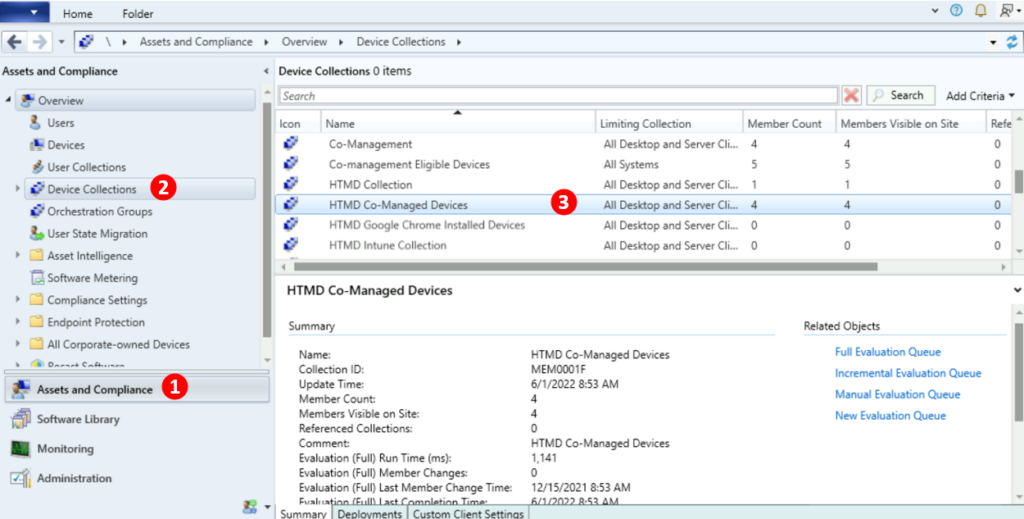
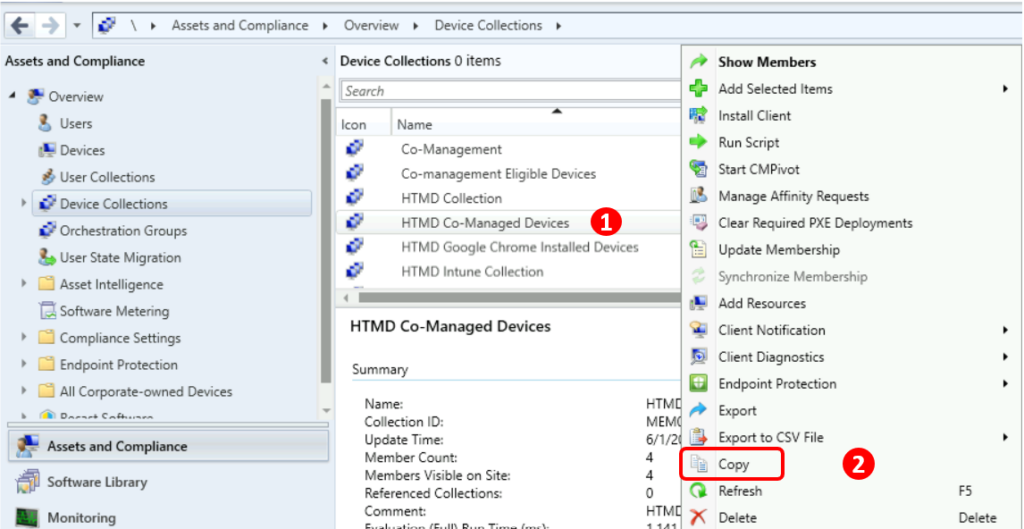
Right-click on the collection and choose Copy.
Once the copy process completes, it appears in the console under the Device Collections node. You can easily identify the duplicate collections in the SCCM console. The duplicated collection has [1] appended to the name.
For Example: Here you can see copied device collections name HTMD Co-Managed Devices[1]. However, You can edit the name and other parameters by navigating to collections properties and Save.
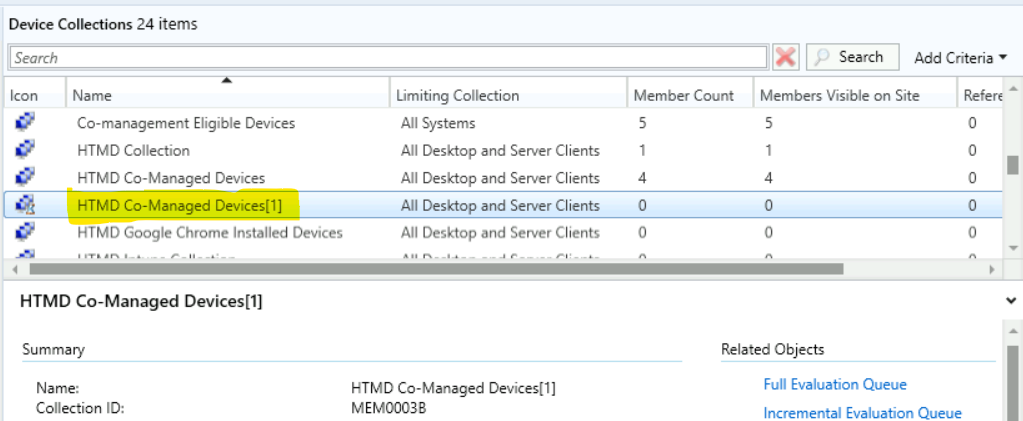
The duplicate collections, retain all added membership rules, collection variables, and configurations and copy all the added members to duplicate collections. In some scenarios, you will notice the members are not copied if the collections are automated with scripts.

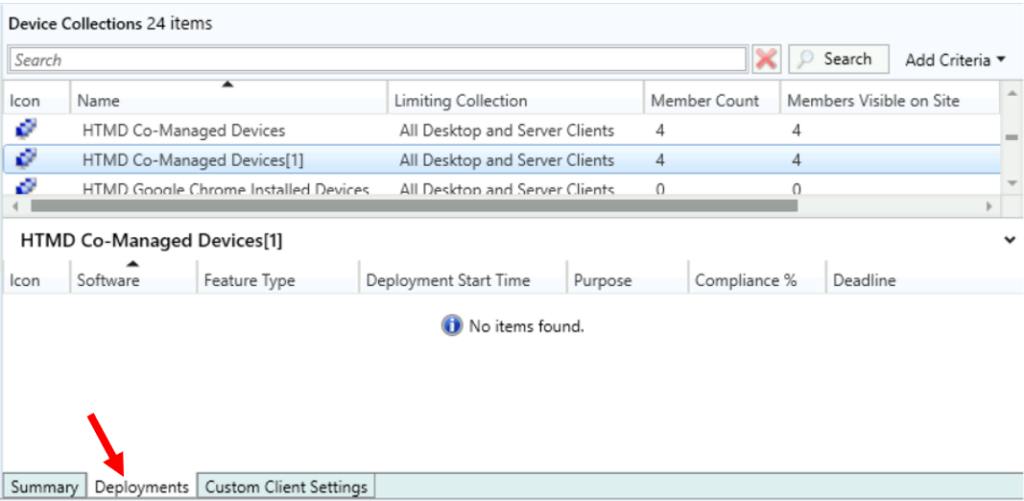
The deployments are not copied. You can validate from the details pane, Switch to the Deployment tab. You will see the collections don’t have active deployments.
Duplicate SCCM Collection using PowerShell
Let’s quickly look at options to clone collections with the PowerShell Commands or SCCM PowerShell cmdlets. The first step is to launch the SCCM PowerShell Commandlets from the console.
In the SCCM Console, Click on the Drop-Down option on the top left side corner of the console and click on Connect via Windows PowerShell option.
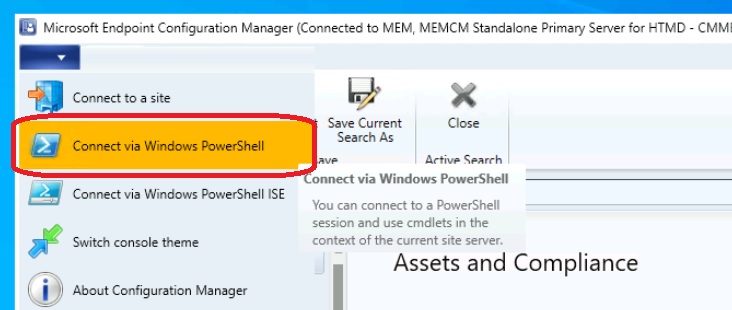
If you get the following warning about the untrusted publisher, Type A, and press Enter.
Do you want to run software from this untrusted publisher? File \Program Files\Microsoft Configuration Manager\AdminConsole\bin\Microsoft.ConfigurationManagement.PowerShell.Types.ps1xml is published by CN=Microsoft Corporation, O=Microsoft Corporation, L=Redmond, S=Washington, C=US and is not trusted on your system. Only run scripts from trusted publishers. [V] Never run [D] Do not run [R] Run once [A] Always run [?] Help (default is “D”): A
Use this Copy-CMCollection cmdlet to clone an existing collection to a new copy, This command exports the collection named HTMD Co-Managed Devices to a new collection named Co-Managed Devices Testing.
Note – You can also specify the Collection ID of a collection to copy.
Copy-CMCollection -Name "HTMD Co-Managed Devices" -NewName "Co-Managed Devices Testing"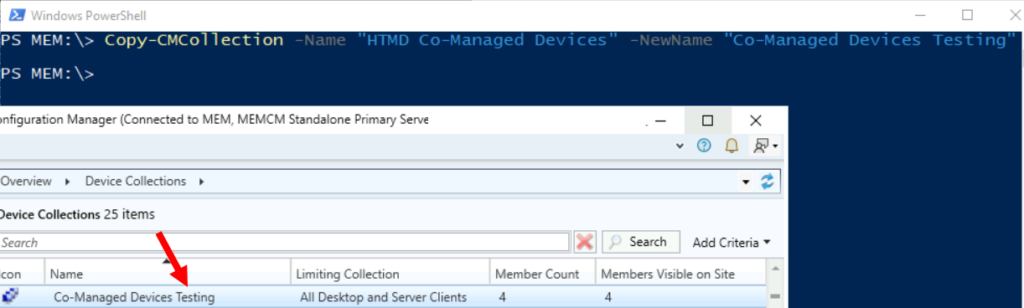
- Copy-CMCollection
- -Name <String>: Specify the name of a collection to copy.
- -Id <String>: Specify the ID of a collection to copy. This value is the CollectionID property.
- [-NewName ]: Specify the name of the new collection.




Discussion