






Enable or Disable Favorites Bar Policy in MS Edge Browser using M365 Admin Center
Today, I will explore the Enable or Disable Favorites Bar Policy in MS Edge Browser using M365 Admin Center. Edge policies enable administrators to control browser behavior on computers and within organizations. Using tools like Local Group Policy Editor or Microsoft Intune, these policies manage Edge’s UI, security, and extensions.
A key feature in the Edge Browser, the Favorites Bar allows for quick access to frequently visited websites, enhancing everyday workflow efficiency. The Favorites or Bookmarks Bar is a horizontal toolbar in web browsers that provides quick, one-click access to saved websites.
In MS Edge Browser, Favorites Bar Policy controls the visibility of the Favorites Bar in the browser. Enabling the policy forces the Favorites Bar to be displayed, ensuring users have quick access to their saved websites. Disabling it completely hides the Favorites Bar, preventing users from seeing or using it.
If the policy is left unconfigured, users retain the flexibility to choose whether or not to display the Favorites Bar according to their personal preferences. Through this blog post, I will explain how to enable Favorites Bar Policy in MS Edge Browser using M365 Admin Center.

Table of Contents
What are the Windows Registry Settings of the FavoritesBarEnabled Policy?
The Windows Registry is a core component of the Windows operating system. It functions as a central, organized database that stores configuration settings. The Windows Registry Settings of the Favorites Bar Enabled Policy are given below.
> MandatoryPath: SOFTWARE\Policies\Microsoft\Edge
> Recommended Path: SOFTWARE\Policies\Microsoft\Edge\Recommended
> Value Name: FavoritesBarEnabled
> Value Type: REG_DWORD
Enable or Disable Favorites Bar Policy in MS Edge Browser
While Microsoft Edge and Internet Explorer call it the Favorites Bar, other browsers like Chrome and Firefox use Bookmarks Bar for the same functionality. Instead of typing lengthy URLs or searching, users can save their preferred sites to this toolbar and access them with a single click, streamlining their online experience.
We have discussed the functionality of the Microsoft Edge Favorites Bar, which allows users to store favorite webpages and folders for quick access. Now, we will explore how to configure the Favorites Bar policy within the MS Edge browser using the Microsoft 365 Admin Center via Microsoft Intune.
- Sign in to the Microsoft 365 admin center.
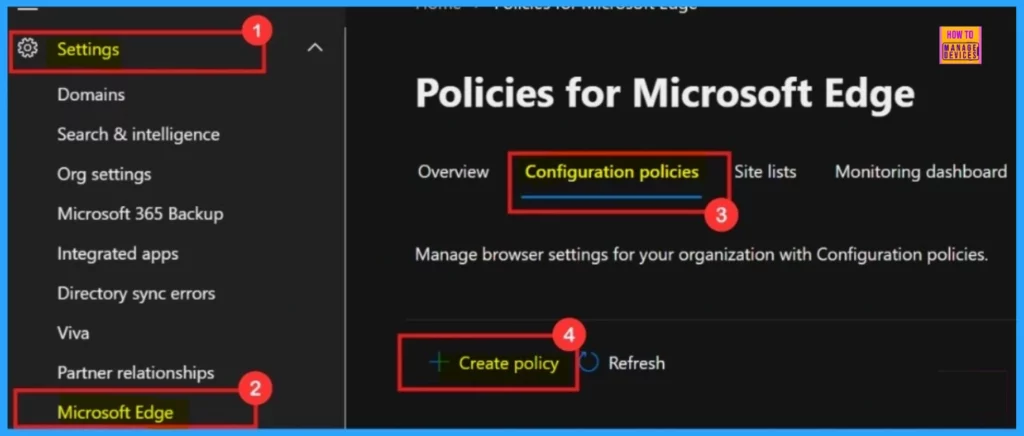
- Navigate through the settings > Microsoft Edge > Configuration Policies > Create Policy.
- Troubleshooting Steps to Restore the Missing Microsoft Edge Browser Toolbar
- Configuration Profile for Edge Browser Extensions and Sidebar Management using Microsoft 365 Admin Center
- How To Configure Microsoft Edge Favorites Using Intune Configuration Profile Step By Step Guide
Basics
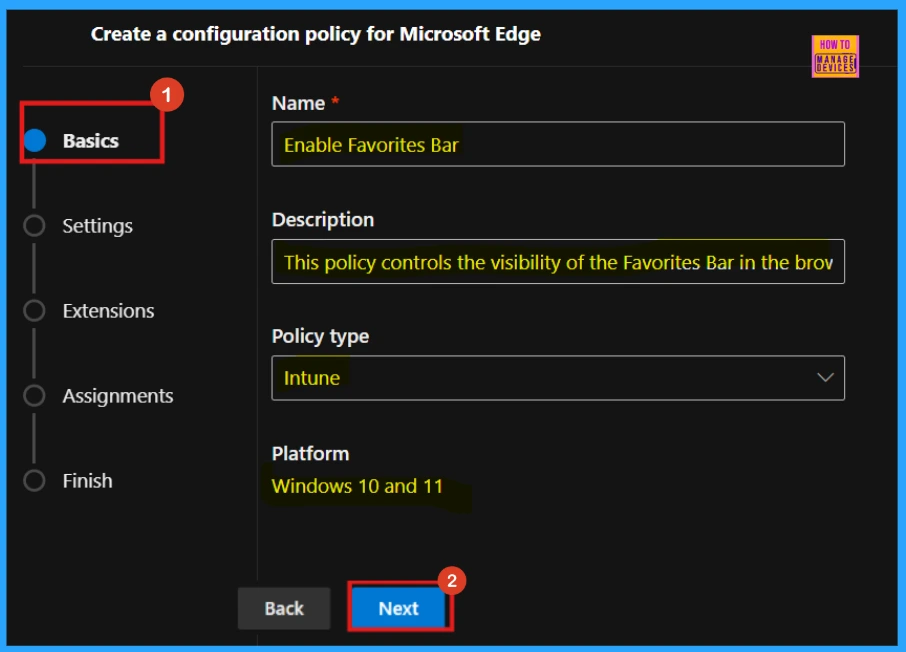
The first step in creating a new policy is the Basics section, where you must provide the Name, Description, Platform, and policy type before proceeding to the next stage by clicking Next.
| Policy Name | Description | Policy Type | Platform |
|---|---|---|---|
| Enable Favorites Bar | Favorites Bar Policy controls the visibility of the Favorites Bar in the browser. | Intune | Windows 10 and 11 |
Settings
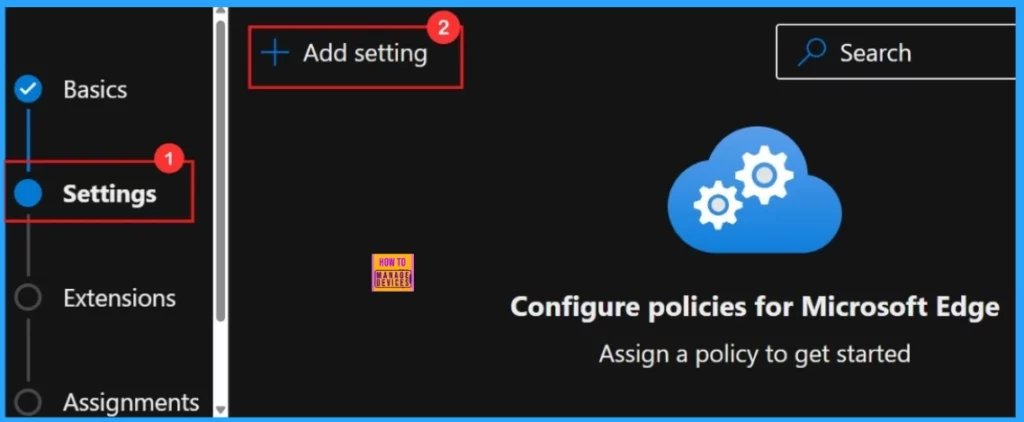
Next, you’ll arrive at the Settings page, where you’ll find the + Add settings option. Clicking this allows you to select the specific settings you wish to configure.
Configure a Setting
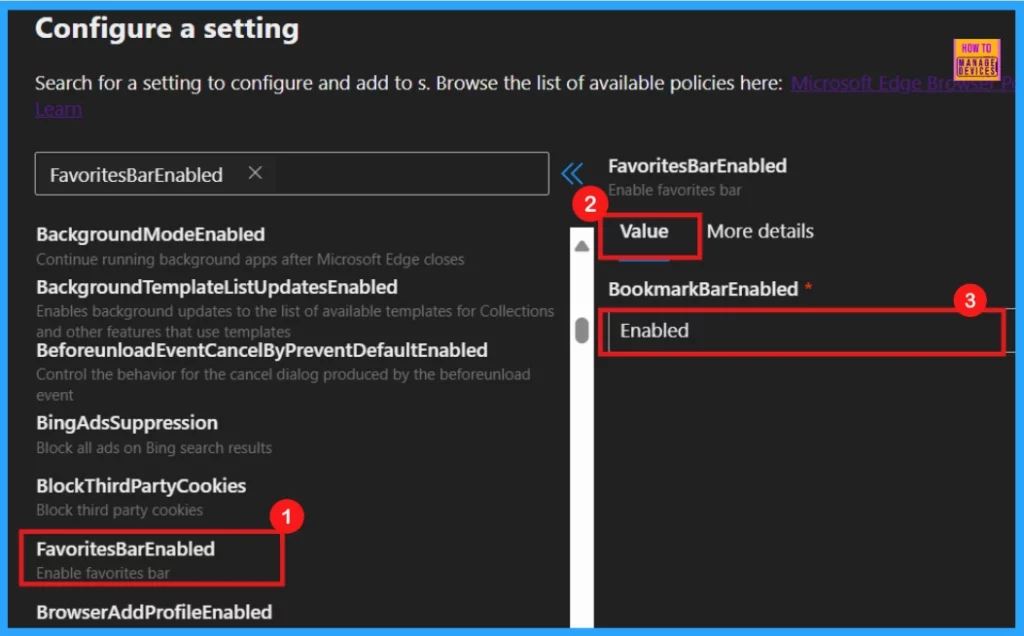
To configure a specific policy setting, use the search function within the Additional Settings section. After locating the desired policy, clicking on it will open a right-hand pane. This pane displays the Value and More Details options, both of which are crucial for proper policy configuration.
Value
When you select the policy name, a Value tab appears, allowing you to define the policy’s state. Within this tab, you can choose to Enable, Disable or specific feature options via a dropdown arrow. For our current aim, which is to activate a feature, we’ll select Enabled. Equally, if the goal were to deactivate the feature, we would choose Disabled.
- Here, my policy aim to enable the Favorites Bar, so I choose to Enabled option from the drowpdown arrow.
More Details
The More Details section offers a detailed view of the selected policy configurations. It explains their specific functions. After a thorough check of the more value section, click Select to update.
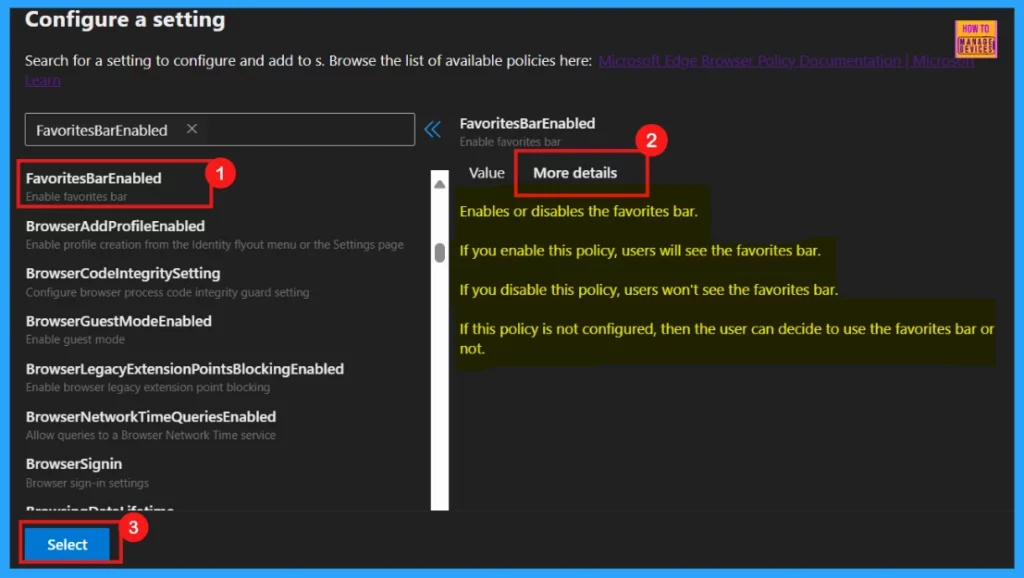
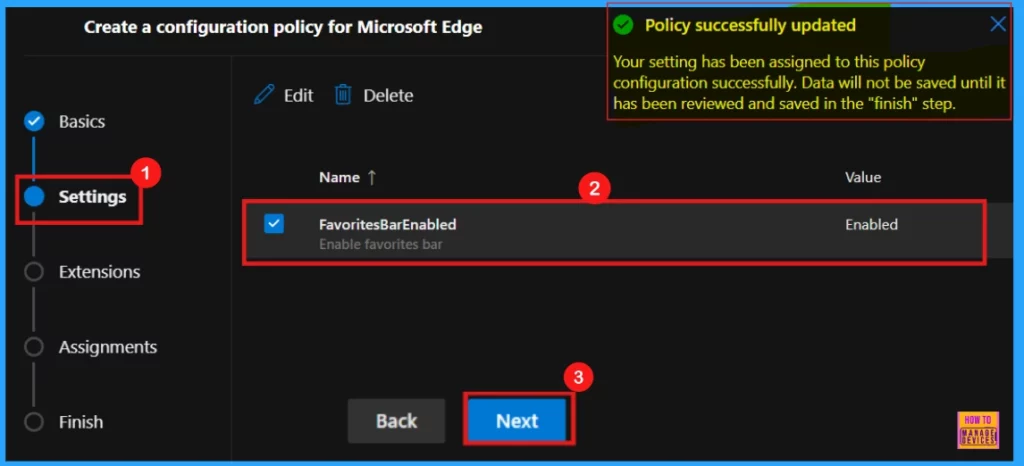
After clicking Select, a confirmation notification will appear indicating that the Policy has been successfully updated. In the next window, verify the policy name and value, select the policy by checking the box. Click Next to continue.
Extensions
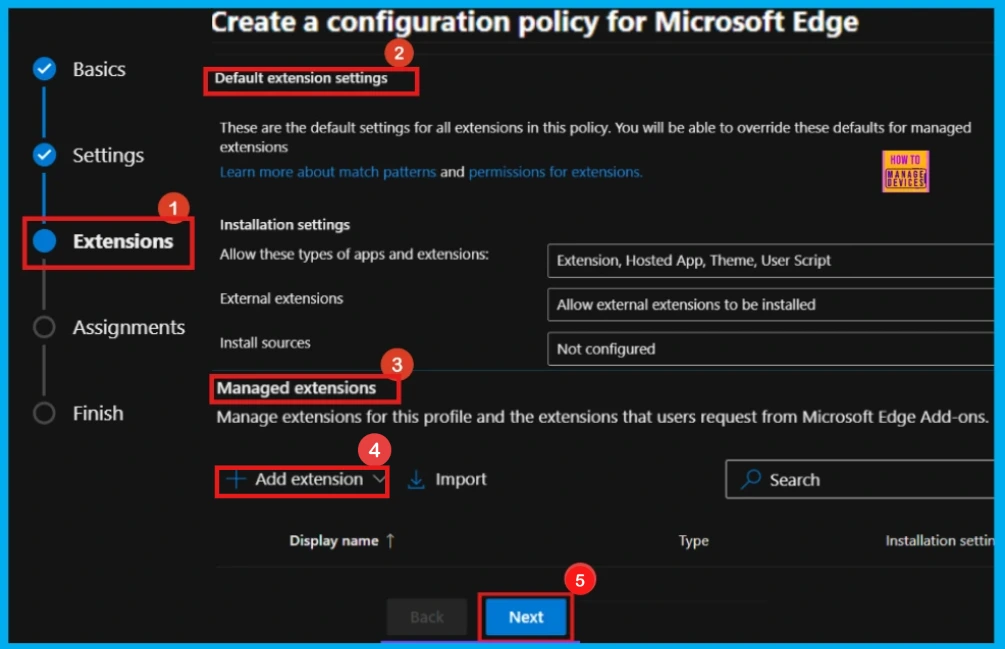
The Extensions section allows you to customize your policy by adding extensions. You can configure installation, permissions, and URLs using + Add extension. If no extensions are needed, skip this section and click Next.
Assignments
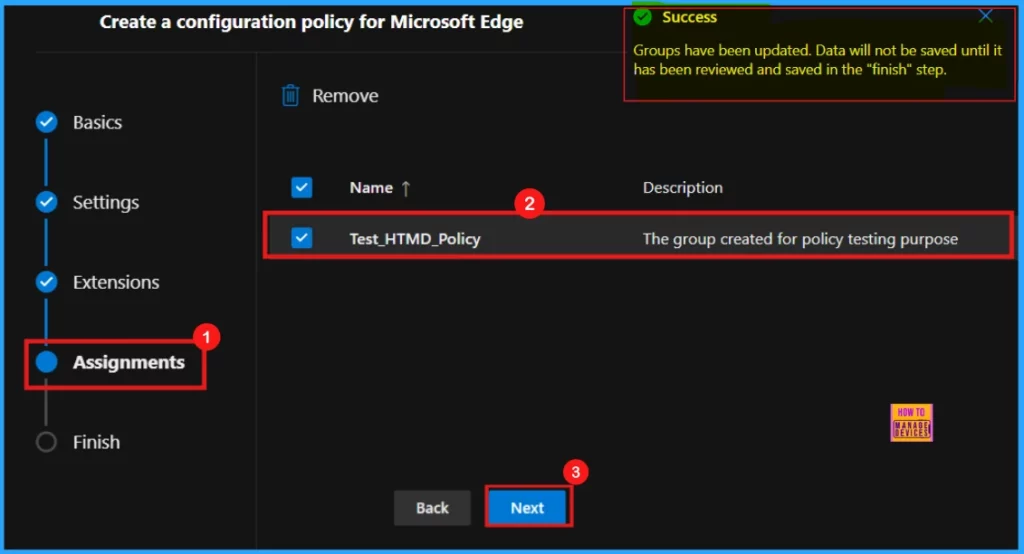
The Assignments section lets you specify which user groups will receive the policy. By clicking Select group, you can choose from available Microsoft Entra groups. Once you’ve selected the desired groups, click Select to move on.
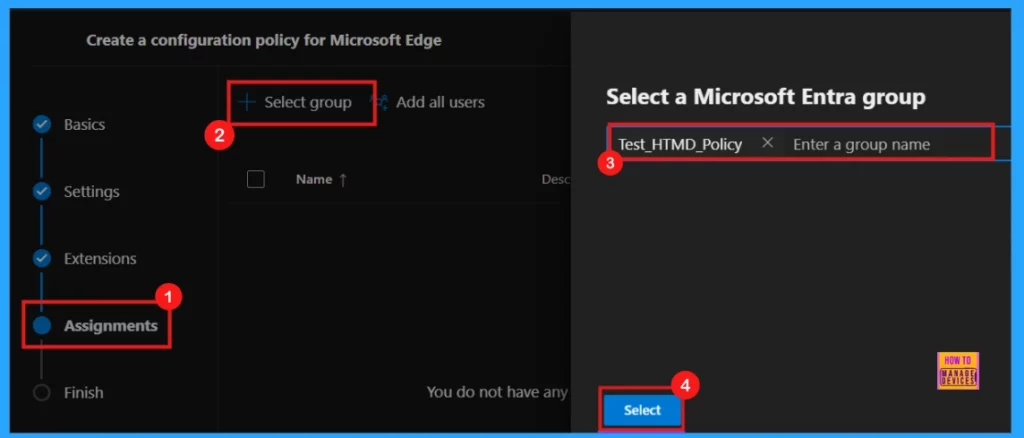
Selection of the Microsoft Entra group generates a confirmation message saying that the Group have been updated. But the data will not be saved until it has been reviewed and saved in the Finish step. In this case, Test_HTMD_Policy was assigned, described as the group created for policy testing purposes.
Finish
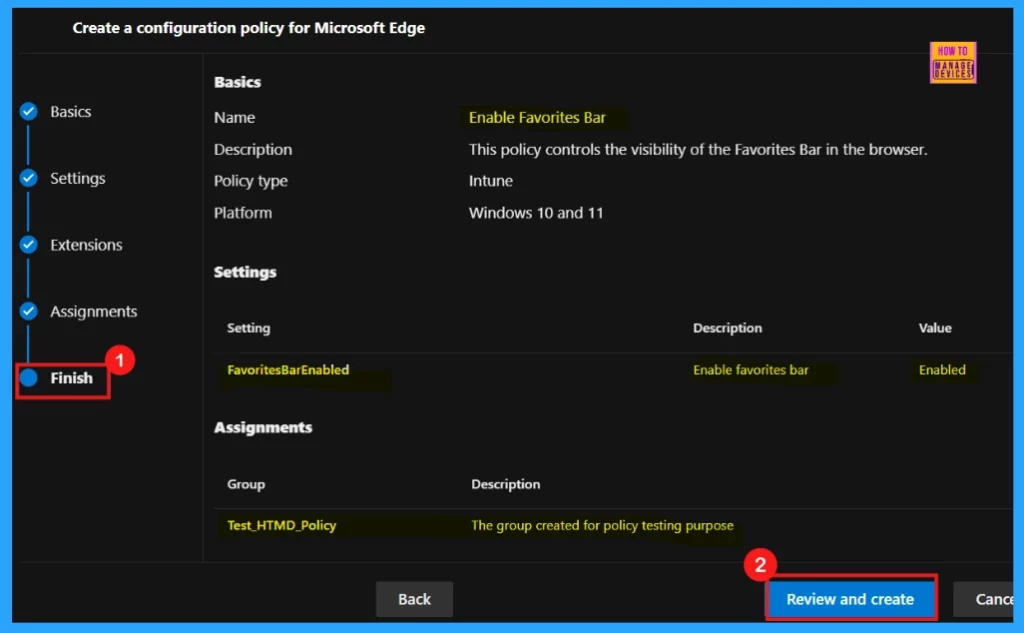
The Finish step provides a final opportunity to review the policy settings. If any changes are required, use the Back option. After verification, click Review and Create to confirm the completion of the process.
Monitoring Status
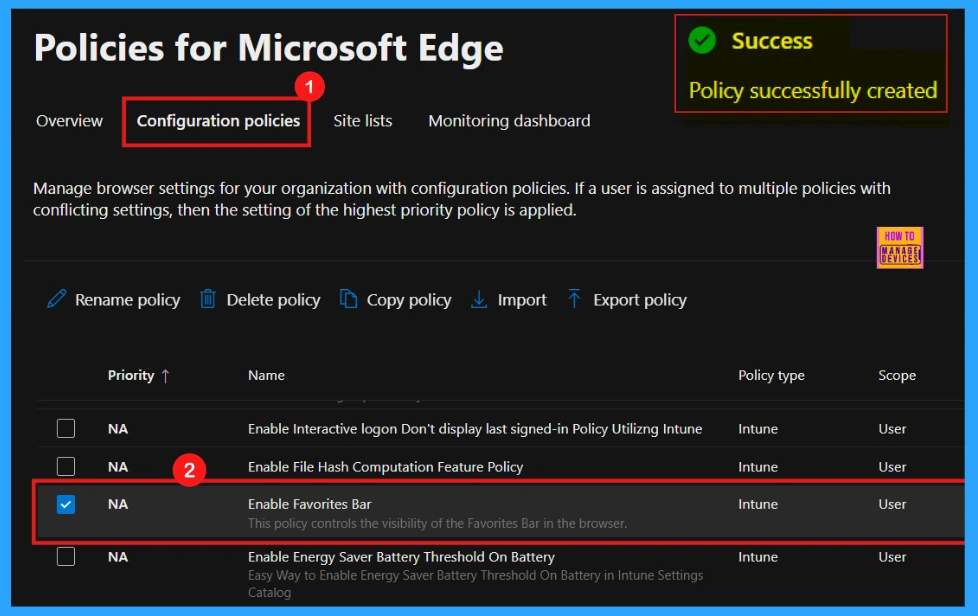
Upon clicking Review and Create, a message will appear confirming that the Policy has been successfully created. After creating a new policy, it won’t automatically apply to devices. You must initiate a manual sync through the Company Portal.
Once the devices have synchronized, the policy will appear on the Policies for Microsoft Edge page, which can be accessed by navigating to Settings > Microsoft Edge > Configuration Policies and searching for the policy name.
Device and User Check-in Status
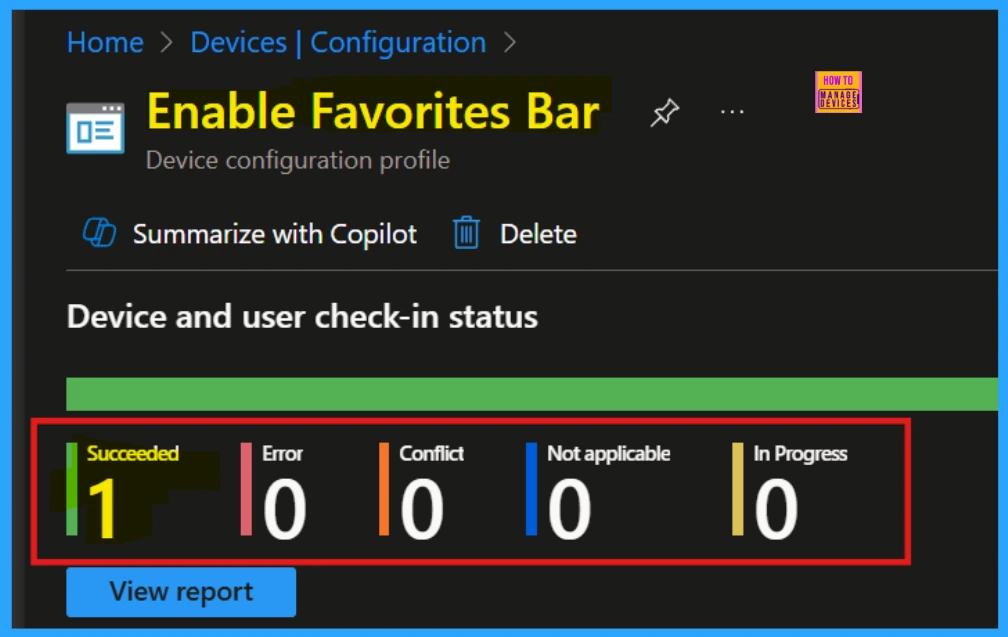
After a manual Company Portal sync, confirm policy deployment in the Intune Portal. Navigate to Devices > Configuration, locate the policy on the Policies tab, and ensure its status is succeeded to verify successful implementation.
Client Side Verification through Event Viewer
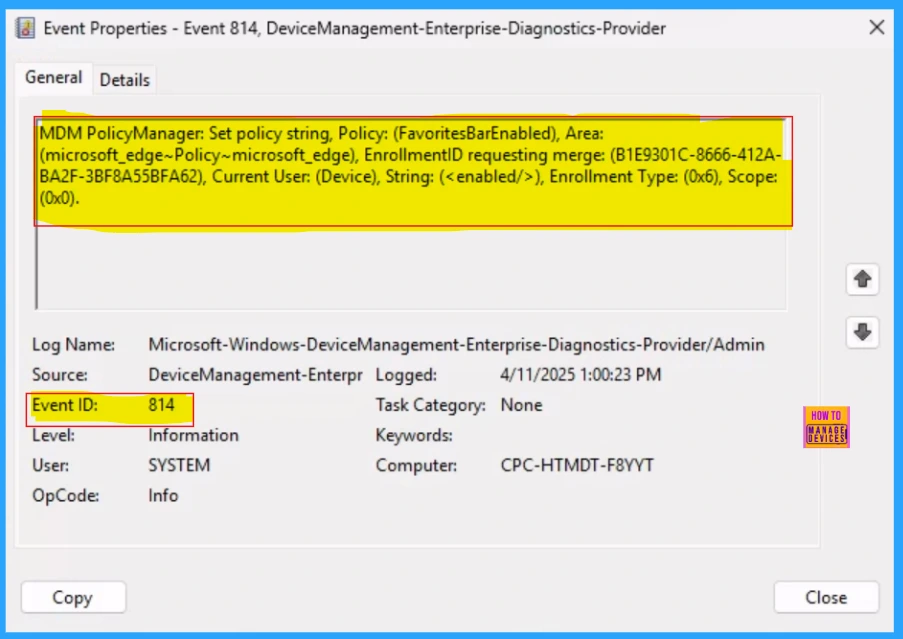
Client-side verification allows for real-time policy compliance monitoring via the Event Viewer. It gives users direct visibility and reduces server dependency. The following screenshot shows the client-side verification details of the Favorites Bar Enabled policy.
MDM PolicyManager: Set policy int, Policy: (FavoritesBarEnabled), Area:(microsoft_edge~Policymicrosoft_edge), EnrollmentiD requesting merge: (B1E9301C-8666-412A-BA2F-3BF8A55BFA62), Current
User: (Device), String:(<enabled>/>), Enrollment Type: (0x6), Scope: (0x0).
- Start by typing Event Viewer in the Start menu of your test device.
- Then, navigate to Application and Services Logs > Microsoft > Windows > DeviceManagement–Enterprise–Diagnostics–Provider > Admin.
End User Experience
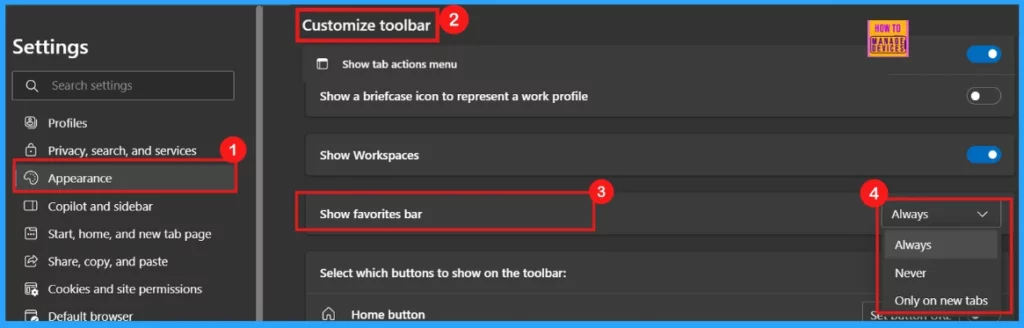
Confirm the successful application of the Favorites Bar enabled policy by opening Microsoft Edge. Then, access Edge’s settings by clicking the three-dot menu (…) in the upper-right corner of the browser window, and selecting Settings from the dropdown menu.
- Click on Appearance
- Scroll down to Customize toolbar from the right pane.
- Find Favorites Bar
- Under the Show favorites bar, you can see that the Always option is selected.
Need Further Assistance or Have Technical Questions?
Join the LinkedIn Page and Telegram group to get the latest step-by-step guides and news updates. Join our Meetup Page to participate in User group meetings. Also, Join the WhatsApp Community to get the latest news on Microsoft Technologies. We are there on Reddit as well.
Author
Anoop C Nair has been Microsoft MVP for 10 consecutive years from 2015 onwards. He is a Workplace Solution Architect with more than 22+ years of experience in Workplace technologies. He is a Blogger, Speaker, and Local User Group Community leader. His primary focus is on Device Management technologies like SCCM and Intune. He writes about technologies like Intune, SCCM, Windows, Cloud PC, Windows, Entra, Microsoft Security, Career, etc.




Discussion