






Different Ways to Find CPU or Processor Specs in Windows 11
Let’s discuss Different Ways to Find CPU or Processor Specs in Windows 11. You all know what a CPU or Processor in a PC is. CPU (Central Processor Unit) or processor is known as the brain of the Computer. It can also be called a Central processor or main processor.
We know the importance of the brain, so the CPU is the most important factor in a computer system. The computer is the fastest device that helps retrieve information with versatility and reliability. How it is possible?
The CPU is an electronic circuitry that executes computer program instructions, such as arithmetic, logic, controlling, and input/output operations. In different computer generations, the implementation of the processor has changed, and its fundamental operation is the same. In the present generation, a multi-core processor is available.
Different types of processors are available now, so finding the processor specs is significant. Processor specifications define a Computer system’s performance. This blog post helps you learn more about Processor specs and different methods for finding them.

- 5 Methods for Finding Memory Size Speed and Type in Windows 11
- How to Change Mouse Pointer Speed in Windows 11
What is a Multi-Core Processor?
1. It helps to operate at a lower frequency
2. It only consumes less power
3. It completes work much faster by running tasks in parallel
4. It provides better hardware performance
Different Ways to Find CPU or Processor Specs in Windows 11
I already mentioned that there are different types of processors available. Each processor has different specifications. If you want more storage space in your computer device, you should purchase a device according to the storage space. Primary storage is the main specification of a processor.
An end user always looks at a PC’s performance, so knowing processor specifications is very important. Processor specifications define storage space, speed, and other factors. To improve device performance, you should see the processor specs. The following are the different ways to find processor specs for Windows 11.
| Different Ways to Find CPU or Processor Specs in Windows 11 |
|---|
| Find CPU/Processor Specs in Settings |
| Find CPU/Processor Specs Using Task Manager |
| Find CPU/Processor Specs Using System Information |
| Find CPU/Processor Specs Using Device Manager |
| Find CPU/Processor Specs Using PowerShell |
1. Find CPU/Processor Specs in Settings
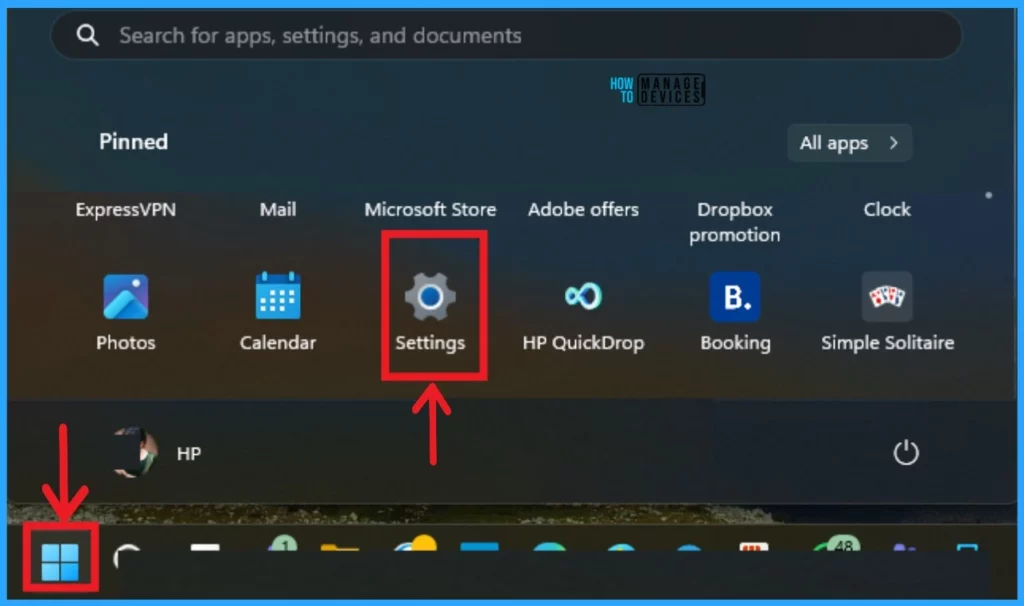
The easiest method is to find CPU/Processor Specs in Settings. You can view the Processor specs in Settings with some simple steps. Select Settings application from the Start Menu.
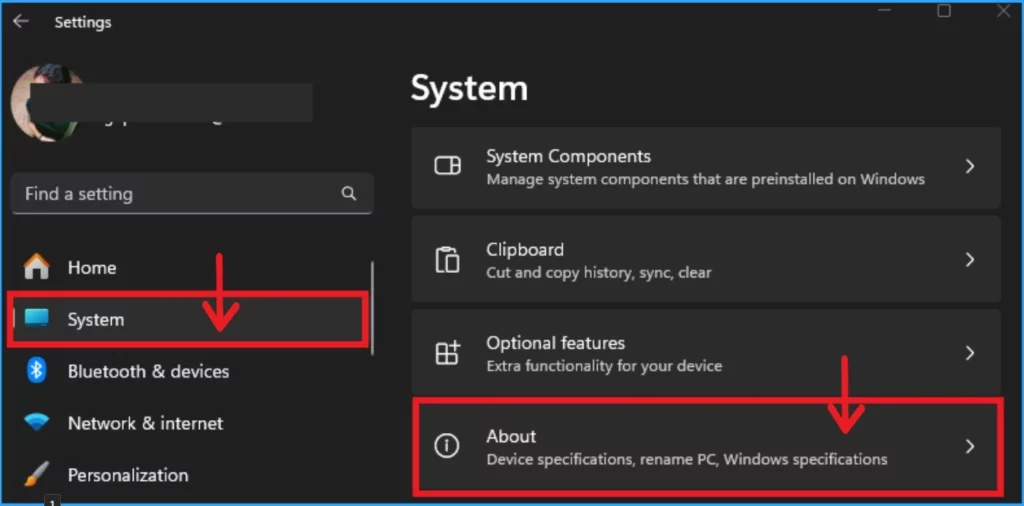
The different settings are displayed on the left side of the Settings application window. Select System Settings and then select the About option.
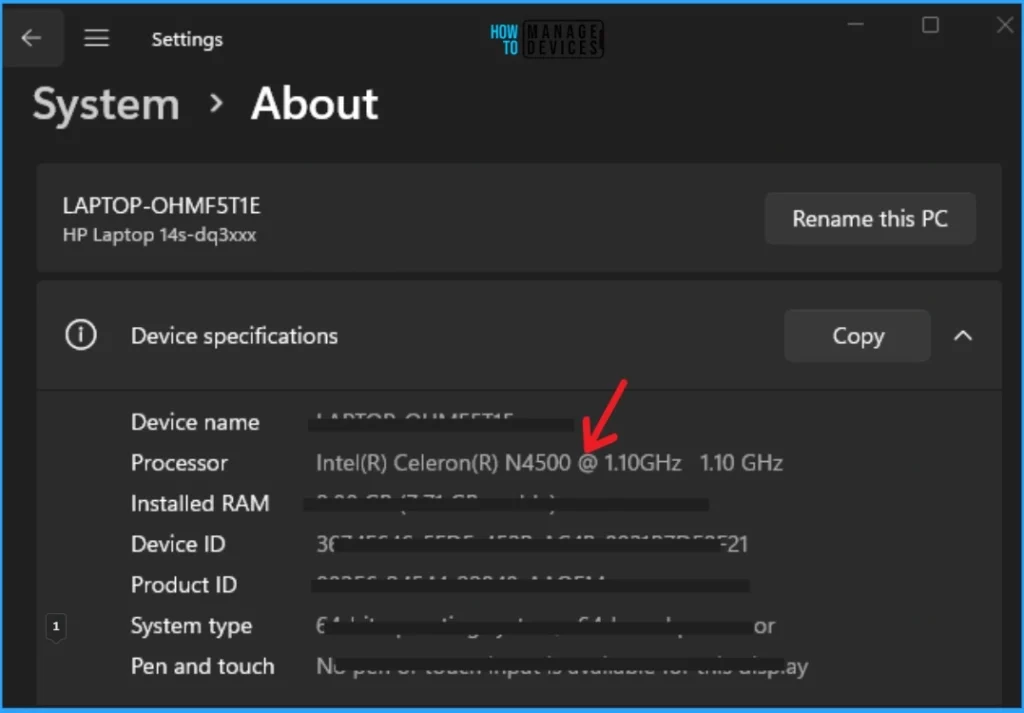
The About options show the Device specifications, rename PC and Windows Specification. In the Device Specification section, you can see the Processor option. It gives the details of your PC’s processor.
2. Find CPU/Processor Specs using Task Manager
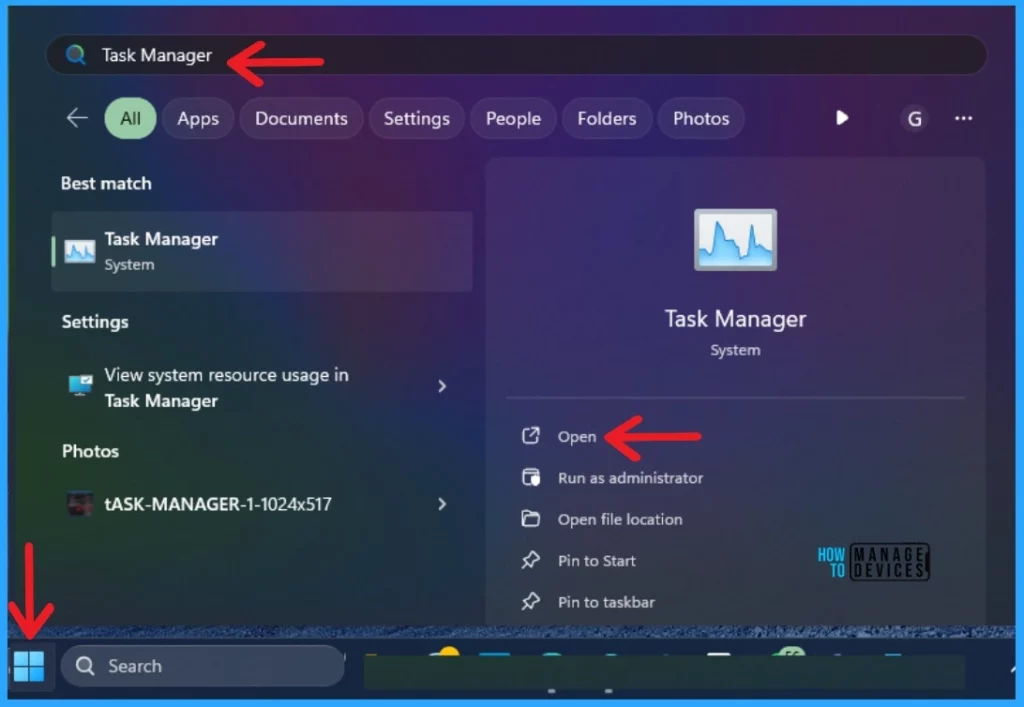
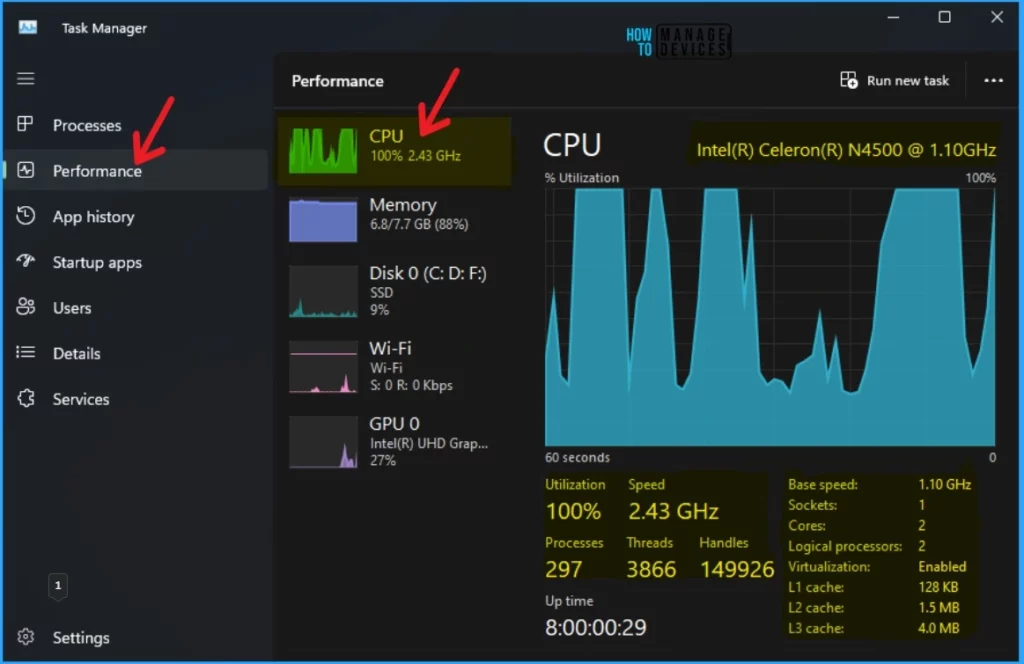
The second method for finding CPU/Processor specs is to use the Task Manager. To do this, click on the Start Menu and search for Task Manager in the search bar. Then, open the Task Manager from this window.
In the Task Manager, the Performace feature on the left side of the screen shows the different factors affecting the PC’s performance. These include CPU, Memory, Disk, etc. The CPU section has a performance graph and processor specs.
3. Find CPU/Processor Specs using System Information
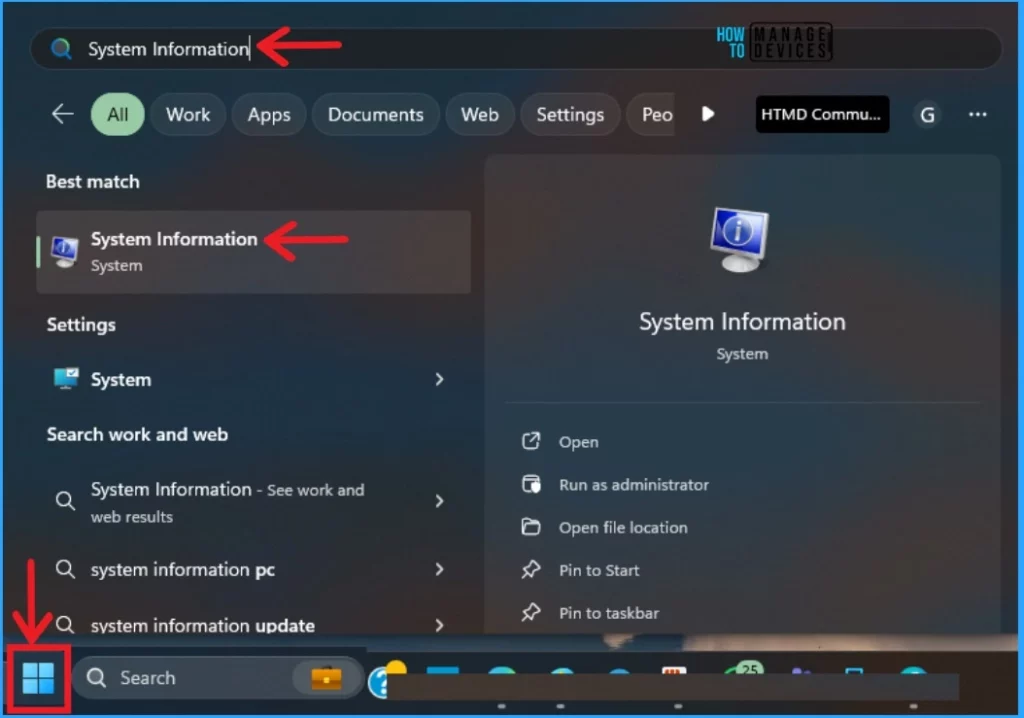
You can easily find the CPU/Processor specs using System Information. System Information is used to find information about your system. Click on the Start Menu and search for System information in the search bar. Then, open the System Information from this window.
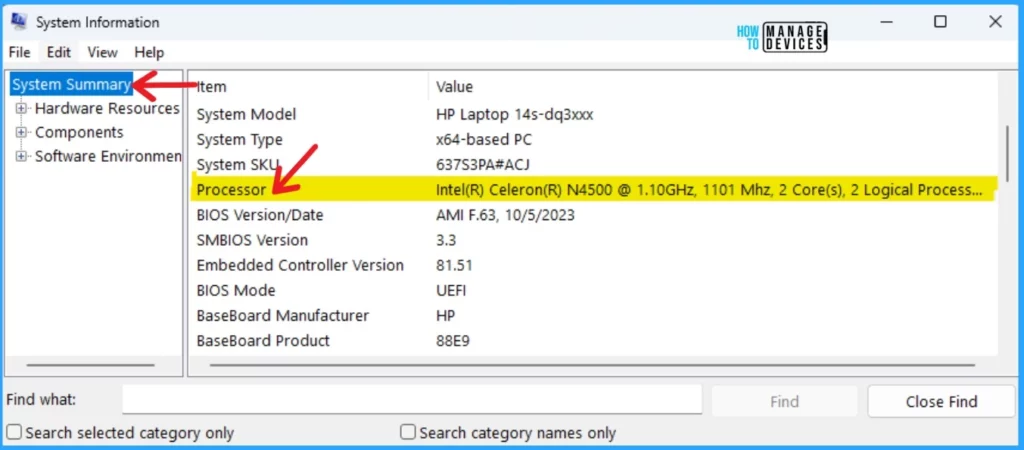
The System Information window has the System Summary option on the left side. When you click on it, the Processor specs appear on the screen.
4. Find CPU/Processor Specs using Device Manager
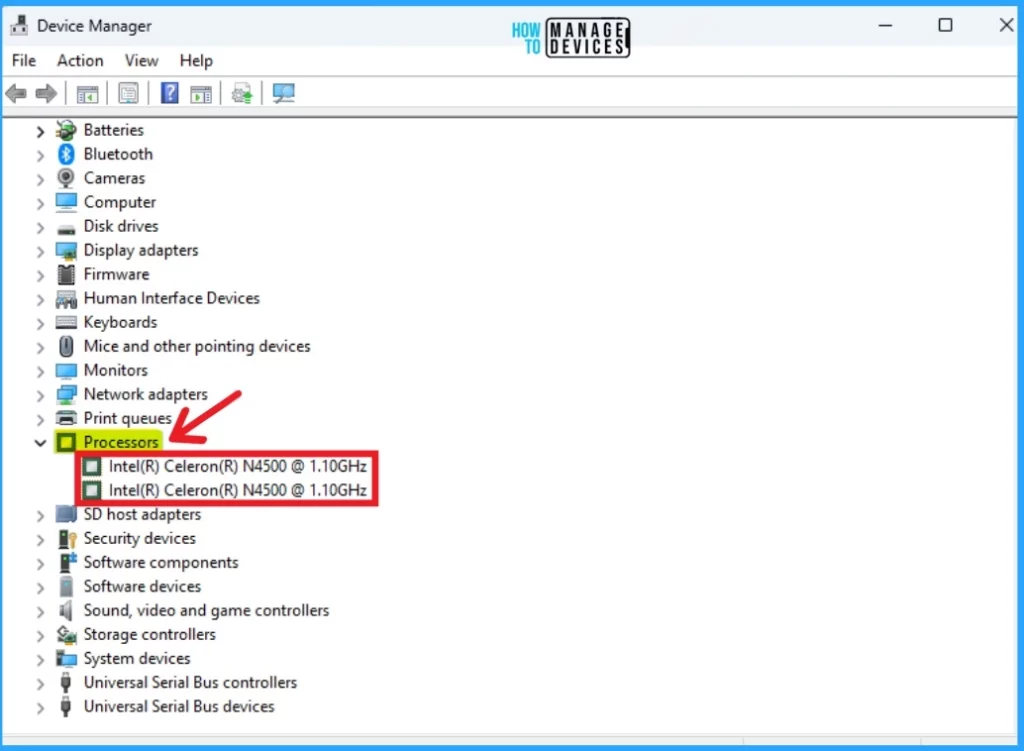
Device Manager also helps to find CPU/Processor specs. Click on the Start Menu and search Device Manager on the search bar. Then open the device manager from this window.
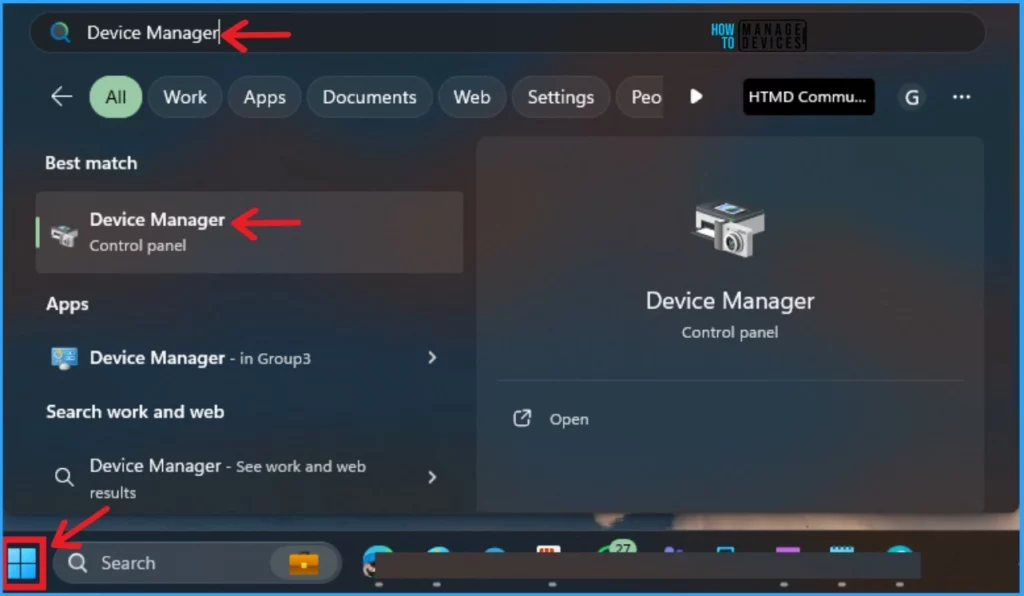
The device manager window shows different features. Click on the Processor option on this screen. You can see the different specs of the Processor on this screen.
- Different Methods for Deleting Files in Windows 11
- Methods for Allow or Disallow Real-time Protection for Microsoft Defender Antivirus in Windows 11
5. Find CPU/Processor Specs using PowerShell
PowerShell also allows you to find CPU/Processor specs on your Windows 11 PC. You can find Processor specs with the command prompt. Click on the Start Menu and search for Windows PowerShell in the search bar, then open it.
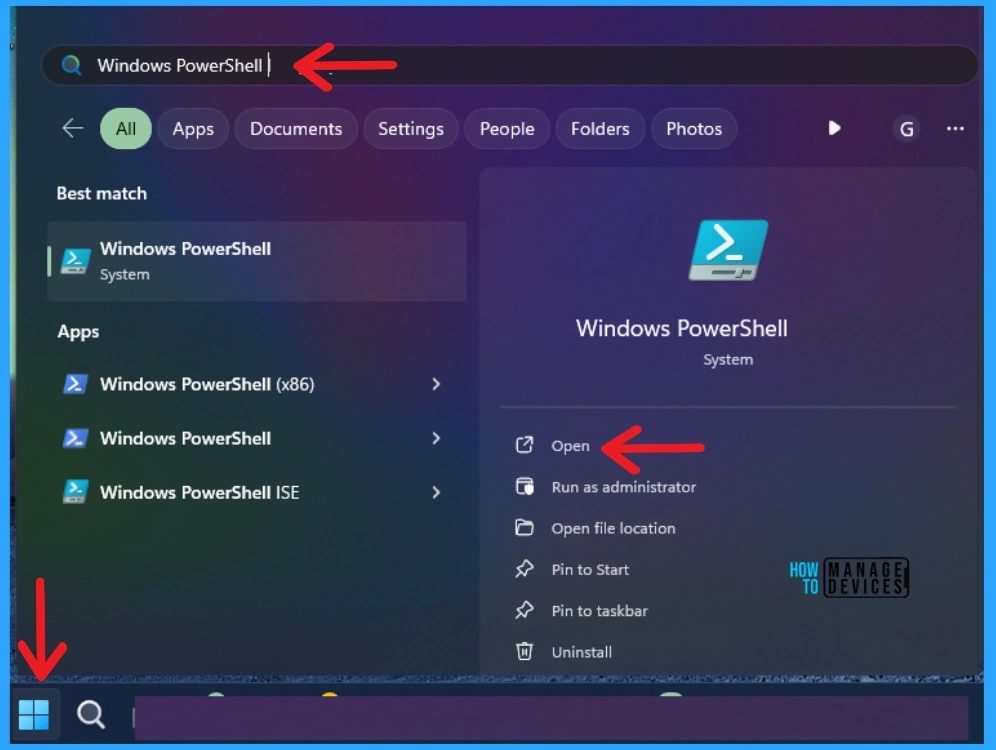
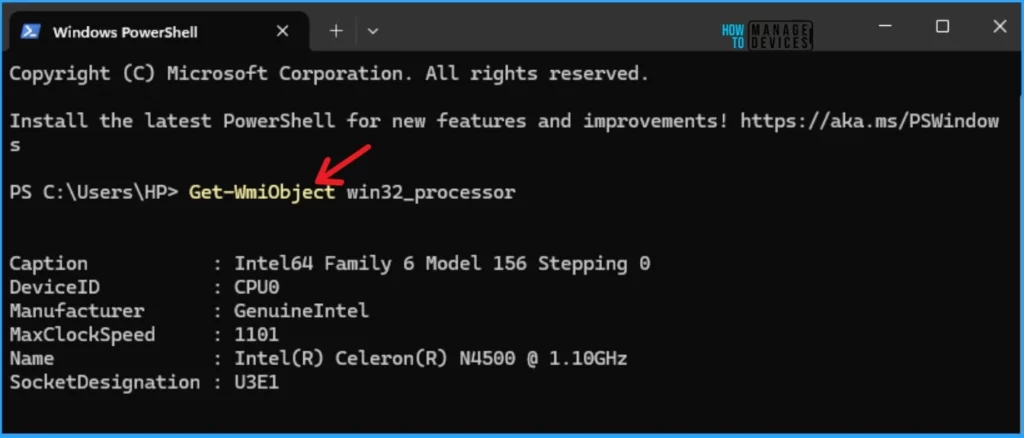
You can quickly find the Processor specs in the PowerShell. The below command helps you find the processor specs on your Windows 11 PC.
Get-WmiObject win32_processor
- How to Save Sound Theme in Windows 11
- Enable Disable Defender SmartScreen for Microsoft Store Apps in Windows 11
We are on WhatsApp. To get the latest step-by-step guides and news updates, Join our Channel. Click here –HTMD WhatsApp.
Author
Gopika S Nair is a computer enthusiast. She loves writing on Windows 11 and related technologies. She is here to share quick tips and tricks with Windows 11 or Windows 10 users. She is Post Graduate Diploma Holder in Computer Science.




Discussion