Skip to content
Find the List of Devices Support Waking Computers in Windows 11

Find the List of Devices Support Waking Computers in Windows 11

Written By Alok Kumar Mishra
Last Updated May 30, 2024
Posted In Windows 11
SHARE

Let’s learn how to find the Devices Support Waking Computers list in Windows 11. When you put your computer to sleep, a device can automatically wake it if it is currently configured (allowed) to wake the system from a sleep state.

Some devices may support waking the system from a sleep state but are not currently configured to do so. Knowing which devices are currently configured to wake the system from any sleep state can be useful if you want to prevent a device from waking the computer.

Then, use powercfg.exe to control power plans (also called power schemes), use the available states, control the power states of individual devices, and analyze the system for common energy efficiency and battery-life problems.

Find the List of Devices Support Waking Computers in Windows 11 - Fig. 1
Find the List of Devices Support Waking Computers in Windows 11 – Fig. 1

How to Find the List of Devices Support Waking Computers

Various commands are available to find the list of devices that support waking computers using the PowerShell or Command Prompt. Now, using the command prompt, let’s find the list of devices supporting waking computers in this article.

Patch My PC

Users can find the list of devices that support waking computers using the command prompt. To do so, press Win Key + R simultaneously to open the run dialogue box, and follow the below steps. The Run window said to type the name of a program, folder, document, or internet resource, and Windows will open it for you.

  • Press Win Key + R
  • Type cmd for the command prompt
  • Press Enter
Find the List of Devices Support Waking Computers in Windows 11 - Fig. 2
Find the List of Devices Support Waking Computers in Windows 11 – Fig. 2

By using the following command, it shows and lists devices that are currently configured to wake the systemm from any sleep state. Just type the following command and press Enter.

powercfg -devicequery wake_armed
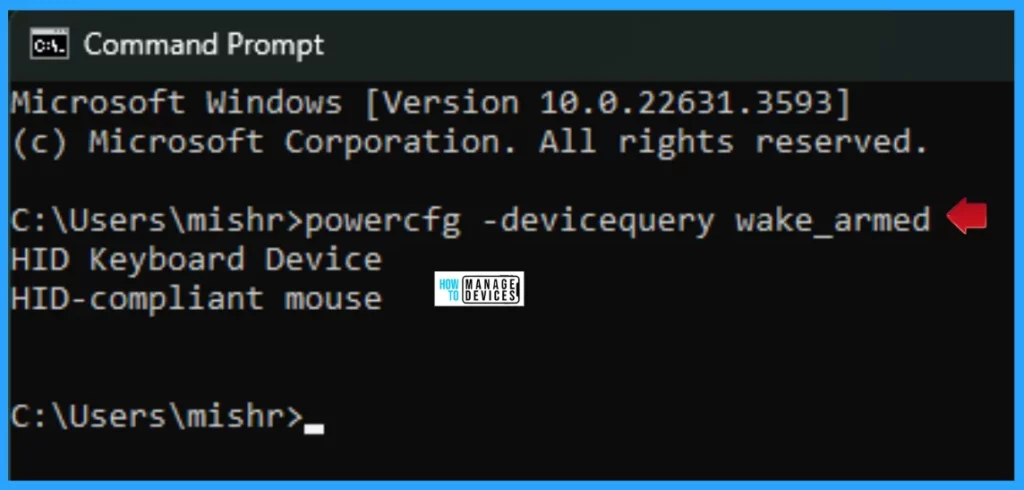
Find the List of Devices Support Waking Computers in Windows 11 - Fig. 3
Find the List of Devices Support Waking Computers in Windows 11 – Fig. 3

The following command shows and lists devices that are user-configurable to wake the system from a sleep state. To use it, type the following command and press Enter.

powercfg -devicequery wake_programmable
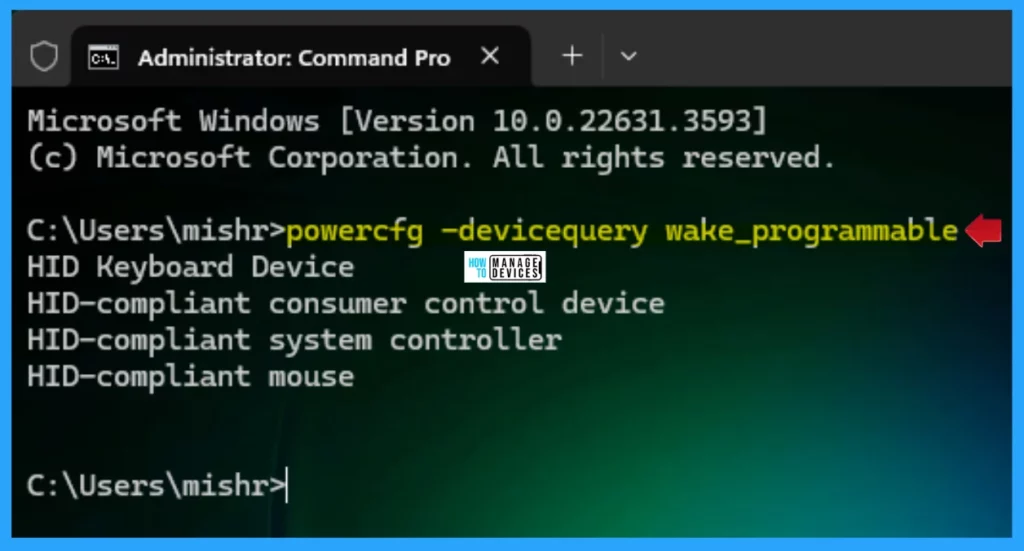
Find the List of Devices Support Waking Computers in Windows 11 - Fig. 4
Find the List of Devices Support Waking Computers in Windows 11 – Fig. 4

The following command shows the returns of all devices that support waking the system from any sleep state. To use it, type the following command and press Enter.   

powercfg -devicequery wake_any
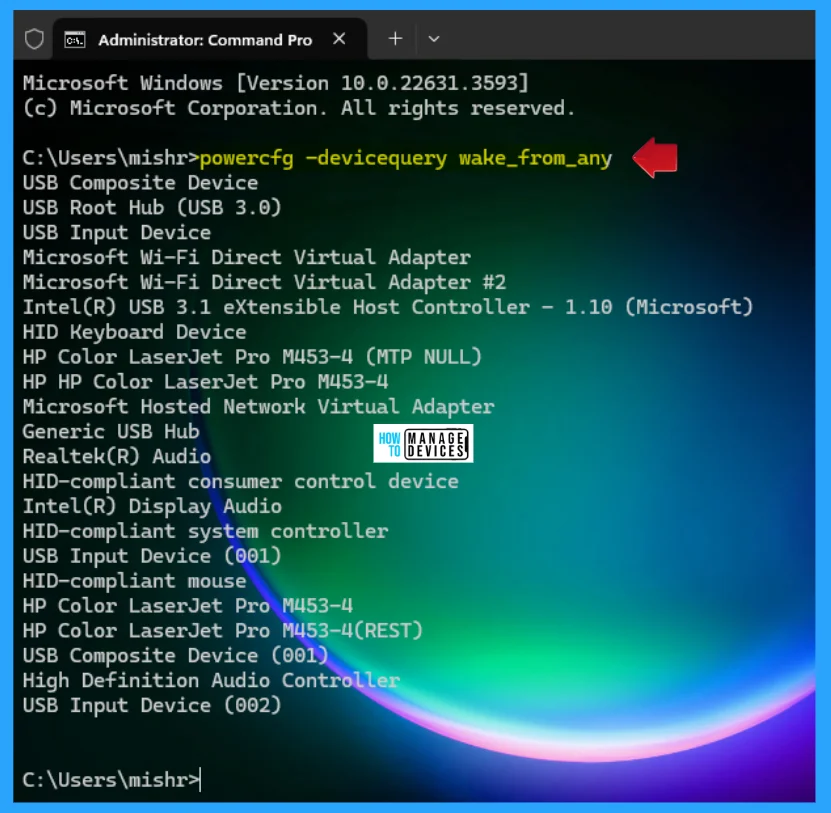
Find the List of Devices Support Waking Computers in Windows 11 - Fig. 5
Find the List of Devices Support Waking Computers in Windows 11 – Fig. 5

The following command shows the returns of all devices that support waking the system from a light sleep state. To use it, type the following command and press Enter.   

powercfg -devicequery wake_from_S1_supported
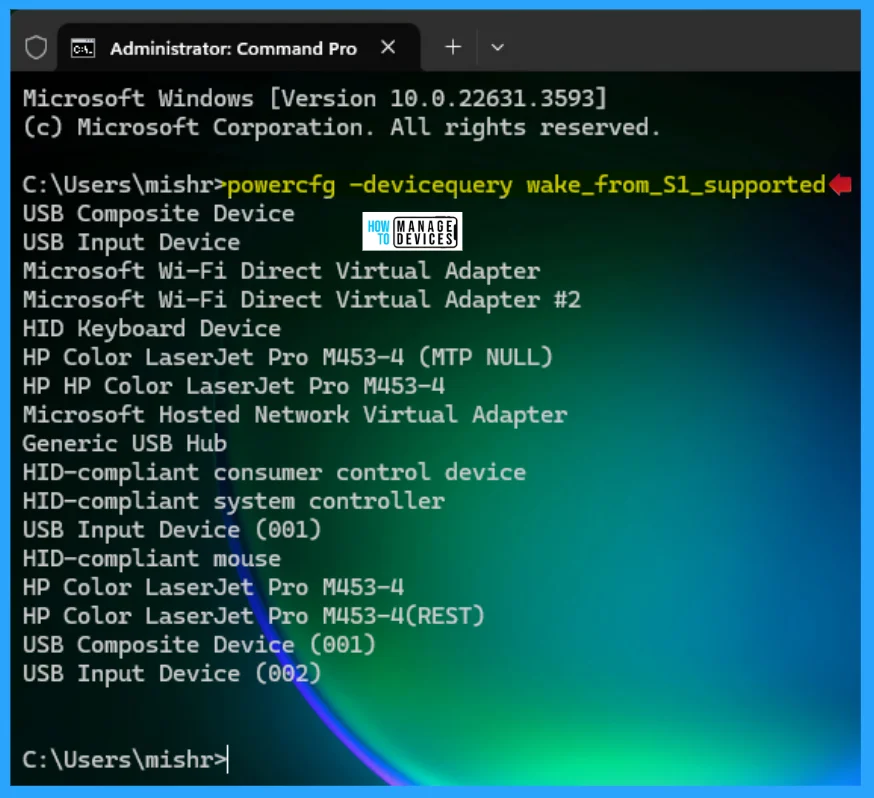
Find the List of Devices Support Waking Computers in Windows 11 - Fig. 6
Find the List of Devices Support Waking Computers in Windows 11 – Fig. 6

The following command shows the returns of all devices that support waking the system from a deeper sleep state. To use it, type the following command and press Enter.   

powercfg -devicequery wake_from_S2_supported
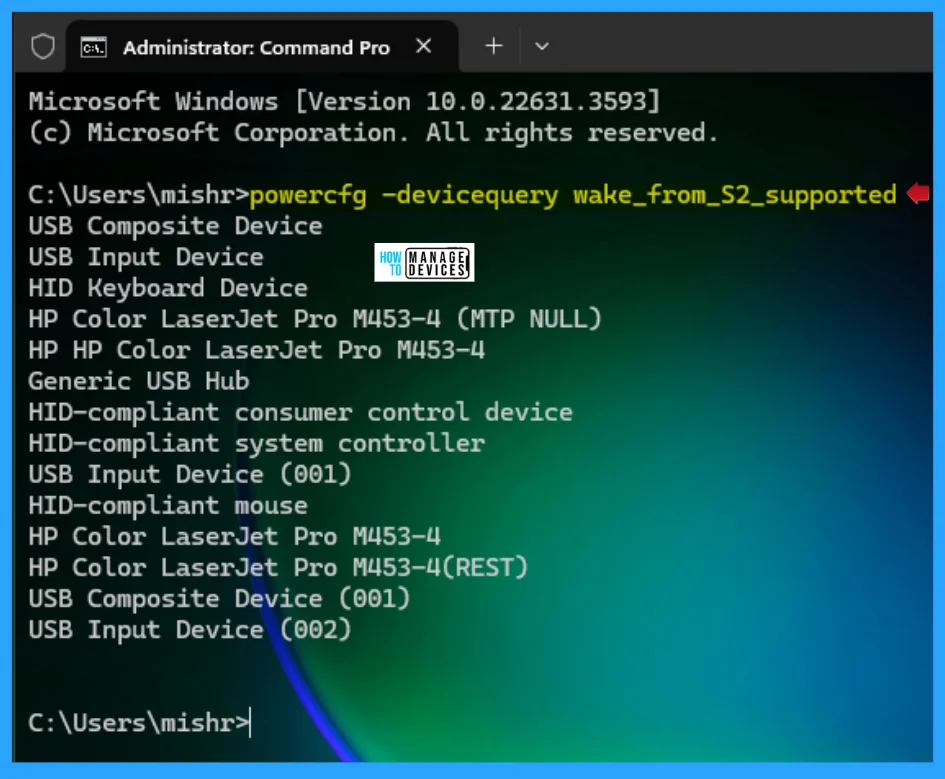
Find the List of Devices Support Waking Computers in Windows 11 - Fig. 7
Find the List of Devices Support Waking Computers in Windows 11 – Fig. 7

The following command shows the returns of all devices that support waking the system from the deepest sleep state. To use it, type the following command and press Enter.   

powercfg -devicequery wake_from_S3_supported
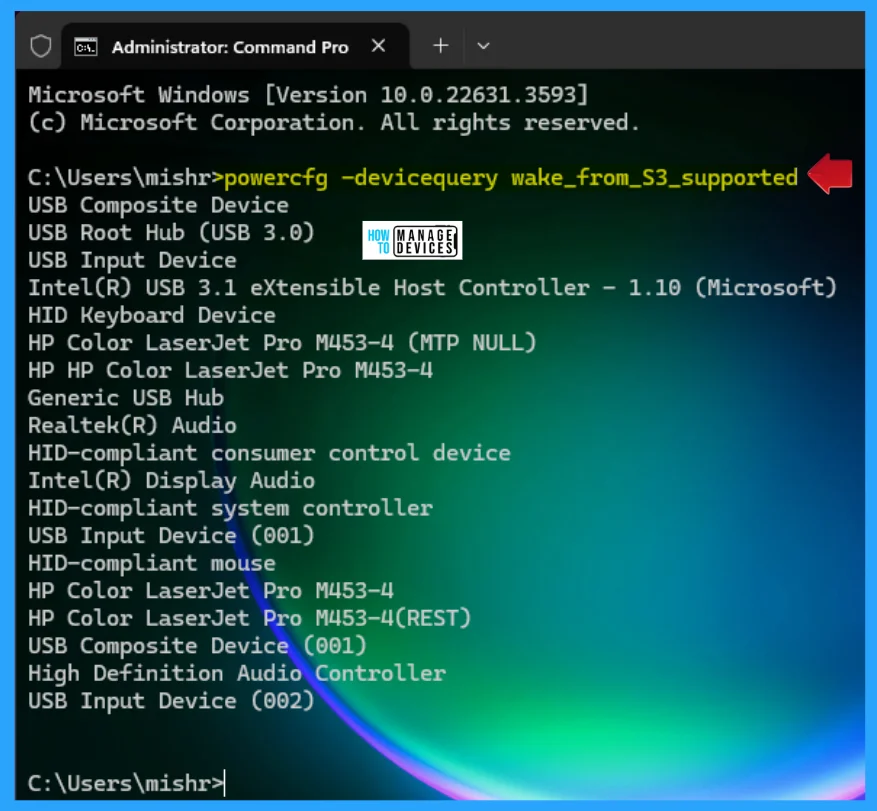
Find the List of Devices Support Waking Computers in Windows 11 - Fig. 8
Find the List of Devices Support Waking Computers in Windows 11 – Fig. 8

I hope the information on Find the List of Devices Support Waking Computers in Windows 11 is helpful. Please follow us on the HTMD Community and visit our website, HTMD Forum, if you like our content. Suggest improvements, if any, and we would love to know which topic you want us to explore next.

We are on WhatsApp. To get the latest step-by-step guides and news updates, Join our Channel. Click here – HTMD WhatsApp.

Author

Alok is a Master of Computer Applications (MCA) graduate. He loves writing on Windows 11 and related technologies. He likes to share his knowledge, quick tips, and tricks with Windows 11 or Windows 10 with the community.


Written by

Alok is a Master of Computer Applications (MCA) graduate. He loves writing on Windows 11 and related technologies. He likes to share his knowledge, quick tips, and tricks.

Discussion

Join the discussion

Your email address will not be published. Required fields are marked *

Related guides

Security

Microsoft Fixes 570 Security Vulnerabilities and 3 Zero-Day Vulnerabilities in July 2026 Patch Tuesday

Key Takeaways Microsoft Fixes 570 Security Vulnerabilities and 3 Zero-Day Vulnerabilities in July 2026 Patch Tuesday! Microsoft fixed 3 zero-day vulnerabilities as part of the July 2026 Patch Tuesday updates. Two of them, CVE-2026-56164 (Microsoft SharePoint Server Elevation of Privilege) and CVE-2026-56155 (Active Directory Federation Services Elevation of Privilege), were actively exploited before the security […]

AC Anoop C Nair 29 min read
Intune

Windows 11 KB5101650 KB5099414 July 2026 Patch and 3 Zero Day Vulnerabilities and 570 Flaws

Key Takeaways Windows 11 KB5101650 KB5099414 July 2026 Patch and 3 Zero Day Vulnerabilities and 570 Flaws! In the July 2026 Patch, Microsoft introduced new features designed to improve the overall Windows experience. The update adds enhancements to Windows Update for more flexible update management and introduces Point-in-Time Restore, providing an additional recovery option for […]

AC Anoop C Nair 9 min read
Windows 11

Boost Productivity with Zoom Workplace on Windows 11 | Setup Guide for Meetings Chat Calls and Collaboration

Key Takeaways Hey, let’s learn about Boost Productivity with Zoom Workplace on Windows 11 | Setup Guide for Meetings Chat Calls and Collaboration. Zoom workplace is an AI-powered collaboration app used for online meetings, team collaboration, and video calls. This application helps to conduct meetings Including chat and messaging, screen sharing and Calendar Integration. Boost […]

AC Anoop C Nair 35 min read
Windows 11

13 Windows AI Features to Turn Off for Better Privacy

Key takeaways Hey, let’s discuss about 13 Windows AI features to turn off for better privacy. AI is widely used in modern systems such as Windows 11 to automate tasks, improve productivity, and enhance user experience. However, AI also has several disadvantages. It may raise privacy concerns because personal data can be collected and analysed […]

AC Anoop C Nair 15 min read