






Fix SCCM Client-Side Patching or Software Updates Issues Troubleshooting Tips
This post shows how to Fix SCCM Client-Side Patching or Software Update Issues and provides Troubleshooting Tips. Let’s go through ConfigMgr Software update troubleshooting Tips and fix Installation Issues and backend Processes via the Update Deployment Agent component (UpdateDeployment.log).
I tried to give you an overview of the SCCM patching process using the Update Deployment Agent component. ConfigMgr also provides a solution for patching third-party applications. Software updates in SCCM provide a set of tools and resources, along with WSUS, that can help manage the task of installing Microsoft patches on Windows 10 devices.
The main topic I will cover is the Servicing Stack Update (SSU) software update deployment mechanism for Windows 10. You can look into other ConfigMgr logs to see a similar flow for each feature.
Before using the software update feature from ConfigMgr, you need to configure the Software Update Point (SUP) and infra setup.

Table of Contents
Troubleshoot SCCM Patching
In this post, I assume you know how to configure and deploy software updates to Windows 10 devices. You can learn more about this here -> How to Create Deploy New Software Update Patch Package Using SCCM | ConfigMgr
- I have deployed the following software updates to a Windows 10 device, and now the client is trying to install them.
- Going through UpdateDeployment.log will help you understand the background process and troubleshoot SCCM patching-related issues.
- Best SCCM Patching Software Update Deployment Process Guide
- Fix ConfigMgr Client Notifications Issue | SCCM 2010 Hotfix | Configuration Manager
- FIX SCCM Client Issues Using Automation Client Health
Troubleshooting Flow to Fix SCCM Client-Side Patching or Software Updates Issues
You must check the flows from the SCCM client side to Fix SCCM Client-Side Patching or Software Update Issues.
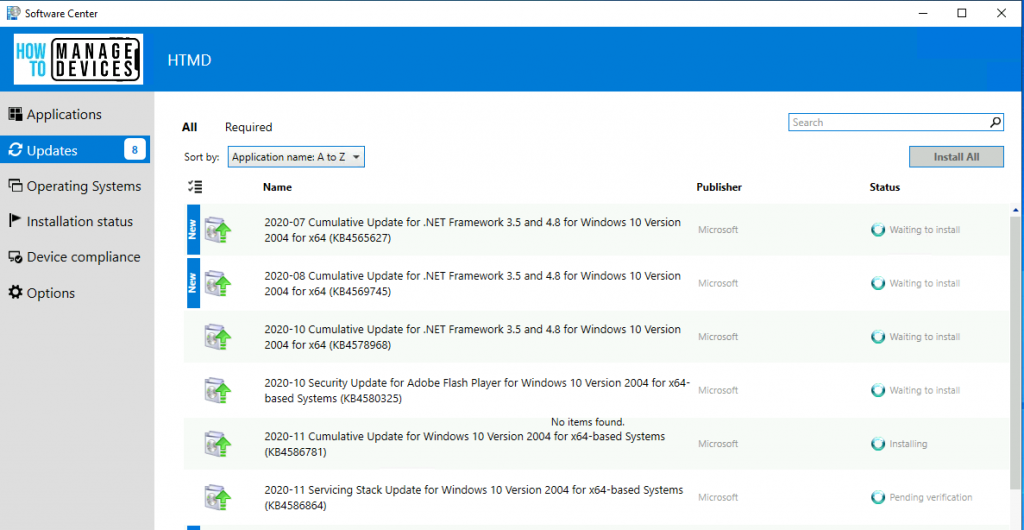
- UpdateStore.log to know the status of the updates.
- Updatedeployment.log – % of Download completed? Status = ciStateInstalling, PercentComplete = 16,
- Added to the targeted list of deployment
- Progress: Status = ciStateDownloading, PercentComplete = 0, Result = 0x0
- Progress: Status = ciStateWaitInstall, PercentComplete = 0, DownloadSize = 0, Result = 0x0
- Progress: Status = ciStateInstalling, PercentComplete = 89, DownloadSize = 0, Result = 0x0
- Progress: Status = CiStateInstalling, PercentComplete = 100, DownloadSize = 0, Result = 0x0
- Progress: Status = ciStatePendingSoftReboot, PercentComplete = 0, DownloadSize = 0, Result = 0x0
- Progress: Status = ciStateInstallComplete, PercentComplete = 0, DownloadSize = 0, Result = 0x0
- Job completion received.
- CCMSDKProvider.log – Get client agent settings…Getting reboot setting whether to show dialogue instead of notification
More Granular Way of SCCM Client-Side Patching Issue Troubleshooting Options
Let’s see the more granular way of troubleshooting SCCM Client-Side Patching Issue Troubleshooting Options. The SCCM client-side log files are located at C:\Windows\CCM\Logs on Windows 11 or 10 PCs.
1. Locationservices.log – Check whether it’s able to find WSUS Path= and Distribution Point with patches
2. WUAHandler.log to check whether the scan is completed or not
3. Updatedeployment.log – Check for the deadline of the assignment and Software Updates client configuration policy, DetectJob completion received for assignment, Added update (Site_, PercentComplete, etc…
4. Execmgr.log – Execution is complete for program Software Updates Program
5. RebootCoordinator.log – Reboot-related things
Added to Targeted List of Deployment
This is the first step handled by the Update Deployment Agent component. The details are in the UpdateDeployment.log.
Update (Site_1074285A-82C7-474F-B242-1EE20F8C3CE5/SUM_774ec963-65e7-4c81-96e8-d229c10c3d00) Name (2021-01 Servicing Stack Update for Windows 10 Version 2004 for x64-based Systems (KB4598481)) ArticleID (4598481) added to the targeted list of deployment ({F7A0F5F8-689F-49BC-8EA3-966C43D8F867})

Start Downloading – Fix SCCM Client-Side Patching or Software Updates Issues
The SCCM Software Update (patching) is going into the Downloading state, as in the UpdateDeployment.log.
Update (Site_1074285A-82C7-474F-B242-1EE20F8C3CE5/SUM_774ec963-65e7-4c81-96e8-d229c10c3d00) Progress: Status = ciStateDownloading, PercentComplete = 0, Result = 0x0

Download Completed
The Configuration Manager Software Update (patching) is going into the Download completed state, as you can see in UpdateDeployment.log. The download percentage completed is 100%, as per the log file.
Update (Site_1074285A-82C7-474F-B242-1EE20F8C3CE5/SUM_774ec963-65e7-4c81-96e8-d229c10c3d00) Progress: Status = ciStateDownloading, PercentComplete = 100, Result = 0x0

Waiting to Install
This is the next stage for patch installation using ConfigMgr (a.k.a) and WSUS. The update then goes into the waiting-to-install stage or the installation queue.
Update (Site_1074285A-82C7-474F-B242-1EE20F8C3CE5/SUM_774ec963-65e7-4c81-96e8-d229c10c3d00) Progress: Status = ciStateWaitInstall, PercentComplete = 0, DownloadSize = 0, Result = 0x0

Installing
Now, the patch/software update is being processed for installation. The UpdateDeployment.log also gives the percentage completed (11%).

Update (Site_1074285A-82C7-474F-B242-1EE20F8C3CE5/SUM_774ec963-65e7-4c81-96e8-d229c10c3d00) Progress: Status = ciStateInstalling, PercentComplete = 11, DownloadSize = 0, Result = 0x0
Installation Completed
Let’s check how to confirm whether one patch/software update was installed successfully or the installation was completed successfully. Refer to UpdateDeployment.log and check for the keyword Progress: Status = ciStateInstalling, PercentComplete = 100, DownloadSize = 0, Result = 0x0.

Update (Site_1074285A-82C7-474F-B242-1EE20F8C3CE5/SUM_774ec963-65e7-4c81-96e8-d229c10c3d00) Progress: Status = ciStateInstalling, PercentComplete = 100, DownloadSize = 0, Result = 0x0
Enforcement Message – Fix SCCM Client-Side Patching or Software Updates Issues
This message in the Update Deployment log file is essential. The installation (enforcement state message for installation state) was successful, and a Reboot is pending.

Raised update (TopicID) (Site_1074285A-82C7-474F-B242-1EE20F8C3CE5/SUM_774ec963-65e7-4c81-96e8-d229c10c3d00) enforcement state message successfully. TopicType = STATE_TOPICTYPE_SUM_CI_ENFORCEMENT, StateId = 9, StateName = CI_ENFORCEMENT_REBOOT_PENDING, StateCriticality = 0, TopicIdVersion = 200
Soft Reboot Pending
This message is in the update deployment.log file to confirm whether a reboot is pending for the patch deployment using SCCM. The keyword to look for is Status = ciStatePendingSoftReboot.

Update (Site_1074285A-82C7-474F-B242-1EE20F8C3CE5/SUM_774ec963-65e7-4c81-96e8-d229c10c3d00) Progress: Status = ciStatePendingSoftReboot, PercentComplete = 0, DownloadSize = 0, Result = 0x0
Get Assignment Priority
You can also check the assignment priority for a patch or software update from UpdateDeployment.log when using SCCM/WSUS patches. The keyword that you have to look into is GetAssignmentPriority. The assignment priority for SSU is #1.

GetAssignmentPriority: update (Site_1074285A-82C7-474F-B242-1EE20F8C3CE5/SUM_774ec963-65e7-4c81-96e8-d229c10c3d00) is SSU so that current assignment priority is 1
Successful Installation SCCM Software Update Client-Side Troubleshooting
This is the step after the restart of the Windows 10 device. The ConfigMgr patch installation was completed. The keywords are CI_ENFORCEMENT_SUCCESSFULL & Progress: Status = ciStateInstallComplete.
| Successful Installation SCCM Software Update Client-Side Troubleshooting | Details |
|---|---|
| Status | ciStateInstallComplete |
| StateName | CI_ENFORCEMENT_SUCCESSFULL |
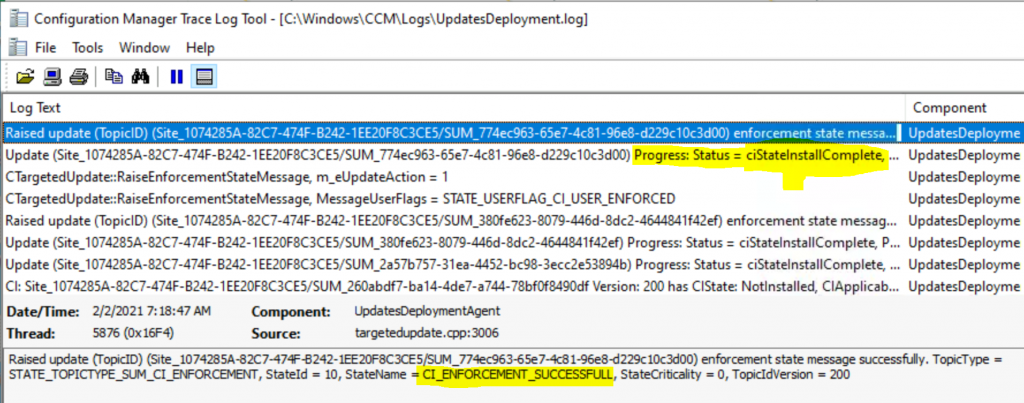
Raised update (TopicID) (Site_1074285A-82C7-474F-B242-1EE20F8C3CE5/SUM_774ec963-65e7-4c81-96e8-d229c10c3d00) enforcement state message successfully. TopicType = STATE_TOPICTYPE_SUM_CI_ENFORCEMENT, StateId = 10, StateName = CI_ENFORCEMENT_SUCCESSFULL, StateCriticality = 0, TopicIdVersion = 200
Update (Site_1074285A-82C7-474F-B242-1EE20F8C3CE5/SUM_774ec963-65e7-4c81-96e8-d229c10c3d00) Progress: Status = ciStateInstallComplete, PercentComplete = 0, DownloadSize = 0, Result = 0x0
Results – SCCM Client-Side Patching Troubleshooting
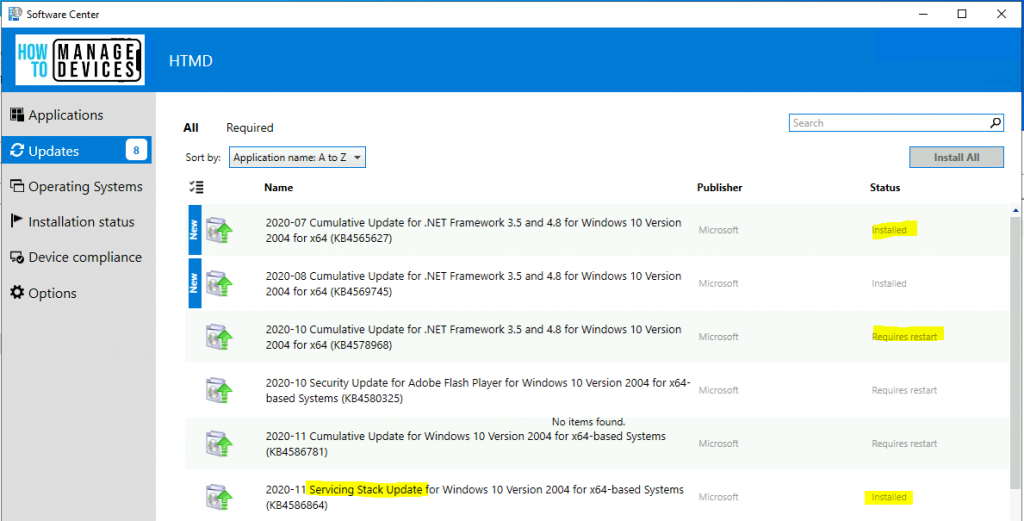
All the updates/patches will disappear from the software center after the restart and successful installation of patches/updates.
Bonus Tip – Error 0x87d00215
There is a strange issue with SCCM (2107); the devices are scanned for patches, which means they are missing patch information. The following thread in the HTMD Forum helped to resolve error 0x87d00215.
Error 0x87d00215 means – Item not found. It ended up being an expired cert on the server. After renewing, it started working again.
Reference
We are on WhatsApp now. To get the latest step-by-step guides, news, and updates, Join our Channel. Click here – HTMD WhatsApp.
Author
Anoop C Nair is Microsoft MVP! He is a Device Management Admin with more than 20 years of experience (calculation done in 2021) in IT. He is a Blogger, Speaker, and Local User Group HTMD Community leader. His primary focus is Device Management technologies like SCCM 2012, Current Branch, and Intune. He writes about ConfigMgr, Windows 11, Windows 10, Azure AD, Microsoft Intune, Windows 365, AVD, etc.




Hello Anoop regarding Error 0x87d00215, can you share what specific cert was expired? I am having similar issue with some server and could not figure out what certificate is expired on it.
Hi Anoop,
Even I have the same error 0x87d00215 and I am not sure which cert is expired or missing. Could you please elaborate on this issue
I think he means the certificate you are using for either the DP/WSUS in IIS.
Triggering the action “Retrying/Refreshing certificates in AD on MP” solved for my case of the error code 0x87d00215.
There are few ways to trigger this action:
1. Run the command on the affected PC:
WMIC /namespace:\\root\ccm path sms_client CALL TriggerSchedule “{00000000-0000-0000-0000-000000000051}” /NOINTERACTIVE
2. Using the tool Client Center for Configuration Manager. Connect to target PC, under ‘Agent Actions’ tool bar menu > ‘Maintenance’ section > ‘additional maintenance tasks’ > “Retrying/Refreshing certificates in AD on MP”