






FIX: SCCM Site Database has a Backlog of SQL Change Tracking Data
In this post, you will see how to fix SCCM Site Database has a Backlog of SQL Change Tracking Data warnings. This SCCM prerequisite warning is common during primary server upgrades or update scenarios.
SQL Server change tracking cleanup activity for Configuration Manager is documented well. However, the important point here is that you can’t execute the below SQL queries with regular SQL Server Management Studio (SSMS) access.
I have often seen SCCM Potential SQL server performance issues caused by the change tracking retention period. You must have seen change tracking backlog WARNING during SCCM upgrade prerequisite checks.
The SQL change tracking is not an SCCM (aka ConfigMgr) feature; however, this feature helps SCCM SQL based replication between the sites and tracking all the changes of the SCCM database.

The trickiest part of fixing or cleaning up the change tracking backlog of the SCCM site database is to connect to SSMS with the Dedicated Administrator Connection (DAC) query window. I have explained my experience below to give more context.
SCCM Upgrade SQL change tracking data WARNING
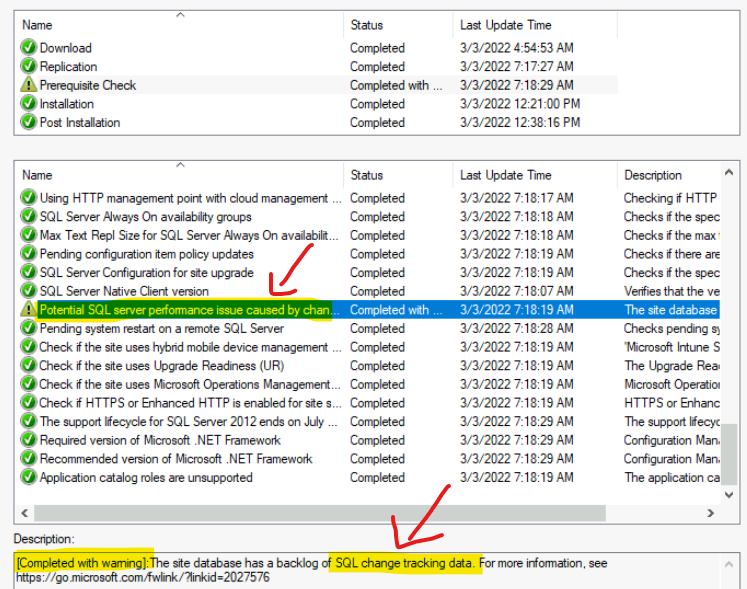
I have received the following WARNING during the SCCM upgrade prerequisite check. The prerequisite checker tool helps SCCM admins to make the SCCM upgrade or hotfix installation experience better.
Microsoft SCCM team updates prerequisite checker tool frequently to eliminate SCCM hotfix or update installation failures during in-console updates and servicing.
[Completed with warning]: The site database has a backlog of SQL change tracking data. For more information, see https://go.microsoft.com/fwlink/?linkid=2027576
ConfigMgrPrereq.log @ Primary Server C:\
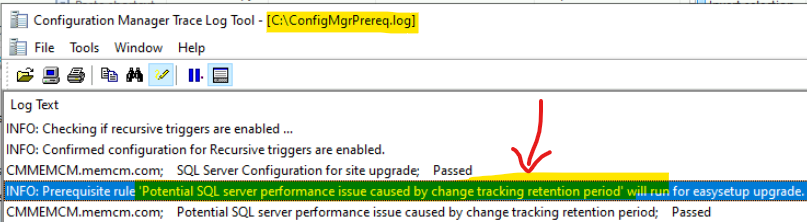
You need to check ConfigMgrPrereq.log from the SCCM primary server. You can open Windows File Explorer to check the C:\ drive.
INFO: Prerequisite rule ‘Potential SQL server performance issue caused by change tracking retention period’ will run for easysetup upgrade.
Check SQL Server change tracking data backlog for SCCM
You can use the spDiagChangeTracking stored procedure to check SQL Server change tracking data backlog for SCCM DB. You can check if the site database has a backlog of SQL Server change tracking data using the stored procedure available as SCCM site DB.
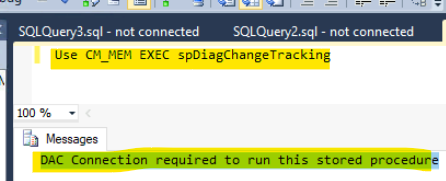
I already logged into SSMS (SQL Server Management Studio) and connected to the SCCM database CM_MEM without any issues. As per Microsoft documentation, to get the details of the backlog of change tracking data, you need to run the following SQL query from SSMS using Dedicated Administrator Connection (DAC) query window.
USE CM_MEM
EXEC spDiagChangeTracking
The query didn’t complete successfully, and SSMS given the following message – DAC Connection required to run this stored procedure where CM_MEM is my SCCM DB name.
How to get a Dedicated Administrator Connection (DAC) to run a Stored Procedure?
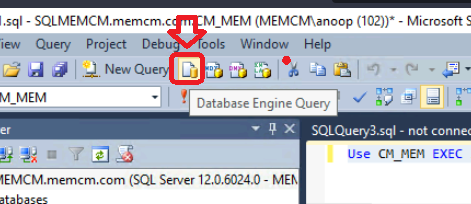
As per the Microsoft documentation, the easiest method to get a Dedicated Administrator Connection (DAC) is to use SQL Server Management Studio’s Database Engine Query Editor. You need to connect to the Database Engine from the SSMS, as shown in the below screenshot.
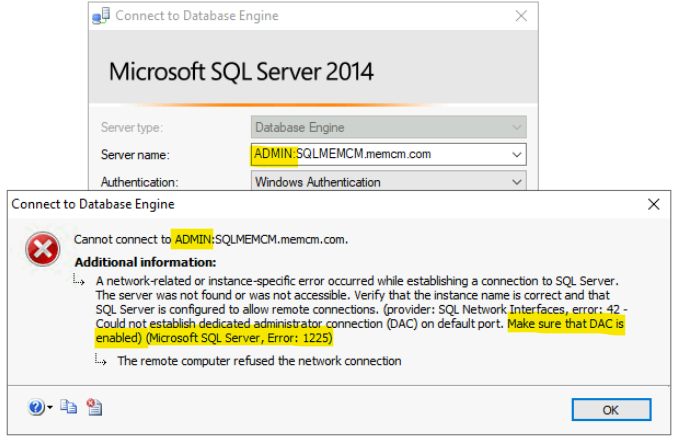
I couldn’t connect to the Database Engine with FQDN and the short name of the SQL server with ADMIN: as pre-entry (e.g., ADMIN:SQLMEMCM.memcm.com or ADMIN:SQLMEMCM). The connection failed in both scenarios, as you can see in the below error messages.
NOTE! – ADMIN: can be in the small letter also something like admin:
- Server Name – ADMIN:SQLMEMCM.memcm.com
- Server Name – ADMIN:SQLMEMCM
A network-related or instance-specific error occurred while establishing a connection to SQL Server. The server was not found or was not accessible. Verify that the instance name is correct and that SQL Server is configured to allow remote connections. (provider: SQL Network Interfaces, error: 42 – Could not establish dedicated administrator connection (DAC) on the default port. Make sure that DAC is enabled) (.Net SqlClient Data Provider)
A network-related or instance-specific error occurred while establishing a connection to SQL Server. The server was not found or was not accessible. Verify that the instance name is correct and that SQL Server is configured to allow remote connections. (provider: SQL Network Interfaces, error: 42 – Could not establish dedicated administrator connection (DAC) on the default port. Make sure that DAC is enabled) (Microsoft SQL Server, Error: 1225)
Enable Dedicated Administrator Connection (DAC) from SSMS with SQL Remote Connection
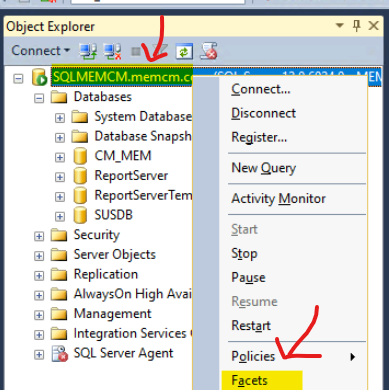
Let’s check how to Enable Dedicated Administrator Connection (DAC) from SSMS with SQL remote connection scenarios. You need to right-click on the SQL instance as shown in the below diagram and select the option called Facets.
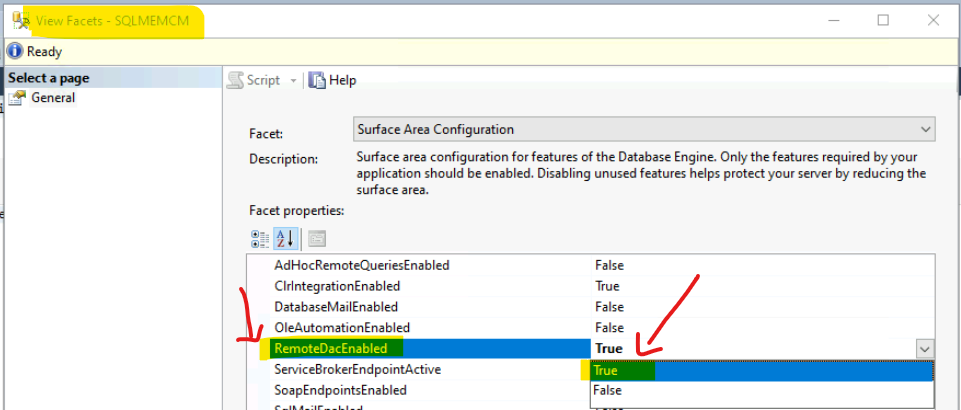
You need to follow the below steps to enable the remoteDacEnabled Facet property. The RemoteDACEnabled property is for Dedicated Administrator Connection (DAC); the DAC allows an administrator to connect to the server when the Database Engine does not respond to regular connections.
NOTE! – Enable this option if you connect to SQL Database Engine remotely using a remote SQL server management studio from a terminal server or any other server. This is only applicable when you use DAC from a remote computer.
- Select Surface Area Configuration from the drop-down menu options available for Facet.
- Check the list of Facet properties and select RemoteDACEnabled Facet property.
- From the drop-down list select TRUE and Click OK to continue.
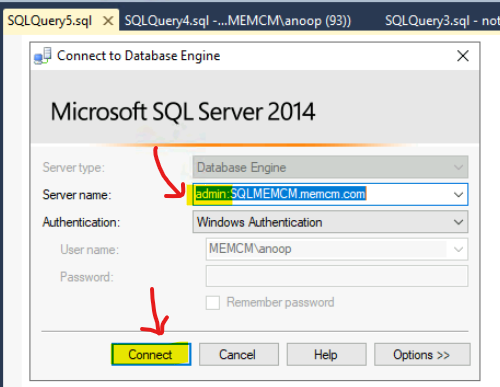
You need to click on the Database Engine Query button near to new query button to launch Dedicated Administrator Connection (DAC). You should use ADMIN:SQLServerInstanceName, as you can see in the screenshot below.
NOTE! – Akhil commented below with a good point and even I noticed the same during the DAC connection. In addition to the above once it is completed, we need to close the DAC, else no one will be able to able to connect with DAC until the active one is closed.
Analyze SQL Server Change Tracking Data Backlog for SCCM DB?
In this section, let’s analyze SQL Server Change Tracking Data Backlog for SCCM DB? SCCM Site Database has a Backlog of SQL Change Tracking Data using the following method.
You have connected to DAC to run the stored procedure called spDiagChangeTracking. Before cleaning up the SQL Server change tracking backlog for SCCM DB, you need to check and confirm how bad it’s and what should be the next step, etc.
To clean up SQL change tracking data, you need to trace how much change tracking data is stored there for SCCM DB. Once you have the details, you can remove some of those change tracking data. The clean-up will help remove the following warning from the SCCM prerequisite check.
Potential SQL server performance issues caused by the change tracking retention period.
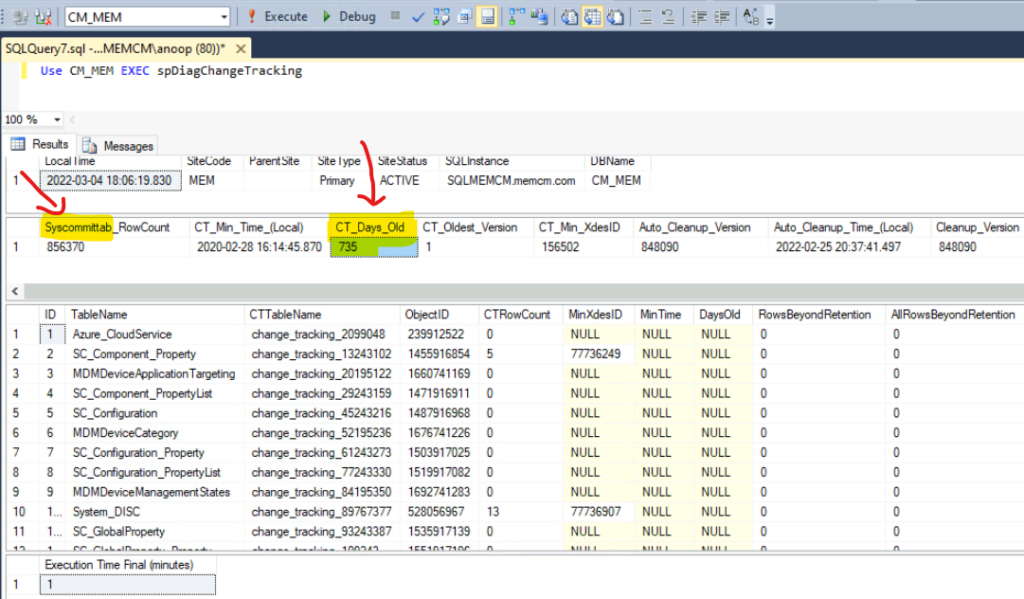
USE CM_MEM EXEC spDiagChangeTrackingNOTE! – The above query normally takes a long time if you have a huge SCCM DB. For my lab with a very small DB, it took 1 minute.
FIX: SCCM Site Database has a Backlog of SQL Change Tracking Data
Learn how to manually clean up the change tracking Data from SCCM DB using SQL stored procedures and DAC connection. Let’s see how to fix SCCM Site Database has a Backlog of SQL Change Tracking Data.
As per Microsoft, you should first look at the CT_Days_Old value. In my scenario, it’s 735 days!! 735 is the age (days) of the oldest entry in your syscommittab table. The SysCommitTab table is one of the tables that keep track of changes in SCCM SQL DB.
The SCCM default value for change tracking (CT) is five days, CT_Days_Old value. There could be heavy data processing or replication scenarios; the oldest entry in syscommittab could be more than five days.
If this CT_Days_Old value is above seven days, run a manual cleanup of change tracking data as explained below. You can run the following query to cleanup change tracking data backlog. This query should be run with a DAC connection.
USE CM_MEM
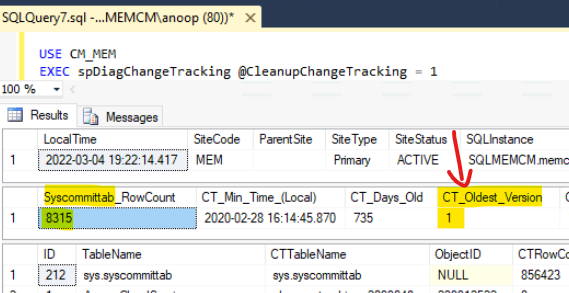
EXEC spDiagChangeTracking @CleanupChangeTracking = 1
The change tracking oldest version entry in sysCommittab table is 1-day old (CT_Oldest_Version = 1). This is a piece of really good news because it was 735 days before!
You will need to check the progress of the change tracking backlog cleanup process using the following SQL query. Again, this also should be run from a DAC connection because all these Stored Procedures deal with System Tables.
SELECT * FROM vLogs WHERE ProcedureName = 'spDiagChangeTracking'Once you fix SCCM Site Database has a Backlog of SQL Change Tracking Data. The cleanup of the change tracking data backlog took only 1 minute to complete with a very small DB in the test lab. However, I assume in a production SCCM DB, the change tracking data cleanup could take hours!

Resources
Prerequisite checks – Configuration Manager | Microsoft Docs




Thanks for the above post, additional to the above once it is completed we need to close the DAC, else no one will be able to able to connect with DAC until active one is closed.
StaffThanks, Akhil. I have noticed that and will update the post.
Msg 2812, Level 16, State 62, Line 2
Could not find stored procedure ‘spdiagchangetracking’.
Use ‘ ‘
SELECT * FROM vLogs WHERE ProcedureName = ‘spDiagChangeTracking’
StaffFixed now.