






FIX: SCCM PXE Error 0x80070490 PXE Boot Failed
Let’s see how to fix SCCM PXE Error 0x80070490. When you are trying to deploy an image from SCCM task sequence when a machine PXE boots, the deployment fails at the initial boot step, you will see the error failed 0x80070490 is logged in smspxe.log.
When any device attempts a network boot off of an SCCM distribution point, that process is recorded in the SMSPXE log. Upon checking the SMSPXE log file, you will get an Error: Element not found. (Error: 80070490; Source: Windows) SMSPXE.
First of all, you will need to understand the meaning of the error code 0x80070490. You can use the method to translate SCCM Error Codes To Error Messages.
The error 0x80070490 translates to Element not found, but it is difficult to determine what’s happing here. The Error 0x80070490 is generic, and you also may encounter the same error code when the task sequence fails. The solution could be different based on the details you get into logs.

Any device attempting to network boot will have to support PXE. With some older hardware and certain models, you will have to make sure –
- The network card must be enabled as a bootable device.
- The network card must have PXE support enabled. This setting is normally found in On-board Devices within the BIOS.
Recommneded Posts –
- Fix SCCM PXE Issues with C Type Network Adapter Duplicate MACID
- How to Fix SCCM ConfigMgr PXE WDS OSD Issues and Troubleshooting Guides
- Easily FIX SCCM Task Sequence Unable to find a volume Error Code 0x80070490
Issue Description – SCCM PXE Error 0x80070490
The issue description gives you details about the issue. It’s important to understand and follow the post to apply the possible solution.
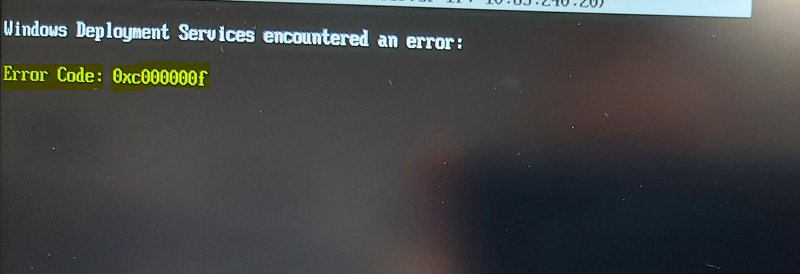
You may experience an error message when trying to PXE boot a machine for operating system deployment from the SCCM Task sequence, and it failed with the below error –
Windows Deployment Services encountered an error:
Error Code:  0xc000000f
Further checking the SMSPXE.log shows the following highlighted part:
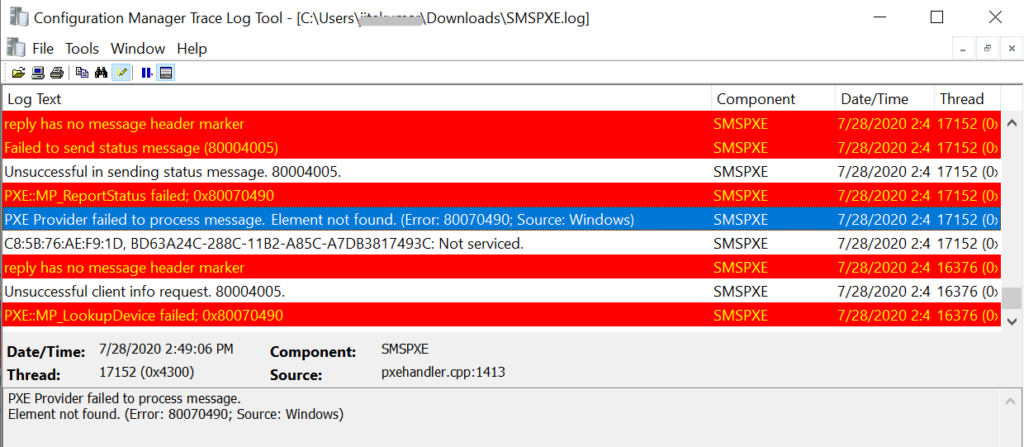
Failed to send status message (80004005)	SMSPXE	7/28/2020 2:49:06 PM	17152 (0x4300)
Unsuccessful in sending status message. 80004005.	SMSPXE	7/28/2020 2:49:06 PM	17152 (0x4300)
PXE::MP_GetList failed; 0x80070490                      SMSPXE 7/28/2020  2:49:06 PM    13148 (0x335C)
PXE::MP_LookupDevice failed; 0x80070490                 SMSPXE 7/28/2020  2:49:06 PM    13148 (0x335C)
PXE::MP_GetList failed; 0x80070490                      SMSPXE 7/28/2020  2:49:06 PM 13148 (0x335C)
PXE::MP_ReportStatus failed; 0x80070490	  SMSPXE	7/28/2020 2:49:06 PM	17152 (0x4300)
PXE Provider failed to process message.
Element not found. (Error: 80070490; Source: Windows)	SMSPXE	7/28/2020 2:49:06 PM	17152 (0x4300)
C8:5B:76:AE:F9:1D, BD63A24C-288C-11B2-A85C-A7DB3817493C: Not serviced.	SMSPXE	7/28/2020 2:49:06 PM	17152 (0x4300)
reply has no message header marker	SMSPXE	7/28/2020 2:49:06 PM	16376 (0x3FF8)
Unsuccessful client info request. 80004005.	SMSPXE	7/28/2020 2:49:06 PM	16376 (0x3FF8)
PXE::MP_LookupDevice failed; 0x80070490	SMSPXE	7/28/2020 2:49:06 PM	16376 (0x3FF8)
Fix SCCM PXE Error 0x80070490 PXE Boot Failed
Before you start troubleshooting to fix PXE error 0x80070490 on the PXE Service Point, we recommend that you check the WDS service status on the server and complete all basic checks.
In many cases, errors that occur during installation or configuration cause PXE boot issues. They can be difficult and time-consuming to pinpoint.
In many cases, reinstalling PXE and starting over can be the most effective and least time-consuming solution. Let’s proceed to Reinstall PXE On the affected DP –
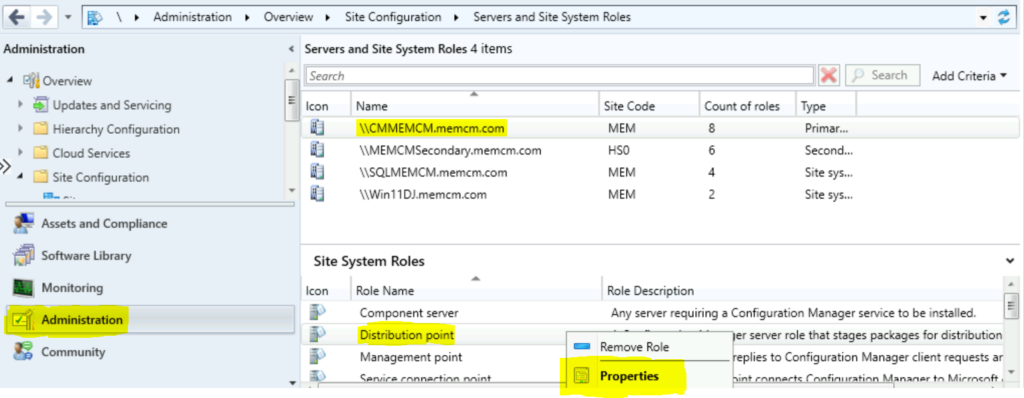
- In the SCCM Console, Go to Administration \ Site Configuration \ Servers and Site System Roles
- Select your affected Distribution Point and right-click Distribution Point in the roles, select Properties.
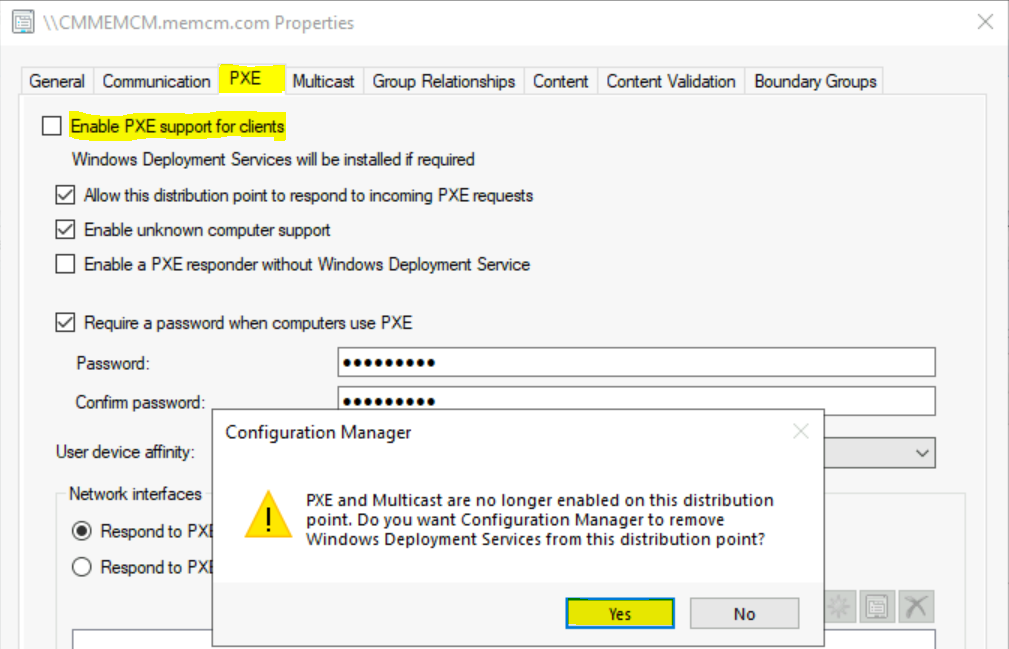
Here uncheck Enable PXE support for clients. When you’re prompted to remove the Windows Deployment service, select Yes.
Verify that PXE was uninstalled. Use Distmgr.log for DPs on site servers and check Smsdpprov.log for a standalone DP.
Important – Do not proceed until you verify that PXE is fully uninstalled.
In Server Manager, verify that WDS is uninstalled. If WDS is uninstalled, there should be a pending restart.
The next step is to locate and rename or delete the RemoteInstall folder. Restart the server.
Navigate to the Administration \ Site Configuration \ Servers and Site System Roles. Add the PXE point again by selecting the check box Enable PXE support for clients in DP properties.
Monitor through Distrmgr.log if the DP is on the site server. Or Smsdpprov.log for a standalone DP. Verify that the DP was installed
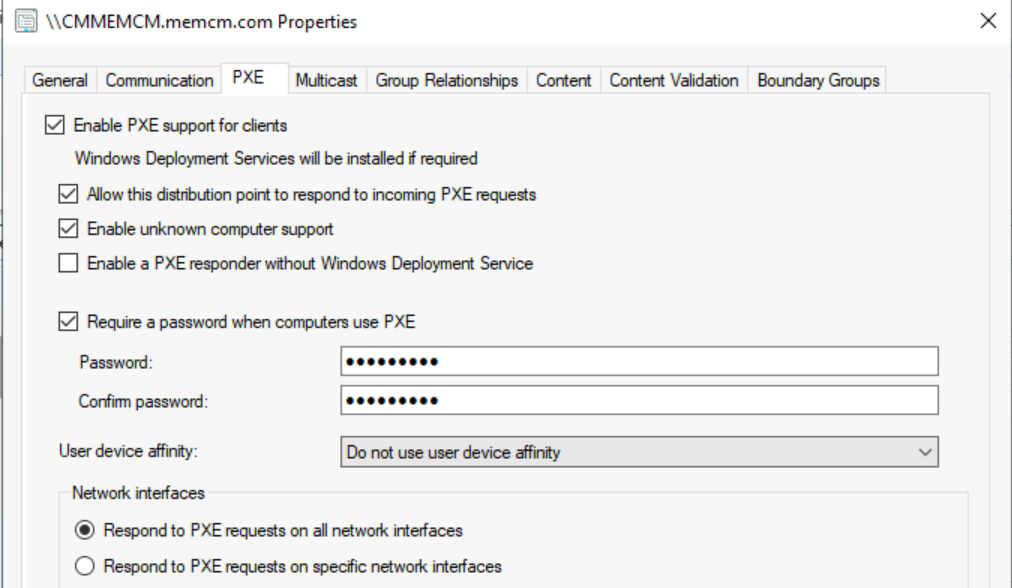
Verify that a new RemoteInstall folder was created, and the WDS service was started. Let’s try a PXE boot, and you will be able to deploy without an issue. For details, you can track the activity from the SMSPXE log.
As you can see, troubleshooting PXE boot issues can be quite difficult. Many areas exist where the process can break down and cause problems.
Additionally, you can check the possible solution for SCCM PXE error 0x80070490 or fixing the PXE Issue during the Image at HTMD Forum. You can let us know your experience with the error code and how you were able to fix it in the comment section.




Discussion