






FIX Teams Public Live Event Option Disabled or Grayed Out Issue
Let’s learn how to fix Teams Public Live event option disabled or grayed out issue. I was trying to test the live event option from the Microsoft Teams. The Teams Public Live Event option is available, but I can’t select it because it’s disabled.
Microsoft Teams normally have a Live Event option when you click on the + New Meeting drop-down menu from the Calendar option. If you don’t find the live event option in Teams, your admin might have disabled it from the Live events policies.
Microsoft Teams live events policies are used to turn on or off features. You can control who can join a live event, if the transcription is provided for attendees, or if recording live events are available for people that schedule and hold live events.
The following video tutorial gives you the end-to-end walkthrough of the Teams policy creation, assignment of policies to the users, and a bit of troubleshooting as well.

Enable Teams Live Event Policy
You will need to change the Global (Org-wide default) policy and customize it to disable the Teams Live Event option for all the users. Or better to create a new policy similar to Global (Org-wide default) and customize it as per your requirement.
You can use these duplicate or custom policies with different settings and assign them to people holding Teams live events in your organization. You will need to follow the steps below to enable the Live Event option from the + New Meeting drop-down menu.
- Login to https://admin.teams.microsoft.com/policies/broadcasts with admin account.
- You will need to click on + Add button to create a new policy.
- Enter the Name and Description for the new policy.
- You will need to turn on the option called Live Events Scheduling to enable policy.
NOTE! – You have to assign the newly created policy to the set of users so that users can get the option to create public live events in Teams.
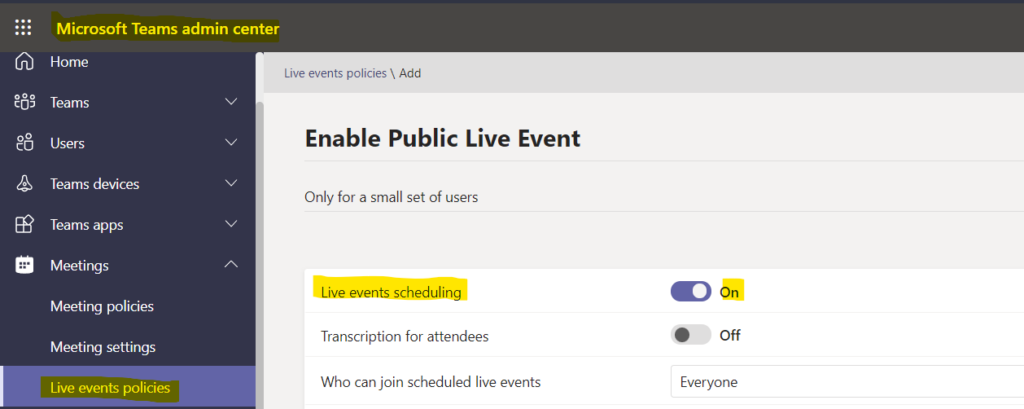
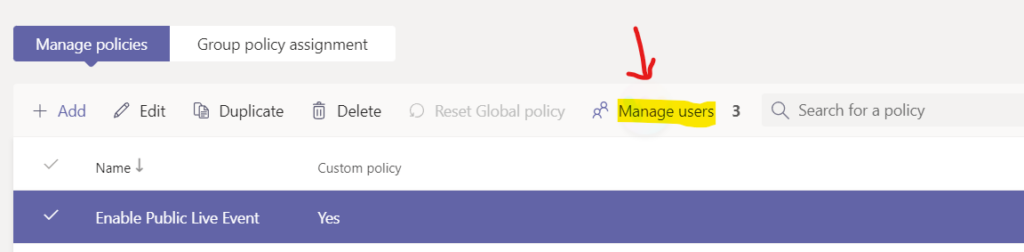
You will need to click on the new policy (Enable Public Live Event) to enable the Teams Live Event option for a subset of users. Just click on the policy and click on the cancel button to come out of the settings. Now, you will need to select the Manage Users option.
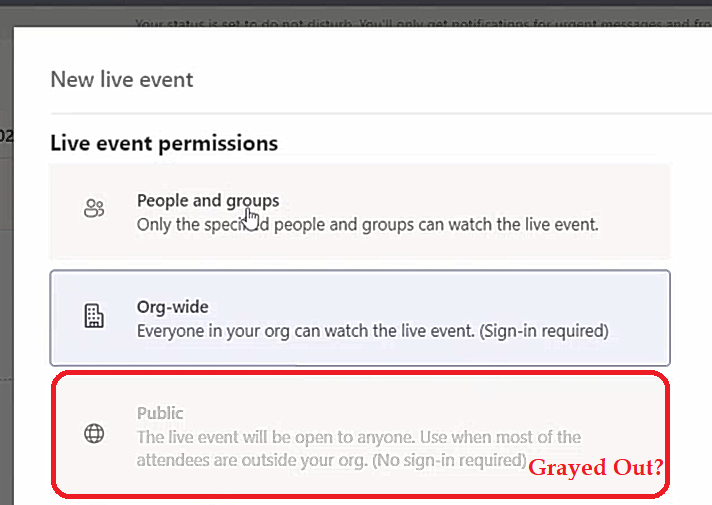
Teams Live Event Permissions – Teams Public Live Event Option Disabled
Now, let’s look into the permissions given for different types of Live Events. There are three (3) types of live event permissions. You can select any one option out of these three options depending on the requirement.
- People and Groups – Limited only to a group of users.
- Org-Wide – Every one within your tenant or organization can attend this typr of organization wide Teams live event. Will need to signin with organization user name and password.
- Public – This option is for a Teams public live event. Anyone can join and watch the event live.
For a Teams public event, you will need to select the third option called Public. But, unfortunately, the Teams Public Live Event Option is grayed out or disabled. Let’s look into alternatives to enable this option for a small set of users in your organization. No Sign-in is required for a Public Live event in Teams.
Fix Teams Public Live Event Option Grayed Out Issue
Now, it’s time to fix Teams Public Live Event Option Grayed Out Issue. You will need to follow the steps mentioned below to enable the Public Live Event option in Microsoft Teams.
- Login to https://admin.teams.microsoft.com/policies/broadcasts with admin account.
- You will need to click on the new policy Public Live Event that is created in the above section.
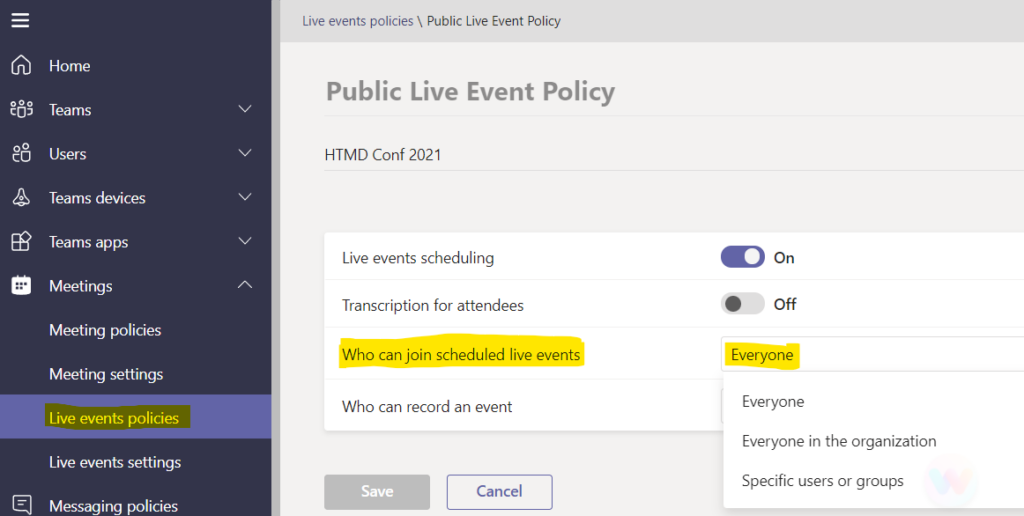
- Click on the Drop-Down menu near to Who Can Join Scheduled Live Events option.
You will have to make sure to select EVERYONE from the drop-down menu option from the Who Can Join Scheduled Live Events option. Click on the SAVE button to confirm and save the changes to the policy.
Assign Teams Public Live Event Policy to Users
Now, it’s time to assign the Teams Public Live Event Policy to Users. You have to assign the custom policy to users to override the Global (Org-wide) default policies.
I’m hoping that the Public Live Event Policy is already highlighted and the Manage Users option in the action bar is enabled, as shown in the below screenshot.
NOTE! – If this is not enabled, you will need to click on the policy you want to assign to users. You will need to click on the Cancel button to highlight this policy and the ENABLE Manage Users option.
You will need to search for the users; I see it’s better to search with the user’s email id or login id to avoid selecting wrong users in a production environment.
What I’m missing here is Azure AD Group support for deploying the policies for Microsoft Teams policies. It’s going to be a very tedious process to add users one by one. I know big organizations can build an automated tool or script to perform this activity. Still, it’s difficult to maintain these in-house scripts for the small or medium types of organizations.
You will need to search for the user you want to add this policy to and click on the Add and Apply button to complete the Teams policy assignment (s).
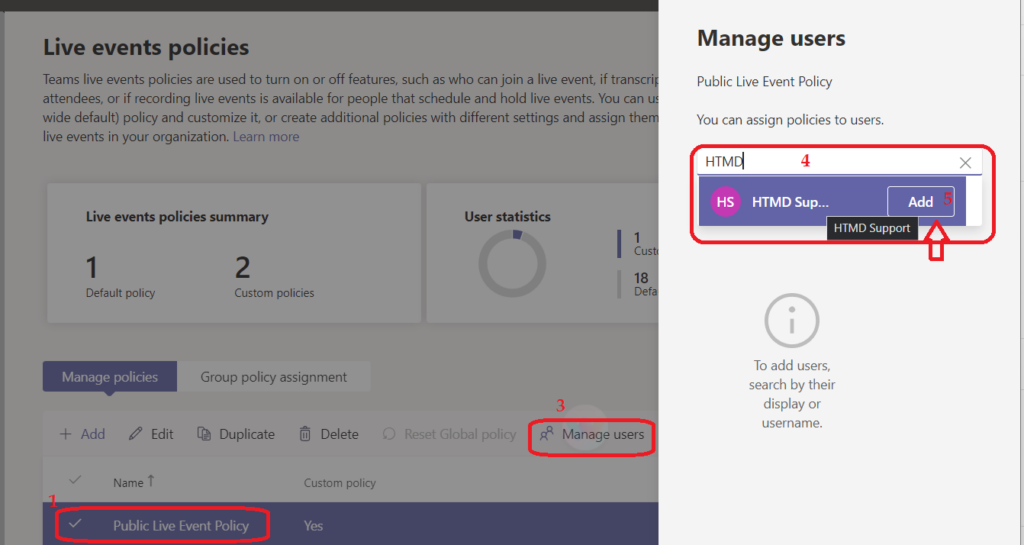
Result – Teams Public Live Event Permission is Enabled
Now, you will need to log off and login back to the Teams Desktop app. The end-user should first log off and log back into the Teams before trying to create a public live event.
The public option is enabled now for the particular user that we have added/assigned in the above section. You will need to make sure that all the fields, including the description, are filled in before scheduling a public live event in Teams.
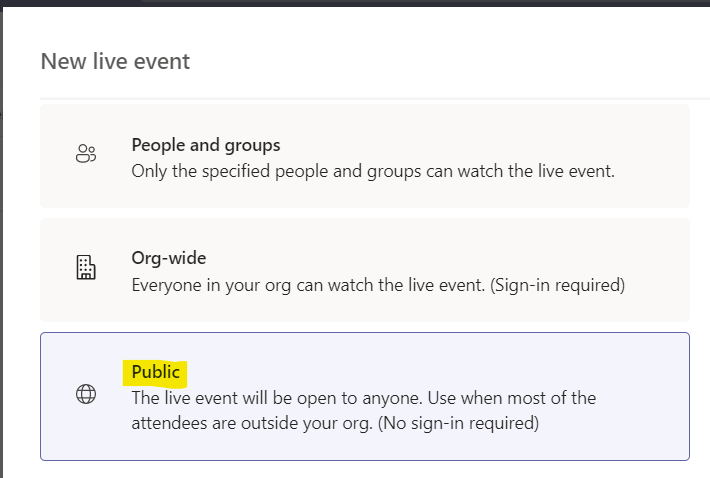
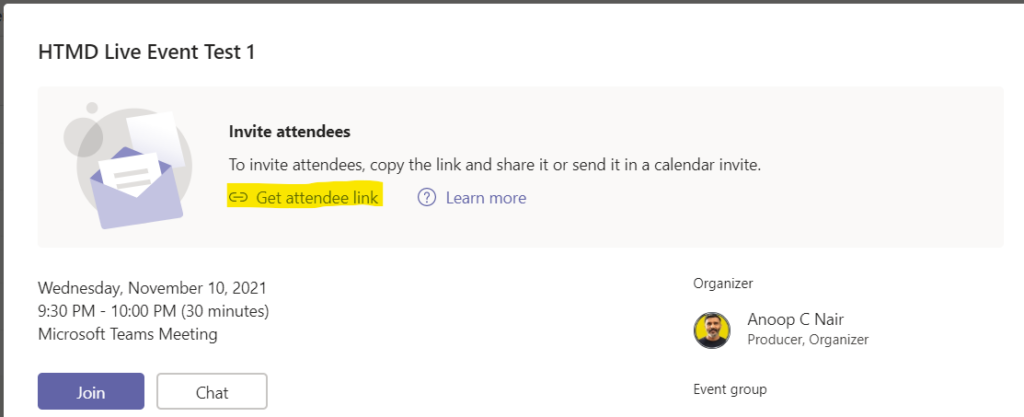
I had seen Teams Public Live Event scheduling errors when you missed filling out the description box of the event. So, make sure to fill all the fields even though it’s not marked as mandatory. I was successfully able to schedule a live event after all these configurations mentioned in this post.
Author
Anoop is Microsoft MVP! He is a Solution Architect in enterprise client management with more than 20 years of experience (calculation done in 2021) in IT. He is Blogger, Speaker, and Local User Group HTMD Community leader. His main focus is on Device Management technologies like SCCM 2012, Current Branch, and Intune. He writes about ConfigMgr, Windows 11, Windows 10, Azure AD, Microsoft Intune, Windows 365, AVD, etc……………




I get a message “An error occurred.” when I try to schedule the live event. The Public option is not grayed out when I get this error message.
StaffDo you have access to the Teams policy portal? If so, you will need to check whether you have permission to schedule a live meeting.
If that is not an option for you – You can try restarting Teams and using Teams WebClient option