






Fix Window 10 Camera Application | Something Went Wrong with Camera Application
Fix Window 10 Camera Application | Something Went Wrong with Camera Application. I was trying to explore new settings options of Windows 10 in this blog series.
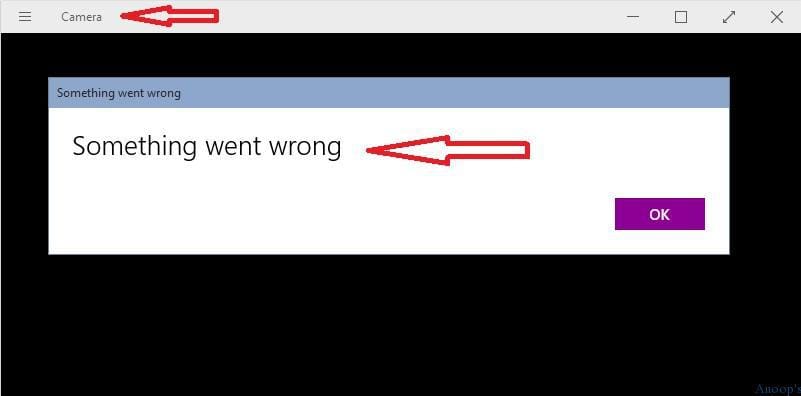
This morning, when I started the camera application on my Windows 10 laptop, it gave me an error “Something Went Wrong.” I clicked the “OK” button, and the application itself got closed.
So, how to fix the camera issue in Windows 10? Don’t worry; your webcam is intact in most of the cases.
I checked the “Setting” option; the settings option gives a universal appeal on all Windows 10 devices (Desktop, Laptop, and Mobile). Webcam settings (it’s truly part of privacy) options in Windows 10 are granular, and we can allow and deny webcam access to each application installed in the system.

- July 2024 Windows 10 KB5040427 Patches and 2 Zero-Day Vulnerabilities 142 Flaws
- Windows 10 Version Numbers Build Numbers Major Minor Build Rev
- Updated Windows 10 End of Life Dates
Fix Window 10 Camera Application | Something Went Wrong with Camera Application
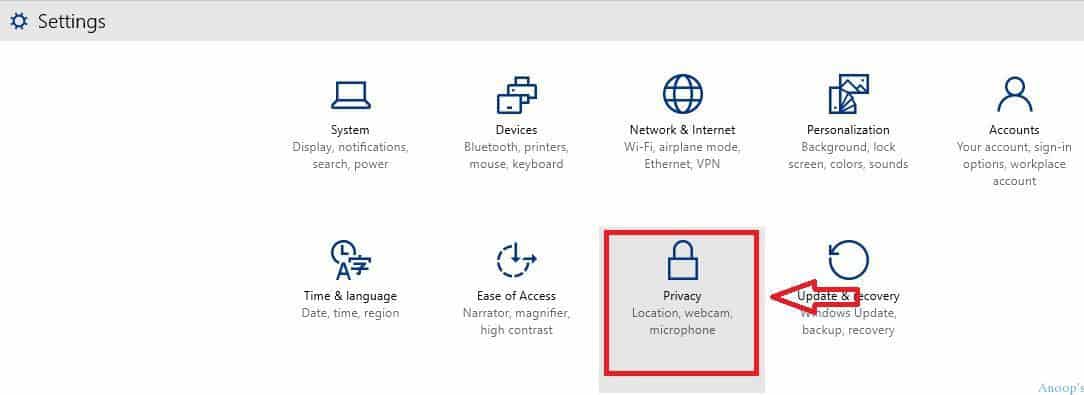
1) On your Windows 10 machine, go to settings and click or tap on Privacy settings. Fix Window 10 Camera Application | Something Went Wrong with Camera Application?
How Do You Resolve Something Wrong with the Web Camera in Windows 10?
2) Select the “Webcam” option from the left side menu of Privacy settings. When you click on the WEBCAM option on the right-side pane, you can see the switches controlling Web Camera behavior within Windows 10 (for each specific application).
| Privacy |
|---|
| Location, Webcam and Microphone |
3) On the right side pane on Webcam settings in Windows 10 devices, you can turn off the camera for all the applications with “one-click.”
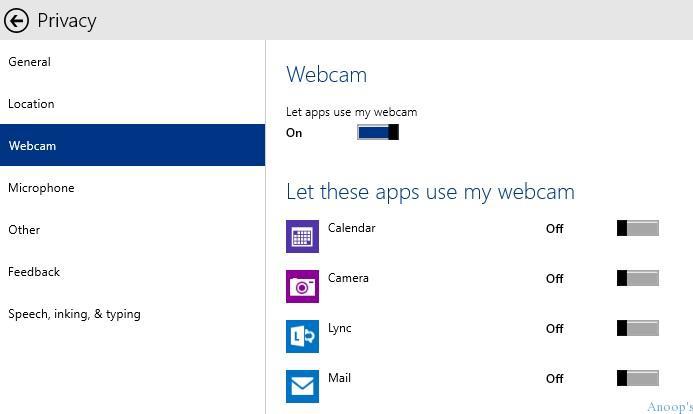
Also, you can control the camera’s access to a particular application like Calendar, Camera, Lync, Mail, OneNote, People, Search, Skype, etc… These are handy settings, and I felt this is a convenient option when I use Lync and some other applications.
Something Went Wrong with Camera Application Windows 10
In my scenario, the CAMERA application didn’t have access to the WebCAM (in the above picture, you can see that the “Let’s these apps use my webcam” option was turned off); hence, the Camera application failed.
I’ve been given access to a Windows 10 camera application to use my webcam. How to do that? Just press and drag the button from left to right.
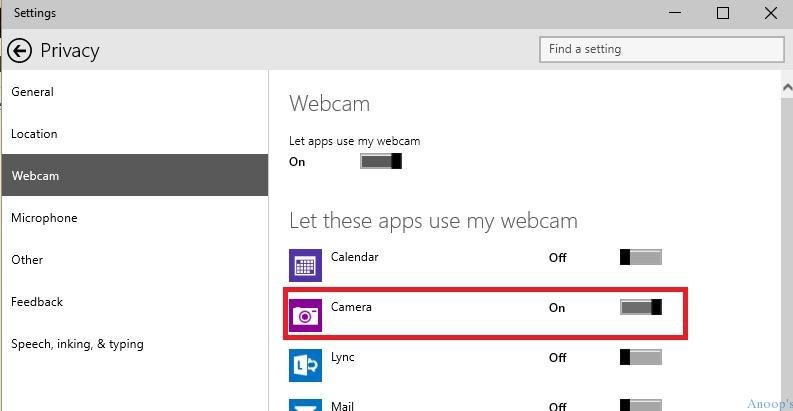
4. launch the Camera application from the Windows 10 start menu! Yes, it’s started working.
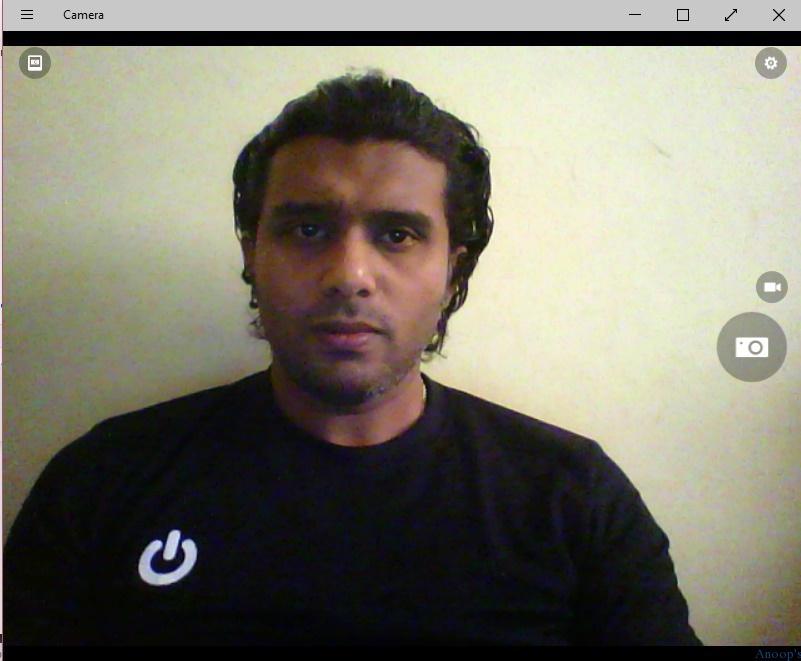
Resource
Windows 10 Latest Version Of Client Operating System From Microsoft
SCCM Video Tutorials For IT Pros – HTMD Blog #2
We are on WhatsApp now. To get the latest step-by-step guides, news, and updates, Join our Channel. Click here. HTMD WhatsApp.
Author
Anoop C Nair is Microsoft MVP! He is a Device Management Admin with more than 20 years of experience (calculation done in 2021) in IT. He is a Blogger, Speaker, and Local User Group HTMD Community leader. His main focus is on Device Management technologies like SCCM 2012, Current Branch, and Intune. He writes about ConfigMgr, Windows 11, Windows 10, Azure AD, Microsoft Intune, Windows 365, AVD, etc.


i have the same problem right now but it cant fixed
StaffHave you given the permissions from Windows 10 setting page ?
yes and still not working 🙁
Windows cant find my camara , the message its the same
StaffSo try updating camera drivers
I will Try , Thanks
Hi. When I go to Privacy > Camera, ‘Camera’ and ‘Skype’ apps don’t show up in the list of apps so I can’t ‘allow’ it to have access! Any idea how I can add them to the list?
Same exact problem as Krystl^^^^
‘Camera’ and ‘Skype’ apps don’t show up in the list of apps so I can’t ‘allow’ it to have access! Any idea how I can add them to the list?
I am still encountering this problem.
I also get something went wrong and my camera will not work on WINDOWS 10
I can’t even get the Settings screen to appear without either an error code or a flash on the screen. Like something is preventing it from opening to even see what the settings are.
I have since found a fix in Windows 10 that has re-enabled the Settings icon to function properly, but like so many others my laptop seems to believe I don’t even have a built in webcam installed. I have tried everything including removing the bezel to see if a wire had come loose on it’s own. I think the resolution is to find a new updated driver that I can actually install and be recognized. That’s what I really need is the driver update without jumping through all the hoops to get it.
same problems as Ahmad and Krystl, anybody have any idea how to fix it ?
facing same problem after updating windows tried everything .
1.uninstalling \ reinstalling drivers
2. updating BIOS
3.downloading supporting app from windows, intel, lenovo
give full control access to your camer folder it works
good idea but still not working…I have two machines with the same issue
driving me mad
i also problem with camera on my windows 10 OS, my acer aspire v5-431 series.
This is SOOOO incredibly ridiculous! I simply don’t understand why NO one is addressing this issue seriously. I have done a ton of research and tried everything under the sun and them some just like others above. Obviously it is not just a Lenovo thing. It doesn’t matter with regard to privacy permission, drivers, etc..etc. There is either something wrong with the ‘Camera’ app or Windows 10 but this is bullshit!
I agree with lavro. This is ridiculous. Dell even came out and replaced my camera and webcam. Mine can’t find the camera roll either. I’ve been messing with this for weeks. Microsoft has to get their act together.
I have a HP tablet brought Last year and I tried everything and I cannot get it to work.
I’m facing this problem to guys…. anyone can solve this????
My laptop camera display upside down image after installing windows 10! Its more than six months and I am still trying to get the image to display correctly. Anyone can help?
i upgraded a lenovo miix 2 8 tablet to win 10 from win 8 and the camera at first when trying to open, would go blue screen than restart. then i manually updated the driver and now when trying to open it gives me the “something went wrong” error. ive tried everything i could find searching but still no luck.
Camera isn’t one of the apps under “Let these apps use my webcam”. What should I do now?
same issue here (don’t get this crap with a Mac). I don’t have ‘webcam’ as a choice in ‘privacy settings’ but ‘camera’ is there. Camera settings are all set to ON. Still can’t see it.
okay. got mine fixed. I just did a software update of the driver under imaging devices. hallelujah!
I went to settings and then camera since i dont have webcam choice and turned off the camera and then turned it back on and it worked
can I change the camera settings? ( brightness, sharpness, white-off balance)
the problem is that somebody doesn’t want us using our cameras hooked to our computers to record something happening in the sky involving sunset and sunrise always being cloudy
Simple fix TURN ON YOU MICROPHONE!
I cannot reverse the camera, so I can take picture of myself. So when I use Skype the other people on my Skype cannot see me at the moment. How do I fix this.