






Enables a Smooth and Flexible Cloud Transition for Windows 365
Let’s discuss Enables a Smooth and Flexible Cloud Transition for Windows 365. Microsoft now allows integration of Windows 365 and Citrix to expand your on-premises environment with Cloud PCs. It provides a smooth and Flexible transition.
The integration of Citrix and Windows 365 helps users to complete cloud migration or without a lengthy transition. It offers a hybrid solution, that combines the flexibility of cloud computing with the stability of on-premises infrastructure.
As you know that, Citrix Virtual Apps and Desktops is a virtualization solution that enables users to access applications and desktops remotely from any device, regardless of the operating system. It provide a seamless experience for end users.
In this blog post, I will help you to know more about the Windows 365 Integration with Citrix Virtual Apps to Expand on-Premises Environment with Cloud PCs. Also I will guide you with step-by-step guidance on Windows 365 and Citrix Virtual Apps integration.

Table of Contents
Enables a Smooth and Flexible Cloud Transition for Windows 365
You can start the integration small and scale gradually, adding Cloud PCs as needed to meet your specific requirements. The integration provide many advantages to users. The below table shows the advantages.
| Advantages |
|---|
| Hybrid Flexibility |
| Simplified Management with Citrix Cloud |
| Rapid Deployment |
| Enhanced Security |
| Consistent User Experience |
- Deploy Citrix Workspace App using Intune
- Winners of the 2024 Desktop as a Service DaaS Magic Quadrant by Gartner | Microsoft | AWS | Citrix
- Compare Teams Capabilities with AVD Windows 365 Citrix and VMware
Integration Steps
There are several steps to you should follow to complete the integration. Each steps are very important and you have to follow the steps to integrate your on-premises Citrix Virtual Apps and Desktops with Windows 365 Cloud PCs. The below table shows the steps.
| Integration Steps |
|---|
| Deploy Citrix DaaS (Desktop as a Service) |
| Integrate Windows 365 Cloud PCs with Citrix DaaS |
| Configuring Citrix StoreFront for Citrix Cloud |
| Configure Unified search for Hybrid multi-cloud deployments |
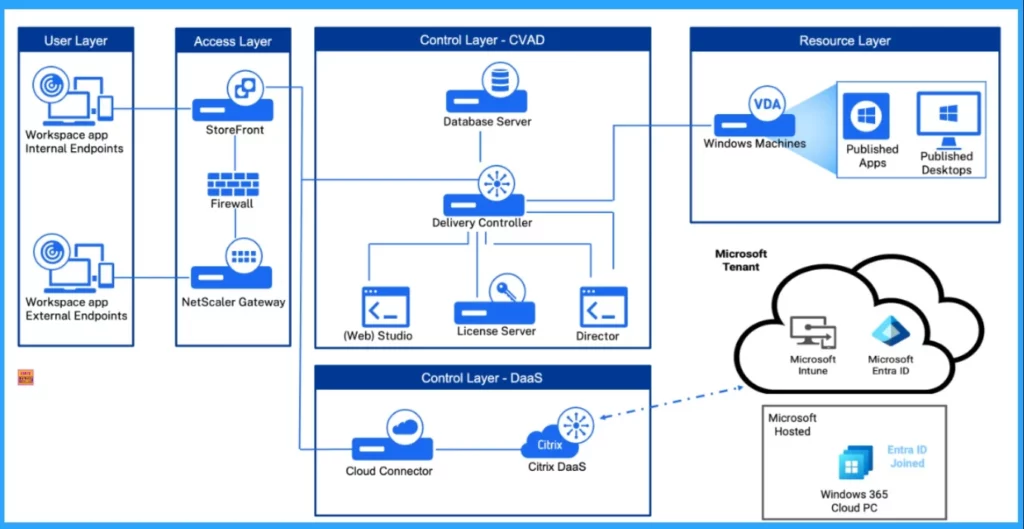
Deploy Citrix DaaS (Desktop as a Service)
Due to Microsoft compliance directives, the Windows 365 integration requires Citrix DaaS and is unavailable for on-prem Citrix Virtual Apps and Desktops (CVAD). To start the integration configure a Citrix DaaS tenant.
- By Settings up a Citrix Cloud account, configure your Citrix DaaS tenant
- Request a Citrix DaaS Trial
- Create a Resource Location
- Install Citrix Virtual Delivery Agent
- Create a Hosting Connection to the Citrix Cloud
- Create a Machine Catalog in Citrix DaaS
- Add Users
- Launch a Session from Citrix Workspace
Integrate Windows 365 Cloud PCs With Citrix DaaS
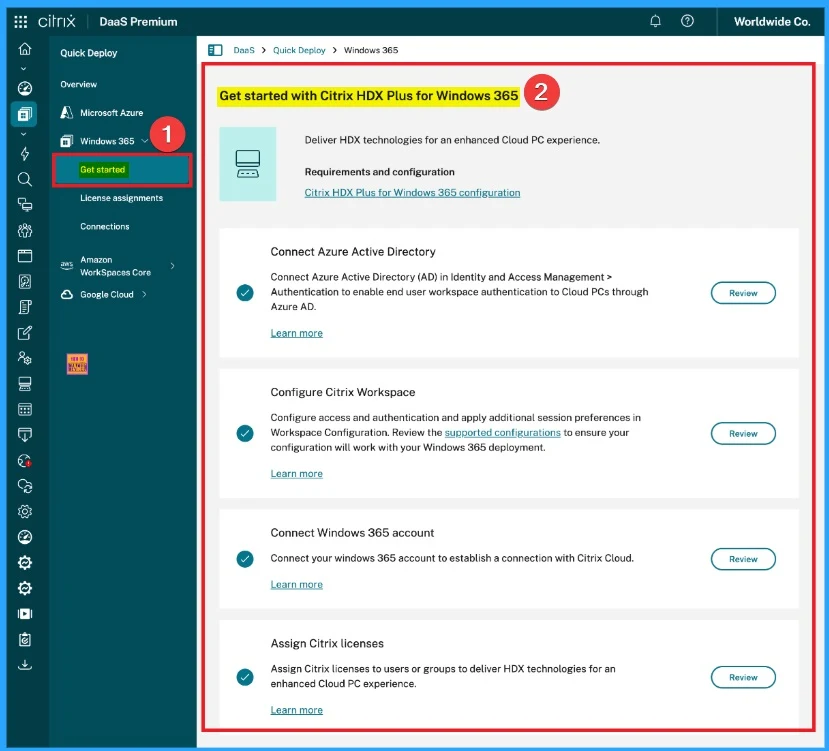
Integrate Windows 365 Cloud PCs with Citrix DaaS step connects the two services and makes Windows 365 Cloud PCs available within Citrix DaaS. Follow the steps below to complete this step.
- Enable the Citrix connector for Windows 365
- Connect Microsoft Entra ID to Citrix Cloud
- Connect Windows 365 to Citrix Cloud
- Assign Citrix licenses
- Provision Cloud PCs
Configuring Citrix StoreFront for Citrix Cloud
This step shows the integration of the DaaS tenant, which provides access to Windows 365 and the on-premises CVAD environment. It provides users with a single point of access to all corporate resources. This is achieved by adding a resource feed to Citrix Storefront
Configure Unified Search for Hybrid Multi-Cloud Deployments
The last step provides help desk administrators with a unified experience across the Citrix DaaS and on-premises environments. You can use the Search option in Director to search for users from on-premises or Citrix DaaS sites for triage purposes.
Need Further Assistance or Have Technical Questions?
Join the LinkedIn Page and Telegram group to get the latest step-by-step guides and news updates. Join our Meetup Page to participate in User group meetings. Also, Join the WhatsApp Community to get the latest news on Microsoft Technologies. We are there on Reddit as well.
Resource
Windows 365 Integration with on-premises Citrix Virtual Apps and Desktop
Author
Anoop C Nair has been Microsoft MVP from 2015 onwards for 10 consecutive years! He is a Workplace Solution Architect with more than 22+ years of experience in Workplace technologies. He is also a Blogger, Speaker, and Local User Group Community leader. His primary focus is on Device Management technologies like SCCM and Intune. He writes about technologies like Intune, SCCM, Windows, Cloud PC, Windows, Entra, Microsoft Security, Career, etc.




Discussion