






Follow Meeting Option New Feature in Case of Meeting Conflicts
Exciting News! The Follow Meeting Option is a New Feature in Case of Meeting Conflicts. Microsoft introduced a new feature for Outlook and Microsoft Teams. The new feature is called Follow, which allows users to follow a meeting on Teams.
We all know the different uses of Microsoft Teams and are regular users of the Teams app. Microsoft introduces innovative features for Teams and the Outlook app via monthly updates. The Follow feature is among the best on the Teams app I have ever seen.
The Follow feature allows users to tackle different meeting bookings. It helps them stay on top of the outcomes and any action items they might have. Follow is worked with Copilot and will notify users when the meeting recap is ready for review. Users can even ask Copilot in Teams questions about the meeting.
This feature is very useful when the user cannot attend a meeting. It is rolling out in late April 2024 and is expected to be completed by late May 2024. In this post, I will explain the Follow feature on Microsoft Teams.

Follow Meeting Option a New Feature in Case of Meeting Conflicts
As I mentioned above, Follow is the new capability of Outlook and Teams. Microsoft Teams is used to communicate with each other and is the best collaborative platform. Some days, users have multiple bookings on Teams, and they are unable to attend all the meetings, so they may miss important topics.
The follow feature will rectify this issue, and users will get all the details of the meetings. Copilot also plays a vital role in this Follow feature. The copilot will inform users when the meeting recap is ready.
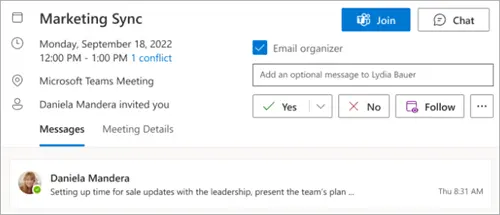
- Following a meeting, remind the organizer to record the meeting and alert you to any follow-up items.
- Meeting organizers receive email responses letting you know which of your attendees responded with Follow
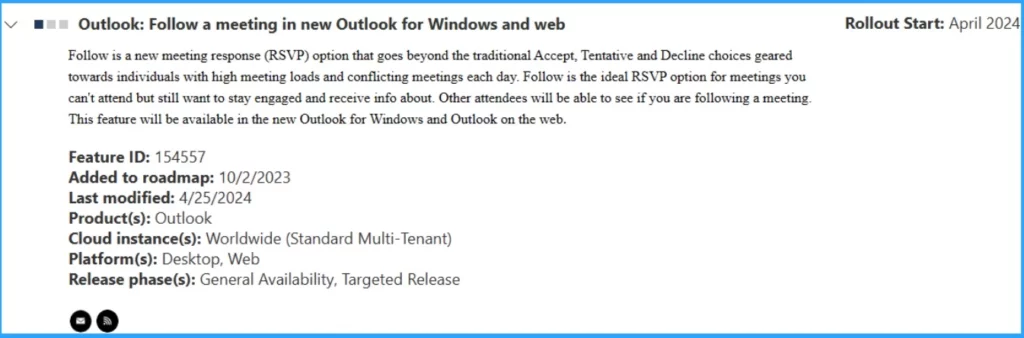
Notification on Message Center about the Follow Feature
Microsoft notified the Follow feature on Message Center with post MC786325. It helps IT Admins to get more information about this feature. Users can also track this feature on a Public Roadmap. This feature is generally available in early June 2024 and is expected to be completed by early July 2024.
- Microsoft Introduces Single Microsoft Teams Desktop App for Personal and Work
- New Banner Notification on Teams Classic Client
Outlook Clients Who Get Follow Feature
The Follow feature is only rolled out and will generally be available in early June 2024. This feature is available for only some Outlook Clients. Follow is a new capability in Outlook and Teams.
| Supported Outlook Clients |
|---|
| New Outlook for Windows and Outlook on the Web |
Steps for Accessing the Follow Feature on Microsoft Teams
Microsoft recently rolled out Follow Future, which is now generally available. This feature allows users to Follow a meeting and will help them stay on top of its outcomes and any action items they might have.
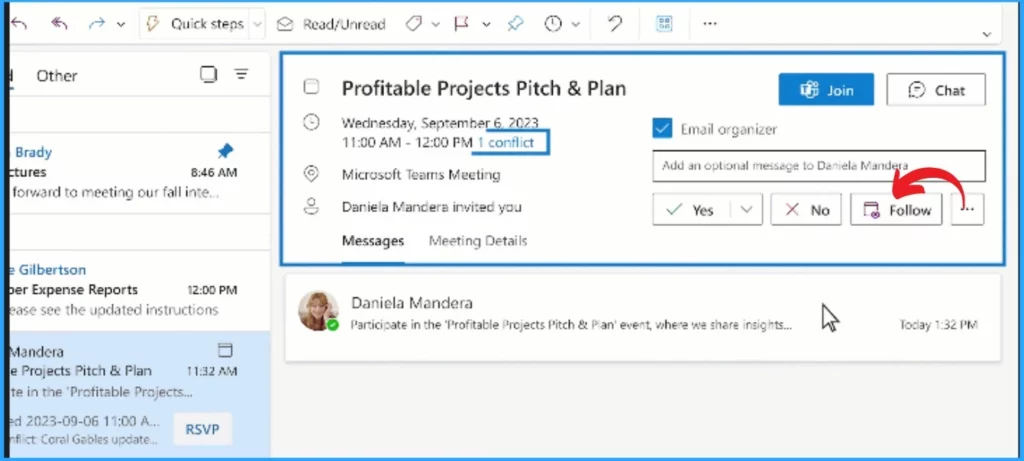
- Open Outlook and open your calendar
- Click on the Follow option to follow the meeting
- Microsoft Office Security Warning for ICS Files in Outlook
- Outlook Desktop Blocks Printing to PDF if Mandatory Labeling is Enabled
After that, it will open the Microsoft Teams calendar. And then click on the follow option on the Teams Calendar.
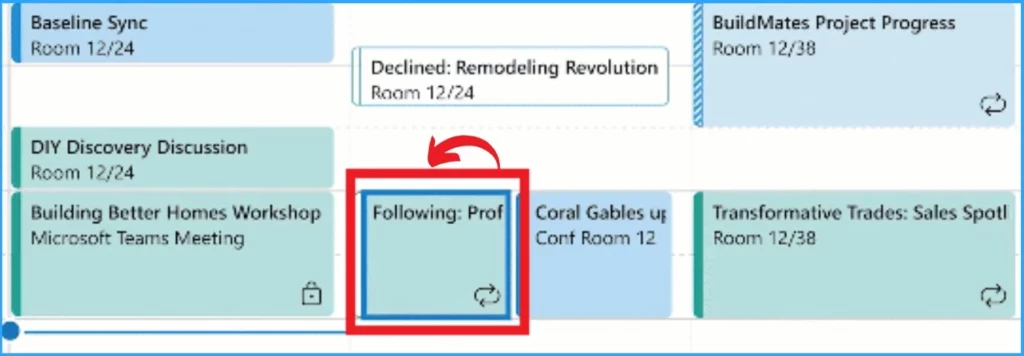
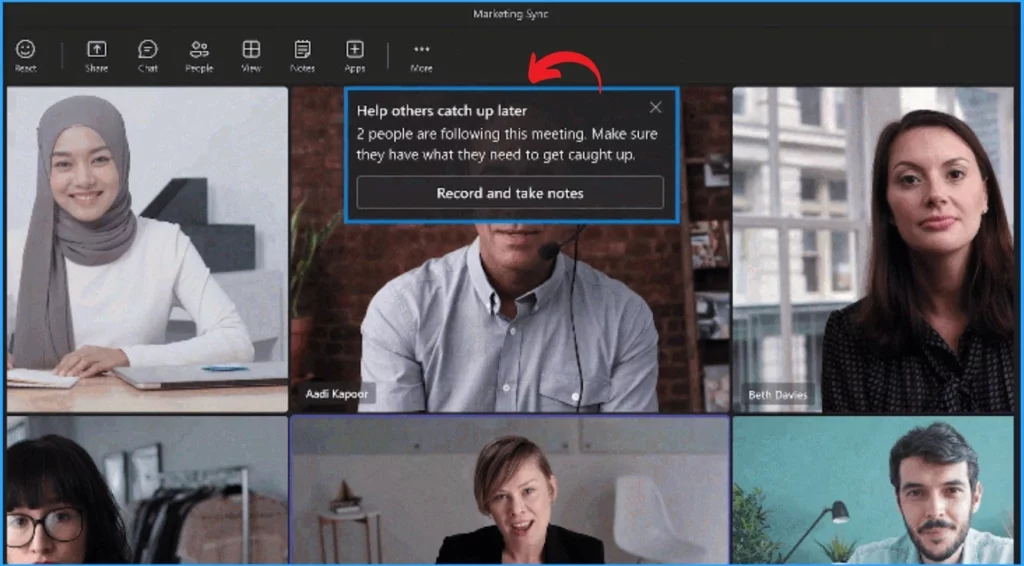
After clicking on the Follow option, Meeting Attendees get a notification in the meeting window. This helps the meeting organizer record the meeting and allows attendees to check the meeting recap later. Follow responses are visible to everyone. This happens to each group when attendees select to Follow a meeting.
| The Organizer | The Attendee |
|---|---|
| The Organizer receives the Follow response. This allows the organizer to know an attendee can’t attend the meeting, but they want to stay informed | The attendees can access the recording and meeting transcripts that were created for the meeting. |
| The organizer gets a reminder to record the meeting and take collaborative notes | Even though the attendee’s calendar shows free, they’ll still have access to the meeting and chat. |
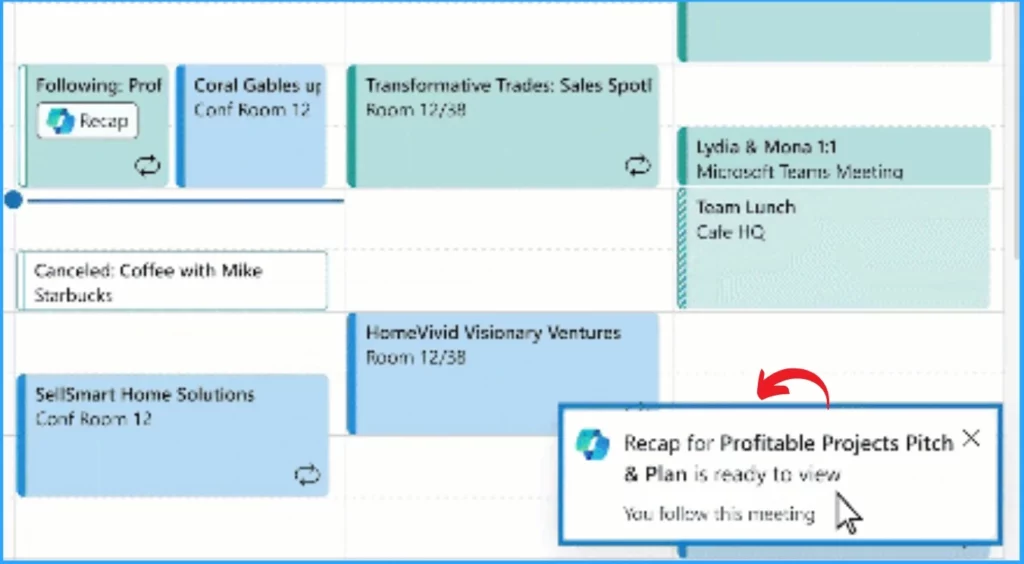
The attendees get the meeting recap on the Teams calendar, and they can check it anytime. Copilot on Teams helps to check the meeting recap, and users get a notification on the Teams calendar.
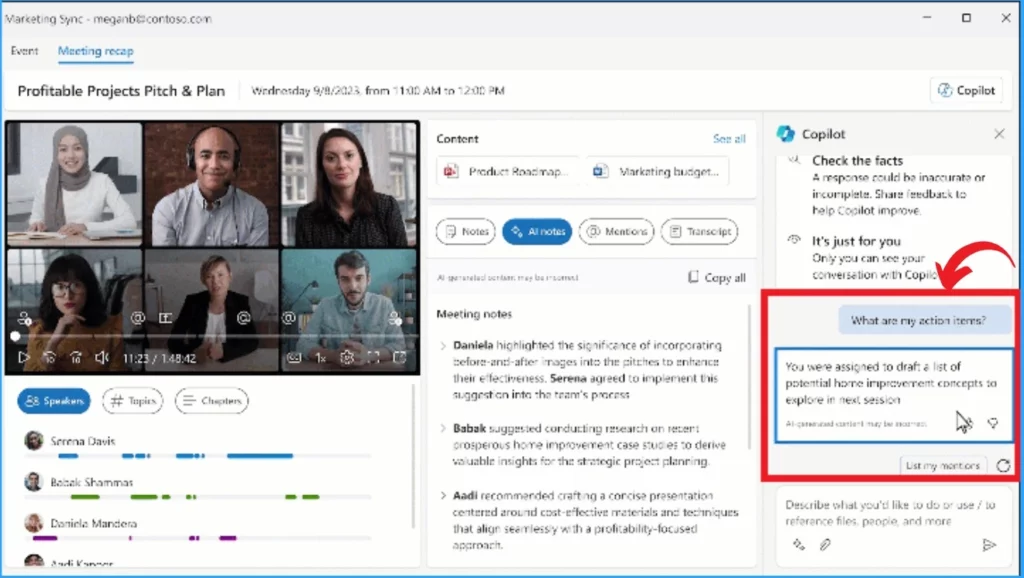
After clicking on the Recap option on the Teams Calendar, you will open the meeting recap window. From this window, you will get all the details of the meeting. On the right side of the window, you can see the Copilot button. You can ask any question to Copilot about this Meeting.
- Enable Disable Conversation View in Outlook for Windows 11
- Enable Disable Focused Inbox in Outlook for Windows 11
We are on WhatsApp. To get the latest step-by-step guides and news updates, Join our Channel. Click here –HTMD WhatsApp.
Author
Gopika S Nair is a computer enthusiast. She loves writing on Windows 11 and related technologies. She is here to share quick tips and tricks with Windows 11 or Windows 10 users. She is Post Graduate Diploma Holder in Computer Science.



Discussion