


Skip to content
Get Installed BitLocker MBAM Agent Details Using SCCM Query

Get Installed BitLocker MBAM Agent Details Using SCCM Query

Written By Jitesh Kumar
Last Updated July 21, 2022
Posted In SCCM
SHARE

Let’s find out how to get Installed BitLocker MBAM Agent Details Using SCCM Query. You can create a query that will fetch the list of machines in which “MDOP MBAM” is installed with a software version.

The SCCM (ConfigMgr) Bitlocker management provides full BitLocker lifecycle management similar to MBAM (Microsoft BitLocker Administration and Monitoring). Configuration Manager BitLocker management uses the MDOP MBAM client in the background.

Traditionally, the organizations were using the MBAM to manage Bitlocker Recovery keys with Active Directory integration. Many of them are already migrated to the SCCM BitLocker solution.

The client-side event logs for SCCM BitLocker management are the same as MBAM. It would help if you looked into the same place to get more details on SCCM BitLocker troubleshooting scenarios. There are SCCM BitLocker management reports available to help with the first level of troubleshooting.

Patch My PC

You can also use SCCM CMPivot for reviewing MBAM event logs. The CMPivot can collect the details from event logs from Online Clients. If the SCCM clients are offline, then you won’t be able to get the event log details from those clients.

Get Installed BitLocker MBAM Agent Details Using SCCM Query

The following steps help you to create queries to get Installed Bitlocker MBAM Agent Details Using SCCM Query –

In the Configuration Manager console, select Monitoring. Select Queries, Right-click on Queries, and choose Create Query.
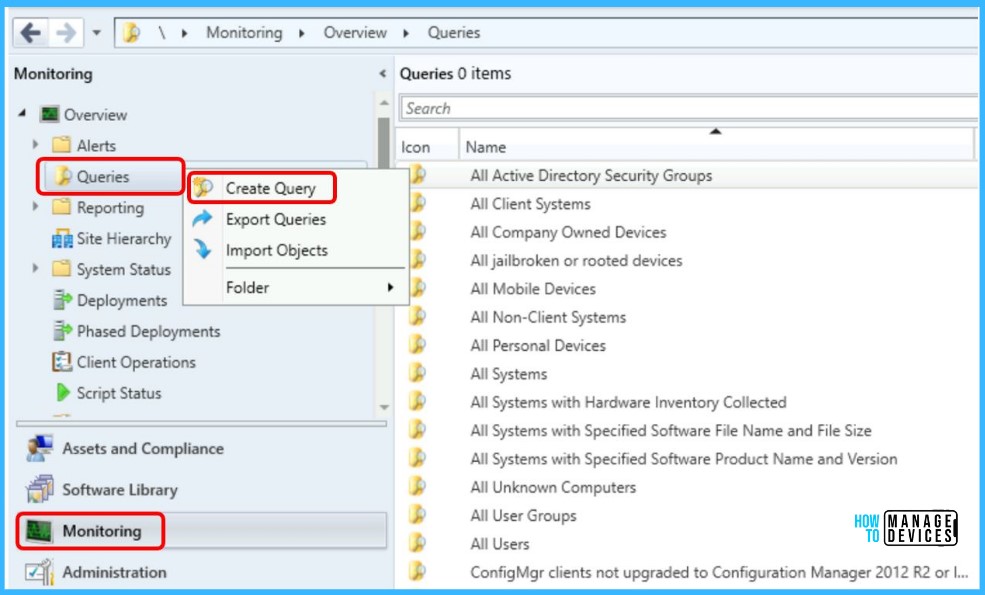
Click on Create Query - Get Installed Bitlocker MBAM Agent Details Using SCCM Query 1
Click on Create Query – Get Installed Bitlocker MBAM Agent Details Using SCCM Query 1

On the General tab of the Create Query Wizard, specify a unique name and, optionally, a comment for the query.
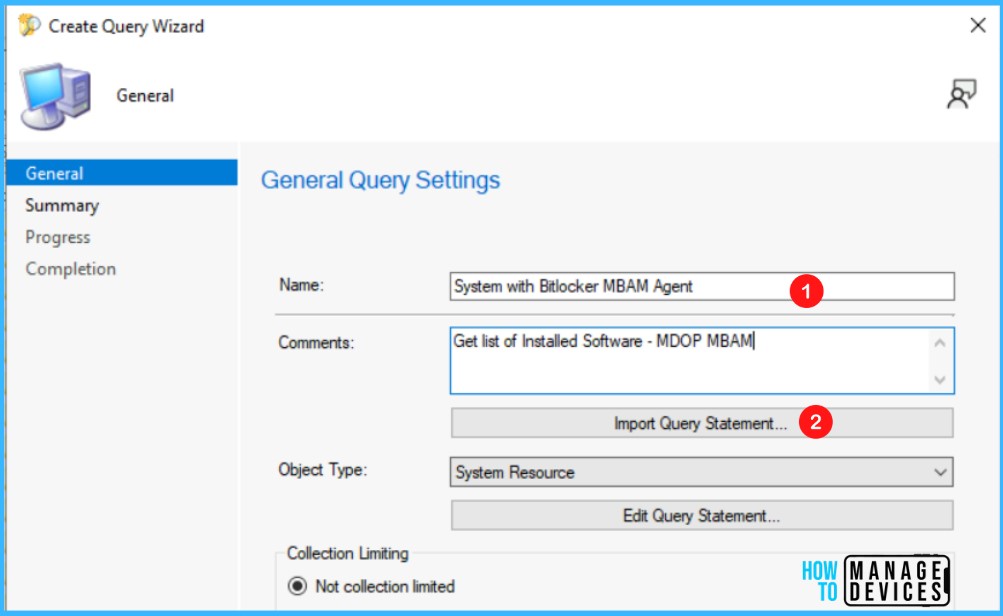
Specify Name - Get Installed Bitlocker MBAM Agent Details Using SCCM Query 2
Specify Name – Get Installed Bitlocker MBAM Agent Details Using SCCM Query 2

Select Show Query Language to enter or edit the query directly in WMI Query Language (WQL).
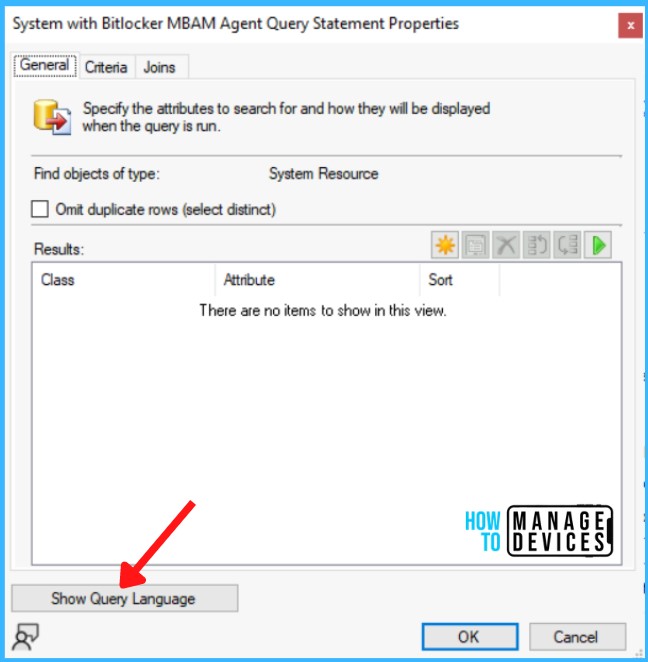
Click on Show Query Language - Get Installed Bitlocker MBAM Agent Details SCCM Query 3
Click on Show Query Language – Get Installed Bitlocker MBAM Agent Details SCCM Query 3

In the Query Language, Copy and paste the following WMI Query Language (WQL) and Click OK –

The following are WQL queries that will help you to filter down to more specific installed software in your environment. For Example: Microsoft Desktop Optimization Pack (MDOP) MBAM

select SMS_R_System.NetbiosName, SMS_R_System.ADSiteName, SMS_G_System_INSTALLED_SOFTWARE.ARPDisplayName, SMS_G_System_INSTALLED_SOFTWARE.ProductName, SMS_G_System_INSTALLED_SOFTWARE.ProductVersion, SMS_R_System.OperatingSystemNameandVersion from  SMS_R_System inner join SMS_G_System_INSTALLED_SOFTWARE on SMS_G_System_INSTALLED_SOFTWARE.ResourceId = SMS_R_System.ResourceId where SMS_G_System_INSTALLED_SOFTWARE.ARPDisplayName like "MDOP MBAM"
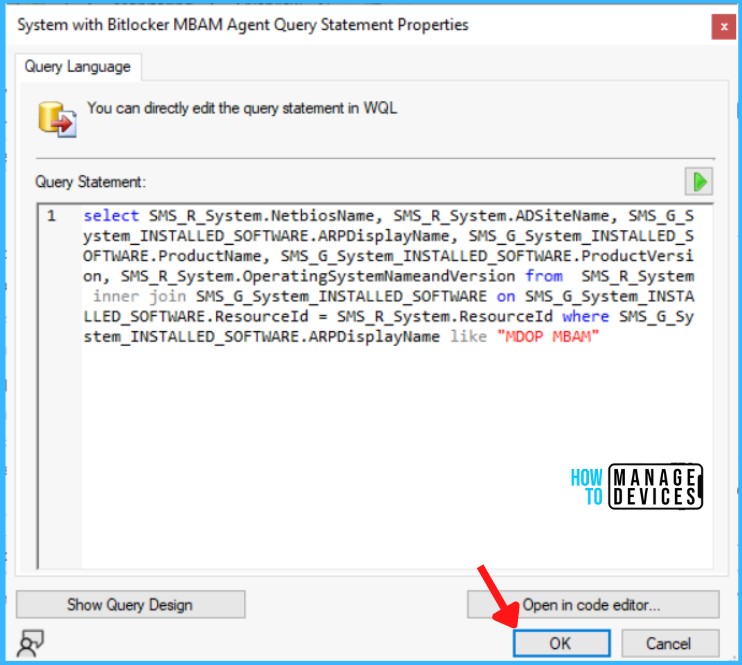
Query - Get Installed Bitlocker MBAM Agent Details Using SCCM Query 4
Query – Get Installed Bitlocker MBAM Agent Details Using SCCM Query 4

On the next screen of Query Settings, Click Next. On the Summary page, review the details and Click Next to confirm the settings.
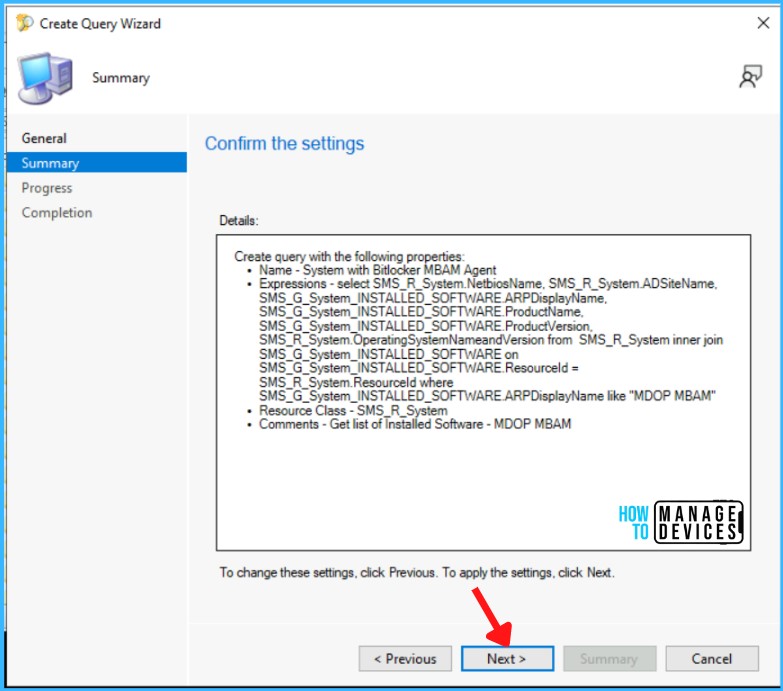
Summary - Get Installed Bitlocker MBAM Agent Details Using SCCM Query 5
Summary – Get Installed Bitlocker MBAM Agent Details Using SCCM Query 5

The task “Create Query Wizard” completed successfully. Click Close to finish the wizard.
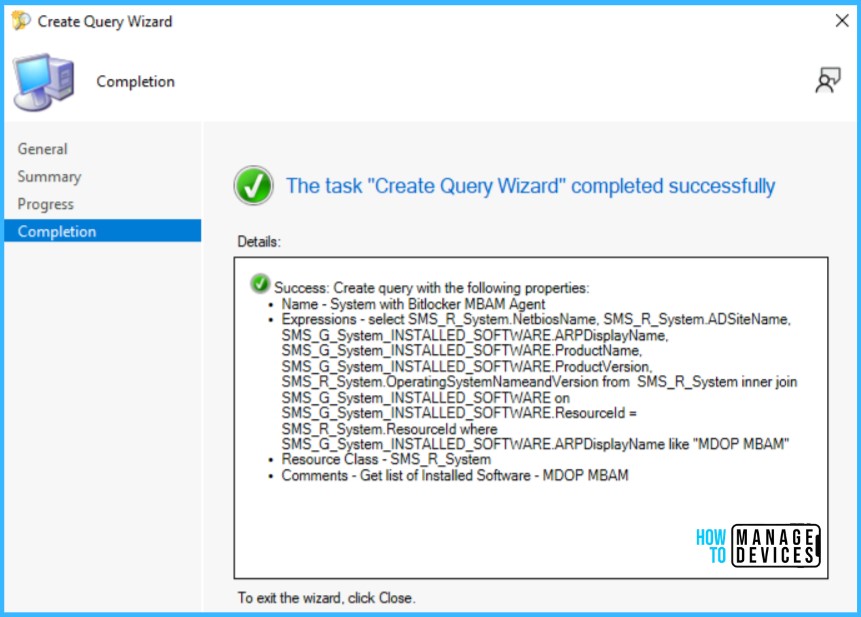
Query Wizard Success - Get Installed Bitlocker MBAM Agent Details Using SCCM Query 6
Query Wizard Success – Get Installed Bitlocker MBAM Agent Details Using SCCM Query 6

Results – Installed MDOP MBAM Application In System

Once you completed the wizard. The new query appears in the Queries node in the Monitoring workspace. Right-click on the query and select Run, Or you can also double-click on the query to run.
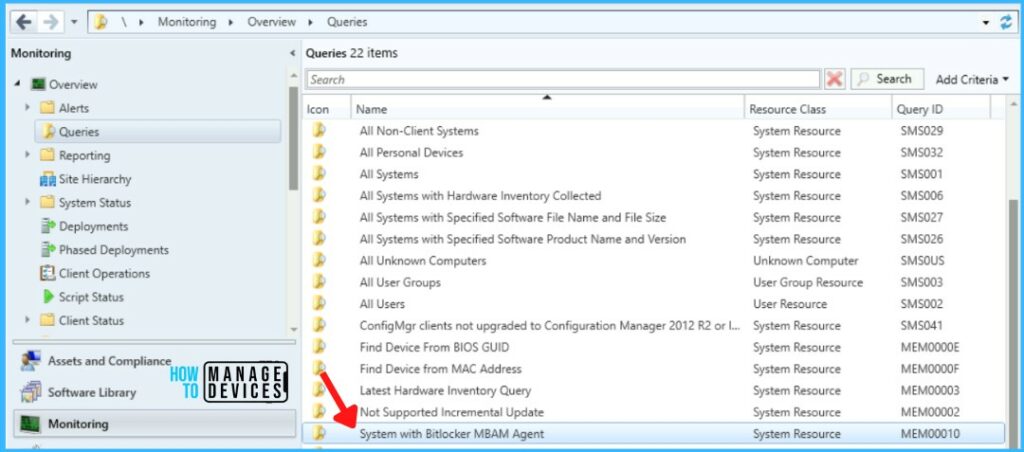
Get Installed Bitlocker MBAM Agent Details Using SCCM Query 7

Here you can see the results for System with Bitlocker MBAM Agent installed displays information with Installed Software Application and Version in the device.

Lists of device - Get Installed Bitlocker MBAM Agent Details Using SCCM Query 8
Lists of device – Get Installed Bitlocker MBAM Agent Details Using SCCM Query 8

Author

Written by

Jitesh has over 5 years of working experience in the IT Industry. He writes and shares his experiences related to Microsoft device management technologies and IT Infrastructure management. His primary focus area is Windows 10 Deployment solution with Configuration Manager, Microsoft Deployment Toolkit (MDT), and Microsoft Intune.

Discussion

Join the discussion

Your email address will not be published. Required fields are marked *

Related guides

Intune

Windows 11 KB5101650 KB5099414 July 2026 Patch and 3 Zero Day Vulnerabilities and 570 Flaws

Key Takeaways Windows 11 KB5101650 KB5099414 July 2026 Patch and 3 Zero Day Vulnerabilities and 570 Flaws! In the July 2026 Patch, Microsoft introduced new features designed to improve the overall Windows experience. The update adds enhancements to Windows Update for more flexible update management and introduces Point-in-Time Restore, providing an additional recovery option for […]

AC Anoop C Nair 9 min read
Intune

2026 June KB5094126 KB5093998 Windows 11 Patch | 3 Zero Day Vulnerabilities and 200 Flaws

Key Takeaways 2026 June KB5094126 KB5093998 Windows 11 Patch | 3 Zero Day Vulnerabilities and 200 Flaws! The June 2026 Windows 11 Patch Tuesday update brings several improvements to File Explorer. It adds support for additional archive formats, including UU, CPIO, XAR, and NuGet Packages (NUPKG). The update also preserves View and Sort preferences in […]

AC Anoop C Nair 10 min read
Intune

2026 May KB5089549 KB5087420 Windows 11 Patch | 0 Zero Day Vulnerabilities and 120 Flaws

Key Takeaways The Windows 11 May 2026 Patch KB5089549 KB5087420 Update brings important security fixes, performance improvements, and reliability enhancements across the operating system. The update introduces new features such as Xbox Mode for gaming, File Explorer improvements, enhanced input and sharing experiences, better taskbar and Windows Hello reliability, and additional enterprise management capabilities for […]

AC Anoop C Nair 8 min read
SCCM

ConfigMgr 2603 Introduces New Early Update Enrollment Process

Key Takeaways In this post we are discussing the ConfigMgr 2603 Introduces New Early Update Enrollment Process. Microsoft has officially released Configuration Manager version 2603 to the Early Update Ring, giving organizations an opportunity to test upcoming improvements before the global production rollout. The release is targeted at enterprises running ConfigMgr version 2409 or later […]

AC Anoop C Nair 3 min read



