






Enable Disable Graph Recent Items in File Explorer Policy using Intune
In this post, let’s discuss how to Enable Disable Graph Recent Items in File Explorer Policy using Intune. As you all know, setting a catalog is a powerful feature in an Intune. The Settings Catalog in Microsoft Intune is a crucial tool for IT administrators. It will help the admins to control the device over a policy setup.
We are covered in many policy types through setting catalog, Now we are discussing the file explorer policy of Disable Graph Recent Items through setting catalog. The “Graph Recent Items” feature in File Explorer tracks recently accessed files and folders for quick acces
Disabling this policy will enhance privacy and keep the interface cleaner by not showing your recent activities. Graph Recent Items in File Explorer helps you quickly access recently used files and folders.It shows recent files from cloud services like OneDrive and SharePoint, as well as files stored on your computer.
This policy will act like a cleaner in File Explorer interface without the clutter of recent items to improve user experience and productivity. You can easily disable this policy through Intune. In this post, we will discuss a guide for disabling graphs of recent items in the file explorer.

Table of Contents
What Happens When Disable Graph Recent Items in File Explorer?
Enable Disable Graph Recent Items in File Explorer Policy using Intune – Windows CSP Details
Above we discussed the overall things about the disabled Graph Recent Items through Setting catalog. Turning off this setting will stop File Explorer from showing cloud file information on the homepage and other views. It will also turn off features like Recent, Recommended, Favorites, and the Details pane based on your account activity.
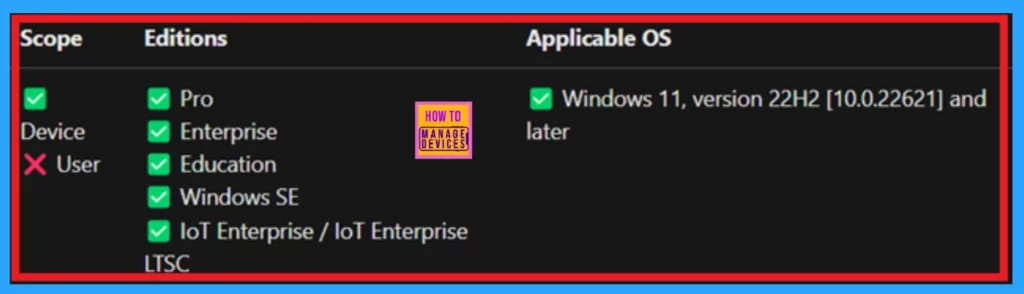
- This policy applicable and the CSP Details will give into the below table.
| Editions | Applicable OS | Scope |
|---|---|---|
| Pro | Windows 11, version 22H2 [10.0.22621] and later | Device (Allowed) |
| Enterprise | User( Not allowed) | |
| Education | ||
| Windows SE | ||
| loT Enterprise / loT Enterprise LTSC |
- Intune Allow Microsoft Accounts to be Optional Policy
- Enable or Disable Password Prompt for Autofill in the MS Edge Browser using Intune Policy
- How to Remove Start Backup in File Explorer of Windows11
How to Create Policy
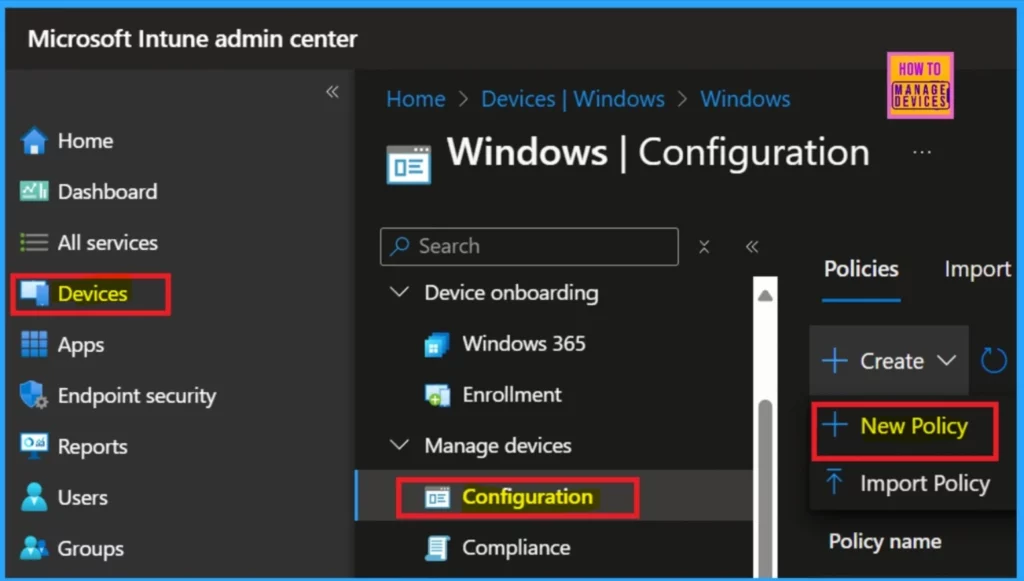
The Intune admin center enables you to disable this policy quickly. First, log in to the Microsoft Intune admin center using your credentials. On the left side of the window, you will see the “Devices” option; click on it. Next, click on “Configuration Policies.” In the configuration section, you will find the option to create a new policy. Click on that to proceed.
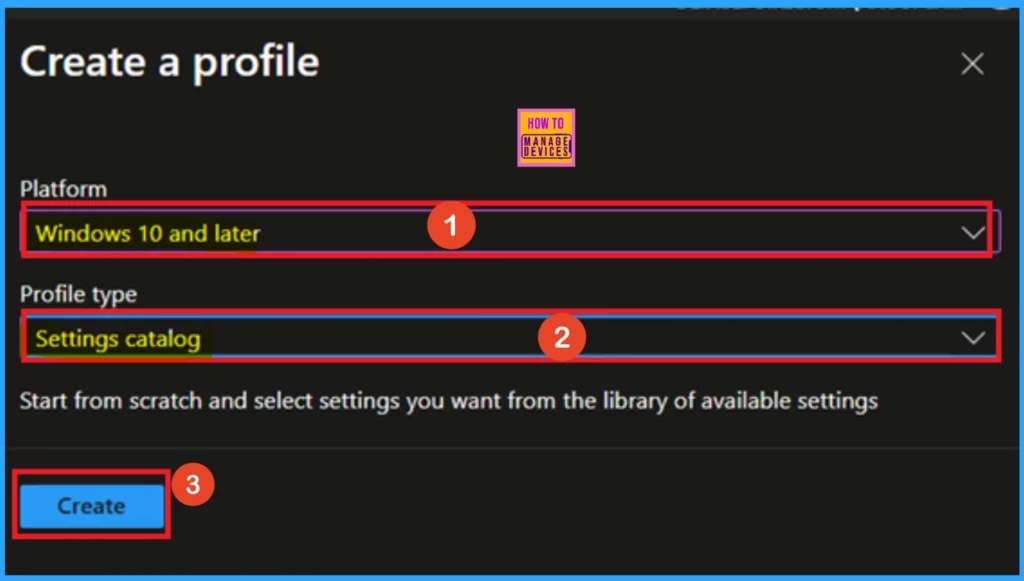
After clicking on the new policy,this will open a new window called “Create a Profile.” In this window, you can select the platform, which should be Windows 10 and later. Then click o the Create option.
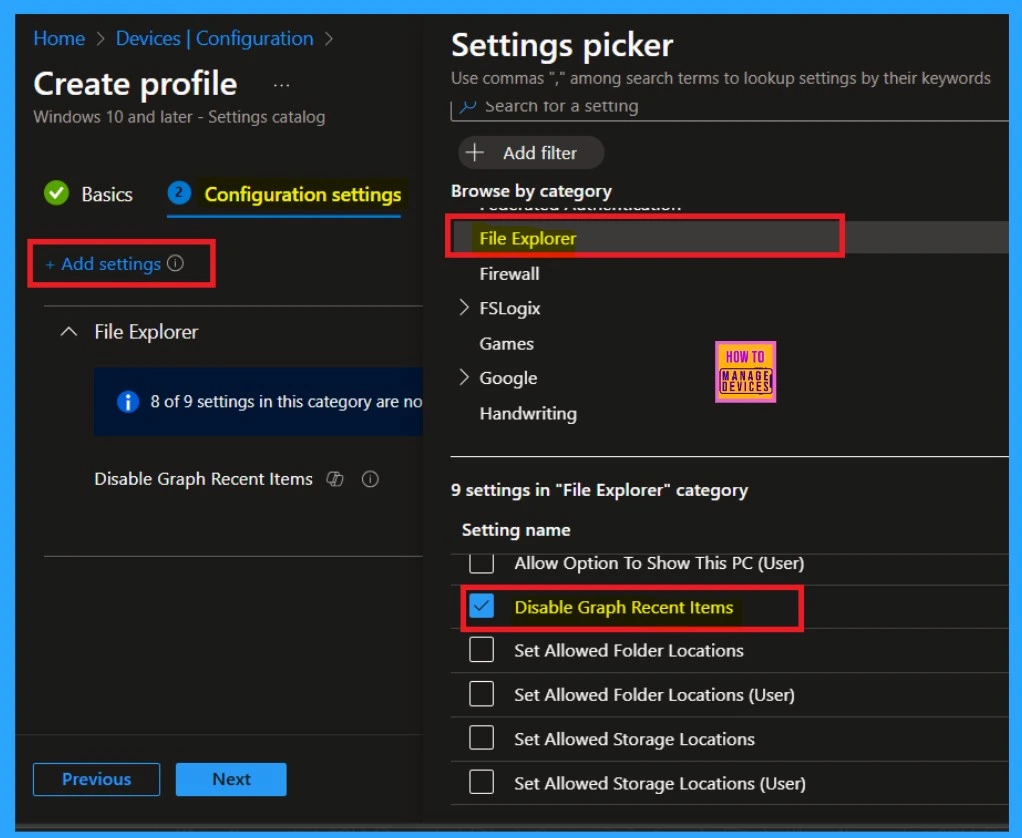
Configuration Settings Picker
The next step is the Configuration tab, which is a crucial part of the policy creation process. In this section, you will notice the “Add Settings” option, which appears as a hyperlink. Click on it. Once you click on “Add Settings,” a setting picker will open, allowing you to choose different setting categories.
Here, we will focus on File Explorer, so click on that option. After doing so, the window above will display the names of the available settings.
- I have selected Disable Graph Recent Items.
- Now you can close the Window and go to the Configuration settings back.
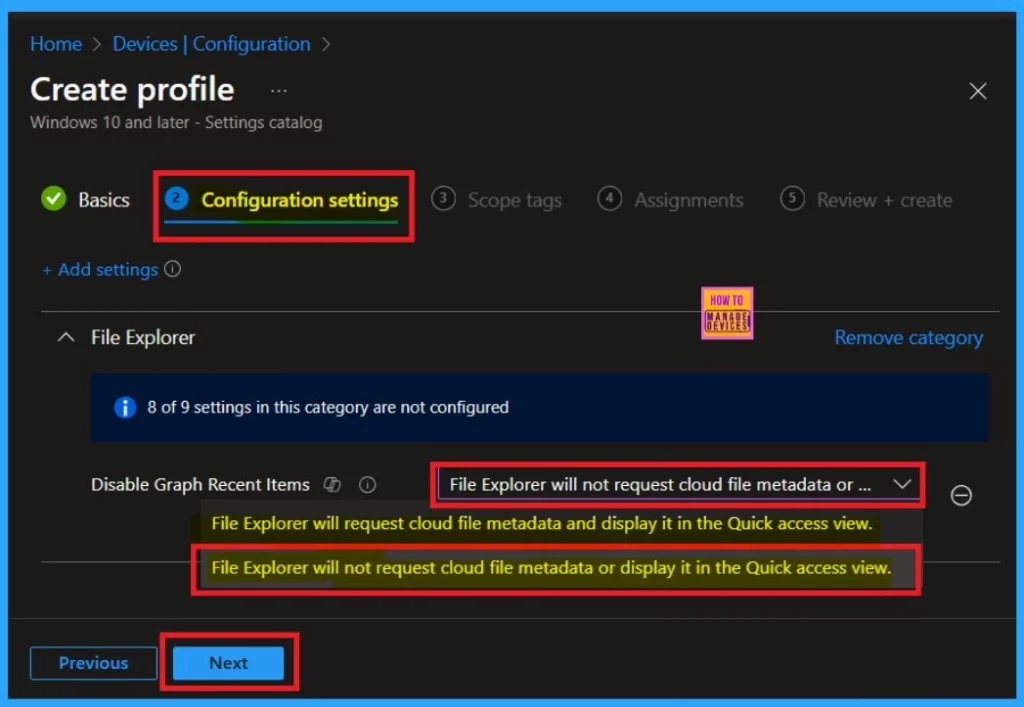
After closing the settings picker, you are in the configuration setting tab. There, you will get 2 options such as File Explorer will request cloud file metadata and display it in the Quick access view and File Explorer will not request cloud file metadata or display it in the Quick access view.
- Here I selected ”File Explorer will not request cloud file metadata or display it in the Quick access view”.
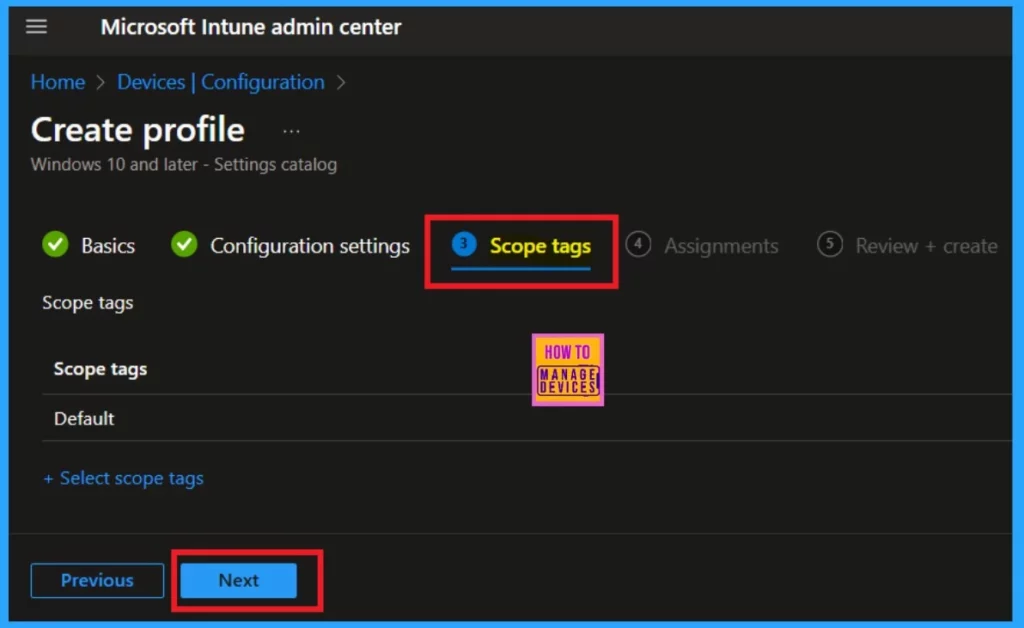
Scope Tags
After the configuration tab, you are now on the scope tags. This tab is used for adding Scope tags to the policy. When we create a policy, this option is mandatory and I will skip this section.
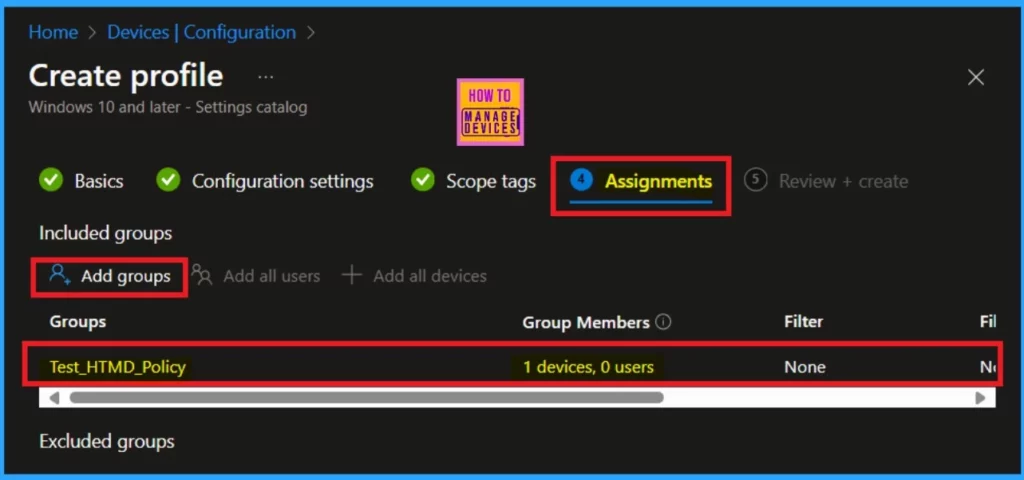
Assignments
The Assignment tab is an important section, like the configuration tab. We can’t skip this one because this section will help us add a specified group to a Policy. You can see that the Add group option here is required. Click on Add groups, and you can search for the groups that you want or create a group.
- After selecting the group, you can easily close the selection window and click on Next.
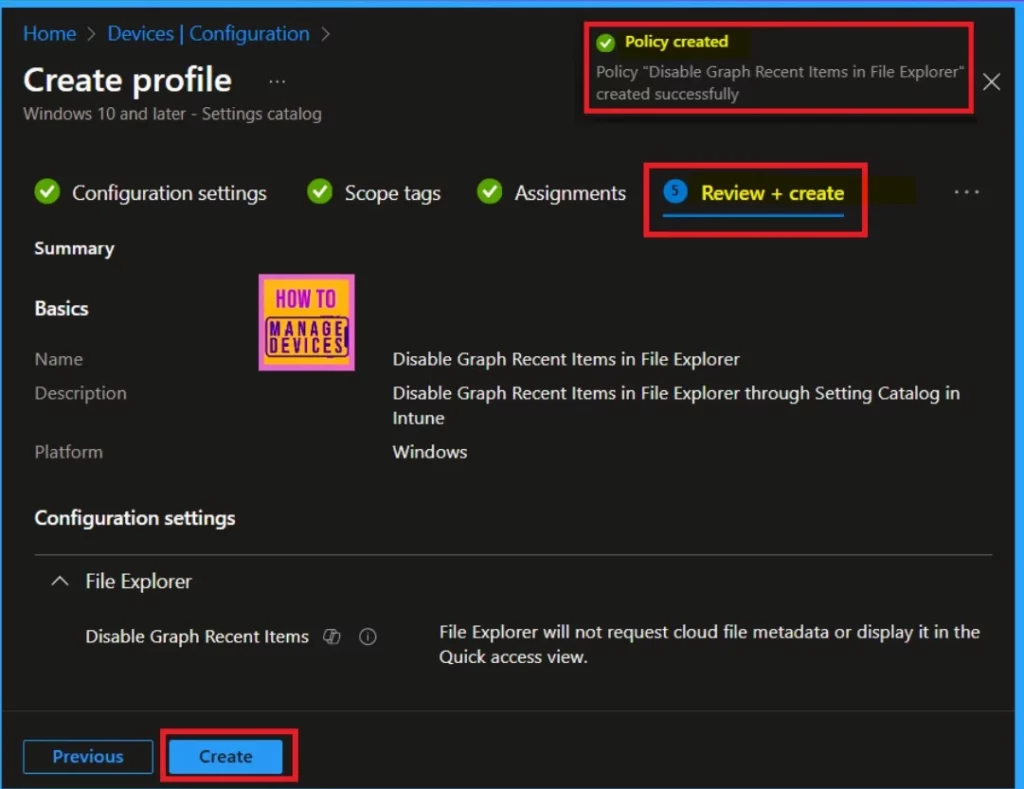
Review + Create
The final section is the Review+ Create option. This is like a summary page. Here, you can see all the information added to the policy. When you check it once now, you can click on the Create option.
Monitoring Status
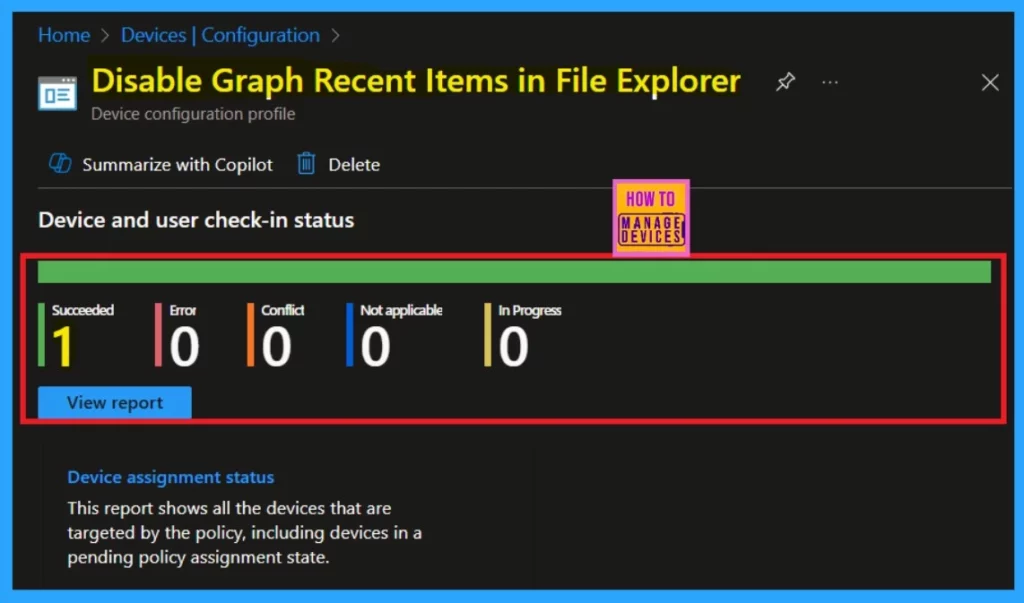
Monitoring status is a very important section because with this, you can identify whether your policy has been successfully created or not. As you all know, policy creation usually takes 8 hours. You can use the company portal sync option to reduce the waiting time.
Client Side Verification
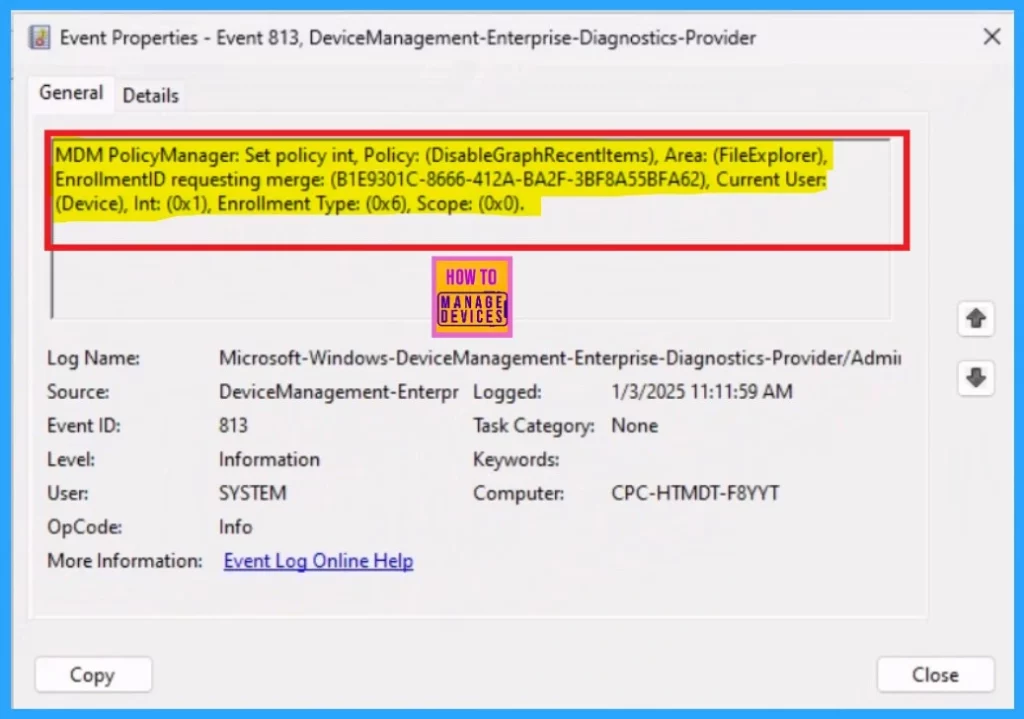
To monitor the status of the Disable Graph Recent Items in File Explorer in Intune, you can use Event Viewer. Start by typing “Event Viewer” in the Start menu to open it. Then, navigate to Application and Services Logs > Microsoft > Windows > DeviceManagement–Enterprise Diagnostics Provider > Admin.
- In the right pane, click on Filter Current Log, enter 813 in the Event IDs field, and click OK.
- This will filter the logs to display only entries related to the policy’s status, allowing you to easily track its deployment and application without needing to access the Intune portal.
| Policy Details |
|---|
| MDM PolicyManager: Set policy int, Policy: (DisableGraphRecentltems), Area: (FileExplorer), EnrollmentID requesting merge: (B1E9301C-8666-412A-BA2F-3BF8A55BFA62), Current User: (Device), Int: (0x1), Enrollment Type: (0x6), Scope: (0x0). |
Need Further Assistance or Have Technical Questions?
Join the LinkedIn Page and Telegram group to get the latest step-by-step guides and news updates. Join our Meetup Page to participate in User group meetings. Also, Join the WhatsApp Community to get the latest news on Microsoft Technologies. We are there on Reddit as well.
Author
Anoop C Nair has been Microsoft MVP for 10 consecutive years from 2015 onwards. He is a Workplace Solution Architect with more than 22+ years of experience in Workplace technologies. He is a Blogger, Speaker, and Local User Group Community leader. His primary focus is on Device Management technologies like SCCM and Intune. He writes about technologies like Intune, SCCM, Windows, Cloud PC, Windows, Entra, Microsoft Security, Career, etc.


Discussion