






Show or Hide Configuration Manager Apps from Intune Company Portal
In this post, you will learn how to show or hide Configuration Manager Apps from Intune Company Portal. By using the new option for Configuration Manager apps from Intune Company Portal, you can avoid app duplication and provide the best end-user experience.
Starting with Intune Service release 2301, you can configure whether to show Configuration Manager apps in Windows Company Portal. The display of apps from the Configuration Manager Applications app source is only displayed in the Windows Company Portal.
The Company Portal supports Configuration Manager applications. This feature allows end users to see both Configuration Manager and Intune deployed applications in the Company Portal for co-managed customers.
The option of whether to show or hide Configuration Manager apps from appearing in the Windows Company Portal might help you to select the apps you want to display in the company portal.

Let’s look at the steps to configure Intune company portal branding, which provides the branding customization details for the end-user experience Intune Company Portal Branding Customization Options.
- Configure Organizational Messages From Intune Portal
- Device Enrollment Option From Intune Company Portal
Show or Hide Configuration Manager Apps from Intune Company Portal
By customizing the end-user experience, you will help provide a familiar and helpful experience for your end users. Let’s check how you can configure whether to show Configuration Manager apps in Windows Company Portal.
- Sign in to the Microsoft Intune admin center https://endpoint.microsoft.com/.
- Navigate to Tenant Administration > Customization.
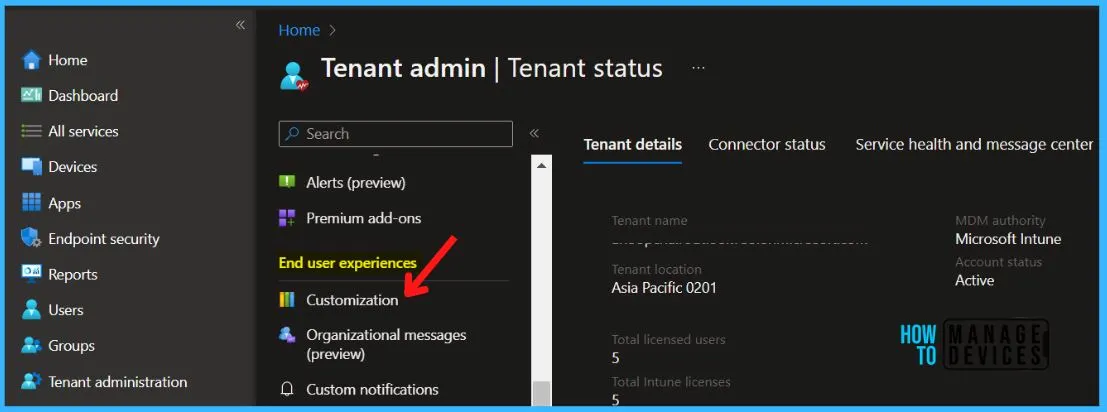
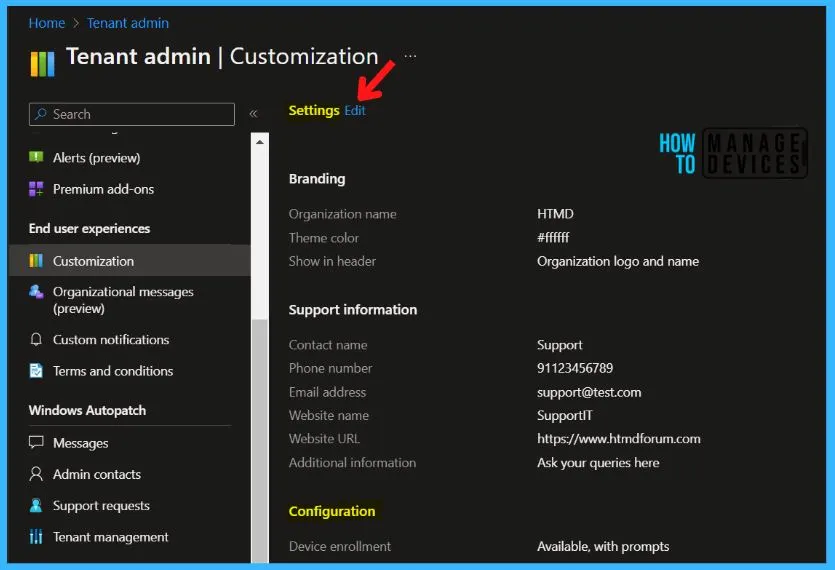
Under Customization, You can either edit the default policy or create up to 10 group targeted policies. Here I will edit an existing policy, Click on Edit under Settings.
Note – These settings will apply to the Company Portal apps, Company Portal website, and Intune app on Android.
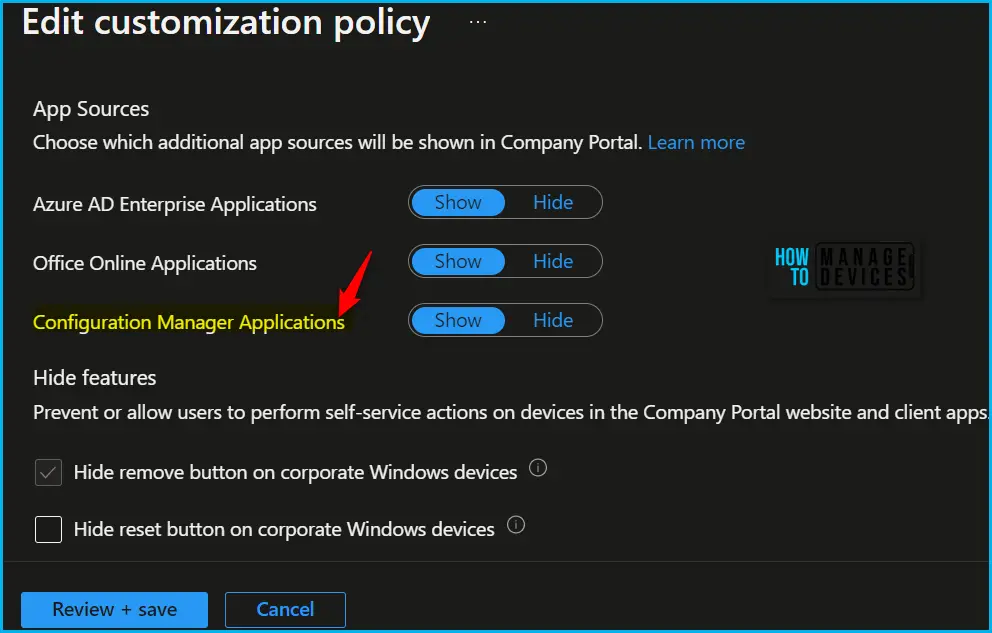
In the App Sources section, The option to Show or Hide the Configuration Manager applications is located. You can hide or show Configuration Manager applications in the Company Portal for each end user.
The Show will cause the Company Portal to display the entire applications catalog from the chosen Microsoft service(s) assigned to the user. Here you can also choose which additional app sources will be shown in Company Portal.
| App Sources | Information |
|---|---|
| Configuration Manager Applications | Select Hide or Show to display Configuration Manager applications in the Company Portal for each end user. |
Intune Company Portal End User Experience
You need to launch the Company Portal app on co-managed devices and sign in. Let’s learn how to Install and Use the Microsoft Intune Company Portal app on Windows 11.
View available and installed Configuration Manager apps in the Company Portal alongside Intune apps. Based on the configuration, you will able to manage apps view here.
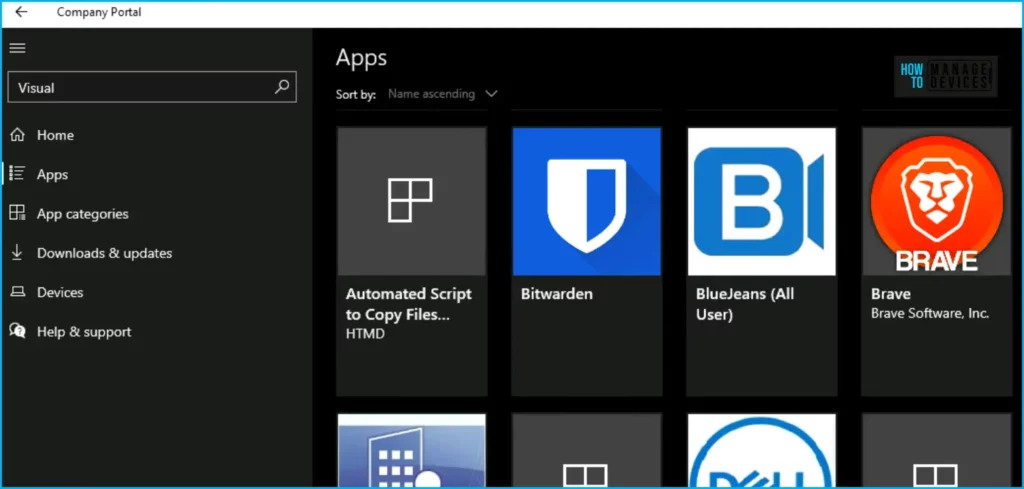
Install available Configuration Manager apps from the Company Portal and receive installation status information. The behavior of the Company Portal depends upon your co-management workload configuration:
| Setting | Behavior |
|---|---|
| Configuration Manager | You can see only Configuration Manager client apps |
| Pilot Intune or Intune | You can see both Configuration Manager and Intune client apps |
Author
About Author – Jitesh, Microsoft MVP, has over six years of working experience in the IT Industry. He writes and shares his experiences related to Microsoft device management technologies and IT Infrastructure management. His primary focus is Windows 10/11 Deployment solution with Configuration Manager, Microsoft Deployment Toolkit (MDT), and Microsoft Intune.


There is a bug within this, I think. Flipping it over to Hide MECM apps, in fact removed all Apps including Intune. With setting to Hide, Company Portal reports, “Your IT Administrator did not make any apps available to you”… Regardless of MECM co-management workload setting, this doesn’t work as intended. Anyone else with this issue or what am I missing?
If I remove Software Center from the PC, can we still see Configuration Manager Apps in the Company Portal?