






Hide New Outlook Toggle in Outlook Desktop App using Intune
Let’s learn how you can hide New Outlook Toggle in Outlook Desktop App using Intune. The administrative policy allows you to control whether you want the user to use the ‘Try the new Outlook’ toggle option for exploring the new Outlook appearance for the Windows desktop app.
The new Outlook for Windows, currently in preview, the new Outlook for Windows marks a significant stride towards making your Outlook experience more consistent.
The Try the new Outlook” toggle is now available in Current Channel, Monthly Enterprise Channel (MEC), and Semi-Annual Enterprise Channel (Preview). It is expected to be available in the Semi-Annual Enterprise Channel (SAC) in January 2024.
The new Windows Outlook goal remains to provide every user with a unified and good Outlook experience. Microsoft shares some essential insights and updated information that will benefit valued customers, Let’s learn about the New Unified Outlook Experience.

If you toggle into the new Outlook for Windows preview from classic Outlook for Windows, you will be redirected to the new Outlook for Windows preview every time you try to launch classic Outlook for Windows. You can go back to classic Outlook for Windows by selecting the toggle in the new Outlook for Windows app.
- New Outlook For Windows Desktop App Features Walkthrough
- How To Disable Office Update Notifications Using Intune
Hide New Outlook Toggle in Outlook Desktop App using Intune
The preview is available on the Monthly Enterprise Channel. The toggle will be available to users with supported accounts only. As Intune admins, you can control the toggle’s visibility by setting up the policy.
- Sign in to the Intune Admin Center portal https://intune.microsoft.com/.
- Select Devices > Windows > Configuration profiles > Create a profile.
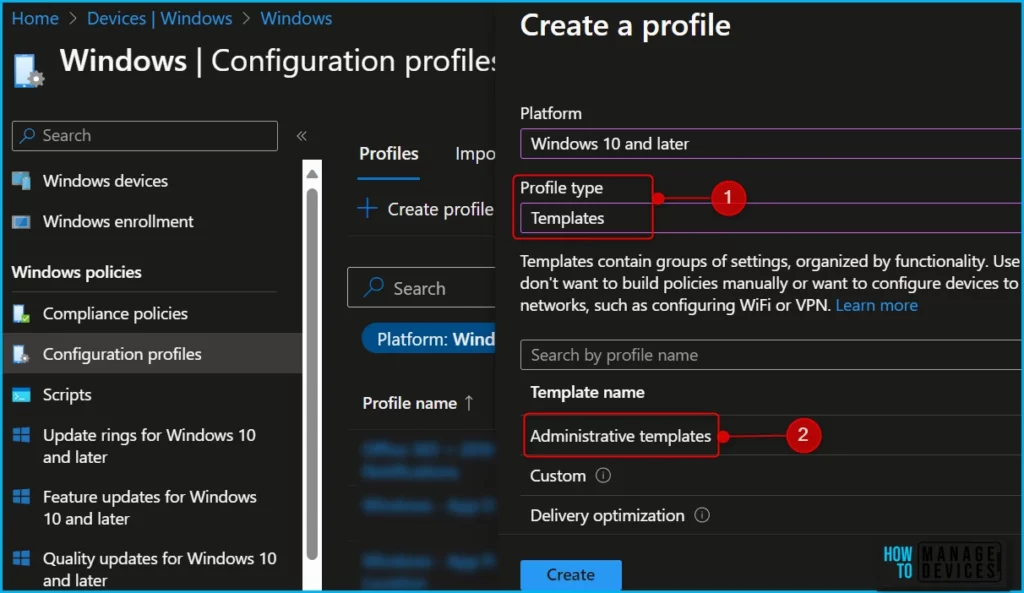
In Create Profile, Select Platform, Windows 10, and later and Profile, Select Profile Type as Templates, and choose Administrative templates from the list. Click on the Create button.
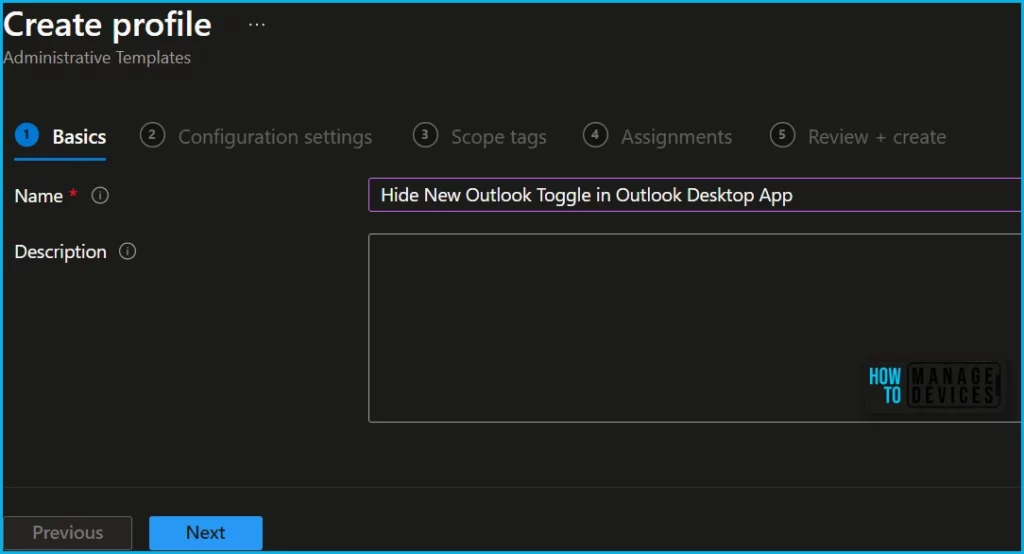
On the Basics tab, enter a descriptive name for your profile, Optionally, enter a Description for the policy, then select Next.
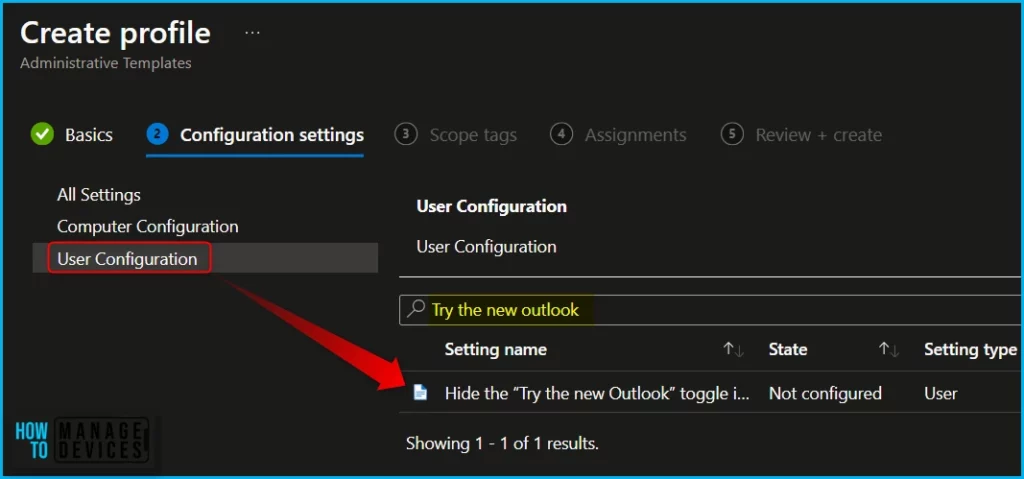
In Configuration settings, select All settings to see an alphabetical list of all the settings. Or configure settings that apply to devices (Computer configuration) and settings that apply to users (User configuration).
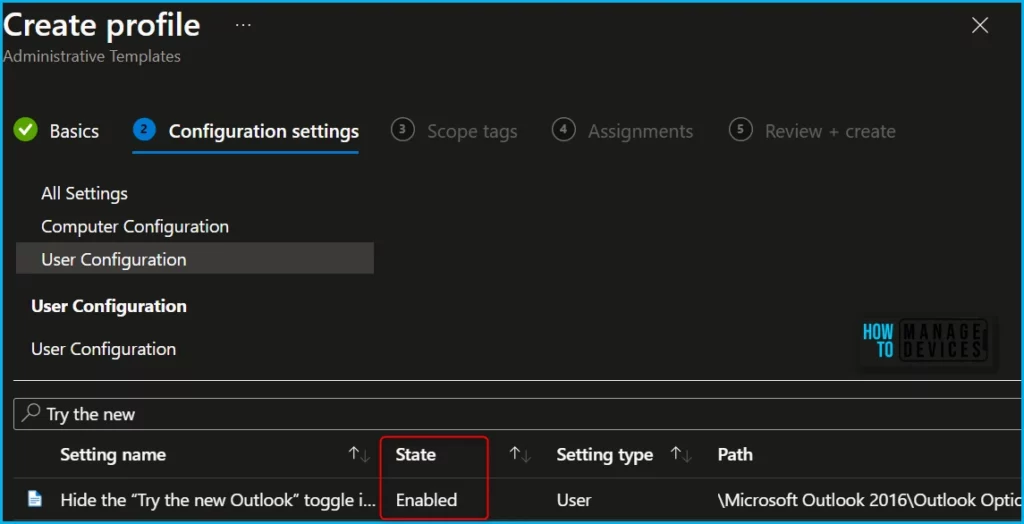
In policy, use the search box to find specific settings. You can search by category or a keyword, such as Try the new Outlook or new outlook toggle. It will display the related settings available. Here you see the hiding “Try the new Outlook” toggle is available for User Configuration. Here, I selected a policy to configure.
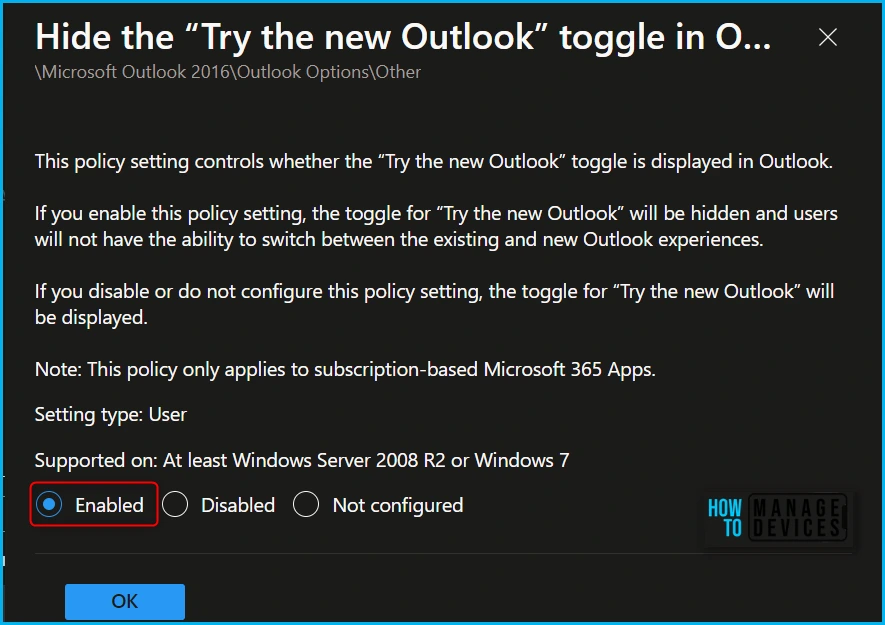
This policy setting controls whether the “Try the new Outlook” toggle is displayed in Outlook. Select Enabled and click on OK to save. If you enable this policy setting, the toggle for “Try the new Outlook” will be hidden, and users will not have the ability to switch between the existing and new Outlook experiences.
If you disable or do not configure this policy setting, the toggle for “Try the new Outlook” will be displayed. Note: This policy only applies to subscription-based Microsoft 365 Apps.
Once you select the policy status column, display the added configuration for the setting, Here, you can see the State showing Enabled for the selected policy setting.
In Scope tags, you can assign a tag to filter the profile to specific IT groups. Add scope tags (if required) and click Next.
Under Assignments, In Included groups, click Add groups and then choose Select groups to include one or more groups. Click Next to continue.
In Review + create, review your settings. When you select Create, your changes are saved, and the profile is assigned.
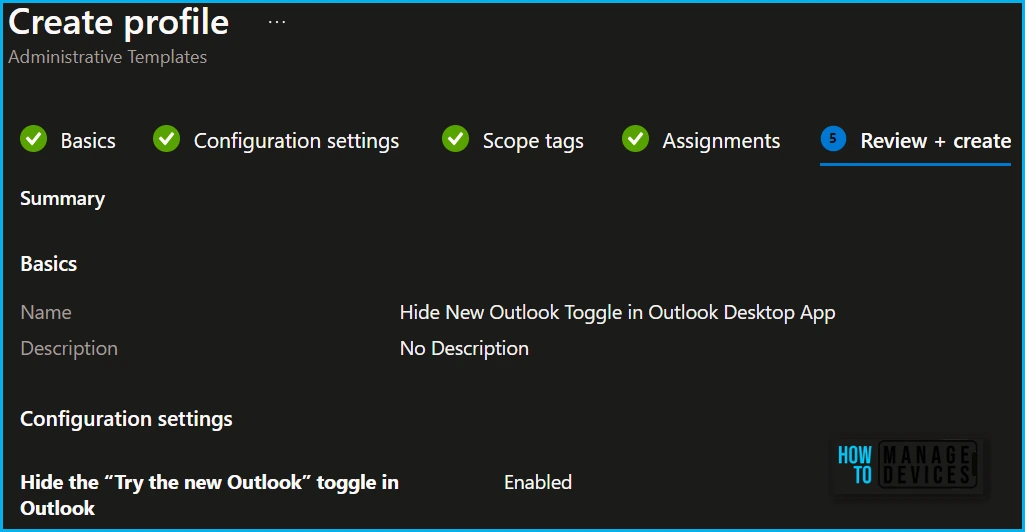
A notification will appear automatically in the top right-hand corner with a message. You can see that the Policy “Hide New Outlook Toggle in Outlook Desktop App” saved successfully. The policy is also shown in the Configuration profiles list.
Your groups will receive your profile settings when the devices check in with the Intune service the policy applies to the device. You can monitor the deployment status report by selecting the configuration profile and getting the device and user check-in status. I have seen that the reporting status is not reflected quickly after the policy is applied.
Check Registry for Hide New Outlook toggle in Outlook Desktop
The following Windows registry key is to hide or enable the Try the new Outlook toggle, If you want to enable the toggle, set the “HideNewOutlookToggle”=dword:00000001
//This value hides the Try the new Outlook" toggle in Outlook Desktop.

[HKEY_CURRENT_USER\Software\Policies\Microsoft\Office\16.0\Outlook\Options\General]
"HideNewOutlookToggle"=dword:00000000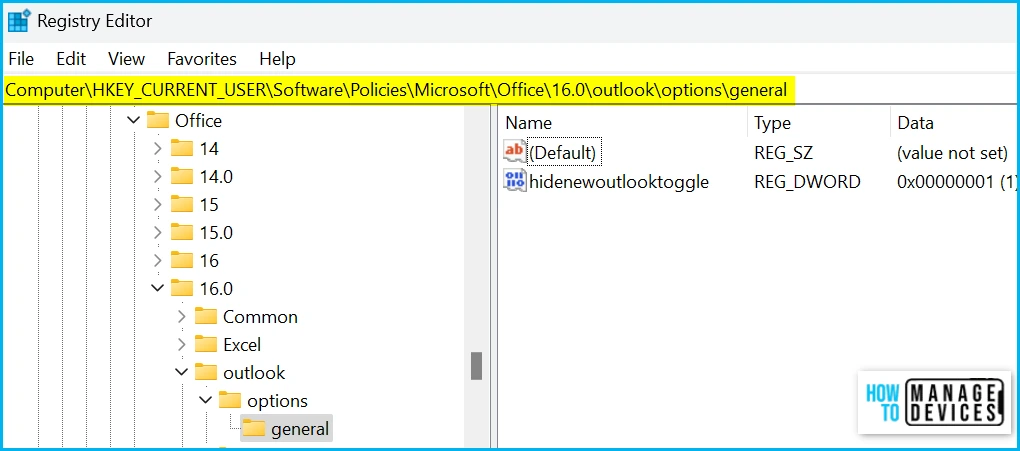
End User Experience – Outlook App
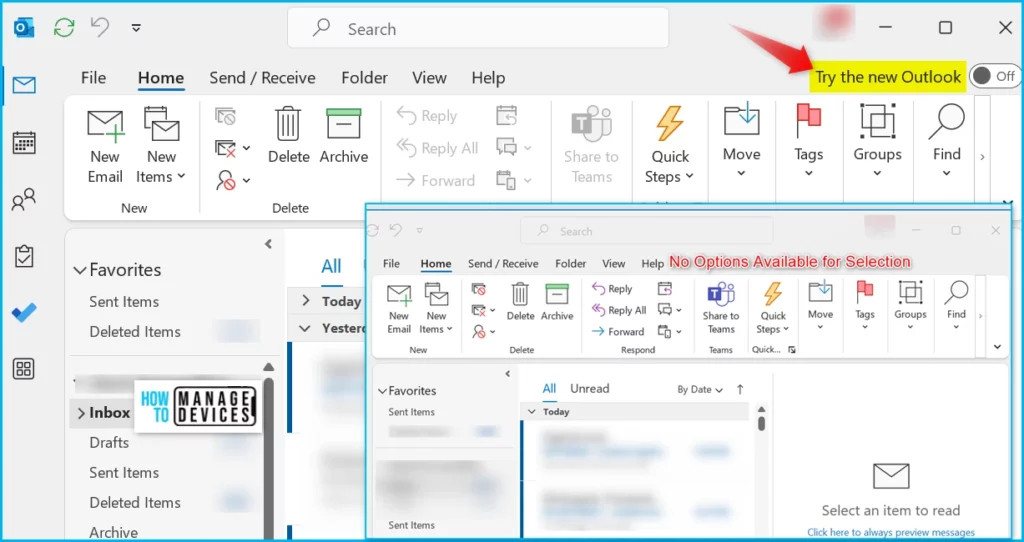
The new Outlook for Windows is enabled by default for all users with Microsoft Entra ID and Exchange Online accounts. The above-described Intune policies can be configured to enable or disable user access to the new Outlook.
Once the policy is applied to users, you can see that Try the new Outlook disappeared from the Microsoft Outlook Desktop App from the top right-hand corner.
We are on WhatsApp. To get the latest step-by-step guides and news updates, Join our Channel. Click here –HTMD WhatsApp.
Author
About Author – Jitesh, Microsoft MVP, has over six years of working experience in the IT Industry. He writes and shares his experiences related to Microsoft device management technologies and IT Infrastructure management. His primary focus is Windows 10/11 Deployment solution with Configuration Manager, Microsoft Deployment Toolkit (MDT), and Microsoft Intune.


You have the registry values backwards –
Shows the try new outlook button.
[HKEY_CURRENT_USER\Software\Policies\Microsoft\Office\16.0\Outlook\Options\General]
“HideNewOutlookToggle”=dword:00000000
Hides the try new outlook button.
[HKEY_CURRENT_USER\Software\Policies\Microsoft\Office\16.0\Outlook\Options\General]
“HideNewOutlookToggle”=dword:00000001
thank you for making it so easy to hide that damn button, too many addins don’t work with the new Outlook.
Can this be updated? For the Template name Administrative Template is listed as discontinued.