






How to Stop Accidental Deployments by SCCM Admins Configuration Manager
Let’s discuss how to Stop Accidental Deployments by the SCCM Admins Configuration Manager. We have heard many stories about SCCM causing accidental deployments and reimaging desktops, laptops, and servers. Can SCCM admin undo accidental deployments?
In this post, we will see how SCCM admins can undo accidental deployments without causing any impact. However, SCCM itself can’t cause inadvertent deployments; rather, SCCM Admins cause this kind of unfortunate situation.
There are loads of incidents where the SCCM admin came to know that they made a mistake and wanted to undo the changes. Yes, they can undo the changes, but the bigger question is whether this will help stop the deployment.?
SCCM is a potent tool, and its broad powers should be used with care. SCCM admins can take action to stop accidental deployments. Shaun Cassells explains the exclusive list of actions that SCCM Admins can take in case of unintentional deployments in the following post, “How to Stop SCCM Advertisements with Immediate Effect.”
SCCM evolved very well, and we can have role-based access control (RBAC) to provide proper controls to admins and not give anyone more power than is required for their role. The accidental deployments of applications, packages, ato users, and devices can significantly impact organizations.
- 4 Free Tools for SCCM ConfigMgr Admins Community Configuration Manager Intune
- New Features in SCCM Technical Preview 2401
- New Key Features of SCCM 2309 | Top Improvements
- Download SCCM 2309 Early Ring Version using PowerShell Script
- SCCM Versions Build Numbers Client Console Site
- End of Support Dates for SCCM CB Current Branch | ConfigMgr | SCCM End of Life
- SCCM Unsupported Deprecated or Removed Features
Table of Contents

How to Stop Accidental Deployments by SCCM Admins Configuration Manager
The bigger question is Can SCCM Admins undo accidental deployments? Do they have any out-of-box controls in SCCM to STOP the deployment they initiated mistakenly?
My answer to that question is NO. SCCM still lacks that big RED button to stop all the initiated deployments. Natively, SCCM / ConfigMgr has no mechanism to immediately stop package replication or traffic over the WAN. However, we can have some workarounds to prevent SCCM WAN traffic.
Apart from accidental deployments of applications, packages, and task sequences, the unintentional distribution of packages to larger groups of SCCM DPs can also have a big impact on your organization.
I have had a bad experience with this personally. SCCM admins can easily make accidental deployments and package distributions without going through the tedious process explained above.
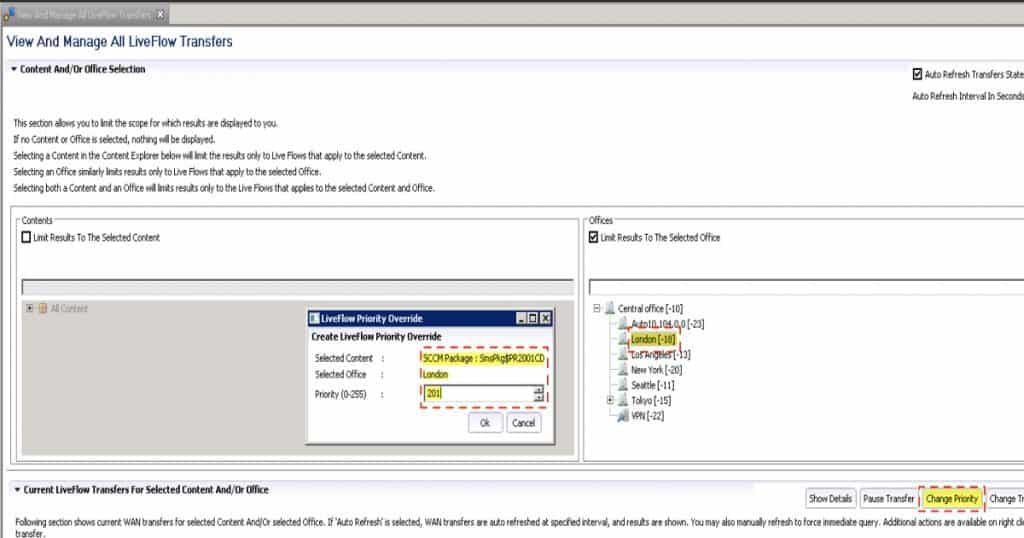
- Only Adaptiva OneSite gives SCCM admins a real-time dashboard with a detailed display of in-progress ConfigMgr WAN transfers and live control to reprioritize, pause/resume, or cancel them.
- Admins can use the LiveFlow dashboard to move an urgent delivery, such as a security fix, to the top of the queue and instantly deliver it worldwide.
- In-progress jobs are paused and later resumed automatically.
- LiveFlow also reveals where content is stored in the peer-to-peer network worldwide.
- More details about this feature are in the following post, “Datasheet: Content Visibility and Control with OneSite.”
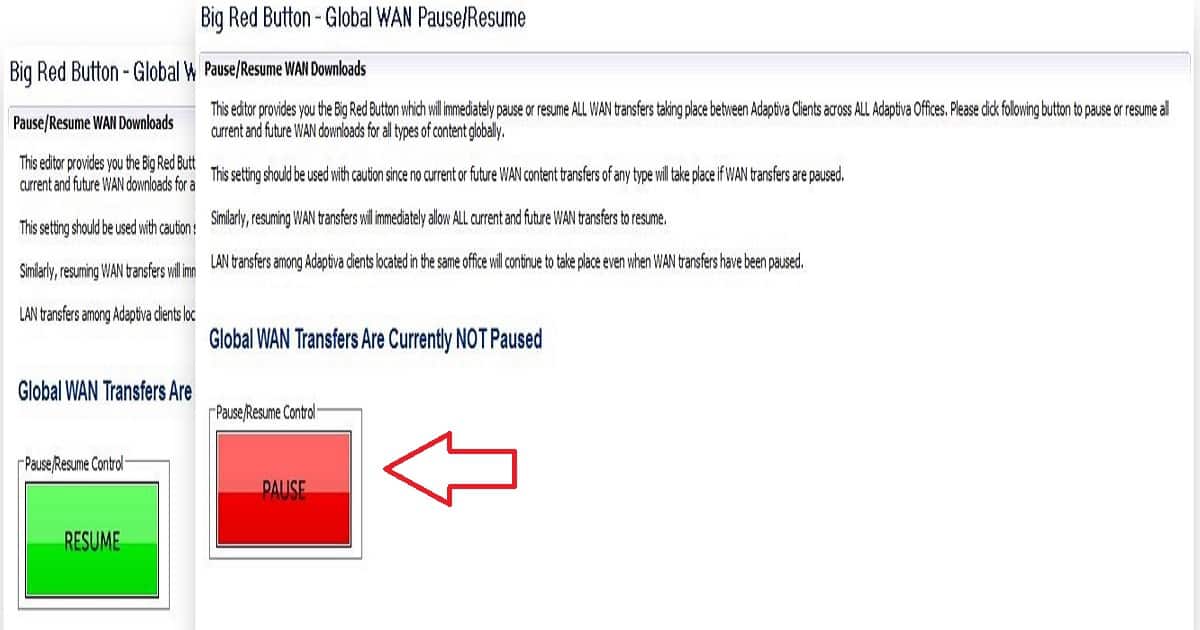
WAN Pause/Resume (make this mainly about LiveFlow, but the big red button is considered part of it now) Adaptiva OneSite lets administrators instantly pause/resume all SCCM WAN traffic by pushing a button.
If a rollout needs to be stopped for any reason (e.g., it contains an error or virus) before deploying it on hundreds of thousands of systems, this “big red button” immediately halts all network activity worldwide. Never before have administrators had the power to stop all content delivery in its tracks globally!
| Big Red Button Global WAN |
|---|
| Resume |
| Pause |
We are on WhatsApp now. To get the latest step-by-step guides, news, and updates, Join our Channel. Click here. HTMD WhatsApp.
Author
Anoop C Nair is Microsoft MVP! He is a Device Management Admin with more than 20 years of experience (calculation done in 2021) in IT. He is a Blogger, Speaker, and Local User Group HTMD Community leader. His main focus is on Device Management technologies like SCCM 2012, Current Branch, and Intune. He writes about ConfigMgr, Windows 11, Windows 10, Azure AD, Microsoft Intune, Windows 365, AVD, etc.


The design of SCCM over the years hasn’t helped. There should be separate permissions to enable adding records to a collection vs creating a query (especially when the default query adds ALL machines to a collection)…
Hi Anoop,
There are a couple of extra things that can be done now with some of the newer features offered by current branch CM2012 in addition to the options presented in Shaun’s good but arguably now in need of updating article (after all it dates back to SCCM 2007 and predates CM2012 CB capabilities).
You now have the ability to force a policy update on all currently online systems within the console via the client notification right click option. That would allow you do modify the deployment to say expired, or set a requirement on the deployment type to an OS you don’t use or a memory requirement that no device will have, or a dependency app that isn’t deployable… anything that means no device will be able to run it. Then all you do is force the policy update notification to all online systems.
That allows you to still report on where the errant application did install before you were able to halt it. It will also stop it as fast as policy can get out and does not rely on clients refreshing policy. It also means you don’t have to utterly break what is probably otherwise a reasonable application that would be just fine to deploy only so long as correctly targeted and does not involve doing nasty things to your DPs that may take time to recover from.
Of course it wont help you if an msiexec has already downloaded and been triggered and is in the act of installing, but then none of the other options helps you when you get that far. You could possibly force a reboot (after all there are right click console tools that will do it for an entire collection)but that would be something I would only consider in an extreme emergency and may cause more damage to systems than allowing the install to complete and then uninstall it again afterwards. Still not a big red button by the client notification mechanism could get you out of a hole about as quickly as is possible without breaking the infrastructure to do it.
StaffHello Anoop,
This explains about accidents or human errors (Caused by SCCM Admins) very well. Is there any way to apply freeze in SCCM so anyone trying to deploy anything during the freeze period then it should fail or should not create the deployment itself at the first place? I know it sounds weird.