






SCCM Configuration Manager Application Creation Deployment Installation
Let’s discuss the SCCM Configuration Manager Application Creation Deployment Installation. SCCM CB application creation is the next step after installing SCCM CB 1702 installation, SCCM CB AD discovery, and client installation.
I already covered in the previous posts “Step by Step Video Tutorial of SCCM CB 1702 Baseline version Installation” and “Video Tutorial How to Perform SCCM CB AD Discovery and Install Client“. SCCM CB application creation is the first step in this process.
The second step is SCCM CB Application Deployment, and the third step is installing the SCCM CB application on the clients. We will cover all the scenarios in this post. I have documented all these steps in the video tutorial, which details SCCM CB application creation (upload), deployment, and installation.
Application deployment is one feature many corporate organisations use to cater to their business requirements. In SCCM CB, we will have the option to create packages and deploy those SCCM packages. Yes, packages are required in some of the scenarios.

The packages are also used to deploy old Win32 apps that were migrated to the SCCM CB environment from SCCM 2003/2007/2012. I recommend taking advantage of SCCM CB applications rather than still using standard packages.
- How To Deploy Zoom Application Using SCCM | ConfigMgr
- Create Script Deployment Type Using PowerShell for SCCM EXE Application
- Create SCCM Application Deployment using PowerShell
- SCCM Application Supported Deployment Types | ConfigMgr | Endpoint Manager
- SCCM Application Deployment Status Using SQL Query Custom Report
Table of Contents
SCCM CB Application Creation Deployment User Experience
This video comprehensively covers all aspects of SCCM CB (Current Branch) application creation, deployment, and user experience. It provides detailed guidance on creating applications within SCCM, including the necessary configuration steps and considerations for deployment.
How to Create/Upload SCCM Application – SCCM Configuration Manager Application Creation Deployment Installation
This guide provides instructions on creating and uploading an application in SCCM and details the steps for developing, deploying, and installing an SCCM application. By following this guide, administrators can effectively manage and distribute applications within their organization’s network using SCCM, ensuring easy and efficient software deployment and maintenance.
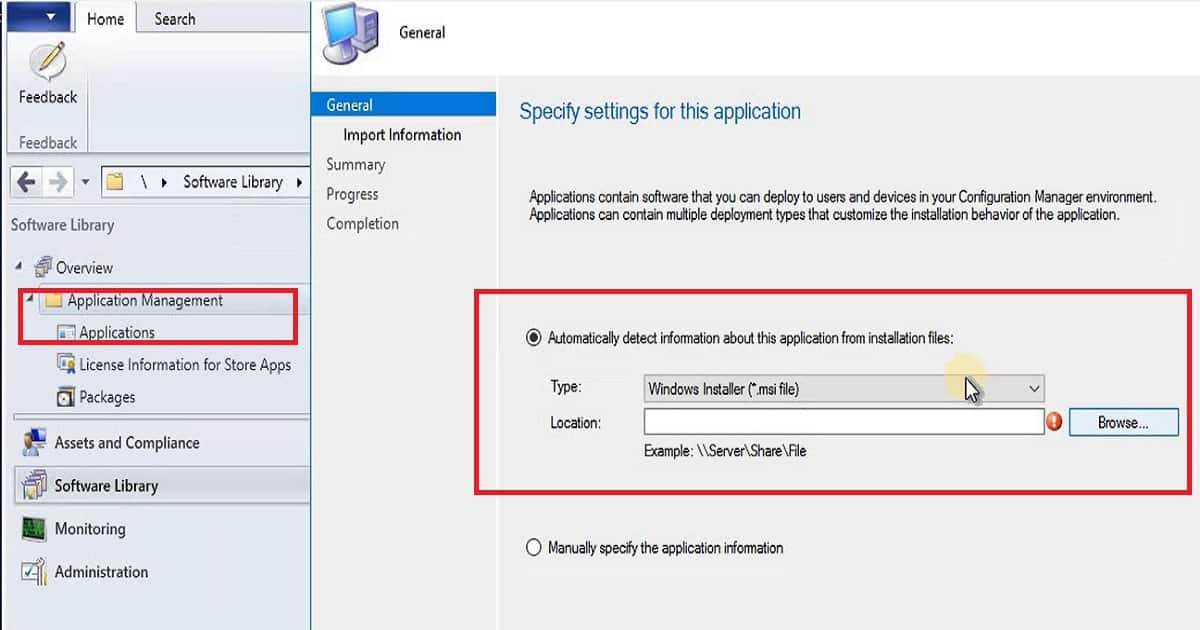
SCCM CB application creation is the first step in this process. The application can be created based on several types of installation files. These installation files range from Win 32 MSI apps to EXE and a wide range of mobile (MDM) apps.
- MSI is the most preferred installation type for Windows devices, and this post will cover creating MSI apps.
- First, we must ensure that the SCCM CB application source is stored in a UNC path (\\ServerShare\Sources\).
- As the video tutorial shows above, the wizard will error if we don’t provide the UNC path as a source location for the MSI app source.
| Baseline Configuration Analyzer Properties |
|---|
| Automatically download content when packages are assigned to distribution points |
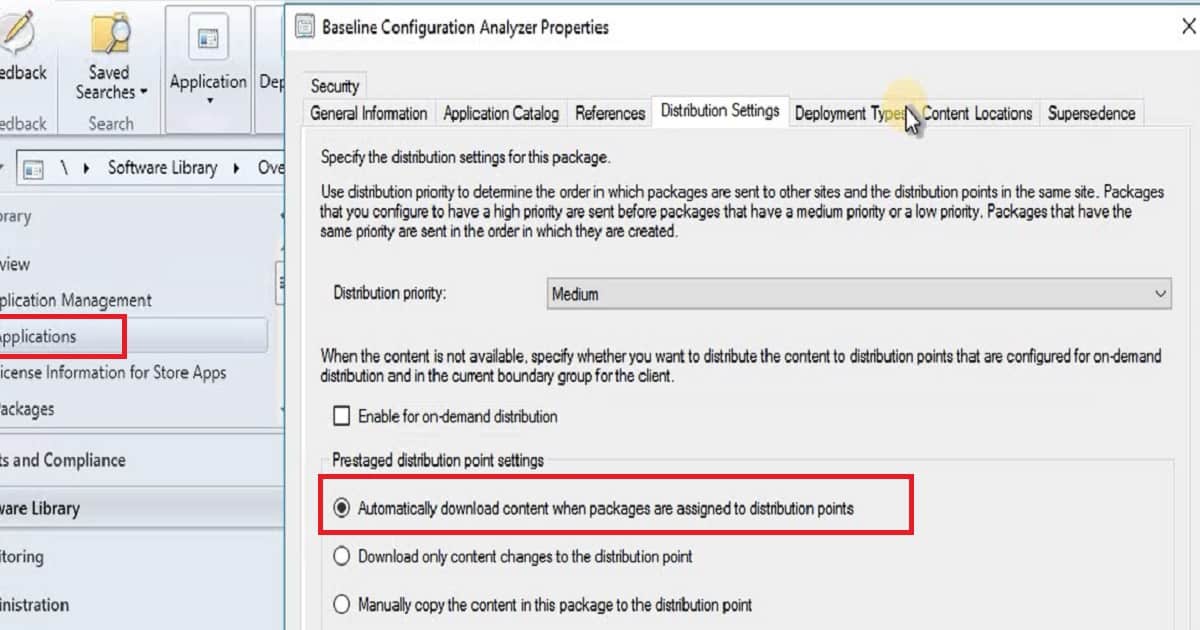
The SCCM CB application creation process creates metadata in the console and related DB entries. It also creates a bundle of files that this MSI installation file requires for the complete application installation.
This bundle of files will be delivered to SCCM content stores called DPs. The client will download (if the deployment setting is to download the Content from DP) and install it. The video shown above covers this process, and the following sessions will cover it.
How to Deploy SCCM CB Application and Content?
Once the SCCM CB application is created and the app reference is in the console, we can deploy the application content (the source files) to the content store servers (Distribution Points). The entire process is explained in the video tutorial above.
We can initiate a distributed content option to start the application source replication process to remote DPs. SCCM CB application content distribution is mandatory before we deploy the application to SCCM client devices or users.
Once the application content is distributed to the DPs, we can deploy or schedule the application installation to the device or user collection. You want to make some decisions before starting the SCCM CB application deployment process.
The first step is deciding whether we should deploy apps to device collections. If we deploy an application to a device collection, then all the users on that device will get the application, and there could also be some license implications. The second option is to deploy the application to a user collection.
From my perspective, this should be the default deployment practice if you don’t have any specific requirements to deploy apps to devices.
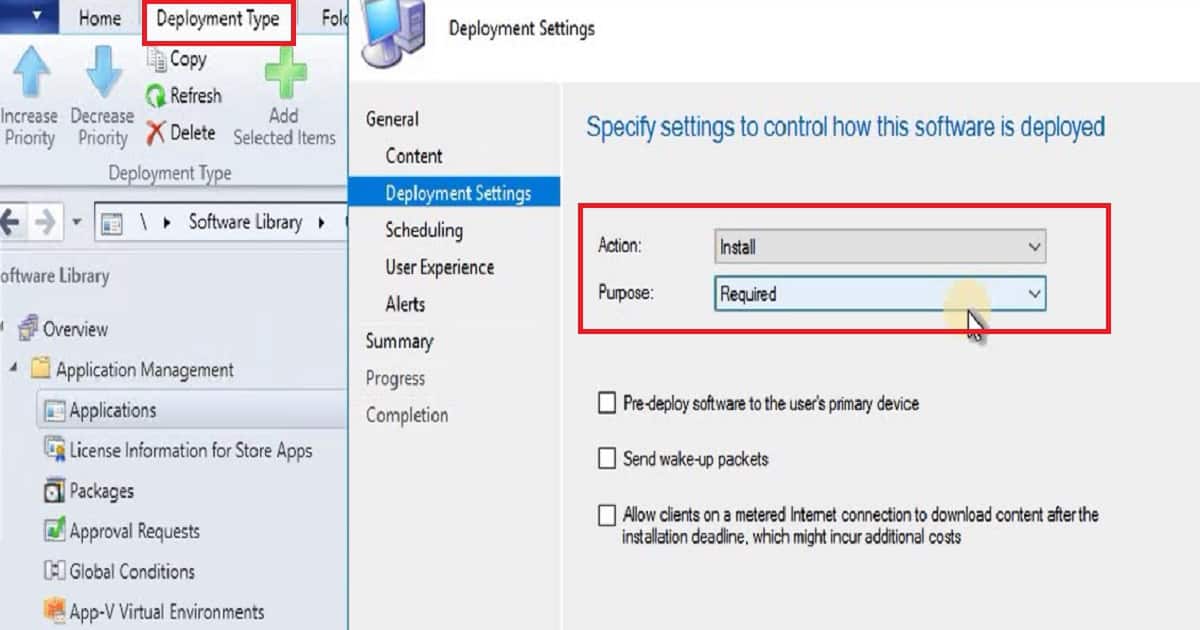
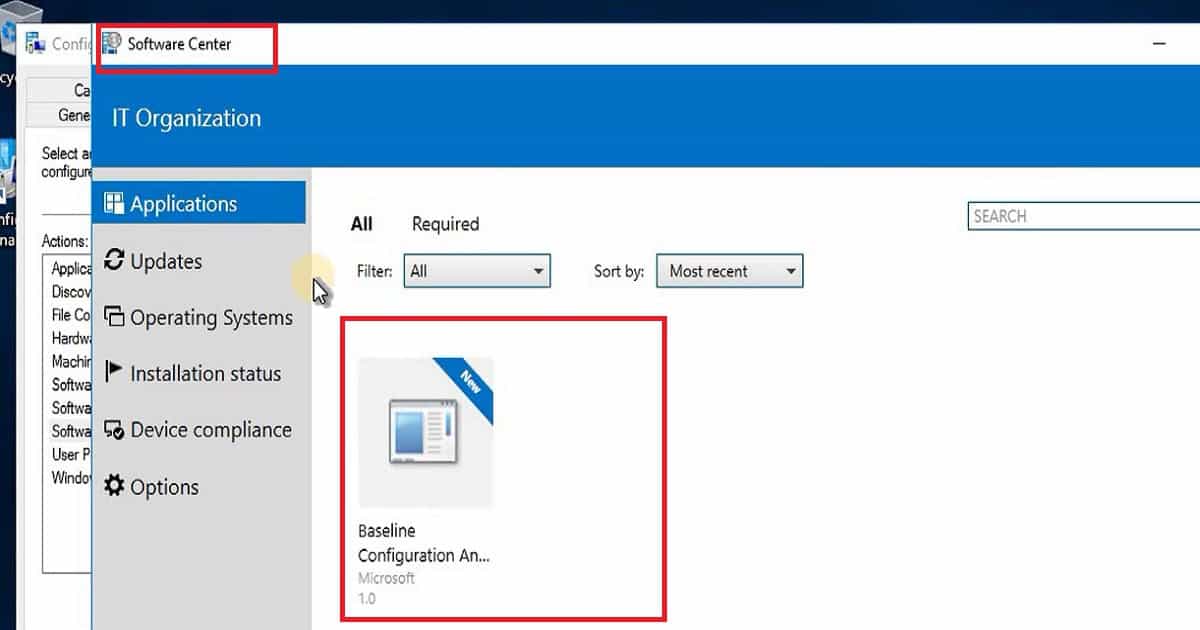
The other important point in SCCM CB application deployment is the behavior of application installation. We have two options in the application installation behavior. The first one empowers the user experience by making the SCCM app available. In the available scenario, the application is deployed to the user and sits in the software center until the user initiates the installation from the software center app.
The second option is to deploy the application as REQUIRED. In this scenario, the application will automatically install on the device without any user intervention.
How to Install Application on End-User Device?
Once you deploy the application to the collection, as mentioned in the video tutorial above, the SCCM client will check for the new policies at the next scheduled interval.
On the schedule, the SCCM client will download the application source download, and installation will automatically start on the Windows device, as seen in the above video tutorial. The installation behavior setting is critical; the actual app install will kick off depending on that behaviour.
We are on WhatsApp now. To get the latest step-by-step guides, news, and updates, Join our Channel. Click here. HTMD WhatsApp.
Author
Anoop C Nair is Microsoft MVP! He is a Device Management Admin with more than 20 years of experience (calculation done in 2021) in IT. He is a Blogger, Speaker, and Local User Group HTMD Community leader. His main focus is on Device Management technologies like SCCM 2012, Current Branch, and Intune. He writes about ConfigMgr, Windows 11, Windows 10, Azure AD, Microsoft Intune, Windows 365, AVD, etc.




When i click the location of the file it shows an error The specified folder does not exist or the computer running the configuration manager console have no read permission to the specified file
But i give all the permission to the specified folder