






How to Allow Importing of Autofill Form Data in Microsoft Edge Via Setting Catalog in Intune
Let’s discuss how to Allow Importing of Autofill Form Data in Microsoft Edge Via the Setting Catalog in Intune. We are familiar with the terms Autofill and Microsoft Edge, but how to enable the function in Intune via setting catalog is different, right?
As we know Microsoft Edge is an internet browser made by Microsoft, which is installed by default on all new Windows PCs. Microsoft Edge was made to replace Internet Explorer, and it runs faster and has more features. Microsoft has made a significant effort with Edge to improve the browsing experience, and it’s paid off.
The Intune Settings catalog lists all the settings you can configure in one place. This feature makes it easier for administrators to add, configure, customize, and manage device and user policy settings. The advantage of using the Intune settings catalog is that we can configure settings for Windows computers.
Autofill is a function in computer applications or programs containing forms that automatically fill out a field and save you time. Now we will see the step-by-step guidance to enable autofill form in microsoft edge via setting catalog.

Table of Contents
How Can We Use Autofill in Edge to Complete Form Field?
How to Allow Importing of Autofill Form Data in Microsoft Edge Via Setting Catalog in Intune
Most of the time, you notice that we visit many sites and fill out many text boxes like email ID, phone number, address, etc. The browser stores these in its database. Whenever we encounter relatable text boxes, the above information pops up for the auto-filling text boxes. The following are steps to enable the Allow Importing of Autofill form in Microsoft Edge via the Setting Catalog in Intune.
- Sign in to the Microsoft Intune admin center
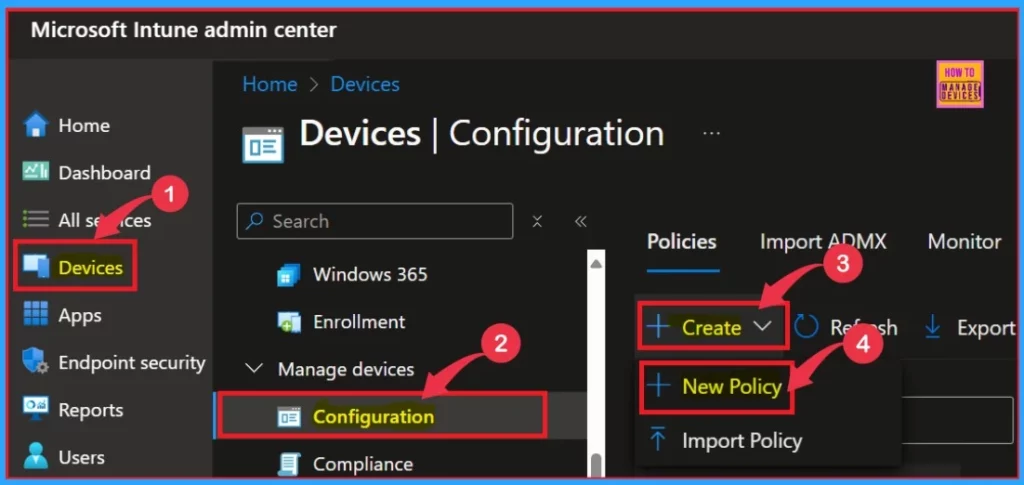
- Select Devices and click on Configuration
- Click on +Create and select New Policy
- Enable Edge Password Safety Alerts for Users Policy in Microsoft Intune
- Enable or Disable Password Prompt for Autofill in the MS Edge Browser using Intune Policy
- 4 Methods Disable Enable Edge Browser Autofill Inputs
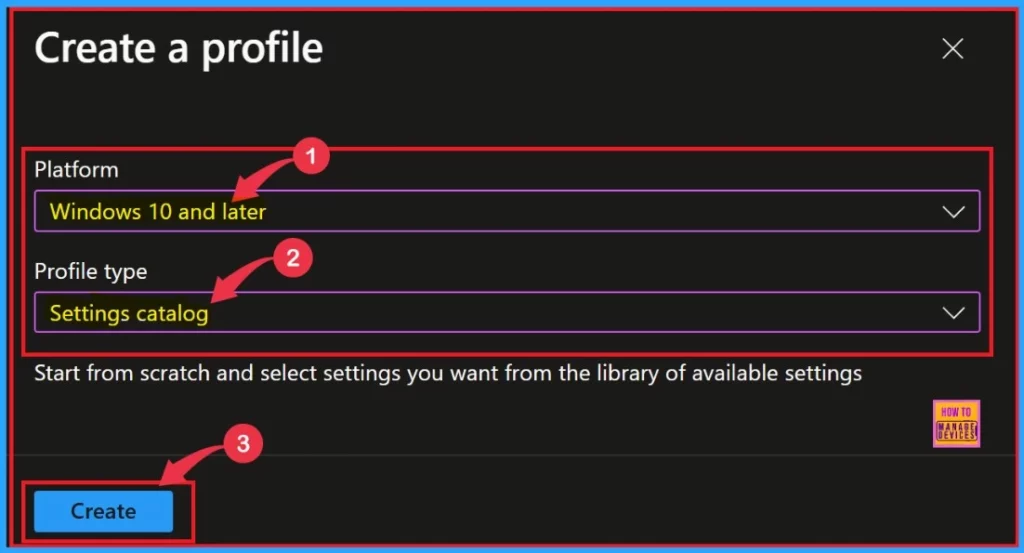
Then, a new window will seen on the screen, and you can choose the Platform and Profile Type here. Select Windows 10 and later as the platform and Settings catalog as the Profile type. Then click we need to click the Create button.
Basics
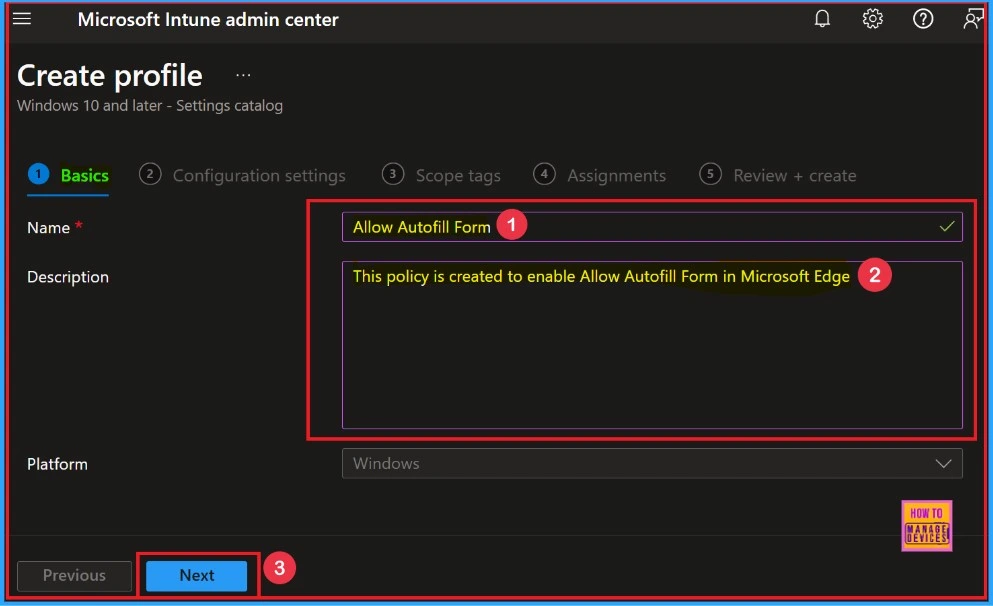
After that, you create a profile to Allow Autofill Form. The primary part of the profile creation process is Basic. In this section, we need to provide the proper Name and Description. This is a mandatory section; we must add it to continue creating Profiles.
- The description allows users to learn about the policy at any time.
- Click on the Next button after adding the Name and Description.
Configuration Settings
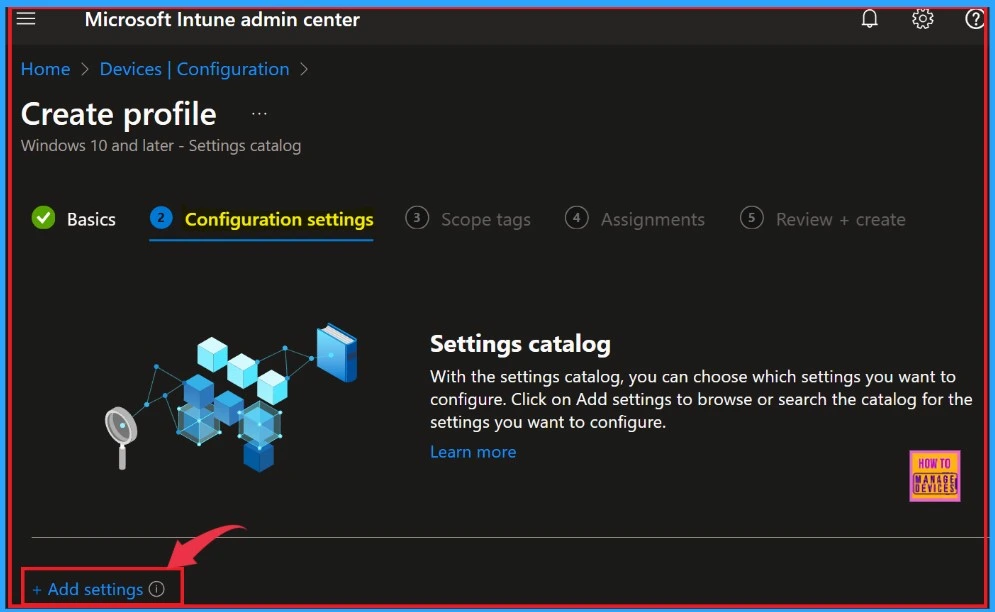
Our next step is the Configuration settings section, where we can select and Add settings to continue creating the profile. This section is used to choose the settings we want to configure.
Setting Picker
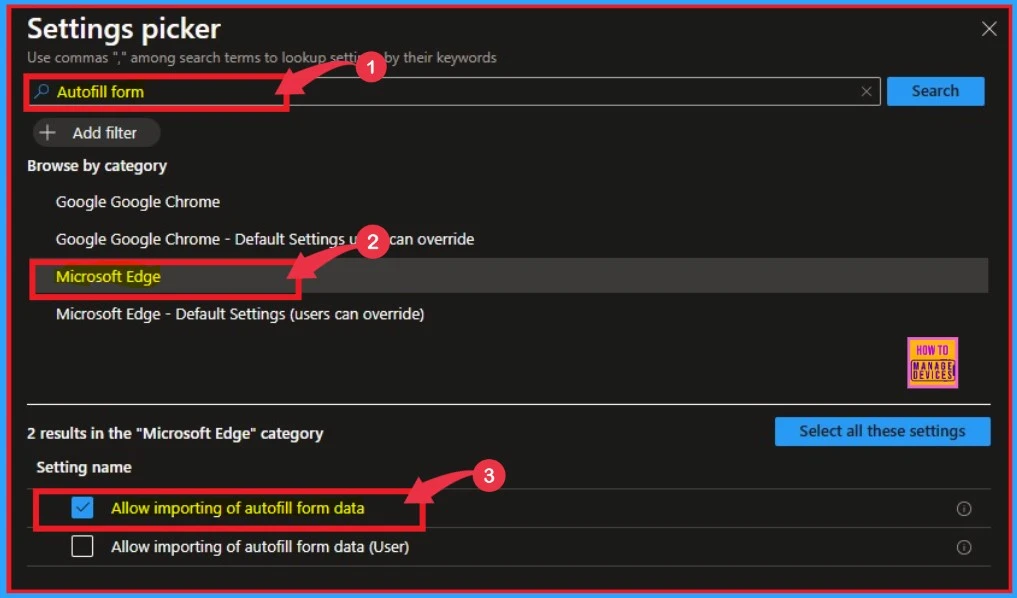
Then, the Settings Picker window will open, and we can search for the keyword of the search item. Here, our keyword is Autofill Form. Then click on the Search button. Afterward, we can browse the policy from Microsoft Edge catagory. The result is shown in the screenshot below.
- Click on the Allow importing of autofill form data setting
Configuration settings
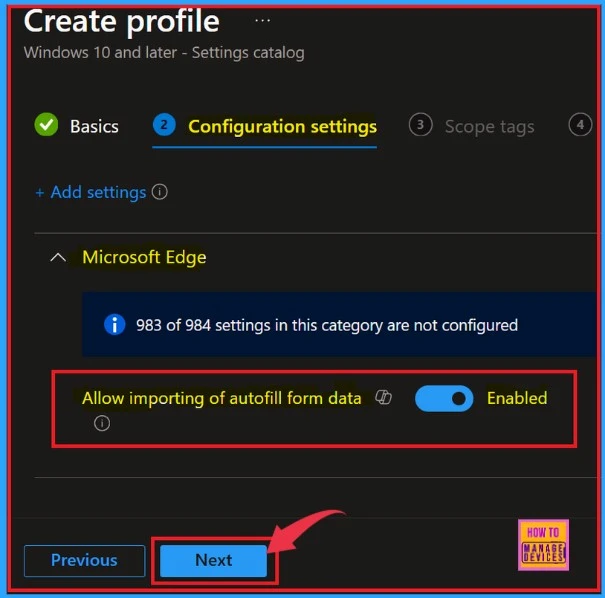
The window below shows the Configuration settings page. Here, we need to enable Allow importing of autofill form data. Then we need to Click on the Next button.
| Features While Enable | Features While Disable |
|---|---|
| The option to manually import autofill data is automatically selected | Autofill form data isn’t imported at first run and users can’t import it manually |
- Here, we need to enable Allow importing of autofill form data.
- Total Number of Setting Catalog Policies for Windows Apple and Linux
- How to Block Allow Toasts Notifications in Windows using Intune Settings Catalog
- Intune New Clipboard Transfer Direction Settings Now Available in Windows Settings Catalog
Scope Tags
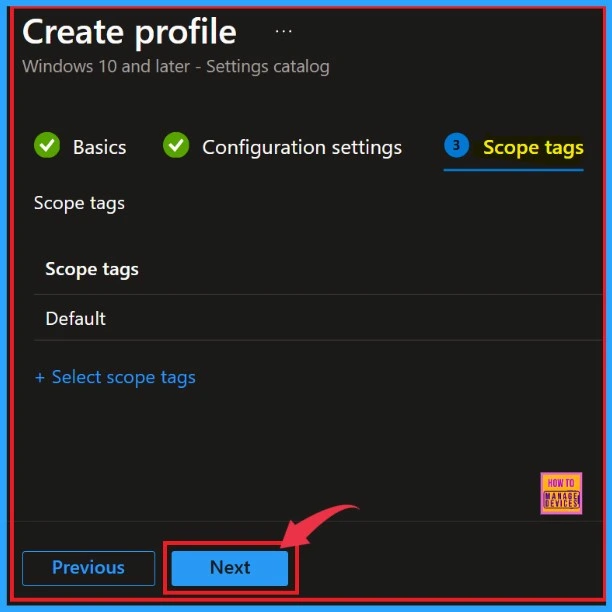
Scope Tag is the next step in profile creation. We can easily skip this section or add Scope tags to our profile. However, a scope tag is not mandatory for profile creation. If we want to ignore this part, we need to click on the Next button and continue.
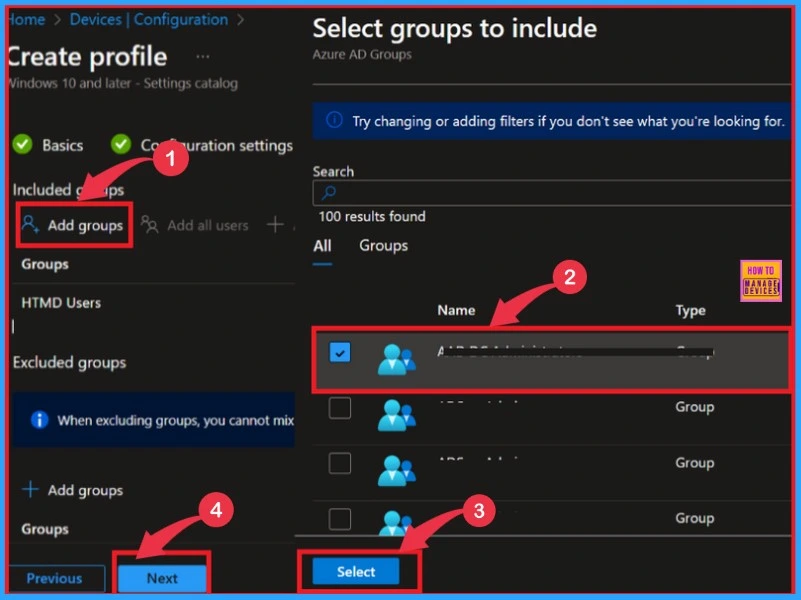
Next, we move on to the Assignment section. In this section, we can Add groups. We need to add groups to the included groups. After that, a new window will appear, and you can select a group from here. Then click on the Select button and click on the Next button.
Review + Create
The final section is Review + Create. In this window, you can see all the details of your profile. It summarises the profile and shows the previous sections of profile creation. If any changes needed, we can quickly go to the earlier sections. After verifying all the steps, you can complete the Profile creation.
- Click on the Review + Create button from this window
- Click the Create button
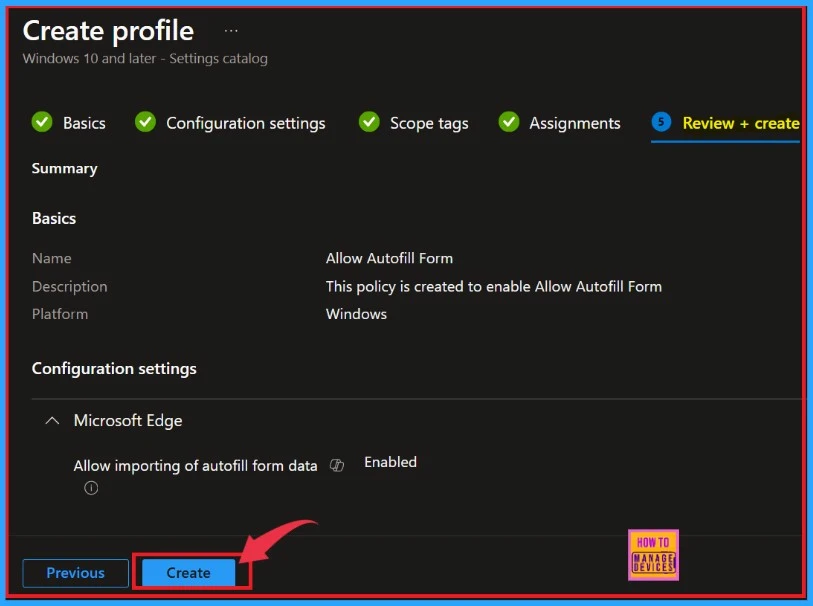
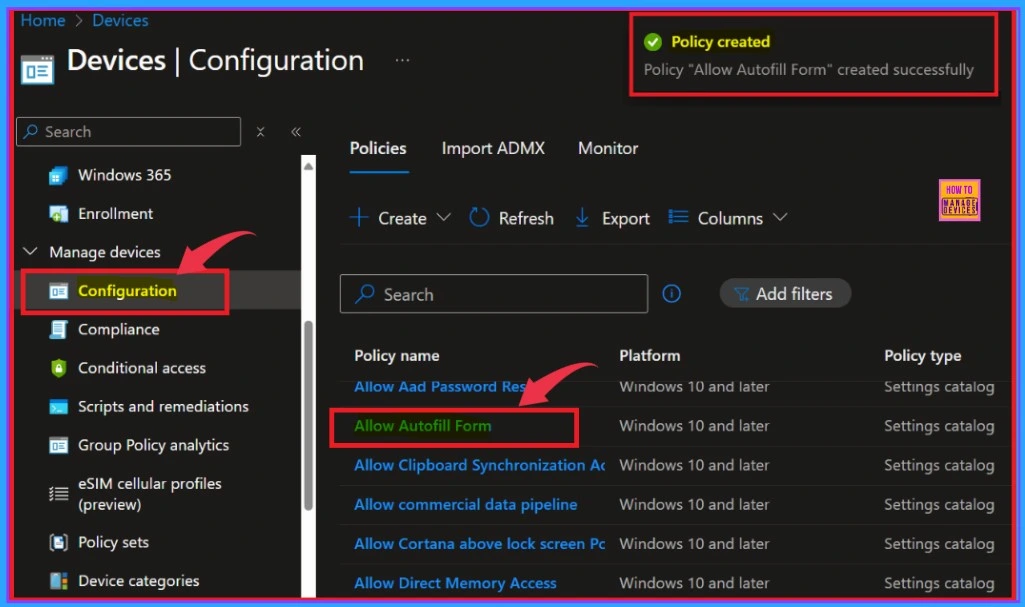
After clicking the Create button, we will receive a notification on the Intune Portal stating “Policy Allow Autofill Form created successfully.” We can then check the Created policy in the Intune Portal as soon as possible.
- Devices > Configuration
- In the Configuration window, you can search the Policy by its name.
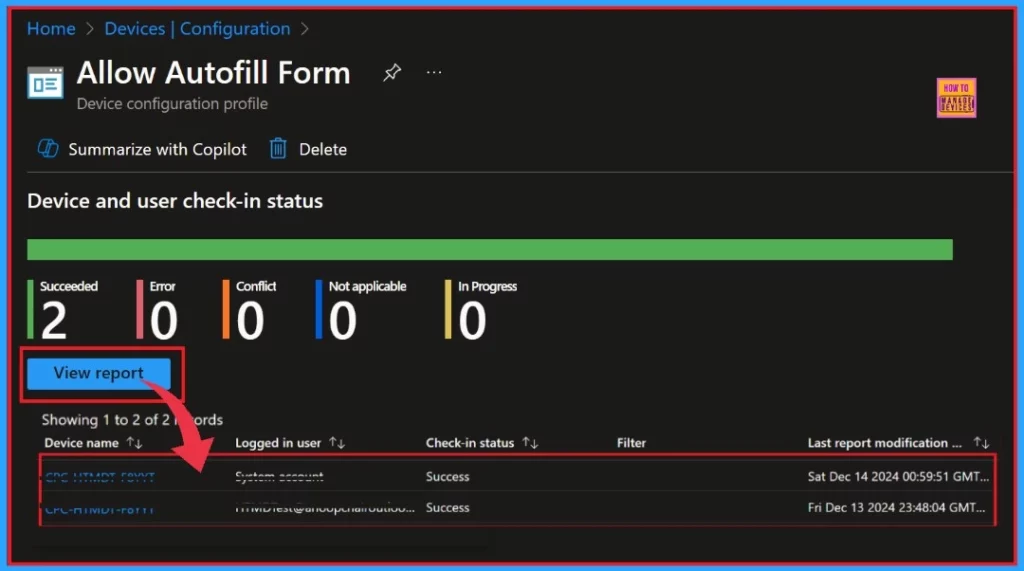
When clicking on the Policy, another window will appear, and you can see an elaborate view of the policy details. Clicking the View Report option will display the Device’s name, logged-in user’s name, check-in status, Filter, and the last report modification time.
Client Side Verification – Event Log
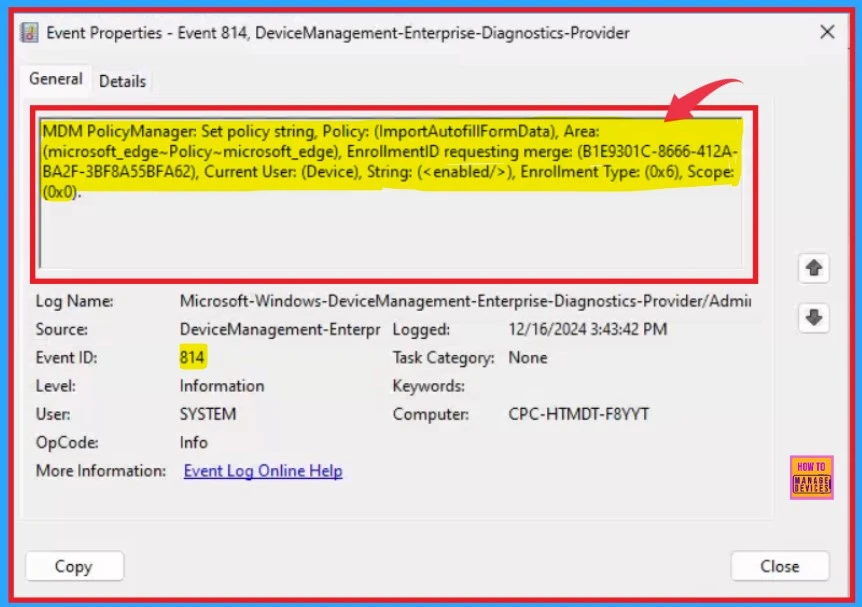
The Intune event ID 814 assure that a string policy is applied on the Windows 11 or 10 devices. You can also see the exact value of the policy being applied on those devices.
We can check the Event log path to confirm this – Applications and Services Logs – Microsoft – Windows – Devicemanagement-Enterprise-Diagnostics-Provider – Admin.
| MDM PolicyManager | Policy | Area | EnrollmentID requesting merge | Current User | String | Enrollment Type | Scope |
|---|---|---|---|---|---|---|---|
| Set policy int | ImportAutofillFormData | microsoft_edge~Policy~microsoft_edge | B1E9301C-8666-412A-BA2F-3BF8A55BFA62 | Device | Enabled | (0x6), | (0x0) |
Need Further Assistance or Have Technical Questions?
Join the LinkedIn Page and Telegram group to get the latest step-by-step guides and news updates. Join our Meetup Page to participate in User group meetings. Also, Join the WhatsApp Community to get the latest news on Microsoft Technologies. We are there on Reddit as well.
Author
Anoop C Nair has been Microsoft MVP for 10 consecutive years from 2015 onwards. He is a Workplace Solution Architect with more than 22+ years of experience in Workplace technologies. He is a Blogger, Speaker, and Local User Group Community leader. His primary focus is on Device Management technologies like SCCM and Intune. He writes about technologies like Intune, SCCM, Windows, Cloud PC, Windows, Entra, Microsoft Security, Career, etc.


Discussion