






How to Change the Taskbar Size in Windows 11 Easiest Method
Let’s learn How to Change the Taskbar Size in Windows 11 Easiest Method. This post explains the options for changing the taskbar size in the Windows 11 operating system.
It also explains the easiest way to resize the taskbar. The best method is to use the registry key to change the taskbar icons in Windows 11.
Microsoft has not introduced the option to resize the taskbar icons from settings apps in the Insider version of Windows 11. I love using small icons in the taskbar on Windows 10 devices, and it’s pretty easy to resize taskbar icons in Windows 10 using taskbar settings options.
There are many taskbar-related options in Windows 11, and I predict that resizing the taskbar will be available soon—before the release of Windows 11.

Table of Contents
Change the Taskbar Size in Windows 11
Let’s check how to use the registry editor to change the taskbar icon size in Windows 11. You might need to create new registry entries, so taking the registry back is better before proceeding.
- You can use the Search button in the taskbar to launch the registry editor in Windows 11.
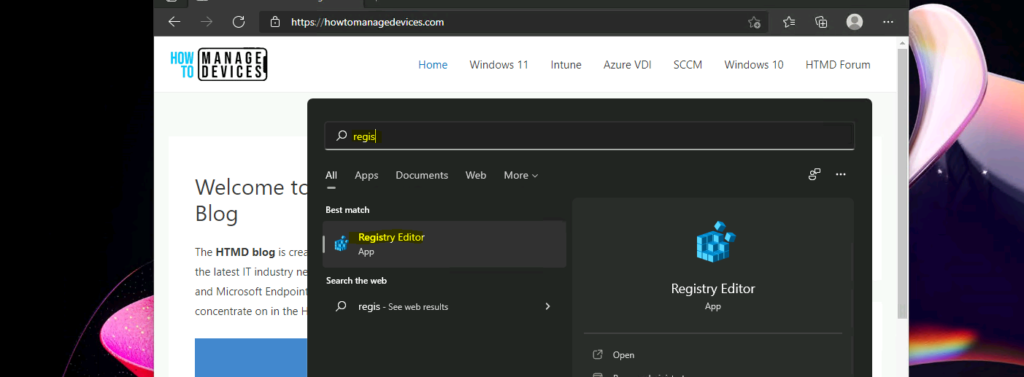
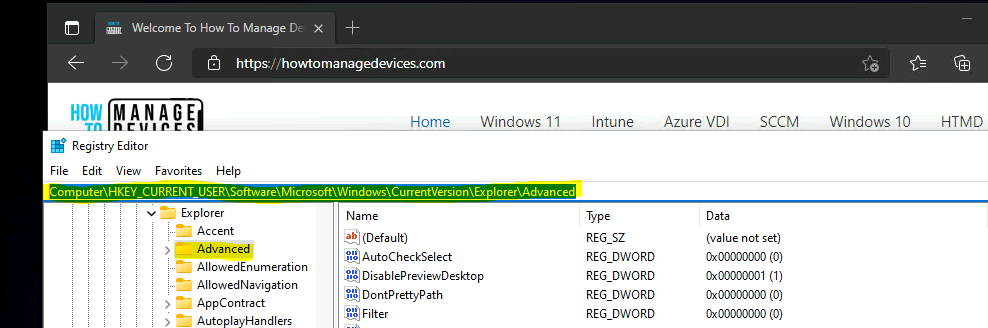
Navigate to the following location in the registry editor to resize your taskbar icon size. You can back up the Windows 11 registry by right-clicking on the advanced registry folder and clicking on export.
- Computer\HKEY_CURRENT_USER\Software\Microsoft\Windows\CurrentVersion\Explorer\Advanced
- Best Method To Customize Windows 11 Taskbar
- How to Show Hide Virtual Touchpad Icon on Taskbar in Windows 11
- Disable or Enable Taskbar Context Menus in Windows 11
You must create a new DWORD (32-bit) value inside the Advanced folder mentioned above.
- Right-click on the Advanced registry folder.
- Select New -> DWORD (32-bit) value option to continue.
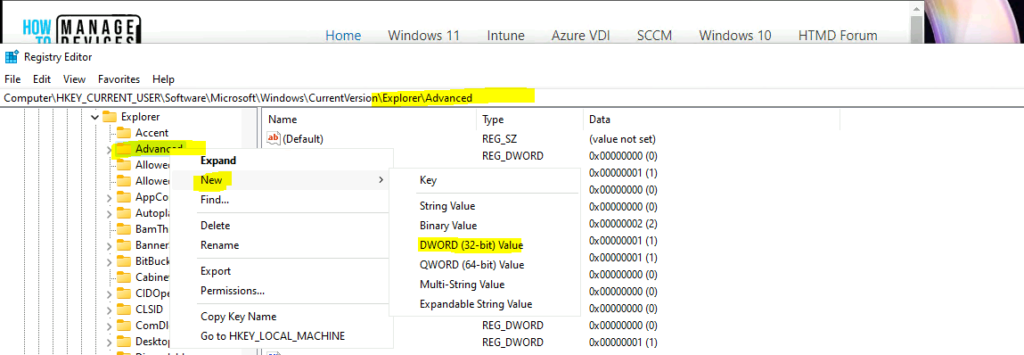
Now, let’s assign the following name to the DWORD (32-bit) value to change the taskbar icon size. Let’s learn to change the Taskbar Size in Windows 11.
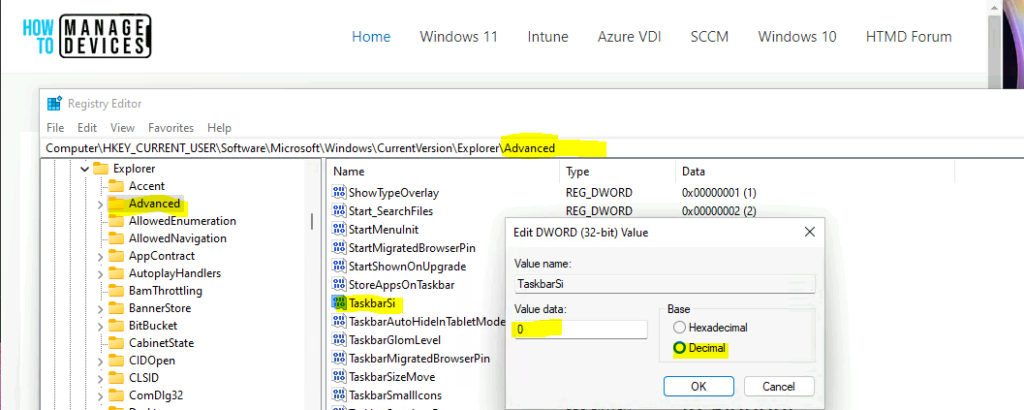
- TaskbarSi
- Now, it’s time to assign a value to the TaskbarSi entry, and I think there are three supported values.
- 0 = Small taskbar icons
- 1 = Default or Medium taskbar icons
- 2 = Large taskbar icons
- I want to change the taskbar size in Windows 11 to small. Hence, the value is 0.
- Click on the OK button to continue.
- Try signing off or restarting your Windows 11 device to resize the taskbar icons. You can restart or log off using the start button.
Results
After logging off and logging back in, you can see that the Windows 11 taskbar icons have been reduced in size. You can resize them again by repeating the steps mentioned above.
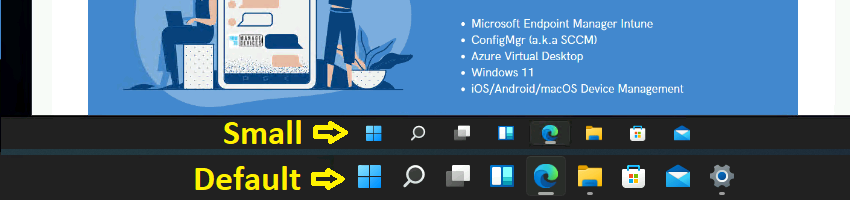
How Do I Make My Taskbar Normal Size?
You can restore the taskbar’s default or medium size either by deleting the TaskbarSi entry created above or by changing the value from 0 to 1. If you change the TaskbarSi value to 1, the icon size will be normal.
Resources
- Fix: Windows Update issues for Windows 11 Errors Troubleshooting Tips
- Windows Update Estimate Time in Windows 11 What is the downtime to complete updates is it Real?
We are on WhatsApp. To get the latest step-by-step guides and news updates, Join our Channel. Click here –HTMD WhatsApp.
Author
Anoop C Nair has been Microsoft MVP for 10 consecutive years from 2015 onwards. He is a Workplace Solution Architect with more than 22+ years of experience in Workplace technologies. He is a Blogger, Speaker, and Local User Group Community leader. His primary focus is on Device Management technologies like SCCM and Intune. He writes about technologies like Intune, SCCM, Windows, Cloud PC, Windows, Entra, Microsoft Security, Career, etc.




Thanks so much for this! My old eyes could barely see the taskbar on my new Windows 11 H-P computer.
Now I’m good to go!
I tried several time to make taskbar icons to small but nothing changed.
It was small. but after a windows updates it converted to default size and never changed to small or neither Large sizes.
I tried everyway. can you help me please
This method does not work since 10.0.22621 anymore.