






How to Enable God Mode on Windows 11
Let’s learn how to enable God Mode on Windows 11. God Mode allows you to get easy access to all Windows settings and all the advanced tools available in one place. When I checked last time there were around 208 settings/tools in one place.
We have published this enable God Mode in Windows 10 on 12th Feb 2021. Microsoft introduced the Windows God Mode with Windows 7 release, and it was known as a “Master Control Panel.”
The only scenario, you enable the special mode is during Windows 11 or Windows 10 troubleshooting to get all the settings in one place, as Dona Sarkar mentioned in one of her Tweets. Do you agree with this statement?
You can check out the different options to upgrade Windows 10 devices into Windows 11. You can use device management tools such as SCCM or Intune to migrate to Windows 11 operating system.

- Windows 11 New File Explorer Experience New Features Design Details
- Windows 11 Migration Guide PowerPoint Word Email Templates
What is God Mode?
God Mode provides you quick access to most of the Control Panel and Setting App settings in one place. I don’t think it’s very difficult to enable the God Mode from Windows 11 Devices.
It is a more useful feature, a time savor for ITPros who are more advanced Windows enthusiasts and easily access all advanced tools, features, and tasks.
It offers easy access to more than 200 Windows settings in different categories such as – Administrative Tools, Network and Sharing Center, Security and Maintenance, Users Accounts Control.
Enable God Mode on Windows 11
Let’s get started to access God Mode from Windows 11 PC. You have to follow the steps mentioned in the below document. You will need to ensure that administrative permissions are assigned to the logged-in user.
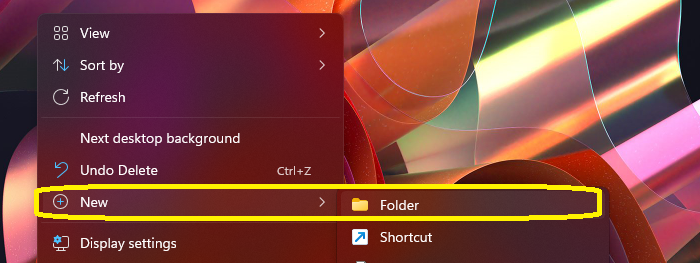
You must be logged in as an Administrator on the computer. Right-click on the Windows 10 desktop to Create a new folder, Click New > Folder.
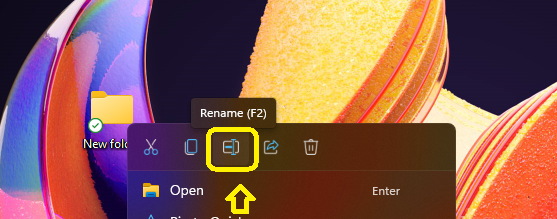
Right-click the New folder, Click Rename icon available only for Windows 11 PCs. The new file explorer in Windows 11 comes with new icons for Rename.
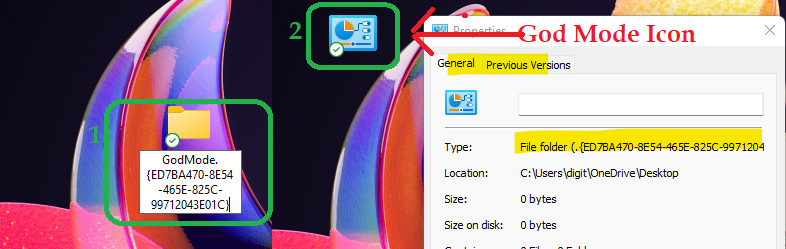
Enter the following name to the new folder you created on the Desktop. As soon as you enter this name, the folder icon will get changed to Windows 11 God Mode icon.
GodMode.{ED7BA470-8E54-465E-825C-99712043E01C}
NOTE! – I have checked the properties of this new short and couldn’t find anything fancy there on Windows 11 PC.
Once you have renamed the folder, you can see the folder icon change to a control panel icon. Double-click the icon to open God Mode.
Windows 11 God Mode Categories
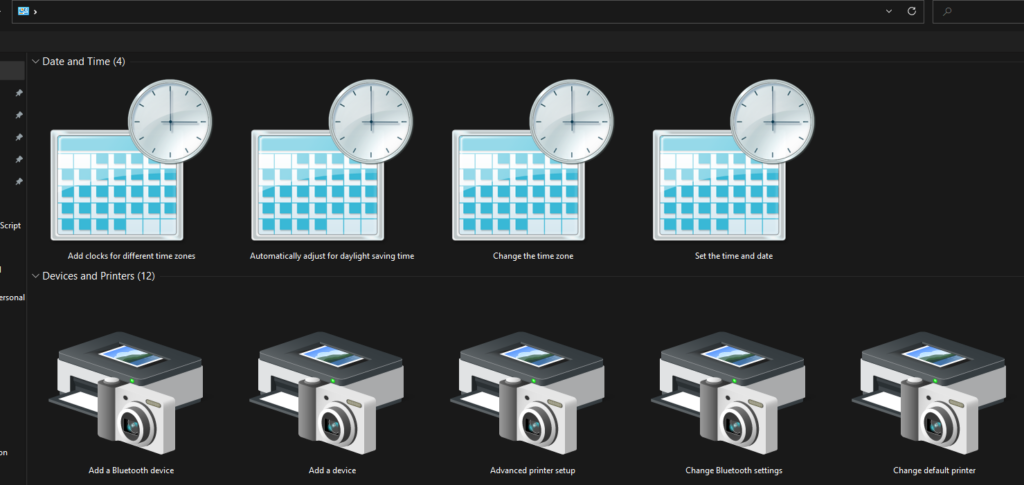
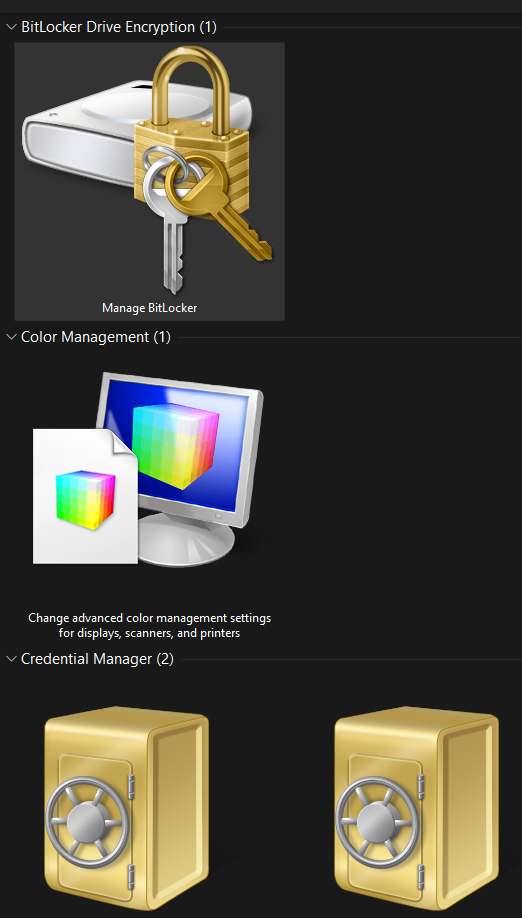
These are various categories of tools you will see in God Mode on Windows 11 PC. There are many different categories of settings available in Windows 11 God Mode.
Administrative Tools
AutoPlay
Backup and Restore (Windows 7)
BitLocker Drive Encryption
Color Management
Credential Manager
Date and Time
Devices and Printers
Ease of Access Center
File Explorer Options
File History
Fonts
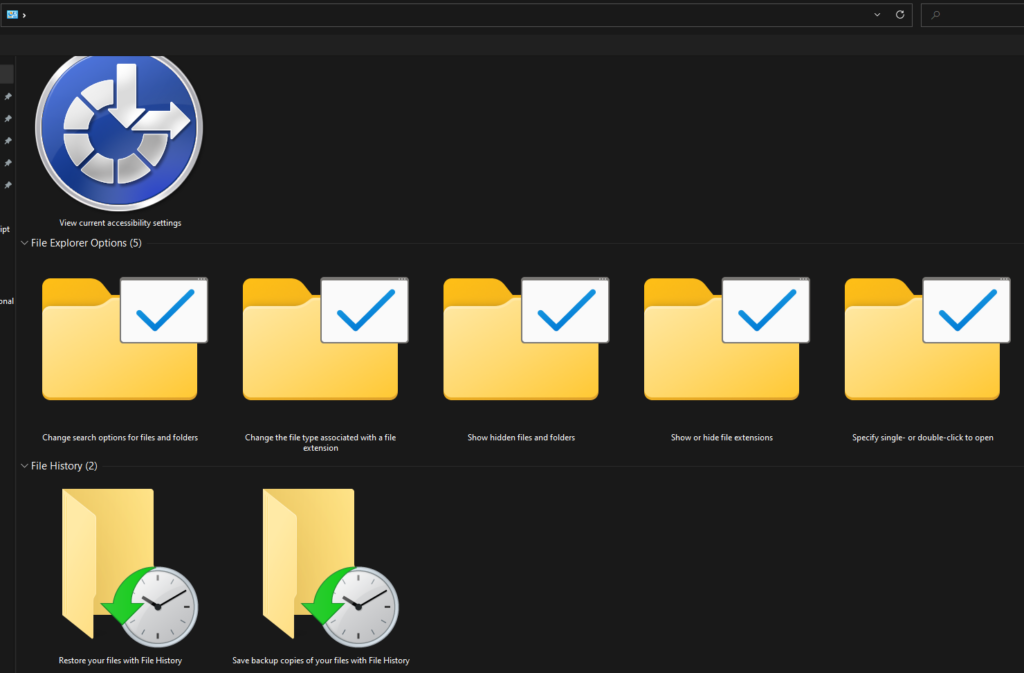
I see there are 208 items available in Windows 11 God Folder. I have not gone through all the settings to confirm whether all of those are relevant for Windows 11 or not.
Indexing Options
Internet Options
Keyboard
Mouse
Network and Sharing Center
Pen and Touch
Phone and Modem
Power Options
Programs and Features
Region
RemoteApp and Desktop Connections
Security and Maintenance
Sound
Speech Recognition
Storage Spaces
Sync Center
System
Taskbar and Navigation
Troubleshooting
User Accounts
Windows Defender Firewall
Windows Mobility Center
Work Folders
You can open any settings available in the God Mode folder by double-clicking on it. Or you can right-click on any of the settings and click on Open.
How to Create Shortcuts from God Mode Folder in Windows 11
Let’s check how to Create Shortcuts from God Mode Folder in Windows 11. You can need to right-click on any of the shortcuts available for settings and click on Create Shortcut option.
I have taken the example of Manage Bitlocker to create the shortcut from the God Mode folder in Windows 11 pc. This is the same as Windows 10 GOD mode.
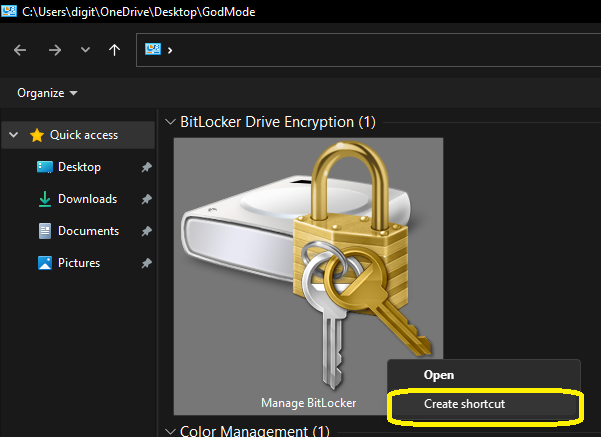
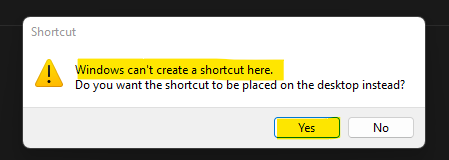
The shortcut for Manage Bitlocker will be placed in Desktop instead of God Folder. You can’t create any shortcuts on God Folder.
Click on Yes from the below shortcut windows message – Windows can’t create a shortcut here. Do you want the shortcut to be placed on the Desktop instead?




Discussion